📕 Presentation
Discover in this content how to retrieve the archives of your modules and training courses, restore them and/or delete them.
📃 Find your archived training content
Find your archived modules and training courses and restore or delete them as needed.
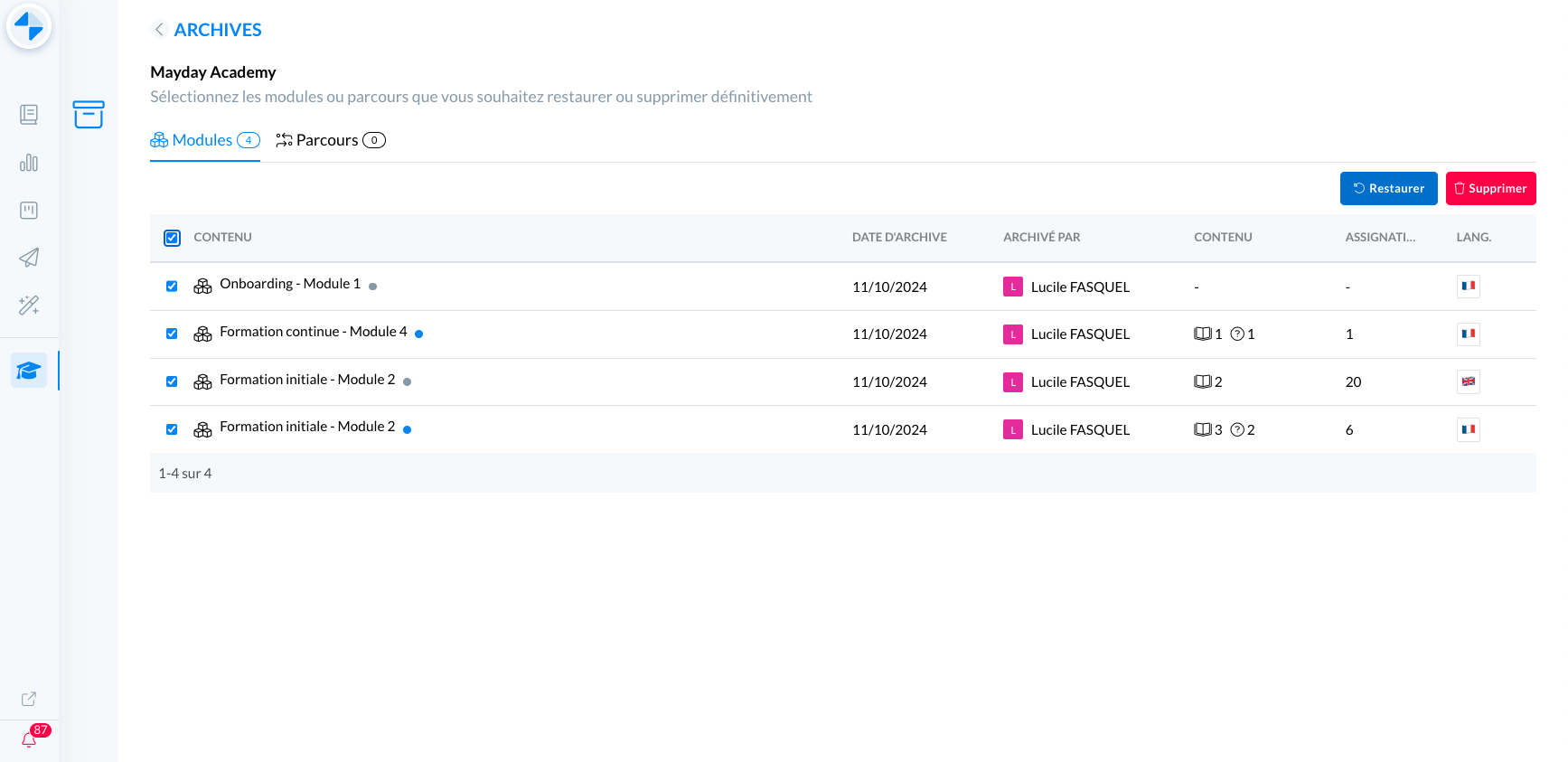
Admin interface of archives - Mayday Academy
🤔 How to use the feature?
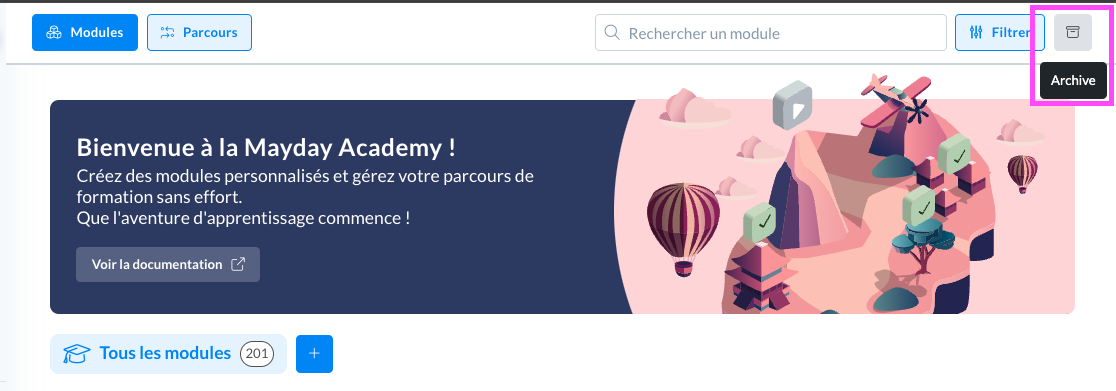
View the archives: on the Mayday Academy admin interface, click the new “Archives” button at the top right of the page, next to the “Filter” button
📸 Screenshot
Select the tab you want: modules or courses to view your archived training content
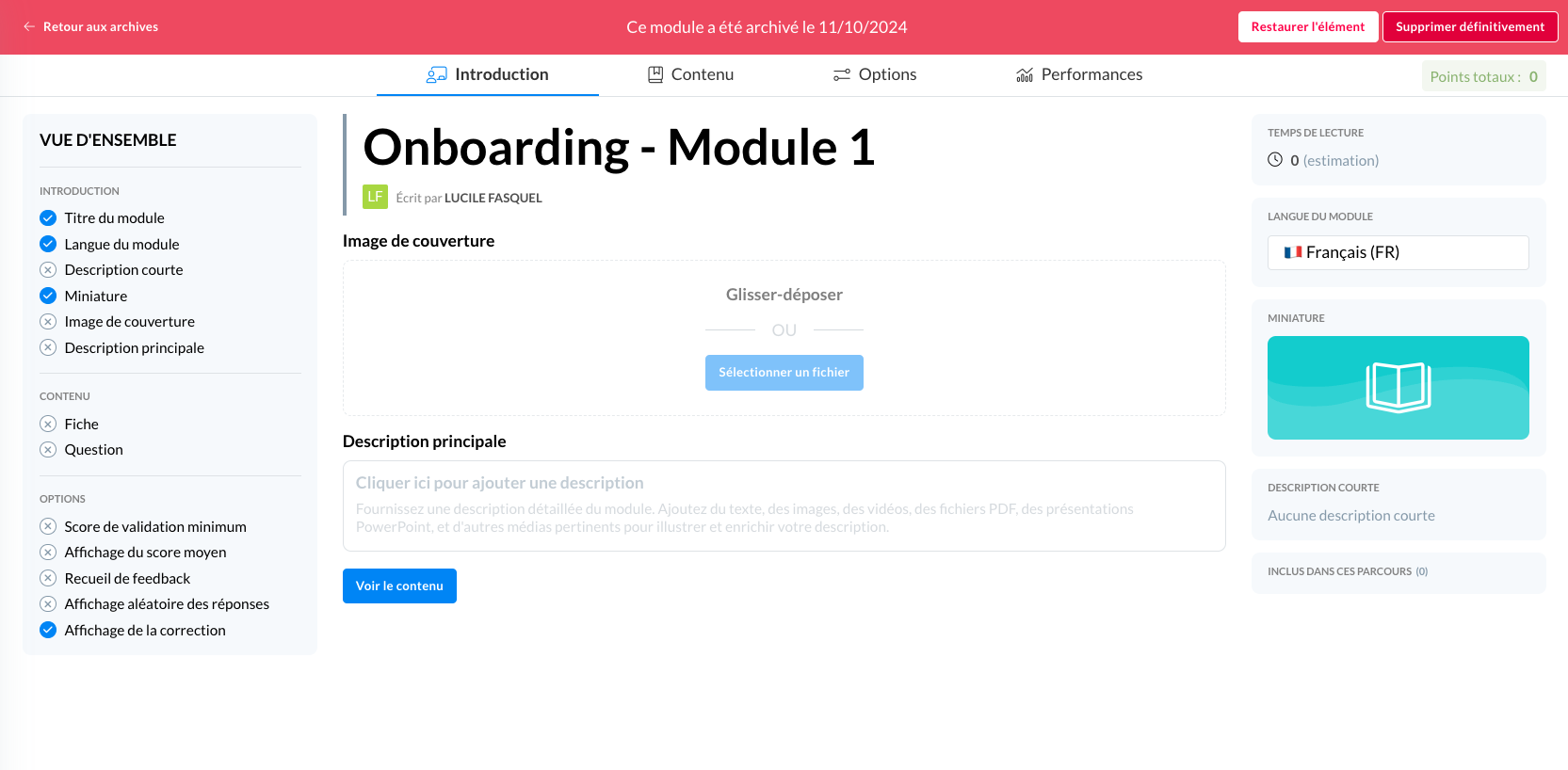
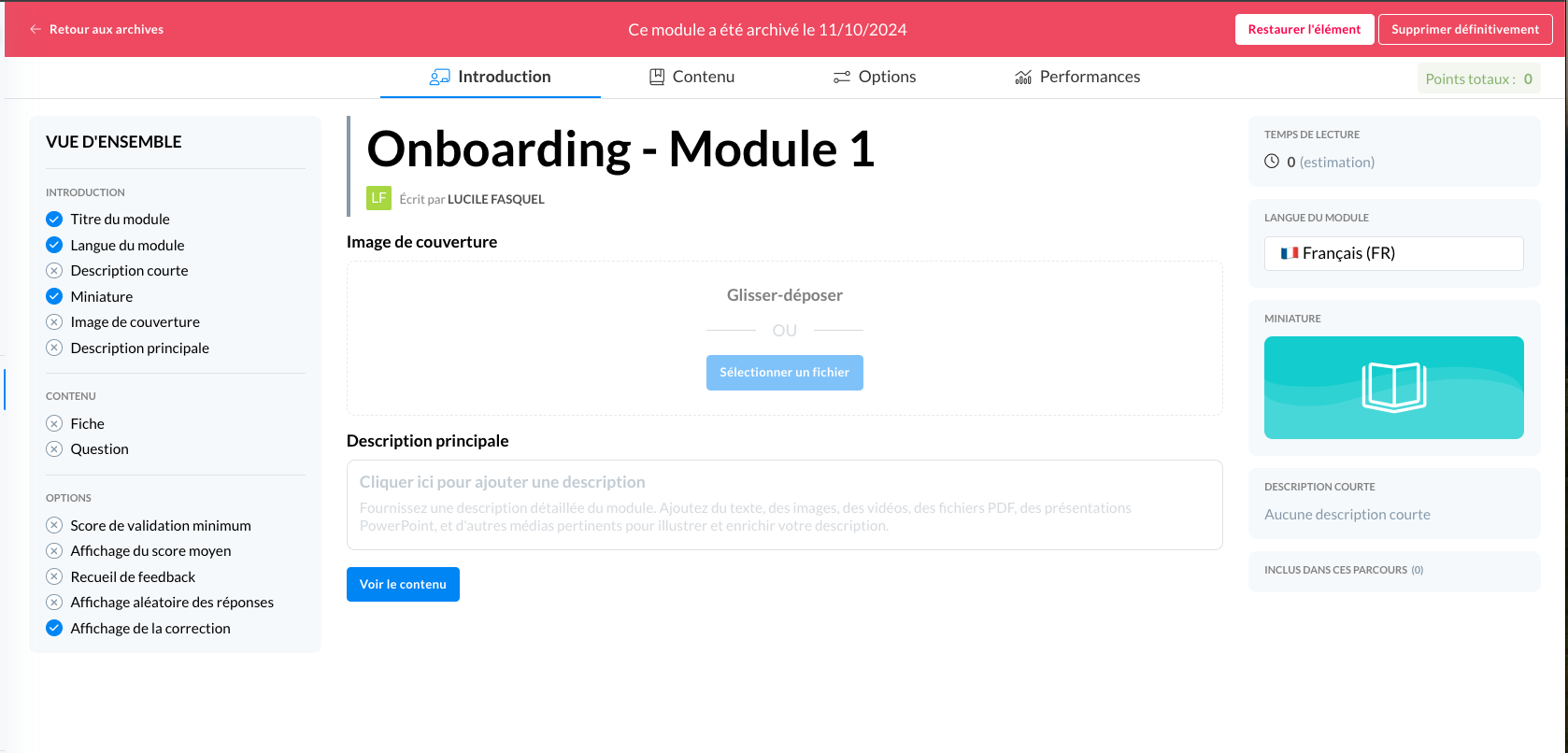
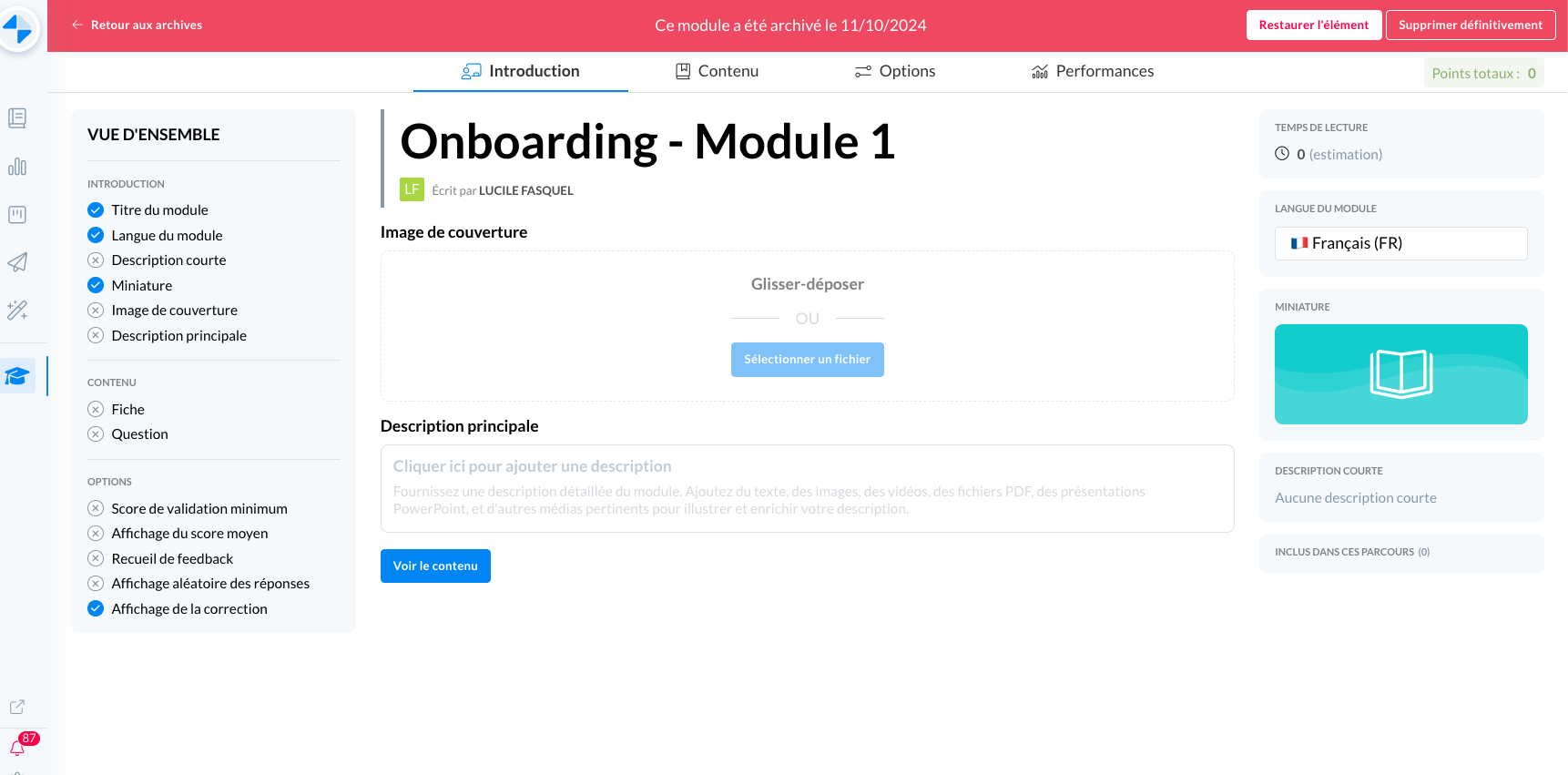
Review the content of the archived version: click on the content in question from the archives table. You can navigate through the different tabs to review the content of the archived training.
📸 Screenshot
Restore an archive: 2 options:
Select the content(s) you want to restore via the checkboxes and click the blue “Restore” button above the table
📸 Screenshot
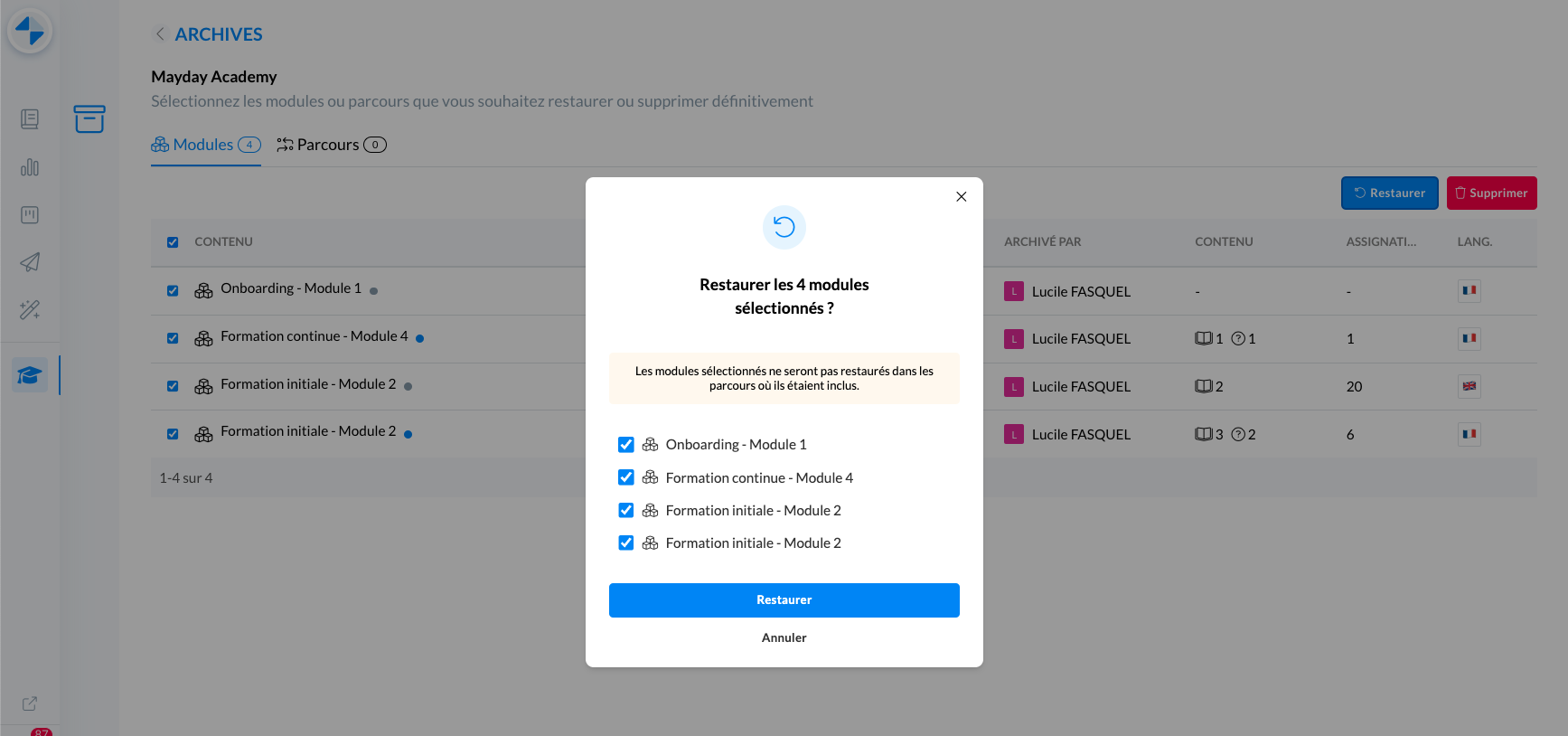
Click on the content you want to restore and then on the white “Restore” button on the banner at the top
📸 Screenshot
Permanently delete an archive: 2 options:
Select the content(s) you want to delete via the checkboxes and click Delete
📸 Screenshot
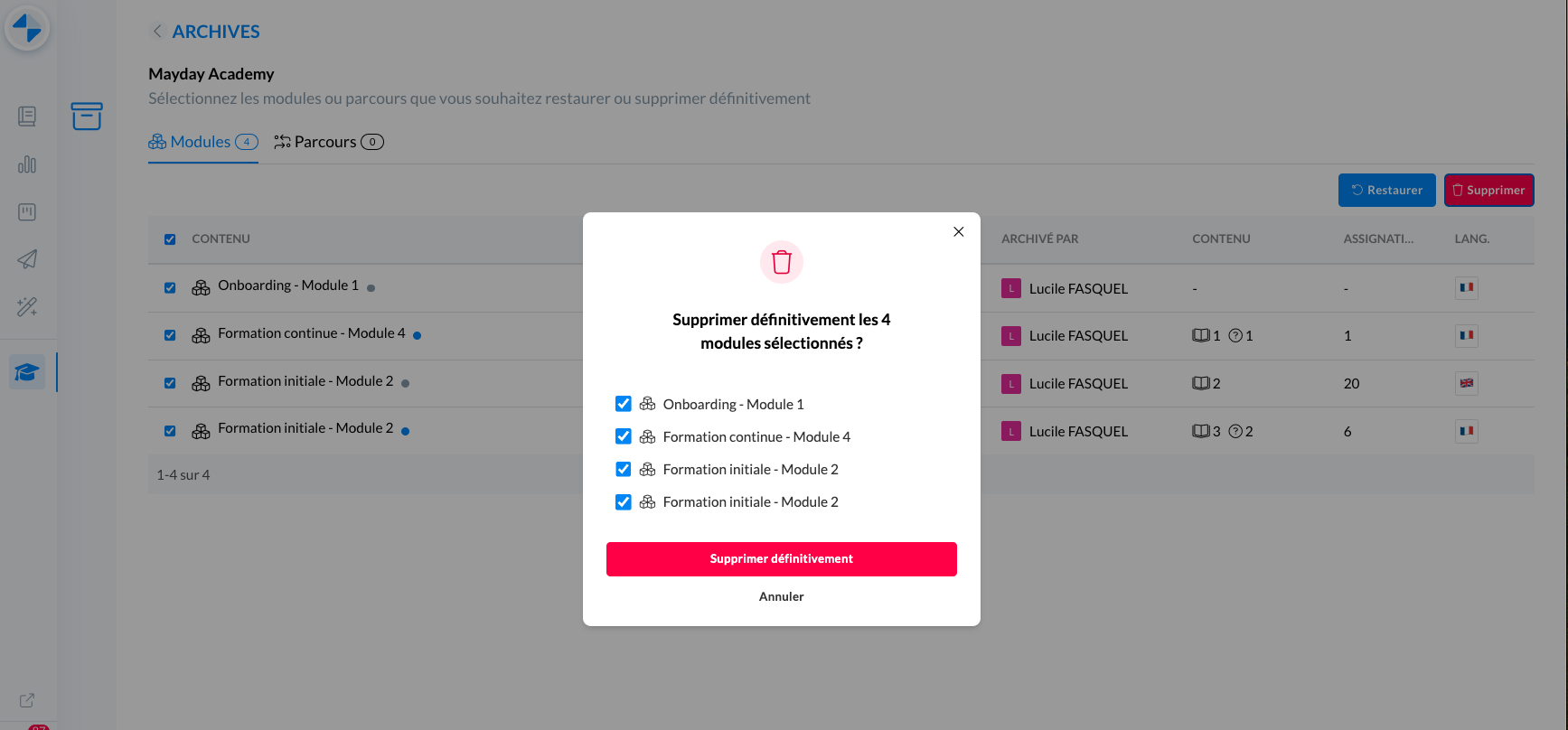
Click on the content you want to restore and then on the “Delete” button on the banner at the top
📸 Screenshot