📕 Introduction
Discover in this content how to follow a training path on the Mayday Academy as a learner.
👨🎓 Your Homepage
The paths appear on the homepage in the "Paths" section above the "Modules" section
They appear in the form of cards and you can view:
The thumbnail of the path
The short description of the path
The estimated time to complete the path
The number of steps in the path
The number of points to earn by completing the path
Once the path is initiated, you can view on the path card:
The progress (completion rate)
You can resume progress at any time
Once the path is completed, you can view on the path card:
The time you took to complete the path
If you validated or failed it
You can review the path at any time, your results and the correction of the modules it comprises
👨🎓 The Path and Its Composition
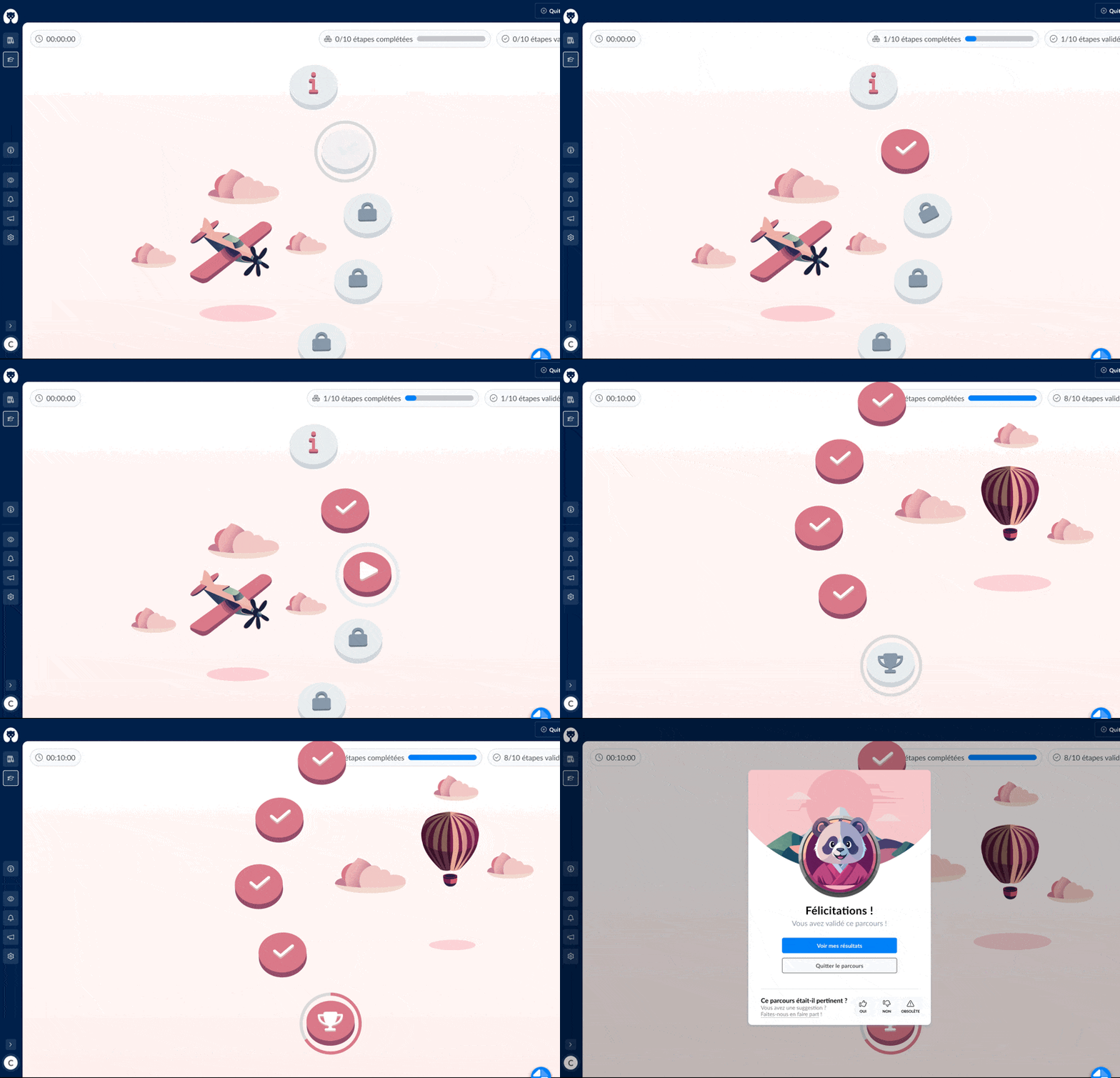
You can view the training path in a themed and visual universe in the form of a map.
On this map, the steps of the path appear with Mayday training contents to complete the path.
These steps appear one below the other and are conditioned to the completion of the previous one
You can follow the global information of your path's progress at the top of the screen:
On the left, the time spent
On the right, the completed and validated steps out of the total steps
You can view within the first step "i" details of the path, all the steps it comprises and their details.
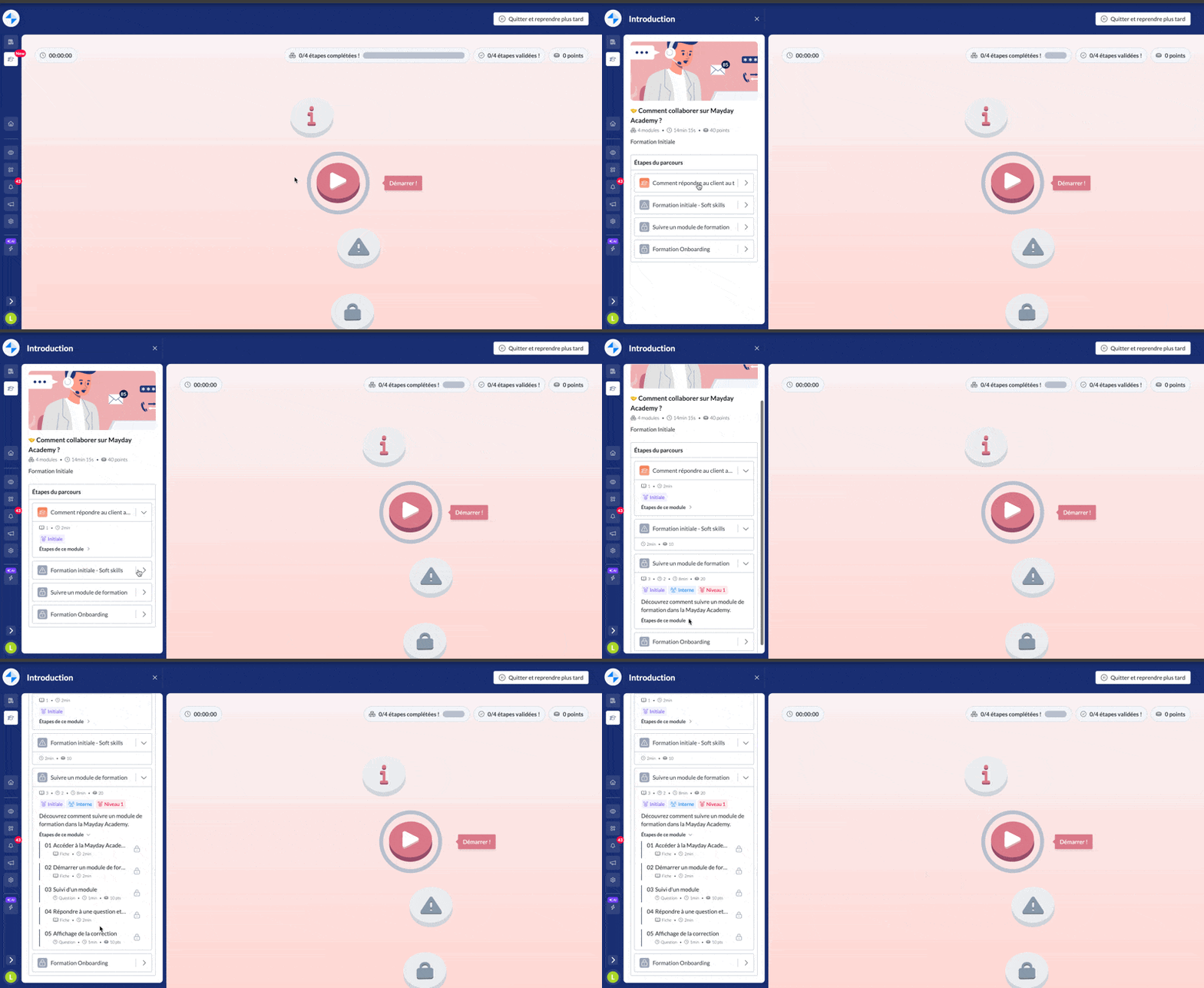
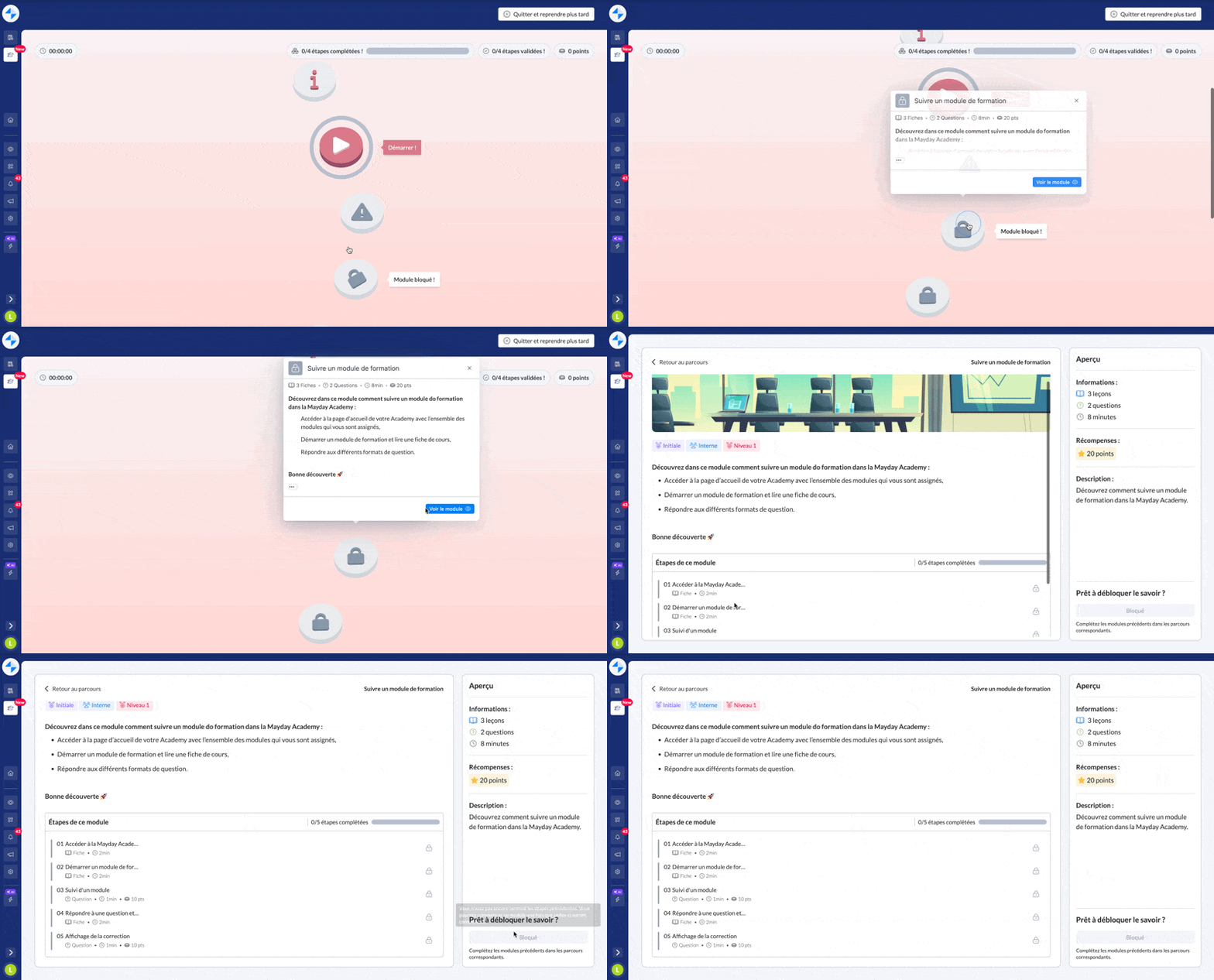
You can view by clicking on each step the details of the respective step
👨🎓 Your Progress Within the Path
👆 Different statuses can appear on your steps:
Start (if you haven't started the step yet)
Resume (if you have already started the step)
Blocked (if you haven't finished the previous step)
Not assigned
When a module is not assigned to you within a path, it appears on the map as grayed and disabled. You must then contact your administrator.
Once you've started the first step and finished it, you can move to the next step
The order is defined by your administrators and you can only proceed to the next step after unlocking the current module.
At the end of your path, when you have completed all the steps that comprise it
you can view your score and the achievement or non-achievement of the goal set by your administrator if there was one
you validate or not the path based on your results
Once your path is completed, on your homepage you can view its card in the "completed" paths and:
review the path and the results obtained on the path
review all the steps and their correction
Note:
When a module of your path is unpublished by your administrator or a new module is published, it appears or disappears automatically from the path, and you can advance your progress without issue!
👆Update of an Already Started Path
You will be informed of updates to your paths on your homepage as well as within the path, on the map but also in the left part that you can expand by clicking on "Path Details".
This will be the case if:
your administrator changes the order of modules contained in your path
your administrator adds new ones that precede your current module
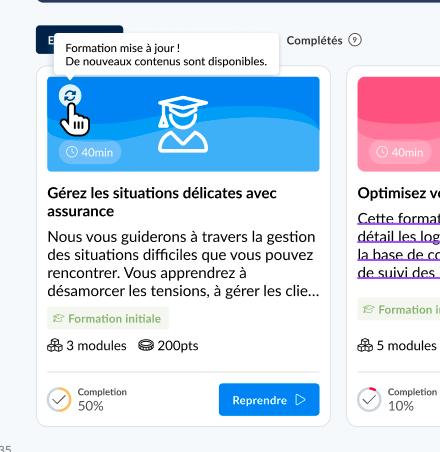
Home page learner Mayday Academy - New module added

Map of a Mayday Academy path - New module added