⚡ Automatic Assignment via Role, Group, and/or User Labels
📕 Introduction
Learn in this article how to automatically assign your modules and journeys to your learners and new arrivals
Head to your Mayday Academy administrator interface to create your first automatic assignment!
👩🏫 What is automatic assignment?
You can now automatically assign your modules and journeys based on your users' attributes: group, role, or user labels.
Upon their first or next login (including via SSO), your learners will immediately find the content targeted at them on their homepage.
👉 The benefit for you? Say goodbye to manual assignments: your training automatically reaches the right people upon arrival, and you maintain complete control over your assignment rules.
🆕 How to create an automatic assignment rule?
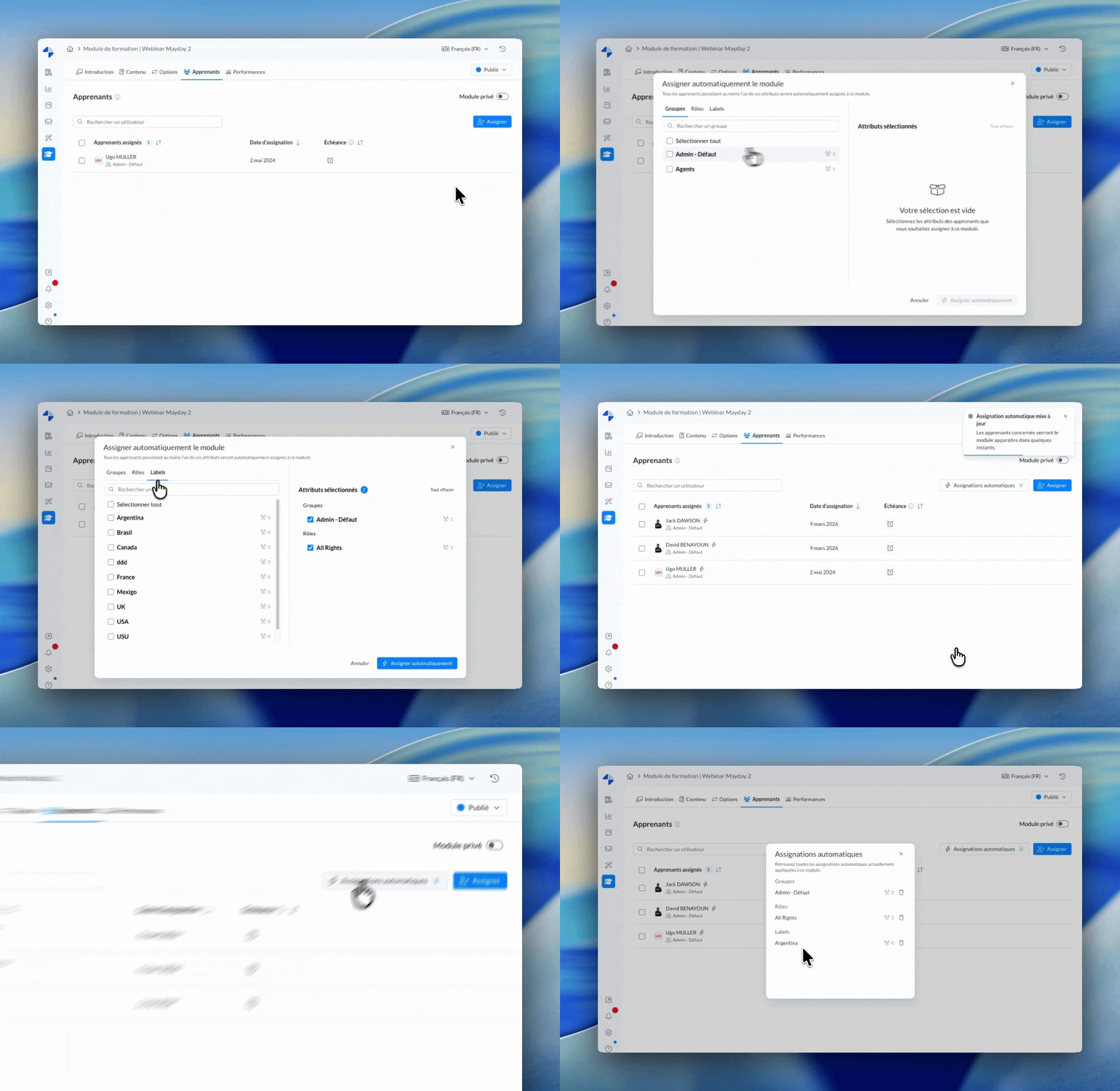
In the "Learners" tab of your module or journey, click "Assign" on your Mayday Academy administrator interface.
1⃣ Click "Assign"
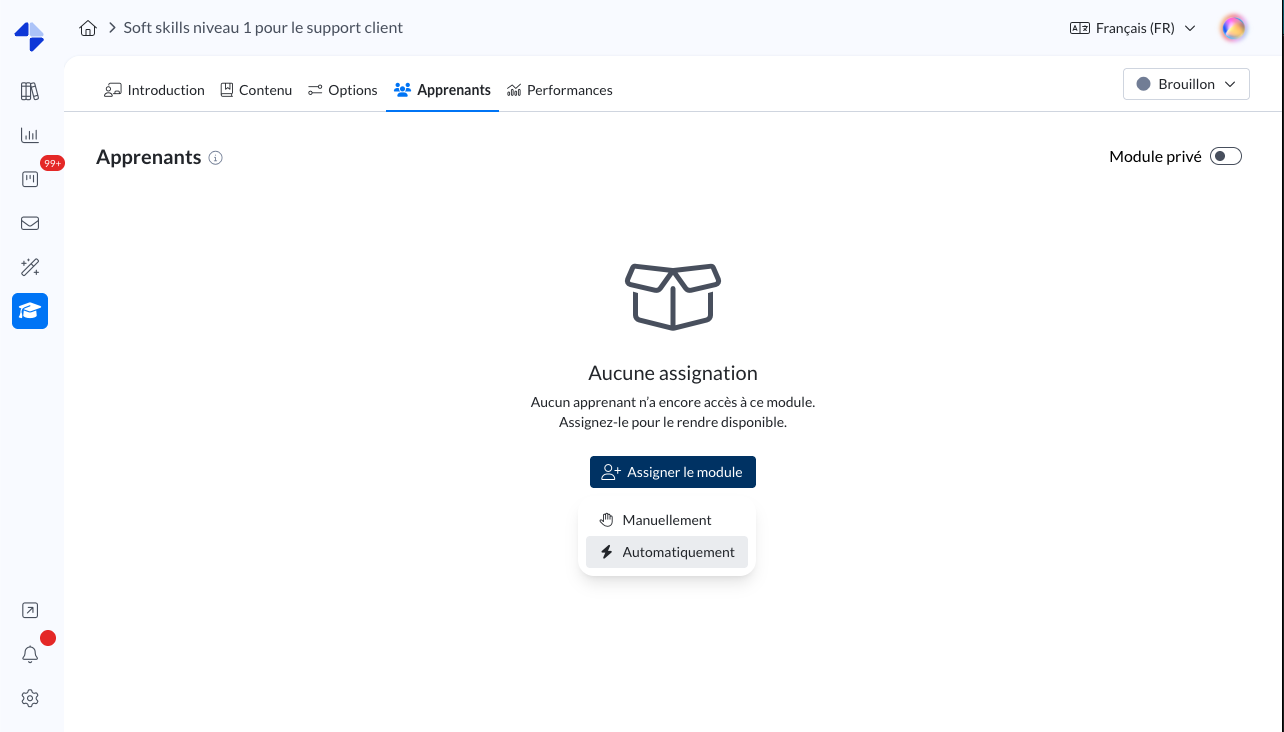
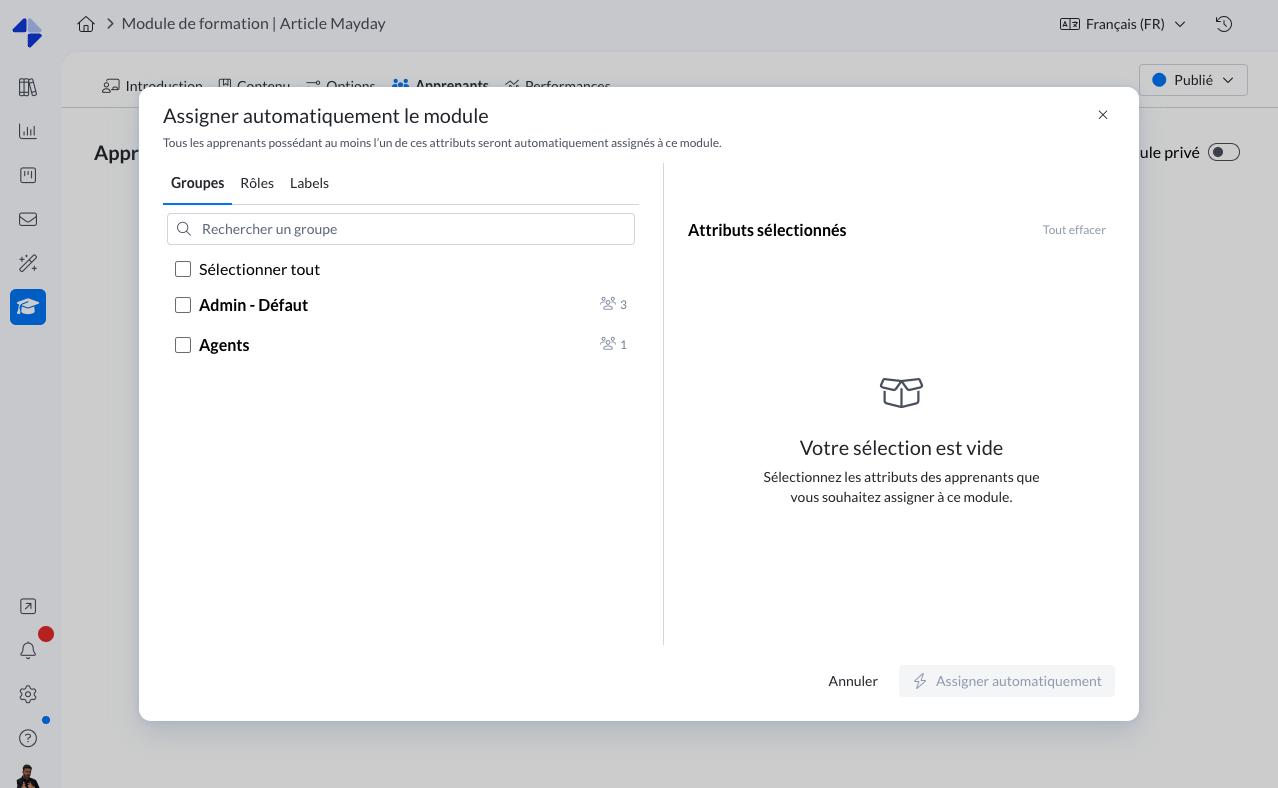
2⃣ Click "Automatically"
Select the groups, roles, and/or user labels you want to assign to the module/journey.
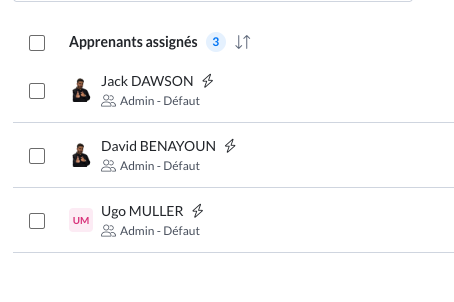
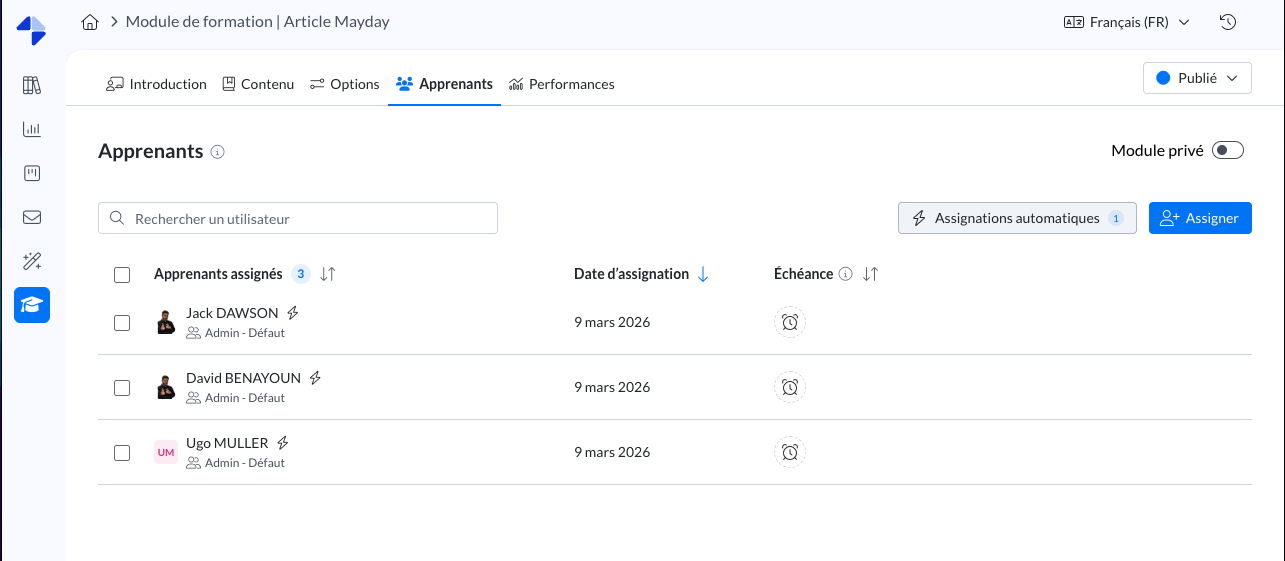
In the table of assigned learners, a lightning bolt icon ⚡ appears next to the names of learners who have been assigned via automatic assignment related to their attributes.
Screenshot
🆕 How to view my automatic assignments?
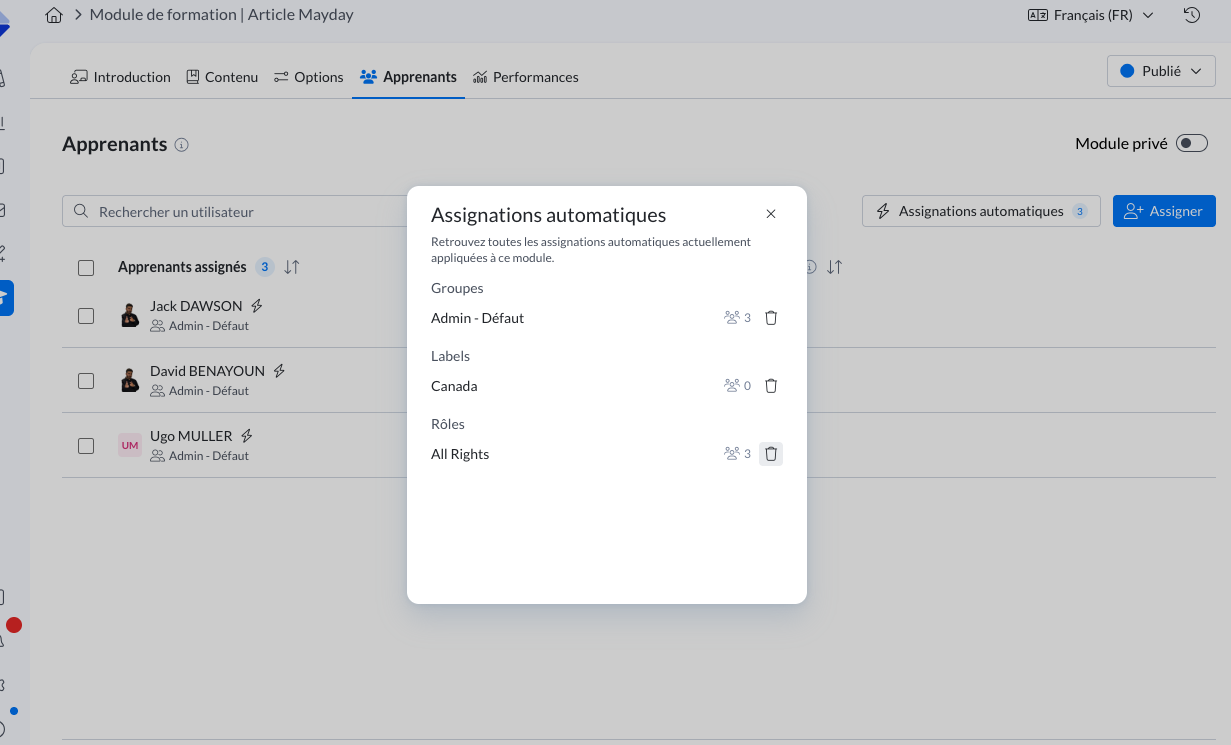
In the "Learners" tab of your module or journey, click "Automatic Assignments" next to "Assign" on your Mayday Academy administrator interface.
🆕 How to manage my automatic assignments?
View which learners have been assigned using an automatic rule for each module or journey
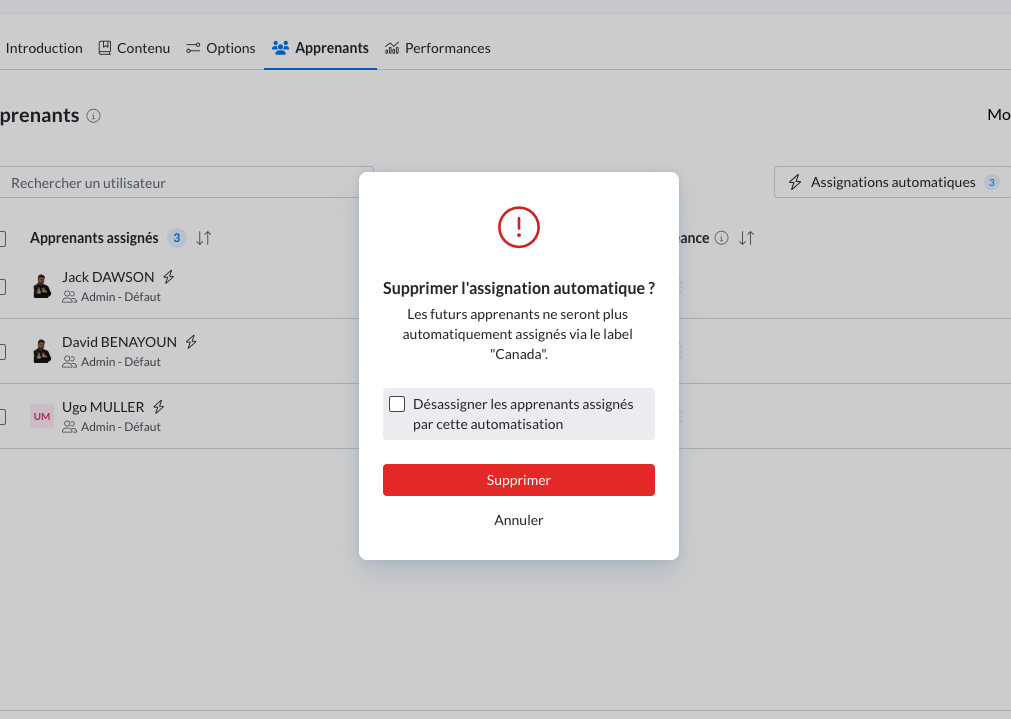
Manage your automatic assignments by choosing to delete them with or without unassigning the concerned learners
Be alerted of the impact on your assignments when modifying or deleting a user attribute and choose whether to unassign the affected learners or not
Filter your automatically assigned trainings on your Academy homepage
👉 Delete an automatic assignment
Click "Automatic Assignments" on your module/journey and then on the trash icon next to the desired attribute
Choose whether to keep your learners already assigned to this module/journey in manual assignment or unassign them immediately
Note: in this first version, modules of an automatically assigned journey will not be directly assigned automatically. This will be available very soon.
👉 Be alerted of the impact of modifying or deleting a user attribute
When modifying a group, role, and/or user label attribute of one or more users in your Mayday settings, an informational message appears and offers to unassign the trainings automatically assigned to its previous attributes.
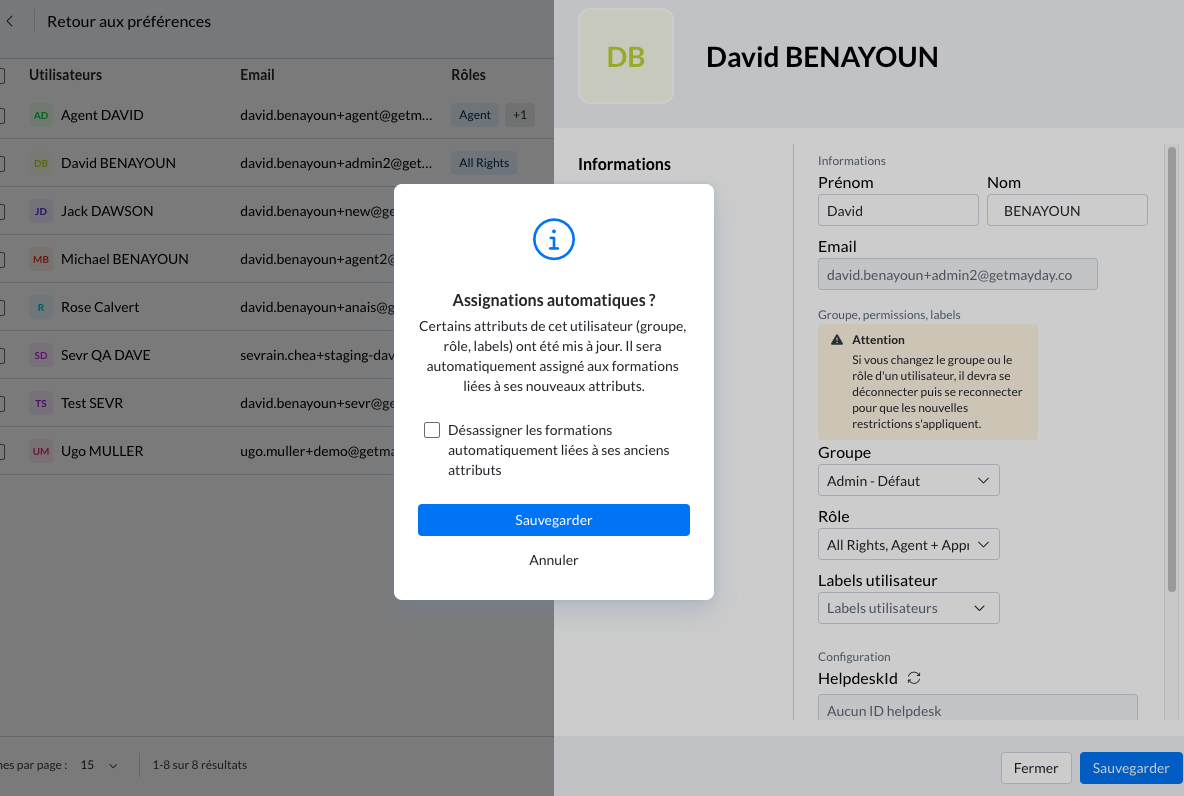
In this first version of the feature, this informational message appears for users who have read access to the Academy, whether they have automated assignments related to their attributes or not.
When deleting a group, role, and/or user label attribute in your Mayday settings, an informational message appears to notify the administrator
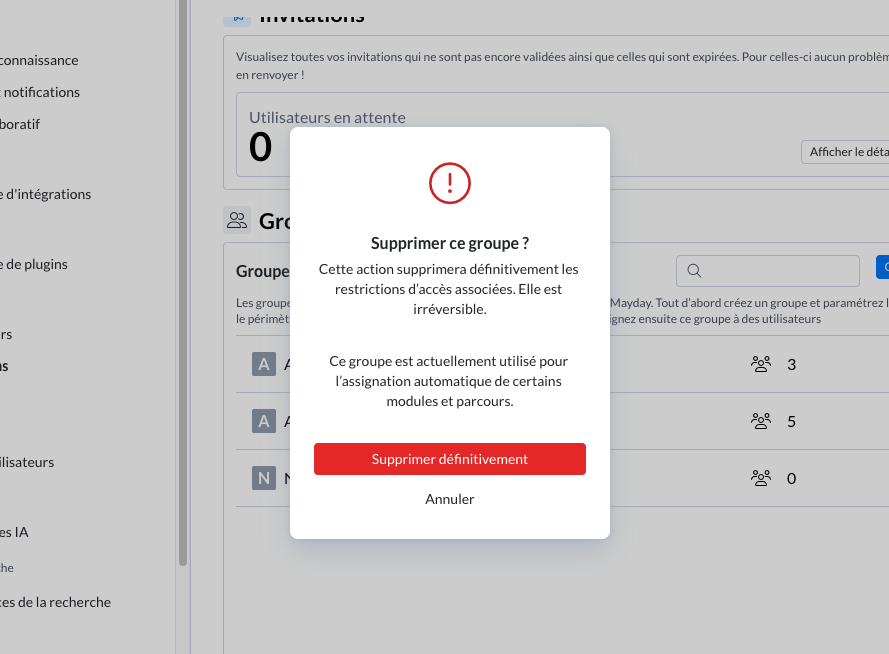
👉 Filter your automatically assigned trainings
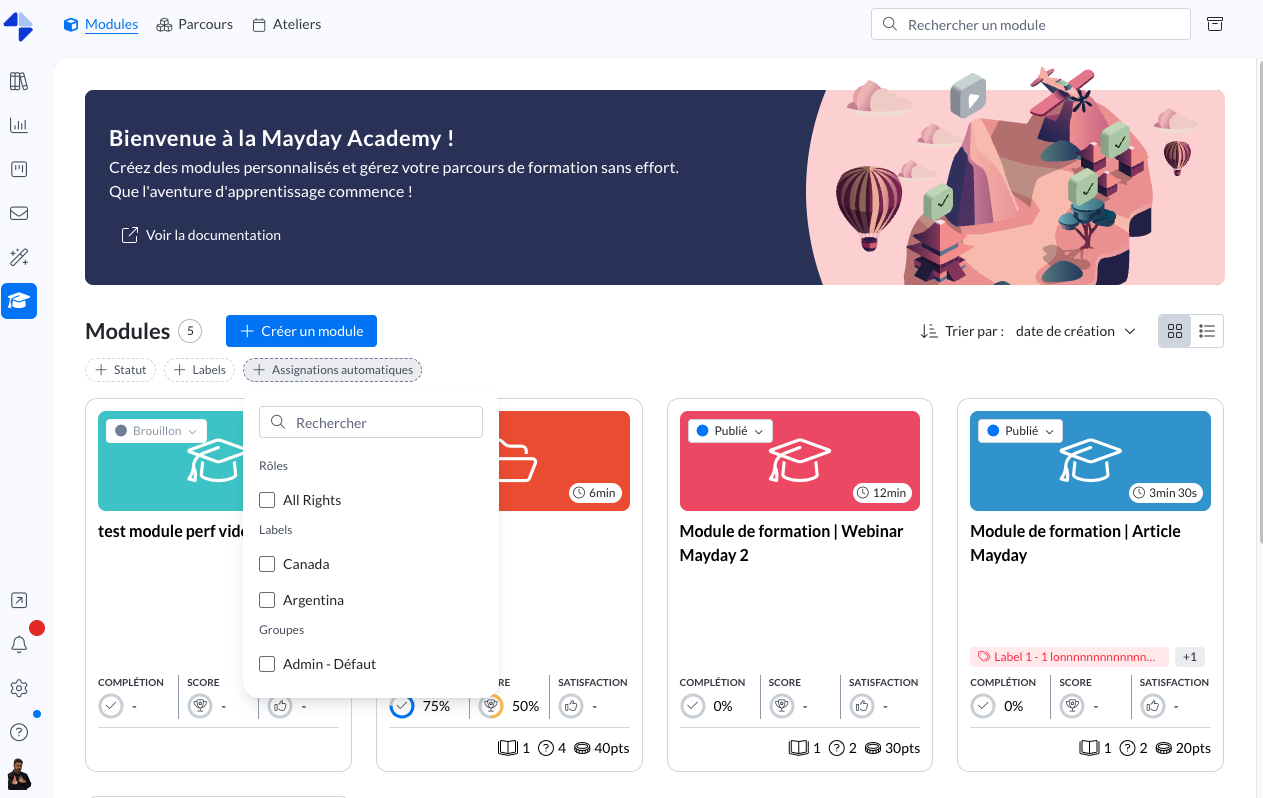
Click "Automatic Assignments" in the filters next to "Status" and "Label" on your Modules and Journeys tabs
Select the attributes you are interested in to display the trainings automatically assigned to them
Manage your trainings and assignments more easily!