👋 Introduction
🤩 Welcome to the universe of custom AI agents!
You are already familiar with our default AI agents, but did you know that you can create your own custom agents? This feature allows you to design assistants perfectly suited to your specific needs and unique use cases.
❓ Feature Presentation
Custom AI agents are intelligent assistants that you create entirely according to your needs. Unlike the default Mayday agents, they are designed by you, for you, to meet your specific use cases.
🎯 Why create your own agents?
Your needs are unique and may vary depending on your sector, organization, or processes
Our default agents are useful, but cannot cover all the use cases of all our clients
You have the freedom to precisely define what your agent does and how it does it
🛠 How to create a custom AI agent?
1⃣ Step 1: Access the configuration
Go to Admin Preferences → Mayday AI → Configure → Configure the agents
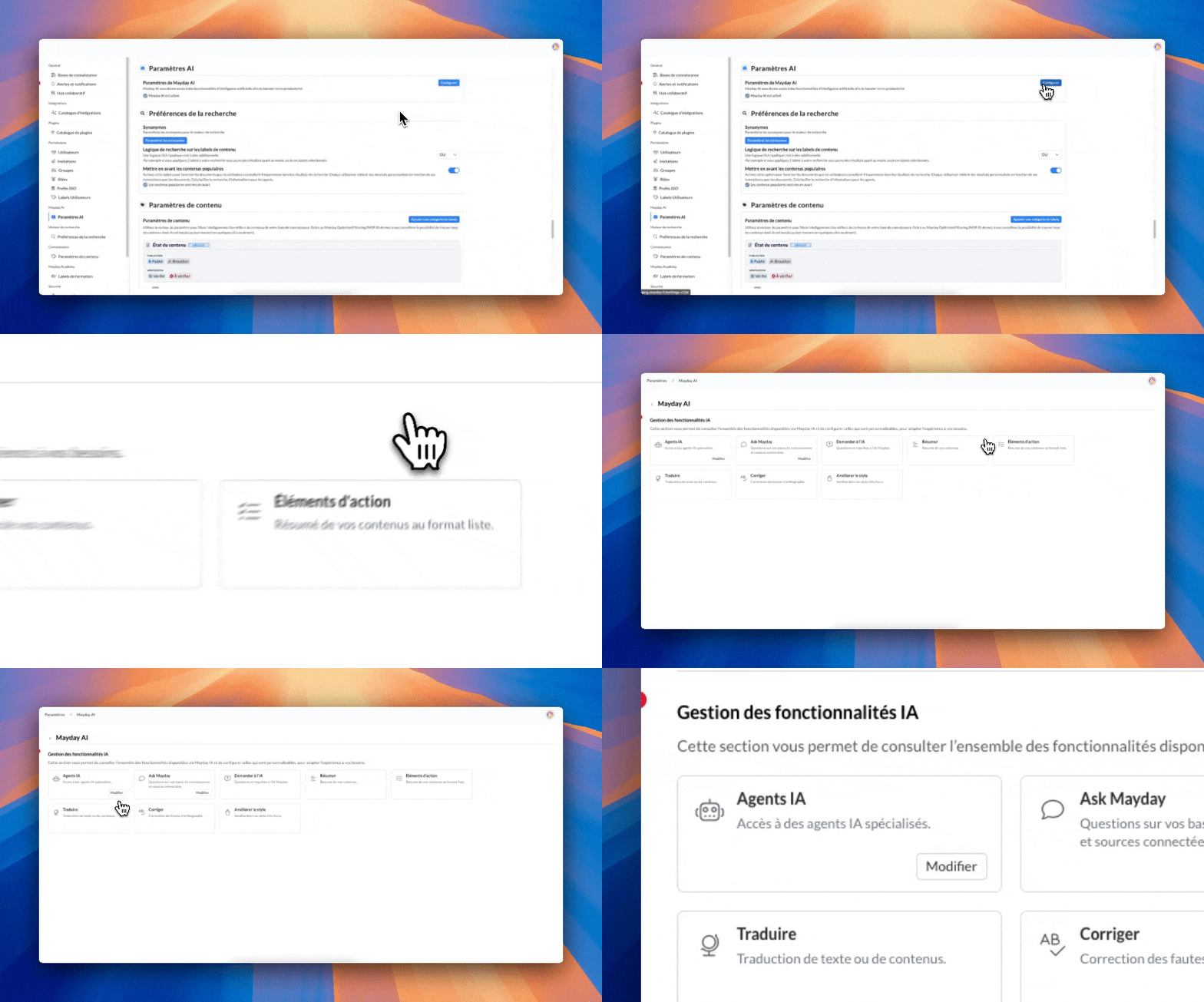
2⃣ Step 2: Choose your creation method
You have two options:
"Create an agent": start from scratch for complete freedom
Duplicate a default agent: use an existing agent as a base
3⃣ Step 3: Define your agent's personality
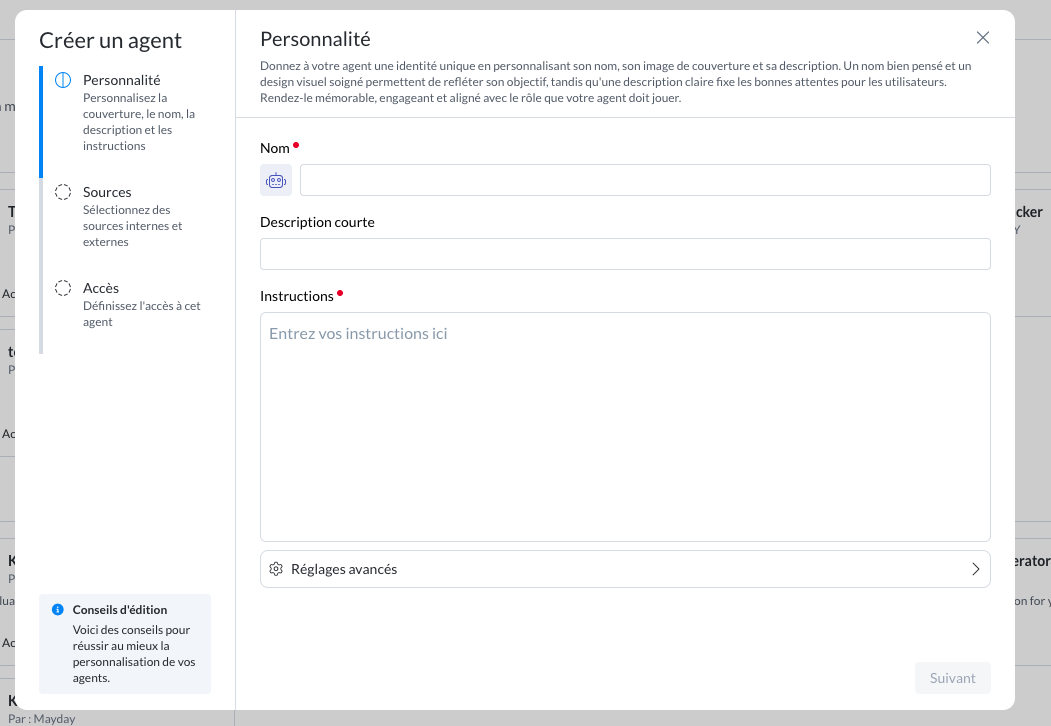
Configure:
Name and logo of your agent
Clear description of its role
Instructions (the prompt that defines its behavior)
Good to know:
Within these instructions, you can use a variety of features:
Editing features available on Mayday content: titles, lists, content mentions, and more.
Variable insertion to further personalize your content:
Mayday system variables: for example, the user's name on Mayday, their email, etc.
Integration attributes (Salesforce, Zendesk, Intercom): these are the ticket attributes from these tools connected to Mayday when the integration is enabled.
Some concrete examples of variable use cases
"Always sign the response with {{mayday username}}": the generated response will automatically be signed by the user using the agent on Mayday.
"Always start the response with 'Hello {{client name}}'": the response will always begin with a greeting using the client's name.
"If {{client location}} is outside Europe, then never offer refunds": useful for tailoring responses based on the client's location.
"If {{client type}} is type A, then respond in this way": allows you to personalize responses based on the client type.
🔧 Advanced settings:
Example question: guide your users on how to use the agent with a sample question
Infobox: displays important information about the AI agent for your users
Specific response format: Mayday article, diagnostics, true/false quiz, etc.
Perfect for creating agents that build diagnostics or Academy quizzes, for example!
4⃣ Step 4: Configure data sources
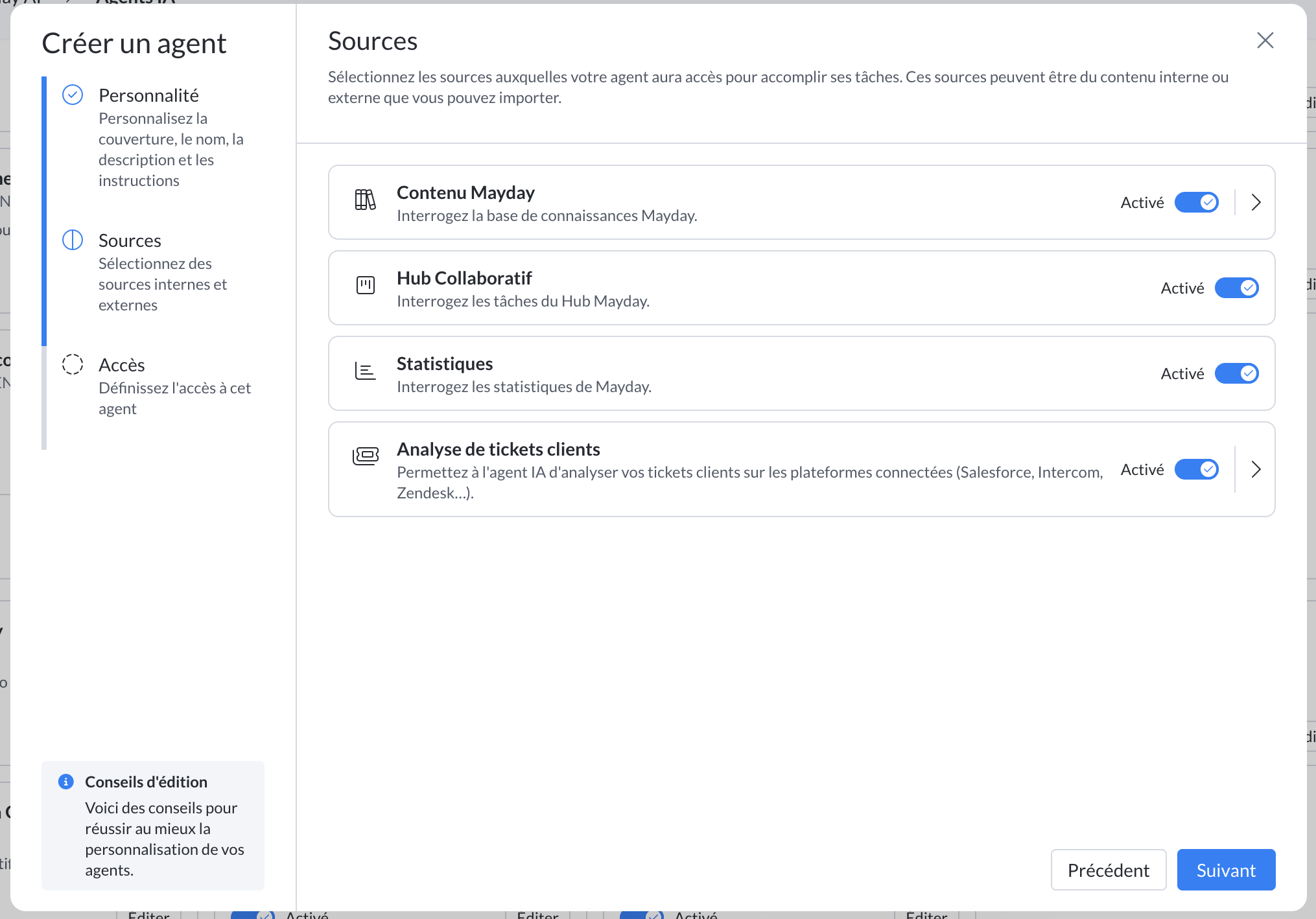
📚 Mayday Content
Example of an agent using this source: Ask Mayday
Allows the AI agent to access Mayday knowledge bases and connected external sources:
✅ "Always search in the knowledge base": the agent always consults your content before answering a question
Knowledge base selection knowledge bases: choose precisely which knowledge bases the AI agent will have access to. It can have access to all the knowledge bases, or just one.
Collection selection: if you do not want to give access to entire knowledge bases, you can give this AI agent access to only specific collections or sub-collections.
To do this, simply click the "Add restrictions" button when hovering over a knowledge base.
Then, you can select collections or sub-collections from this knowledge base and save.
Finally, these restrictions are visible from the "Sources" tab.
Important:
If a collection A has n sub-collections, all its sub-collections are included when collection A is selected, unless some sub-collections are unchecked.
If a collection A contains content and two sub-collections B and C, it is not possible to include only the content of collection A without including at least one of the two sub-collections.
In other words, to include the content of collection A, you must select collection A as well as at least one of its sub-collections.
The different selection states of a knowledge base or collection are:
 The entire knowledge base or collection (and all its sub-collections) is selected.
 The knowledge base or collection is partially selected (some sub-items are selected, others are not).
 The knowledge base or collection is not selected, nor any sub-items.
External sources: SharePoint, connected files, etc.
🤝 Collaborative Hub
Example of an agent using this source: Knowledge Insider
Allows the AI agent to access tasks from the Mayday Hub to:
Summarize the week's feedback
List tasks with upcoming deadlines
Analyze collaborative activity of your admins
And many other use cases!
📊 Statistics
Example of an agent using this source: Knowledge Insider
Allows the AI agent to access data consultations from the Dashboard to:
Analyze content consultations
Identify the most popular content
Answer all your questions about metrics of your content and users
And many other use cases!
🎫 Client Ticket Analysis
Example of an agent using this source: Answer Generator
Allows the AI agent to access customer tickets when they are viewed from the Mayday Widget, the Zendesk app, or the iAdvize app.
Once this source is enabled, several features become available and customizable:
Client Mood: The AI automatically analyzes the mood of the customer who submitted the ticket to help the agent tailor their response.
Manual Content Recommendations: If enabled, manual automations created for your Mayday content will appear when the ticket conditions match.
AI Content Recommendations: If enabled, Mayday AI will automatically suggest the most relevant content to review, based on the current ticket's content.
The scope of these recommended contents is limited to those accessible by the AI agent in use.
"Generate Answer" Action: Allows the agent to automatically generate a response to the ticket with a single click in just a few seconds.
Ticket Summary: Displays a summary of the ticket and the ongoing conversation so the agent can quickly understand the context.
The summary structure can be customized for each AI agent.
To do this, click the "Custom" option next to the summary to define your preferences.
This customization lets you, for example, require a specific structure for summaries.
5⃣ Step 5: Define access to this AI agent
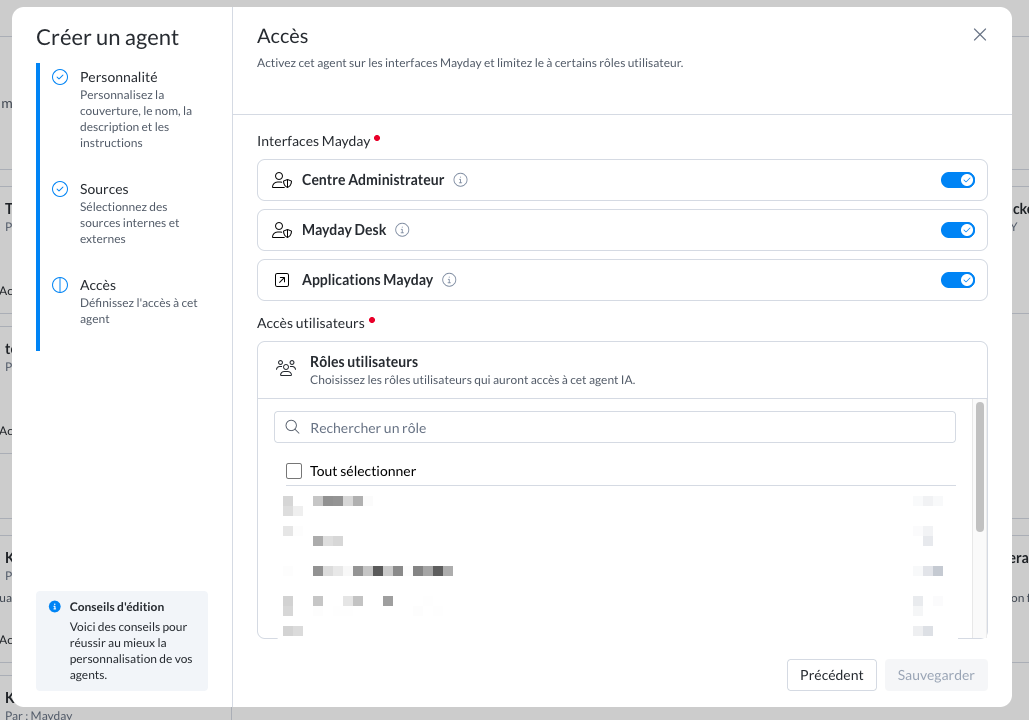
💻 Interfaces
Choose where your agent will be available:
Admin Center
Mayday Desk
Mayday applications (Widget, Zendesk, iAdvize)
Important: Agents on Mayday Desk and applications require a subscription to Mayday AI. If you wish to obtain one, please contact your Mayday representative.
👥 User roles
Select who can use your agent according to the defined roles.
📌 Default settings:
New agent = enabled on all interfaces but no role
You must select at least one interface AND one role to save
📍 Where and for whom?
Availability: Clients with AI agents activated only
Management: Administrators in Mayday AI preferences
Activation: Contact your CSM if you have not subscribed to the Mayday AI offer
✅ Activation and visibility
For a user to see an AI agent, it must:
The agent must be globally activated
The agent must be assigned to a user role
The user must have access to at least one interface where the agent is available
Don't forget: New agents are deactivated by default!
🧪 How to test your AI agent?
Recommended method:
Create a "tester" role in user roles
Assign your new agent only to this role
Activate the agent
Test safely before deployment!
🧠 Want to go further?
Contact your Mayday CSM to subscribe to the Mayday AI offer and unlock the full potential of custom AI agents!