📕 Introduction
Discover in this diagnostic how to create and schedule workshops for your synchronous training sessions (in presence but not only) on the Mayday Academy!
Visit your Mayday Academy interface to create your first workshop!
👩🏫 Blended Learning is now available on the Mayday Academy!
👉 What is a workshop?
A workshop is a live training session, scheduled on a specific date, intended for one or more participants.
Workshops allow you to train your learners in synchronous sessions that can be led by a trainer.
👩🏫 Workshops especially simplify the planning of your face-to-face training:
Thus, deploy with the Mayday Academy a blended learning by combining your face-to-face training with your e-learning modules to be completed independently.
Take advantage of the benefits of each modality to offer a more flexible, engaging, and effective learning experience!
🆕 How to create and schedule a workshop?
Create and schedule face-to-face or remote synchronous workshops with a group of learners and a facilitator on the Mayday Academy.
1⃣ On your Mayday Academy interface, click on the "Workshops" tab next to the "Courses" tab then on the blue button "Schedule a workshop"
Screenshot
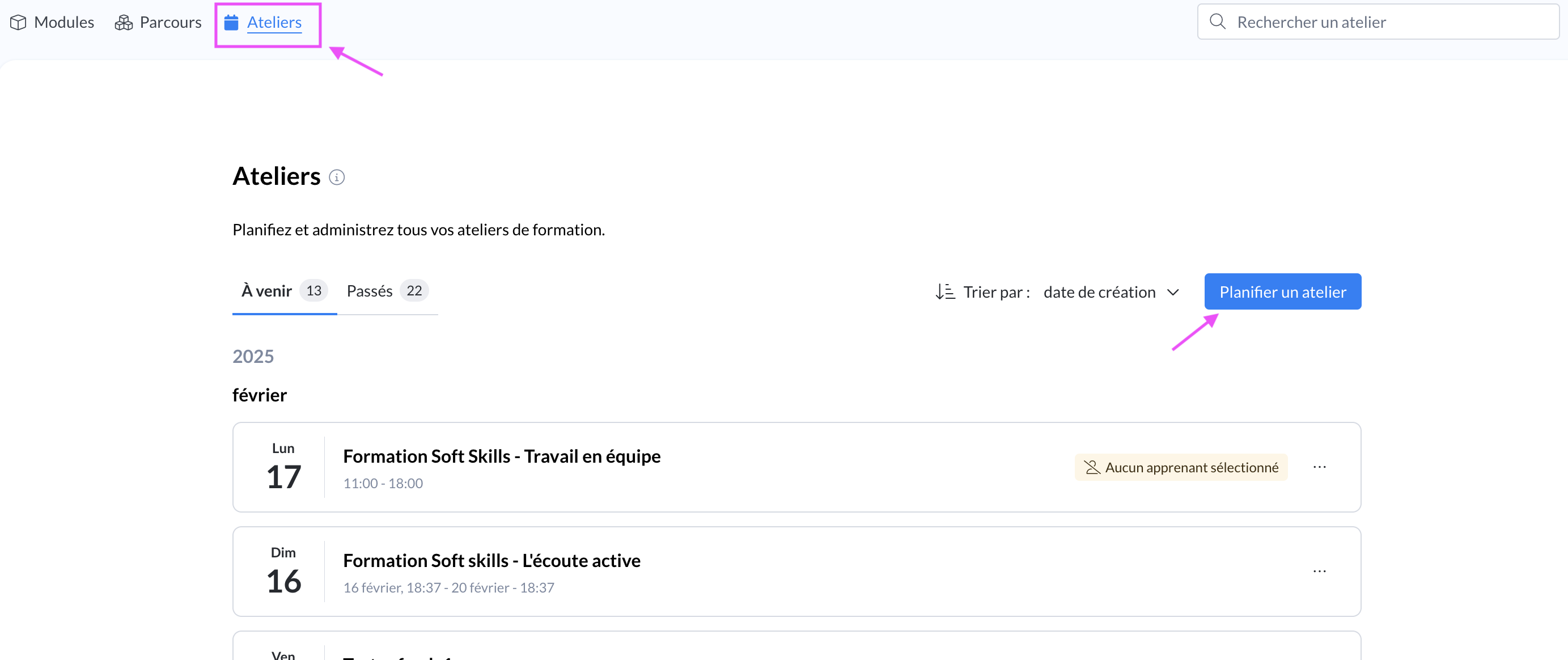
"Workshops" tab on the administrator interface
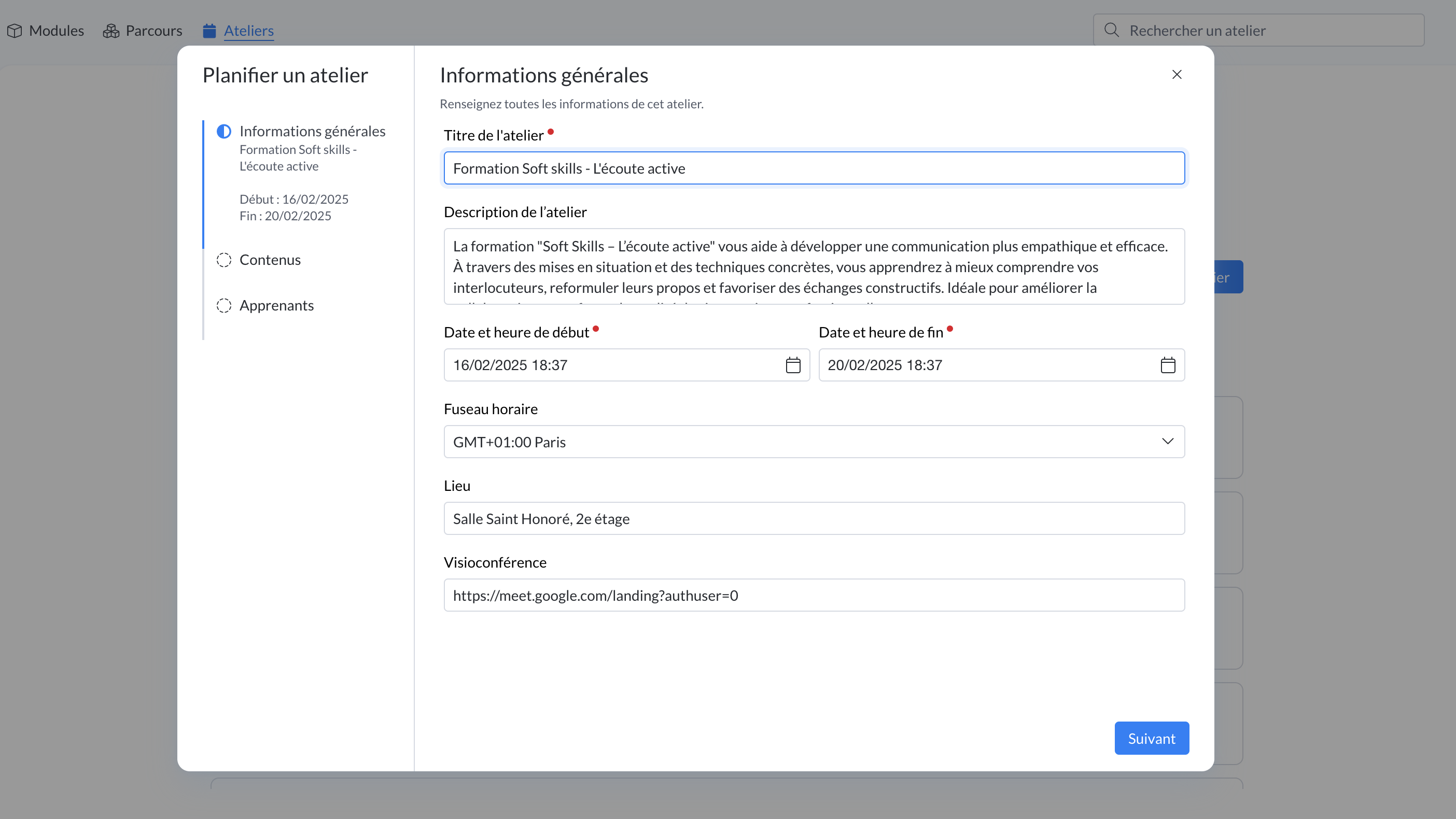
2⃣ Complete the information related to your workshop:
The title
A description
The date and time
The location (room or address for example)
The link to the video call if there is one
The mandatory fields are the title as well as the start and end date of the workshop.
You can create a workshop now and complete its information, add content (modules) or invite learners later if needed. ✍
Screenshot
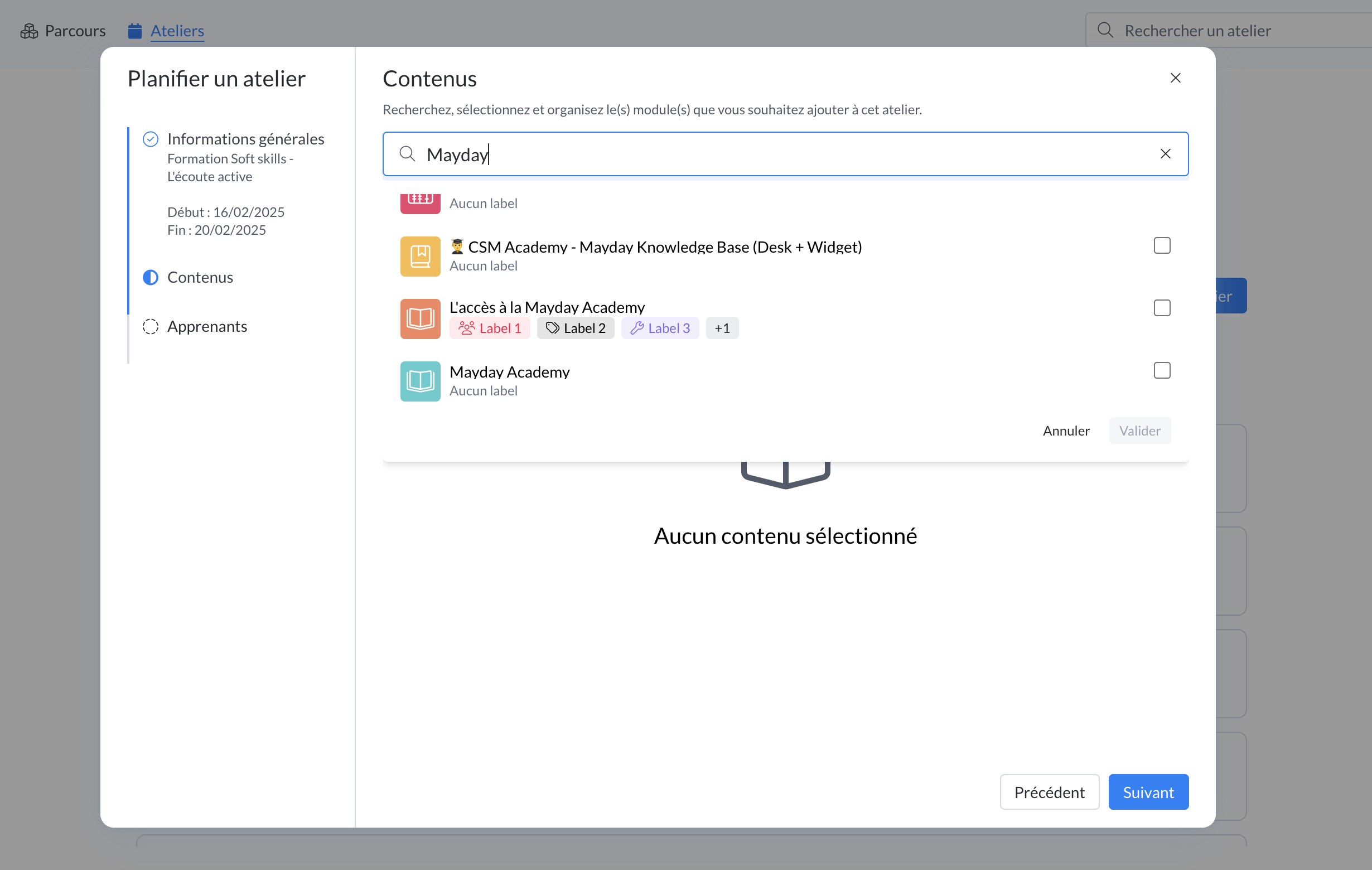
3⃣ Add the training content you wish to deliver during the workshop (1 or more modules)
The modules you add to your workshops will be automatically assigned on the date of the workshop to the learners you have invited to the workshop (they will be locked before this date).
The status of the modules added to workshops is not modified when creating the workshop. If you want a "Draft" module to be visible and accessible by your learners during the workshop, don't forget to publish it beforehand.
Screenshot
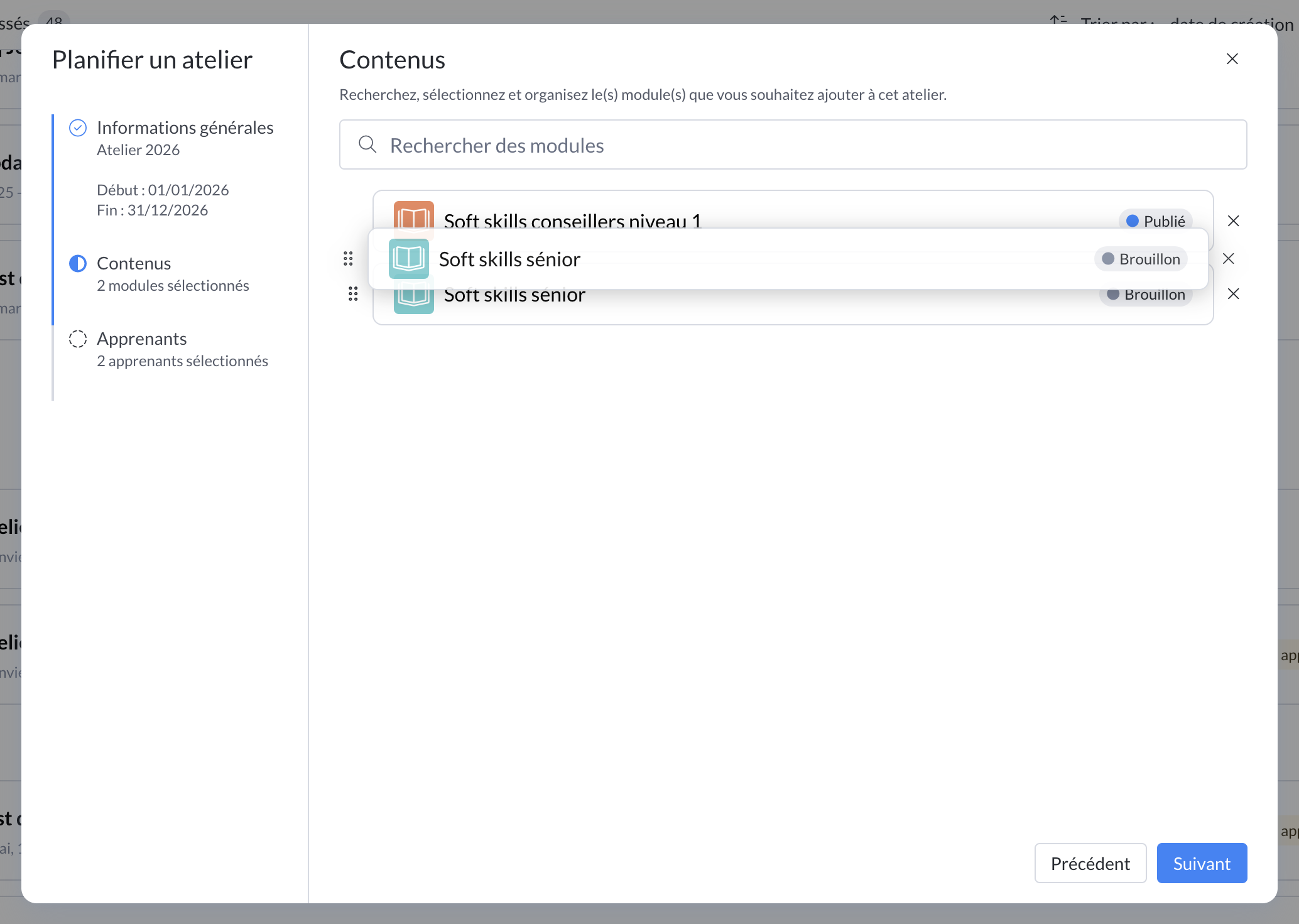
Once your modules are added, you can move and organize them as you wish so that they appear in order for your learners.
Screenshot
4⃣ Select the users you wish to invite to the workshop
You can add users individually or via groups, roles or user labels.
Screenshot
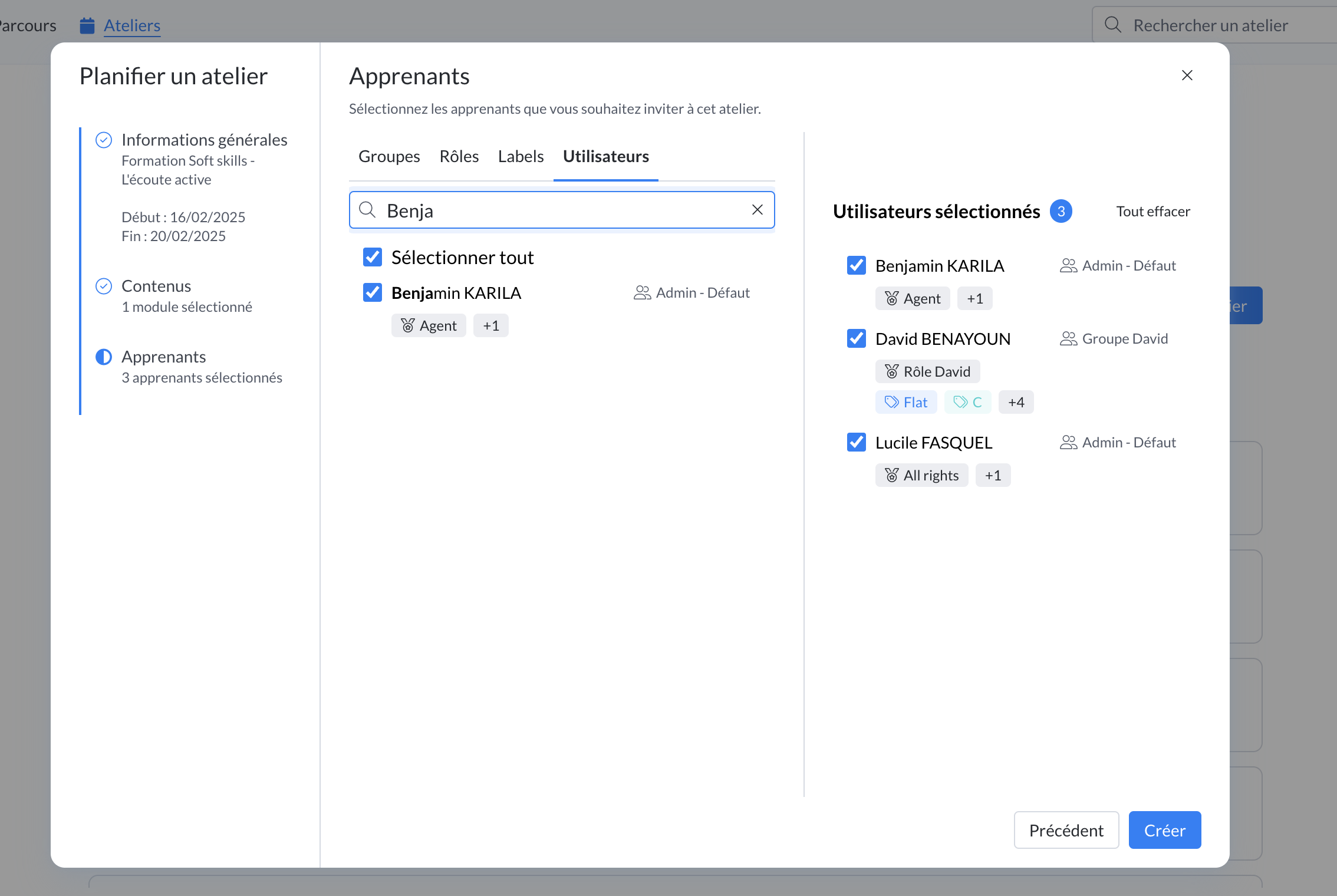
5⃣ Click on "Create" to complete the creation and scheduling of your workshop
A message appears at the top right of the screen to inform you of the success of the workshop creation
6⃣ Notify if you wish the people you have added to the workshop:
Via the administration notification for potential trainers or administrators
Via the Desk notification for learners invited to the workshop
The notification of the invitation to the workshop is based on your preferences configured in the settings section > Alerts and notifications > Academy > Notification in the assignment of training.
If you choose to notify the guests, a message appears at the top right of the screen to inform you of the notification being sent
Screenshots
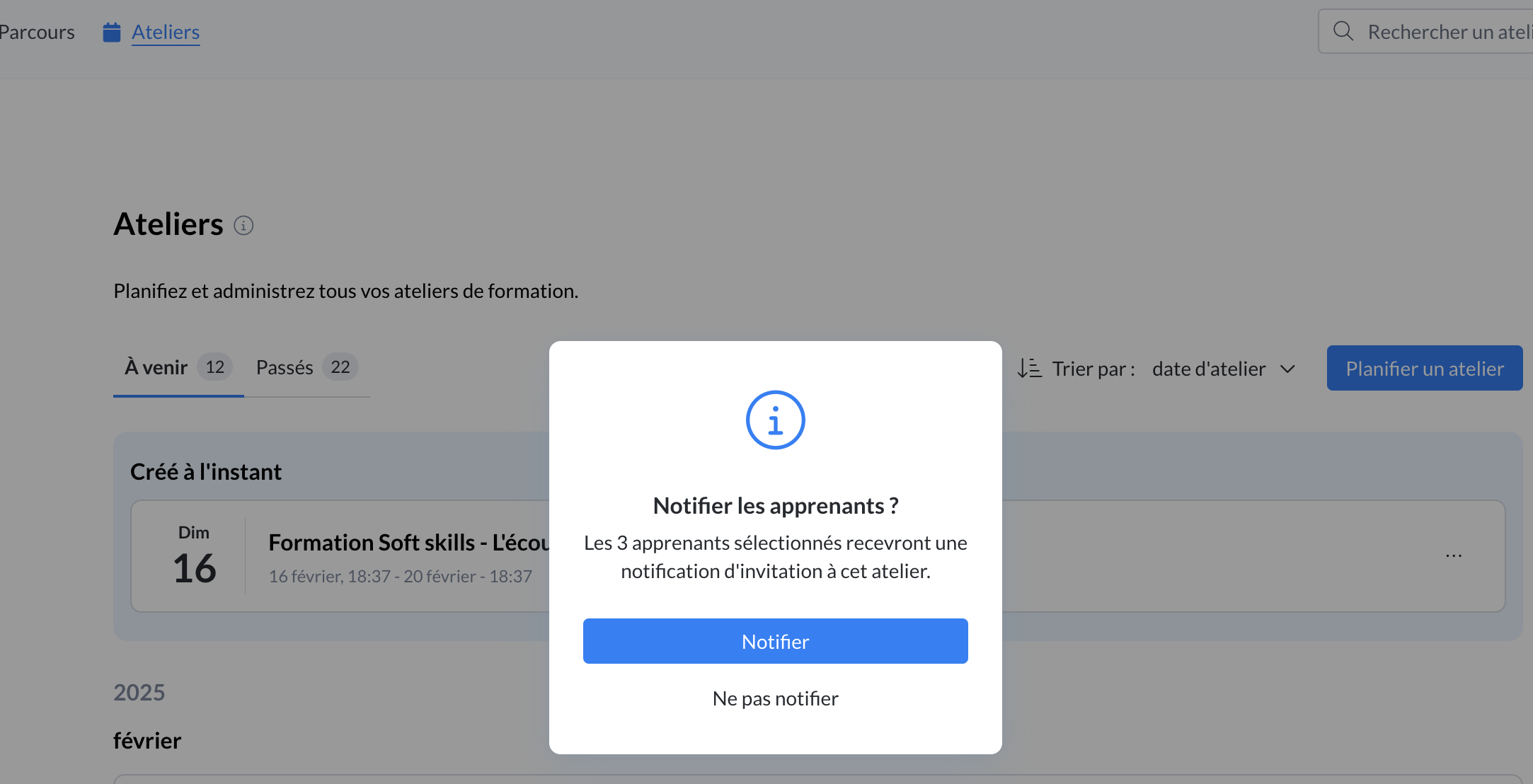
Admin Interface - Workshop scheduling
Notifications received:
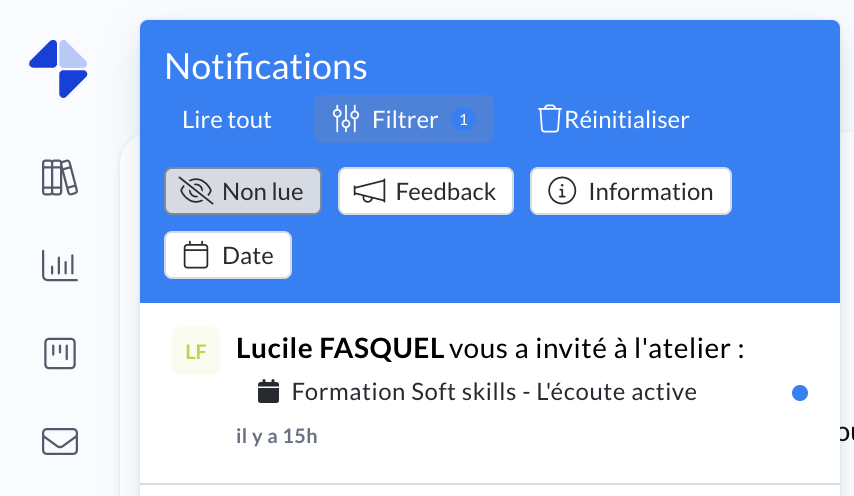
Admin Interface - Notification Center
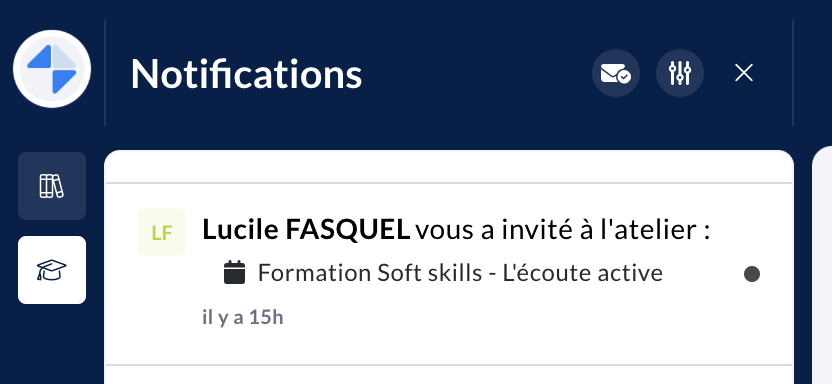
Desk Interface - Notification Center
Everything is ready! Your workshop is well created, scheduled, and your guests have been notified!
To see what appears on the Desk side for your learners, click here:
Click here to learn more about: