Discover in this article how to analyze the performance of your Selfcare.
Before analyzing the consultations on your content, consult the article . Access to the dashboard is done in the general menu of the administrator interface.
📸 View access to the dashboard

🔍 Analyze the global data of your Selfcare
At the top of your dashboard, you have access to global data on your Selfcare. You will find :
The total number of consultations on the filtered period: number of consultations made on all contents of your public knowledge base
The total number of sessions on the filtered period: number of visits to your public knowledge base. A session starts from accessing a page of your Selfcare and ends when the Selfcare is closed.
The number of feedbacks sent on the filtered period: if you have activated this plugin in the settings of your Selfcare, you will find here the total number of feedbacks sent.
For more information on the "satisfaction" plugin allowing visitors to your Selfcare to send feedback, you can consult the content dedicated to Selfcare settings.
📸 View the global data section

You also have on the right, information on the contents of your Selfcare:
The number of articles;
The number of guides;
The confidence score.
📸 View the "Knowledge" section with information on the contents
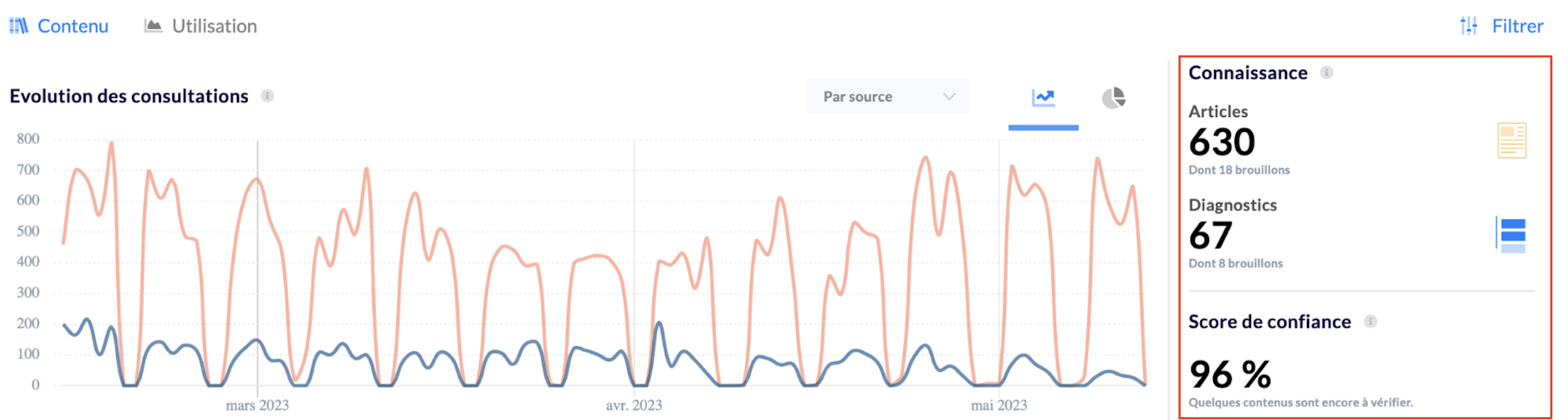
1⃣ Articles
Represents the number of articles written in the knowledge base at the moment t. The sub-number represents the articles in drafts.
2⃣ Guides
Represents the number of guides written in the knowledge base at the moment t. The sub-number represents the articles in drafts.
3⃣ Confidence score
Represents the number of contents to be verified divided by the total number of contents in the knowledge base. It thus represents the reliability rate of your knowledge base.
Once your new content is written and up to date, remember to set it to "Verified" status → see the article
Regularly updating obsolete content is a necessity to avoid the number one scourge of any knowledge base. Maintain a high confidence score for better operations.
📈 Analyze the evolution of consultations on your Selfcare
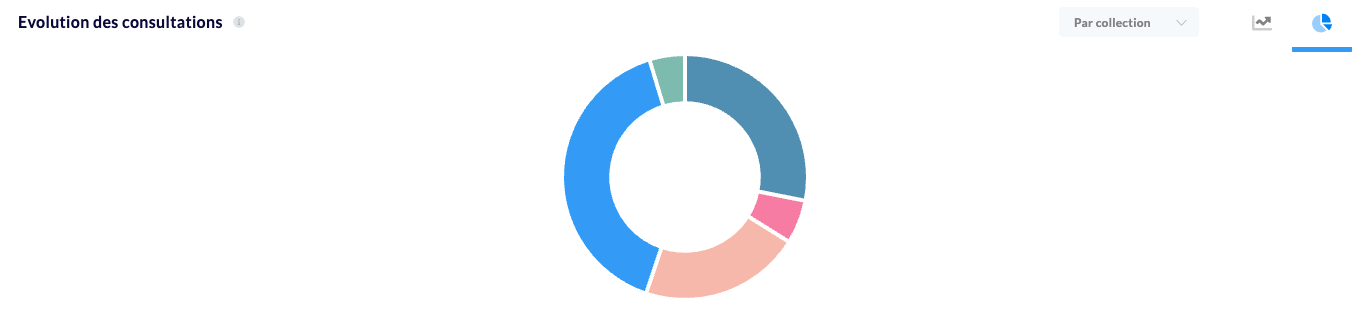
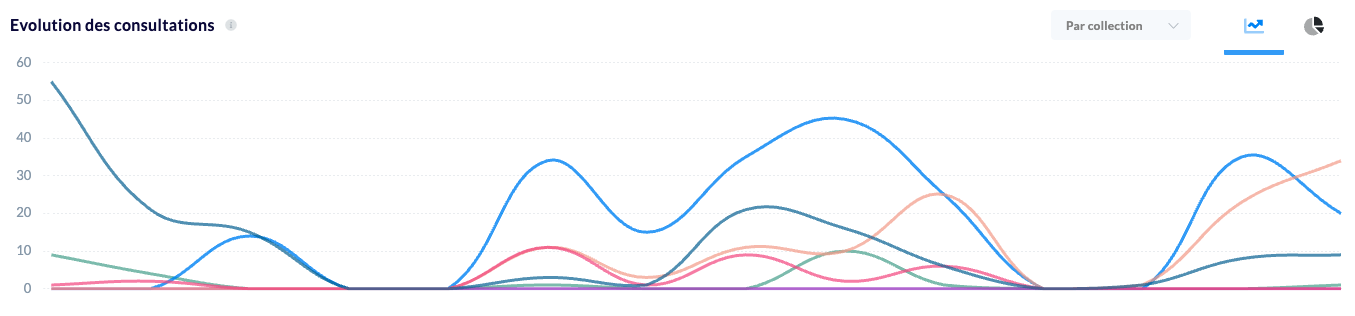
You will then find graphs with the evolution of consultations on your public knowledge base, with :
The evolution of consultations over the period
The distribution of total consultations over the period by collection of your knowledge base
📸 View the consultation evolution section
📄 Analyze the data of each content
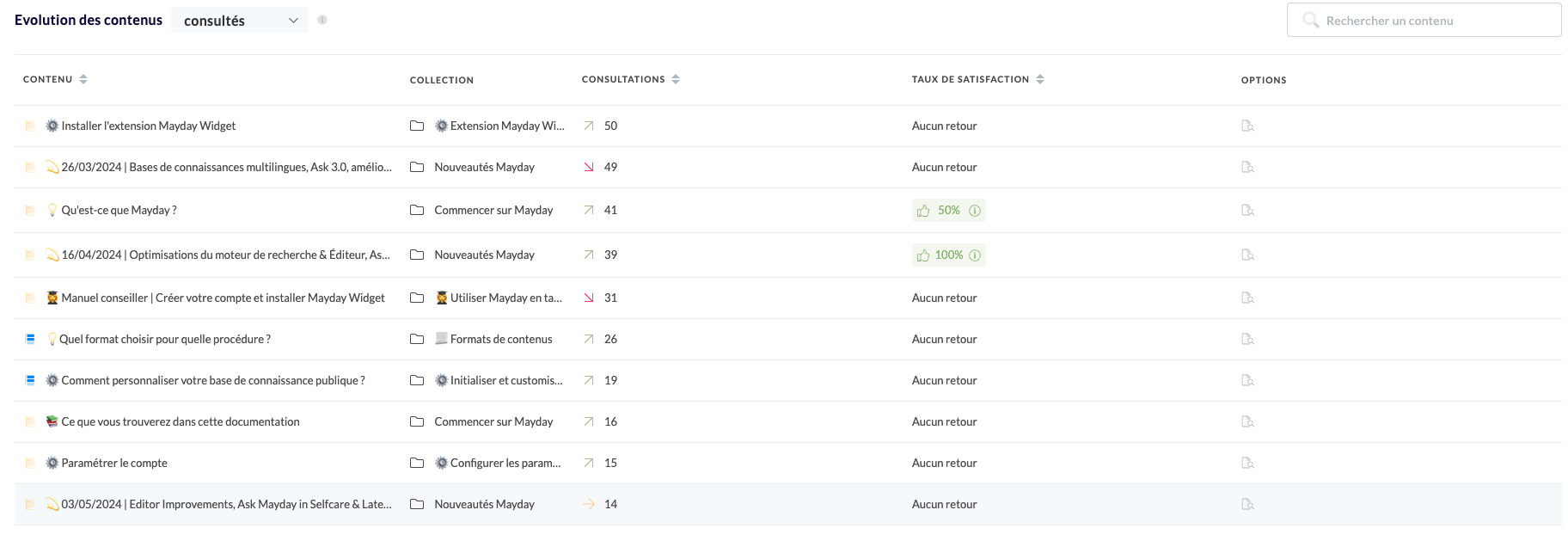
A third section of your dashboard allows you to have more granular data, at the level of each content of your knowledge base, with for each content :
The name of the content and its type (article or guide);
The parent collection (be careful, this is the parent collection and not the root collection in which it is located);
The number of consultations associated with this content;
The satisfaction rate of this content (the number of likes / dislikes issued);
The possibility of analyzing these metrics in detail and their evolutions by clicking on the small magnifying glass.
You also have the possibility to extract this data.
📸 View the content analysis section
🕵♀️ Analyze search-related data
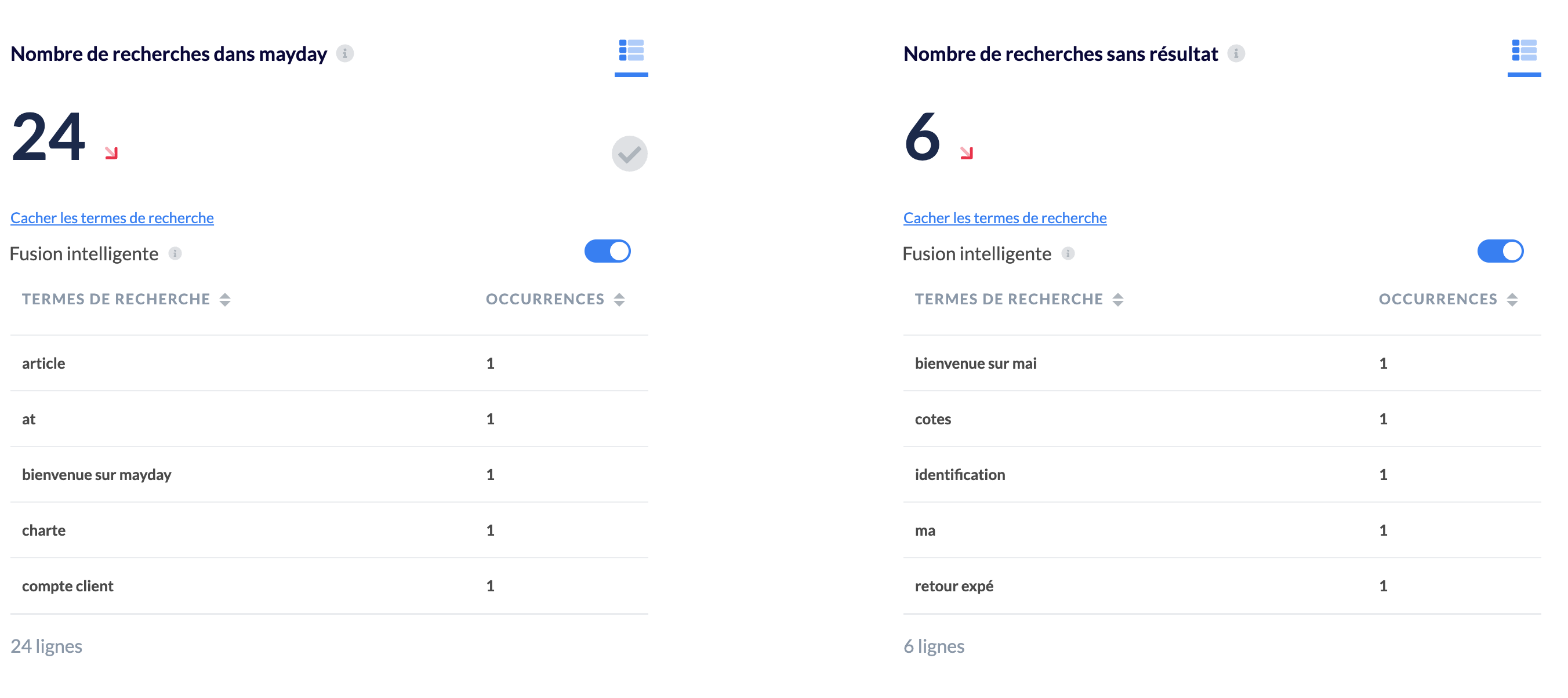
Finally, at the bottom of your dashboard, you have data on the search in your Selfcare:
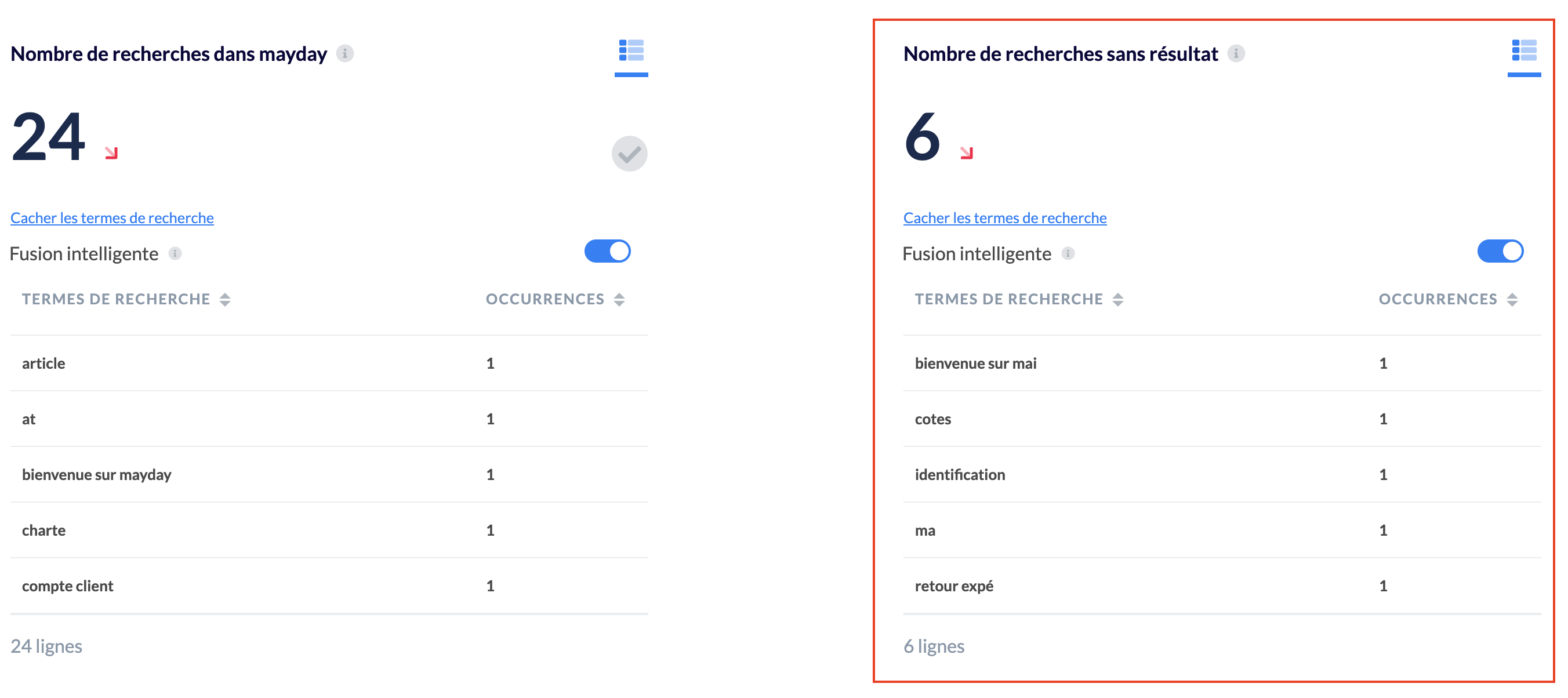
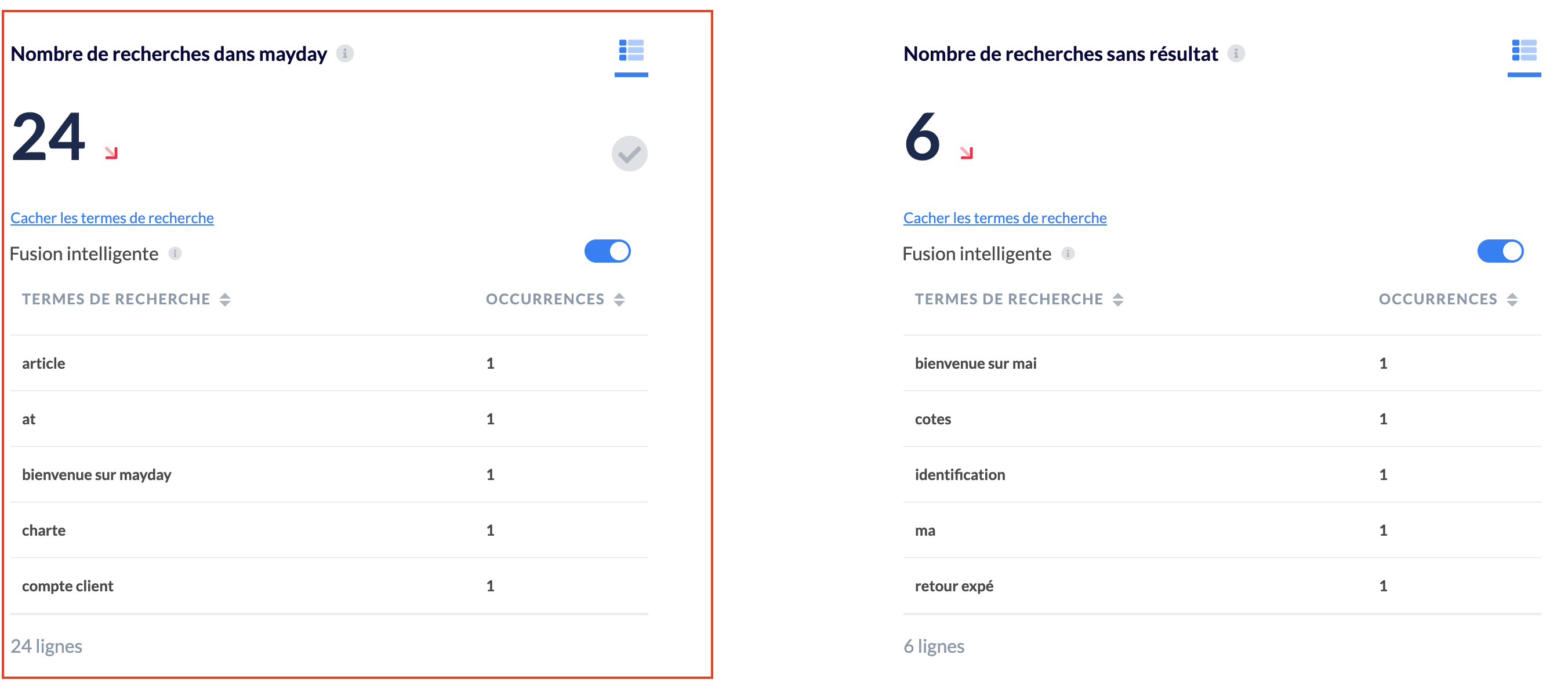
This section provides indications on the terms / keywords typed by visitors in the search engine.
📸 View keywords
💡 Intelligent fusion
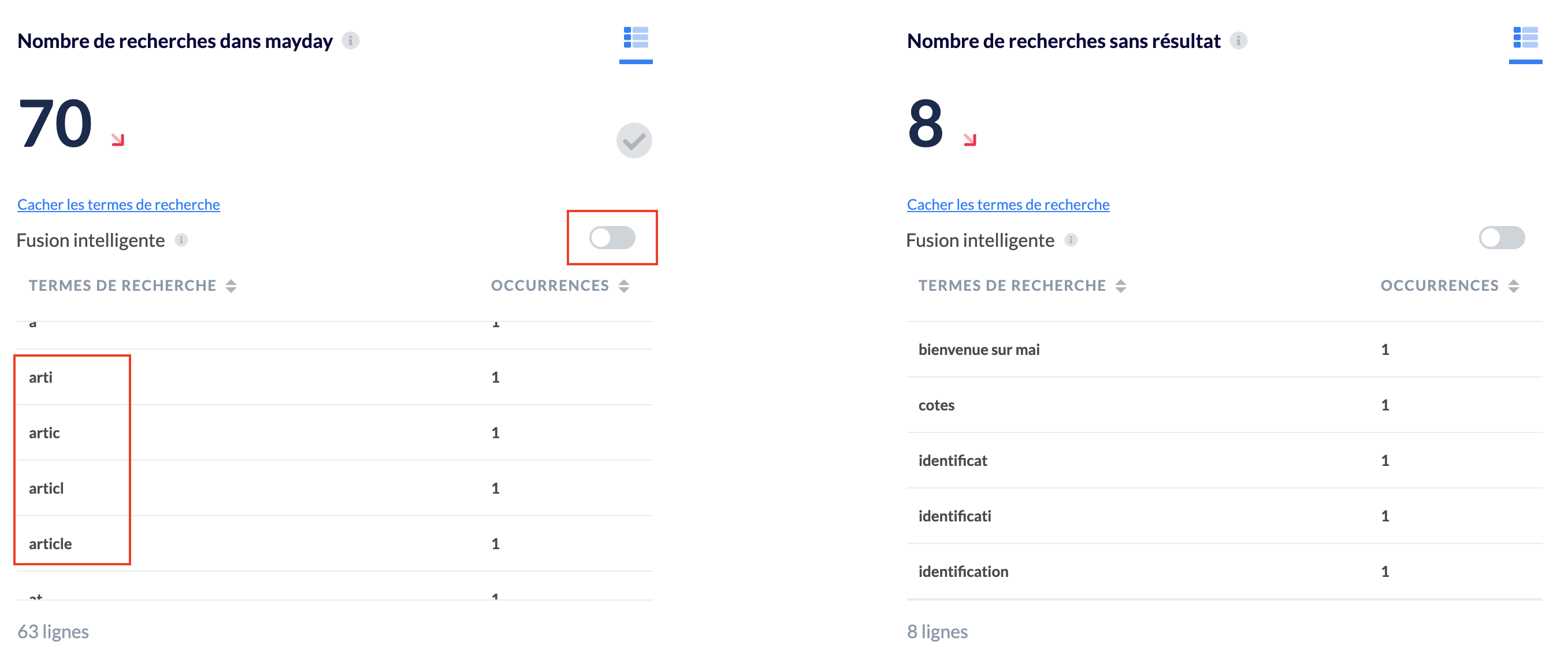
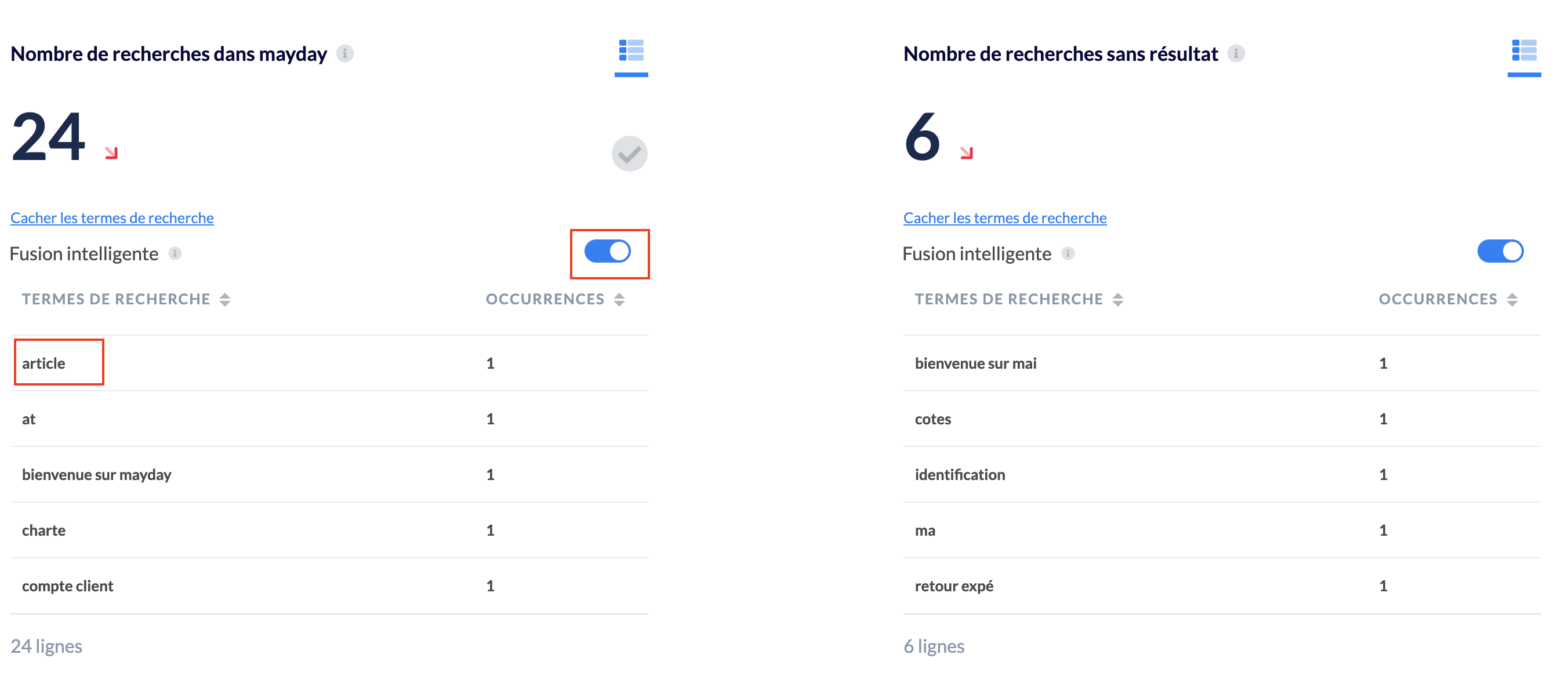
By default, similar terms are merged for intelligent grouping of similar keywords.
You can disable this feature if you wish.
📸 View keywords when intelligent fusion is disabled
📸 View keywords when intelligent fusion is enabled
1⃣ Searches with result
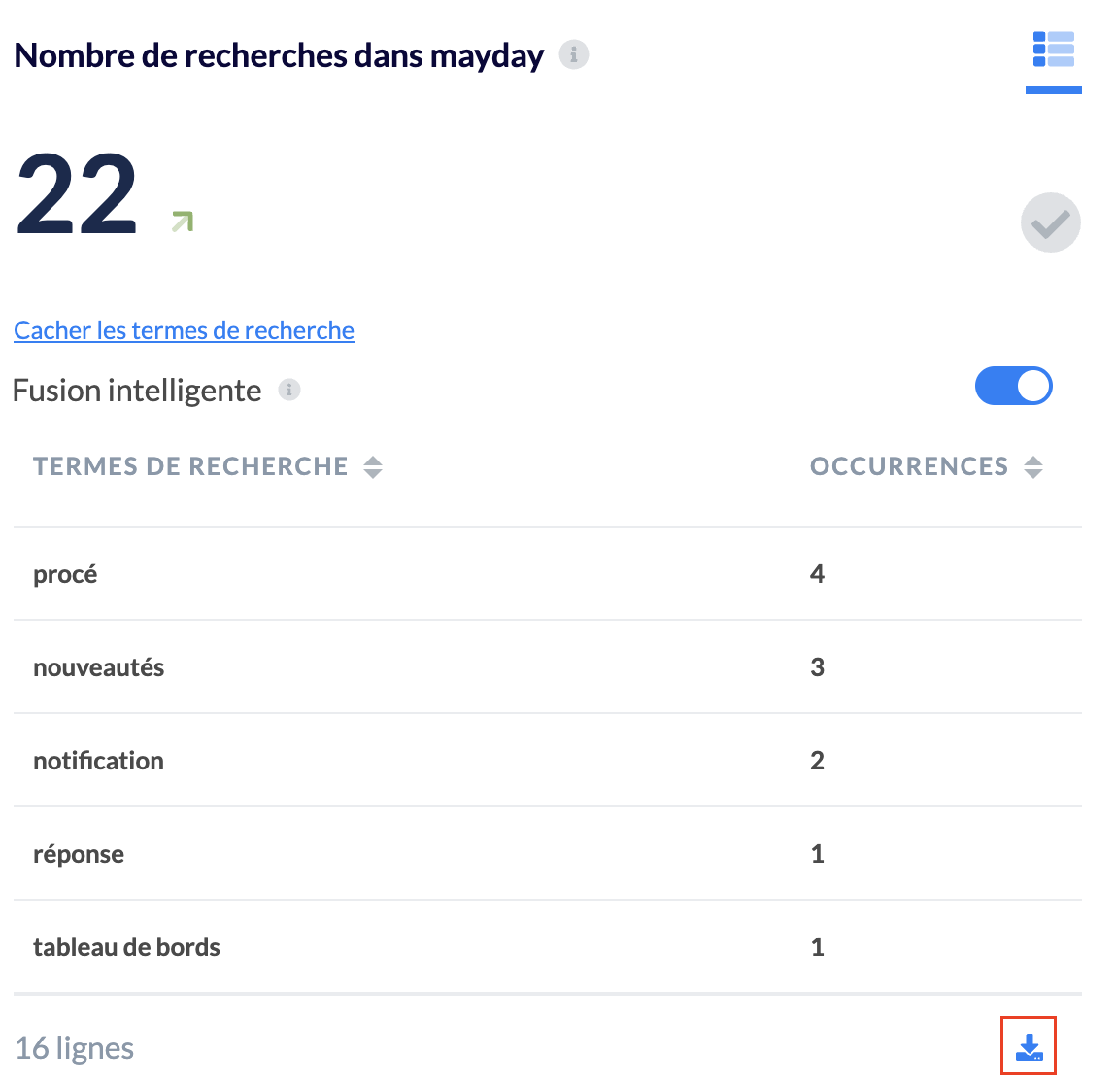
This metric represents the number of searches (via the search bar) that displayed solutions.
To facilitate the administration of these terms, you can directly download the list of fruitful and unfruitful terms in excel format.
📸 View how to download search terms
This metric does not indicate whether the user clicked on one of the search results.
This concerns searches via the Mayday search engine. Thus, this number may be different or even higher than the total number of consultations.
2⃣ Searches without result
This metric represents the number of searches (via the search bar) that displayed no solution. That is, the keywords typed did not result in any suggestions for Mayday articles or guides.