📕 Introduction
Discover in this content how to search and filter a training from the search bar in the learner space.
🔍 Search for a specific module or path via the search bar on your interface.
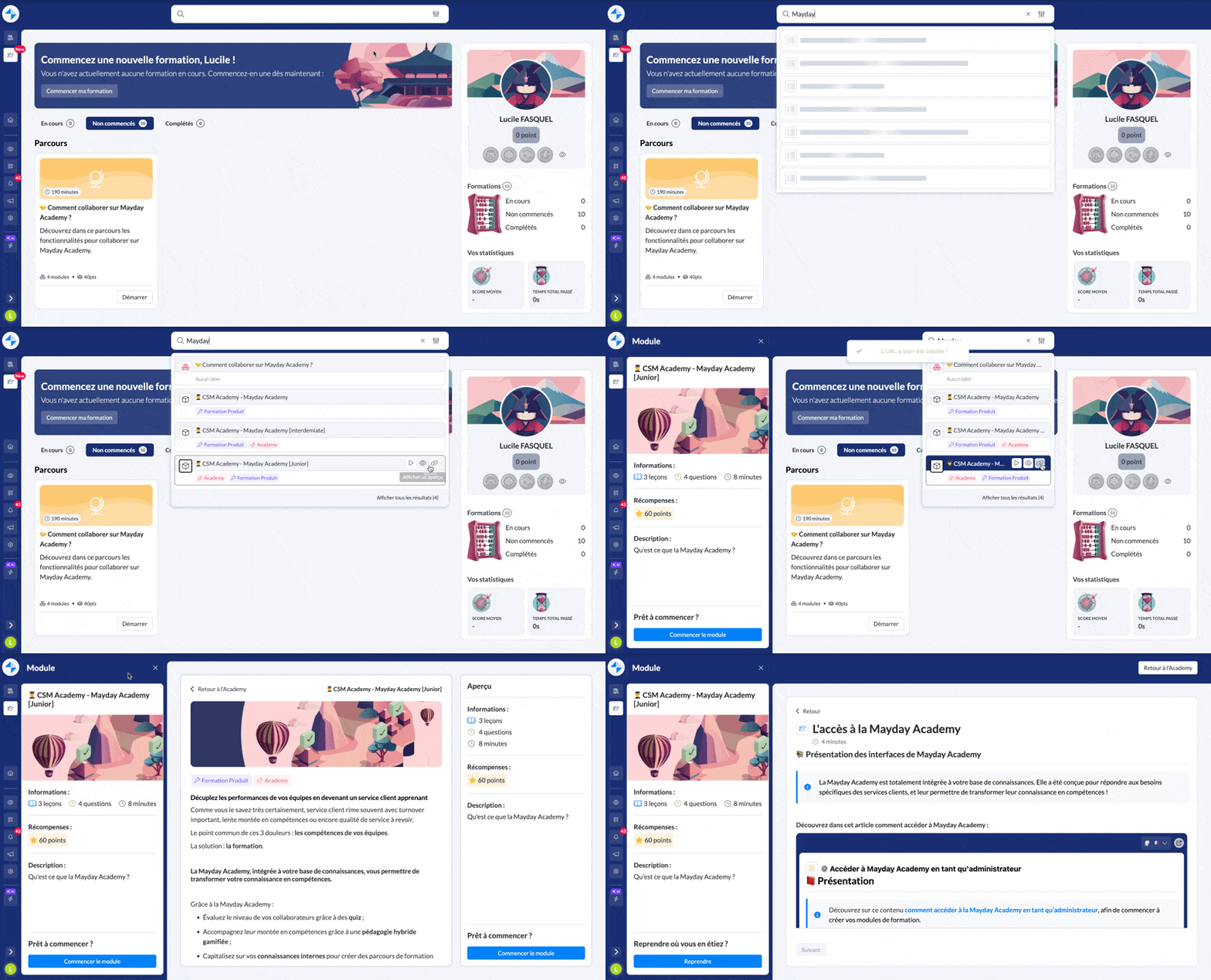
Learner interface Mayday Academy - Search bar
🤔 How to use it?
Click on the search bar at the top of the learner interface
Search for the path or module you want
Click on the search result to open the module or path
You can copy the URL from the search result by clicking on the icon 🔗
You can open a preview in the sidebar by clicking on the icon 👁 on the search result
You can view the training status on the search result by hovering your mouse over the icon ▶. By clicking on this icon you are redirected to the module or path.
Only training modules and paths that are published and assigned to your agents will be displayed through the search engine.
🎯 Filter your search for more results
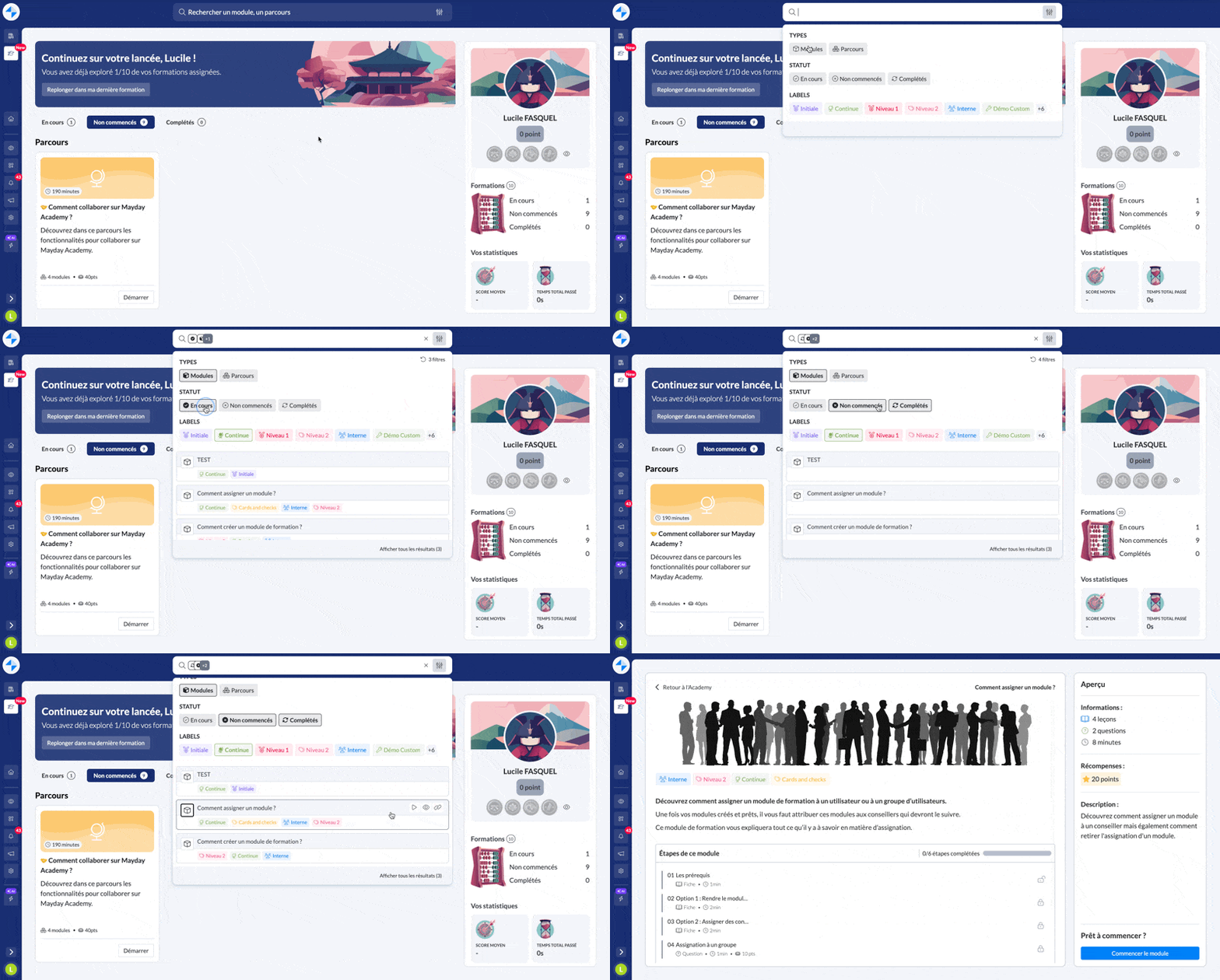
Learner interface Mayday Academy - Search bar - Filters
The filter feature allows you to filter trainings by:
Type (Modules or Paths)
Status (In progress, Not started, or Completed)
Tags
🤔 How to use the feature?
Search for training on the Academy search bar by typing the training title or by clicking the "Filters" icon next to the cross in the search bar
📸 Screenshot:

To use the filters:
click on "Modules" or "Paths" to filter by types
click on "In progress", "Not started", or "Completed" to filter by Status
click on the tags that interest you to filter by tags
📸 Screenshot:
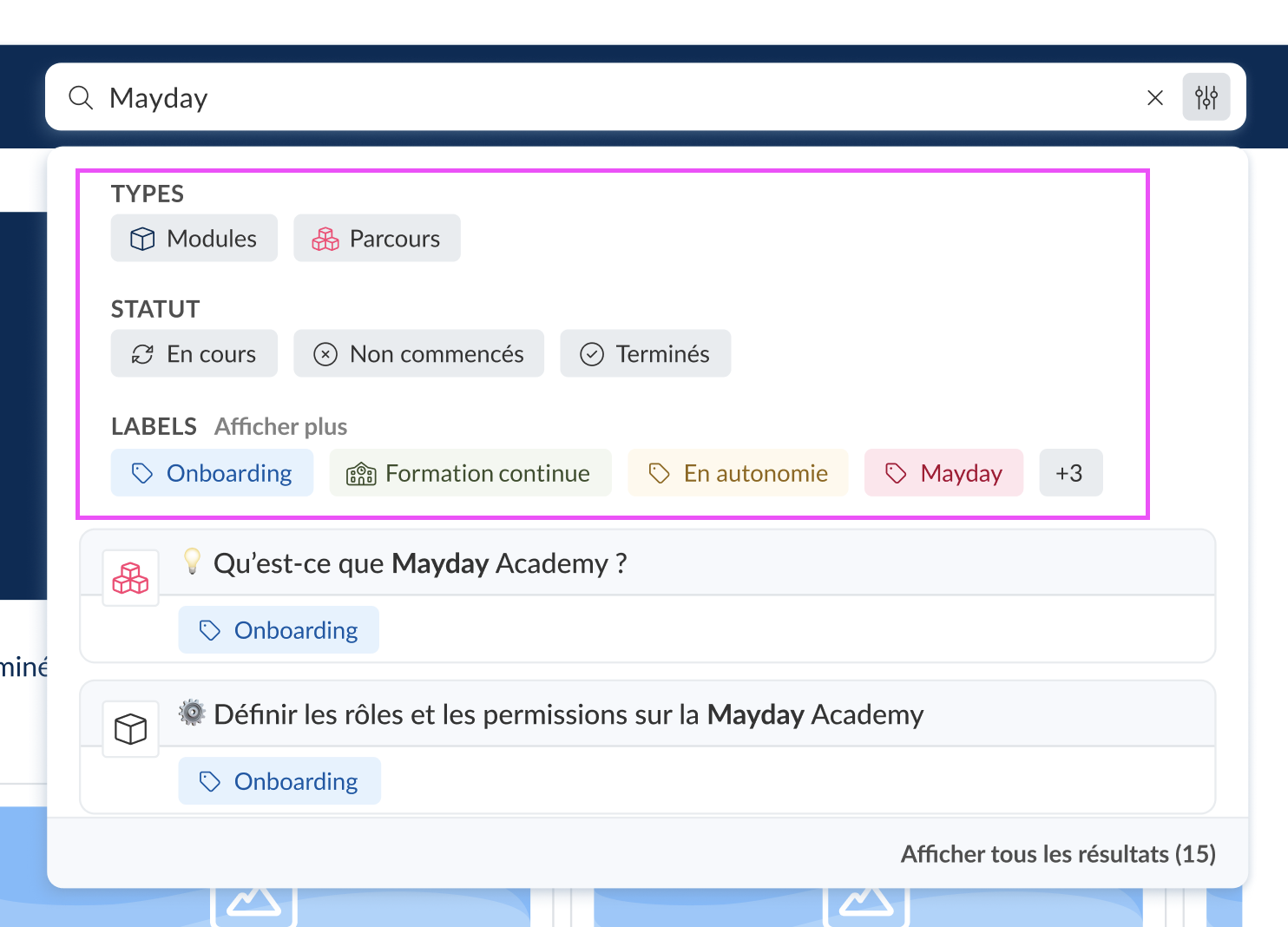
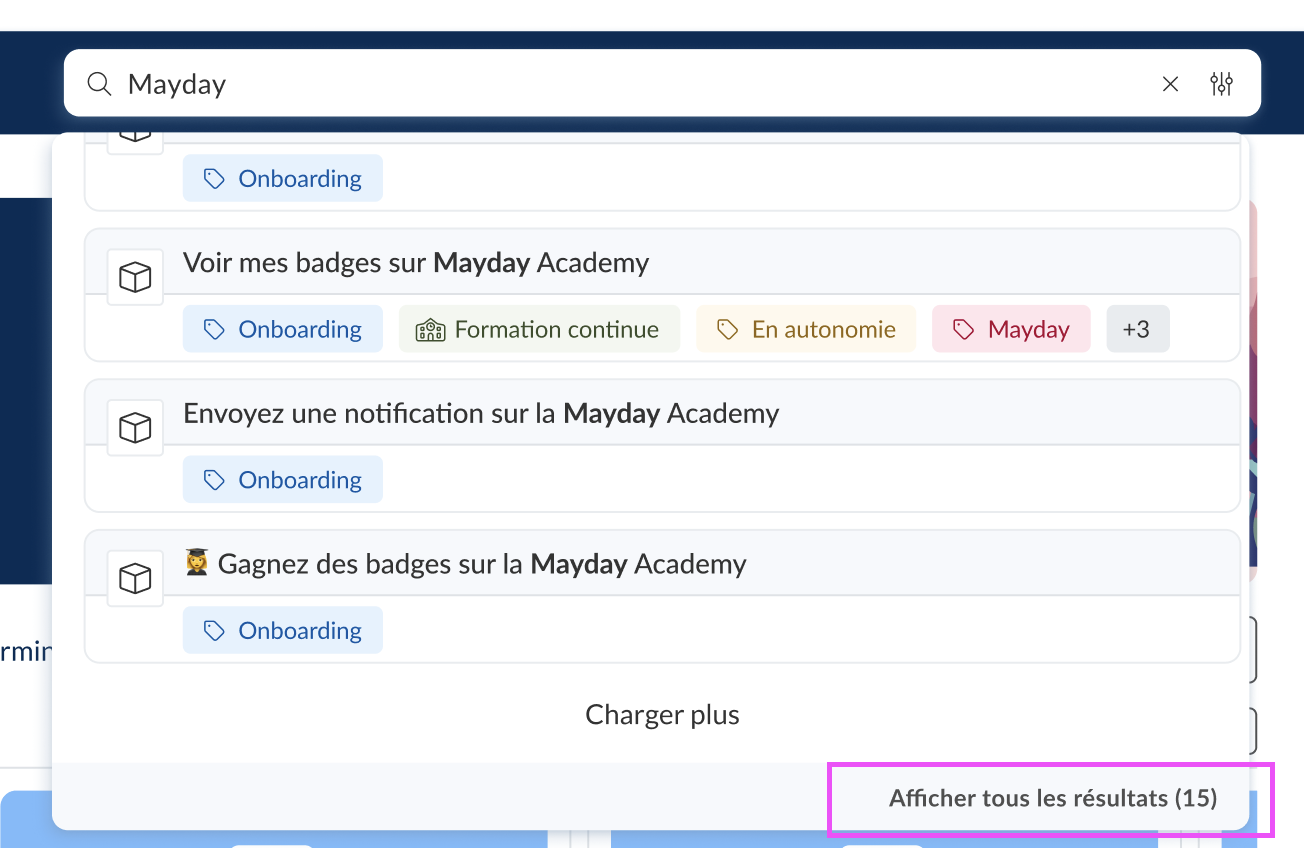
Display and filter all your search results
From the Academy search bar, display all your training search results and filter them on a dedicated view.
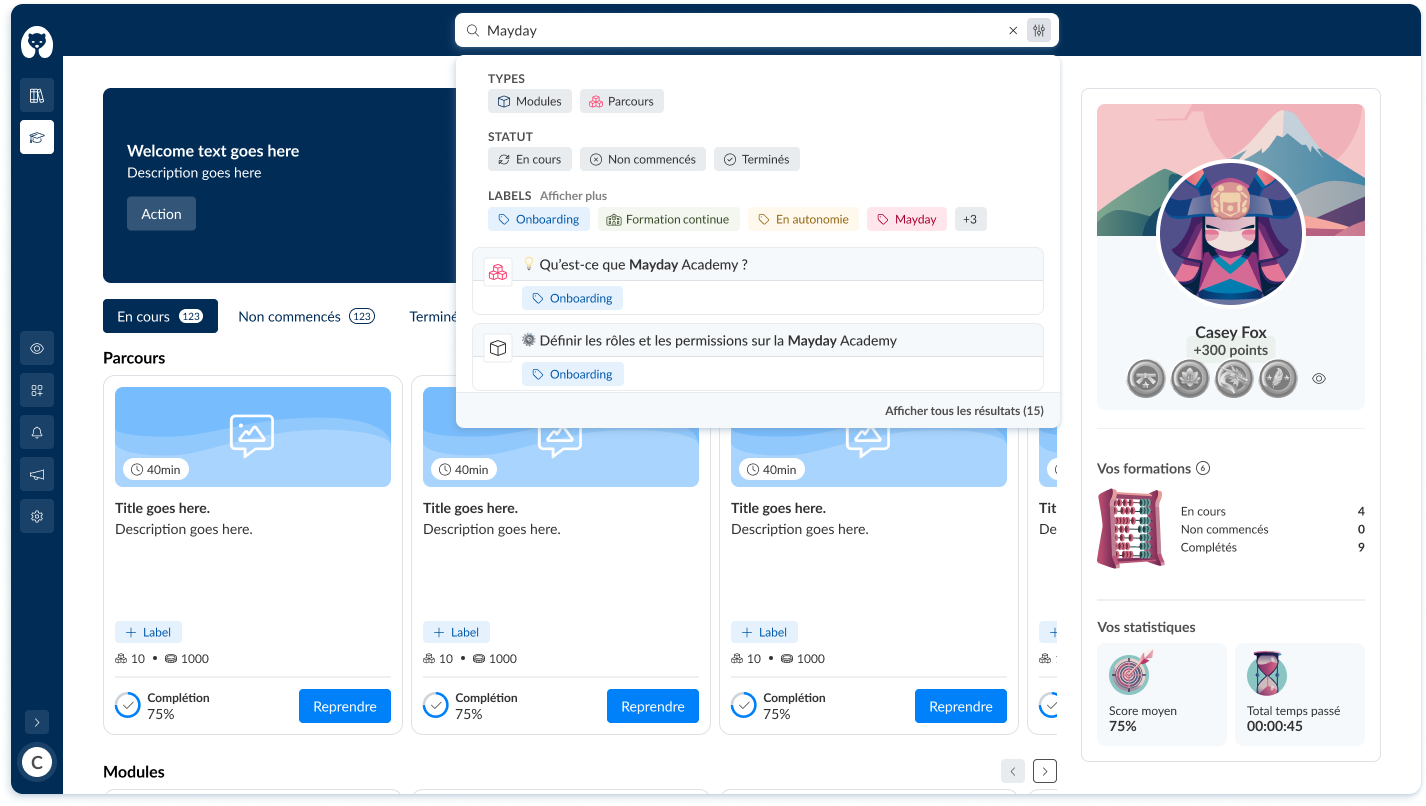
Learner interface Mayday Academy - Search bar - Filters and "Show all results" option
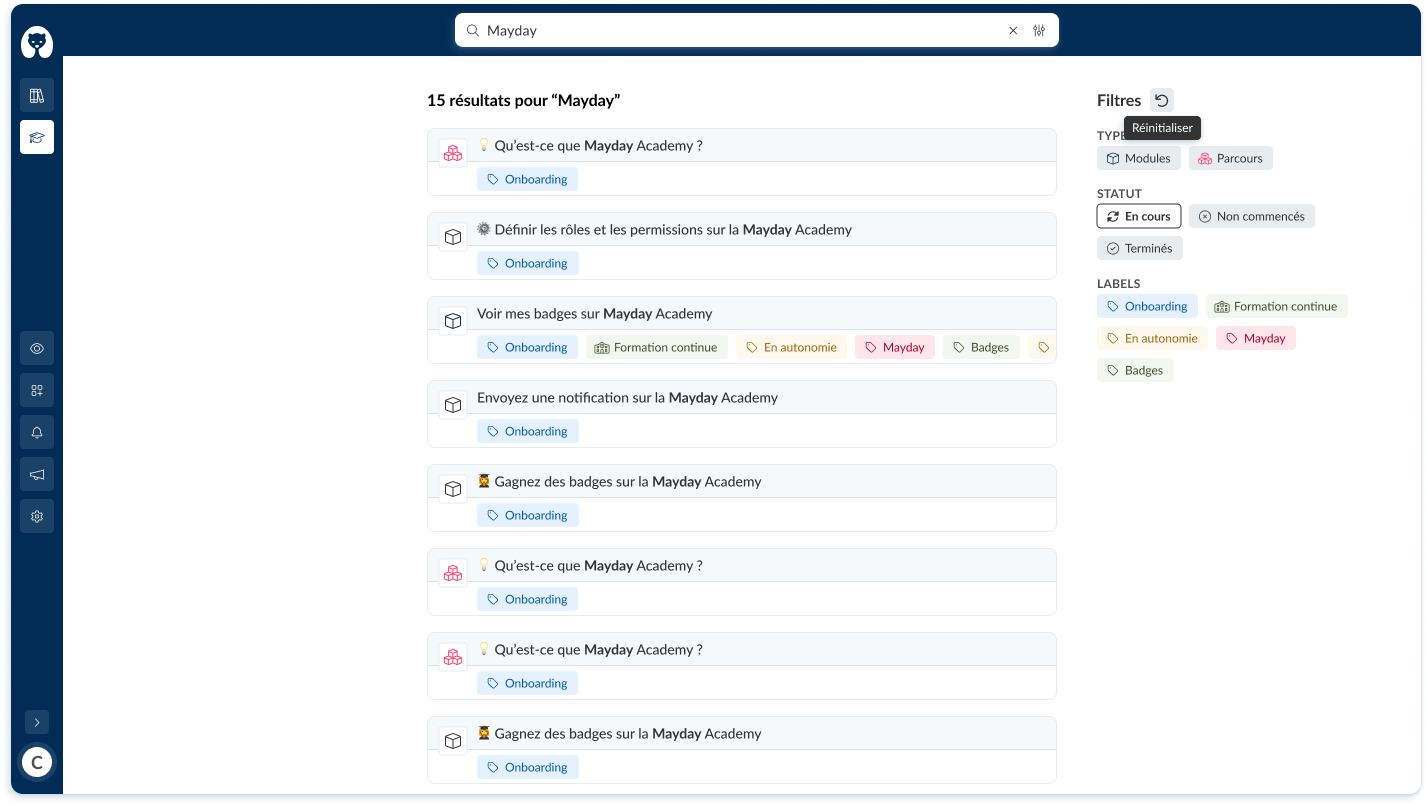
Learner interface Mayday Academy - Search bar - After clicking on "Show all results"
The filter feature allows you to filter trainings by:
Type (Modules or Paths)
Status (In progress, Not started or Completed)
Tags
🤔 How to use the feature?
Search for training on the Academy search bar by typing the training title or by clicking the "Filters" icon next to the cross in the search bar
📸 Screenshot:
To see all the results, click on "Show all results"
📸 Screenshot:
To use the filters:
click on "Modules" or "Paths" to filter by types
click on "In progress", "Not started", or "Completed" to filter by Status
click on the tags that interest you to filter by tags