📕 Presentation
Discover on this content how to access Mayday Academy as an administrator, in order to start creating your training modules.
Congratulations! You have created your new Mayday Academy space and you can now start creating your first training modules from your administrator space.
➡ Access the Mayday Academy space
After creating your account (see the content ), access Mayday Academy by clicking on the icon 🎓 in the left menu of your administrator interface.
📸 View the Mayday Academy icon in the administrator interface

For advisors, access to Mayday Academy is done by clicking on the same icon from the Mayday Desk interface.
📸 View the Mayday Academy icon in the Mayday Desk interface

🧭 Navigate in the Mayday Academy administration interface
In your Mayday Academy administrator interface, you will find all the elements necessary for editing, configuring and managing your training.
1⃣ The home page
When you access Mayday Academy, you will first have a home page with all the training modules you have created.
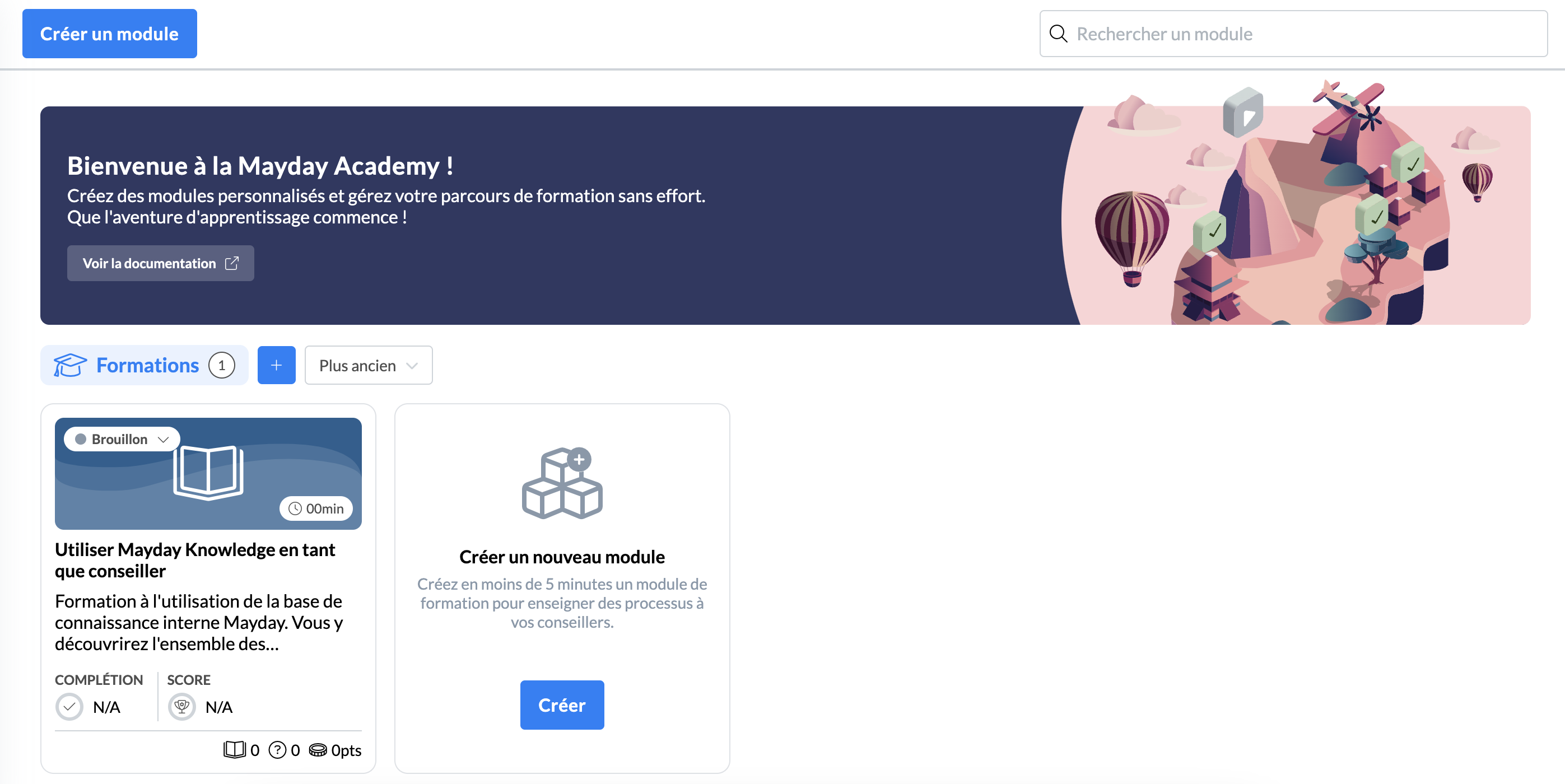
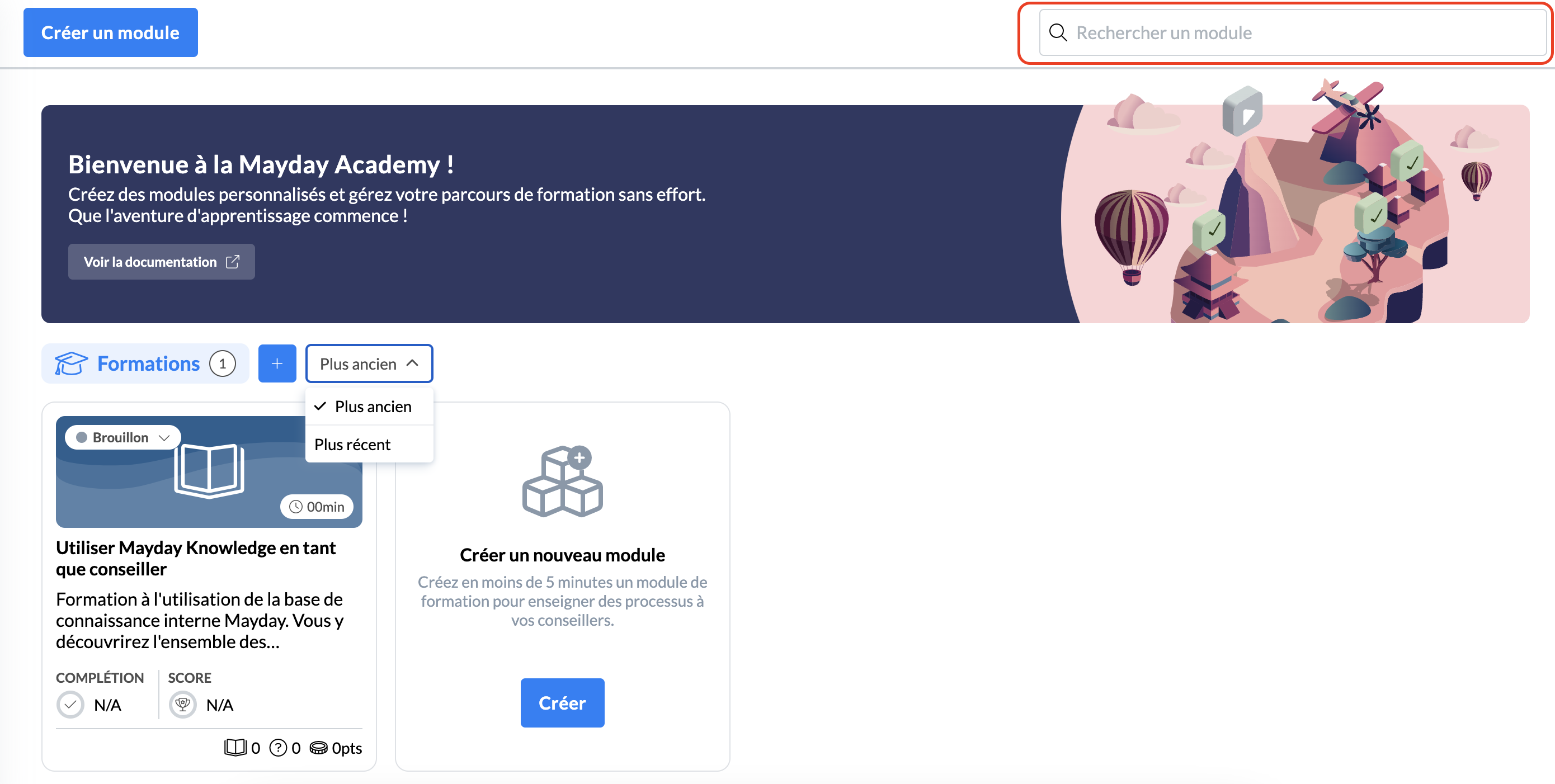
You then have the possibility to:
Search for an existing module
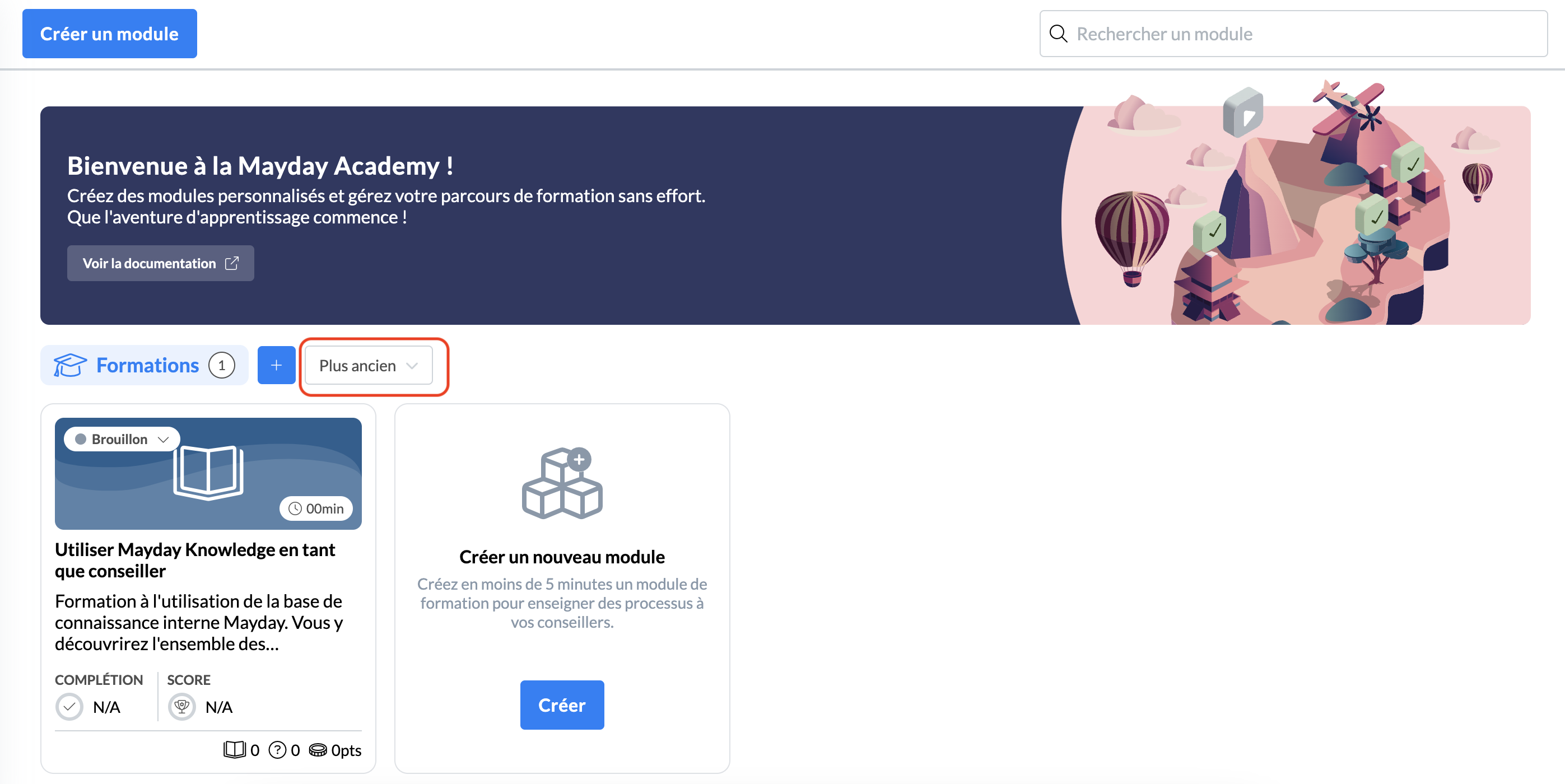
Sort your modules from oldest to newest or from newest to oldest
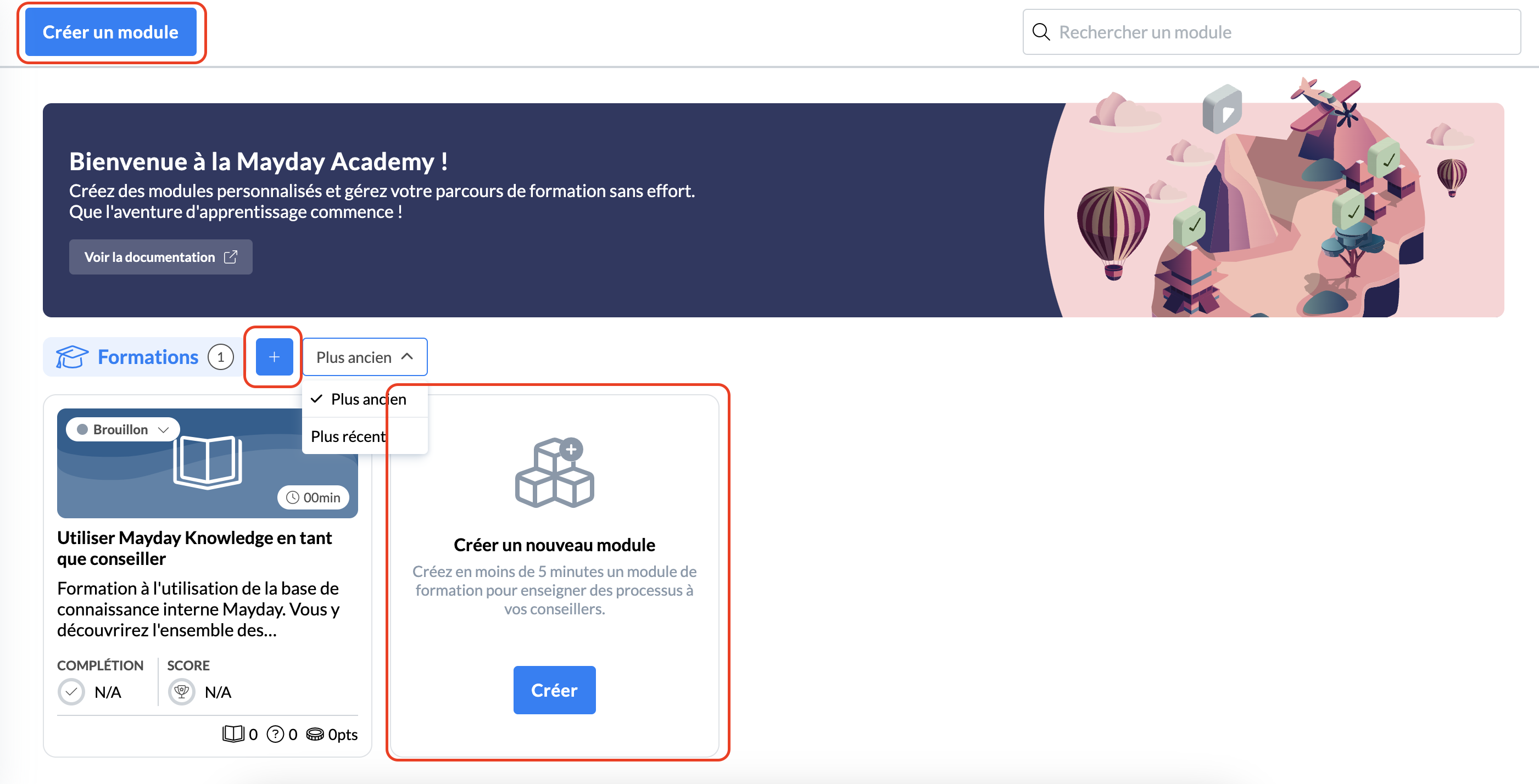
Create a new module
2⃣ The page of a module
When you have created your first training module, you can access the administration page of this module with 4 sections:
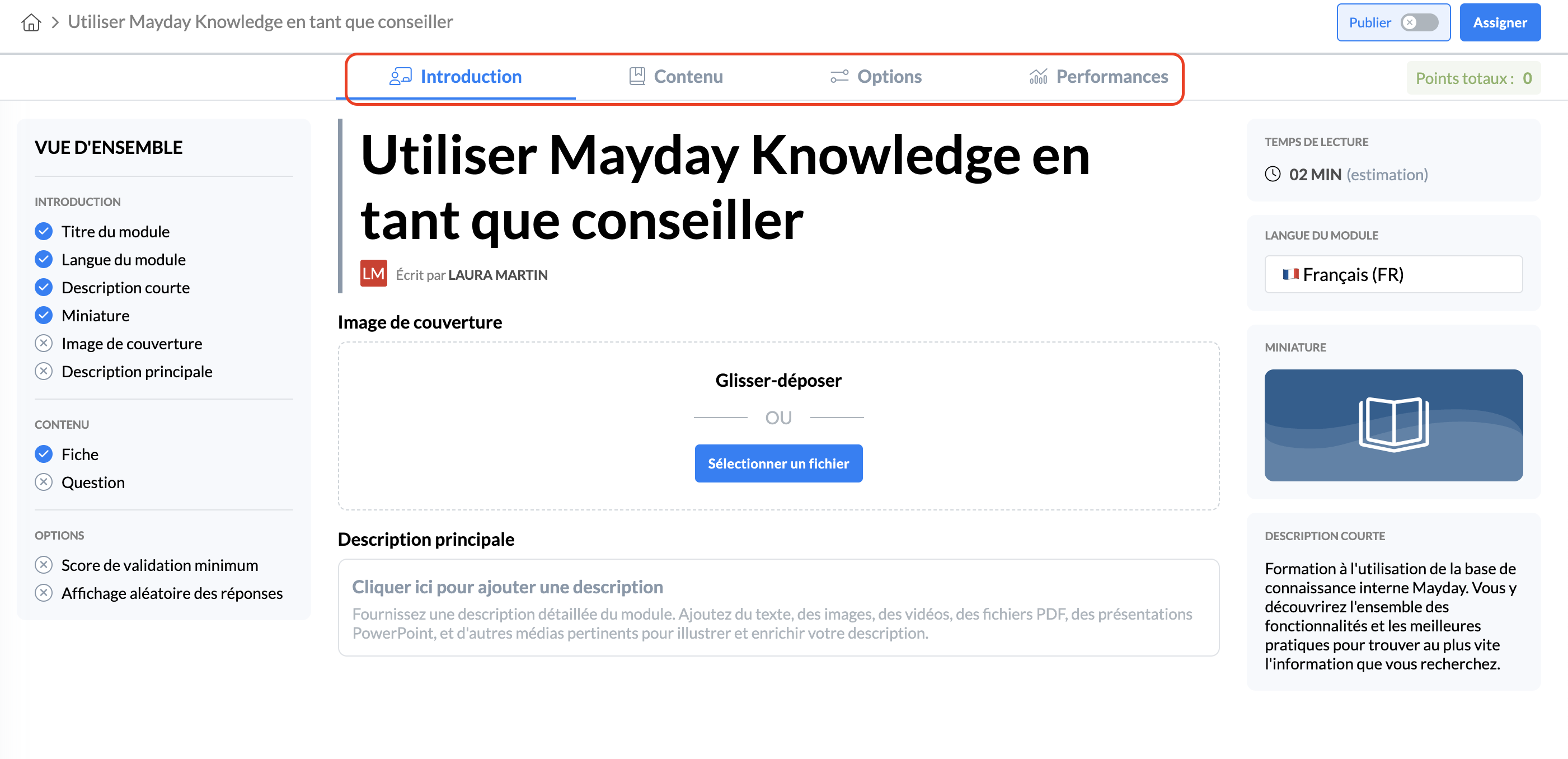
Introduction
The introduction section allows you to configure the main information of your module. For more information, you can consult the article
Content
The content section allows you to access the content of your training module (cards and questions). For more information, you can consult the articles and
Options
The options section allows you to define all the parameters of your module, particularly in terms of score and question display. For more information, you can consult the article
Performance
The performance section allows you to manage your training module through various data. For more information, you can consult the article
Finally, you also have the possibility on this administration page of your module to:
Assign the module: choose which advisors or groups of advisors should follow the module
For more information, you can consult the article
Publish the module: make it visible to the advisors to whom you have assigned it
For more information, you can consult the article
Consult the total points associated with the modules (this is the sum of the points of each question present in the module).