📕 Presentation
Discover on this content how to define user permissions on Mayday Academy, via Mayday roles.
On Mayday, all user permissions are defined at the role and group level.
As a reminder, the process is as follows:
Roles allow you to restrict access to certain Mayday features: read content, edit content, access the Mayday Hub, etc.
Groups allow you to restrict access to certain collections or knowledge bases on Mayday
As a reminder, you can learn how to create and configure groups and roles:
🎯 Use case
Define the Mayday Academy features that users will have access to.
🏗 Option 1⃣ : Add permissions to existing roles
If your users are already using the knowledge base, this means that a role has been assigned to them. If you wish, you can modify their existing role to add permissions related to the Academy.
1⃣ Step 1: Choose the role to edit
To edit a role and add permissions to the Mayday Academy, follow these steps:
Click on the “
Settings” tab;Click on the “
Roles” subsection;Click on “
...” at the level of a role;Click on “
Edit role” to edit the role.
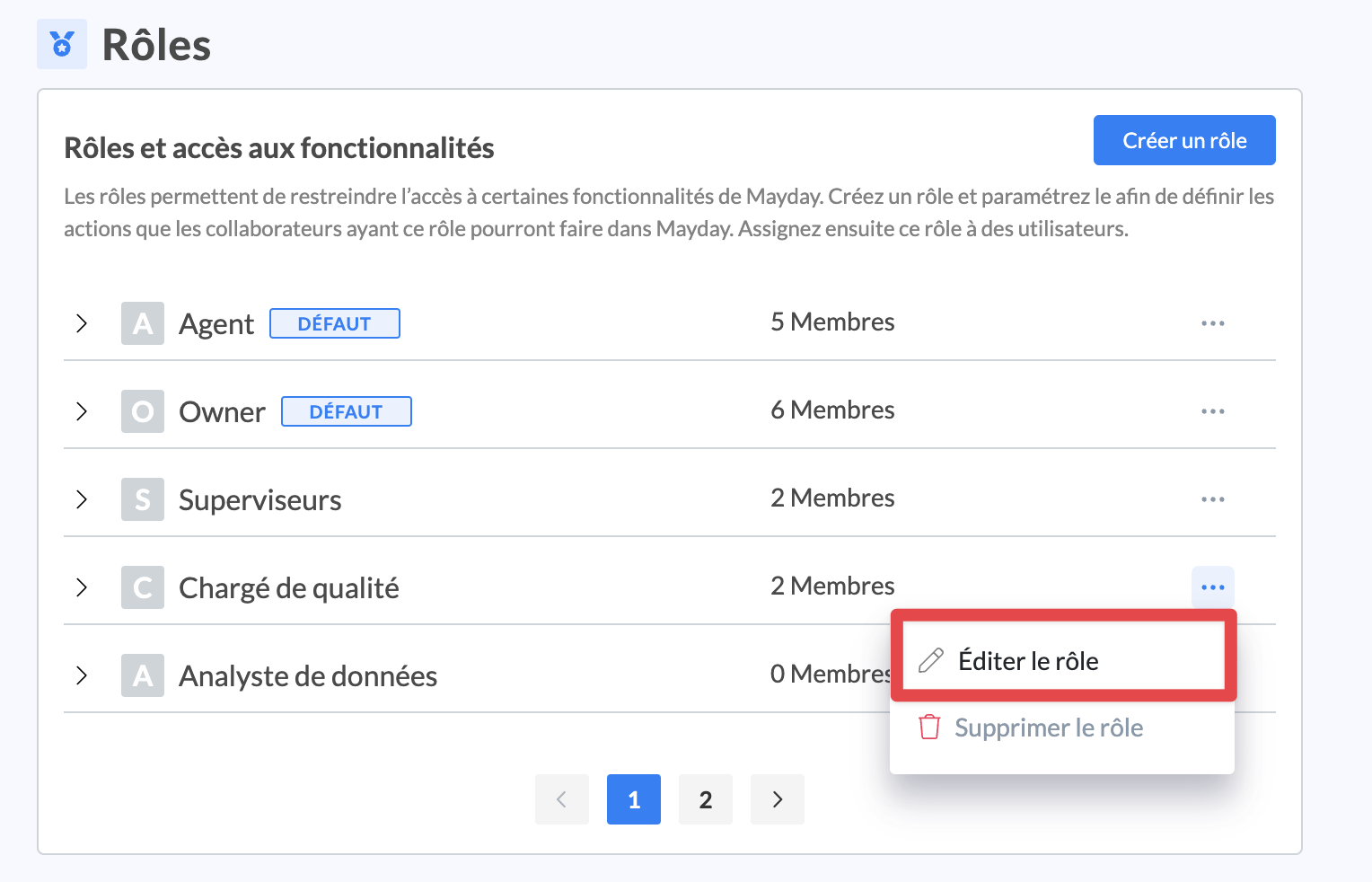
A modal opens to invite you to edit the role.
2⃣ Step 2: Add permissions in the Academy tab
To add permissions to the Mayday Academy for a role, follow these steps:
Click on the chevrons > to navigate to the right tabs;
Click on the “
Academy” tab;Activate or deactivate each of the permissions as you wish.
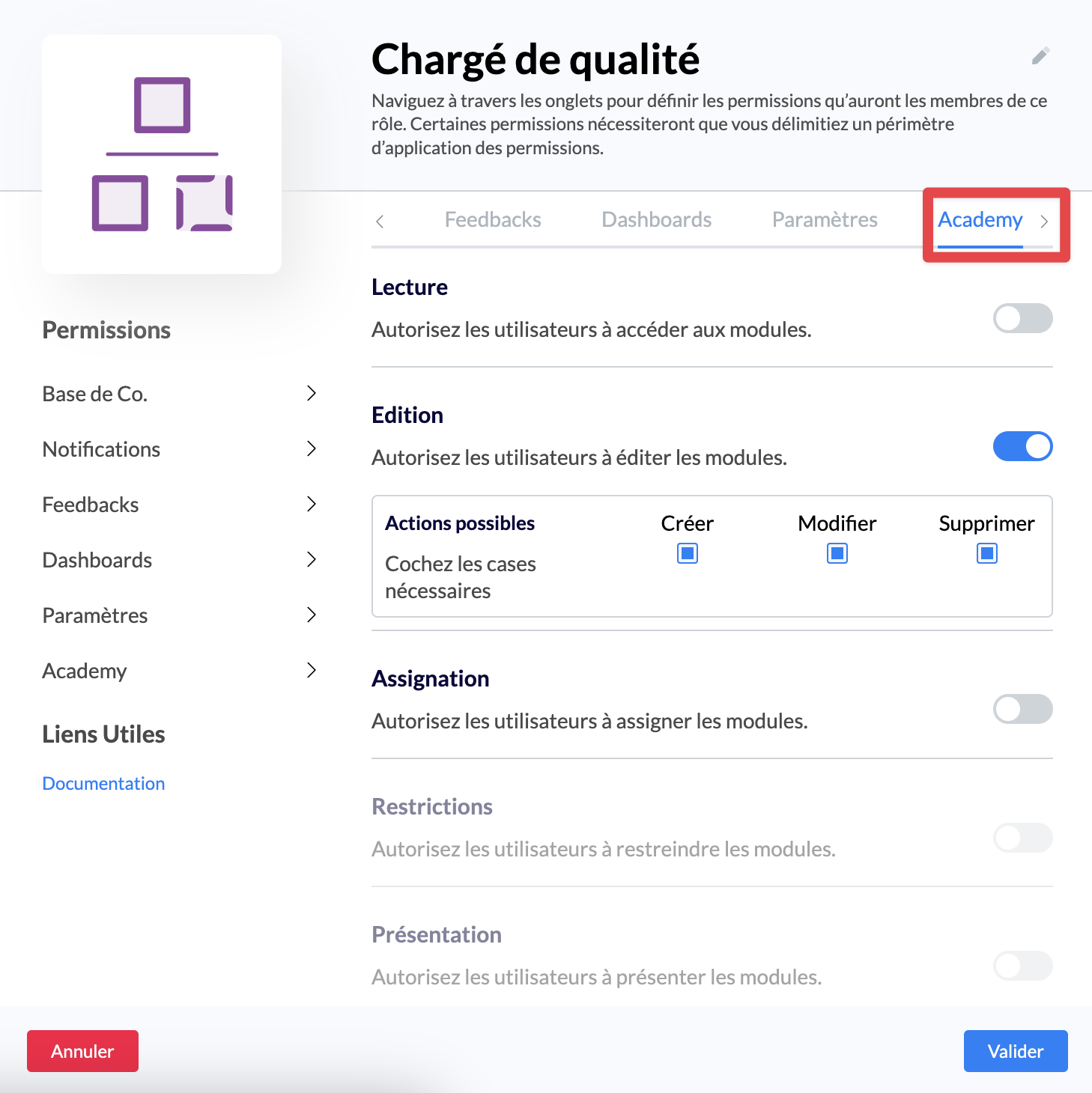
Among the available permissions, you will find:
Reading: Allow the user to follow training modules or courses. The user will be able to access the Mayday Academy on Mayday Desk, be assigned to training, access public training, or follow training.
Editing: Allow the user to edit training modules or courses. The user will be able to access the Mayday Academy on Mayday Admin and create or modify training modules/courses.
If you activate it, you can then choose the editing actions to which you want to give access: creation, editing, deletion.
Assignment: Allow the user to assign training modules or courses. The user will be able to access the Mayday Academy on Mayday Admin and assign training modules/courses to users or groups of users.
Restrictions (coming soon): Allow the user to restrict access to training modules or courses. The user will be able to access the Mayday Academy on Mayday Admin and restrict access to training modules/courses on Mayday Admin to users. This is useful if you do not want all users who have access to the Mayday Academy in editing to be able to see all available modules.
Presentation (coming soon): Allow the user to present training modules or courses to an audience. The user will be able to access the Mayday Academy on Mayday Admin and present training to an audience, as part of face-to-face or videoconference training.
3⃣ Step 3: Add permissions in the Feedbacks tab
This tab allows you to define the permissions related to Mayday feedback, particularly on the Mayday Academy.
Go to the “Feedbacks” tab:
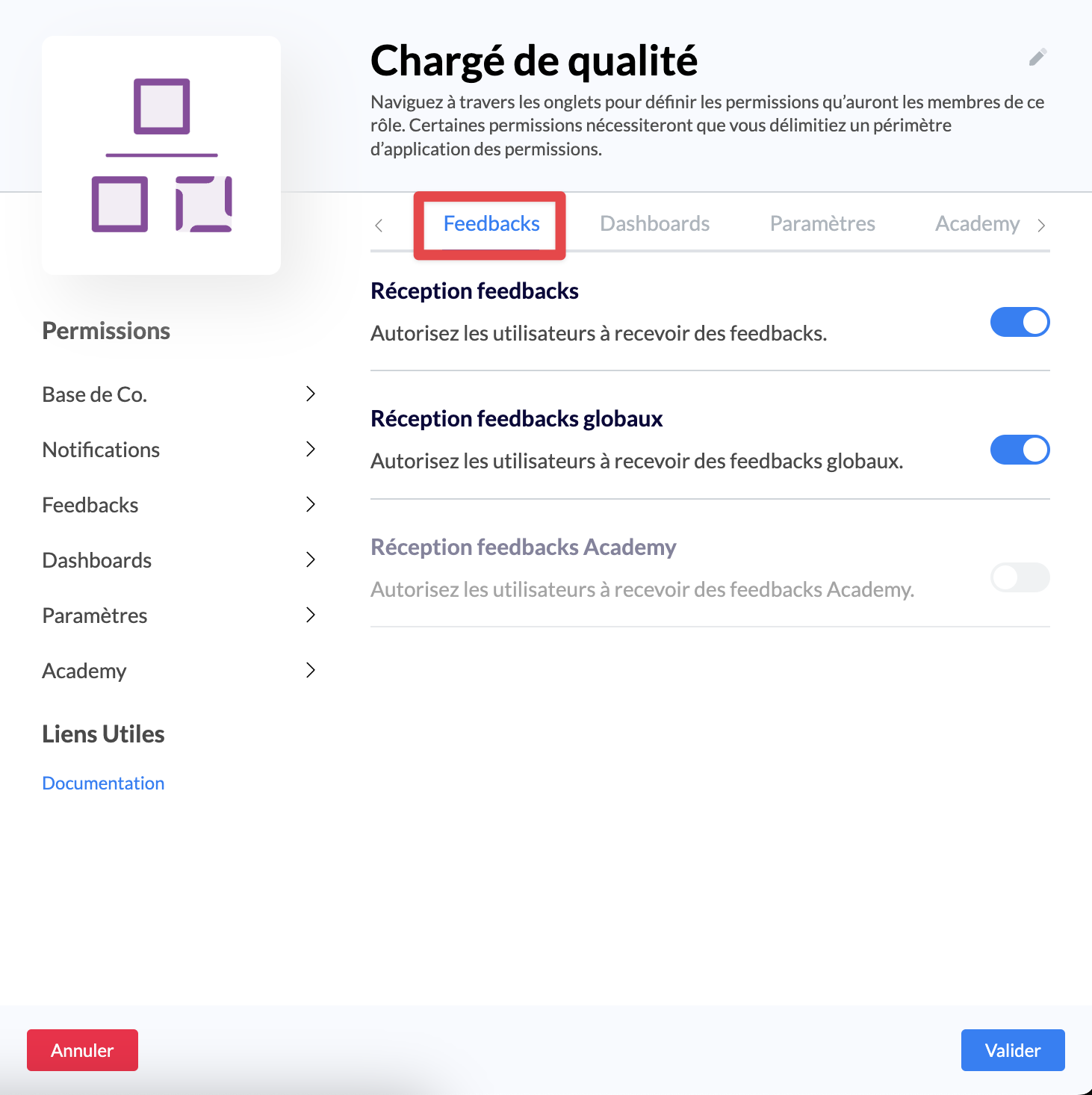
Among the available permissions, you will find:
Academy feedback reception: Allow the user to receive feedback on training modules or courses. When learners send feedback on the Mayday Academy or on a training module/course, this user can be assigned as a recipient and then process the feedback in the Mayday Hub.
4⃣ Step 4: Add permissions in the Dashboards tab
This tab allows you to define the permissions related to Mayday feedback, particularly on the Mayday Academy.
Go to the “Dashboards” tab:
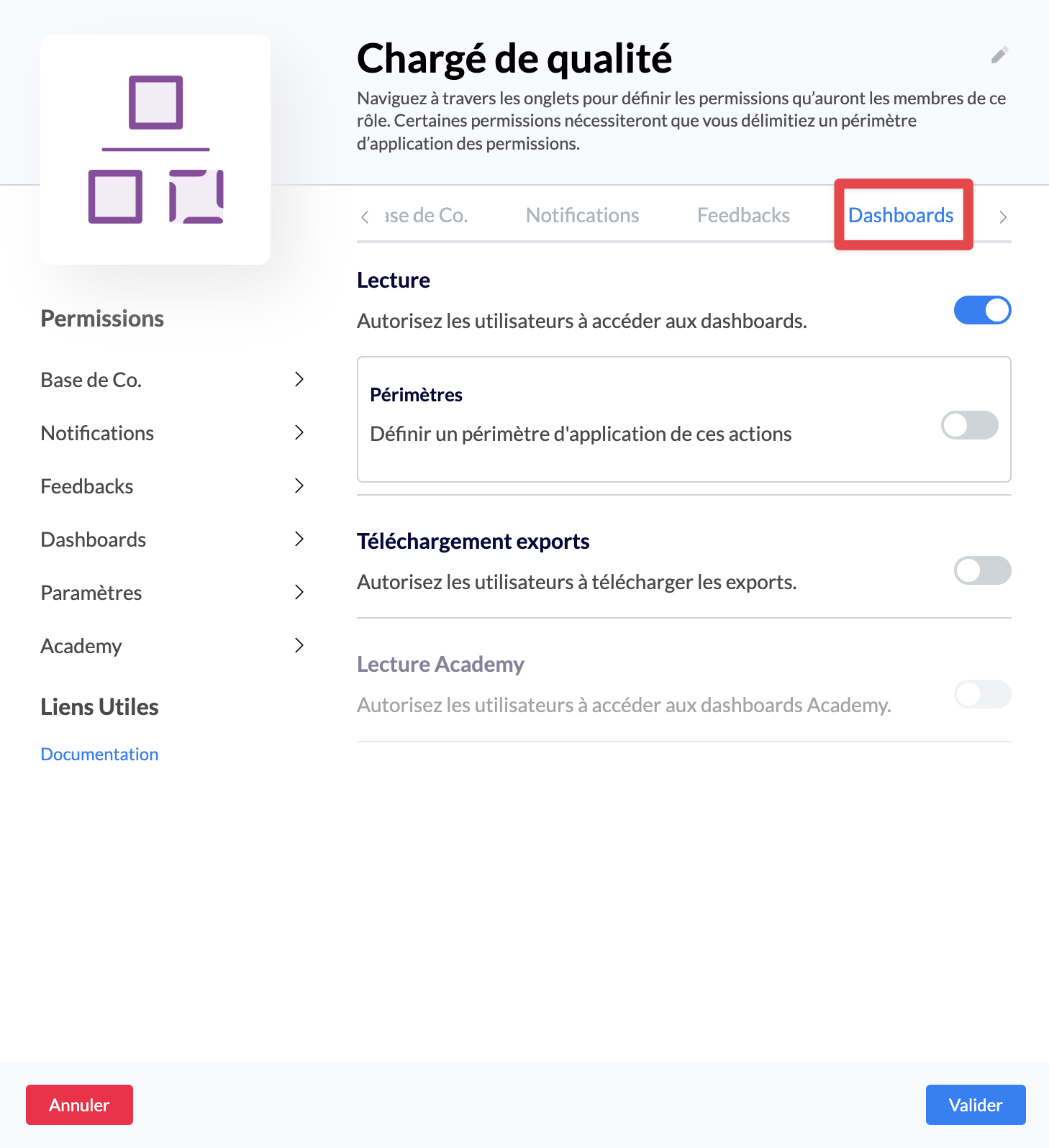
Among the available permissions, you will find:
Academy reading : Allow the user to analyze learners' results on a training module or course. These users will be able to access the “Performance” tab of a training module or course, and analyze the main data, by learner, and by training step.
5⃣ Step 5: Save the role
You simply need to save the role with the new permissions.
Users who have this role only need to log out and log back in to enjoy their new permissions!
🏗 Option 2⃣ : Create new dedicated roles
If your users do not use the knowledge base, you can create new roles with Mayday Academy permissions and assign them. You can also create roles specific to the Mayday Academy and assign multiple roles to your users.
For example, an advisor can be assigned two roles:
Advisor: Role that gives them access to reading the knowledge base
Learner: Role that gives them access to reading training on the Mayday Academy
1⃣ Step 1: Create a new role
To create a role, simply click on "
Create a role";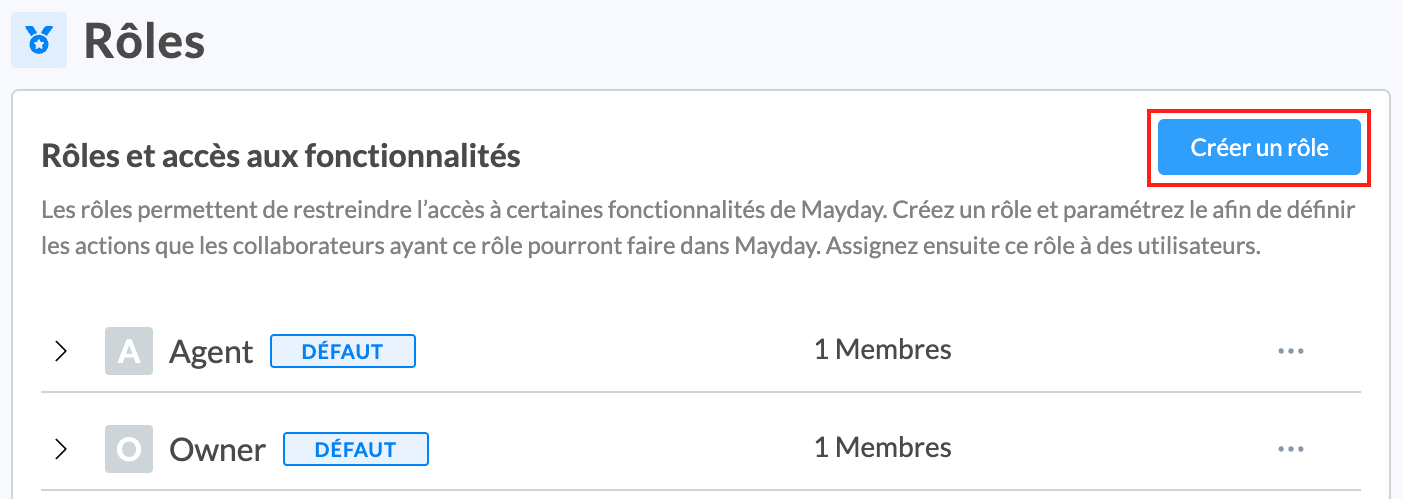
You must then assign a name to this role;
We recommend that you define a short and explicit name, that clearly materializes the function of the members of this role on Mayday.
Example: "Learner", "Training Manager", ...
2⃣ Step 2: Add Mayday Academy permissions
As explained in the sections above, Mayday Academy permissions are found in three tabs:
AcademyFeedbacksDashboards
👉 You can find the details of these tabs and permissions in the section 🏗 Option 1⃣ : Add permissions to existing roles.
As a reminder, here are the steps to follow:
2⃣ Step 2 : Add permissions in the
Academytab3⃣ Step 3 : Add permissions in the
Feedbackstab4⃣ Step 4 : Add permissions in the
Dashboardstab