Discover in this content how to send notifications to your agents.
The notifications feature allows you to keep your agents informed about changes within the knowledge base or company news by sending them a direct message on their Mayday interface.
There are two types of notifications:
Standard notifications;
Urgent notifications.
🎯 Use Cases
Communicate directly and instantly with your agents in their Mayday workspace!
Schedule the sending of updates to your agents.
Send notifications to your agents to inform them of an event impacting the knowledge base or operations:
Content update;
Company news;
Addition of new content;
Content removal;
Production incident;
Important or urgent information.
Resend a notification if some of your agents haven't read it yet.
Identify which agents have read the notifications.
✉ Send a Standard Notification
On each content, article, or guide, a bell icon 🔔 is available to create a notification.
For an article, the notification will concern the entire content.
For a guide, the notification will be effective at the step of the guide where you are when you click the dedicated icon.
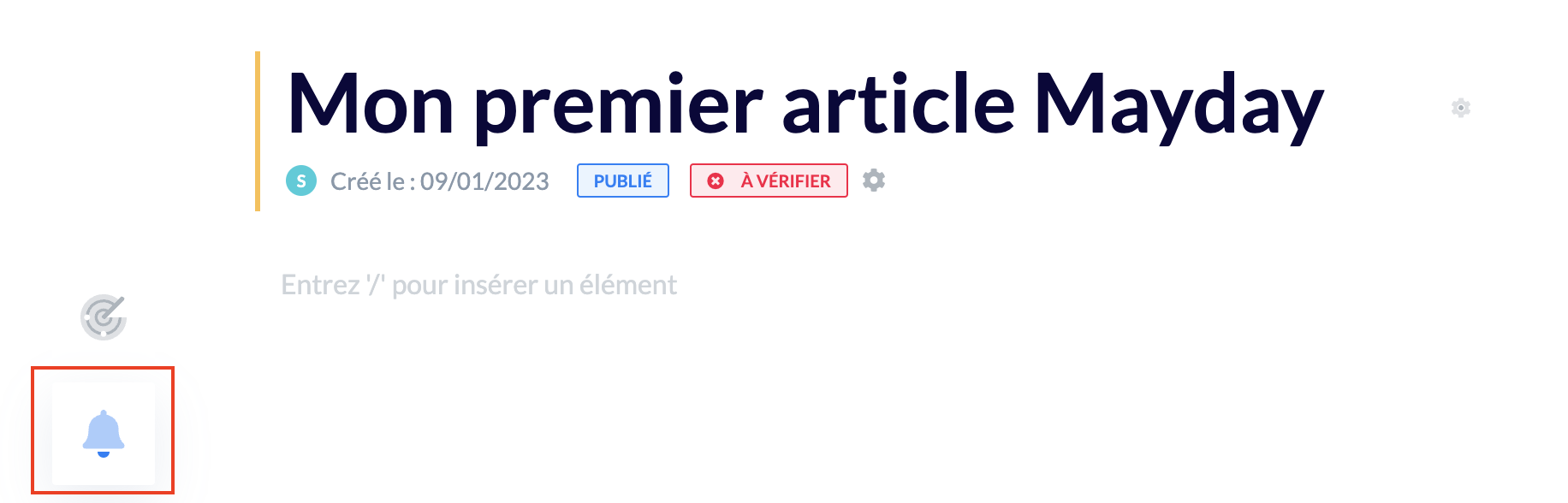
After clicking the icon 🔔, a window opens to let you set up your notification:
Notification title (required): we recommend establishing a methodology for naming your notifications:
[New] - Procedure XXX;
[Update] - Procedure XXX;
Message to communicate (required): be as clear as possible so the information is quickly and easily understood by agents:
Provide context justifying this notification;
If there is a change, specify the relevant paragraph.
Link the content currently being viewed (enabled by default): allows agents to be redirected directly to the content targeted by the notification.
Attachment (optional): allows you to send a file or screenshot to provide more context for the notification;
Send and end of visibility date (optional): lets you set the date when the notification will be sent, as well as the date when it will no longer be visible to agents. Neither date is required, and you can set just one of the two;
Recipients (required): lets you define who will receive the notification. You can choose to send a notification to user groups, roles, or user labels;
Two targeting modes are available:
“OR”: the notification is sent to anyone who meets at least one of the criteria (roles, groups, labels).
“AND”: only users who meet all the criteria receive the notification, for ultra-targeted sending.
Urgent (optional): this button is disabled by default and should only be enabled if the notification is urgent;
📸 See step-by-step how to create a notification
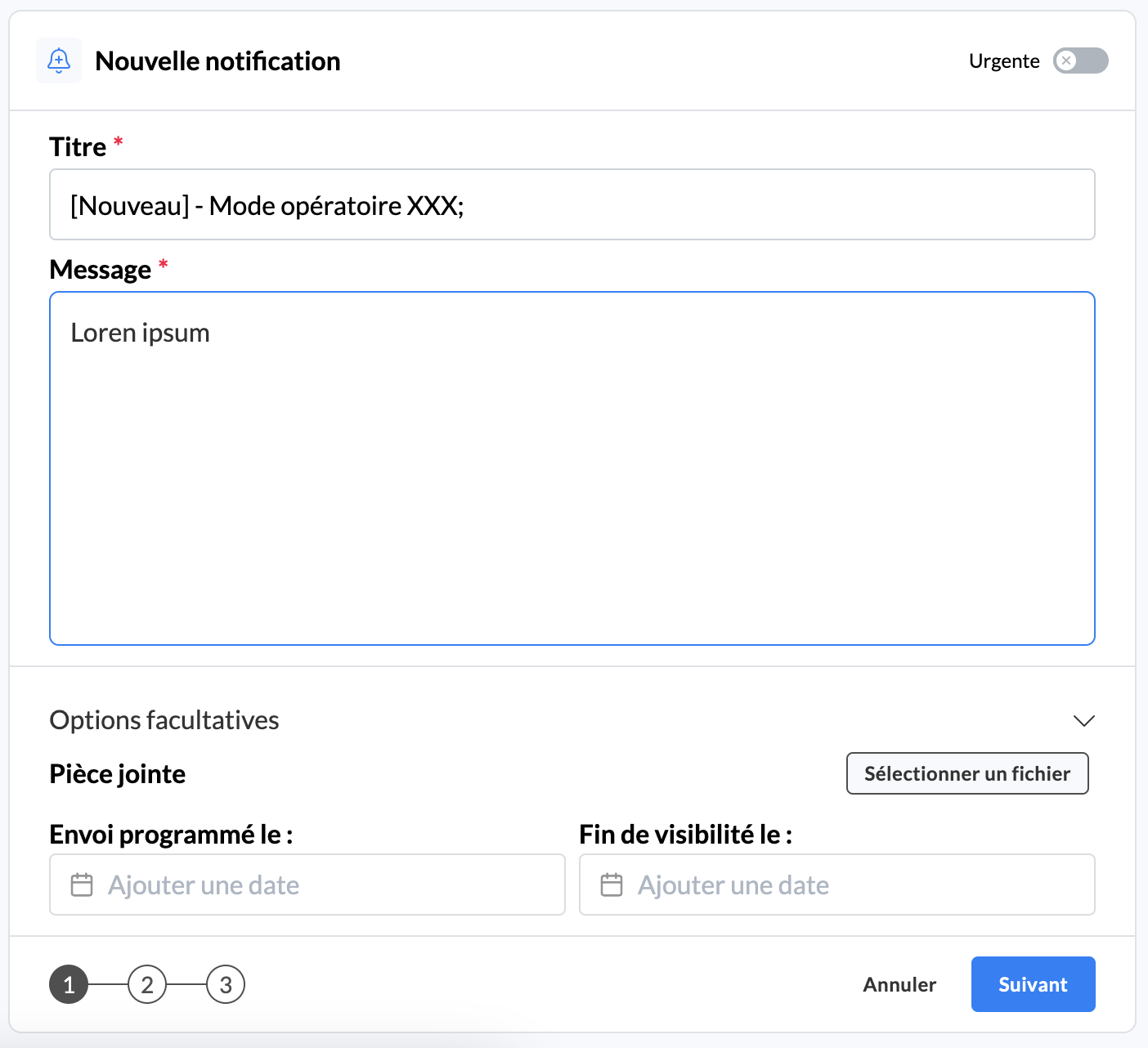
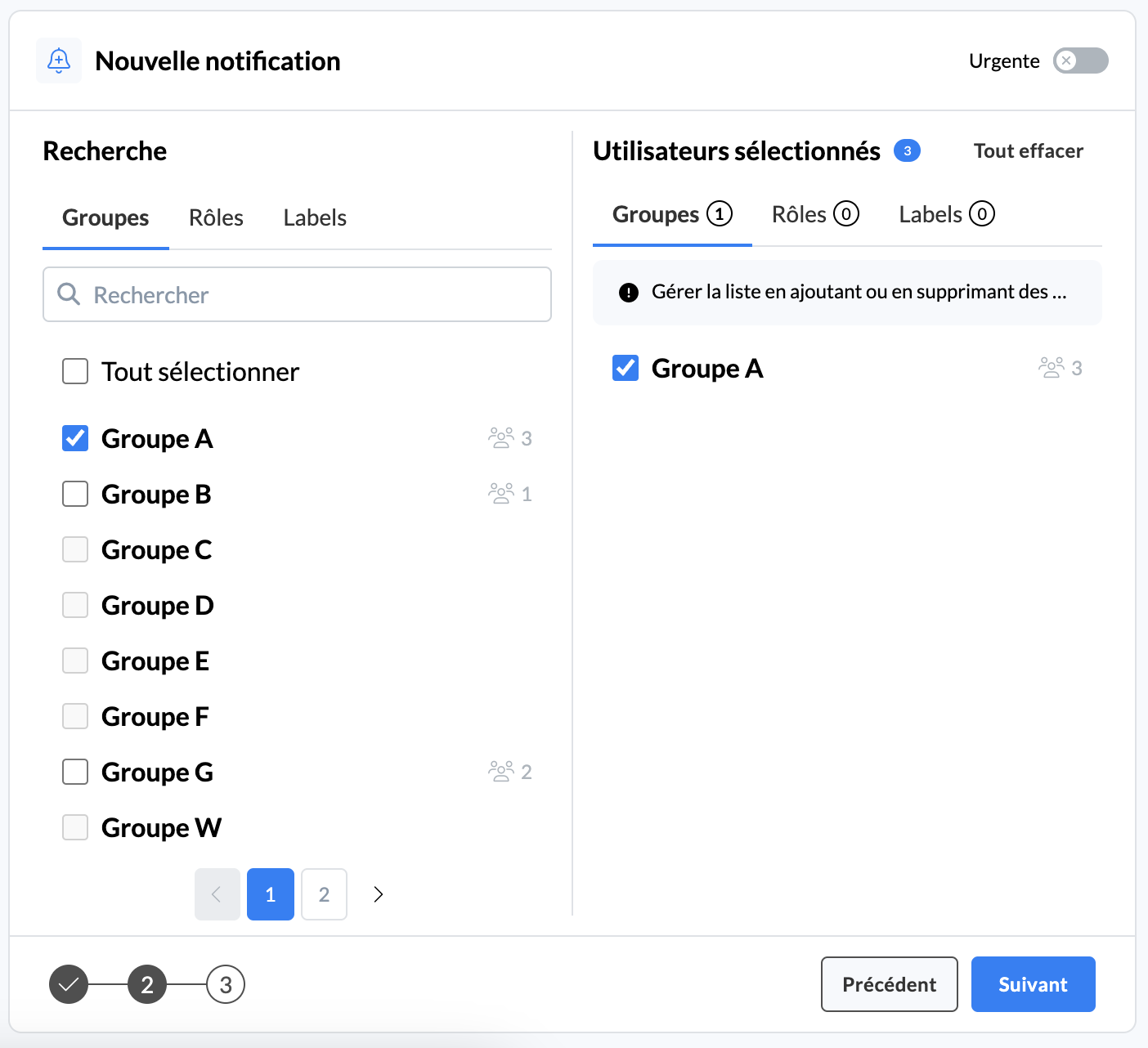
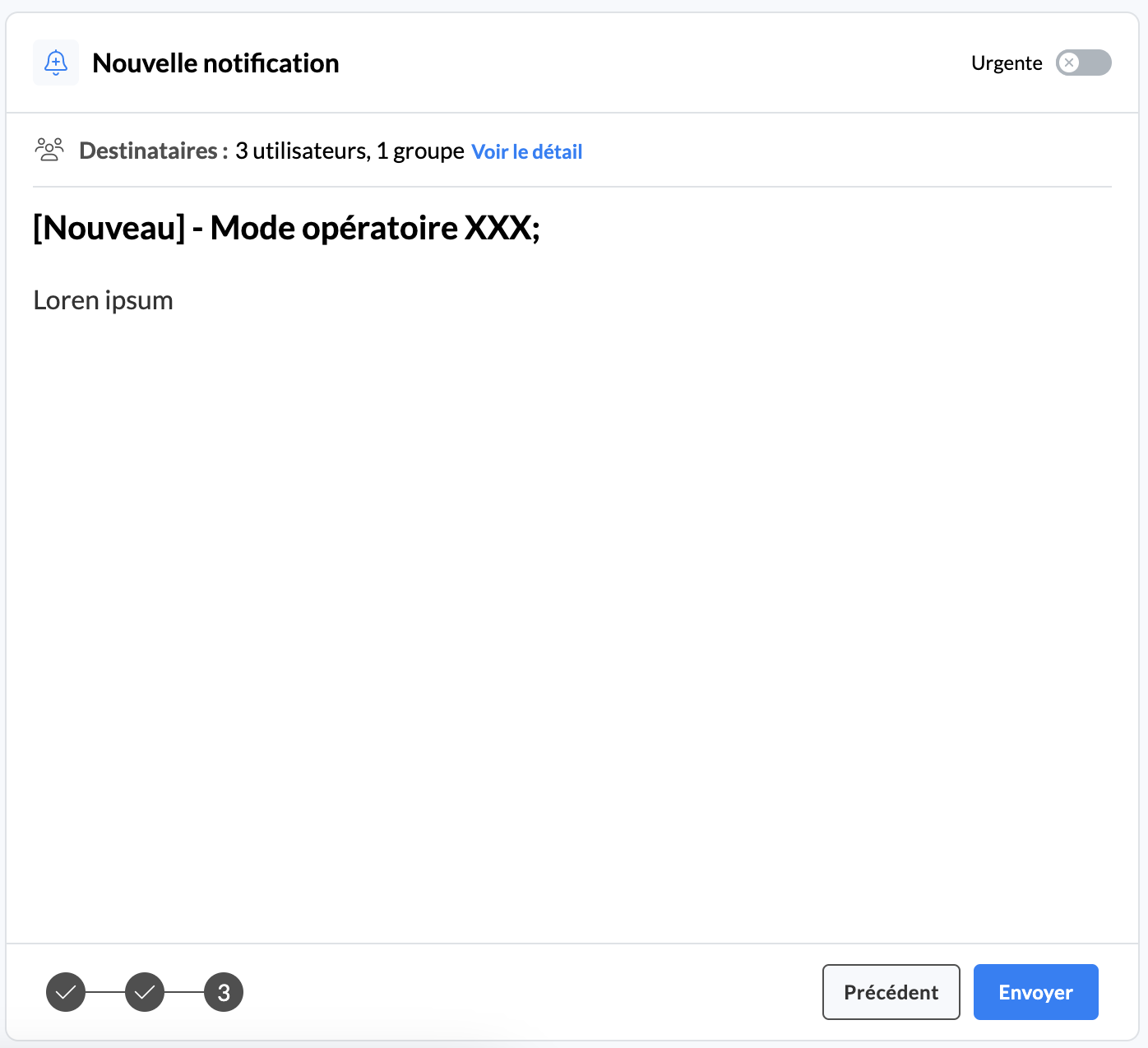
Before confirming the sending of the notification, a summary window shows you the final configuration.
If the information is correct, click "Send", otherwise, click "Back".
If you don't want to link your notification to specific content, you can either:
uncheck the “Link the content currently being viewed” option;
go to the notifications center and click the "Create a notification" button.
📸 See the notifications center
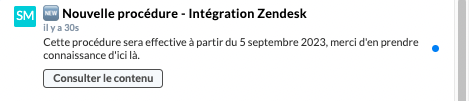
The agent will receive the notification directly in the notifications tab 🔔:


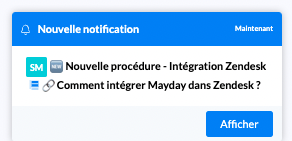
Additionally, a pop-up will open on the Mayday Desk:
If content is linked to the notification, the agent can click the “View content” button to go directly to the relevant content.
💡 Check out the content in to learn more about managing notifications as an agent.
🚨 Send an Urgent Notification
When creating a notification, you can mark it as “Urgent”. To do so, follow these steps:
Click the 🔔 icon on a piece of content or the “Create a notification” button in the notifications center, just like for a standard notification;
Enable the “Urgent” button.
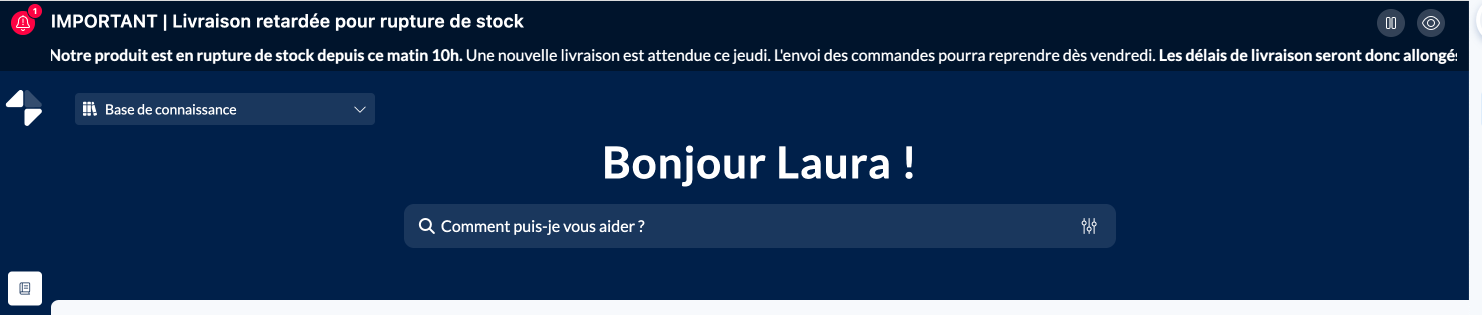
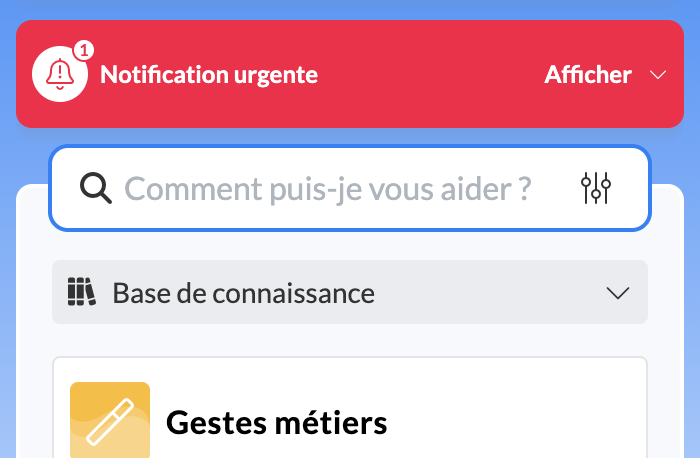
Unlike standard notifications, which are sent to the dedicated tab, an urgent notification will appear at the top of the agent interface in a red banner.
Example of an urgent notification on the full-page interface:
Example of an urgent notification on the Chrome extension (or Zendesk panel):
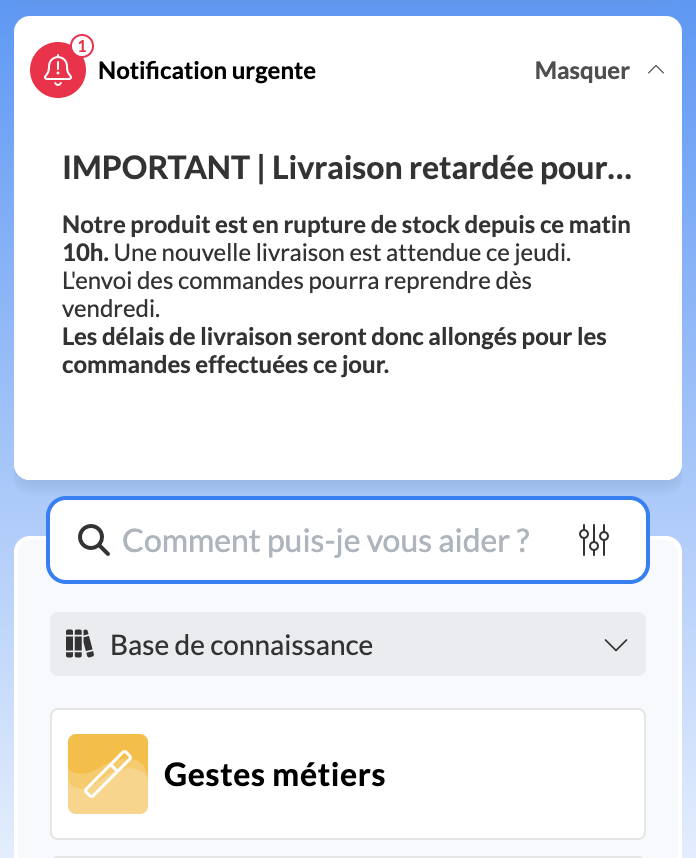
You can send several urgent notifications at the same time. The agent will need to scroll through the banner to read all the messages.
An "urgent" notification will be visible to agents until it is deleted, or until the end of visibility date has passed.
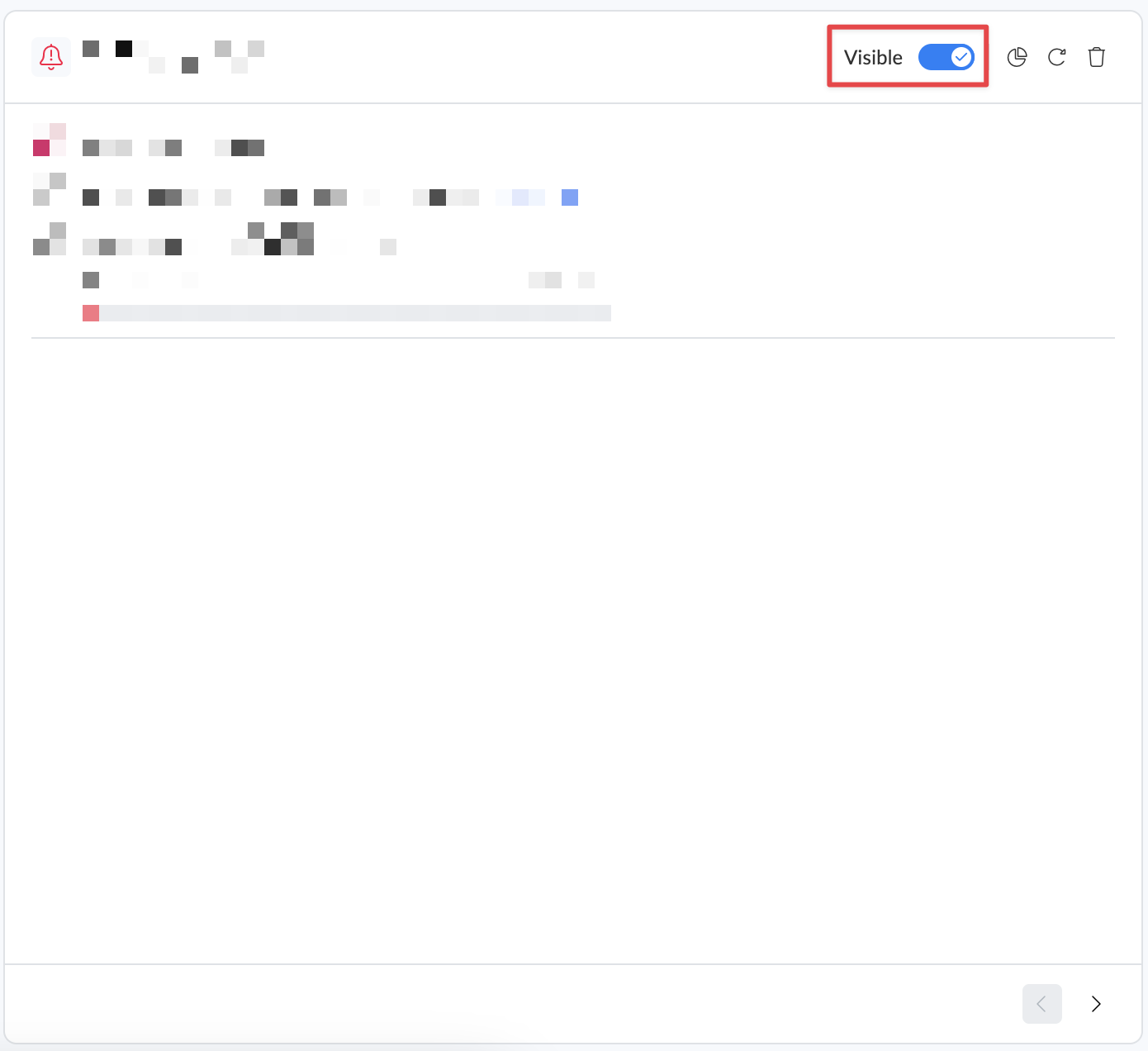
To delete an urgent notification, go to the notifications center, click on the urgent notification, and disable the “Visible” button. The notification will instantly disappear from the agent interface. You can make it visible again at any time.
👓 View notifications and their reading rate
1⃣ Find notifications
In your main menu, click on "Notifications for agents" to find the complete list of all previously sent or scheduled notifications.
📸 View access to the notifications tab

This section is made up of two tabs:
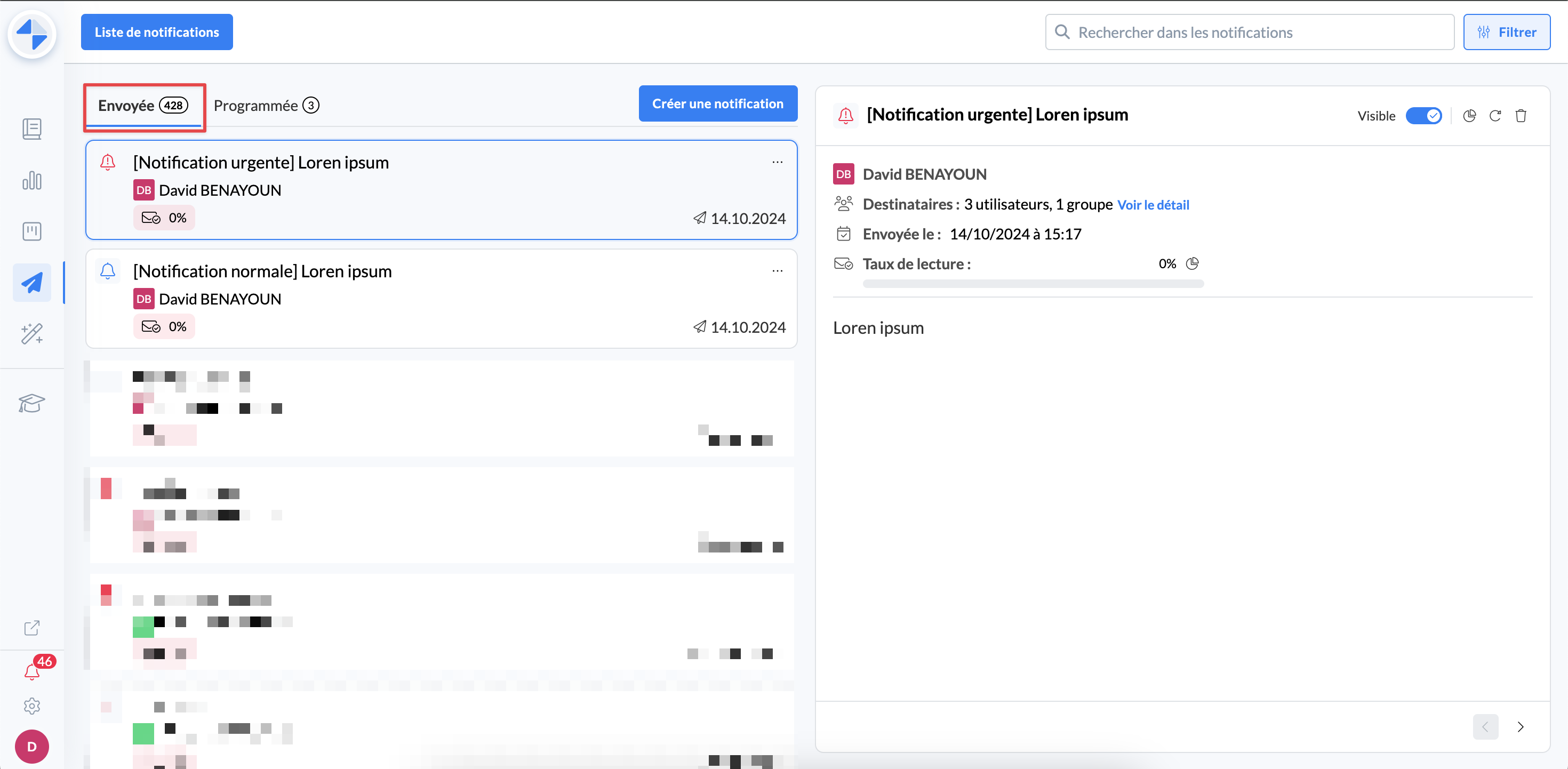
“Sent”: the list of notifications already sent
📸 View access to the sent notifications tab
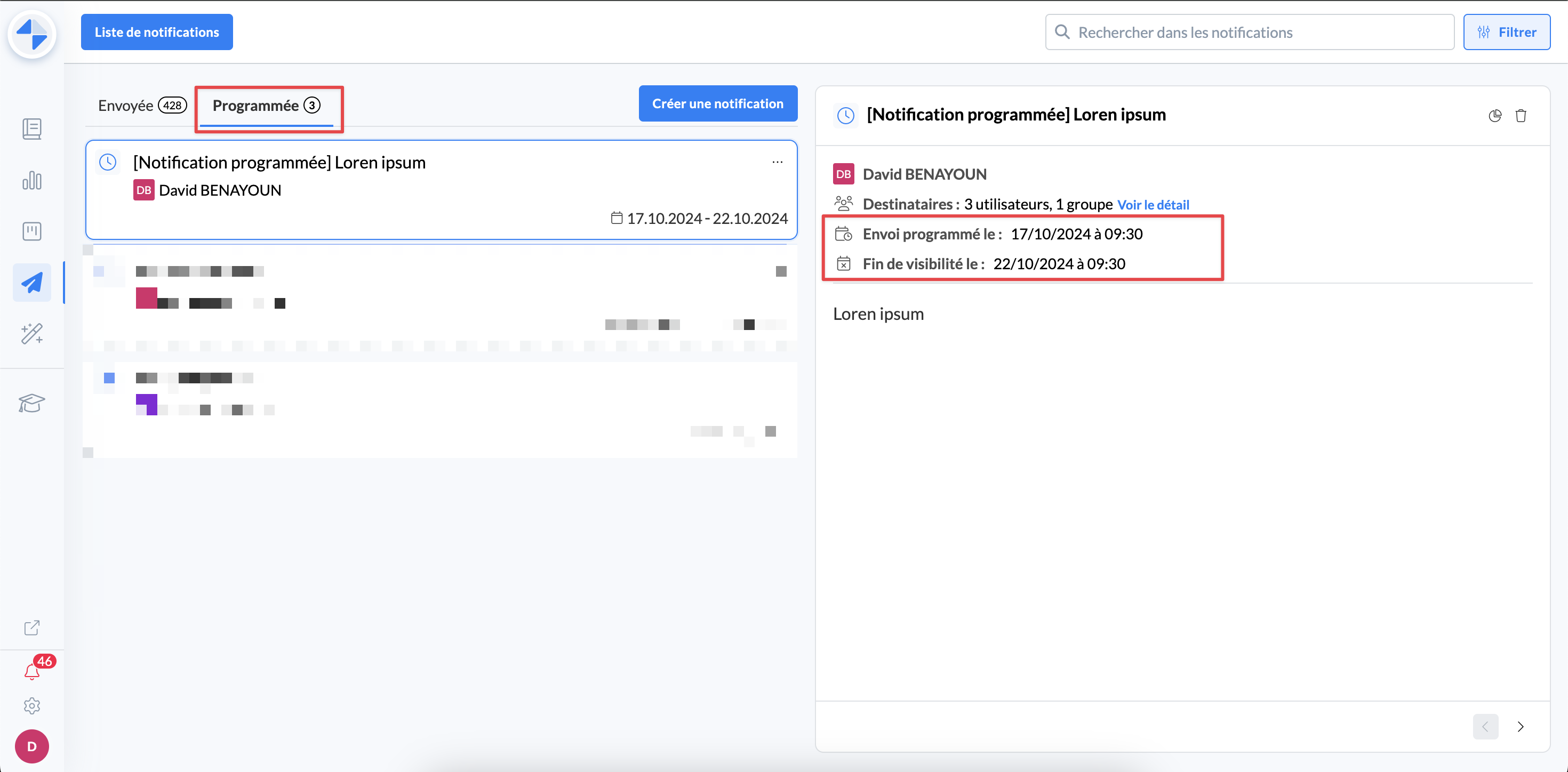
“Scheduled”: the list of scheduled notifications
📸 View access to the scheduled notifications tab
It is possible to find a notification more quickly by using:
The search engine: allows you to search for a notification by keyword within the title and content of a notification.
Filters: allows you to filter notifications by recipients.
2⃣ Analyze a notification
By viewing the details of each notification, you can find the following information:
The title and the message sent;
The sending date;
The sender of the message;
The recipients and the applied sending condition (AND or OR);
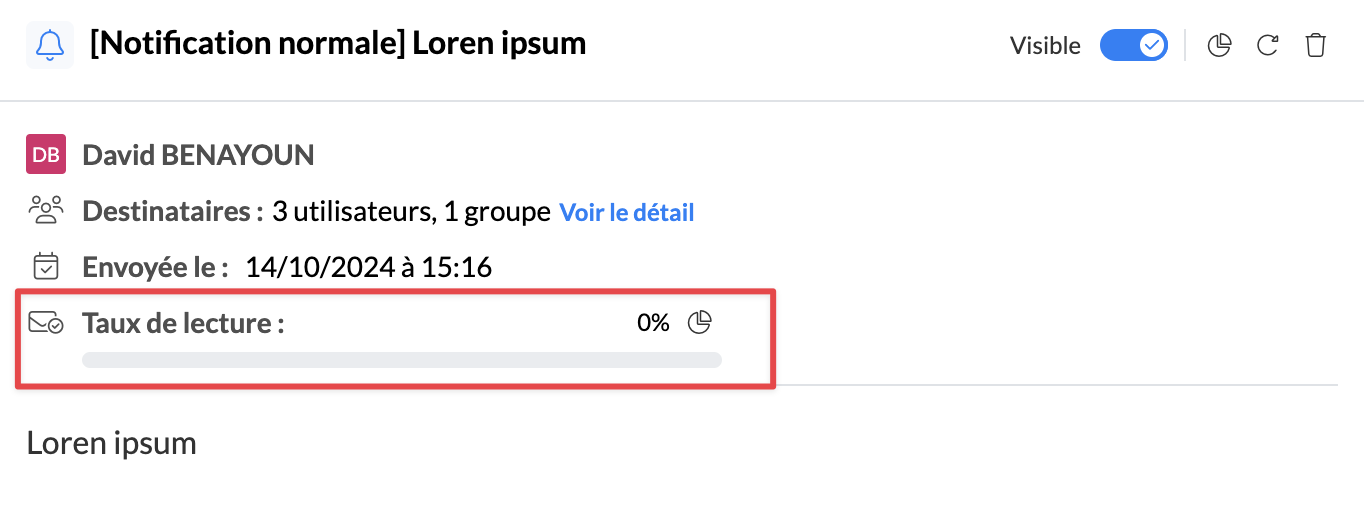
The read rate of the notification: this rate corresponds to the percentage of agents who confirmed reading out of all agents who received the notification.
📸 View a notification that has not yet been read
📸 View a notification that has been read by all agents
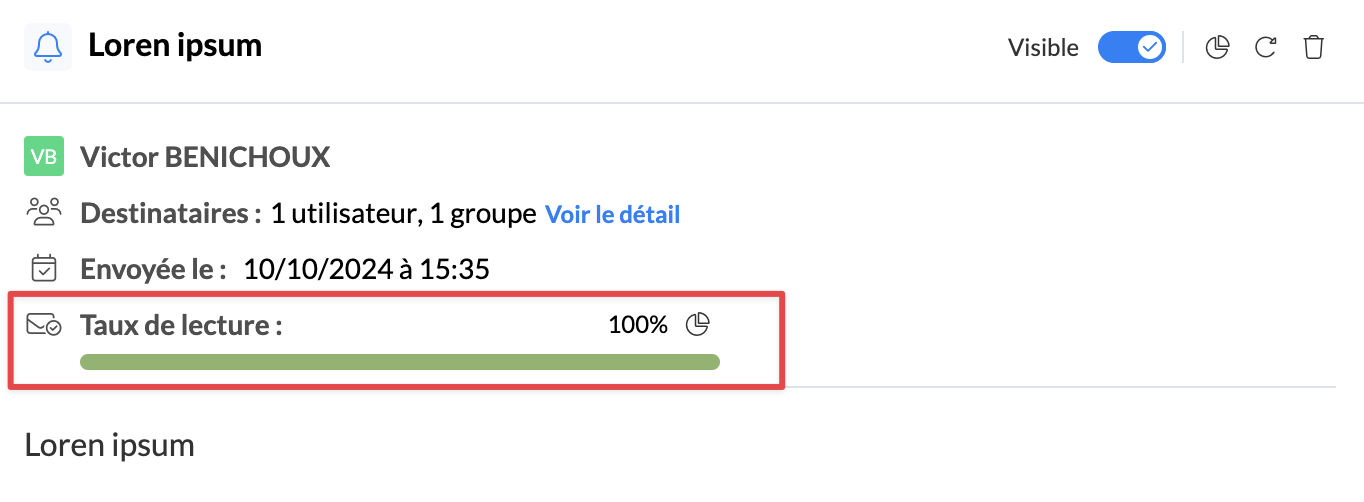
The color management of the read rate bar is applied as follows:
🔴 If the read rate is <10%
🟠 If the read rate is <75%
🟢 If the read rate is >75%
3⃣ Identify agents with a “read” / “unread” status
If you want to get the list of users who have read or not your notification, simply click on the icon  :
:
✅ "Read": this list shows the agents who have confirmed reading the notification.
❌ "Unread": this list shows the agents who have not confirmed reading the notification.
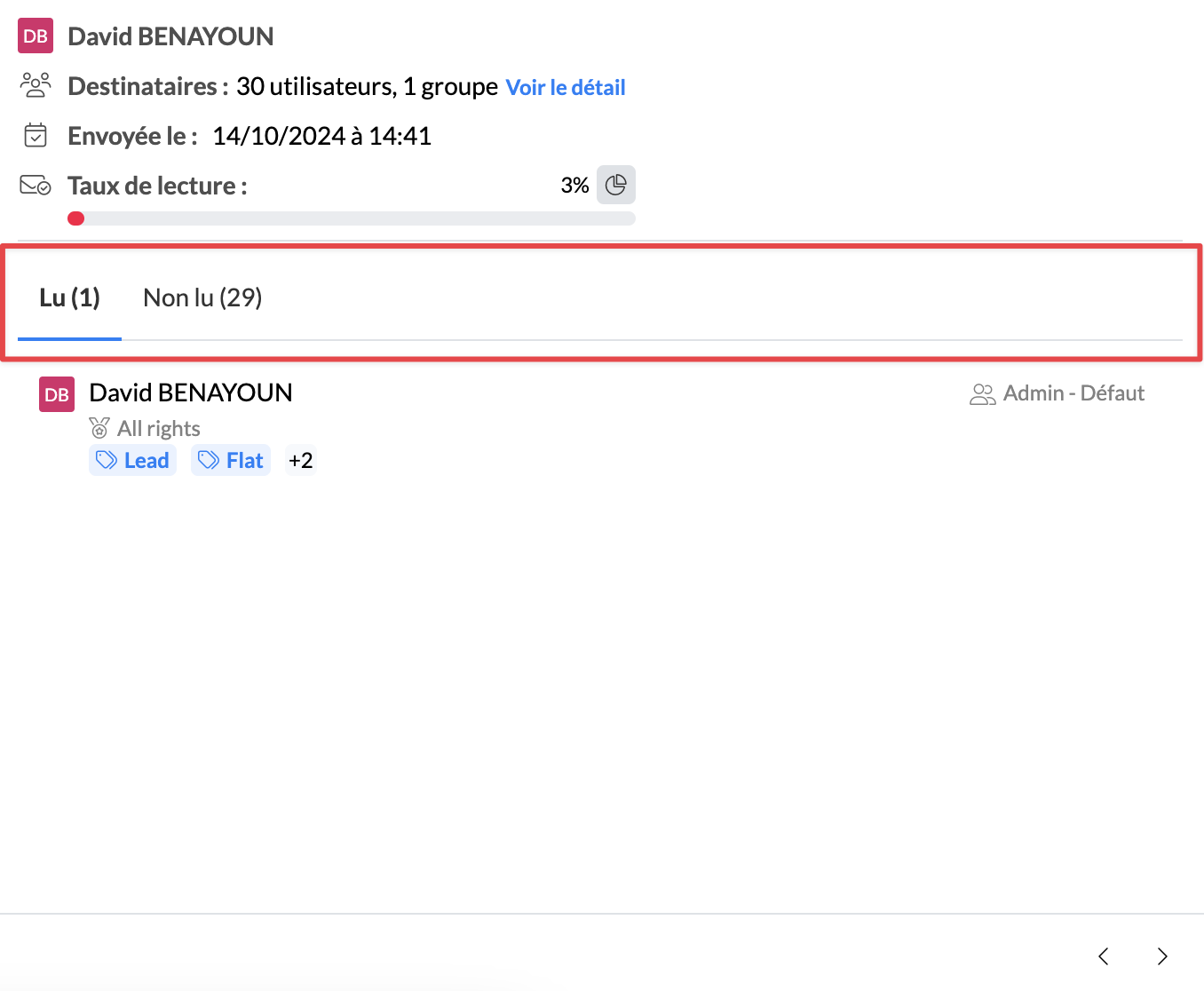
This information is very useful to create a match with quality issues of an agent (use of an obsolete process, speech error, etc.).
It is possible to export the list of recipients who have read or not the notification, with the read status, the date of receipt of the notification, and any other relevant information.
↪ Remind a notification
Sometimes a sent notification has a low read rate. This means that some of your agents have not confirmed having read the notification.
Do you want to make sure the shared information has been received?
Remind the notification!
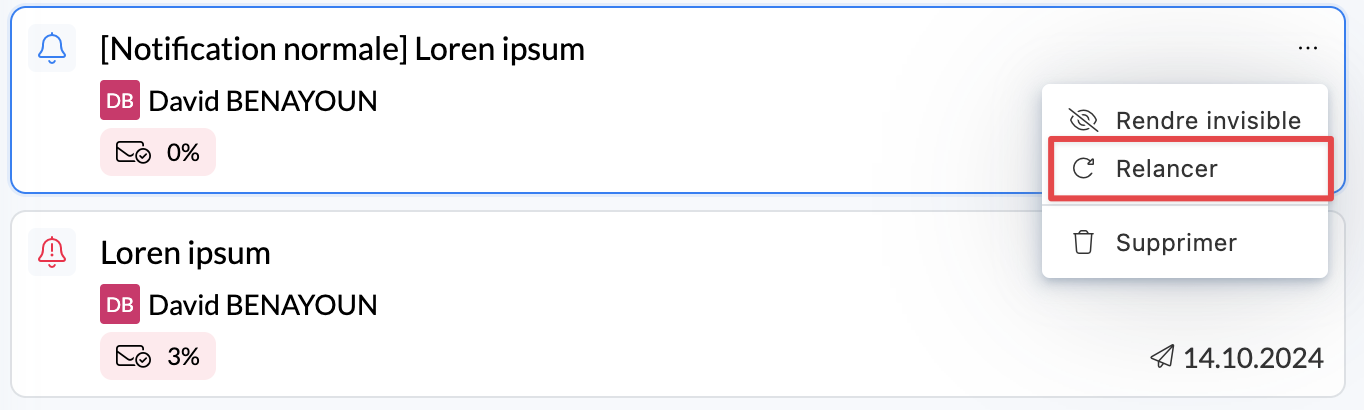
Here is what happens when you send a reminder:
The notification goes back to the top of the list for the recipients.
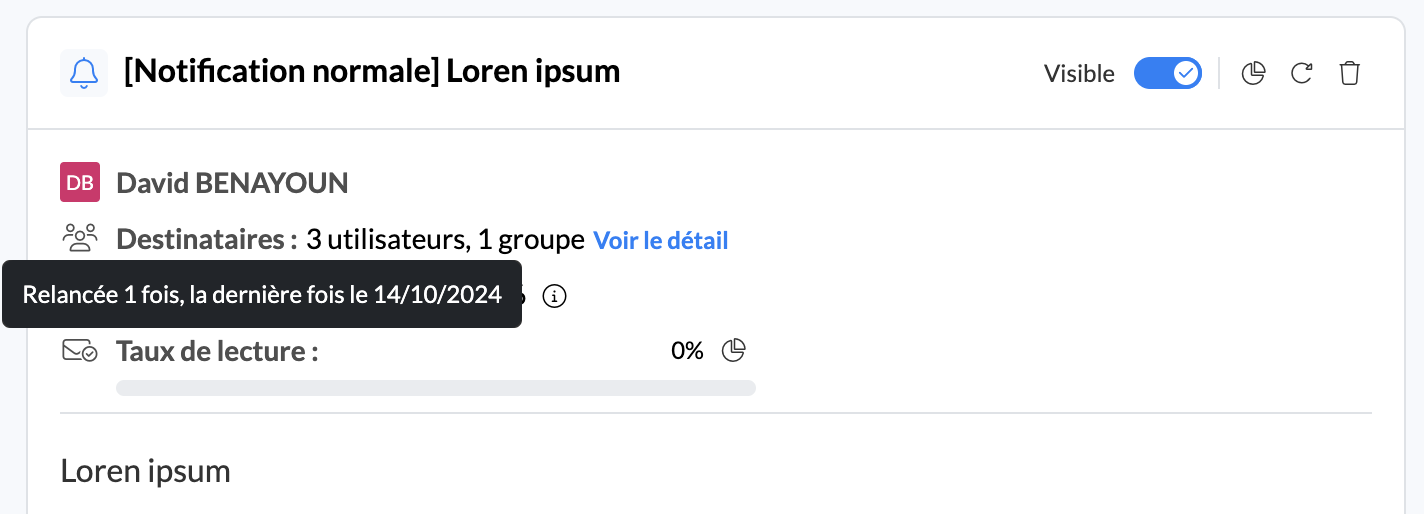
The reminder date is visible to both administrators and agents.
Recipients who have not yet read the notification receive a new notification (toast).
Those who have already read it still see it marked as "read".
You can remind a notification as many times as necessary.
✍ Edit a notification
Sometimes you may want to edit a notification after it has been sent. You now have the ability to edit it after its creation.
🎯 Why edit a notification?
✍ To edit the title or content of this notification (news, typo, attachments, etc.).
📅 To edit the sending date (only if it has not already passed) or the end of visibility date of a notification.
👥 To edit the recipients of this notification (add, remove).
🤔 How to use the feature?
From the admin notification center, you can edit a notification by clicking the ✏ button from:
The view of a notification
The “…” button on the notification in question, from the notification list
Then, editing a notification is similar to the process of creating a notification.
Finally, once you validate these changes, they will take effect immediately.
⚠ Warning
❌ What cannot be edited:
The sending condition to recipients (between AND and OR). Once the notification is sent, the initial condition is final.
✨ Write a notification with Mayday AI
It is now possible to write your notifications thanks to Mayday AI.
For more information, please consult the dedicated article: