📕 Presentation
Discover the advantages of integrating Mayday with Zendesk in this content.
The main objective of linking your Mayday account to your Zendesk account is to be able to access your knowledge base on each Zendesk ticket and to enable your advisors to benefit from additional features (automation, trigger macros, etc.) to facilitate their use of Mayday.
Summary
Mayday and Zendesk use a secure oAuth connection to retrieve an access token from Zendesk, consume the API, and retrieve custom attributes.
To integrate Mayday with Zendesk, follow the procedure below →
📚 Access your knowledge base directly on Zendesk
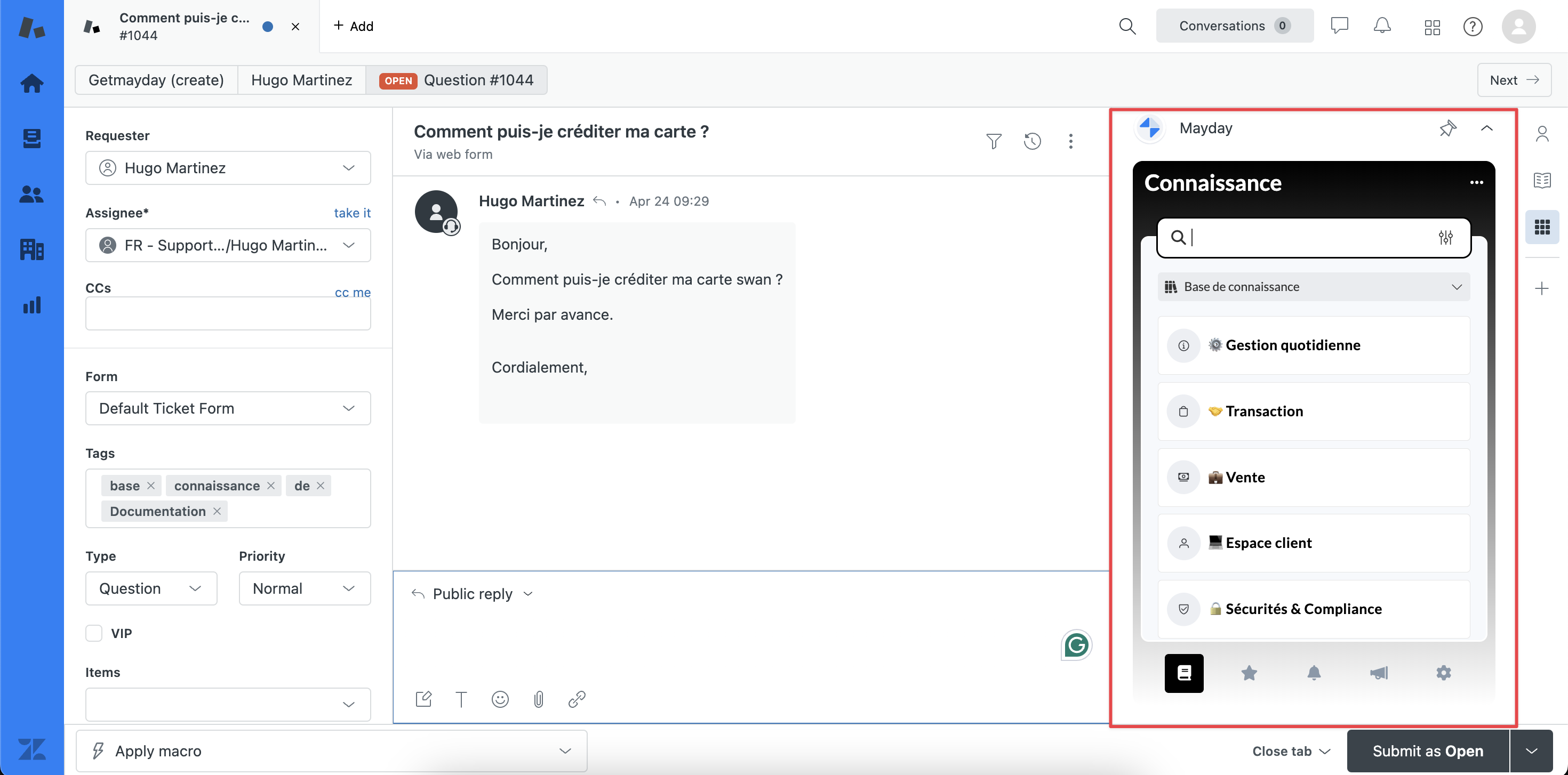
Integrating Mayday into Zendesk allows your advisors to access their Mayday knowledge base directly in their Zendesk workspace.
Mayday is installed as a Zendesk application as a sidebar inserted on the right side of the workspace.
The advisor can therefore access it by clicking on these Zendesk applications.
⬅ Automatically import Zendesk Guide content directly into Mayday
Once the integration is complete, you can also import Zendesk Guide content into Mayday using the Zendesk importer to save time in creating your knowledge base.
For more details, see the following article →
🤖 Proactively suggest content to your advisors
In order to bring the right knowledge directly to your advisor at the right time, integrating Mayday with Zendesk allows you to set up automation rules based on keywords contained in the client ticket.
To do this, you must import the attributes of your choice from your Zendesk tickets.
→ Follow the procedure below to create automation rules:
▶ Trigger the insertion of a macro to respond to a ticket
Integrating Mayday with Zendesk allows you to automatically trigger the insertion of your macros and save time in resolving a ticket!
To automatically trigger a macro, follow the steps below:
Go to the guide of your choice;
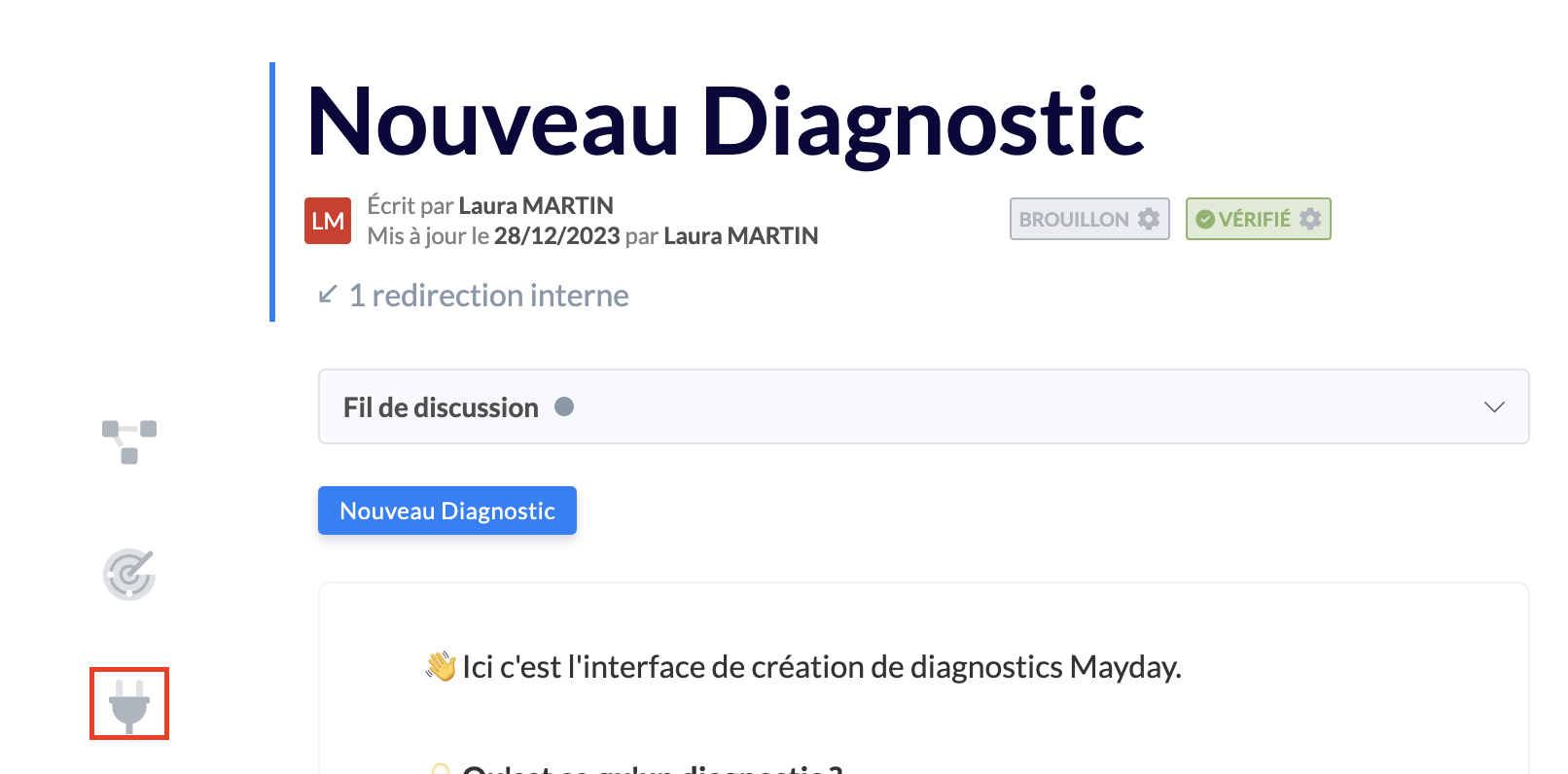
Click on the icon
 to the left of the guide;
📸 View the icon to insert a suggested response
Turn on the switch at the top right of the blue box that appears;
📸 View the switch

Select the macro of your choice, then click on “
Validate”;
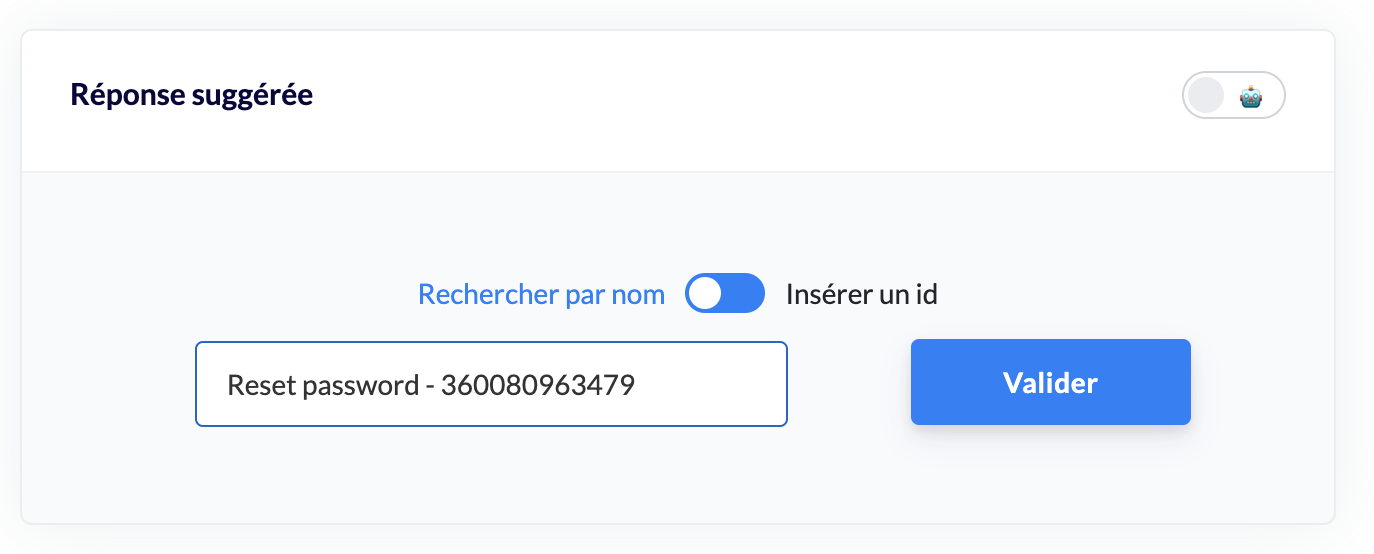
A message will appear to inform you that the selected macro will be triggered when the advisor clicks on this step of the guide.
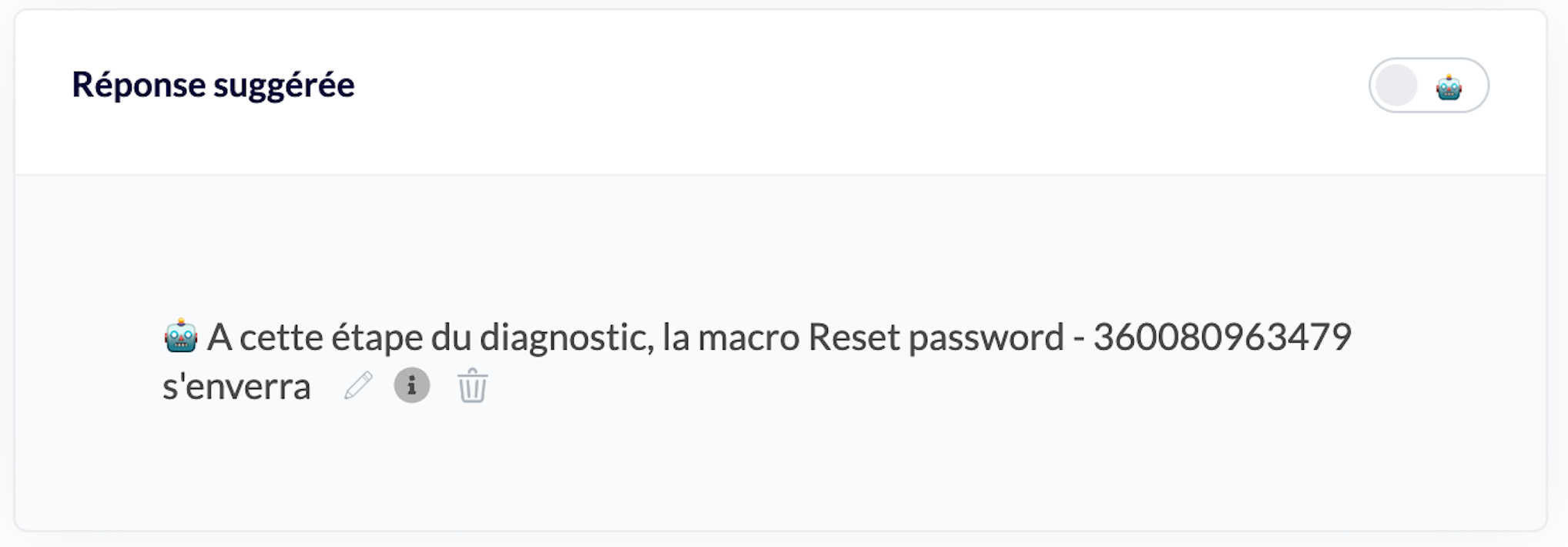
When the advisor consults the guide and goes to the relevant step, the selected macro will be triggered automatically!
💬 Insert suggested responses into the client ticket box
Integrating Mayday with Zendesk allows you to insert suggested responses created in advance on the scale of a guide directly into the advisor's response box.
To create a suggested response, follow the steps below:
Go to the guide of your choice;
Click on the icon
to the left of the guide;📸 View the icon to insert a suggested response
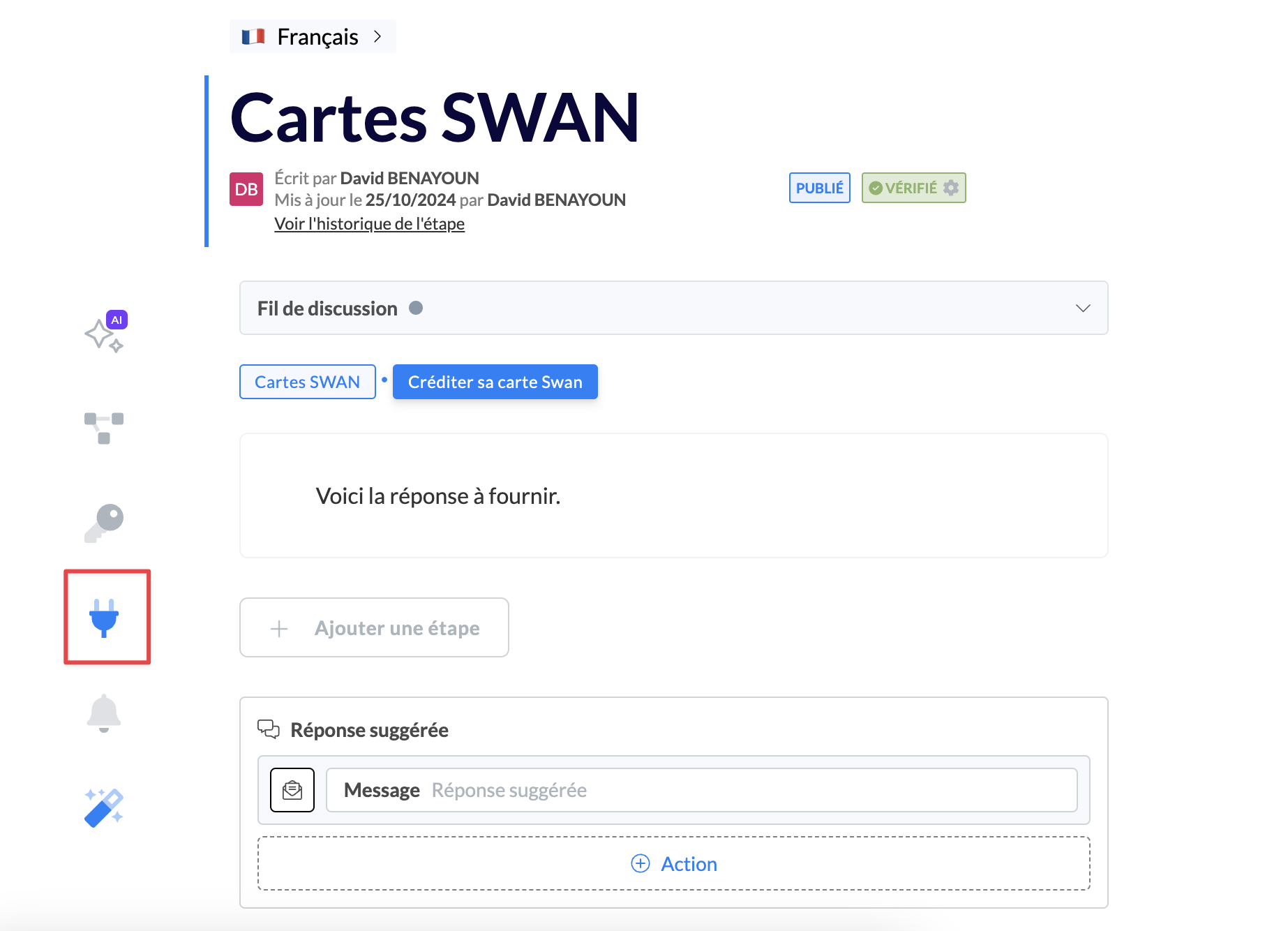
Choose an action of type “Message”;
Write the suggested response to the advisor in the dedicated box.
Example of a suggested response created in the administrative interface:
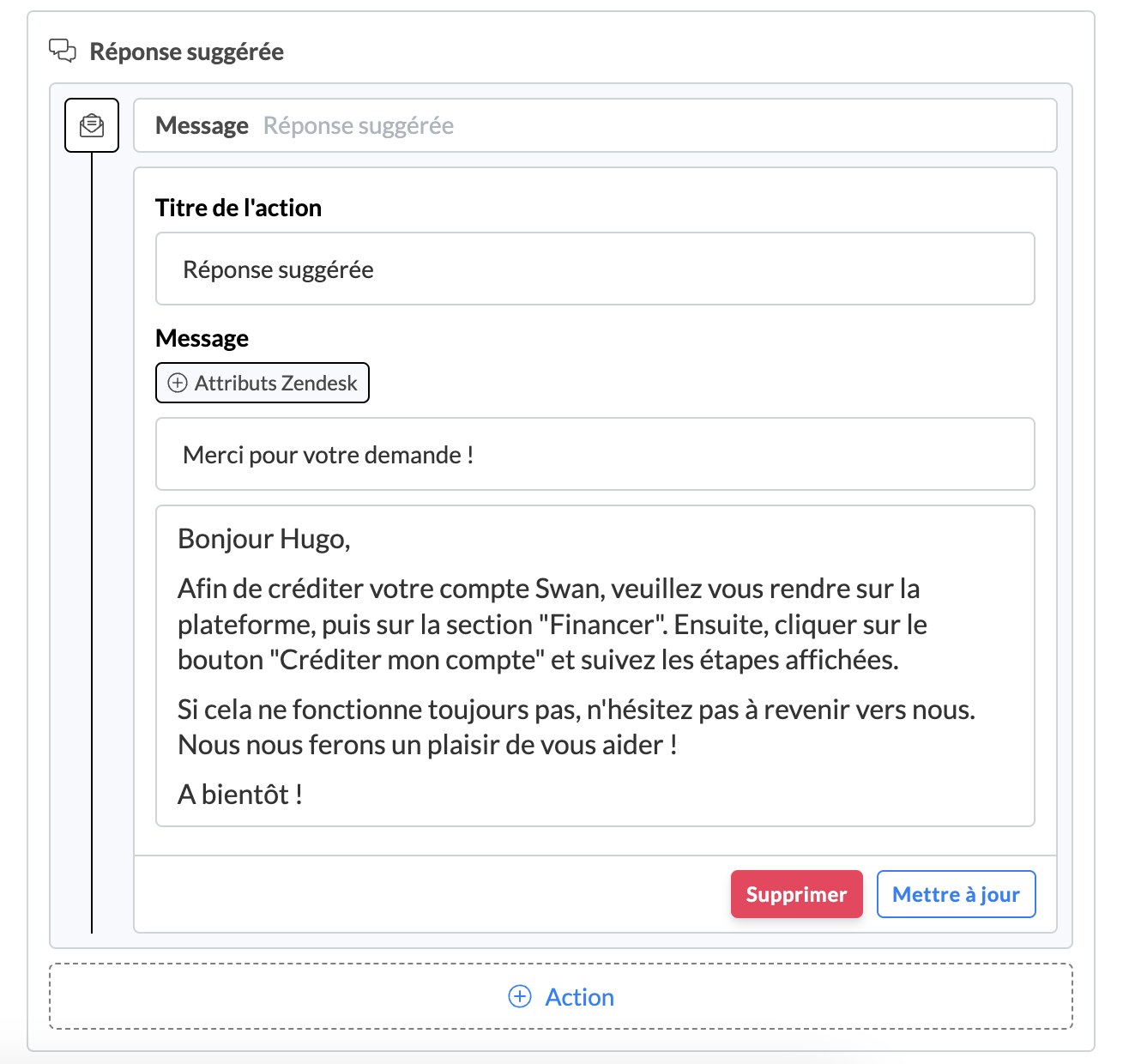
When the advisor consults the guide and goes to the relevant step, he will have access to an option allowing him to insert the suggested response in the Zendesk ticket!
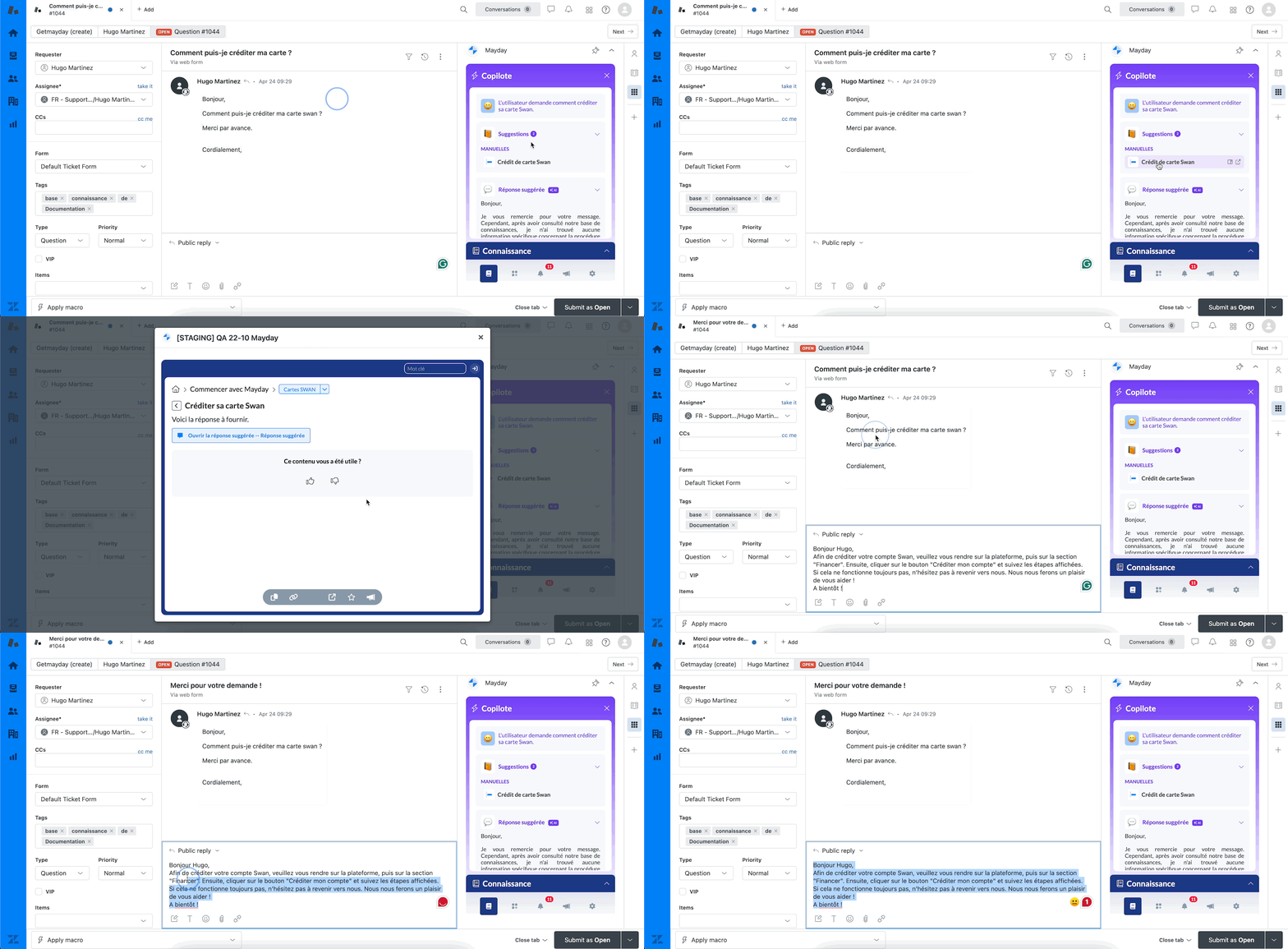
Example of a suggested response on the advisor side:
The advisor clicked on the "Crédit de carte Swan" guide, then the guide step containing a suggested response. The response was directly inserted into the "Public reply" box.