📕 Presentation
Discover in this content how to analyze the results of a training module on the Mayday Academy.
On each training module, a "Performance" tab is available to access the main metrics and results of this module.

This section is structured in two tabs:
"Learners": This tab gathers data for the module at the learner level. You will find global results, as well as detailed results by learner.
"Module steps": This tab gathers data for the module at the step level. You will find global results, as well as detailed results by step of the module, in order to identify the most/least successful, short/long steps, etc.
Let's discover all this 👇
🎯 Use case
Consult the results of a Mayday Academy module to evaluate the performance of advisors, identify strengths and weaknesses both globally and for each advisor, and discover areas where the module could be improved.
👤 Evaluate performance by advisor
In the "Learners" tab, global results are available, as well as detailed results by advisor.
The "Learners" tab of the "Performance" section is mainly composed of two pieces of information:
Global results: the total number of learners assigned to the module in the case of a private module, or the total number of learners who launched the module if it is a public module.
List of learners: the list of learners assigned to the module and their results.
All of this data can be filtered, as we will see.
📊 Global metrics of a module
On the "Performance" tab of a module, global metrics are displayed at the top of the page to obtain an overview of the results obtained on the module.
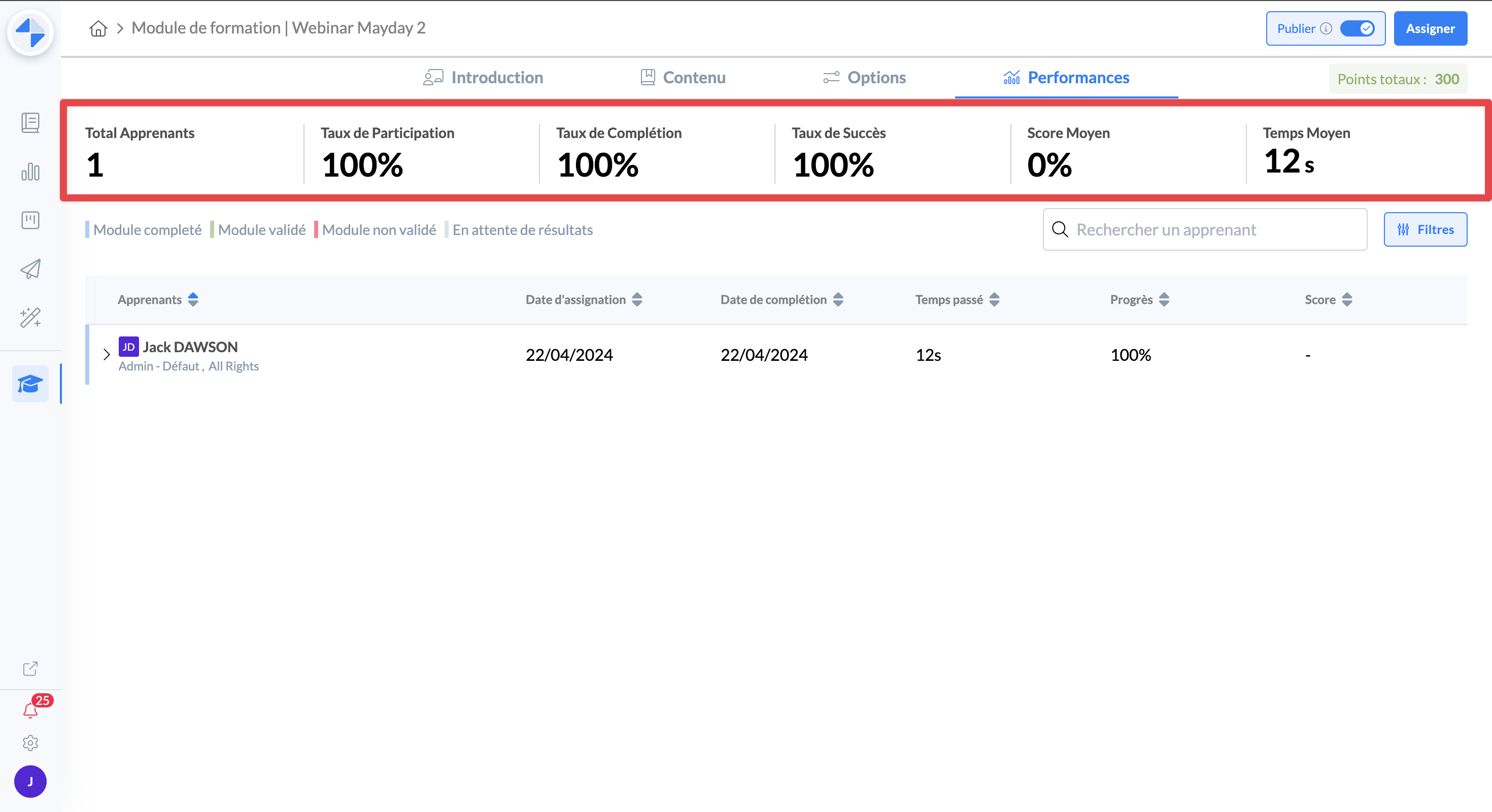
Global metrics allow you to quickly appreciate the performance of advisors, as well as to ensure that assigned learners are following the relevant module.
Among these metrics, you will find:
Total learners: the total number of learners assigned to the module in the case of a private module, or the total number of learners who launched the module if it is a public module.
Participation rate: among all learners assigned to the module, the % of learners who have at least started the module.
Completion rate: among all learners assigned to the module, the % of learners who have completed the module.
Success rate: if the module has a notion of success or failure, it is the % of learners who have validated the module among all those who have completed the module.
Average score: the average score obtained by all advisors who have completed the module.
Average time: the average time obtained by all advisors who have completed the module.
ℹ Metrics are updated in real time, as learners progress.
👤 Metrics by learner
On the "Performance" tab of a module, metrics by learner are displayed in the table that contains the list of learners.
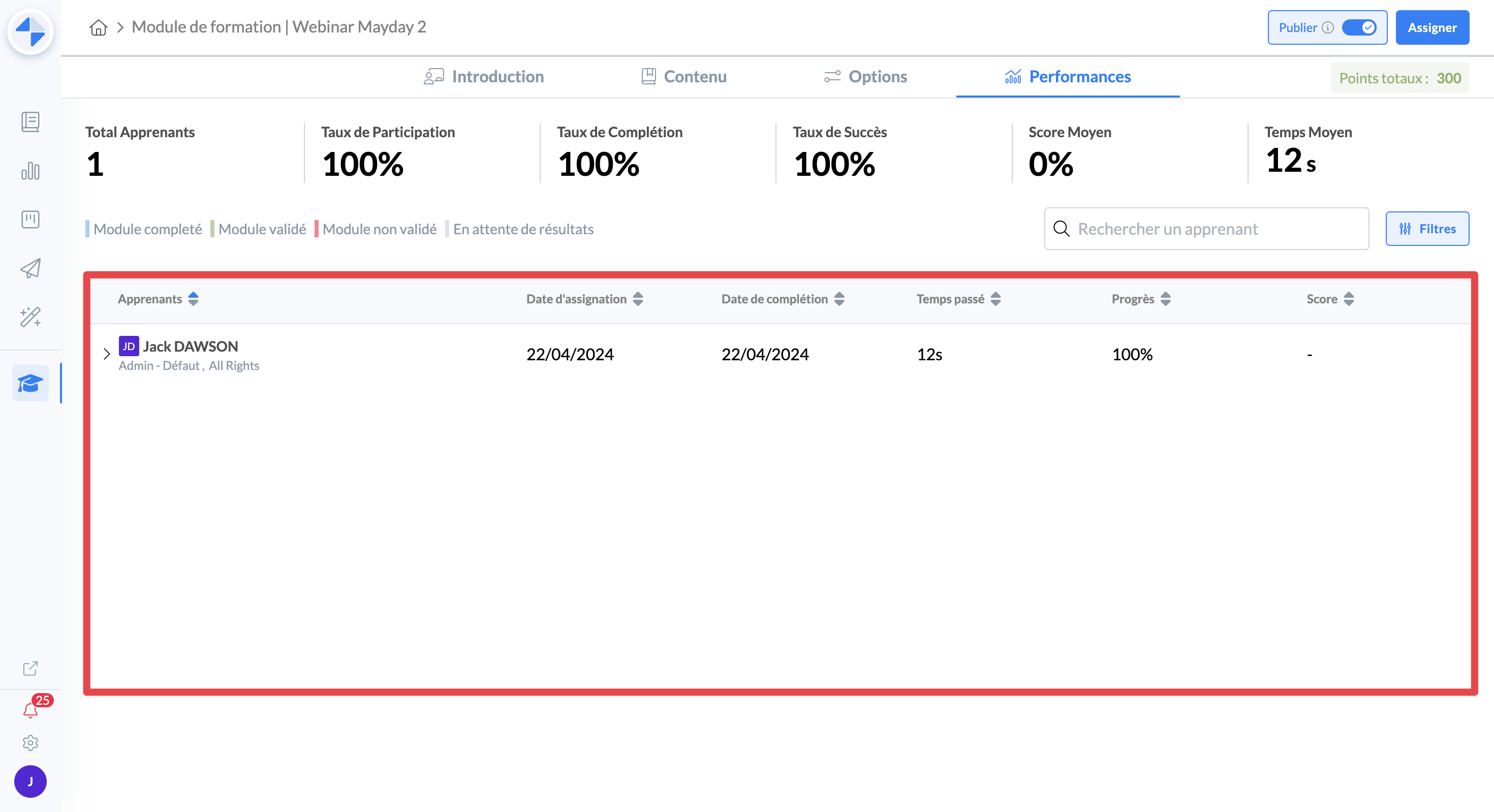
Then, you will find in a table the list of learners assigned to the module (in the case of a private module), or having started the module (in the case of a public module).
In the table, each line represents a learner, accompanied by several columns:
Assignment date: the date on which the learner was assigned to the module.
Completion date: the date on which the learner completed the module.
Time spent: the time the learner spent on the module (active time on the module), to date.
Progress: the % of progress of the learner on the module.
Score: the score obtained by the learner, if the module has a notion of score.
If you wish, detailed results by learner are available by clicking on the chevron >, in order to unroll the results by step of the module for the learner concerned.
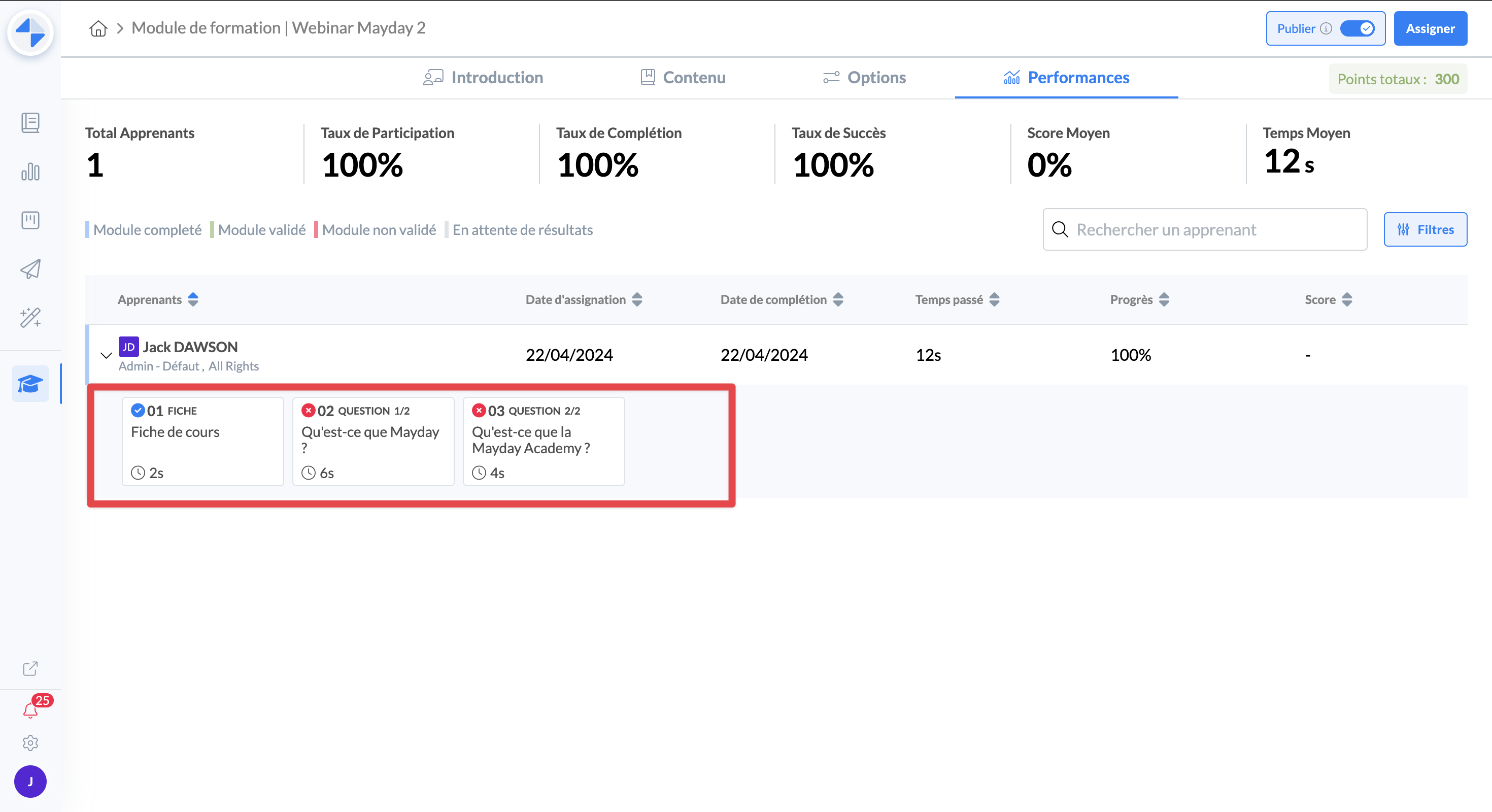
Once unrolled, the details by learner contain for each step of the module:
The status: completed, in progress, not started
Time spent: the time the learner spent on the step in question
Validation or failure of a question: for a question type step, the information of whether the learner succeeded or failed it
Feedback: if the learner left feedback 👍 or 👎 on the step in question, it will be displayed here
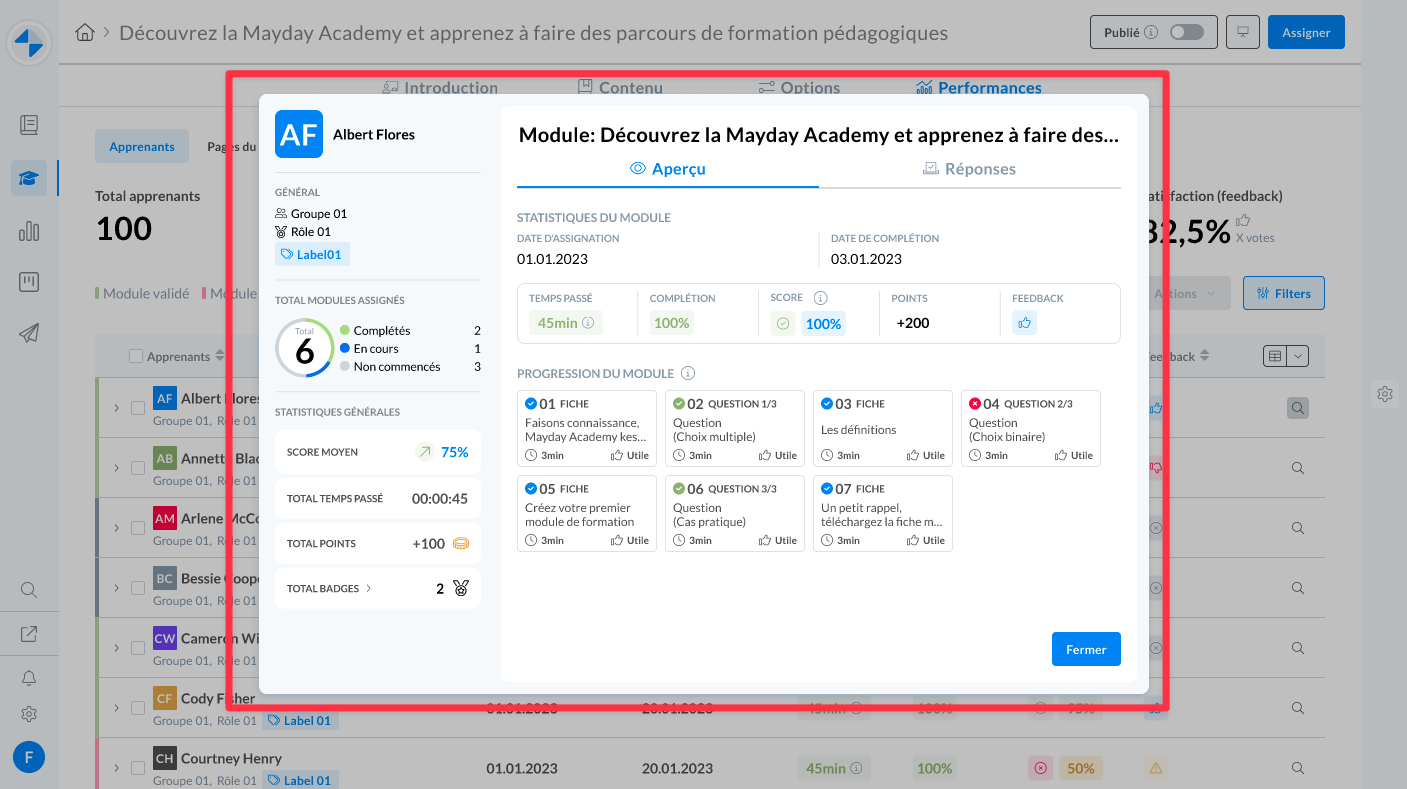
🔜 Soon, a detailed view by learner will be available, and will bring together:
Global data specific to the learner, on all modules and courses followed on the Academy
A more detailed overview of the results of the module
The learner's answers to the module's questions, allowing, in the case of incorrect answers, to know what the learner had answered. Similarly, this will allow for manual correction if desired.
📝 Evaluate performance by module step
In the "Module steps" tab, global information is available, as well as detailed data by page of the training module.
The "Module steps" tab of the "Performance" section is mainly composed of two pieces of information:
General information on all pages of the module, in order to identify trends globally.
The list of pages of the module with, for each of these pages, global data that comes from all learners who have had access to this page.
All of this data can be filtered, as we will see.
📊 General information
On the "Module steps" tab, global data is presented at the top of the page to give a complete overview of the metrics concerning the different steps of a module.
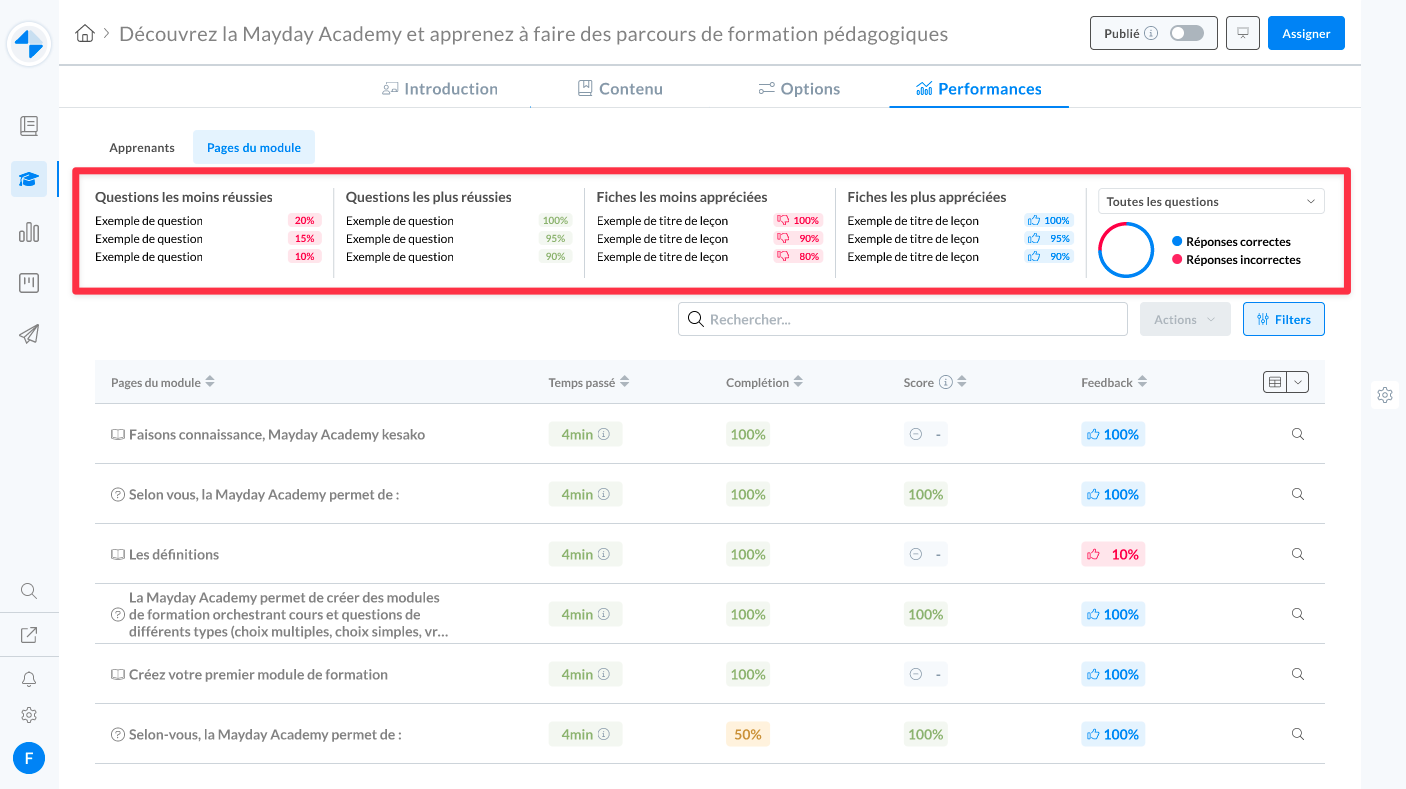
This general data is particularly useful for understanding the perception and appreciation of the module by learners. It allows in particular to identify the steps that are more or less difficult, long or successful.
In this information, you will find:
The least successful questions: to quickly identify the subjects that are problematic for learners, or possibly the questions that are considered too difficult.
The most successful questions: to quickly identify the subjects that are generally well mastered, or possibly the questions that are considered too simple.
The least appreciated parts of the module: to quickly identify the aspects of the module that learners seem to appreciate less, in order to rework them if necessary.
The most appreciated parts of the module: to quickly identify the aspects of the module that learners seem to prefer, in order to identify the types of steps appreciated by advisors.
The distribution of successful/failed questions: to have an overview of the success rate of learners on the questions of the module.
📖 Metrics by step of the module
On the "Module steps" tab, metrics by step of the module are displayed in the table that contains the list of steps.
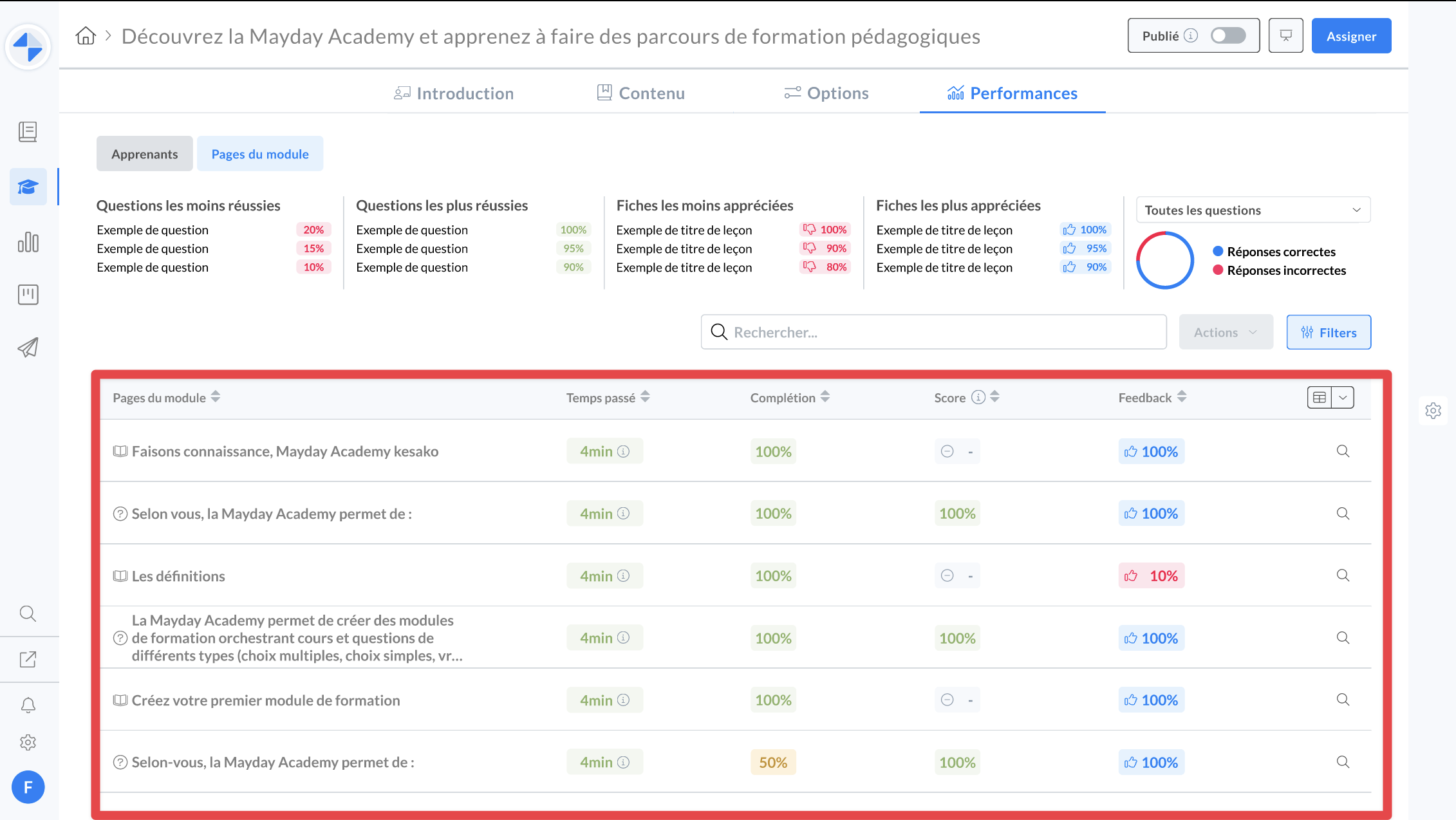
For each step, you will find:
The type of step: question, practical case, sheet.
The title of the step: title of the sheet, statement of the question.
The average time: the average duration that all learners who completed this step spent on it. This allows you to identify if a step seems too short or, conversely, too long.
Completion rate: the percentage of learners assigned to the module who completed this step. This allows you to identify the steps from which the completion rate decreases, indicating where learners tend to drop out.
Average score: the average of the scores obtained by all learners who answered this question. This allows you to identify questions that are too simple or, conversely, too complex.
Feedback: the average satisfaction percentage for this step, based on the feedback of all learners. This allows you to identify steps that are highly appreciated or, conversely, less appreciated. In addition, this allows you to identify any obsolete steps requiring an update.
🔎 Available filters
Whether in the "Learners" or "Module steps" tab, all data can be filtered according to your preferences.
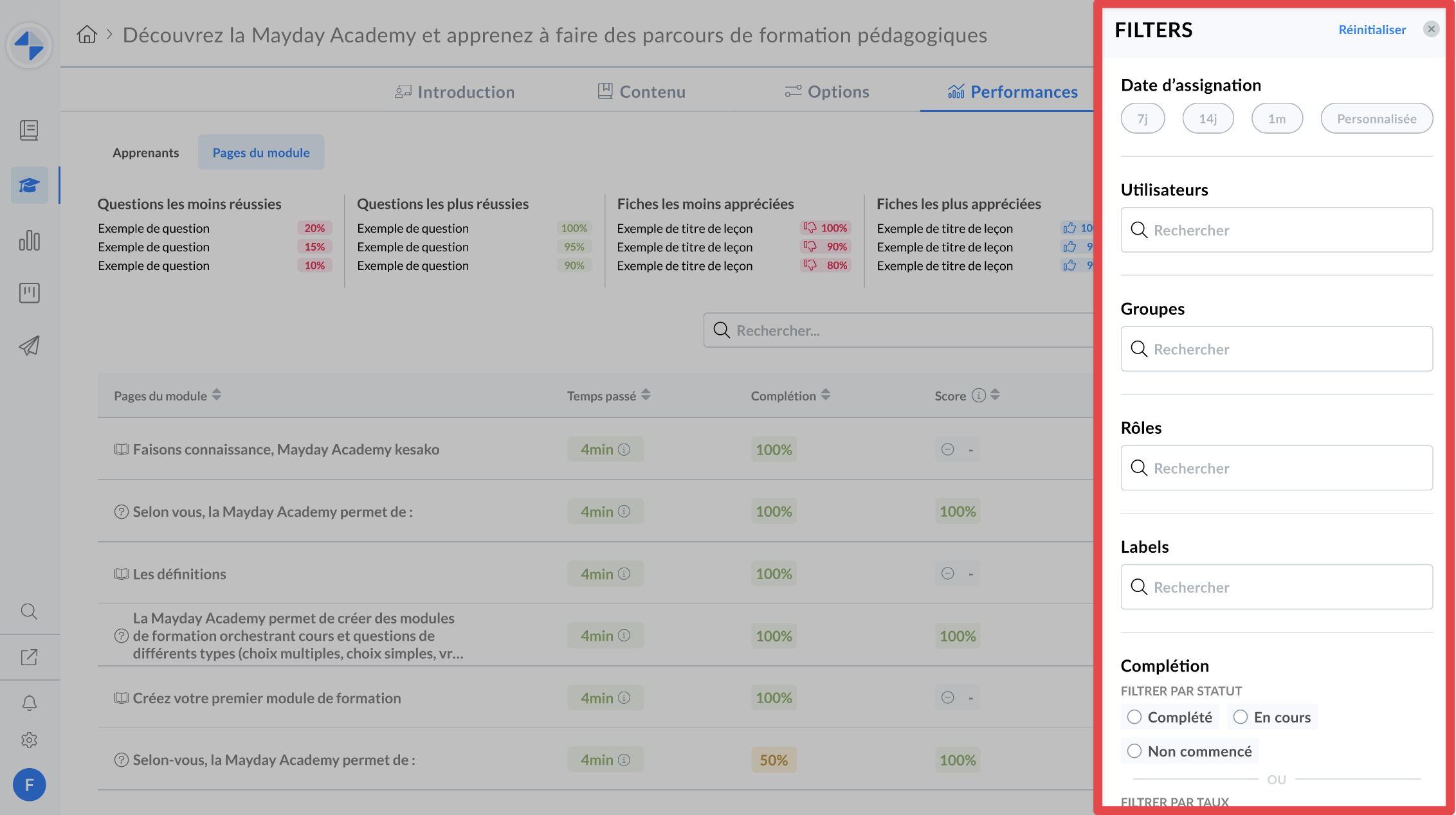
The available filters are:
By assignment date
By user
By Mayday group
By Mayday role
By user label
By status or completion rate
By status or score obtained
By time spent
By feedback