
In this article, discover our tips to make the most of Mayday AI, allowing you to edit your content faster and more efficiently 🚀
Mayday AI allows you to edit your content with peace of mind, with two main features:
Ask the AI: allows you to ask Mayday AI for the changes you want in natural language, on the entire text or part of the text.
Defined AI features: allow you to make specific requests such as generating a summary, translating a text, etc.
Let's discover all of this!
⚡ Ask Mayday AI for what you want
Creating or updating Mayday content takes time. You often need to write, format, correct mistakes, and sometimes even translate. Each creation or update requires specific tasks according to your needs.
To meet these needs, you can ask Mayday AI to act on all your content or only on a part of it.
👉 It is possible to ask Mayday AI to base its modifications on existing Mayday content.
With Mayday AI, your requests are processed in a few seconds, saving you valuable time for editing your Mayday content.
⚙ How to use it?
Select text in an article or a diagnostic,
It is also possible to trigger this feature via the action menu by typing “/” in your content, or by clicking in the AI menu to the left of your content.
Make sure to select more than one word for it to work.
A feature bar appears above the selected text.
Click on the “Ask the AI” button,
Write your request in the text area and ask for what you want,
Mention the Mayday content to base it on, if you wish,
Mayday AI applies your request to the selected text,
✅ You can decide to replace the selected text, or insert the proposed text below.
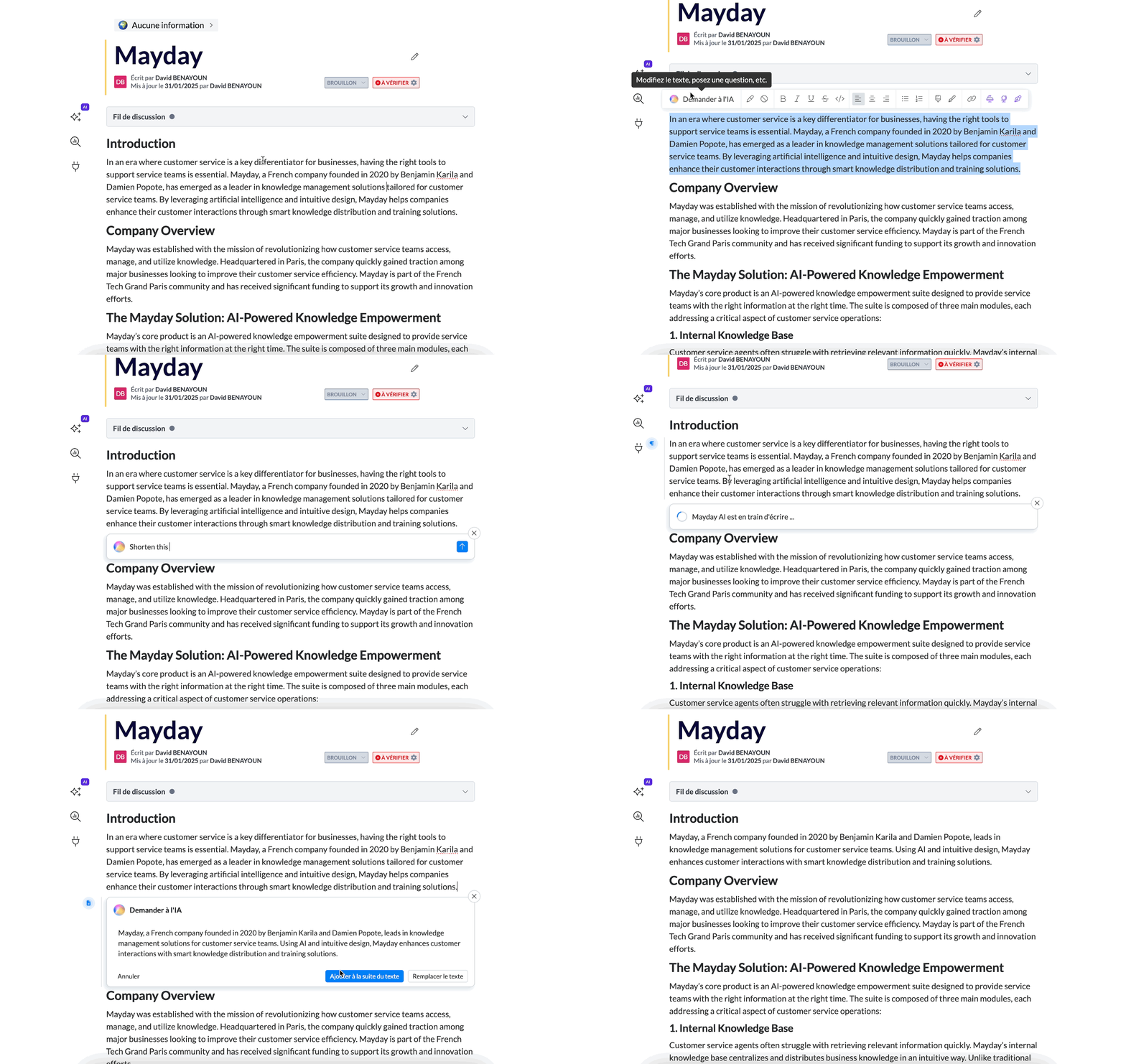
Text area to write your request to Mayday AI.
🪄 Use cases
With this feature, you can ask Mayday AI to:
Write content
Apply the style or format of existing Mayday content
Improve writing style
Format (titles, sections, etc.)
Or even:
Adapt the content to a specific audience
Correct mistakes
Translate text
Answer a question about your content
Shorten or lengthen the content
Add formatting elements (emojis, colors, etc.)
✨ Enjoy defined AI features
✍ Instantly summarize articles
This feature allows you to generate short or detailed summaries of your articles, saving time and ensuring clear understanding. You also have the option to control its visibility for agents.
⚙ How to use it?
Open an article or a diagnostic,
Click on the ✨AI button on the left and choose if you want to generate a detailed or short summary (you can also type the shortcut "/summarize"),
Choose if you want the summary to be visible or not for agents.
The detailed OR short summary can be visible, but not both.

Generate a long summary using AI
🪄 Use cases
⌛ The advisor is looking for a quick overview of the content: A summary can save them time to quickly get a global understanding of the main points of the article.
🙋 The advisor is looking for specific information but is not sure if this article is suitable: The summary will act as their compass, guiding them to determine if this article matches what they are looking for.
✍ Automatically generate action items
This feature allows you to create a comprehensive list of tasks directly from the article's content. You can then choose to make it visible to advisors or not.
⚙ How to use it?
Open an article or a diagnostic,
Click on the ✨AI button on the left,
Click on "Generate action items" or use the keyboard shortcut "/action",
Choose if you want the action items to be visible or not for advisors.

Generate action items using AI
🪄 Use cases
✅ The advisor wants to quickly review the list of tasks in a process: Action lists allow them to quickly see the actions to be taken and check off tasks as they go.
✍ Improve writing tone
Our "Improve tone" feature transforms your writing into a model of clear and customer support-friendly communication. Focus on your message, and let the feature refine its tone. In an instant, your texts will be improved and adapted to all your communication needs.
⚙ How to use it?
Select text in an article or a diagnostic,
Make sure to select more than one word for it to work.
A feature bar appears above the selected text.
Click on the “Improve the tone of the selected text”,
Review the proposal generated by the AI and decide to replace the current text, insert it below, or cancel your request.
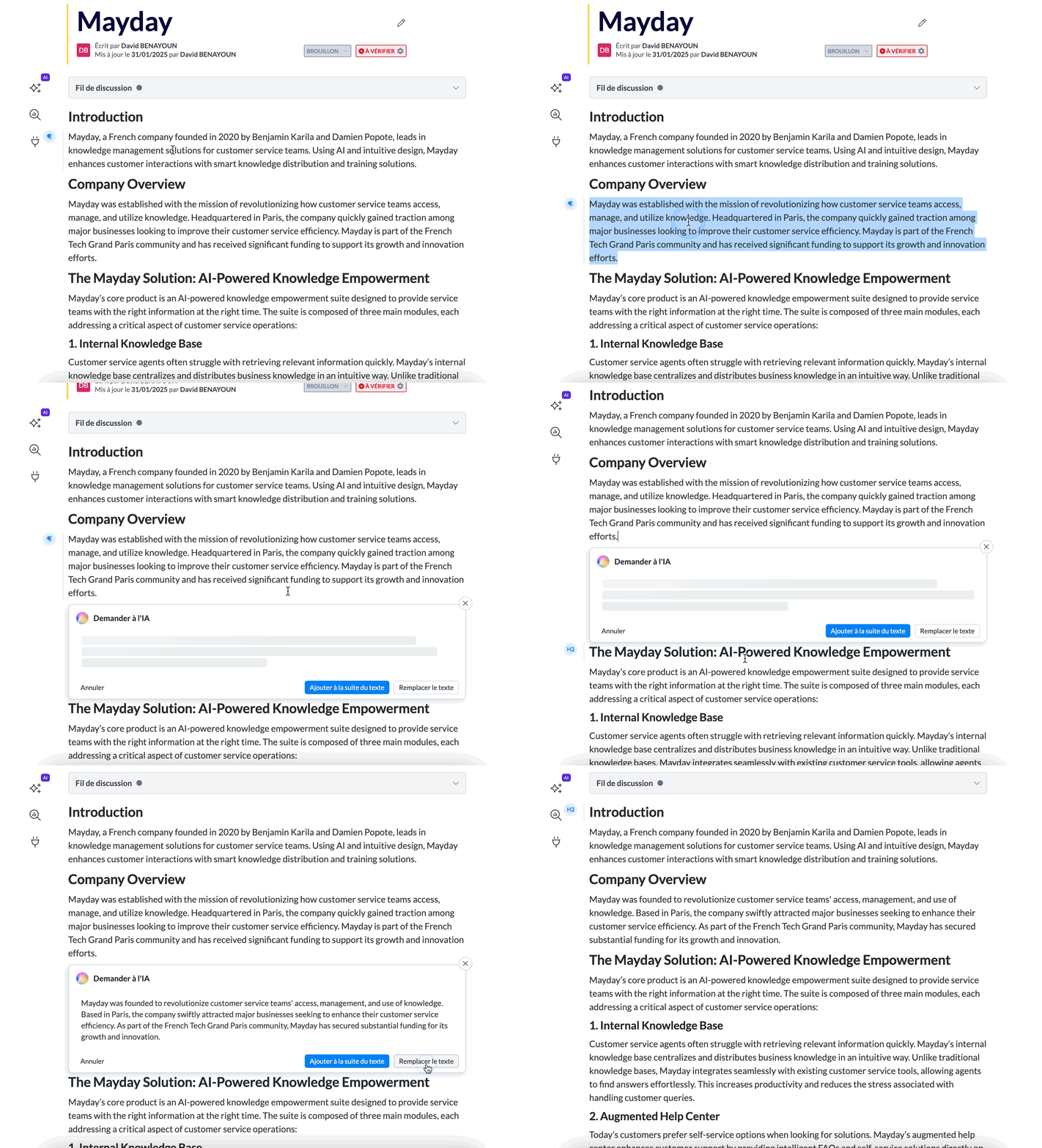
Improve the tone of a sentence in an article
🪄 Use cases
✍ Not confident about your writing skills? Use “Improve tone” for a polished and well-written text.
⌛ Limited time for writing? Quickly jot down your ideas, and we will take care of the optimization.
✍ Correct typos and spelling errors
This feature offers a comprehensive review of your writings, ensuring impeccable content. It instantly detects and corrects any errors, whether they are typos, spelling, or grammar mistakes, ensuring smooth and professional communication.
⚙ How to use it?
Select text in an article or a diagnostic,
Make sure to select more than one word for it to work.
A feature bar appears above the selected text.
Click on the “Correct the selected text”,
Review the proposal generated by the AI and decide to replace the current text, insert it below, or cancel your request.
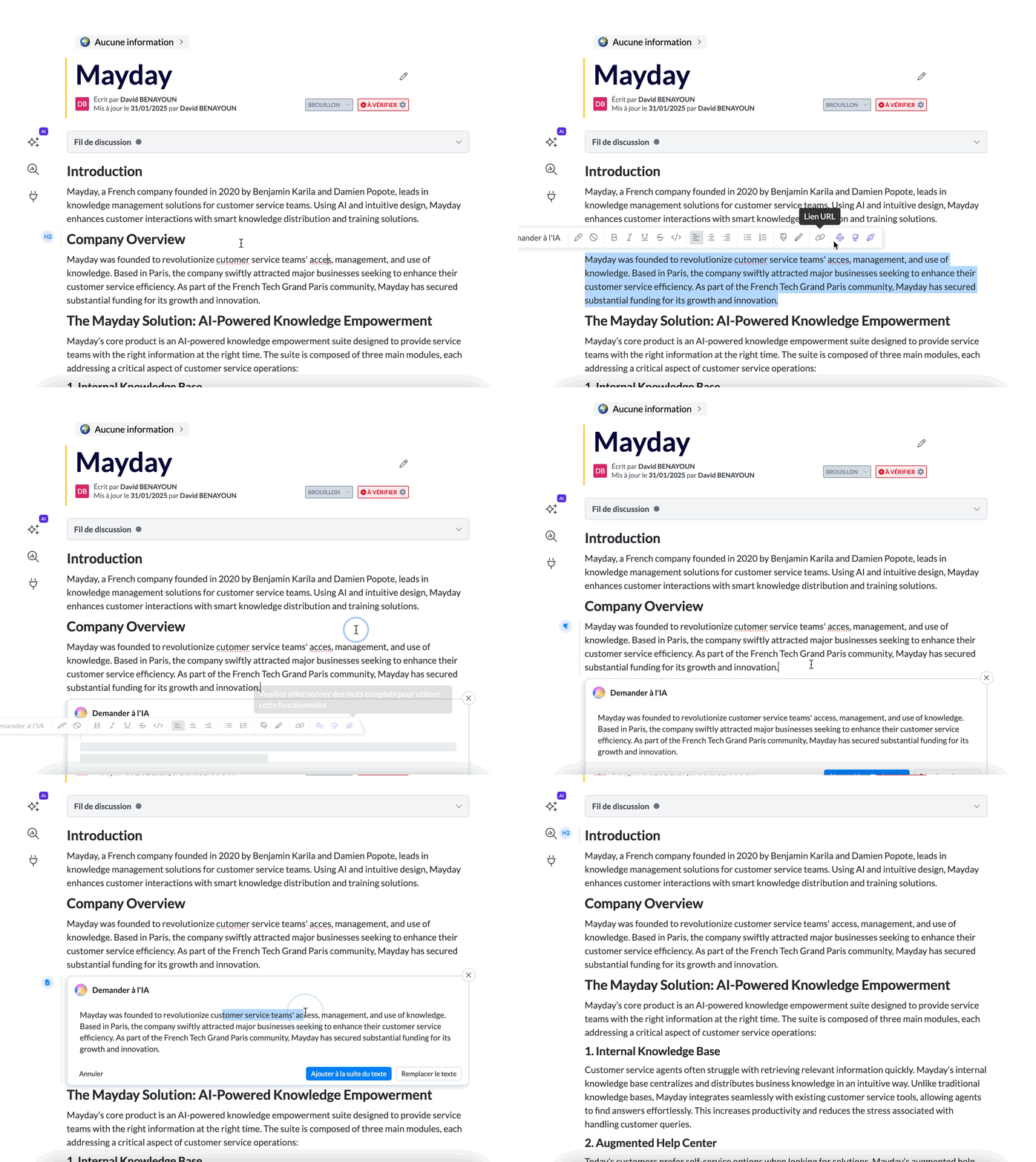
Select text and correct possible errors
🪄 Use cases
🥶 Worried that the long article you just wrote might contain errors (typos, spelling, grammar, etc.)? Select text and use the "Correct" function to be reassured!
🤔 Not sure how to spell the word "acceuil"? Use the "Correct" function and find out that it is actually spelled "accueil".
🌍 Translate into multiple languages
Discover instant and accurate translation directly integrated, without resorting to DeepL or Google Translate. With one click, transform any article or diagnostic into French, English, Spanish, Italian, German, Portuguese, Dutch, Russian, or even Chinese in just a few seconds. More languages will be available soon for limitless communication.
⚙ How to use it?
Select text in an article or a diagnostic,
A feature bar appears above the selected text.
Click on the “Translate the selected text” button,
Review the proposal generated by the AI and decide to replace the current text, insert it below, or cancel your request.
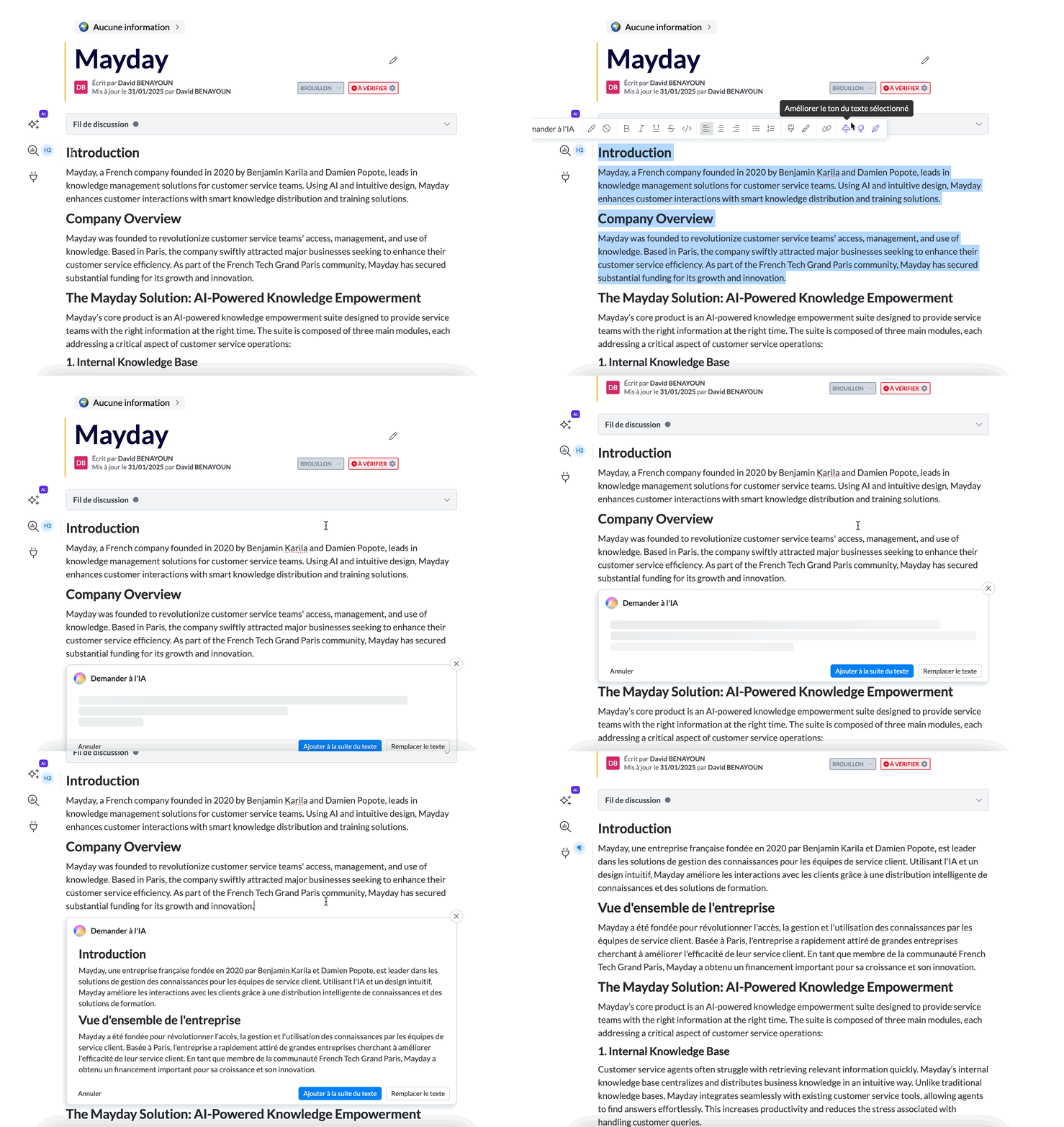
Select text and translate it into French
🪄 Use cases
🌍 You are writing an article or a diagnostic and need to translate it into different languages.
↪ You want to write an article in one language and then translate it.