
In this article, discover our tips to fully leverage Mayday AI, allowing you to write your notifications faster and more efficiently 🚀
Mayday AI simplifies the creation of your notifications with its "Ask AI" feature, which allows you to:
Express your request to generate a notification.
Wait a few seconds while the AI writes.
Choose to insert or replace the existing text.
With this feature, save time and write your notifications in an instant!
Let's discover all of this!
⚡ Ask Mayday AI what you want
Writing Mayday notifications can be time-consuming: you need to choose the right words, structure the message, and ensure its clarity. Each notification requires special attention depending on its purpose.
With the "Ask AI" feature, Mayday AI assists you in this task in just a few seconds.
Thanks to Mayday AI, writing your notifications becomes faster and simpler, allowing you to save valuable time!
🤔 What does this feature allow?
Just like within Mayday content, the "Ask AI" function is directly integrated into the Mayday notification editor and offers several possibilities:
Formulate a simple text request
Example: “Write a notification about our new Mayday product, available tomorrow for all our customers.”Rely on an external file
Example: “Write a notification summarizing the new features mentioned in this PDF: [insert PDF].”Use existing Mayday content
Example: “Write a notification summarizing this new Mayday content: [insert content].”Combine external files and Mayday content
Example: “Write a notification by merging these pieces of information: [insert content + file].”
For more information, the “Ask AI” feature is presented here:
⚙ How to use it?
1⃣ Start writing a new notification.
2⃣ Click on "Generate with AI".
3⃣ Formulate your request, with the possibility to add external files or Mayday content.
👉 Drag and drop your files or use the “/” menu to insert them.
4⃣ Send your request to Mayday AI.
5⃣ Wait a few seconds while the AI writes your notification.
✅ It's ready! You can replace the selected text or insert the suggestion below.
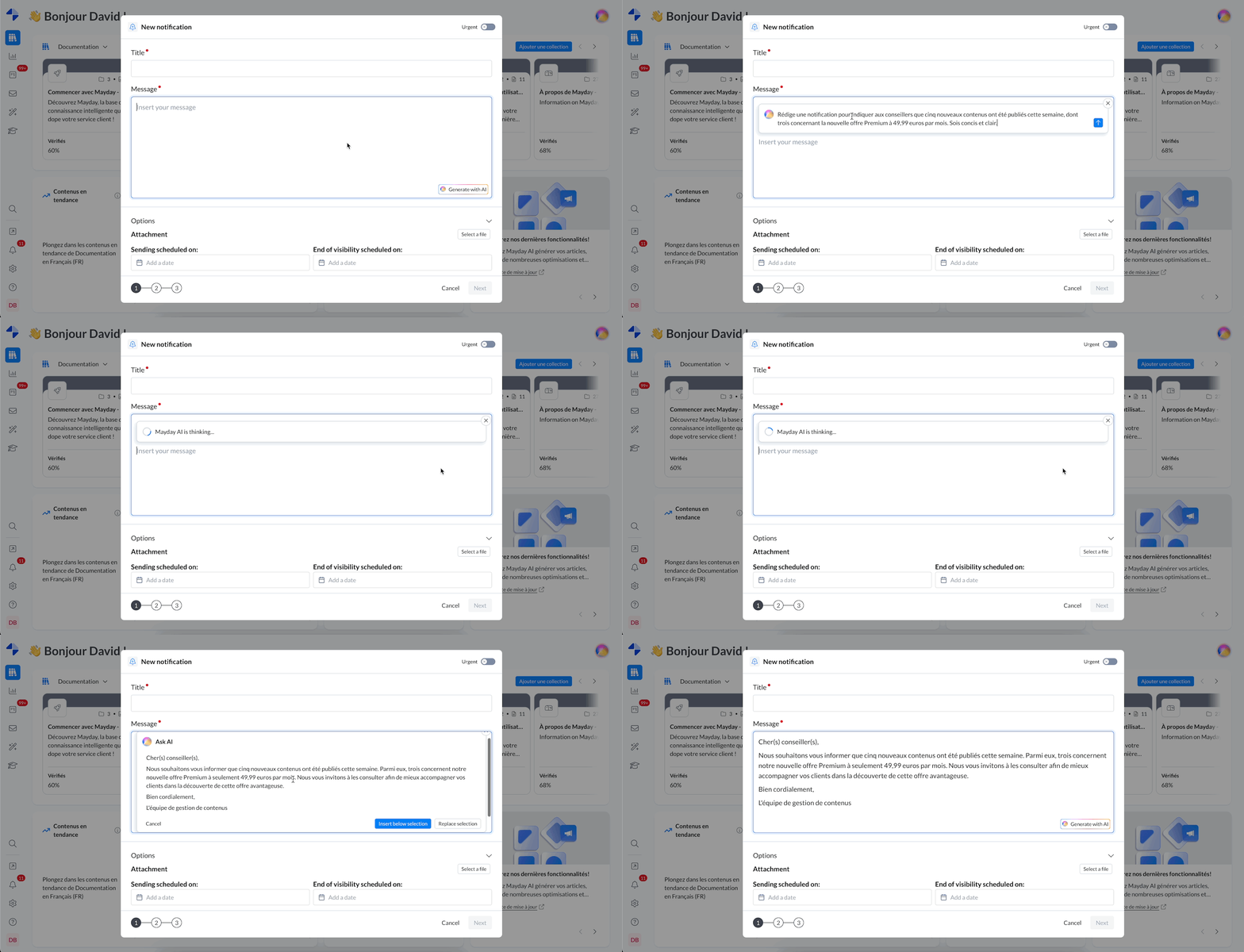
Generate a notification with Mayday AI.
🪄 Use cases
Generate a notification from Mayday content.
Create a notification based on an external file detailing your new features.
Write a notification from the information you provide directly to the AI.
⏭ And this is just the beginning…
Soon, Mayday AI will go even further:
🚀 More advanced intelligence – Request a summary of the latest edited content or a list of contents created or updated this week in an instant.
Mayday AI will be able to leverage data from your content and tasks in the Hub, offering even more powerful and intuitive notification generation.
🤖 An evolving AI copilot – Switch to conversational mode to refine the notifications generated by the AI.
Ask the AI to change the style, tone, shorten, lengthen, or even translate the generated notification.
📂 Expanded resources – Integrate files from your SharePoint to enrich notification generation.
🎨 An AI tailored to you – Customize this notification generation feature so that the AI adapts to your writing style and requirements.