👋 Introduction
Mayday now integrates numerous AI features to enrich your experience and that of your users. To give you complete control over these tools, we have centralized their configuration in a dedicated space: AI preferences.
❓ What is it?
AI preferences constitute a centralized configuration hub that allows you to customize and adjust all the artificial intelligence features available on Mayday. This space gives you the possibility to tailor these tools according to the specific needs of your organization and your users.
🤔 How to access?
To access AI preferences, follow these simple steps:
Go to the preferences in the admin center
Select "AI Settings"
Click on "Configure"
🛠 Available Features
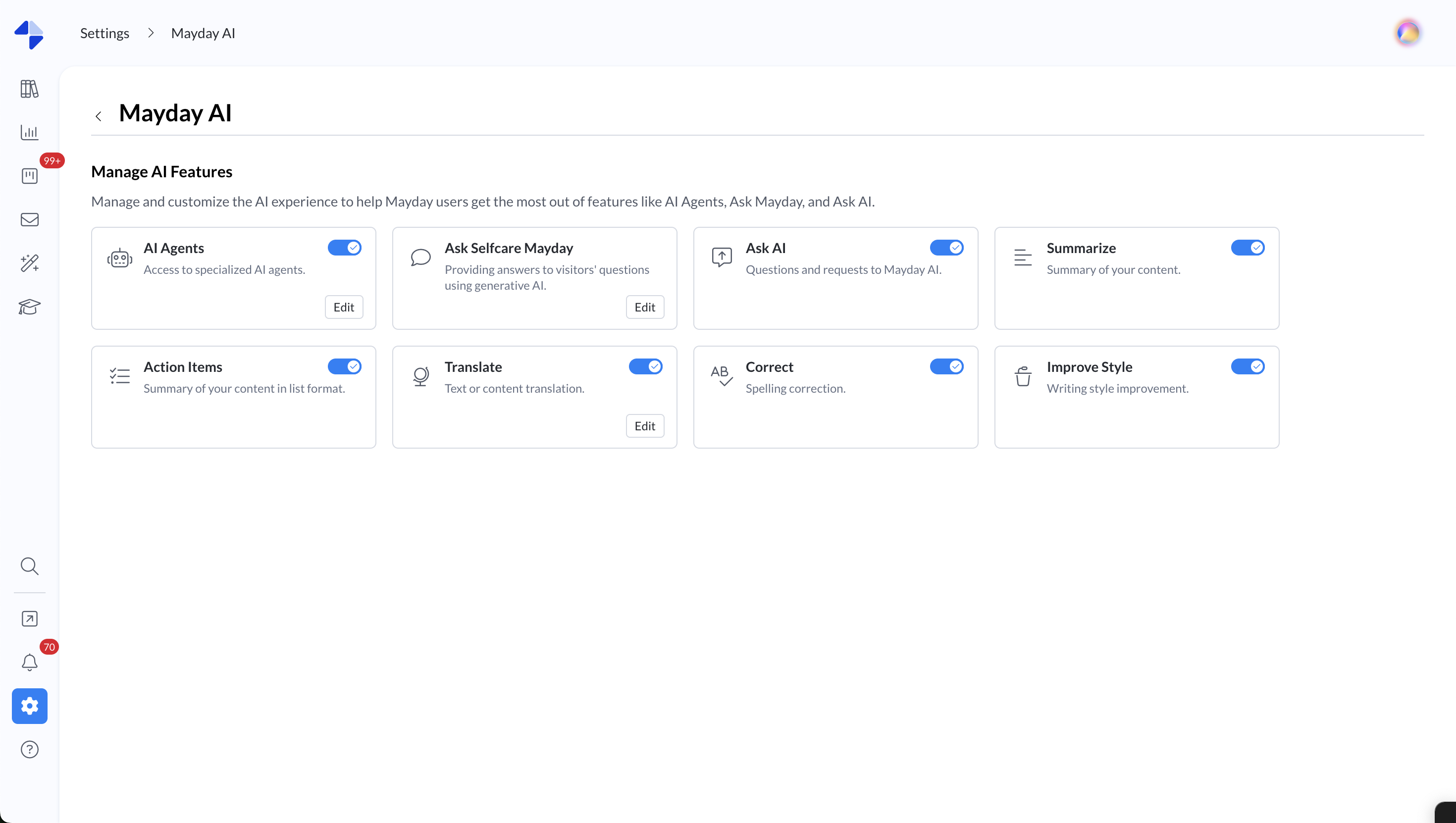
Once in the AI settings, you will discover all the artificial intelligence features that you can configure.
Currently Editable Features
AI Agents: A dedicated button allows you to access their full configuration
Ask Mayday: Configure the public Ask customization for your Mayday Selfcare solutions
Translation: Customize your translation instructions via AI in all languages available on Mayday
These instructions will then be used in two features:
Translation of selected text within the Mayday editor
Automatic translation when content in language A is created in language B
Options for These Features
For AI agents, Ask Mayday, and the translation feature, you can click “Edit” to customize these features.
For all features, you can:
Enable globally: the feature will be visible to users who have access to it.
Disable globally: the feature will be hidden throughout the product, for everyone.
📍 Where and for whom?
These AI preferences are accessible from the Mayday admin center and are intended for administrators with access permissions to preferences, via their role.