👋 Introduction
This article explains how to control the visibility of the microphone and conversation history in the Mayday AI interface. These two settings allow you to adapt the interface to your organization's constraints and use cases.
📍 Accessing the configuration
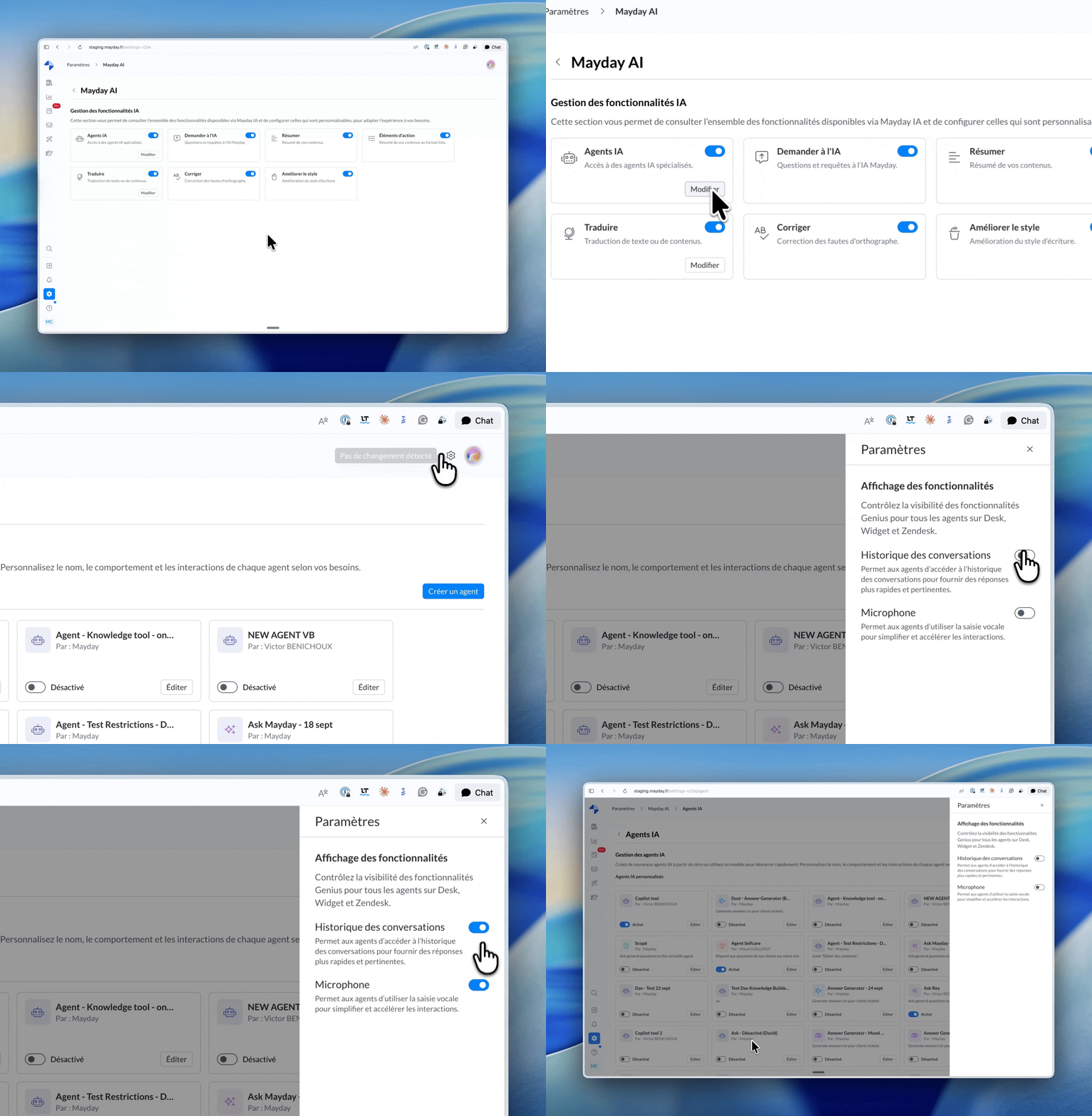
From the Mayday interface, open the AI Agent Hub and then click the configuration button to open the side panel for global settings.
🎛 Available settings
Two settings are available in the side panel, enabled by default:
Show Microphone — controls the visibility of the microphone button in the Mayday AI interface.
Show Conversation History — controls the visibility of the history component in the Mayday AI interface.
Disable one or the other depending on your organization's needs. These settings apply to all surfaces where Mayday AI is integrated: Desk, Zendesk, and Widget.
ℹ Good to Know: changes are applied at the user's next login.