🤖 Create an automation rule on content
Once your custom attributes are defined and imported (see previous step), you can start creating automation rules.
All you have to do is go to the level of the content you want to proactively suggest and create an intelligent rule.
You can create rules at the root of the guides but also in branches of them.
A rule can only be created on a "Published" content.
Go to the root or one of the branches of a guide and click on the "🪄" icon;
Click on the "
Add a rule" icon;Click on the "
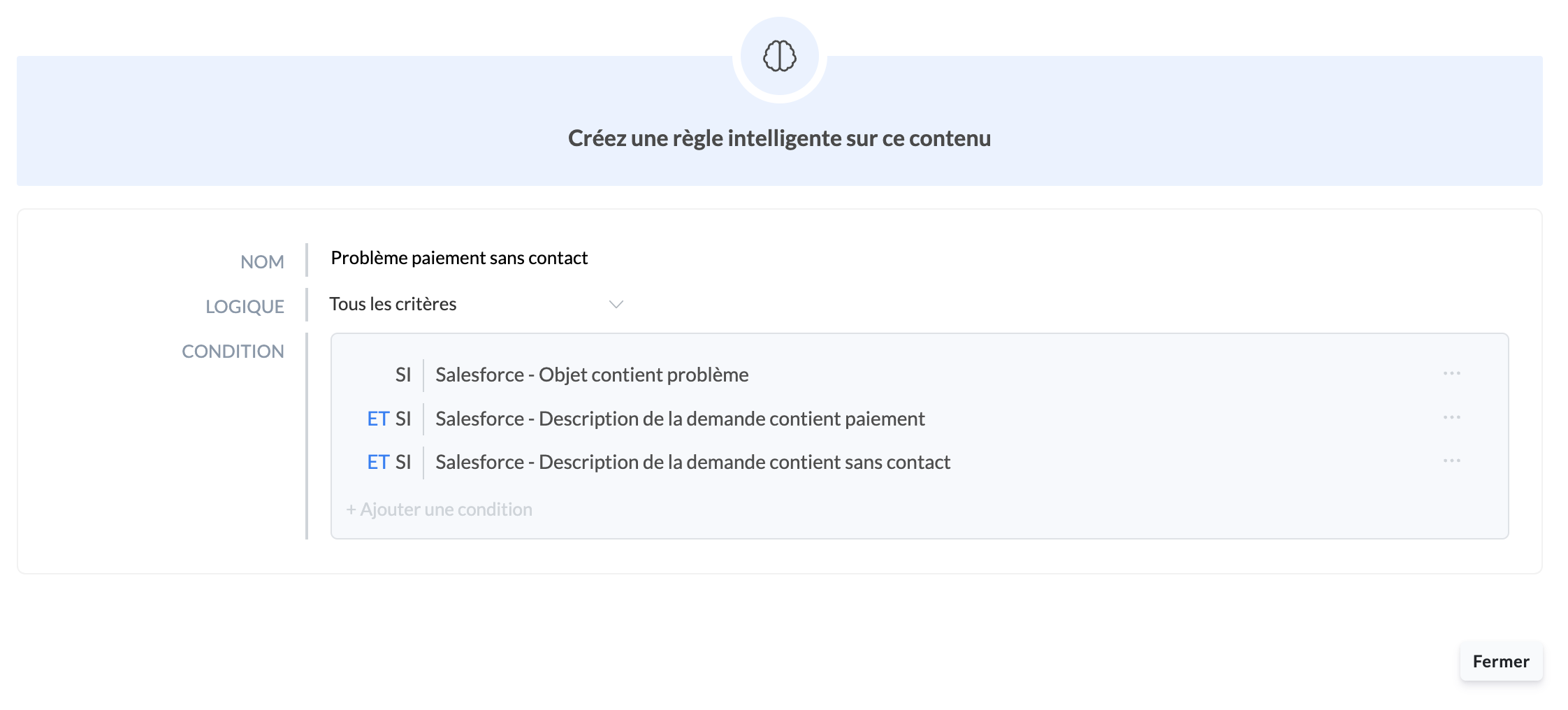
Create a rule" icon;Fill in the "
Rule name" -> this is the name that will appear as soon as the automation is detected;Define the "
Logic" -> select the logic "All criteria" (AND) or "At least one criterion" (OR) ;Apply the "
Condition" -> it is possible to add several of them:if several keywords are integrated, the query will automatically be "OR";
uppercase/lowercase are not differentiated;
accents will not be taken into account.
Click on the disk icon "💾" to save your rule;
(optional) Add another condition to the previously created rule by clicking on "
Add a condition" - Repeat this action as many times as necessary depending on your needs;Click on "
Close";Your rule is now set up 🤩!
Conditions may vary depending on the type of attribute
Numbers:
is equal to;
is different from;
is less than;
is greater than;
Text:
is equal to;
is different from;
contains;
does not contain;
Boolean:
true;
false;
You can create several rules on the same guide branch or create the same rule on other content to suggest several contents to the advisor corresponding to the client's request.
To delete a rule, simply place your cursor on the blue "Create a rule" icon and click on the "Trash can" icon.
📸 View an example of a Salesforce automation rule
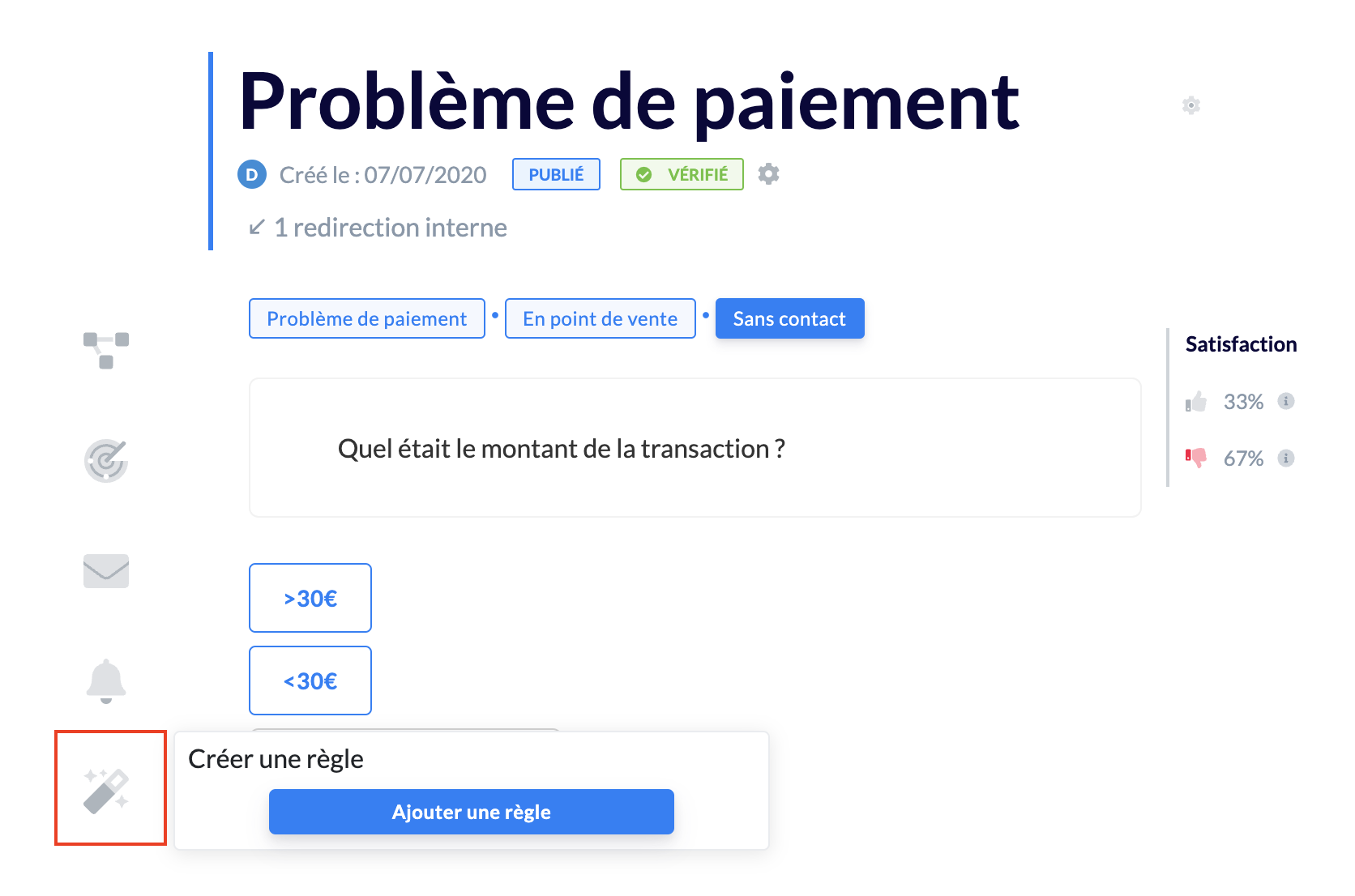 The rule is created on a guide entitled "Payment problem" detailing the procedure to follow if a customer encounters a payment problem, particularly in the case of contactless payment.
The detailed rule below is based on the following logic:
→ If the Salesforce customer ticket object contains the keyword "Problem" OR "Blocked", if the ticket description contains the keyword "Payment" AND also contains the keyword combination "Contactless", the "Payment problem" guide will be suggested to the advisor when he clicks on the "Contactless" step, on which the rule was created.
➡ Next step
Once your automations are created, you can find them in the dedicated tab: