📕 Introduction
Discover in this content how to display your modules and courses in "list view" from your Mayday Academy homepage.
💫 Display modules and courses in "list view"
Choose to display all your modules and courses in a "List" format for better visibility
We offer the list view to enable better readability of all your trainings when you want to have an overview.
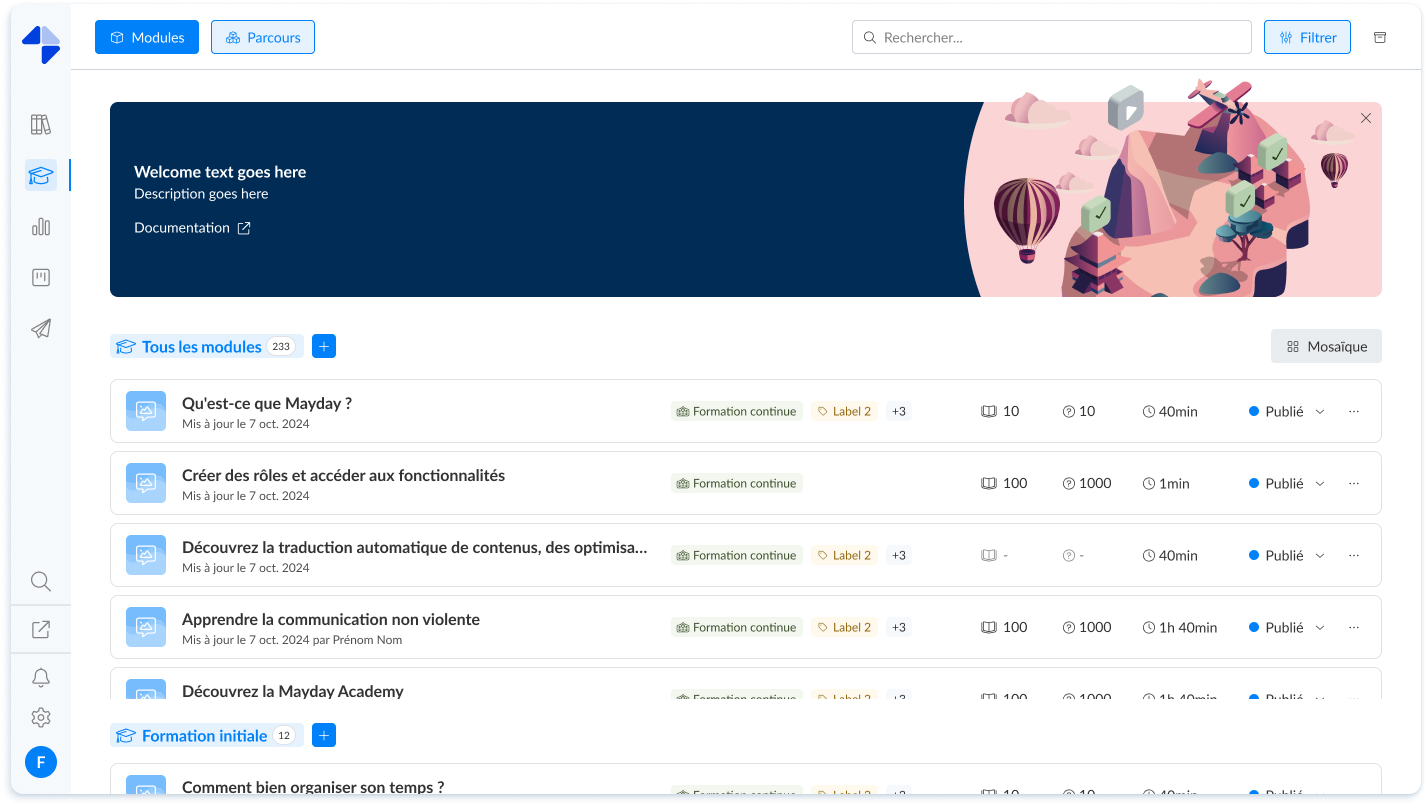
Mayday Academy administrator interface - List view
🤔 How to use the feature?
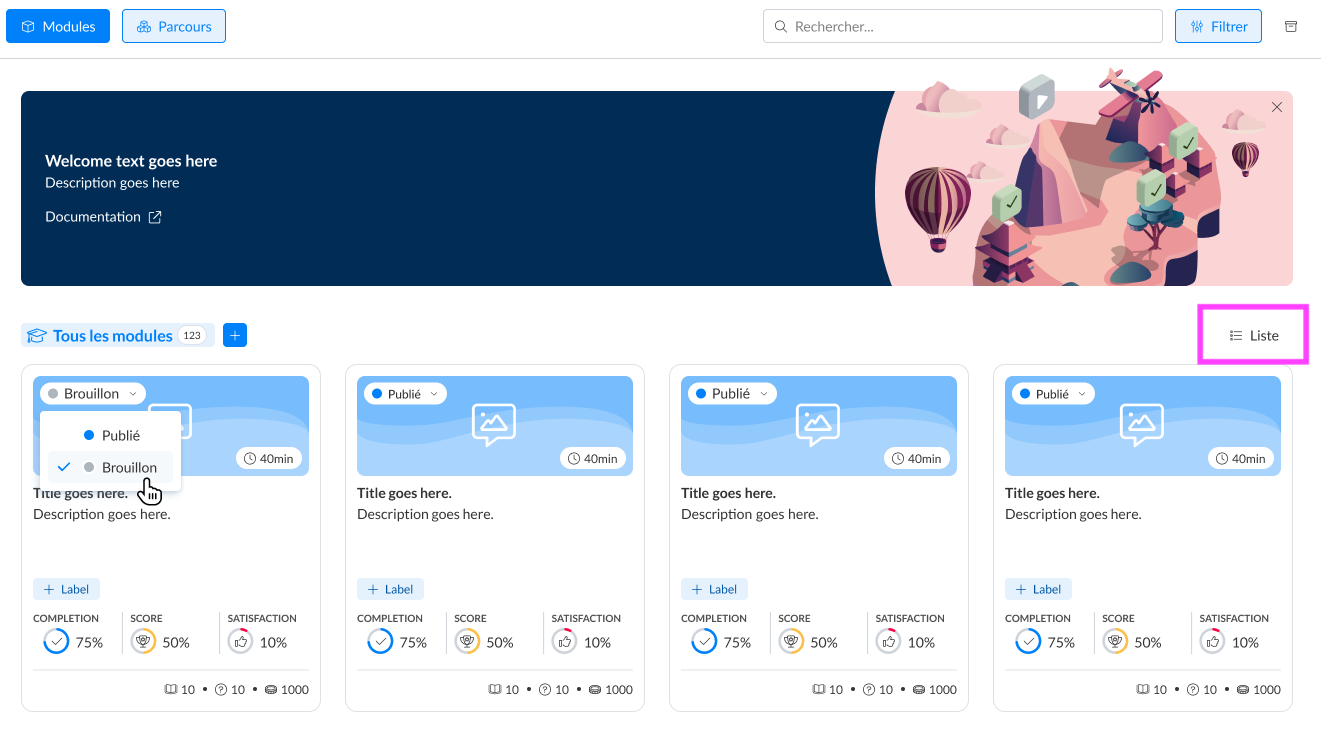
Click on the "List" button to change the display
📸 Screenshot:
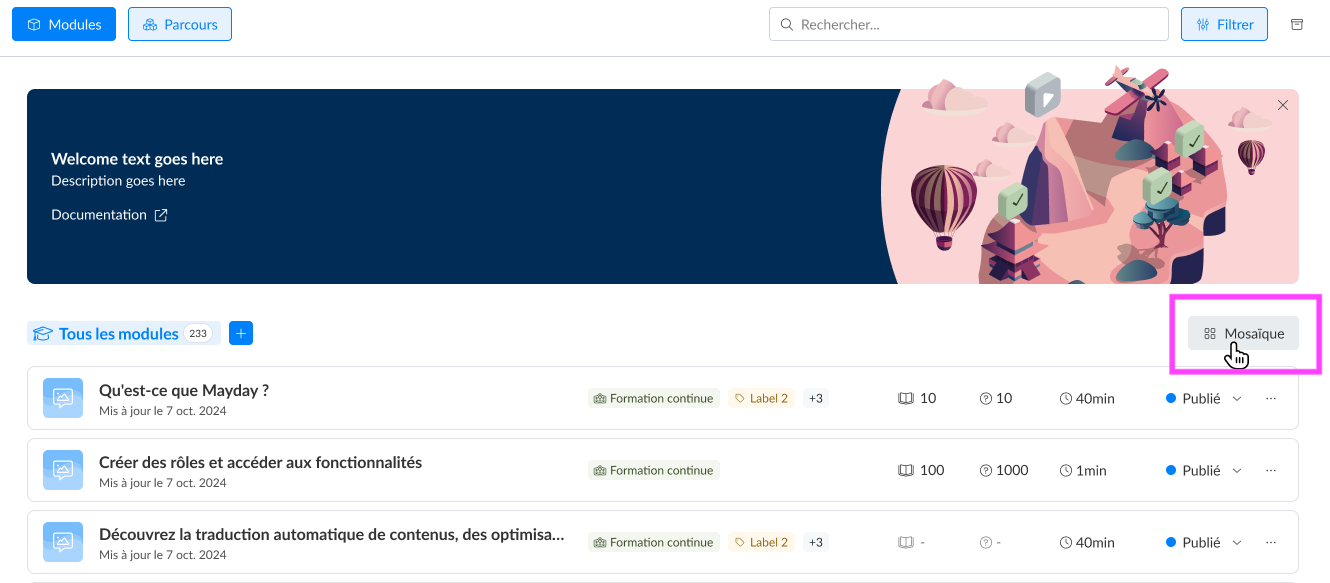
To return to the display with large cards, click on the "Tile" button
📸 Screenshot:
📃 View, publish, and access all modules included in the courses from the course list view
Get a higher perspective on the administration of your trainings with this new view
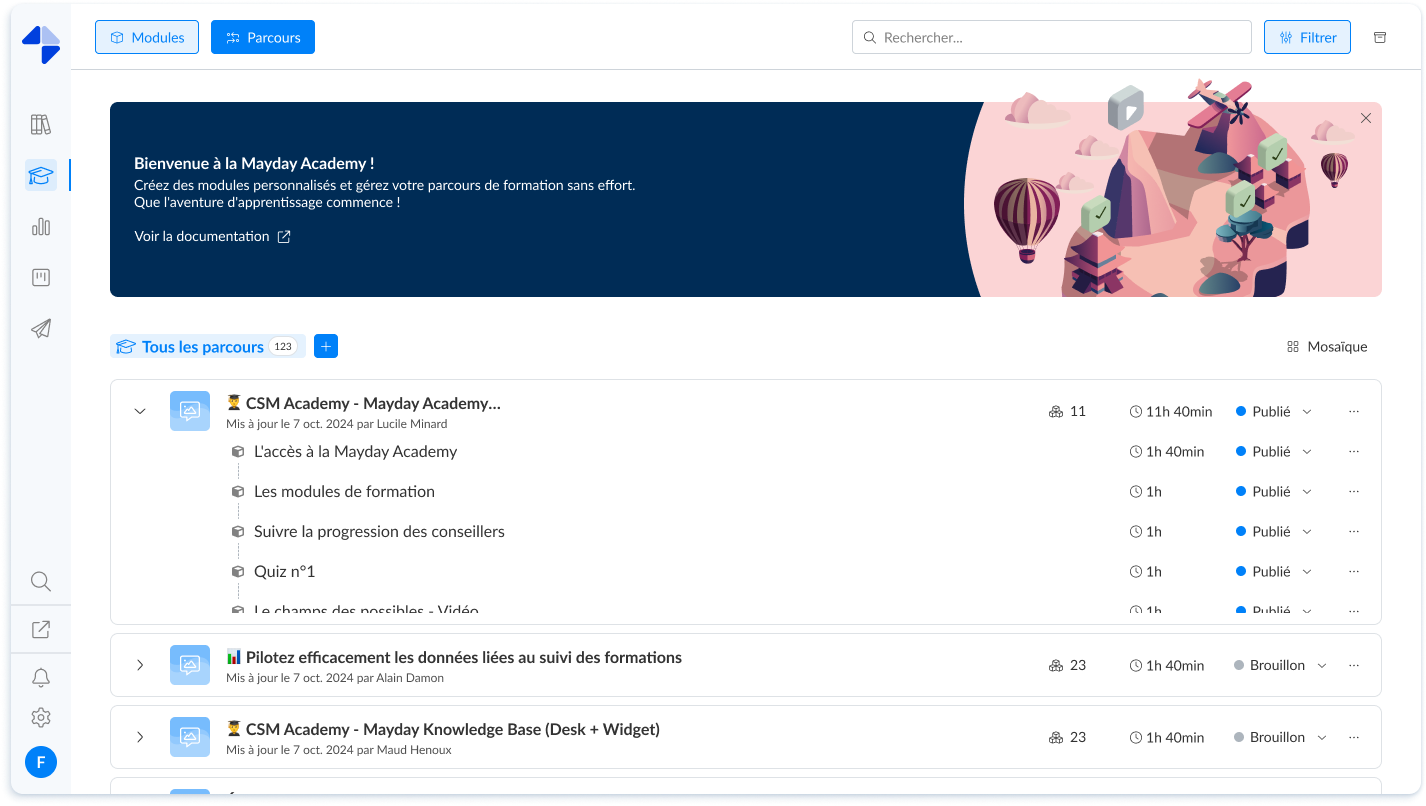
Mayday Academy administrator interface - Detailed list view of the courses
🤔 How to use the feature?
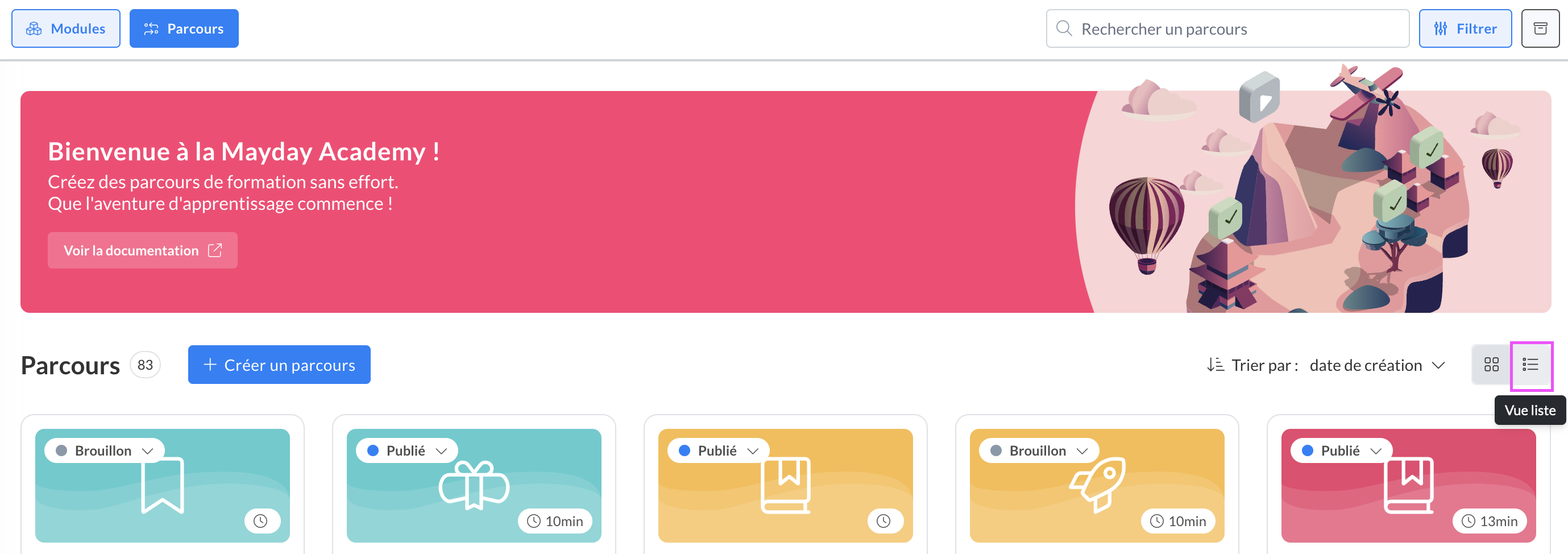
On the "Courses" tab, click the "list view" button to change the display
📸 Screenshot:
On the chevron of a course to display the details of the modules it contains
📸 Screenshot:
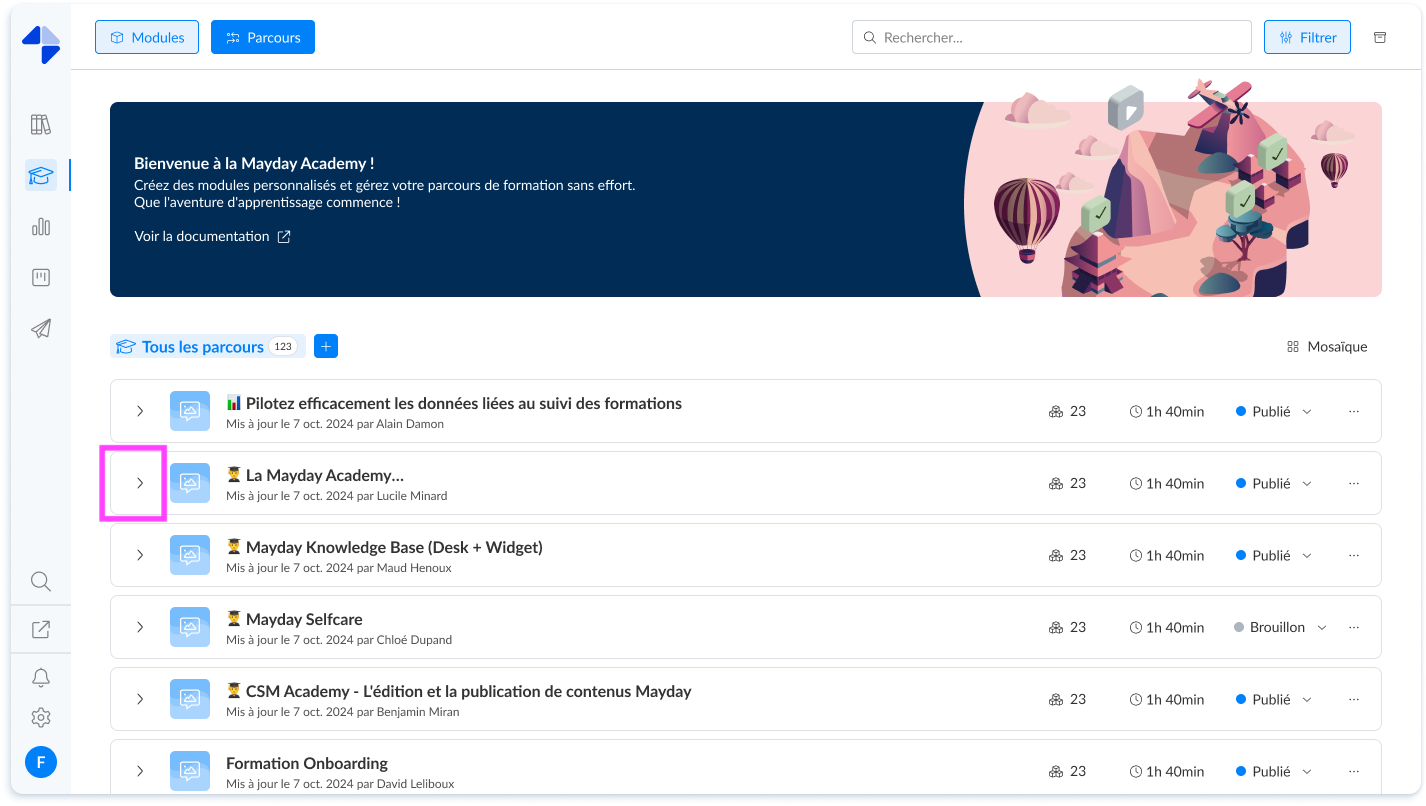
You can directly from this view:
Open and access the course and the different modules that compose it by clicking on their title
Publish or set to draft the course and the different modules that compose it