📕 Presentation
Discover in this content how to create roles and access functionalities.
This feature can be found in the “Settings” tab of your Mayday account.
📸 See how to access the settings

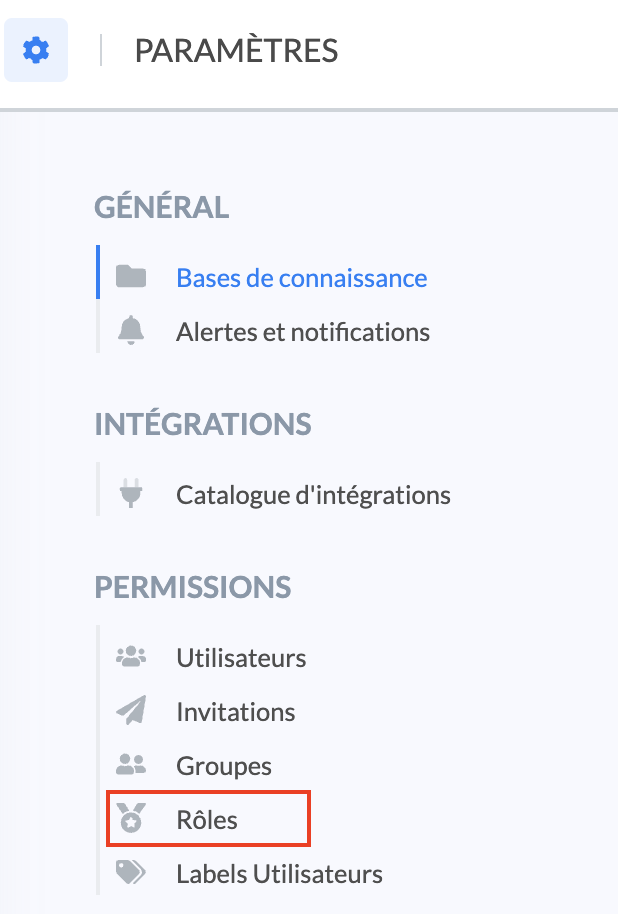
📸 See how to access the roles
Roles allow you to restrict access to certain features of Mayday.
This feature is divided into several steps:
👉 A role has at least the "Knowledge reading" access.
👉 A role can have all accesses.
By default, the roles "Agent" and "Owner" are present as a demo:
You can use them to link them to users but note that these roles can neither be edited nor deleted.
💡We therefore recommend you to create custom roles that can be edited or deleted according to your needs.
The feedback feature is linked to roles. Thus, the groups created will form the list of potential recipients during the sending of feedback → consult the article for more information
🎯 Use Case
Establish a governance strategy to maintain your knowledge base over time!
Create a custom role and configure it to define the actions employees can perform in Mayday. Then assign this role to users.
🏗 Step 1: Create and name the role
Follow these steps:
To create a role, simply click "
Create a role";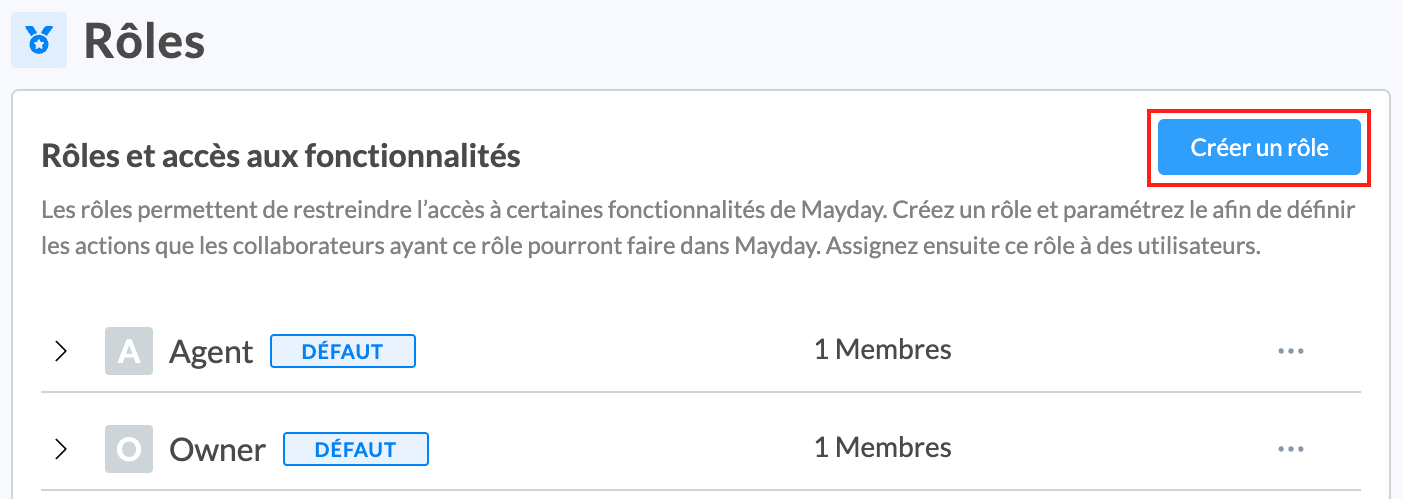
You must then assign a name to this role;
We recommend defining a short and clear name that clearly represents the function of members of this role on Mayday.
Example: “Verifier”, “Editors”, “Managers”...
You will then have access to a settings panel allowing you to define the accesses granted to this role, per feature;
📸 View the settings panel
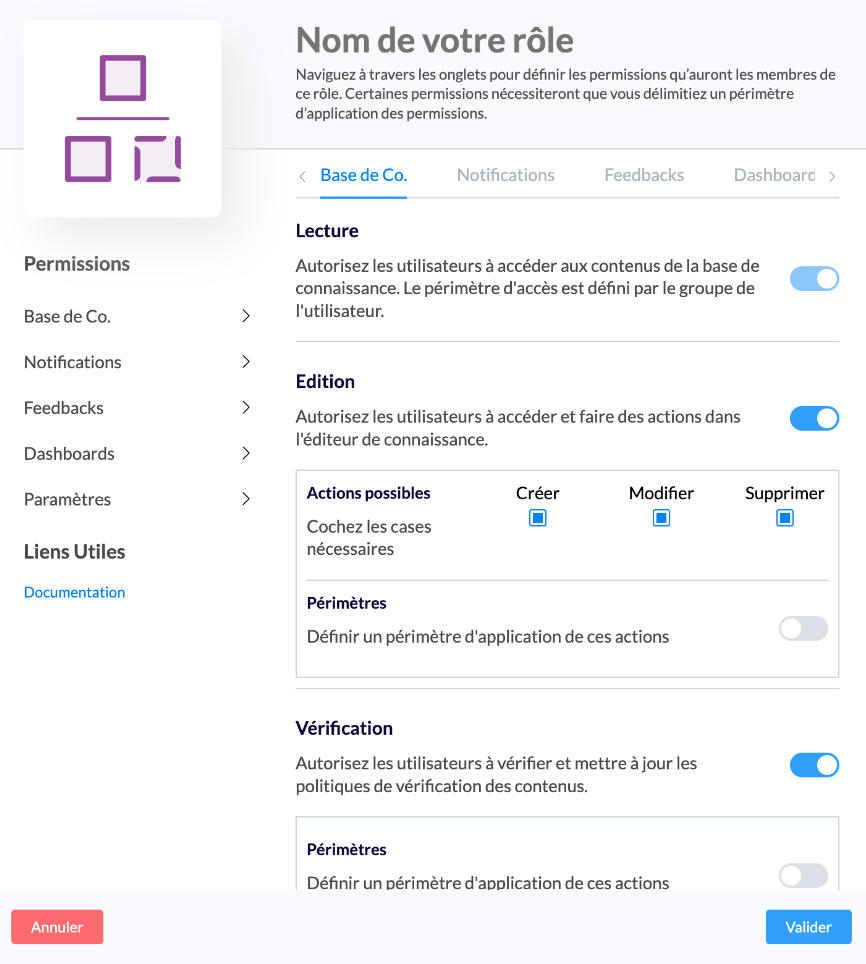
Once the accesses are selected, you need to click on “
Validate”;Your role is now created! You can view all your roles and the accesses defined for each role on the settings page:
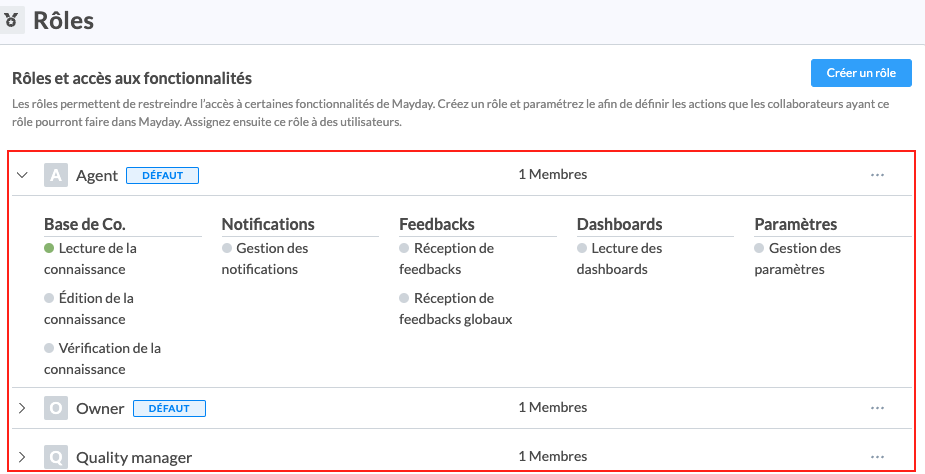
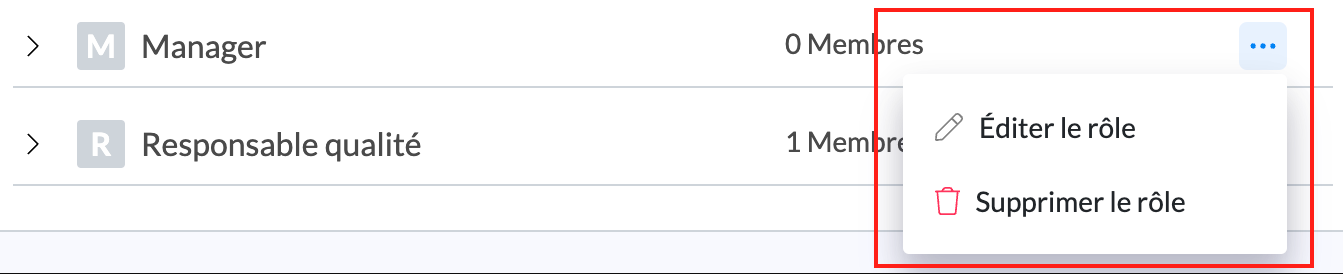
You can edit a role at any time by clicking "..." to the right of the role then on "Edit the role".
Role deletion is also possible if no user belongs to this role. You simply need to click on "Delete the role".
🏗 Step 2: Define access to functionalities
You can provide highly granular permissions to your users, based on their responsibilities and your internal processes.
📚 "Knowledge Base" Access
This access determines the scope of action granted on the knowledge base. It consists of three permissions.
1⃣ Knowledge Reading
The user will be able to consult the contents in the knowledge base. However, access to content depends on the restrictions potentially applied to the group the user is part of → see the article
2⃣ Knowledge Editing
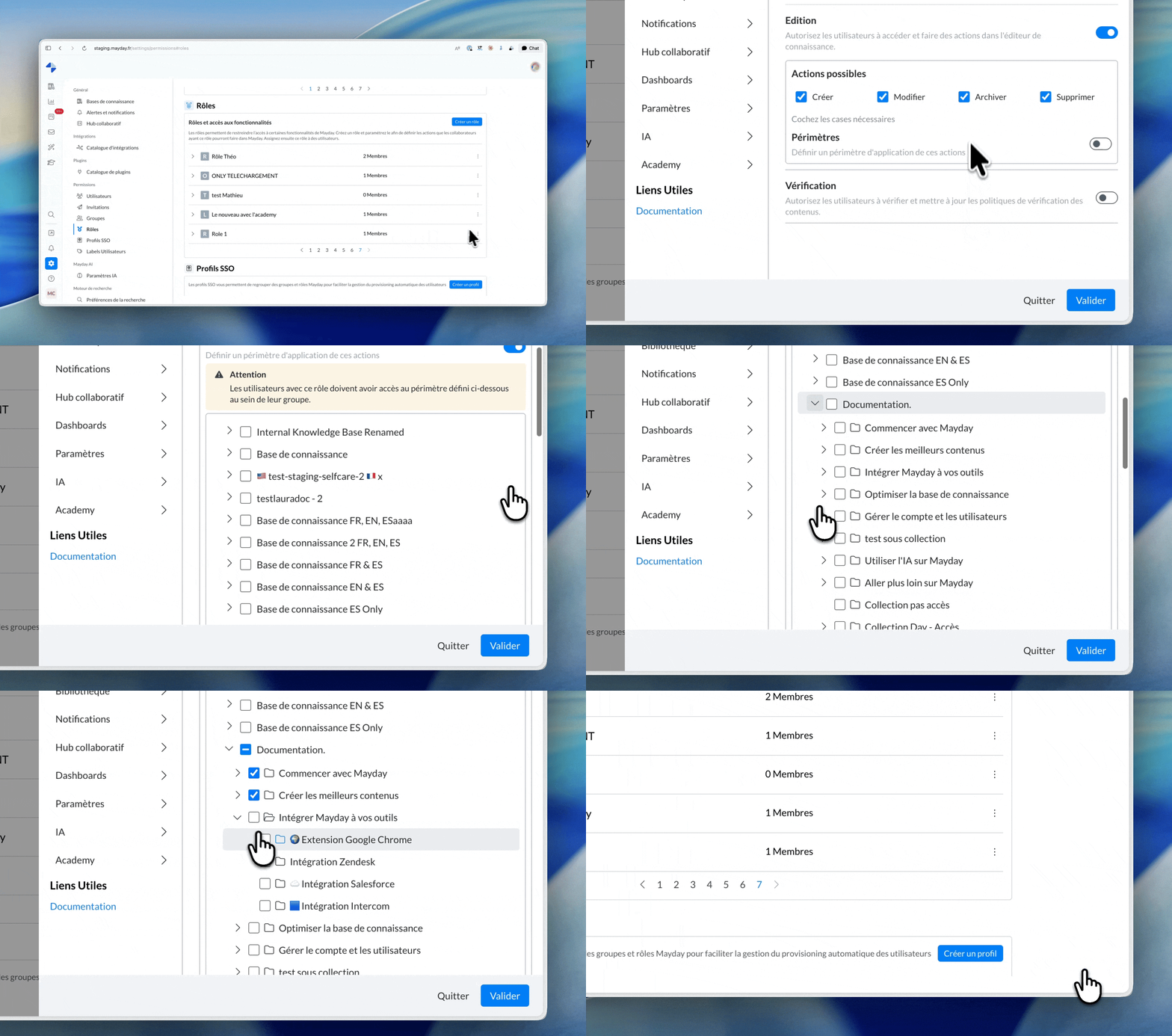
This access grants users the ability to access the knowledge base editor in order to edit content.
You can configure these editing rights in a granular way:
by granting the right to create, modify, and/or delete content or only one of these actions (for example, you can give content creation and modification rights but exclude deletion rights);
by selecting the knowledge bases, collections, or sub-collections where these actions can be carried out.
Selecting a collection automatically includes all its sub-collections (present and future) in the editing scope.
If one of these sub-collections is moved out of the scope, the role automatically loses its editing rights on it.
Creating a new collection within the same parent collection does not automatically extend the role's editing scope to it.
If a collection is directly selected within a role's scope, this right is retained even if moved, and it also applies to all its sub-collections.
This right does not extend to other collections in the new location.
This second option is especially useful if you have a significant number of editors and want some to only edit specific knowledge bases, collections, or sub-collections, without access to edit the rest.
The defined editing scope must be included in the reading access of the user's group. If a collection is added to a role's editing scope but the user's group does not grant access to it, the user will not be able to access it.
3⃣ Knowledge Verification
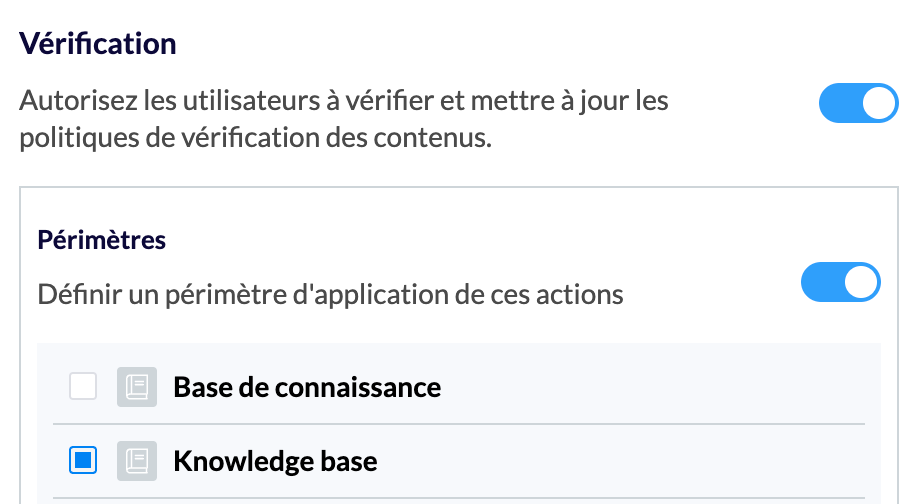
The user will be able to verify and update content verification policies. You can grant verification permissions to certain users without giving them editing permissions. The affected users will then be designated as verifiers.
It is possible to refine this right by determining the knowledge bases where verifiers can act.
🔔 "Notifications" Access
The user will be able to manage and send notifications to agents.
📣 "Collaborative Hub" Access
The user will be able to receive and process the feedback sent by agents (consult this article for more information: . This access consists of four permissions.
1⃣ Hub Reading
When activated, it is possible to define a Hub reading scope, limited to previously created Hub views.
For more information:
The user will then be able to access the Mayday Hub, where agent feedback is located, within the Mayday administration center.
2⃣ Hub Editing
When activated, it is possible to define the role's editing scope: comment on a task, modify a task, archive a task.
The user will then be able to collaborate on Hub tasks (reply, change status, assign responsibility, etc.), within the Mayday administration center.
3⃣ Receive Employee Feedback
This permission is divided into two for feedback:
Mayday Knowledge: concerning a knowledge base, a collection, or content.
Mayday Academy: concerning the Mayday Academy overall, a training or a course.
The user will be in the list of unique recipients capable of receiving feedback. The agent must choose the individual user to whom their feedback will be sent. Only the recipient selected by the agent will receive a notification.
Example: you create a "Supervisor" role with this permission active. You assign this role to Henri, Benjamin, and Célia. In this case, agents will be able to send feedback directly to Henri, Benjamin, or Célia individually.
4⃣ Role Feedback Reception
This permission is divided into two for feedback:
Mayday Knowledge: concerning a knowledge base, a collection, or content.
Mayday Academy: concerning the Mayday Academy overall, a training or a course.
The name of the user who holds this role will not be in the list of recipients suggested to the agent. The latter must choose the role, not a specific person, to whom their feedback will be sent. All users holding this role will receive a notification regarding the agent's feedback reception.
Example: you create a "Supervisor" role with only this permission active, excluding "Receive Employee Feedback." You assign this role to Henri, Benjamin, and Célia. In this case, agents will be able to address feedback to "Supervisor," and this feedback will be received by Henri, Benjamin, and Célia.
📊 "Dashboards" Access
The user will be able to view the dashboard.
⚙ "Settings" Access
The user will be able to access the page and all its features.
🤖 "AI" Access
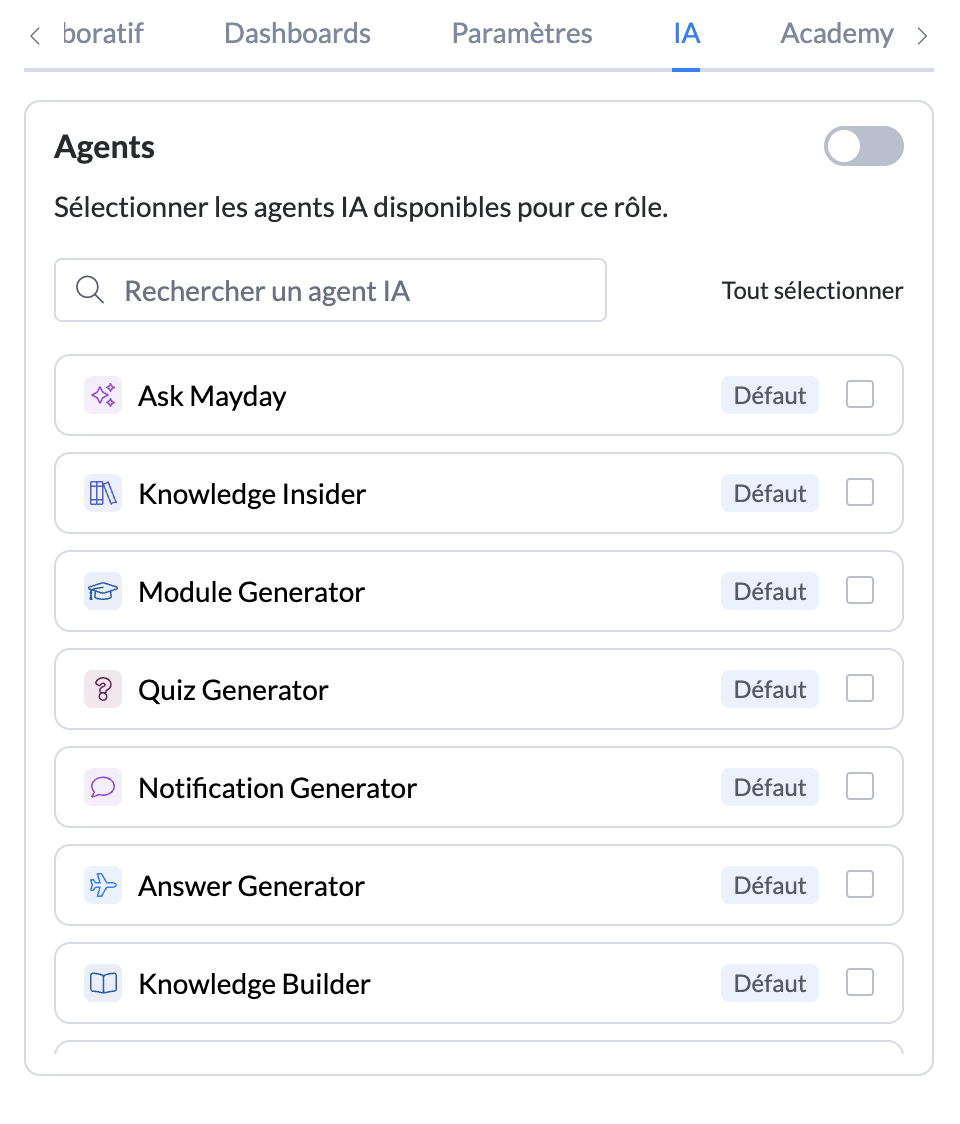
The user will be able to access AI features activated in this tab.
In this space, all AI agents (default or custom) and AI features in Mayday's editor will be listed.
Select the agents and features that users with this role should have access to.
For more information:
Reminder on how to define access to AI agents in Mayday:
Overview of AI agents:
Presentation of AI preferences:
🏗 Step 3 :Assign the role to users
Once the role is created and its accesses are defined, you need to assign this role to one or more users.
✅ If the users have already been created: go to the page to edit the roles of the relevant users.
⏳If the users have not yet been invited or their invitation has not yet been validated, go to the page to edit the roles of the relevant users.
It is possible to assign multiple roles to a user. Their restrictions will be the combination of permissions from the assigned roles.
🏗 Step 4 : View the list of members in a role
When a group has at least one user, you can view the list of users in this group.
Go to the "
Users" section;Click "
View details";Filter the user management center by roles, and select the desired role;
You can perform a grouped action on all the users that are displayed.
👉 Consult the article for more information.
🏗 Step 5 (optional) : Perform a group action
You can perform a grouped action on a set of users within the same role by navigating to the "Users" subsection.
👉 Consult the article for more information.