📕 Presentation
Discover on this content how to follow a training module on the Mayday Academy as a learner.
➡ Accessing the homepage of a module
Once on the Mayday Academy, you can launch a training module that is accessible to you, notably in the "Not started" section. For more information on these sections, please consult the following article:
To launch a module, click on the "Start" button on the Mayday Academy homepage, at the level of a module.
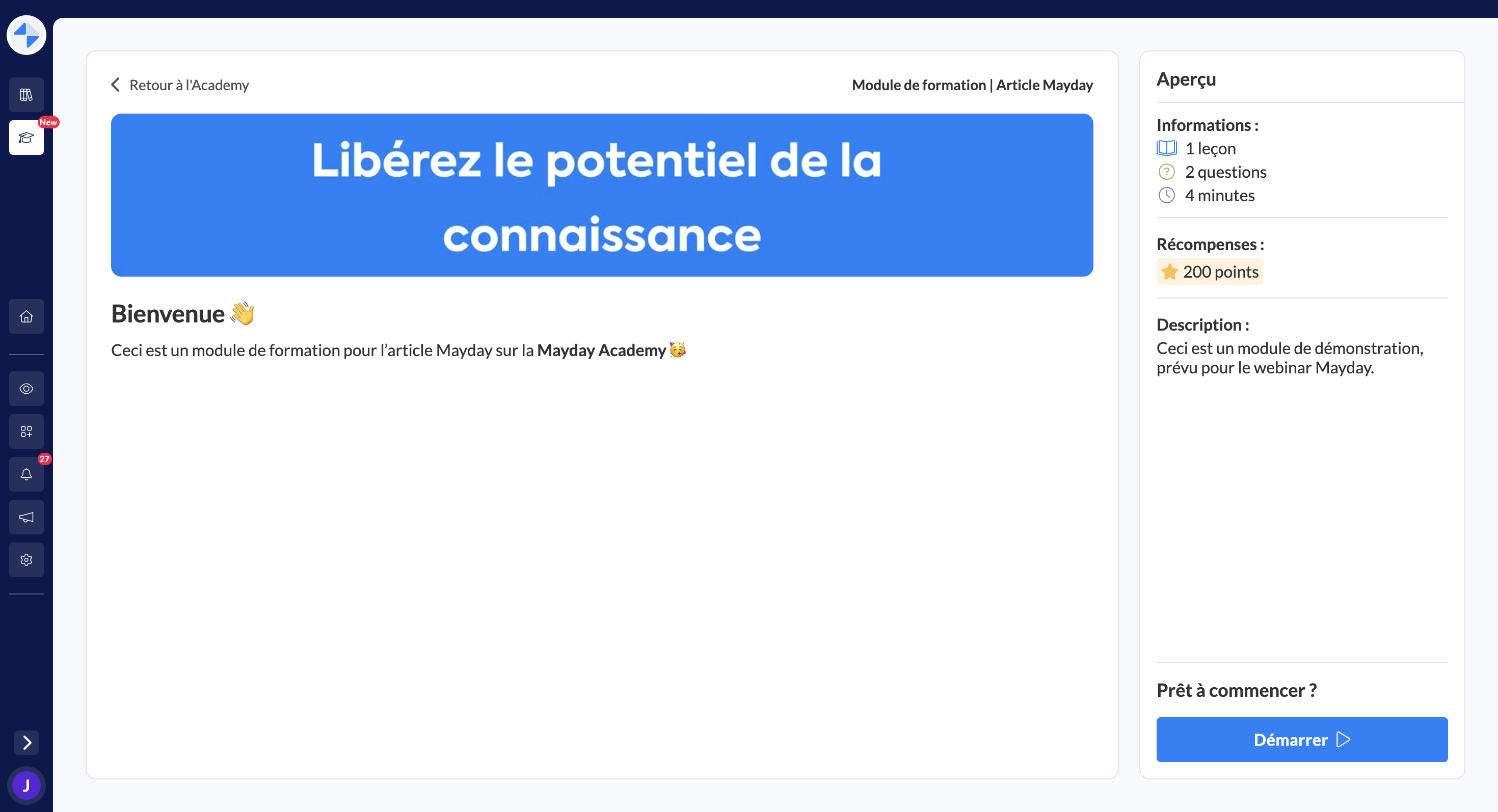
👏 Once you open a module, you are greeted by several elements on its homepage:
A cover image
A description and presentation of the module
The number of lessons
The number of questions
The estimated time
The rewards and points to be earned
This information helps you better understand what the training module offers before starting.
⏭ Ready? Simply click on "Start" at the bottom right of the homepage to start the module.
For information, once started, a module can be stopped and resumed at any time.
🗒 Following a course sheet on the Mayday Academy
In a training module, you will have access to two types of steps: course sheets and questions.
🗒 Let's start with the course sheets.
A course sheet allows you to access theoretical training, which can contain various formats:
Text
Videos
PowerPoint
Word
PDF
Excel
Mayday content
Tables
And many more!
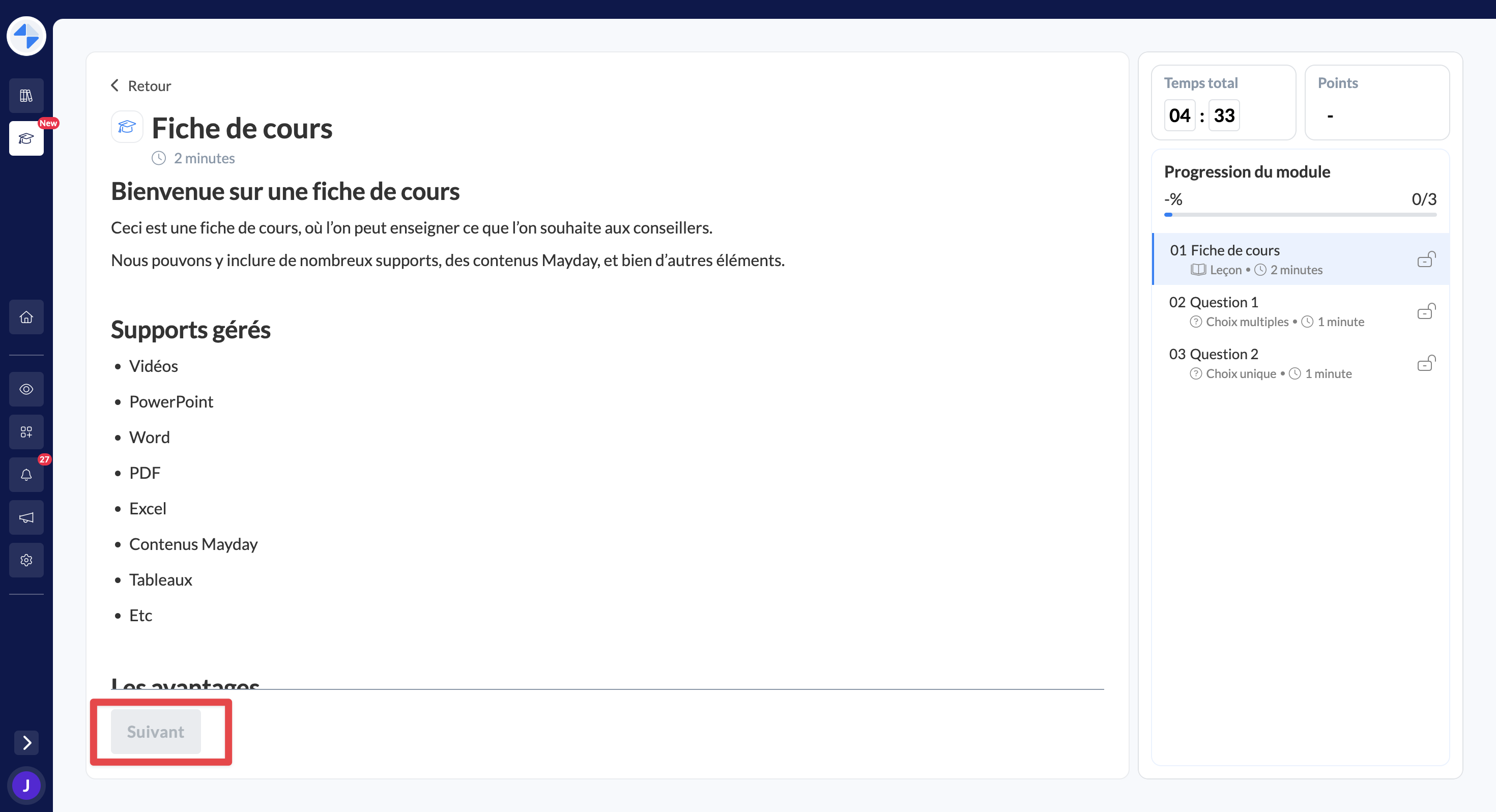
In order to move on to the next step, it is necessary to go to the bottom of the course sheet, so that we can ensure that you have consulted the course sheet in its entirety.
❓ Answering a question on the Mayday Academy
❓ Let's now discover the questions.
On the Mayday Academy, there are different types of questions:
Single-choice question
Multiple-choice question
Binary question: true/false, yes/no, or custom answers
Case study: practical application for a learner
🏗 Understanding the structure of questions
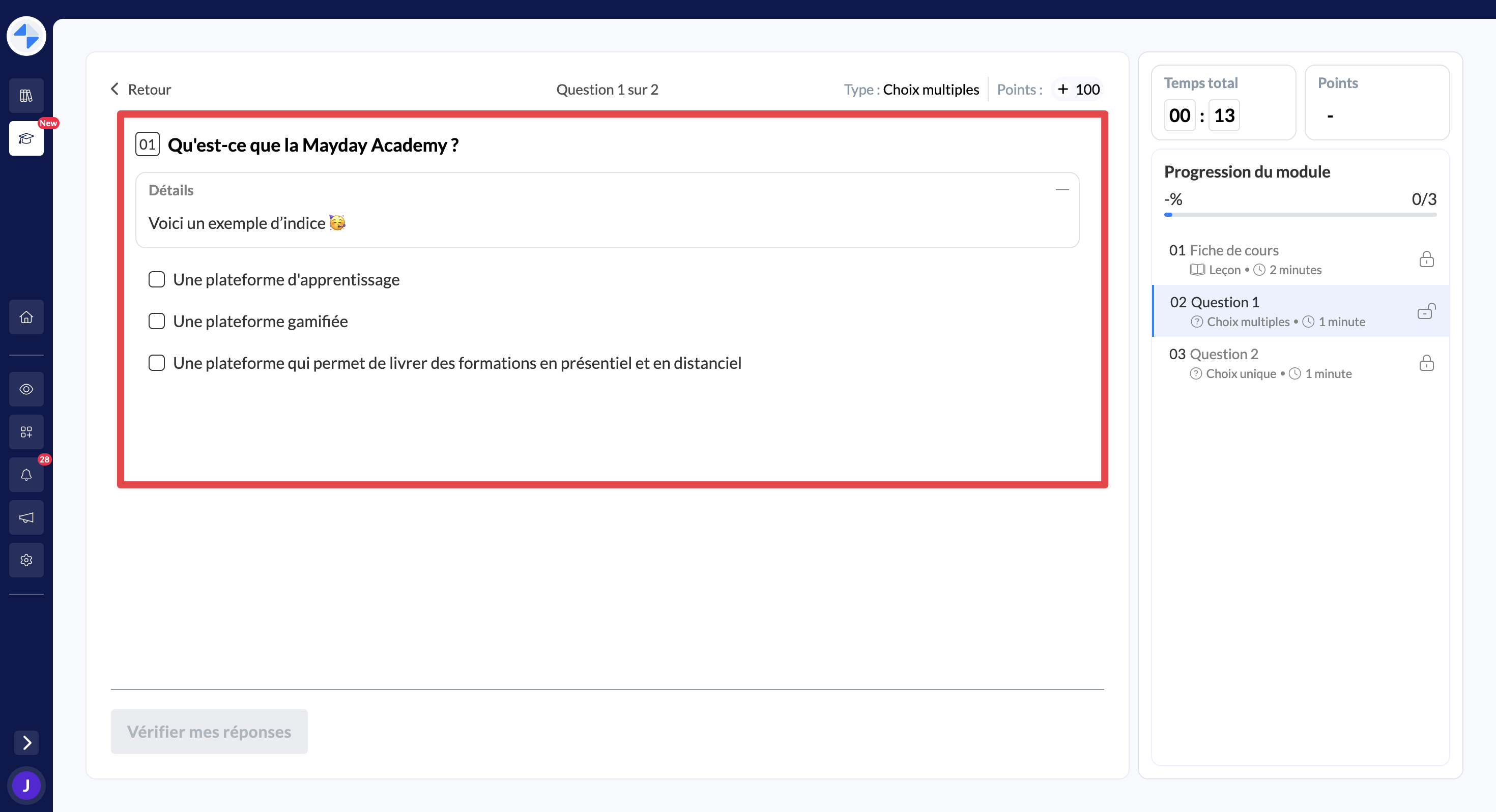
All questions are thus structured in the same way:
An introduction: only for case studies, to explain the context
A statement: the statement of the question to be answered
Details (possibly): additional elements concerning the question, specified by the creator of the question (clues, indications)
A correction: once answered, you will have access to the correction of the question if it has been authorized by the module creator
✅ Validating an answer to a question
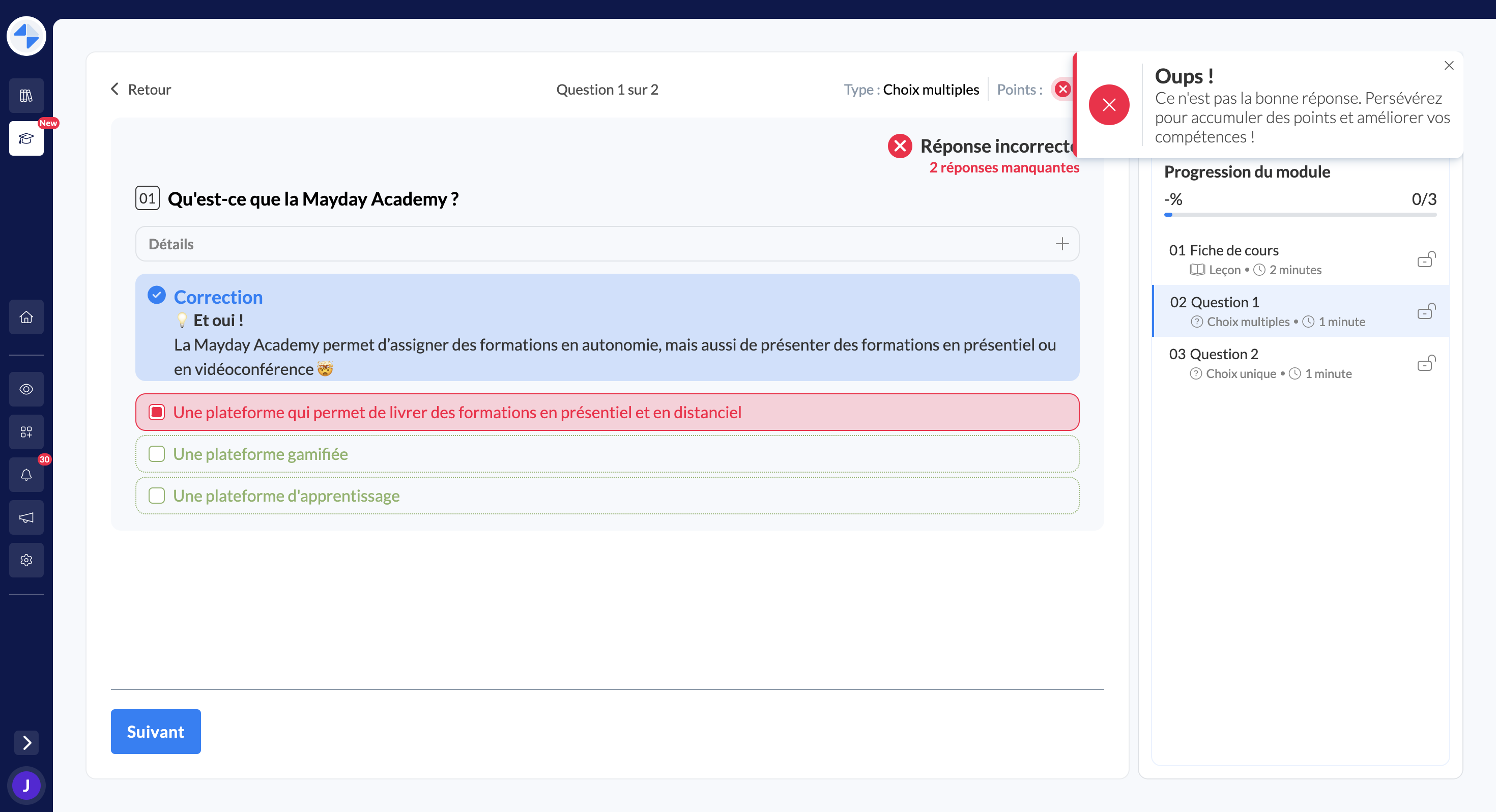
Once you have validated your answer, you now have access to the results:
The number of correct answers obtained: notably in the case of a multiple-choice question
Indication of correct answers: identifying the correct answers to the question
An explanatory correction: a correction to better understand the answers
The number of points earned: the visualization of the number of points earned thanks to this question
⌛ Answering a timed question
Some questions can be timed by a timer.
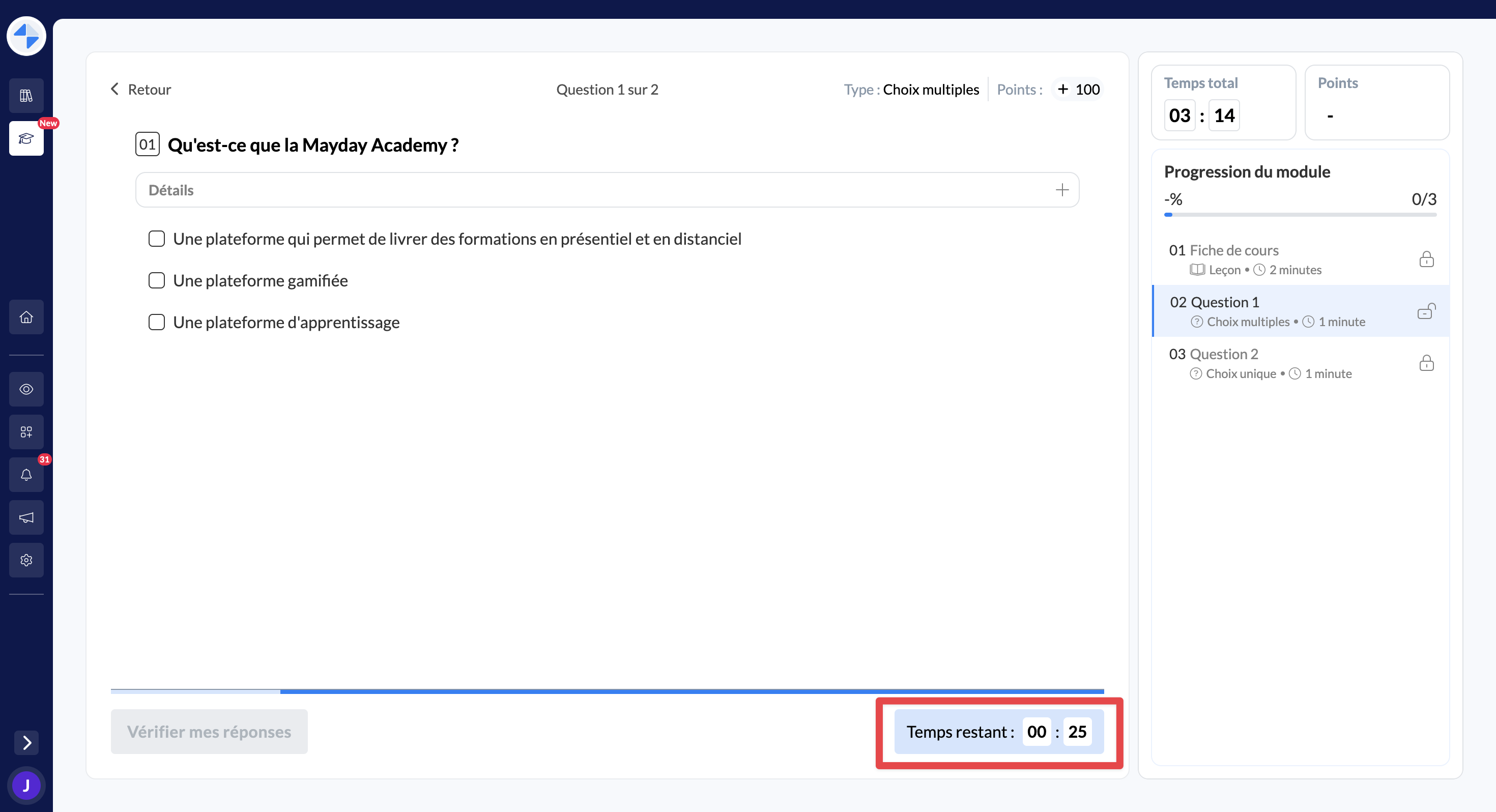
When a question is written, there is the possibility to activate a timer to limit the time available to answer it. In this case, you must answer the question before the allotted time runs out.
If you do not answer the question before the end of the timer, your answer will be considered incorrect ❌
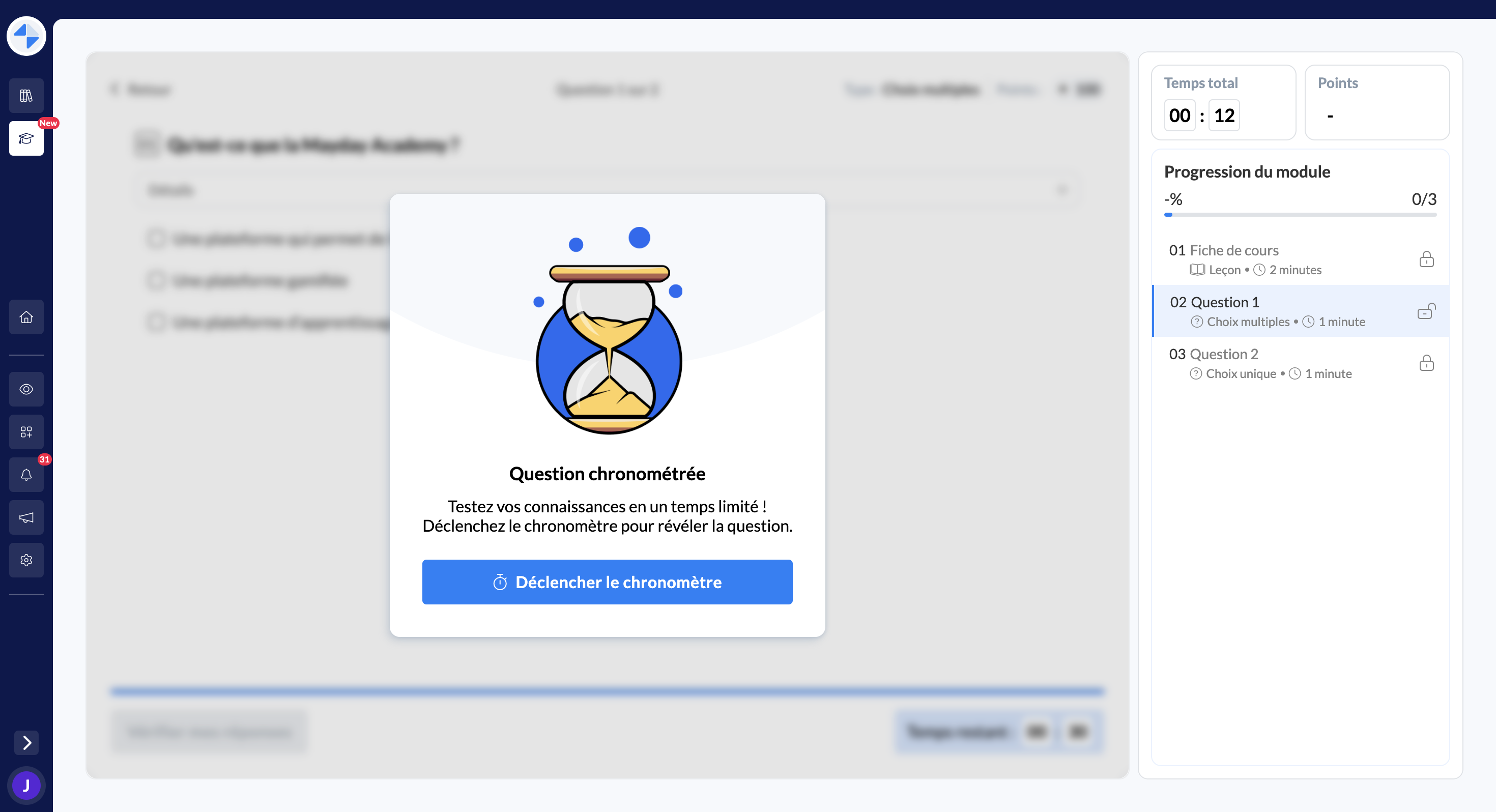
Once the timer is triggered, the remaining time will be displayed:
🧑💻 Tracking your progress
When tracking the module, a learner can easily track their progress in terms of time spent and progress in the module.
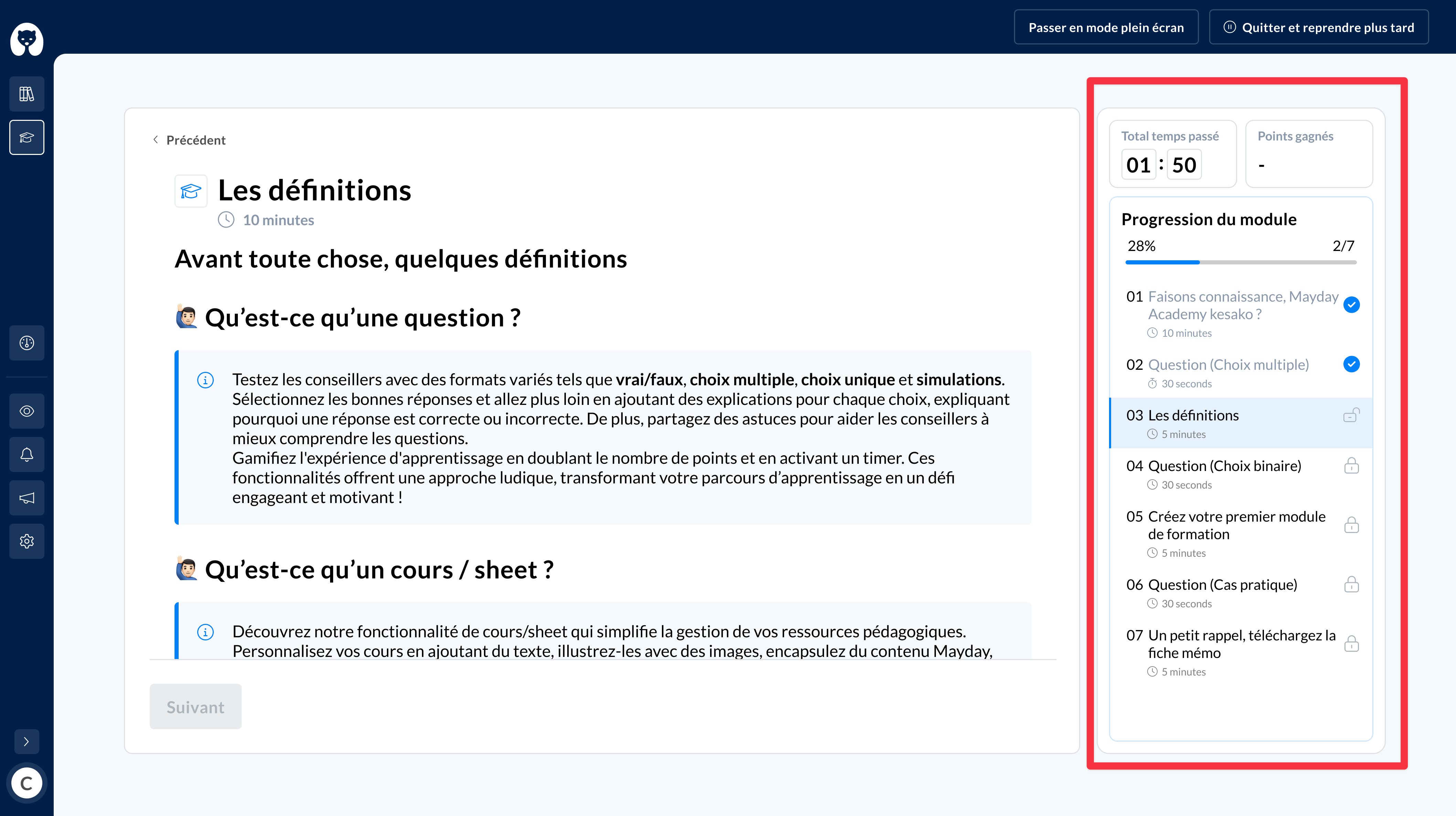
Each learner can therefore:
See, in real-time, the time spent on the module
The progress of the module in % (on the total number of steps)
The validated steps (these steps can also be reviewed by clicking on them)
The remaining steps
The number of points earned
📣 Sending feedback
When tracking the module, a learner can send feedback on each sheet, question, or on the module as a whole, depending on the options defined at the module level.
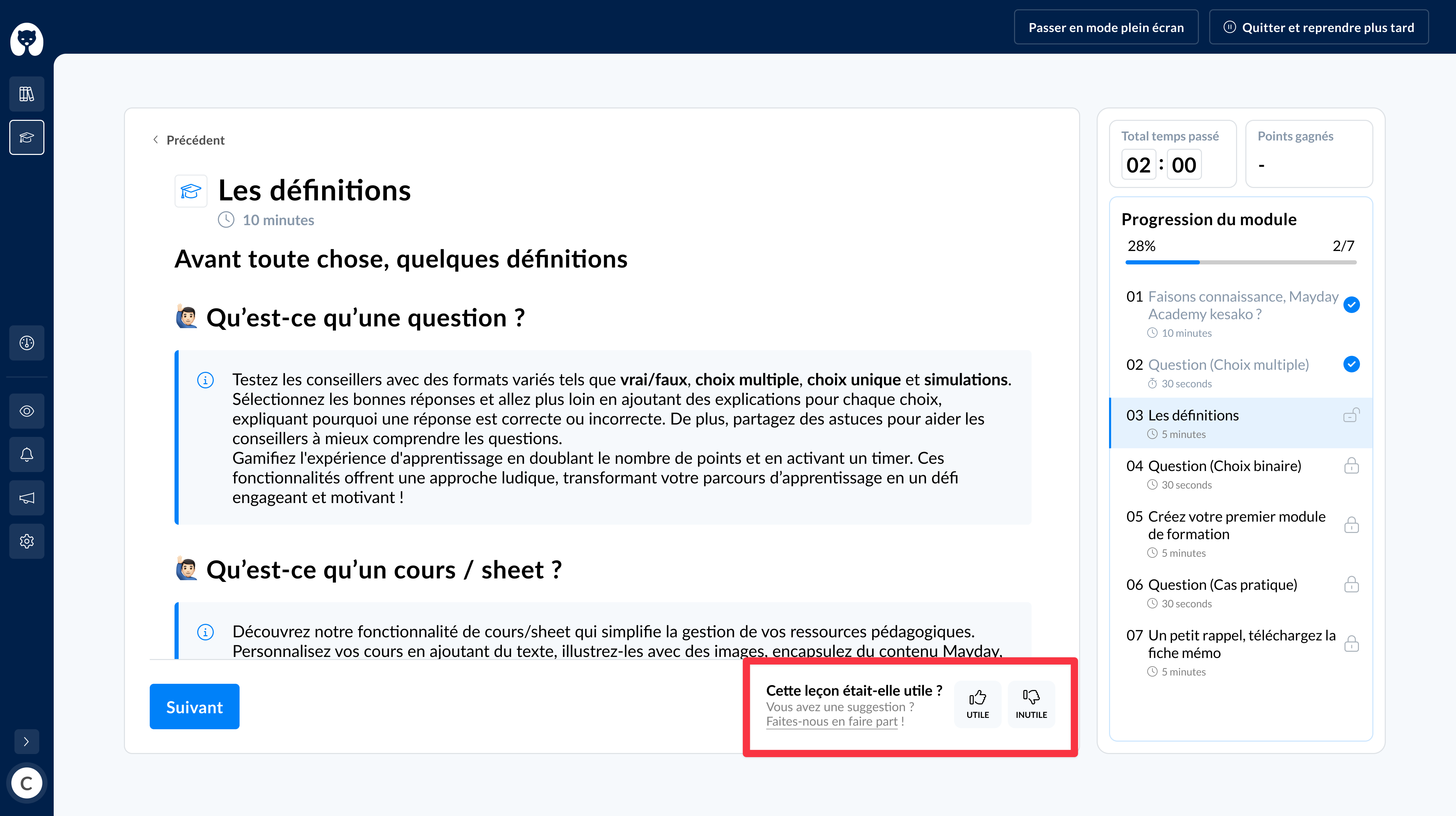
If feedback is enabled in the settings of a module, learners will have the possibility to send feedback:
After each lesson
After each question
At the end of the module, to give overall feedback
Learners can send two types of feedback:
A satisfaction indicator: 👍 or 👎
A Mayday feedback: using the feedback form available on Mayday
✅ Validating a module
Once all the steps of a module have been completed, you have finished the training module 🎉
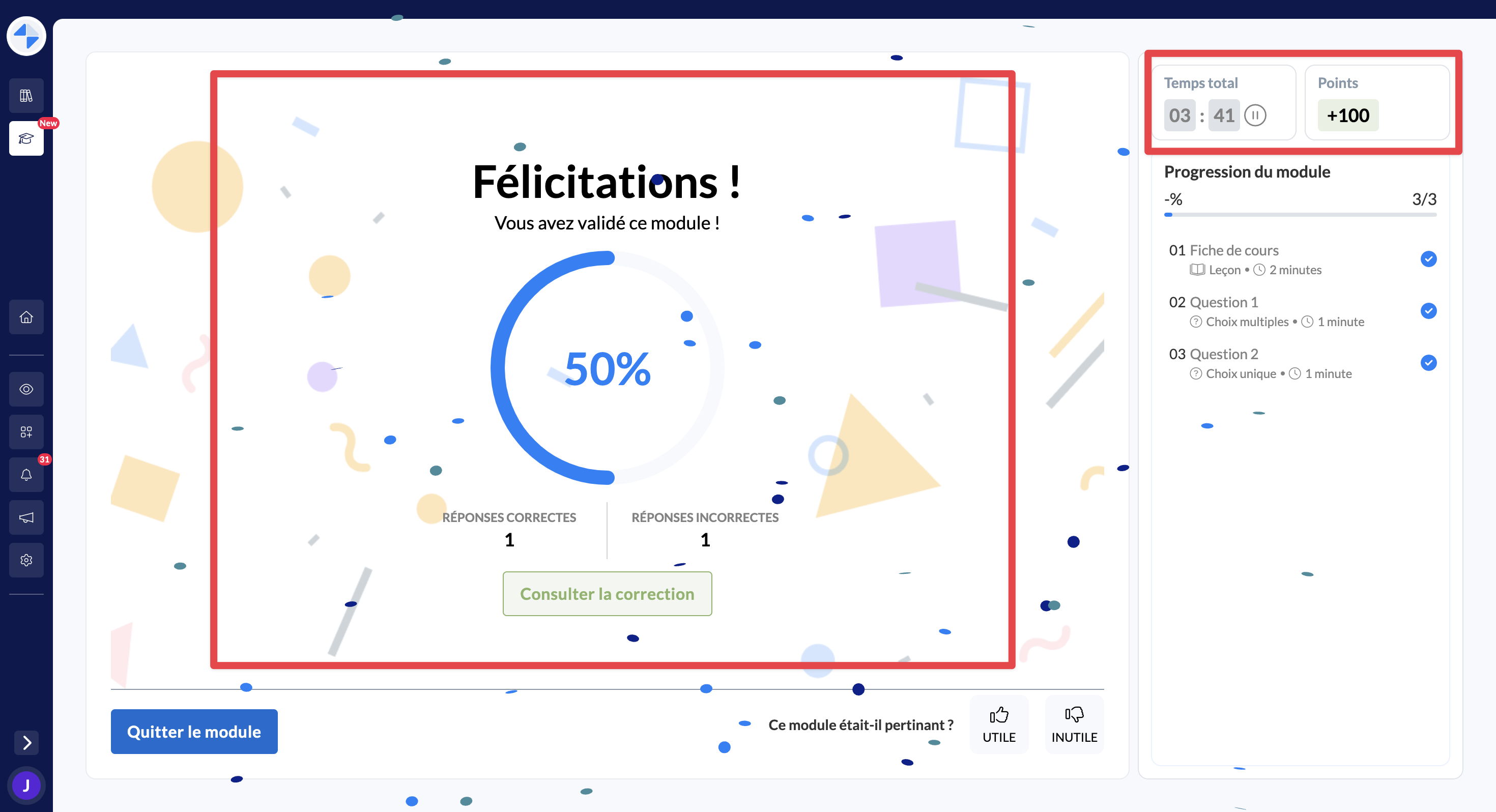
Once you have completed a module, several important pieces of information are displayed:
Your score obtained in percentage (%)
If the option is enabled, you will see if you have passed or failed the module based on a predefined score threshold
The number of correct and incorrect answers
The average score obtained on the module, if this option is enabled
The total time spent on the module
The number of points you have earned
In addition, you can consult the complete correction of the module if you wish. From then on, you can consult any step again, whenever you want. You can also, at any time, review a completed module as well as your results.
👏 Congratulations on completing a training module on the Mayday Academy!