📕 Introduction
Discover in this content how to follow a module in SCORM format.
Go to your Mayday Academy interface to follow your first module in format
👁 Viewing a SCORM module
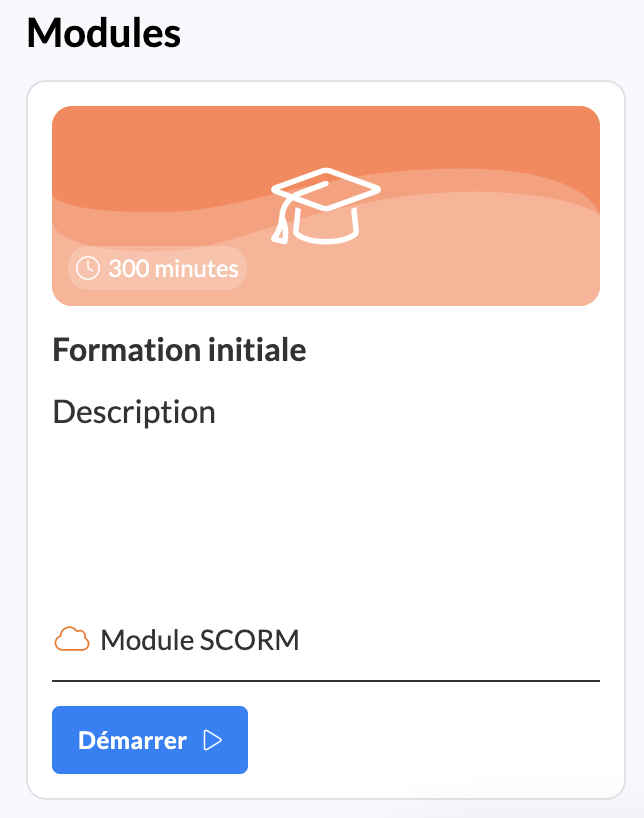
You can view SCORM modules on your homepage in the same place as custom modules.
They are recognizable by the mention "SCORM Module" on the module card
👩🎓 Following a SCORM module
The tracking of a SCORM module is done within the SCORM player and corresponds to the module created on the editor by your administrator.
🔚 Finish Button
The "Finish" button unlocks according to the options configured by your administrator on the editor.
For example, if your administrator has configured that you must read 60% to complete the module, once you have read 60% of the content, the Finish button will be unlocked, and you can finish the module.
If your administrator, on the contrary, has desired that you complete the module by passing the quizzes, you will need to redo them until you pass to unlock the "Finish" button.
🎯 Module Results
Your results obtained on the module depend on the configuration made by your administrator on the SCORM editor:
Via the tracking option:
based on the Completion of the module (you have completed it)
based on the Quiz Result (you have passed the quiz)
Via the success option:
passed / failed
completed / failed
completed / incomplete
passed / incomplete
Via the validation score option:
enabled or not
% defined if enabled
These options configure the result page of the module you have obtained and the validation or not of your module.
🎯 Review the module
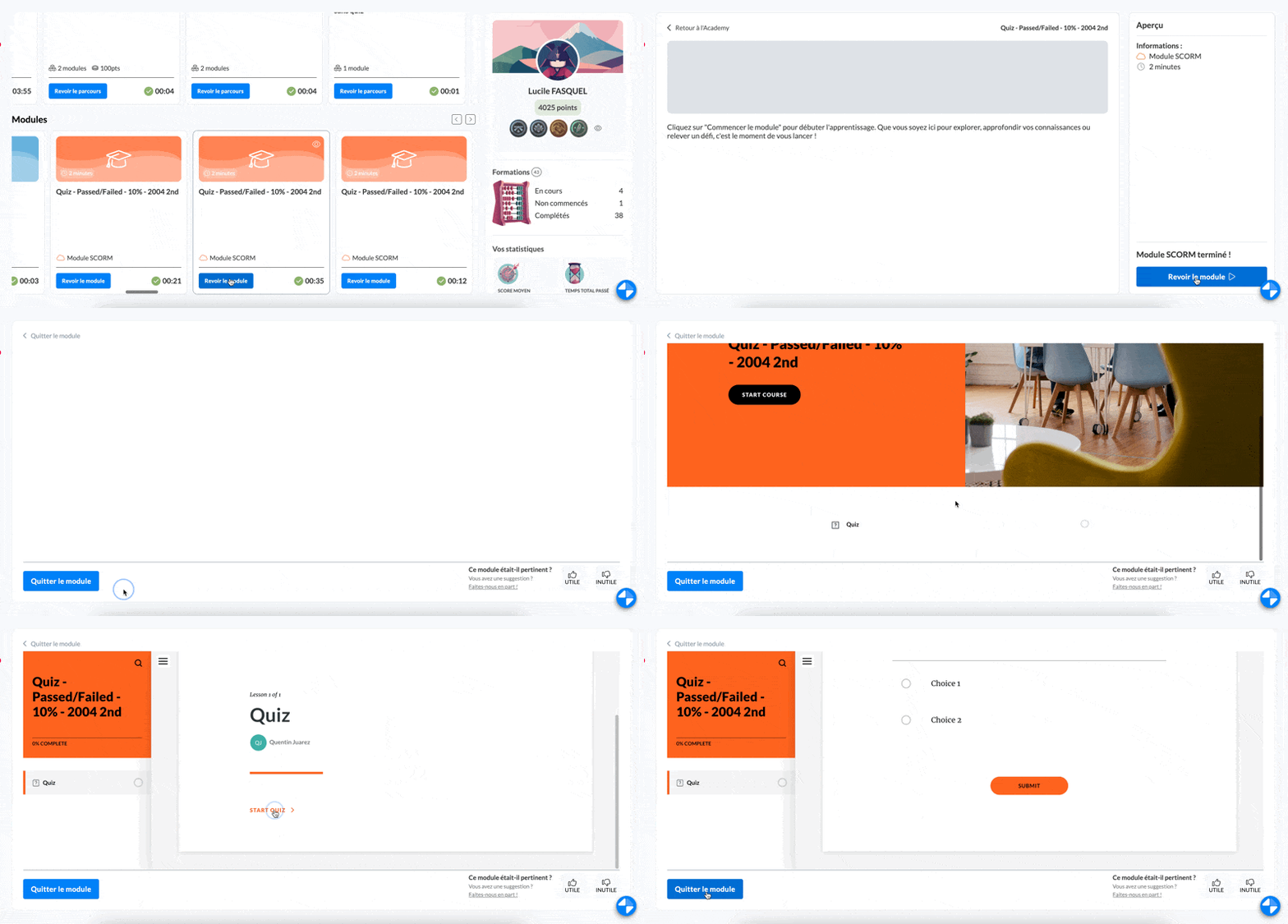
Once completed, your SCORM module moves into completed modules.
You can view on the card:
the time spent to complete the module
the success or failure of the module by the green check or the red cross
By clicking on "Review the module", you can:
review your module results
review the content of the SCORM module
📸 Screenshot
The answers given in the SCORM from the moment it is completed are not taken into account in the analytics and do not modify the initial data