Discover in this content how to receive and manage feedback from advisors in the Mayday Hub.
Field feedback from advisors is valuable for continuously optimizing your knowledge base.
This feature allows you to give a voice to advisors in the field so they can provide feedback when they notice that a procedure is no longer up-to-date, that certain information is incorrect or that the desired operating mode cannot be found.
Committing to respecting the knowledge lifecycle, means optimizing the productivity and quality of your customer service!
🎯 Use Cases
Involve advisors in the continuous optimization of the knowledge base.
Collaboratively, harmoniously, and efficiently manage the field feedback from your advisors.
📩 Receive Feedback
An administrator can receive feedback if their role has at least one of the following permissions:
Employee feedback (to receive individual feedback);
Global feedback (to receive feedback sent to all members of their role).
If you want to find all information related to roles and permissions, go to
When feedback is sent to you individually or to all members with the same role as you, a red dot appears in the “Tasks” tab of the administrator interface's main menu.
📸 View the “Tasks” tab on the administrator interface

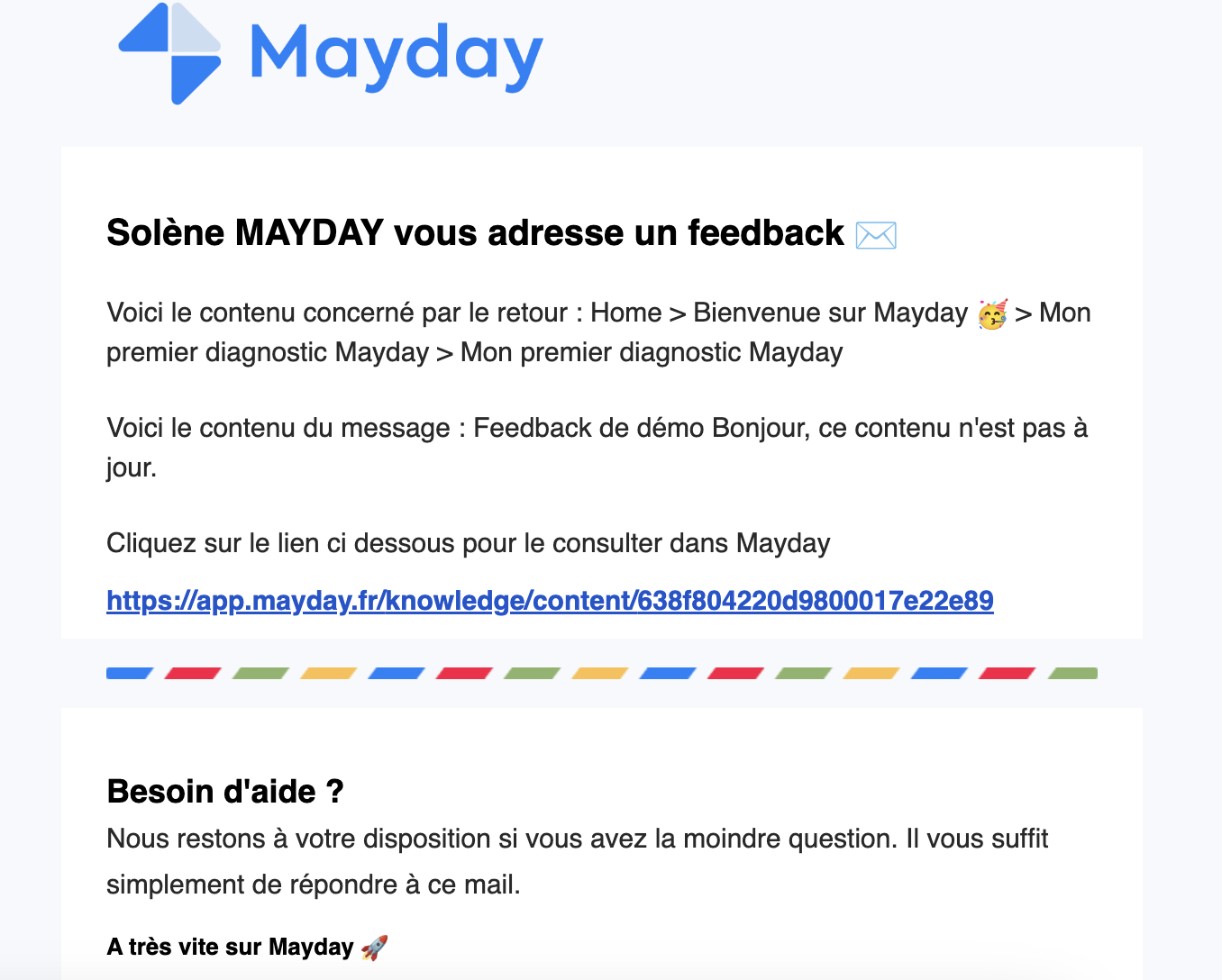
You will also receive an email informing you that an advisor has sent you feedback, including, where applicable, a link to the related content.
📸 View a sample feedback reception email
🎛 Process Feedback in the Hub
Once you have received all this feedback, you need to manage it in a coordinated manner among your teams. This is where the Mayday Hub, also known as the Task Center, comes into play!
All users whose roles include content editing will have access to the Hub (even if they do not directly receive feedback).
To learn more about the Mayday Hub, see the dedicated article
As soon as you receive feedback from an advisor, a task will immediately be created in the Hub in the
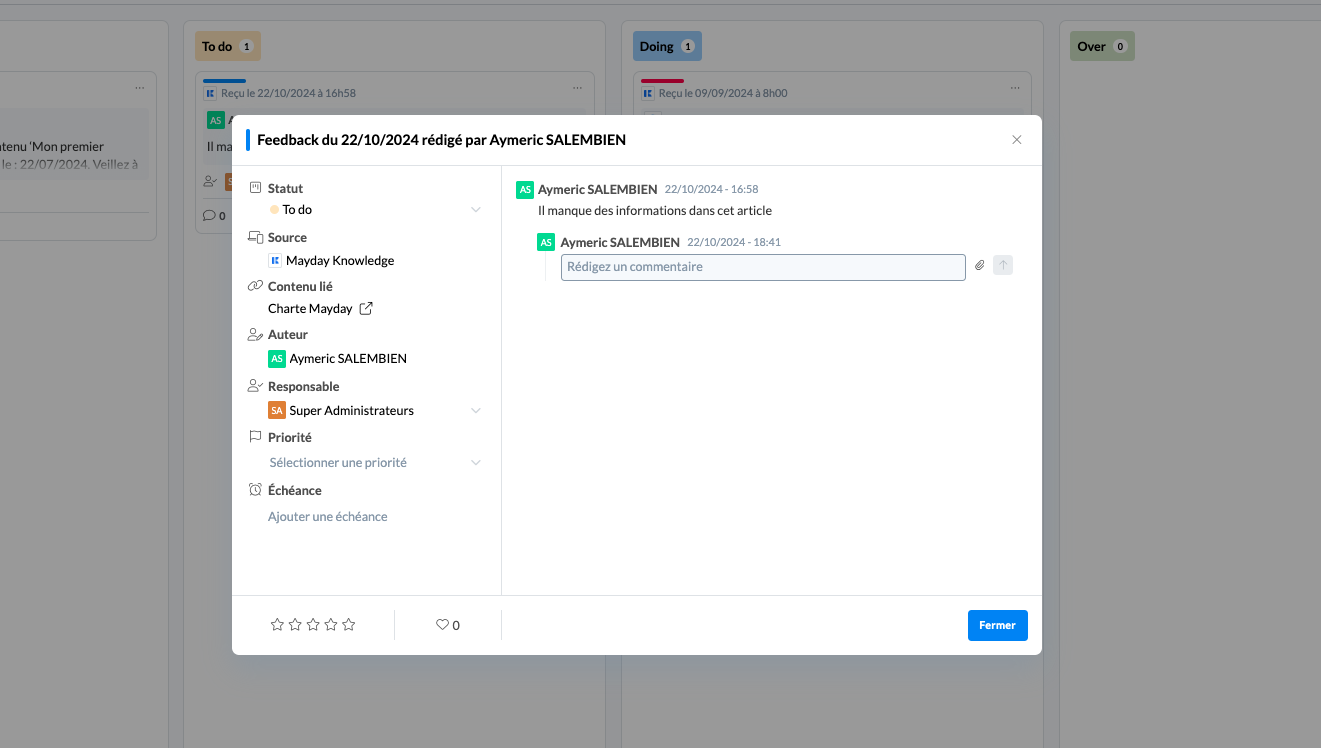
⚠ Choose a priority level (High, Medium, Low)
📆 Define a deadline to be met for the task processing
⚡️ Access the content related to the task by clicking on the related content title
⭐️ Rate the feedback from 1 to 5 stars to evaluate the relevance of the feedback submitted to you;
💬 Directly communicate with the advisor who submitted the feedback to you by clicking on “Reply” in the discussion thread;
→ If you start a discussion thread on a task, a notification will be sent to the recipient allowing them to respond directly.
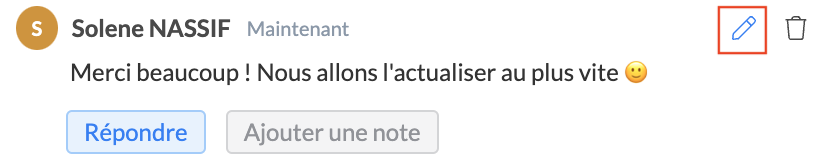
You can modify your response once sent by clicking on the dedicated icon. The advisor will be informed of the latest version of your message.
📌 Write an internal note, not visible to the advisor, by clicking on “Add a note” to write a reminder message to yourself or address a note to your collaborators by mentioning them directly via an “@” symbol.
📸 View an example of an internal note
❣Like the feedback and notify the advisor to express your gratitude;
→ The action of "liking" a card will send a notification directly to the advisor who provided the feedback to express your gratitude.
🗑 Archive tasks (you can consult and restore archived tasks at any time).
These actions can be performed regardless of the task status.
By clicking on the feedback card, you can fully view the addressed message and the information related to the feedback:
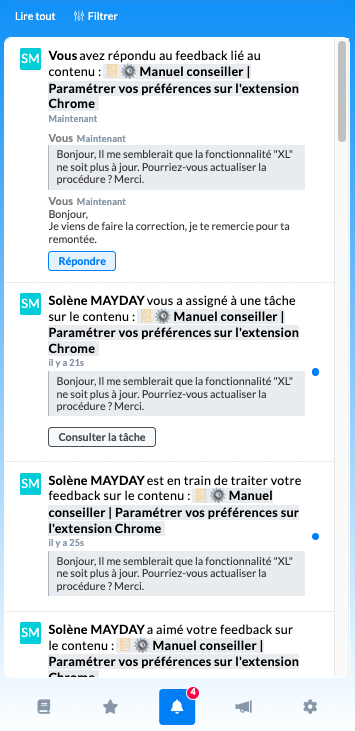
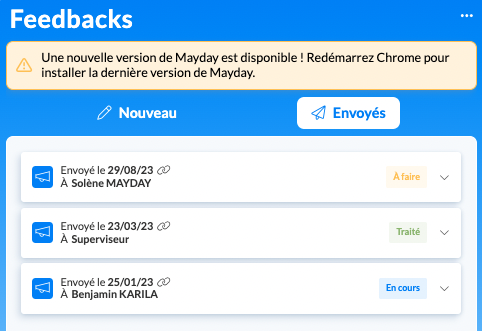
On their side, the advisor can consult the history of their feedback and the real-time processing status.
📸 View the feedback tracking on the advisor's side
📌 Collaborate on feedback through the Hub
When you receive feedback in the Mayday Hub, or the “Tasks” tab of your admin interface, you can collaborate between administrators on feedback.
1⃣ Mention a collaborator on the feedback card
By clicking on the feedback card, Mayday allows you to reply to the advisor who provided the feedback or add an internal note by clicking on the dedicated button:
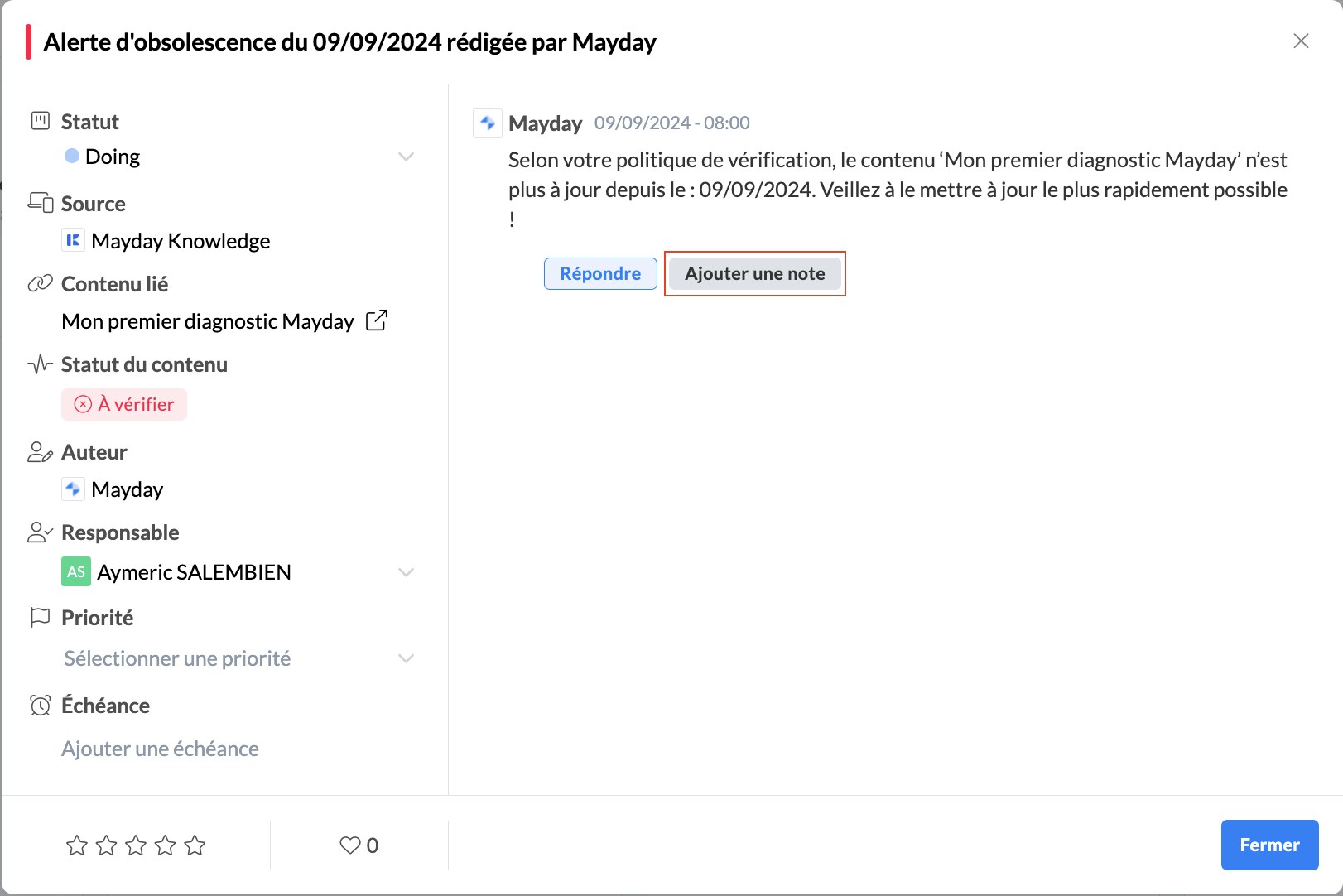
This internal note allows you to:
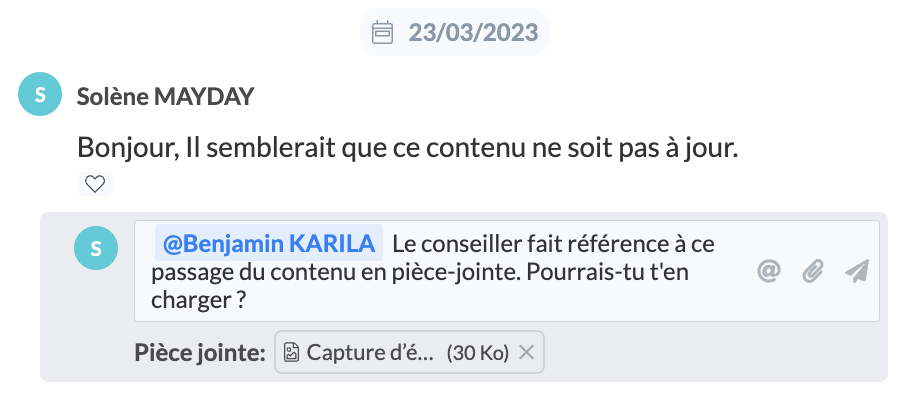
Write a message to one or more collaborators to request information about the advisor's feedback or share any items that could help them address the feedback;
Mention the collaborators by typing an "@" for them to be notified via Mayday or email;
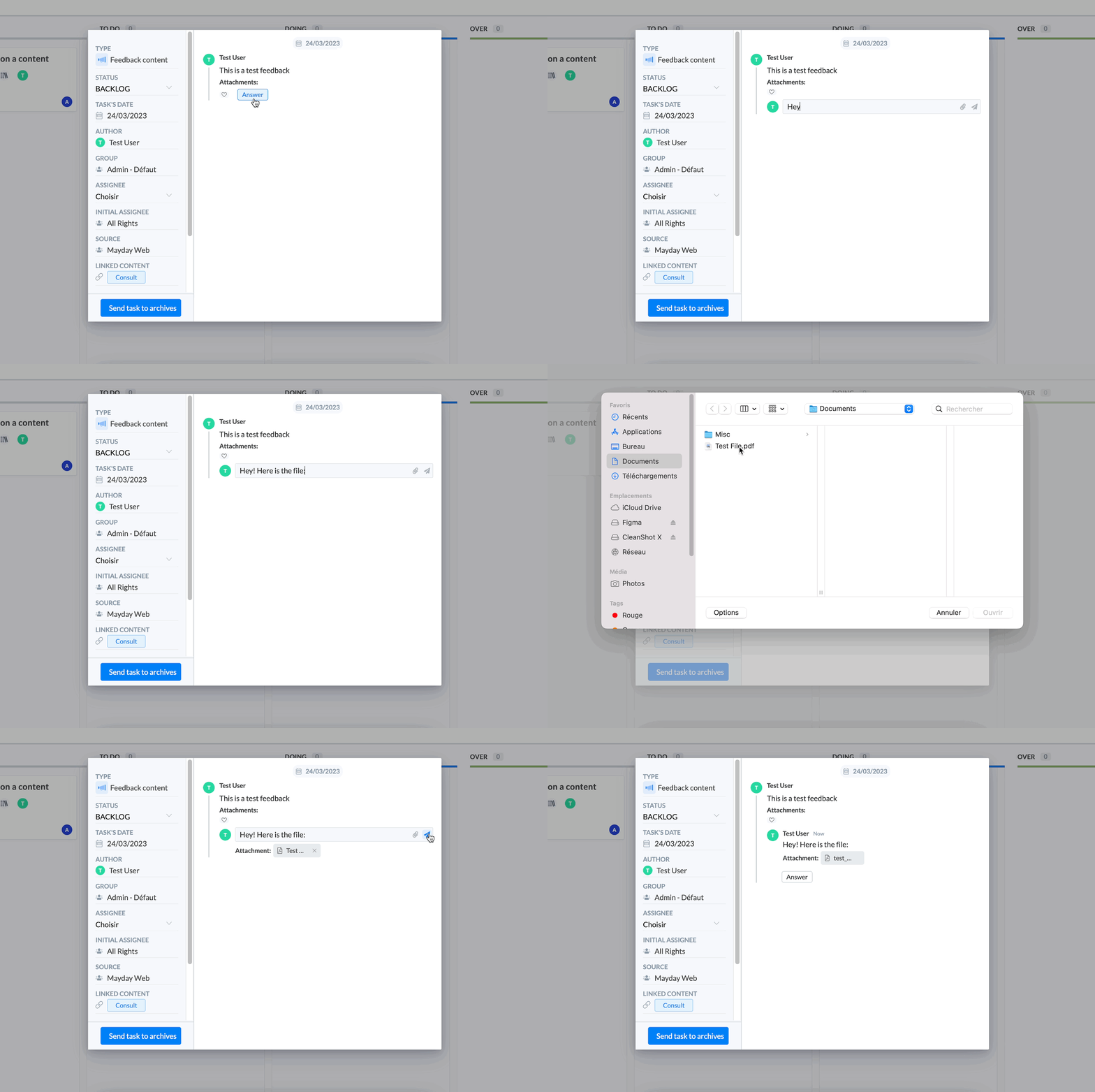
Attach a file to your comment, by clicking on the “📎“ icon.
📸 View how to attach a file
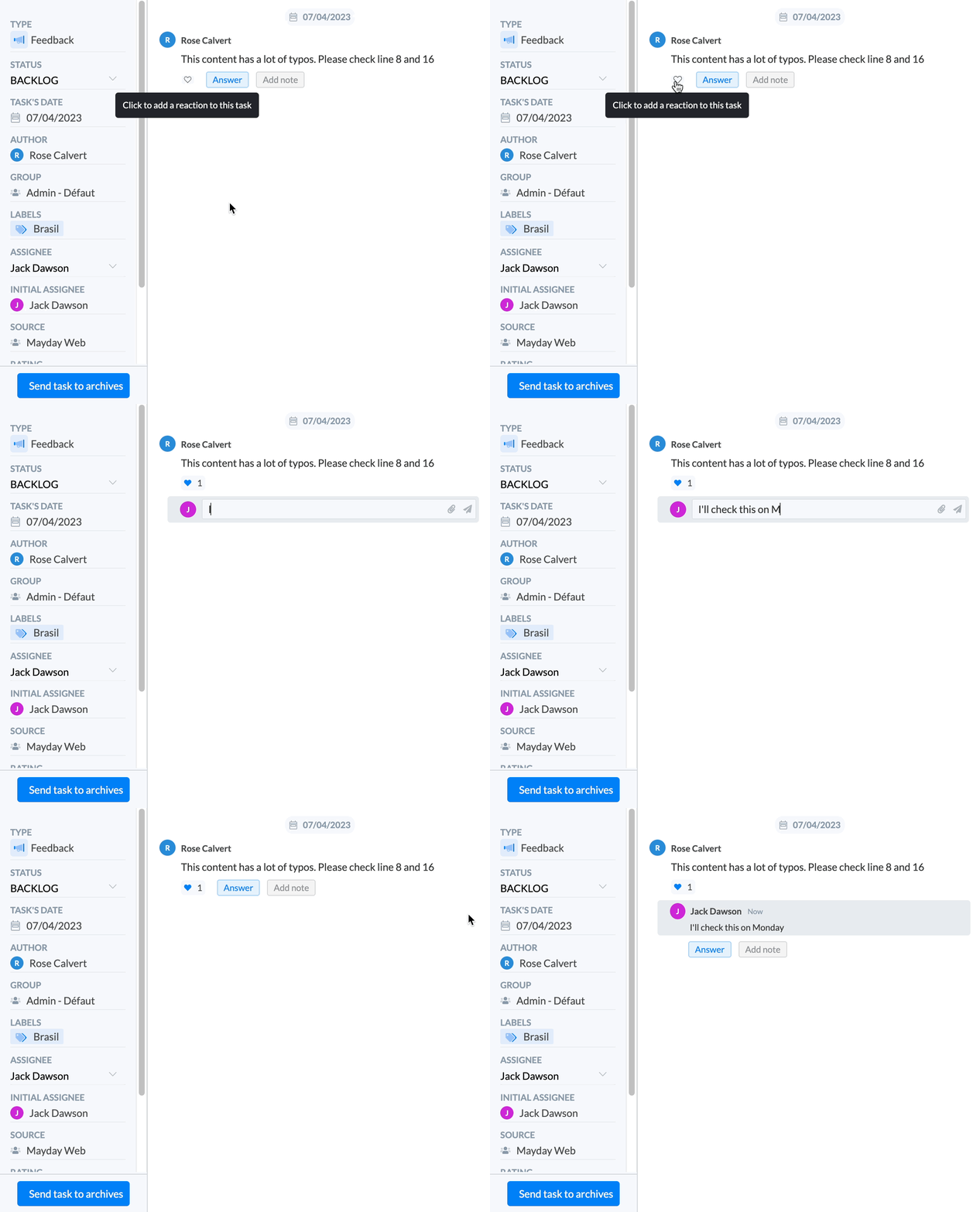
You can also leave an internal note on feedback for yourself as a memo before addressing feedback or replying to the advisor.
This internal note will not be visible to the advisor, but only to administrators with access to the task center.
2⃣ Be notified of a mention on the feedback card
In the “⚙ Settings” tab of your Mayday account, in the “Alerts and Notifications” section, you can enable “notifications for a comment on a task” to be alerted in your notification area:
of a mention of your name on feedback;
of an internal note added to feedback you contributed to or that was assigned to you;
of a new reply from the advisor who provided the feedback.
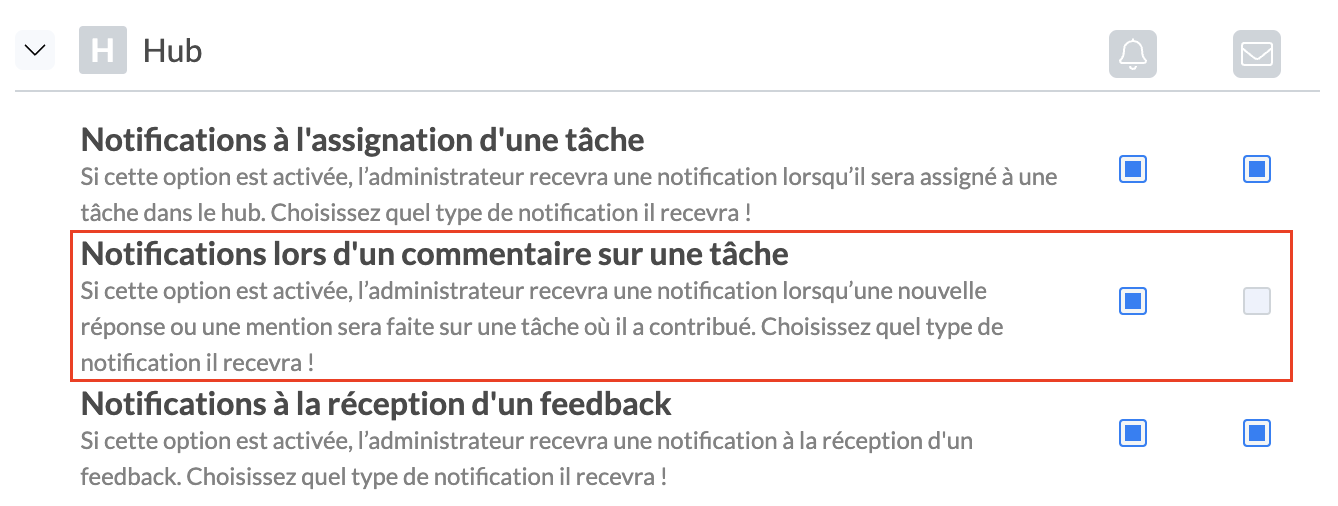
You can choose either one channel or both channels by checking the specific boxes for each channel.
The selection of channels applies to all users linked to the Mayday account and not just individually.
📣 Communicate about feedback with your advisors
You can like and comment on feedback, especially in the following cases:
An advisor has sent you feedback but it's missing details? Don't wait, ask them! They will receive the notification instantly and be able to respond directly from their Mayday interface.
Do you want to congratulate an advisor for their very relevant feedback that helps you continually improve your knowledge base? Give them the praise they deserve!
Have you received feedback but want to discuss it with another administrator? That's also possible!
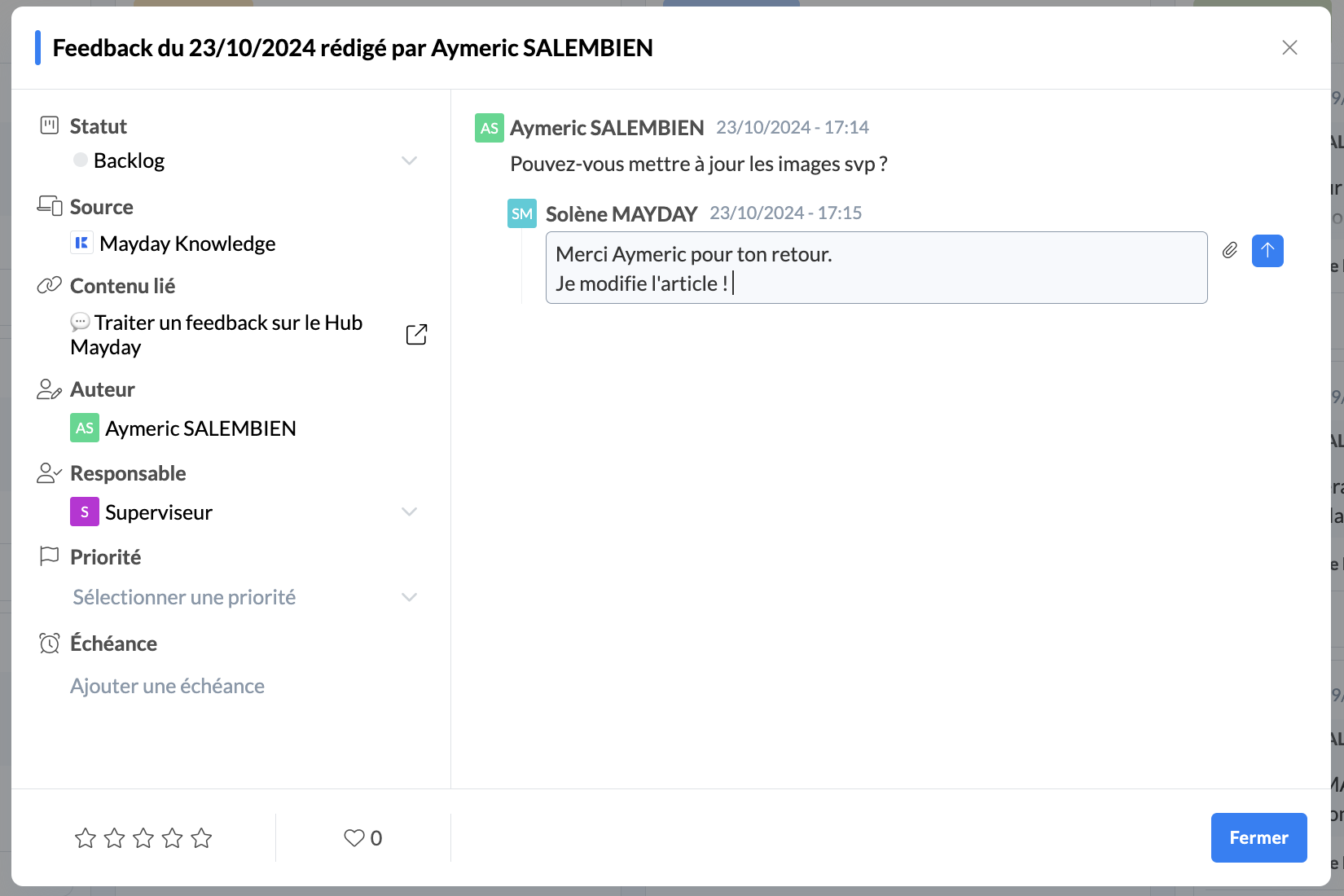
The feedback provider will be notified in their notification center as soon as you like, comment or change the task’s processing status.