Discover in this content how to limit access to certain tasks on the Mayday Hub, thanks to the notion of "views".
As we have discussed in other articles on the Mayday Hub, this tool allows you to manage various types of tasks within a Kanban. Among these tasks, we find:
Feedback from advisors (Mayday Knowledge, Academy, Selfcare)
Obsolescence alerts
Information transmitted by Mayday
And soon, other types of tasks.
Thanks to the Kanban model, administrators with access to the Hub can collaborate to manage these tasks.
👉 "Views" allow you to determine what each role can access in the Hub.
In other words, access to the Mayday Hub is not binary. You can precisely define which tasks a user can see or not.
This ensures that only the relevant administrators can manage specific tasks, from certain sources or related to particular products.
To do this, you need to follow two steps:
Create a view in the administration center preferences
Limit access to the Hub to one or more views within a role
1⃣ Step 1: Create a view on the Mayday Hub
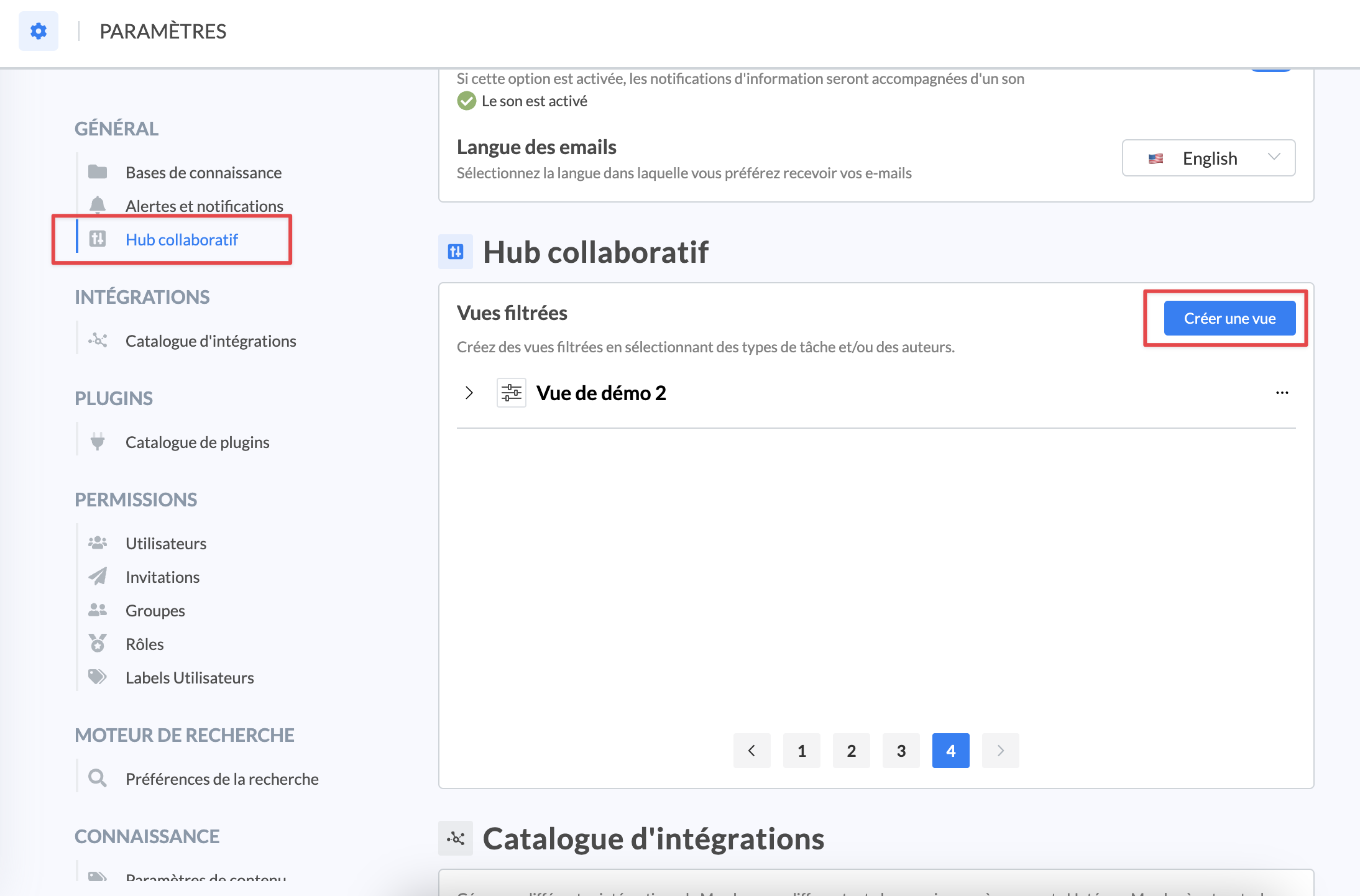
A view can be created from the administration center preferences
To create a view, go to the “Collaborative Hub” section of the administration center preferences
The list of existing views is then displayed: they can be modified or deleted, if you wish
To start creating a new view, click on “Create a view”
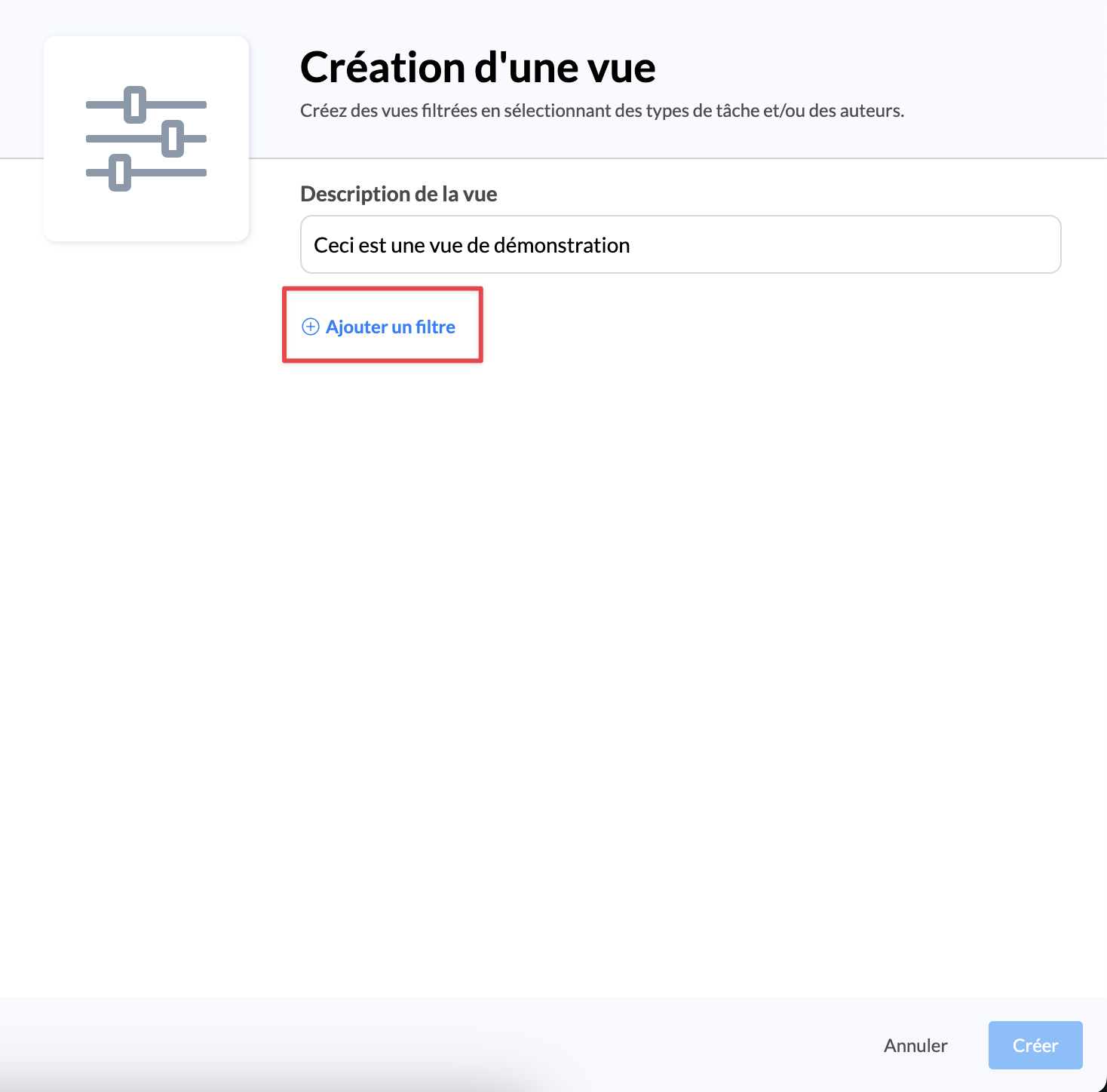
First of all, it is important to name this view and, if you wish, add a description
Then, click on “Add a filter” to define the criteria that will define this view
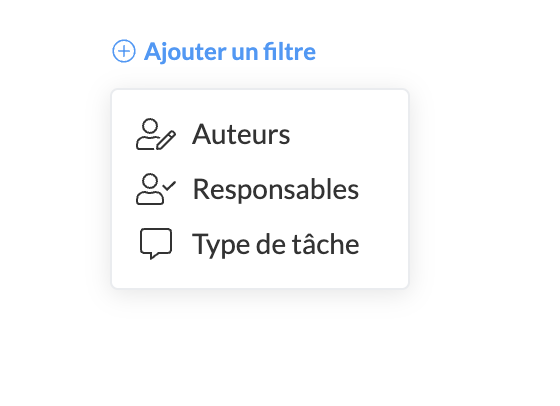
There are three types of filters on which a view can be based: the task author, the task owner, or the type of task
If you want to limit access to tasks created by certain users, click on the filter by author
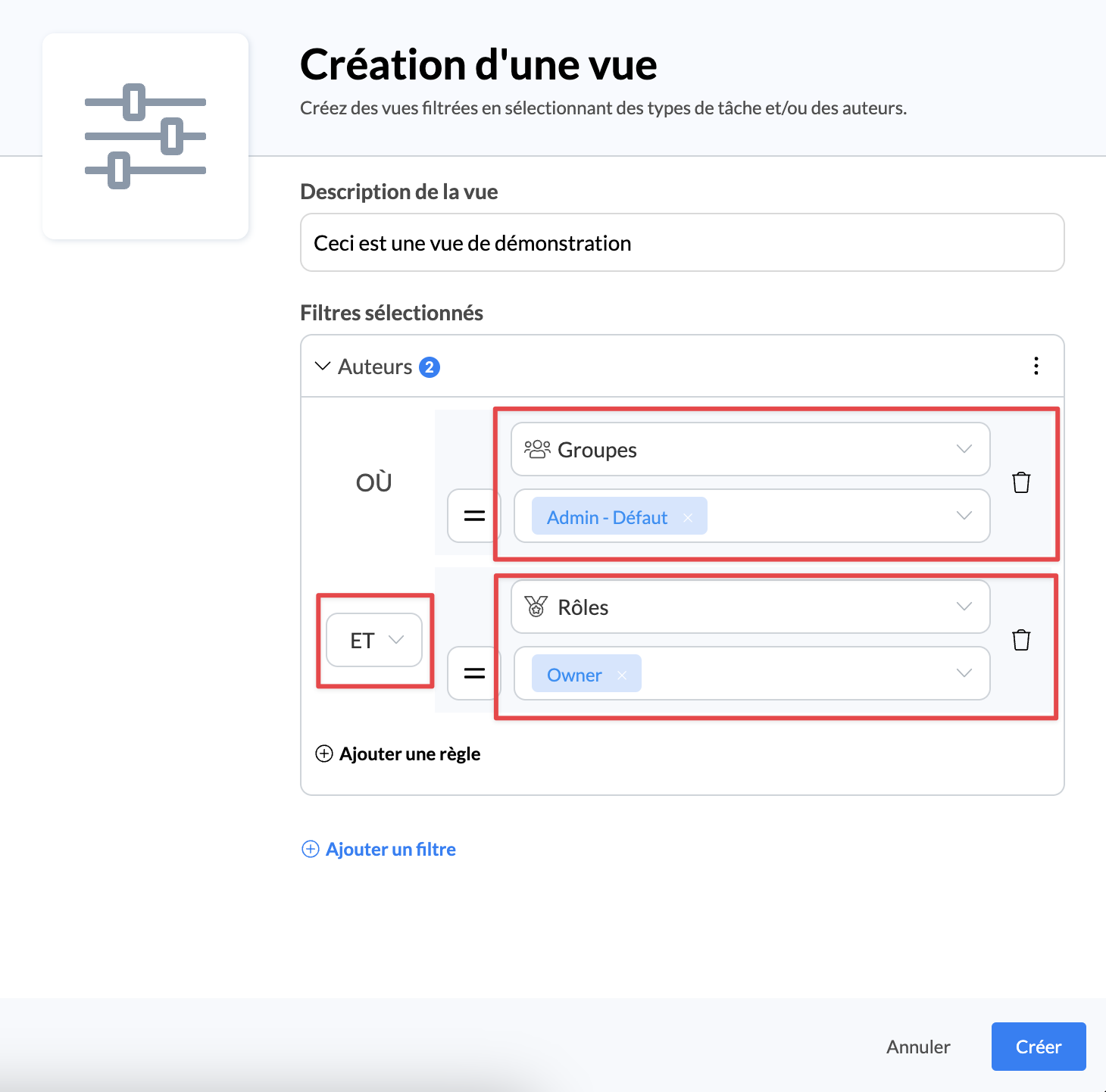
You can then filter on the author of the task by: group, role, user label, or directly to specific users.
Several rules can be applied, and all of these rules are linked with an “AND” or “OR” condition of your choice.
For example, in the above case, the Hub view will be filtered on tasks whose authors are part of the “Admin-Default” group AND the “Owner” role.
8. If you want to limit access to tasks for which certain users are responsible, click on the filter by owner
For this filter, the logic is exactly the same as for the authors.
9. Finally, if you want to limit access to certain types of tasks, click on the filter bytype of task
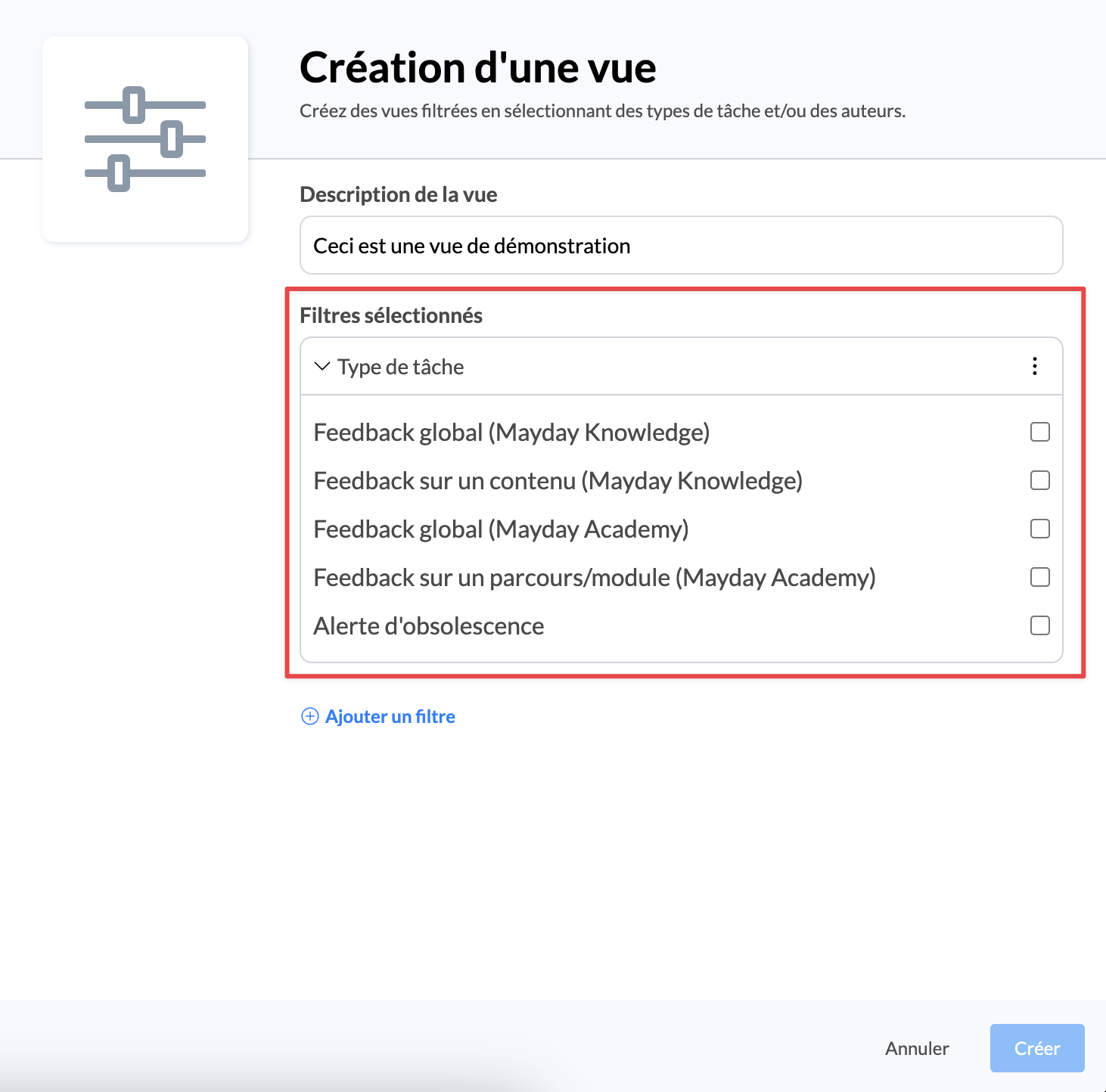
You can then choose which types of tasks will be available via this view.
2⃣ Step 2: Assign one or more views to a Mayday role
Once a view is created, it is possible to limit the access of users in a role to one or more specific views.
🎯 The goal of Hub views is to be able to limit the access of certain users to specific tasks on the Hub. To do this, once the view is created, you just need to assign it within a role.
To do this:
Go to the role for which you want to limit access to the Hub
“Collaborative Hub” tab
If you want this role to have access to the Hub, make sure the Hub read right is enabled
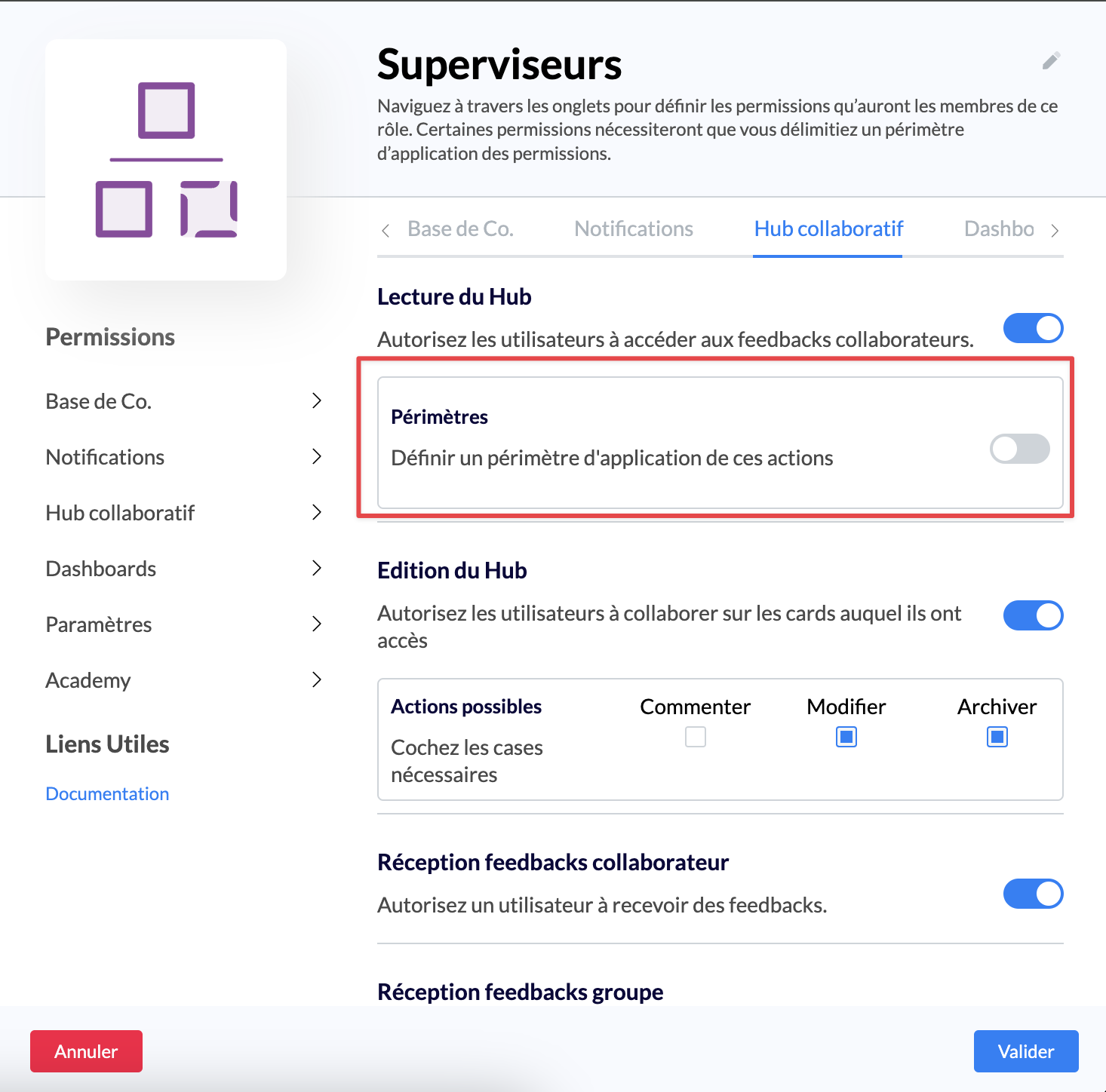
If you want this role to have access to all Hub tasks, do not enable the scope
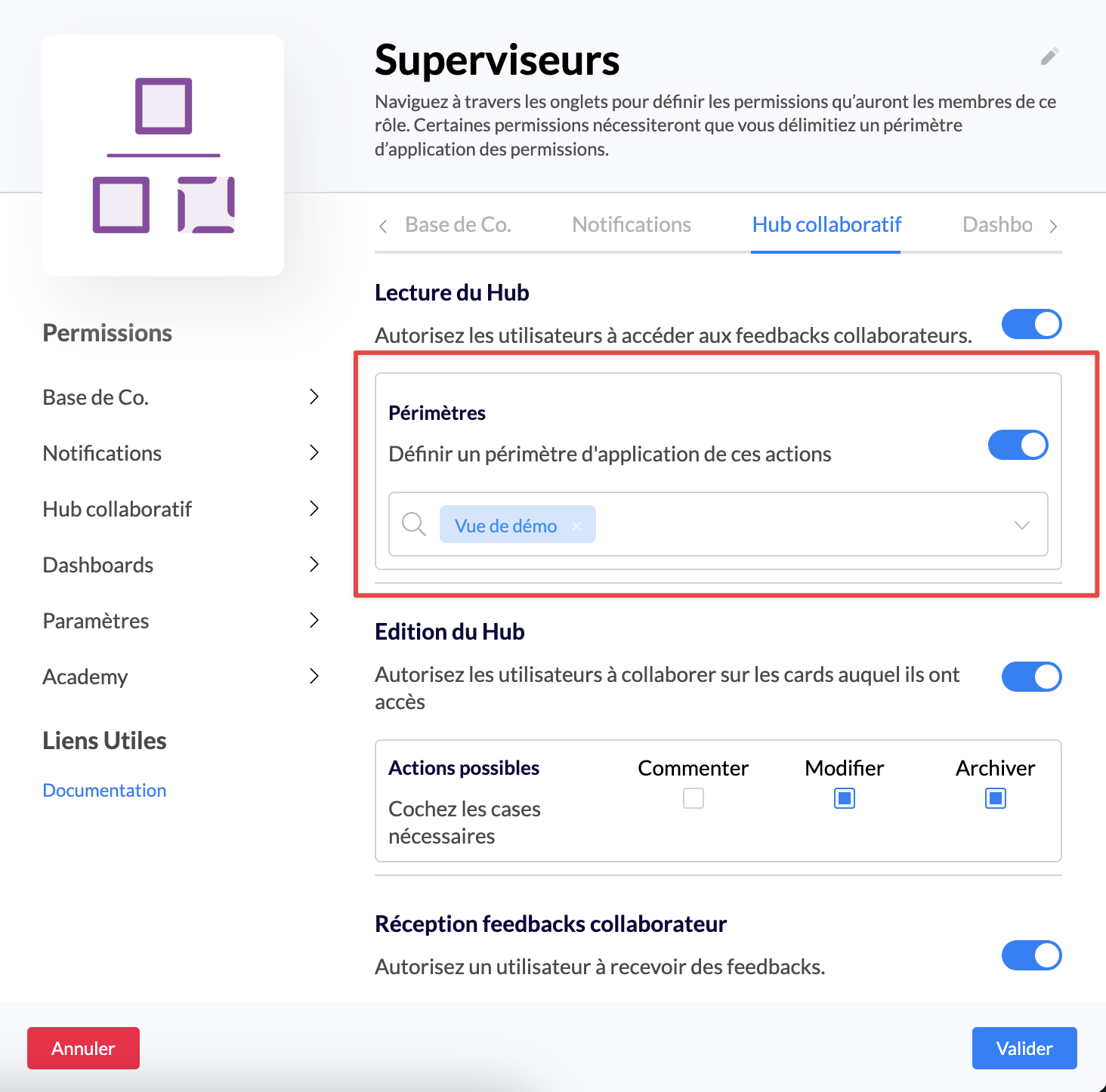
On the contrary, if you want to limit access to the Hub to one or more views, you need toenable the scope
Once the scope is enabled, you just need to select the view(s) that this role will have access to on the Hub
Save the role
Now, users with this role will only have access to the selected views
Reminder: In order to restrict a role to the chosen view(s), it cannot have access to the administration settings of the knowledge base.
Otherwise, all filtered views created will be visible to users with this role.
3⃣ Step 3: Go to the Hub
Finally, when a user whose role is limited to one or more views goes to the Hub, they willhave the choice between the different views they have access to:
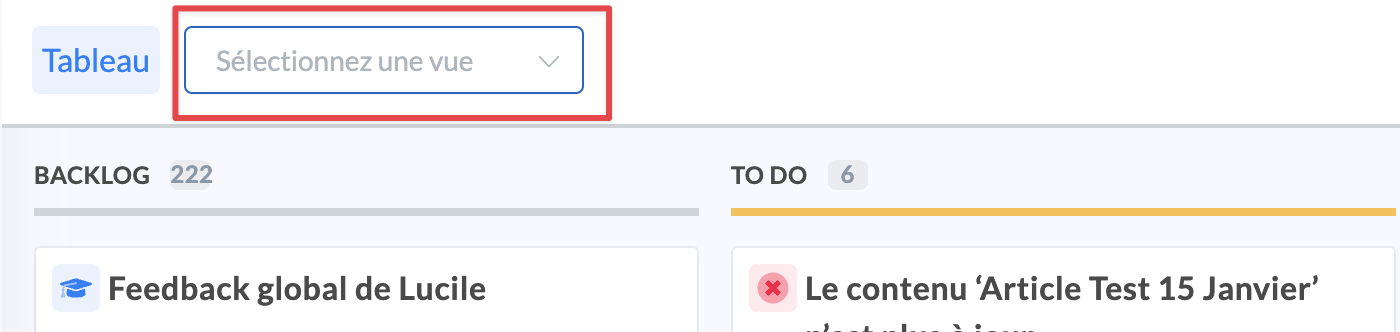
Reminder : If no scope is defined within the role, the user will have access to all existing views.
Reminder : Once the role is modified and limited to views, the affected users need to log out and log back in, so that their new permissions are applied.