Discover on this content centralized information on the Mayday Hub and how to use the interface
Mayday Hub is a dedicated interface for collaborating on tasks that will always provide your advisors with the best knowledge base!
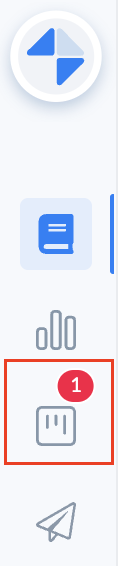
To access the Hub, you need to click on the "Tasks" tab in the general menu of the admin interface.
📸 View the "Tasks" tab on the admin interface
The main format of the Hub is the Kanban which will give you a global view of all tasks and allow you to optimize collaboration between teams.
📸See the interface of the "Mayday Hub"
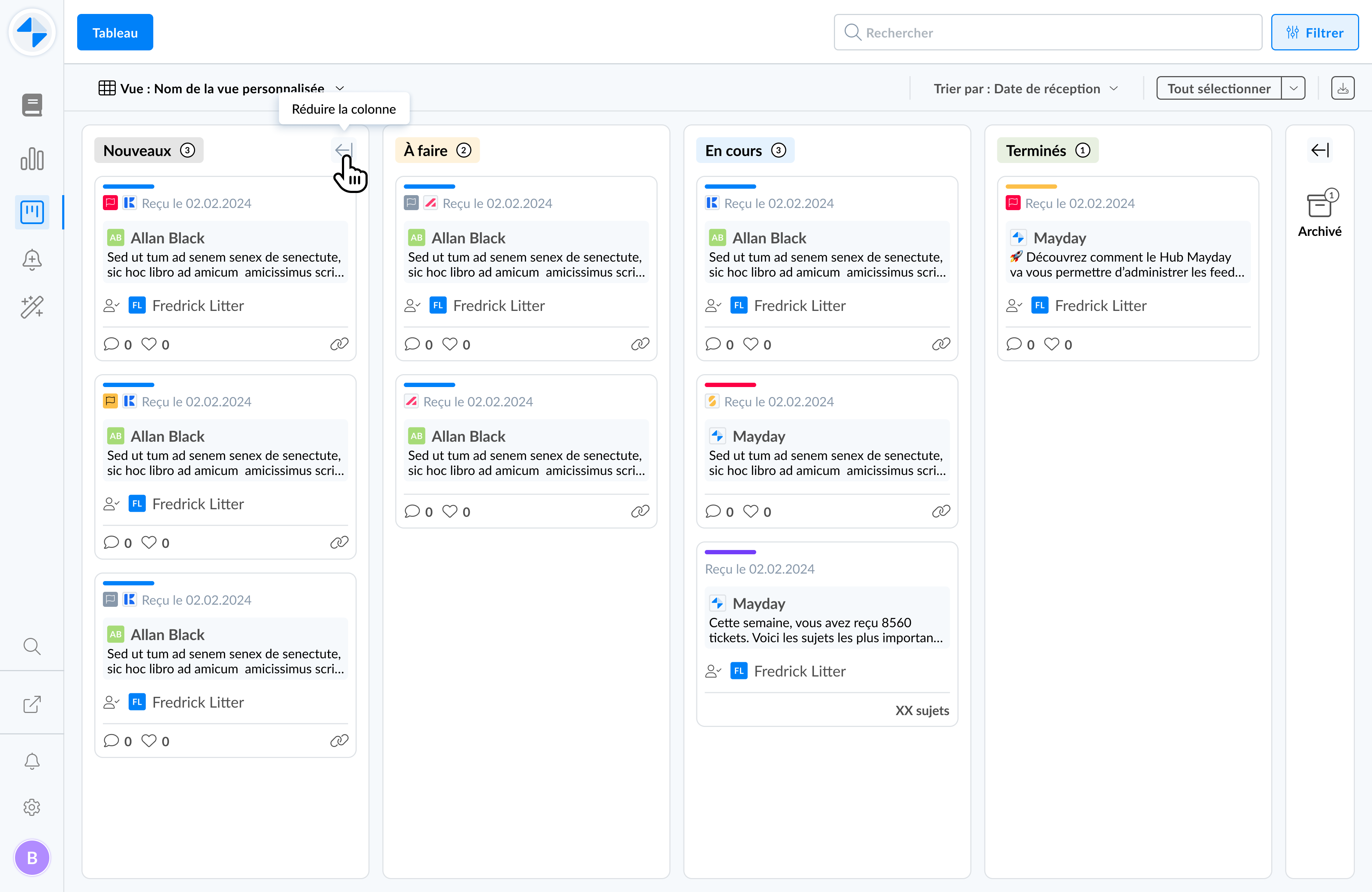
On this interface, you will find the following tasks:
📣 Feedback from advisors received
⏱ Obsolescence alerts that you have set up on the content
ℹ Identify information on the Mayday Hub
The goal of the Hub is to centralize all tasks and feedback from your various Mayday products (in case you have multiple). In order to distinguish the source of each card, the products are represented by icons:
 Mayday Knowledge
 Mayday Academy
 Mayday Selfcare
The Hub centralizes both tasks and feedback. Each card is associated with a color code that indicates the type of task:
Blue : feedback
To learn more about handling feedback in the Hub, there is a dedicated article
Red : obsolescence alert
To learn more about handling obsolescence alerts in the Hub, there is a dedicated article
Yellow : Mayday information (coming soon)
In the general view of the Hub, you can consult the following information for each task:
The date and time of emission;
Quick access to the related content;
The author;
The comment;
The task's like;
The admin in charge of handling it or the global role receiving the feedback.
🔍 Search and Filter Tasks
On the Mayday Hub, you have the ability to refine the view of your tasks using several functionalities:
🔍 Search for a task using the search bar
The search is only performed on the content of a task and does not include its title.
🔝Sort tasks in the Mayday Hub
Based on the creation date: from most recent to oldest and vice versa
Based on the last update date: from most recent to oldest and vice versa
Based on the due date: from nearest to furthest
Based on priority level: from highest to lowest
✅ Filter tasks in the Mayday Hub
Choose to apply filters with an