Discover on this content how to manage your tasks to optimize knowledge.
Receive and collaboratively manage the field feedback sent by your advisors to optimize the knowledge base.
✅ Manage obsolescence alerts
In order to manage the life cycle of your content and combat knowledge obsolescence, you have the option to set up a verification process for each piece of content.
You can choose:
The person who will be responsible for verifying the content;
The frequency at which you want this content to be verified.
When the verification date arrives, an obsolescence task is automatically created in the Mayday Hub to remind you to verify the relevant content.
To learn more, see the dedicated article: , in the section "Automating the life cycle of your content".
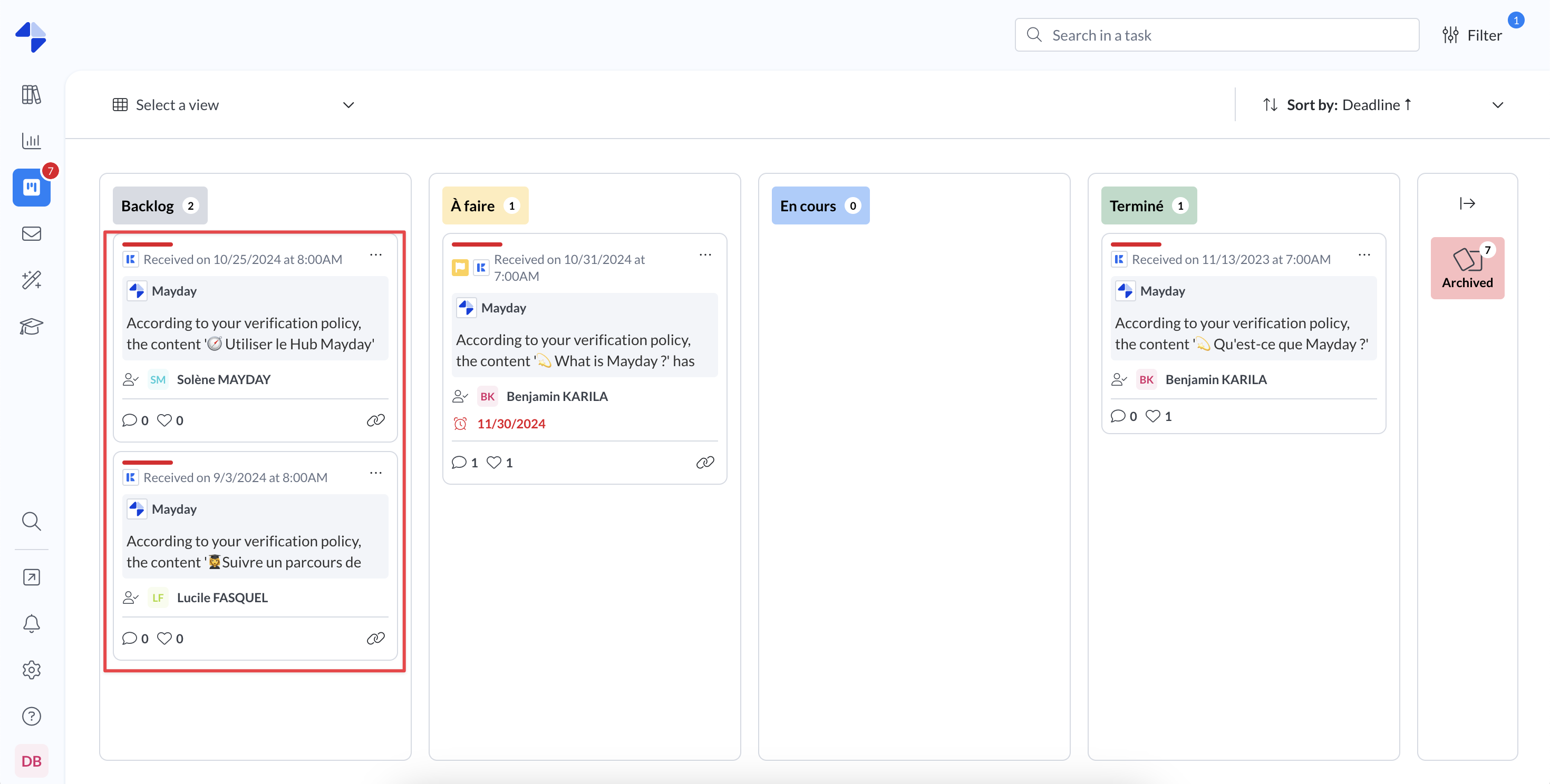
🎛 Manage feedback from your advisors
Receive and collaboratively manage the field feedback sent by your advisors to optimize the knowledge base.
To learn more, see the dedicated article:
🏷 Categorize your tasks with Labels
Task labels let you categorize and organize your tasks in the Mayday Hub for more efficient tracking and faster searches.
1⃣ Step 1: Create Your Labels
Go to Admin Preferences.
Navigate to the "Task Labels" section.
Create your label categories and sub-labels as needed.
This works the same way as user, content, or training labels.
2⃣ Step 2: Apply Labels to Tasks
Open a task view in the Hub.
Find the "Labels" attribute in the task details.
Select and apply as many labels as needed for that task.
3⃣ Step 3: View and Filter
Applied labels are displayed right on each task preview in the Hub.
Use the Hub's page filters to show only tasks with specific labels.
Note: These labels are not available in the filters for filtered views in the Hub.
Result: Custom categorization lets you quickly find your tasks and generate reports by task type in just a few clicks.