📕 Presentation
Discover in this content how to integrate Mayday into a SharePoint site.
Mayday is committed to centralizing all your knowledge to make it accessible to your advisors, your AI systems, and wherever you need it.
But we know that your information isn't always stored in Mayday. After many discussions, a conclusion became evident: SharePoint is one of the main places where your documents are kept.
👉 That's why we decided to integrate SharePoint with Mayday! You can now access all your documents directly from Mayday, without having to juggle multiple apps. More fluidity, more efficiency!
🎯 Use Cases
Your advisors have access to all the helpful procedures in their Mayday knowledge base, but the product documentation, marketing content, HR information are available in separate SharePoint sites, and advisors have to juggle between the two sources.
Some content is useful for your advisors but is not managed by the same teams as the content of the knowledge base, and therefore cannot be transferred to the knowledge base.
⚒ Connect Mayday to SharePoint
With this integration, SharePoint documents can be accessed directly from Mayday without changing applications.
With SharePoint content integrated into Mayday, users can:
Search SharePoint documents via the Mayday search engine;
Transform SharePoint documents into Mayday content using Mayday AI functionalities;
Query SharePoint documents in Mayday AI agents like Ask, allowing the AI to extract responses from your existing files.
To learn more about Mayday AI Agents, feel free to read this content:
Integrate SharePoint documents directly into Mayday content via the content editor.
Here are the steps to carry out the integration:
1. Create an Entra ID application
Go to Entra ID's "App Registrations" section
Register a new application for the Mayday SharePoint connector
Configure Microsoft Graph permissions:
Go to Manage > API Permissions
Add the following permissions:
Microsoft Graph -> Files.Read.All
Microsoft Graph -> Sites.Read.All
Grant admin rights for your tenant
Go to the "Certificates & secrets" section and create a Client Secret.
2. Connect the SharePoint API with Mayday
Go to Mayday, then
Settings>Integrations>Integration CatalogIn this catalog, choose
External ContentSelect the
Authenticationstab and click onAdd authenticationFill out the form (below) with the information:
📸 Form
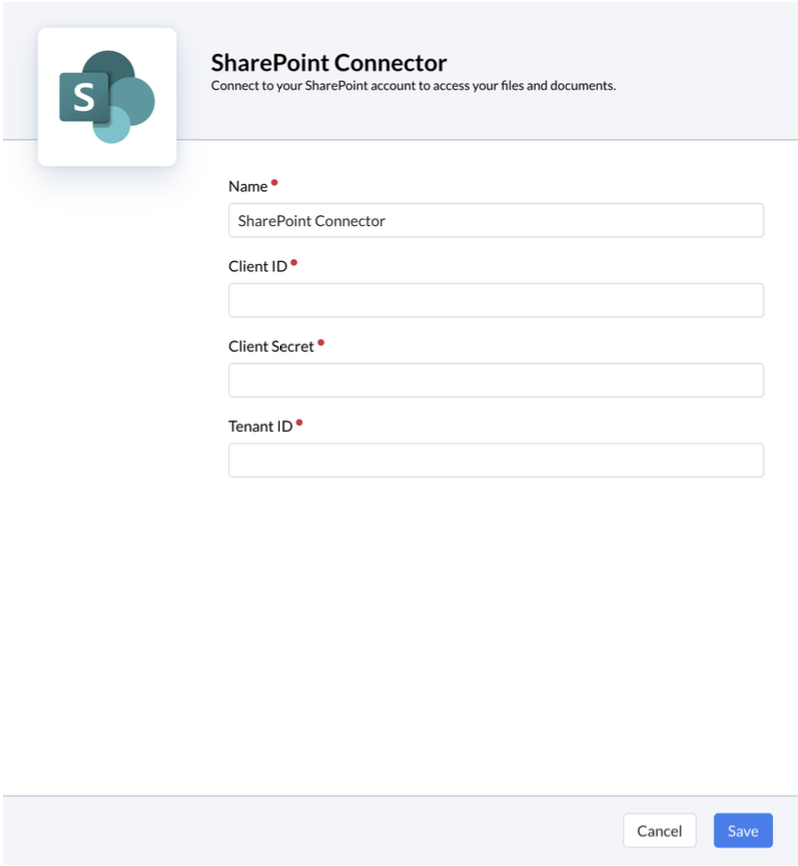
Client ID: available in the
Overviewsection of the application in Entra IDClient Secret: generated at the end of the previous section
Tenant ID: available in the "Overview" section of the application in Entra ID
Click on
Saveto finalize the configuration.
You can then create a SharePoint data source, which will determine Mayday users' access to SharePoint documents directly from Mayday.
You have two main options:
Connect an entire SharePoint site
Connect only part of a SharePoint site, for more restricted and targeted access
👉 Find more details below.
3. Option 1⃣ - Synchronize an entire SharePoint site in Mayday
Go to Mayday, then
Settings>Integrations>Integration CatalogIn the catalog, choose
External ContentSelect the
Data Sourcestab and click onAdd a data sourceFill out the form as follows:
📸 Form
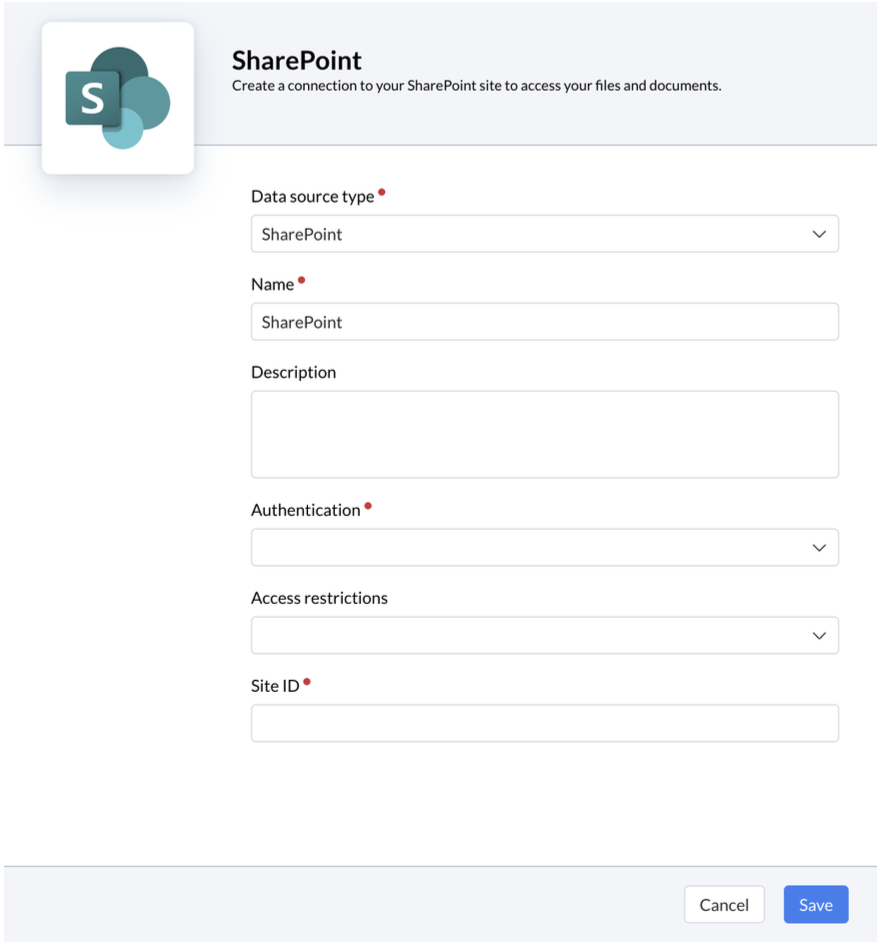
Data source type: select SharePointName: provide a name of your choice that defines the SharePoint site you want to synchronizeDescription: describe the SharePoint site you are synchronizingAuthentication: select the authentication created in the previous sectionAccess restrictions: select the groups to which you want to restrict access to this SharePoint integrationOnly people in this group will see the SharePoint site files on Mayday.
Site ID: provide the SharePoint site IDSite URL: or simply copy the homepage URL of the SharePoint siteGood to know: A SharePoint data source is limited to one SharePoint site. If you want to link several SharePoint sites to Mayday, you need to create several data sources with different sites.
Click on
Saveto finalize the configuration
Your data source appears in the data sources table with the status "Initialized"
3 Bis. Option 2⃣ - Synchronize part of a SharePoint site in Mayday
This option, unlike the first, does not give access to the entire SharePoint site. Instead, you can manually select one or more specific files or folders.
For example, it is possible to create a data source grouping 10 folders, or on the contrary a source dedicated to a single file.
How to do this?
As with the previous option, enter the ID or URL of the site you want to connect
Site ID: provide the SharePoint site IDSite URL: or simply copy the homepage URL of the SharePoint site
Once the ID or URL is entered, click on
VerifyThis allows us to check that with the authentication and the provided ID or URL, we are able to access the SharePoint site in question.
Next, a
Target folders or filescategory will appearClick on
Add a target folder or fileInsert the
pathof the SharePoint folder or file to which you want to limit this data sourceHow to find this
path?Go to your SharePoint site
When viewing your list of files or folders, a
…button appears on each line
Click on it
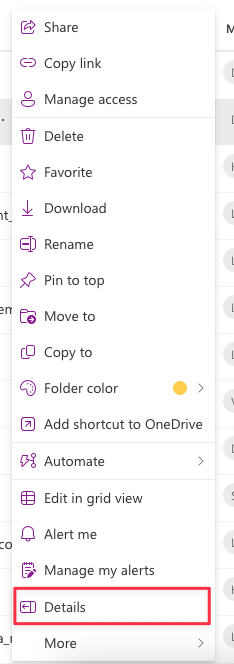
Click on
DetailsA panel opens on the right side of the page
Scroll to the bottom of the panel
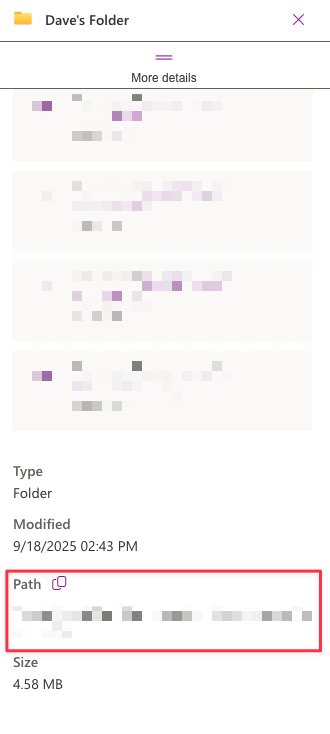
Click on the
CopybuttonThis is what you need to paste into the SharePoint data source form ✅
Insert the
pathsof other SharePoint folders or files that should be part of this data sourceClick on
Saveto finalize the configuration
Your data source appears in the data sources table with the status "Initialized"
Any synchronization takes about 5 minutes. This applies to:
✔ To see files added to SharePoint.
❌ To no longer see files deleted from SharePoint.
🚀 To see files after activating a data source.
🛑 To no longer see files after deleting a data source.
If an authentication is deleted, all data sources using this authentication will be automatically deactivated.
📹 Video
You will find all these elements in this video: