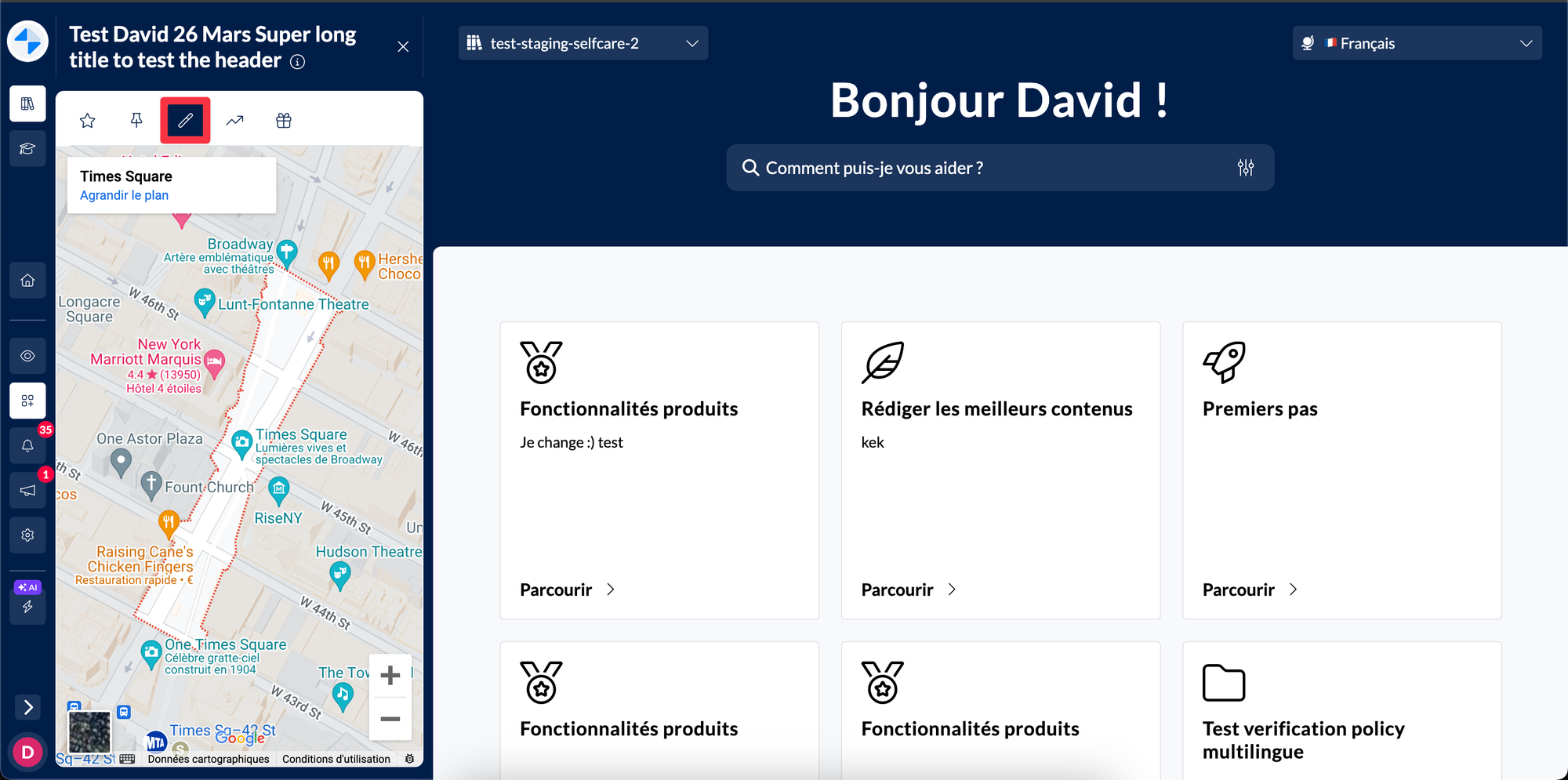
Discover in this content how to set up the custom HTML plugin
📍Where to set up this plugin?
Available today only on Desk
✨ What is it for?
This plugin allows you to encapsulate a customized iframe (a capsule of an external site/service).
Thanks to this plugin, no need to ask us for an integration, you can integrate the site/service of your choice independently within your knowledge base.
For example, if you want to integrate a calculator, or a site that calculates the distance between 2 addresses, this is the feature you need!
⚙ How to set it up?
Go to settings in the "Plugin Catalog" section and activate "Custom HTML"
📸 Screenshot
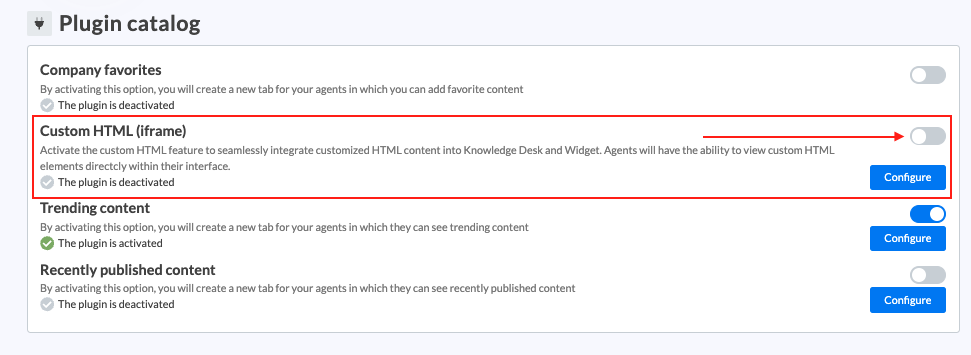
Click on "Configure"
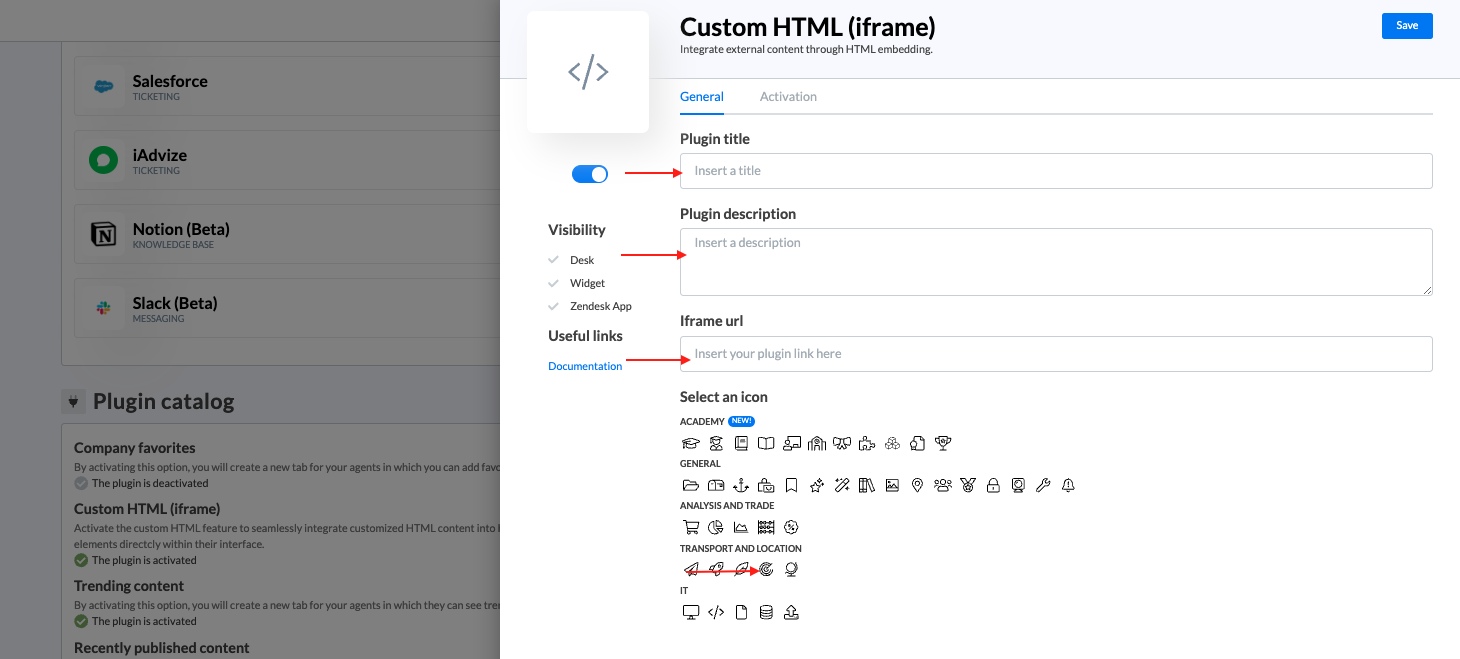
Fill in the following fields in the configuration panel:
Title: Provide a title for the plugin tab in Mayday Desk.
Description
Icon: Choose an icon for the plugin tab in Mayday Desk.
URL: Enter the URL specifically designed to be integrated into iframes.
📸 Screenshot
URL format:
Make sure the URL you provide is intended to be integrated into iframes. This means that it must be a direct link to the content you want to integrate and not a complete HTML page or an iframe tag.
Examples of suitable iframe URLs:
- Google Maps: https://www.google.com/maps/embed?...
- YouTube video: https://www.youtube.com/embed/VIDEO_ID
Note that if you have an iframe tag that looks like the following: <iframe src="https://app.mayday.fr/desk/embed/default/contents/id"></iframe>; you should only pass the link inside the "src" attribute.
Save the configuration:
Once you have filled in all the required information, save your configuration settings.
Your embedded content will now be visible in your Mayday Desk interface.