👋 Introduction
You’ve created shared elements in the library? Perfect! Now, learn how to easily insert them into your articles, guides, FAQs, and other Mayday content.
You can insert a shared element in three ways:
1. Direct Method → @
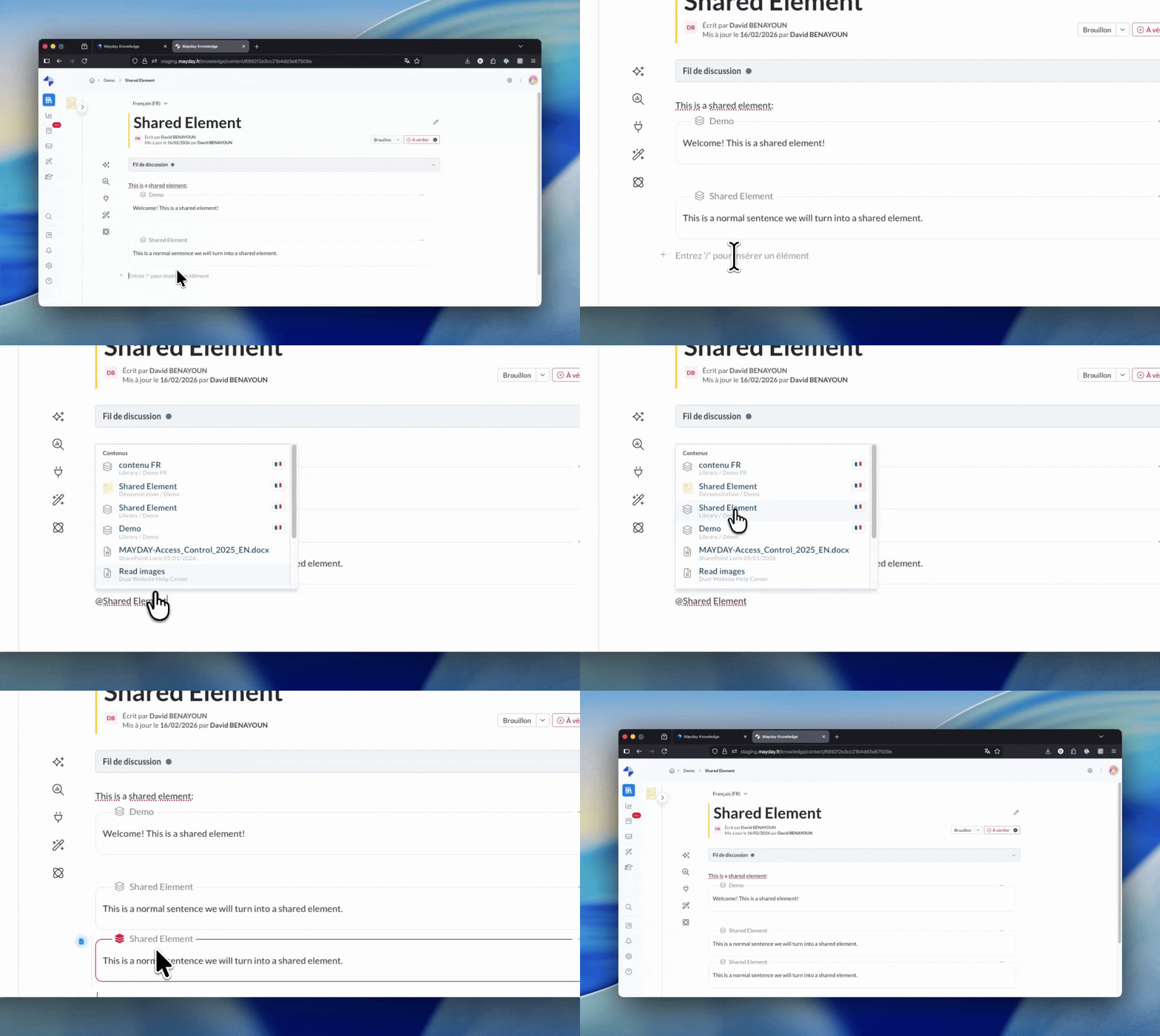
Place your cursor at the desired location
Type "@" followed directly by the name of the shared element
Example:
@Return Policy
Select the shared element from the list that appears
Confirm by clicking or pressing Enter
2. Through the Menu → /
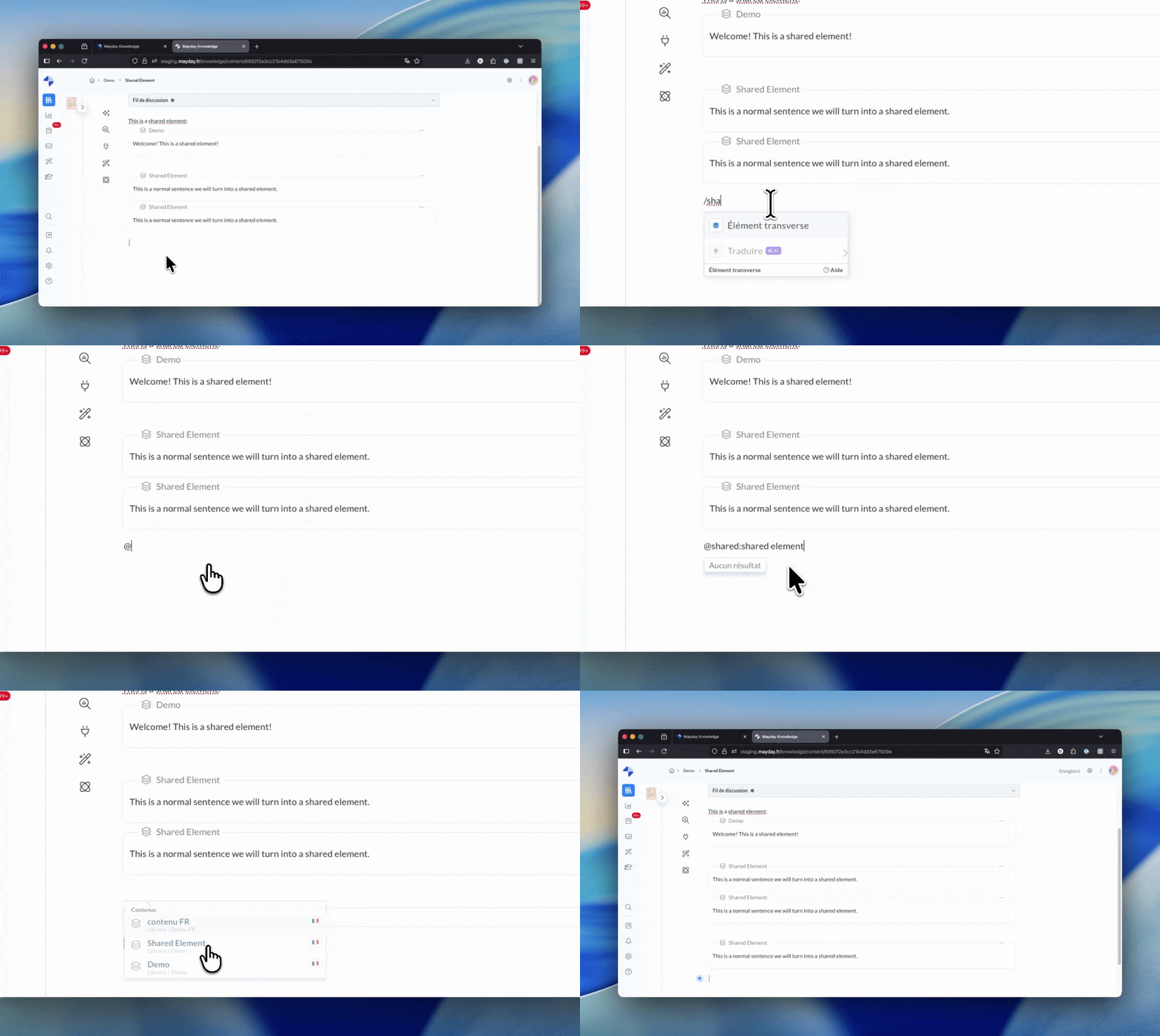
Place your cursor at the desired location
Type "/" to open the block menu
Select "Shared Element" from the menu
Type the name of the shared element you’re looking for
Select and confirm
3. By using the URL
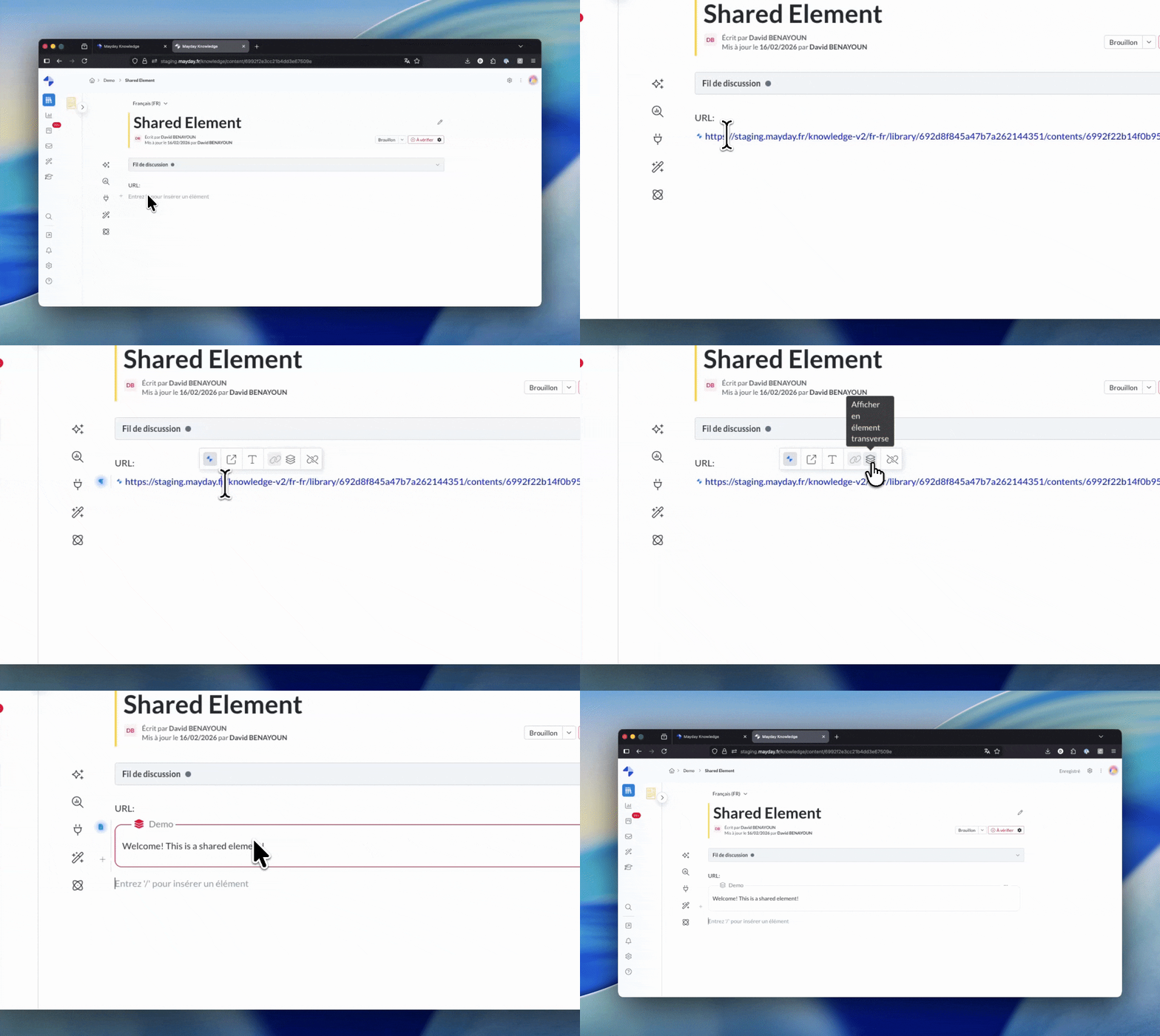
Place your cursor on the desired location
Paste the URL of the shared content
Click on the URL and then on the button “Switch to shared element”
✨ Best Practices for Insertion
Insert a shared element when:
The information is identical across several contents
The information is likely to change regularly
You want to ensure consistency of information
Avoid using a shared element when:
The information is specific to a single article
The context requires local adaptation of the content
You need a customized variant of the information
Insertion Context
Check for flow consistency
Add a transition if necessary
Never manually duplicate content
🌍 Multilingualism
Insert the correct language version based on your article’s language. The different versions of your shared elements can be found through the title used in each language.
The language of the shared element is indicated by a flag during selection.
Note of caution
Mayday does not restrict you from inserting a shared element in a different language. Verify manually the language during insertion.
Learn more, check out the dedicated article
🔍 Finding a Shared Element
If you don’t know the exact name of the shared element you are searching for:
Use the search bar to find the shared element by keywords
Filter by "Shared Element" to refine the results
Check the collections to explore shared elements by theme
Once the correct shared element is identified, note its title and use @ or / to insert it!
You now know how to insert your shared elements wherever you need them! 🚀
ℹ Learn more, consult the documentation dedicated to shared elements: