👋 Introduction
Welcome to the world of shared elements!
Managing a knowledge base often means juggling the same information in multiple places: a return policy mentioned in 15 articles, a legal disclaimer repeated in 30 guides, contact details duplicated everywhere...
The problem? Every update turns into a race: updating the information in every article, hoping nothing gets missed, and crossing fingers that everything remains consistent. 😰
Shared elements solve this headache once and for all.
❓ What is a shared element?
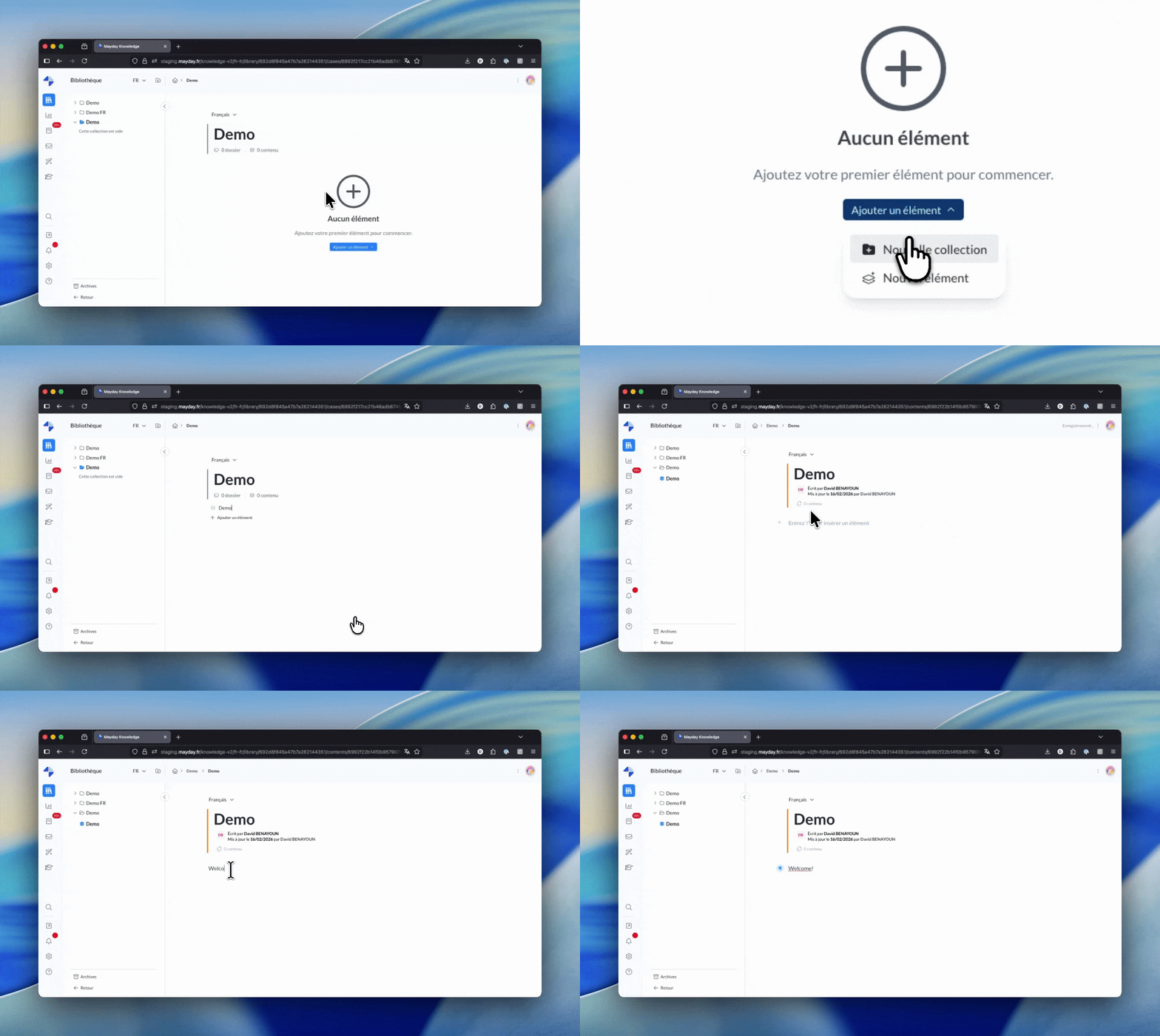
A shared element is a unique block of knowledge that can be inserted into multiple Mayday contents. It is designed to be referenced and reused within your databases.
Selfcare and Academy Limitation
Shared elements are not yet supported on the Selfcare portals and Academy trainings. They will not be visible to your customers, nor will they be indexed by the search engine and AI.
🔴 Visual Identification
A shared element will always be identified by a red visual in the editing interface:
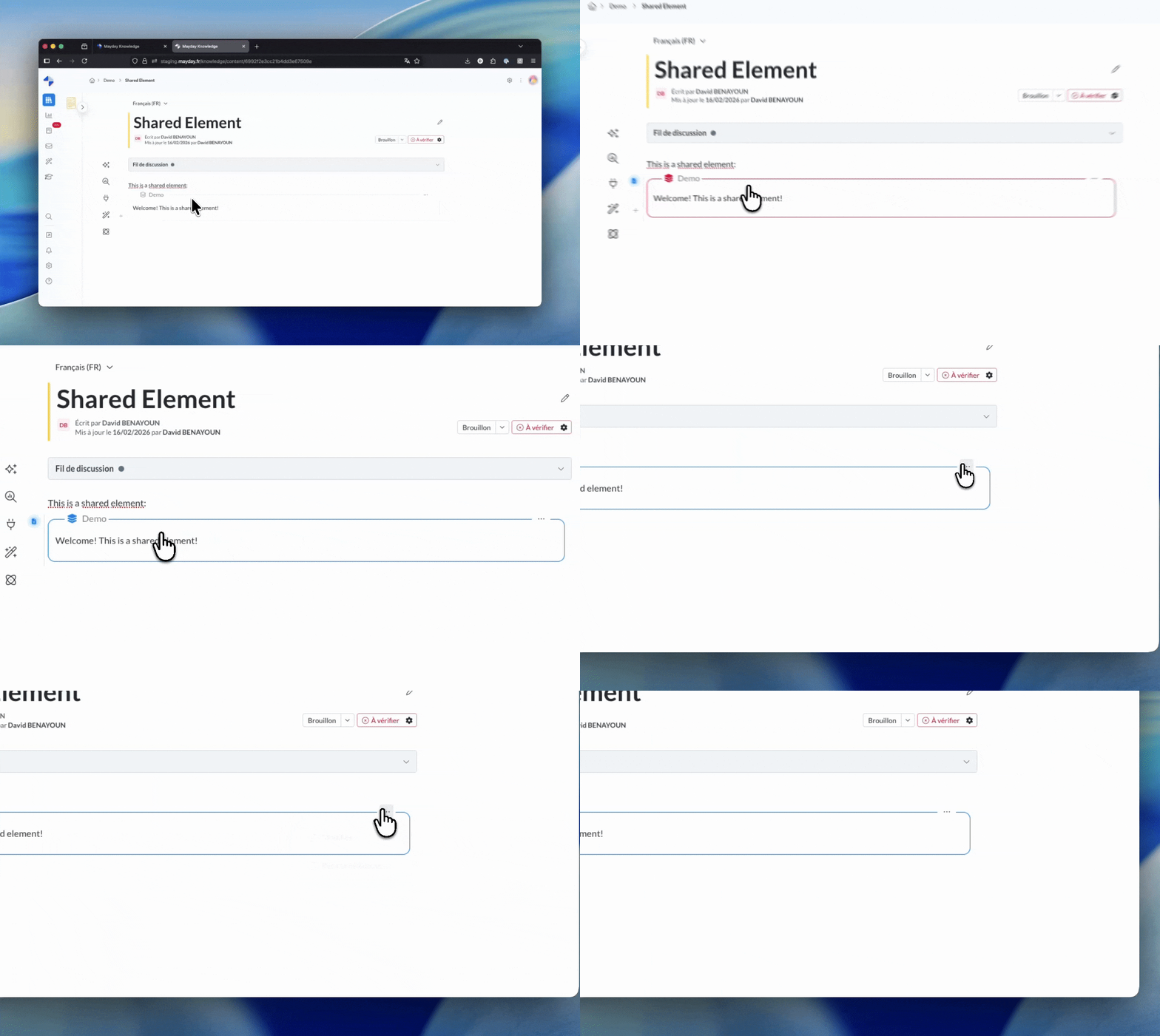
🔄 Automatic Synchronization
Here’s the magic: when a shared element is modified, all the contents in which it is inserted are automatically updated.
This synchronization ensures the consistency of information in your databases, without requiring numerous manual updates.
In summary: You make a change once, and it updates everywhere. 🎯
🎯 Use Cases
Shared elements are particularly useful for:
Centralizing common information: company policies, legal disclaimers, contact details, pricing, product descriptions
Maintaining shared procedures: escalation procedures, troubleshooting steps, safety instructions
Guaranteeing multilingual consistency: automatic synchronization of translations
Example: Your return policy appears in 15 articles. Create it once as a shared element and insert it everywhere. When the policy changes, a single modification updates all 15 articles instantly. ✨
🔐 Accessibility and Governance of Shared Elements
✍ Access to the Shared Elements Library
Access to the shared elements library is restricted to administrators and is controlled through Mayday’s role management.
Access to the library automatically grants modification rights for all shared elements. There is no “read-only” mode for the library.
If a user has access to the library → they can create, modify, and delete all shared elements
If a user does not have access to the library → they cannot see or view the library
👥 Access for Agents
When a shared element is inserted into an article, it integrates seamlessly into the content. For agents:
• The shared element is invisible as such: it appears as regular content
• Access depends on access to the host content (the content into which it’s inserted).
ℹ For more information, check out the dedicated documentation on shared elements: