Discover in this article how to search for content as an advisor within the knowledge base.
Content search involves finding an article or guide in the knowledge base.
There are two ways to search for content in the knowledge base:
Navigate within collections: simply click on the main collections and sub-collections related to the topic you are looking for, to access the content of interest.
Enter a keyword in the search bar and filter it by content labels: this is the fastest way to access knowledge, especially when you are unsure of what content to search for or where it is located.
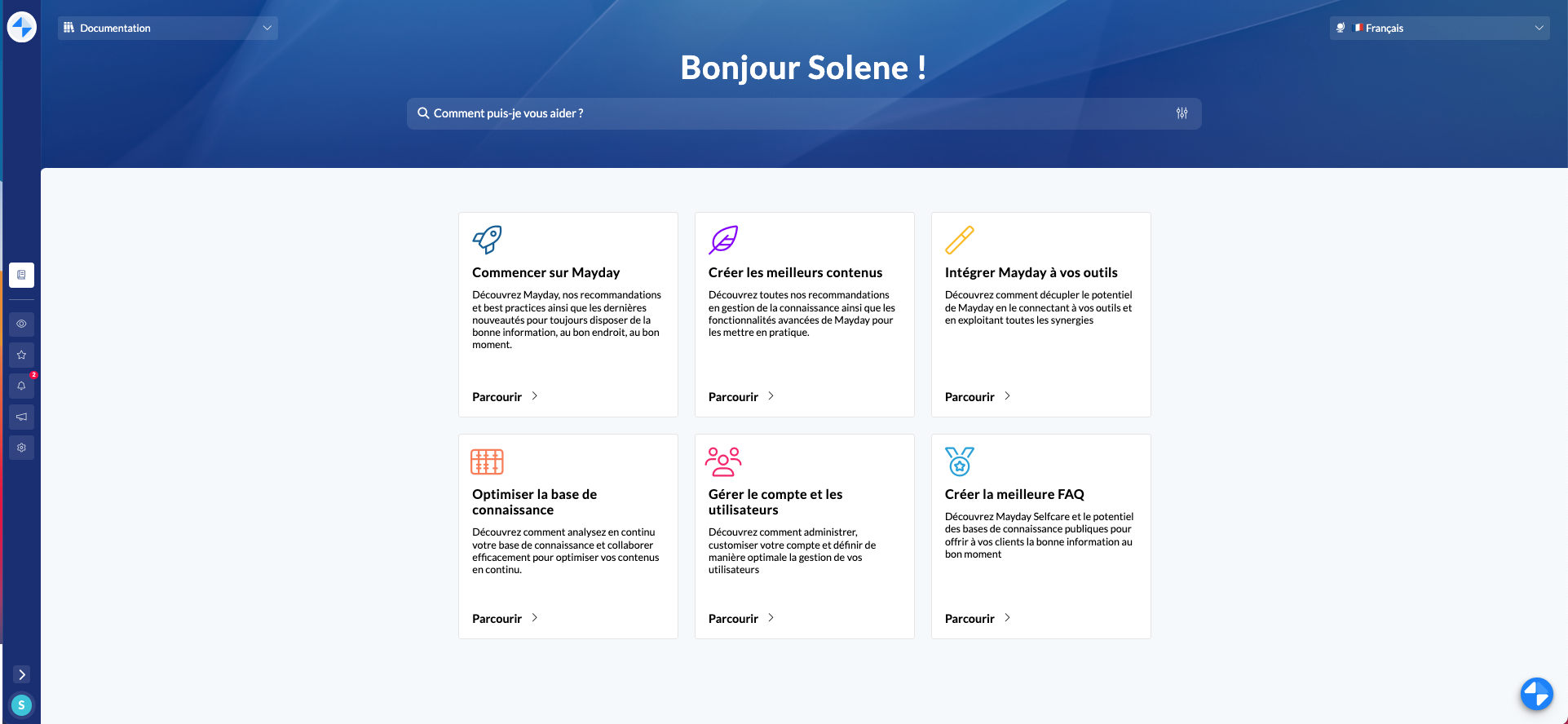
📸 Visualize access to collections and the search engine (Mayday Desk)
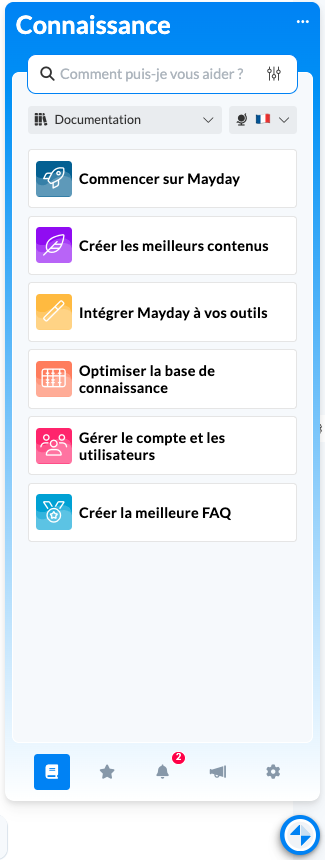
📸 Visualize access to collections and the search engine (Mayday Widget)
🎯 Use Case
Quickly find specific content within your knowledge base.
Refine your search using the provided filters.
🔍 The search engine
The search engine will allow you to use keywords to match your knowledge base's content.
This match is based on the terms in the title and in the body of the content itself.
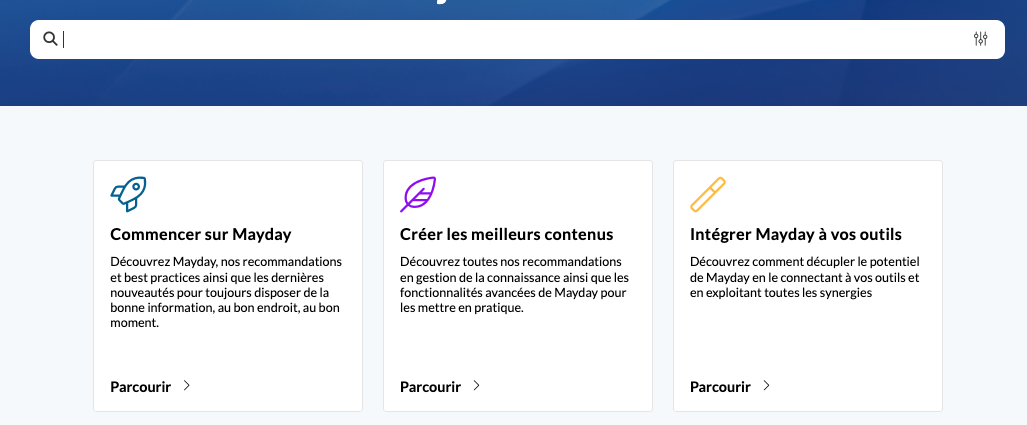
📸 Visualize access to the search bar (Mayday Desk)
The search engine also indexes the content of PDF files, allowing you to search for keywords within PDFs.
As a result, all articles/guides related to the entered keyword(s) will be displayed.
The search engine does not work on the content of an MP4, PNG, or JPEG file but only on its title.
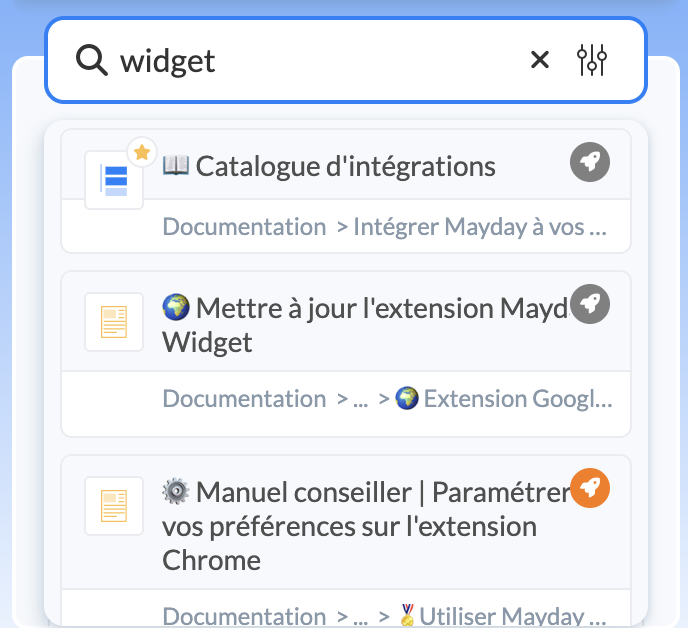
Here are examples of results after entering a keyword in the search engine:
Highlighting search results
By enabling a preference, your search keywords will be highlighted within the content opened from the search bar.
To activate this preference, go to the " ⚙ Preferences" section of your advisor platform (Mayday Desk, Widget). Then, simply enable the " Highlight search keywords" option:
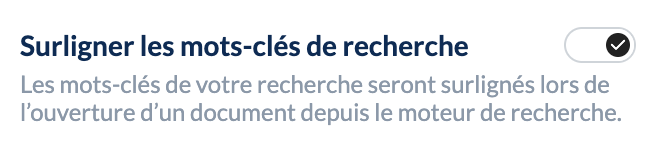
Once activated, this preference allows you to see your highlighted search keywords within the content you have opened from a search:
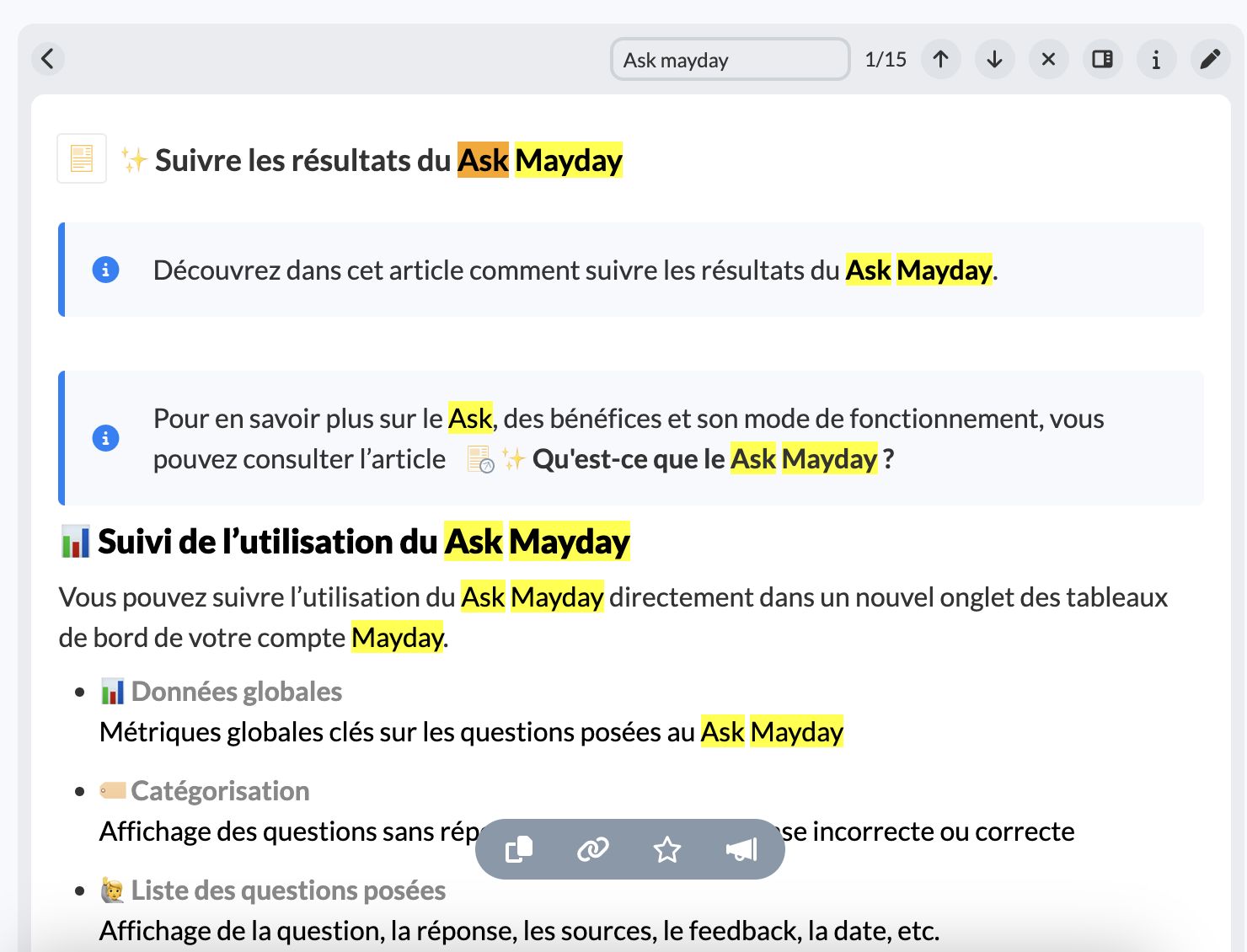
It is then possible to:
See the highlighted search keywords
See the number of occurrences within the content
Navigate among these occurrences
Search within the content, if desired, for another keyword
This feature is available on all advisor platforms (Mayday Desk, Widget, Zendesk, iAdvize).
Exact Search
Quotation marks allow you to make exact searches in the search engine.
⚙ When enclosing a phrase or group of words in quotation marks, the search engine will look for this sequence of words exactly in this order. For example, searching for "search bar", the results will be pages containing exactly this phrase, with "search" followed by "bar".
Exclusion of Irrelevant Results: This feature allows you to exclude results that mention the keywords separately or in a different order. This can reduce noise in search results and improve relevance.
Search Engine History
When you open the search engine, you can access the list of content you have viewed through the search engine, sorted from most recent to oldest, with a time indicator.
🎛 Search Filters
The search filter allows you to refine the suggested results in the search bar and to search according to the following criteria:
Content type (article or guide);
Content labels associated with articles and guides.
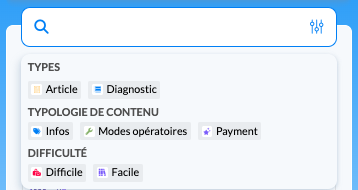
When selecting multiple labels, the search engine will display either all content that meets at least one of the selected labels (logical "OR"), or all content containing both labels (logical "AND"), depending on the preferences configured by the administrators.
📸 Example of results with search filters
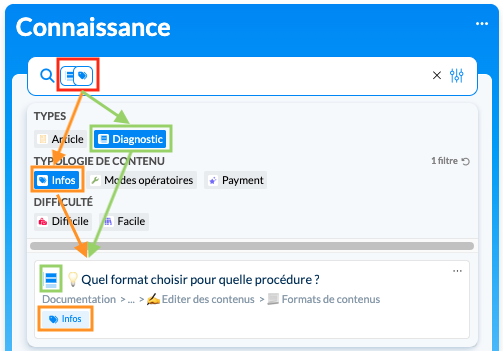
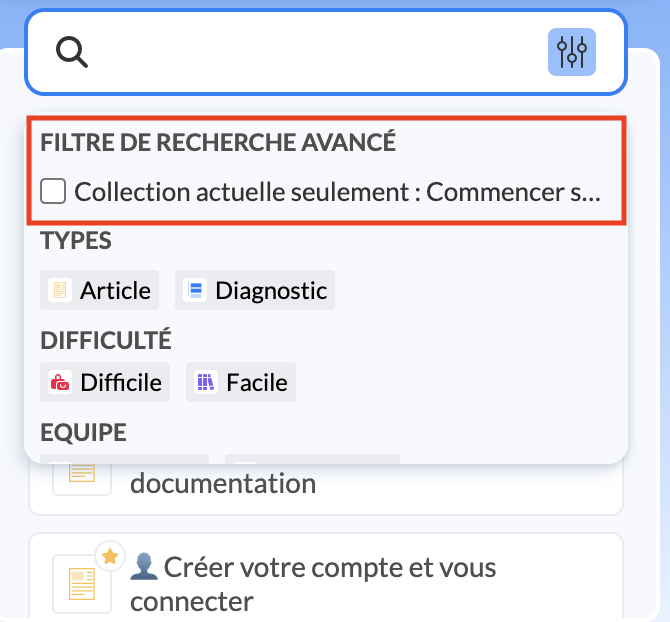
The "current collection only" filter allows, when in a collection, to search only within the contents of that collection.
📸 Visualize the 'current collection only' filter
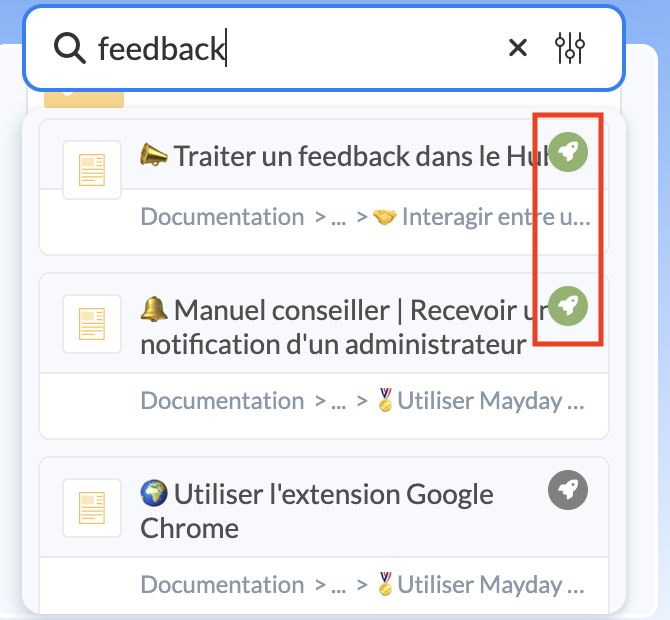
Finally, if you have activated it in your account settings (see: ), the most viewed content by the user will appear first. These popular contents are visible by the green rocket displayed to the right of their name.
📸 Visualize popular content in search results
Content Labels and Guide Steps
You can filter guide steps based on the content labels assigned to the guide as a whole. In addition, the guide steps will display the content labels assigned to the guide as a whole in the search results.
Saving Filters
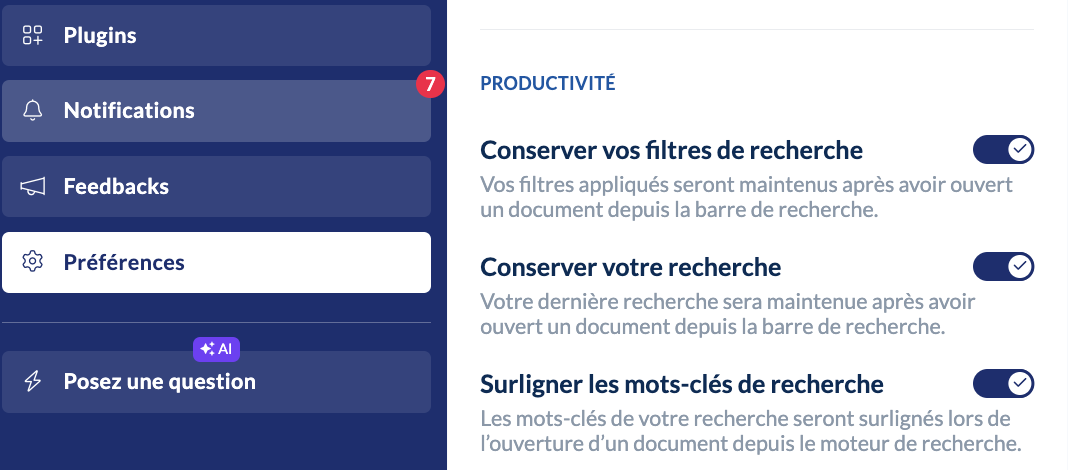
You have the option to enable a preference in your options to retain the filters applied in the search engine. If this option is enabled, the filters you apply during a search will be retained for all your future searches, until you modify them.
The saved filters will always be applied to the search engine, regardless of the knowledge base or language. You just need to manually remove them if you wish, or disable the preference
📸 Visualize the "Retain your search filters" setting
🎥 Video Tutorial
Mayday Desk
Mayday Widget
If Ask Mayday has been activated on your account, you can consult the article .