✅ Access the feature
1⃣ On the Mayday Desk interface
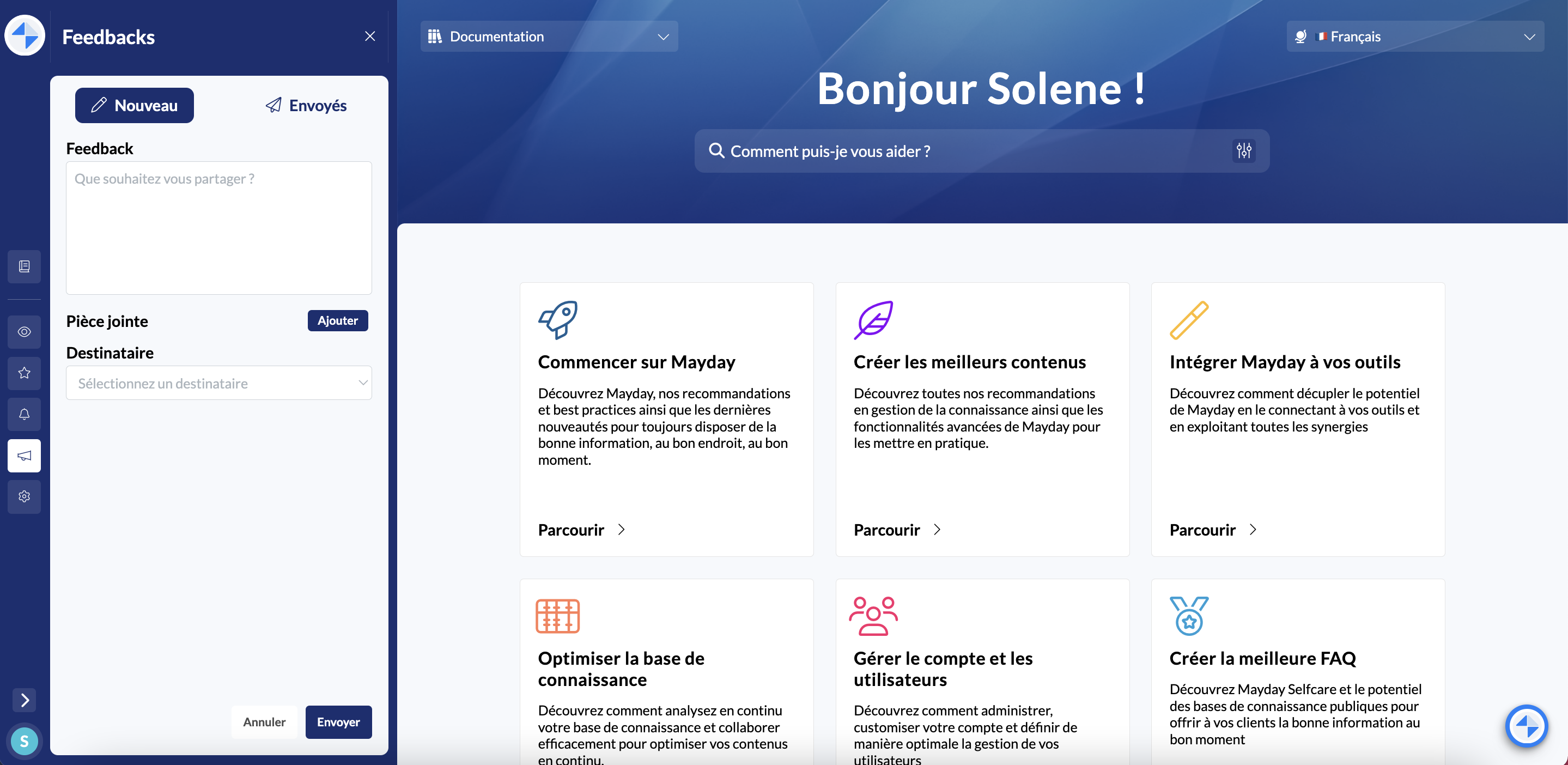
In the sidebar, you can access the dedicated feedback tab at any time.
📸 See how to send feedback from Mayday Desk
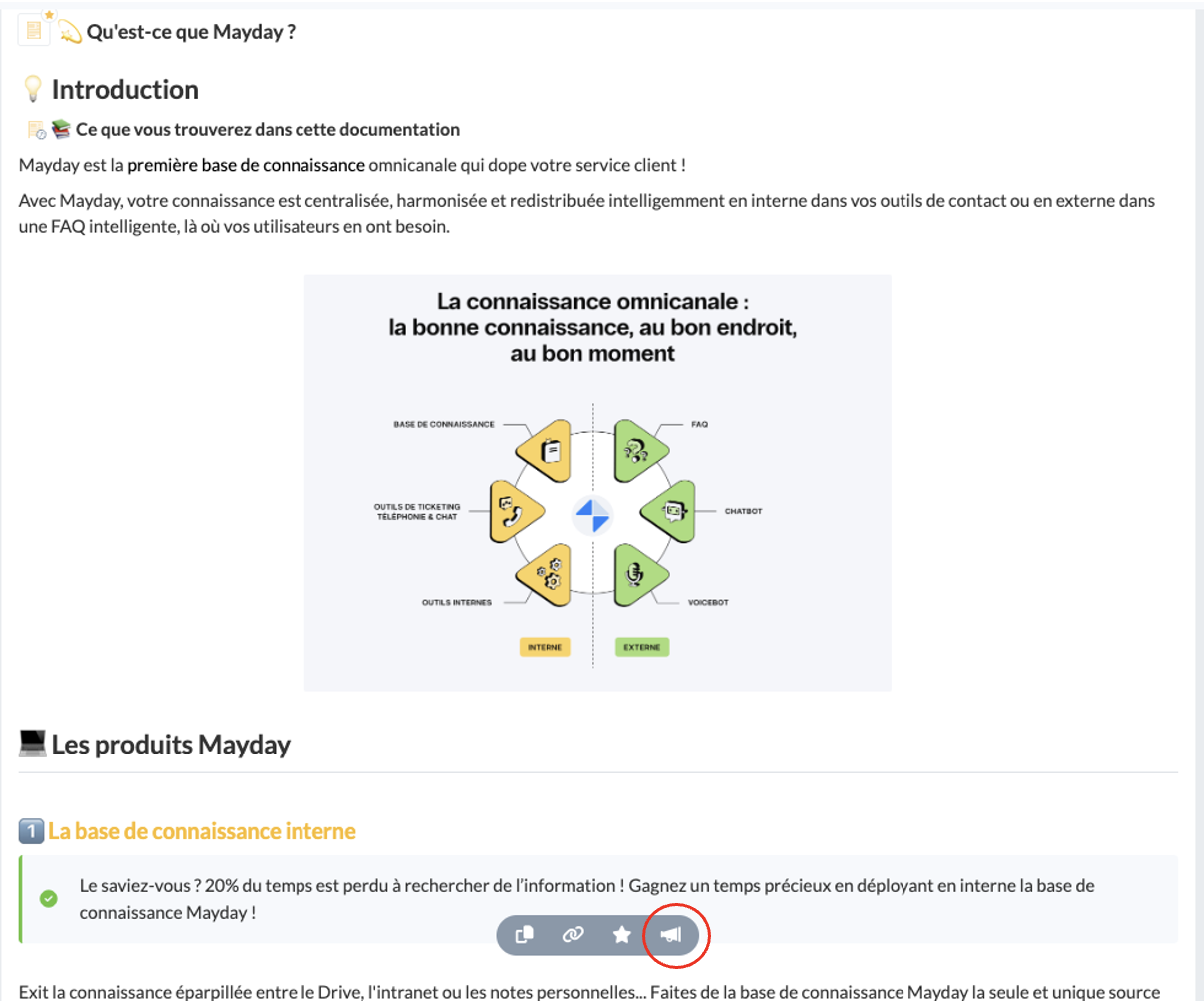
At the bottom of each content in the center, the icon 📣 is available in the action bar.
📸 See how to send feedback from content on Mayday Desk
2⃣ On the Mayday Widget interface or on the Zendesk panel
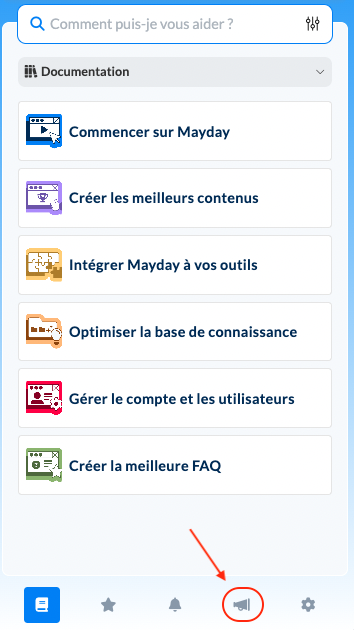
On the general menu at the bottom right, the icon 📣 is available.
📸 See how to send feedback from Mayday Widget
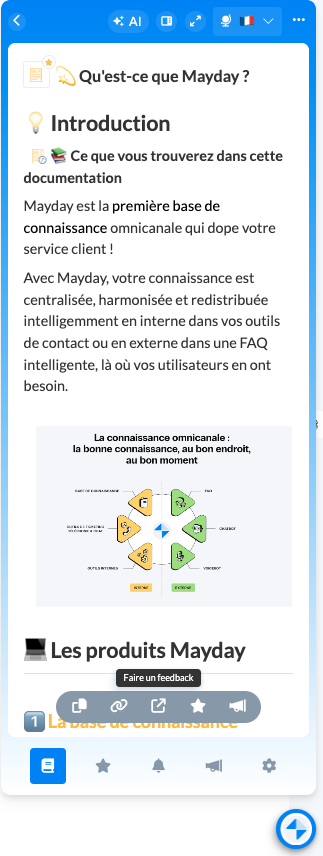
At the bottom of each content in the center, the icon 📣 is available in the action bar
📸 See how to send feedback from content on Mayday Widget
It is possible to link feedback to a content in the knowledge base allowing the administrator to access the relevant article or diagnosis with one click.
The feedback will be linked to the content or collection of your choice if you are on said content or collection when you click on the 📣 icon.
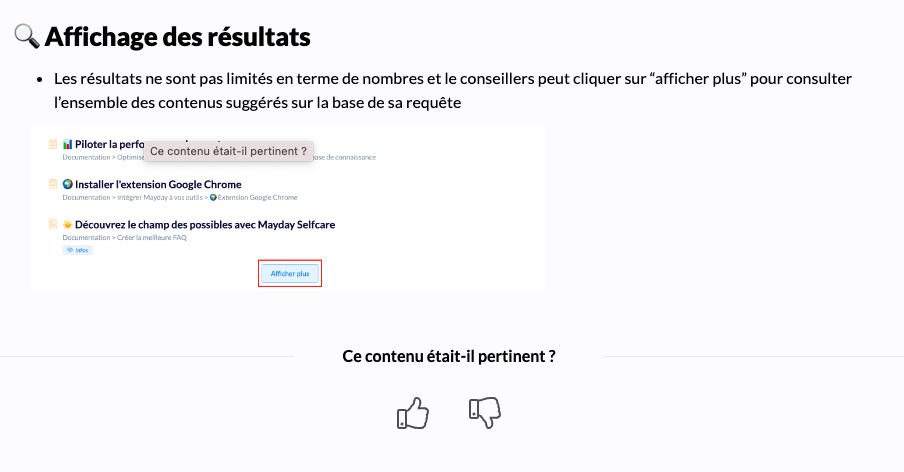
In parallel with your feedback, click on one of the two thumbs at the bottom of a content to judge its relevance and usefulness.
📸 See how to like content and judge its relevance
✍ Write and send feedback
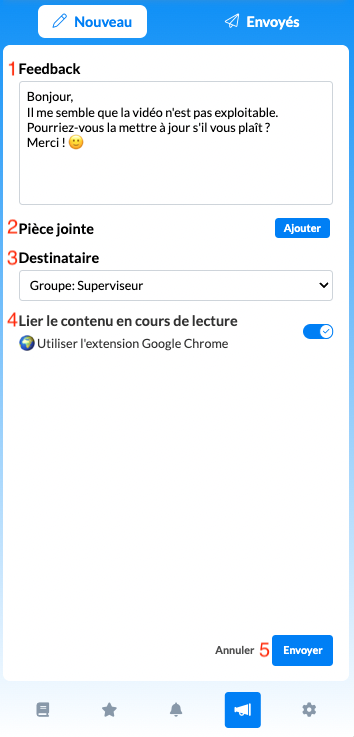
After clicking on the icon for sending feedback, a window opens to customize the comment based on the following elements:
💬 The message : the administrator relies on this comment to understand the request;
📑 An attachment : attach a file in addition to the message
👤 The recipient(s) : from the list proposed (depending on the roles of the administrators);
🔗 Link to the last content consulted : it is possible to check or uncheck the box to associate or not the last content consulted with the feedback.
You can then click on "Send" at the bottom right of the box.
🎥 Video Tutorial
Mayday Desk
Once your feedback is sent, you can track its processing by administrators.
Click the button below to find out how!