🔔 Be informed of administrators' actions
When you send feedback to an administrator, they receive it directly in their Mayday interface and can perform several actions:
💬 Reply to your feedback;
❤ Like your feedback;
✅ Process your feedback.
You will be informed of each of these three actions in your “🔔 Notifications” tab:
📸 View the notifications tab
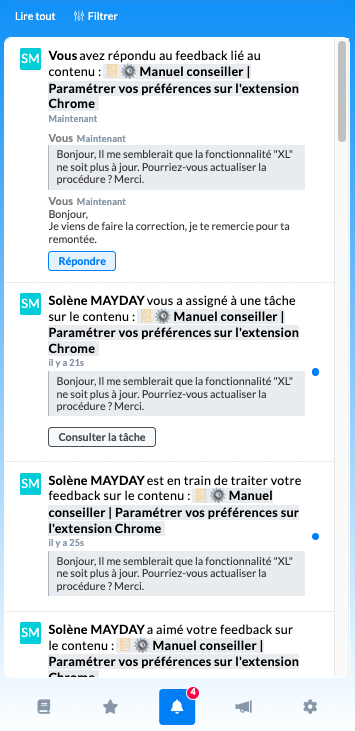
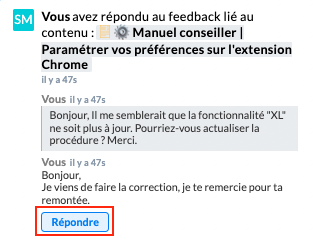
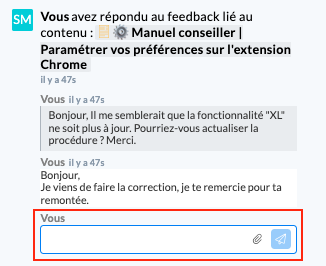
When the administrator replies to your feedback, you can reply back to them directly on the corresponding notification by clicking on “Reply”.
📸 View how to reply to feedback
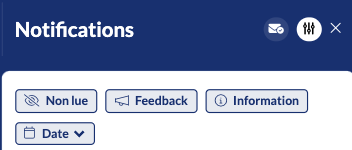
🔔 On Mayday Desk, this notification center is broken down into different sections accessible by clicking on the “Filter” button:
“Unread” tab: groups together all the information from the other two tabs (“information” & “feedback”) whose notifications have not yet been read;
“Information” tab: centralizes the notifications sent by administrators on a creation/modification of process or other important information;
“Feedback” tab: admins/counselors exchange zone, which centralizes notifications related to likes, responses sent by the admin and level of task processing;
“Date” tab: allows you to filter notifications for a specific period.
📸 View how to filter notifications
👁 Check the history of your feedback
Mayday allows you to check the history of your feedback in order to follow their progress!
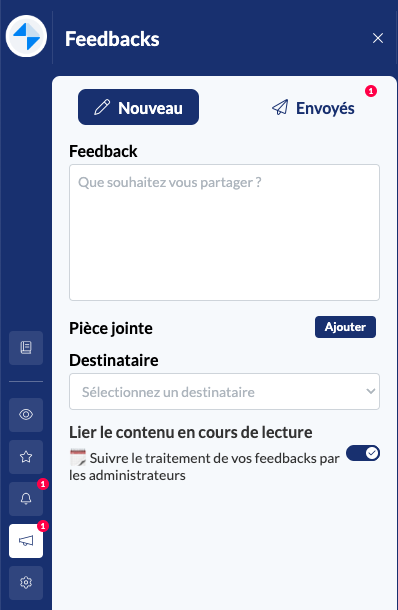
The feedback tab is divided into two sub-tabs:
“New” tab: to write a new feedback;
“Sent” tab: to check the history of feedback already sent.
📸 View the sub-tabs on Mayday Widget

To access the history of your feedback on Mayday Web (Mayday Desk), you must click on the 📣 tab located in the side panel.
📸 View the history of your feedback on Mayday Desk
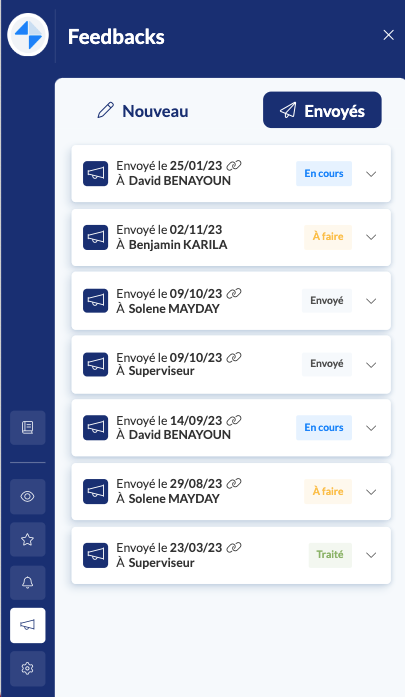
By clicking on the “Sent” tab, all your feedback will appear, from the most recent to the oldest, with the following information:
The date of sending of the feedback;
The recipient to whom you sent the feedback:
The content, if any, to which the feedback is related;
The processing status of the feedback, i.e. the column in which it is located in the task center of the administrator interface.
📸 View feedback information
STATUS | EXPLANATION |
|---|---|
Sent | The feedback has been received but has not yet been viewed by an administrator. |
To do | An administrator has taken note of your feedback and is preparing to process it. |
In progress | The administrator is processing your feedback and making the requested changes. |
Processed | The administrator has finished processing your feedback. They can then archive it. |
Archived | The administrator has archived your feedback, either because they have finished processing it or because your feedback cannot be taken into account (update that is not necessary to make, for example). |
By clicking on the dropdown arrow to the right of each feedback, you can access additional information such as:
The title of the related content (with URL);
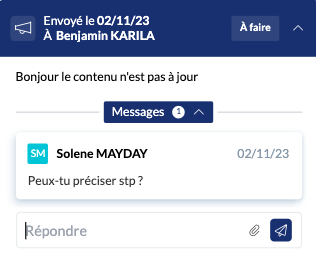
The messages from the conversation with the administrator (you can reply directly to the administrator in the response box dedicated to this purpose);
The content of your feedback.
📸 View additional feedback information