👋 Introduction
Creating content in Mayday is essential... but let's be honest: it's also one of the most time-consuming tasks for your teams ⏳
That's where the Knowledge Builder comes in, an AI agent designed to save you precious time in content creation (articles or diagnostics) 💡
Its objective? To help you quickly transform a source of information (text, document, existing content...) into structured, clear content ready for publishing on Mayday.
🚀 Introduction to the Knowledge Builder agent
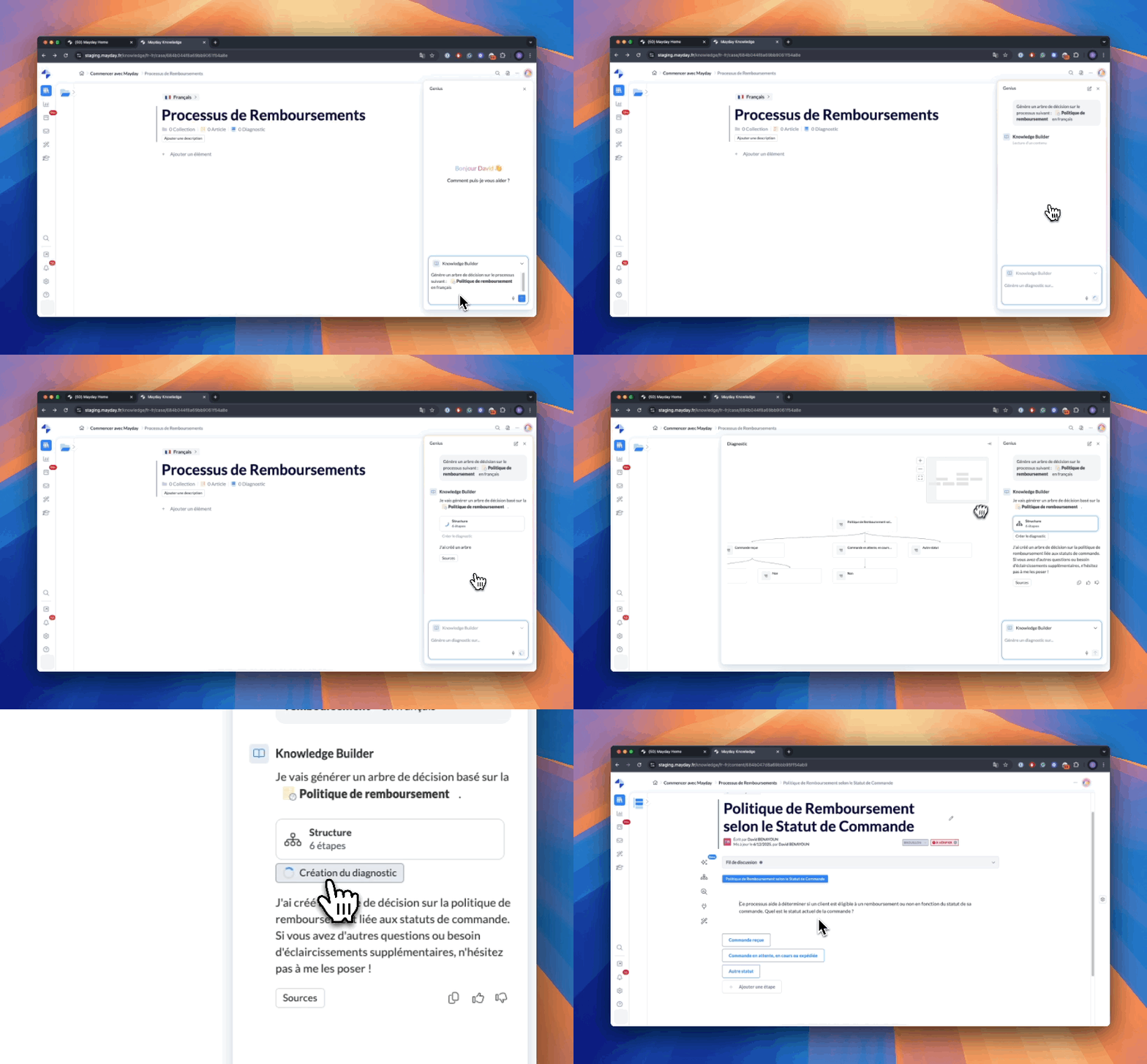
The Knowledge Builder is accessible to all users authorized to create content in Mayday.
🎯 Its promise: transform an idea, a document, or a request into a clear and structured article or diagnostic in seconds.
👉 Ideal for teams responsible for documenting internal processes, sharing best practices, or formalizing feedback experiences.
🤖 How it Works
🔎 A Clear Objective
The role of the Knowledge Builder is simple: to generate Mayday content ready to be published from the source of your choice.
You can then adjust the content, request modifications from the AI, and create the final content directly from the interface.
📚 Sources Used
The Knowledge Builder can rely on different input sources:
✍ A text request: for example, "Can you create an article on the new complaint process?"
📄 An existing Mayday document: useful for reformulating or enriching content.
🔗 A connected external file: SharePoint document, for example.
📎 A file inserted in your request: Word, PPT, PDF, etc.
⚙ Workflow Steps
The Knowledge Builder agent is accessible everywhere from the Genius Mayday.
You can also directly create content generated by the Knowledge Builder from various locations in Mayday:
🔸 From a collection
Click on the "Create content" button to create it in the collection where you want to add content.
The generated content will be directly added to this collection, in the language you are navigating in.
🔸 From empty content
Click on "Insert with AI".
The generated content will then replace the empty content.
🔸 From non-empty content
Click on “Create a pending version”.
The generated content will be inserted into a pending version of the content.
Note: if the content already has a pending version, this action will not be available.
🛠 Visualization and Adjustments
🧭 For a diagnostic:
Visualize the complete structure in Mayflow from the Knowledge Builder's response.
Interact with the AI to adjust steps, reformulate actions, etc.
📄 For an article:
Display the full generated article.
Modify text, tone, or structure directly in the Genius interface by replying to the agent.
🔁 Continue the conversation until a satisfactory result is obtained, then click on "Create content".
🛠 Customization possible: it is possible to customize the Knowledge Builder.
For more information, see the following document:
🤩 Use Cases and Examples
Here are some typical requests to test with the Knowledge Builder 👇
"Can you create a diagnostic from this document: {PPT file}"
"Can you create an article on the new account opening process?"
"Create a diagnostic based on this email shared by the product"
"Can you create a synthetic article from this Mayday content? {mentioned content}"
💡 Recommendation: always specify if you want an article or a diagnostic, so the AI can correctly target its work.
👌 Usage Tips
✅ Be precise in your requests
The clearer and more contextualized your request, the more relevant the generated content will be.
👍 Good example:
"Can you create a diagnostic based on this PDF file, intended for beginner advisors, with an educational tone?"
👎 Less good example:
"Can you do something with this doc?"
🗣 Use natural language
Speak as if you were addressing a colleague, the AI adapts to your tone:
"I need an article on the new customer journey in-store, can you help me write it?"
🔁 Refine the result
If the first draft doesn't suit you:
Request a reformulation
Specify your target (beginners, experts...)
Adapt the tone (formal, synthetic, engaging...)