👋 Introduction
It may be the smallest agent of the Mayday Genius, but don't be deceived by its size: the Notification Generator is a specialist in quick impact 💥
Its goal? To save you valuable time by automating the writing of your notifications for support agents. In just a few seconds, it generates a clear notification, ready to be sent, based on a subject, Mayday content, a file, or user feedback.
To learn more about the Mayday Genius, we invite you to consult this document:
🚀 Introduction to the Notification Generator agent
The Notification Generator is accessible to all users with access to the notification center.
🎯 Its promise: enable you to write an efficient and contextualized notification in seconds, without wasting time on formulation or tone.
👉 Ideal for teams that regularly write notifications to inform support agents of updates, process changes, or content.
🤖 Features
🔎 A clear goal
The role of the Notification Generator is simple: write a notification for you, clear and ready to be sent. You just need to validate it, adapt it if necessary, and then send it 🚀
📚 Sources used
Here are the elements the agent can use to write:
Text or files: you can insert a text extract into your question, mention Mayday content, or attach a file (e.g., from SharePoint).
Mayday data: such as the publication or last modification date of content, to write a relevant notification.
🔐 Note: The agent only processes data you have access to.
⚙ Operational Steps
You can trigger the Notification Generator in two ways:
🔸 From an existing notification
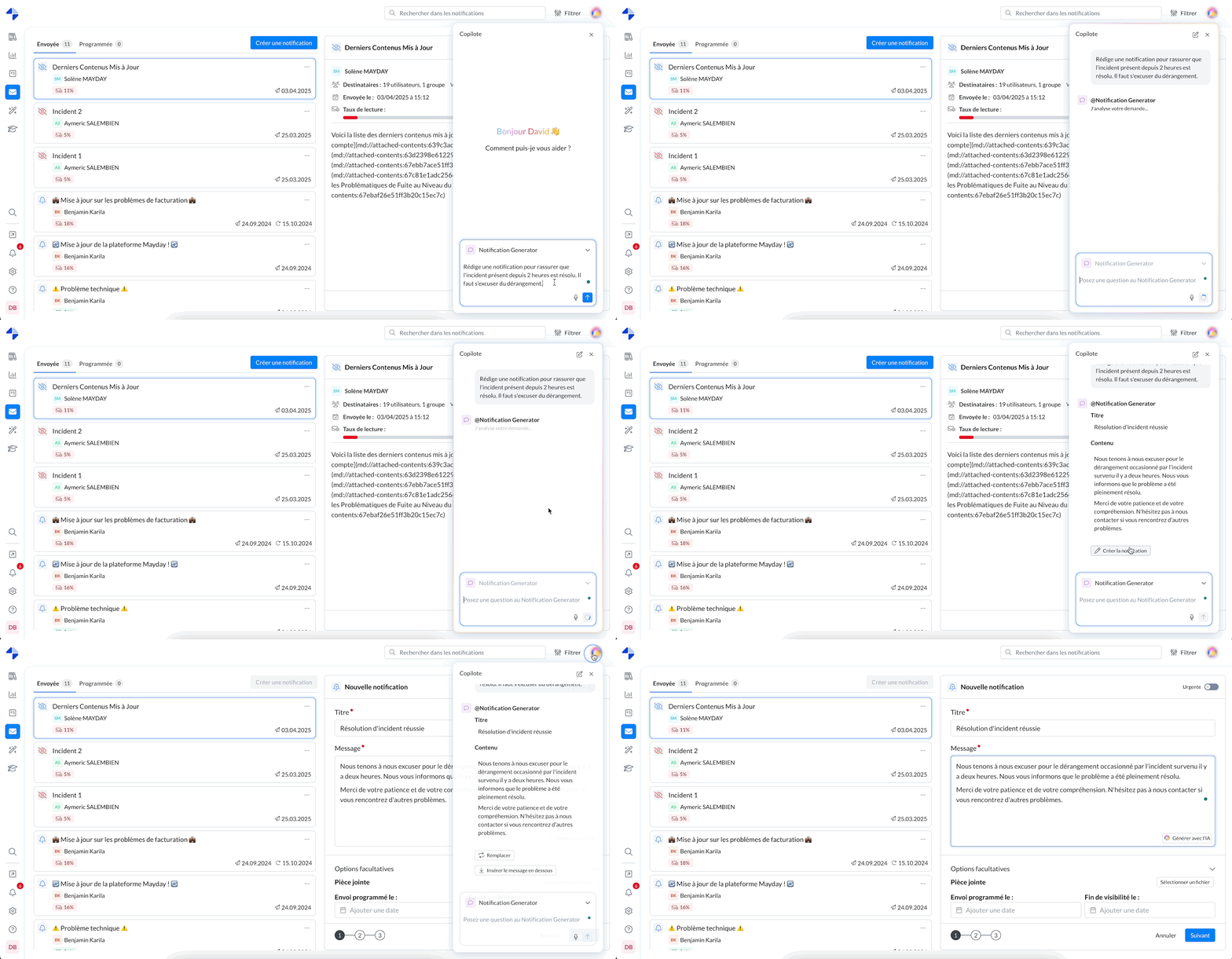
Click on “Ask the AI” from an empty or already created notification.
The agent generates a notification body from the available information.
You can then continue the conversation in Genius, adjust the content, and insert the result.
🔸 From the Mayday Genius
Select the agent Notification Generator.
Ask your question or provide the context.
The agent automatically writes the notification.
Depending on your situation, you can then:
✅ Create a notification (if you are in the Notification Center)
✅ Insert the content if you are on an empty notification
✅ Replace the content of an already existing notification
✅ Add the new content below what is already present in an existing notification
You cannot create a notification from another page other than the Notification Center. You will need to go there to finalize the sending.
🛠 Customization possible: it is possible to customize the Notification Generator.
For more information, see the following document:
🤩 Use cases and examples
Here are some possible requests to fully exploit the potential of the Notification Generator 👇
✍ Notifications from content or subjects
“Write a notification on this subject: update of customer refunds”
“Write a notification that summarizes this content: {mention of Mayday content}”
“Write a notification based on modifications made to this content this week”
📅 Periodic or reporting notifications
“Write a notification listing all contents published this week”
“Write a notification with all contents edited since Monday”
“Write a notification listing the new contents of the week”
📁 Notifications from an external file
“📂 Write a notification from this SharePoint file: {file}”
💡 You can also combine several elements:
“Write a notification that summarizes the changes made this week on content related to the 'Billing' theme”
👌 Usage tips
✅ Formulate precise questions
The clearer your request is, the more relevant the generated notification will be.
👍 Good example:
“Write a notification to inform support agents that a new reimbursement process has been added to the database”
👎 Less good example:
“Reimbursement notification?”
🗣 Ask your questions as if you were speaking to a human
Use natural language. Don't hesitate to write as if you were speaking to a colleague.
“Can you generate a clear notification about the content update on managing incoming calls?”
🔁 Continue the conversation
If the first draft doesn't suit you:
Reformulate or complete your question
Request a shorter or more formal version
Specify your target audience (beginner support agents, experts, etc.)
Add a specific tone: informative, engaging, formal…