📕 Presentation
Discover on this content the options available on a training module, in order to configure your modules according to your preferences.
On each module, a tab "Options" is available to configure many options.
This tab allows you to ensure that the training module meets your needs and the training objectives you are aiming for through this training module.
In addition to this, options are also available at the level of each step of a module.
Let's learn more👇
🎯 Use cases
Configure a module on Mayday Academy to deliver training that meets your objectives and preferences.
⚙ List of options available on a training module
On each training module, options are available in several places, allowing you to configure a module according to your preferences.
On a training module, options are available in different places:
The "Introduction" tab
Each step of the module
The "Options" tab
1⃣ Options in the "Introduction" tab
On the "Introduction" tab of a module, configure the reading time and language of the module.
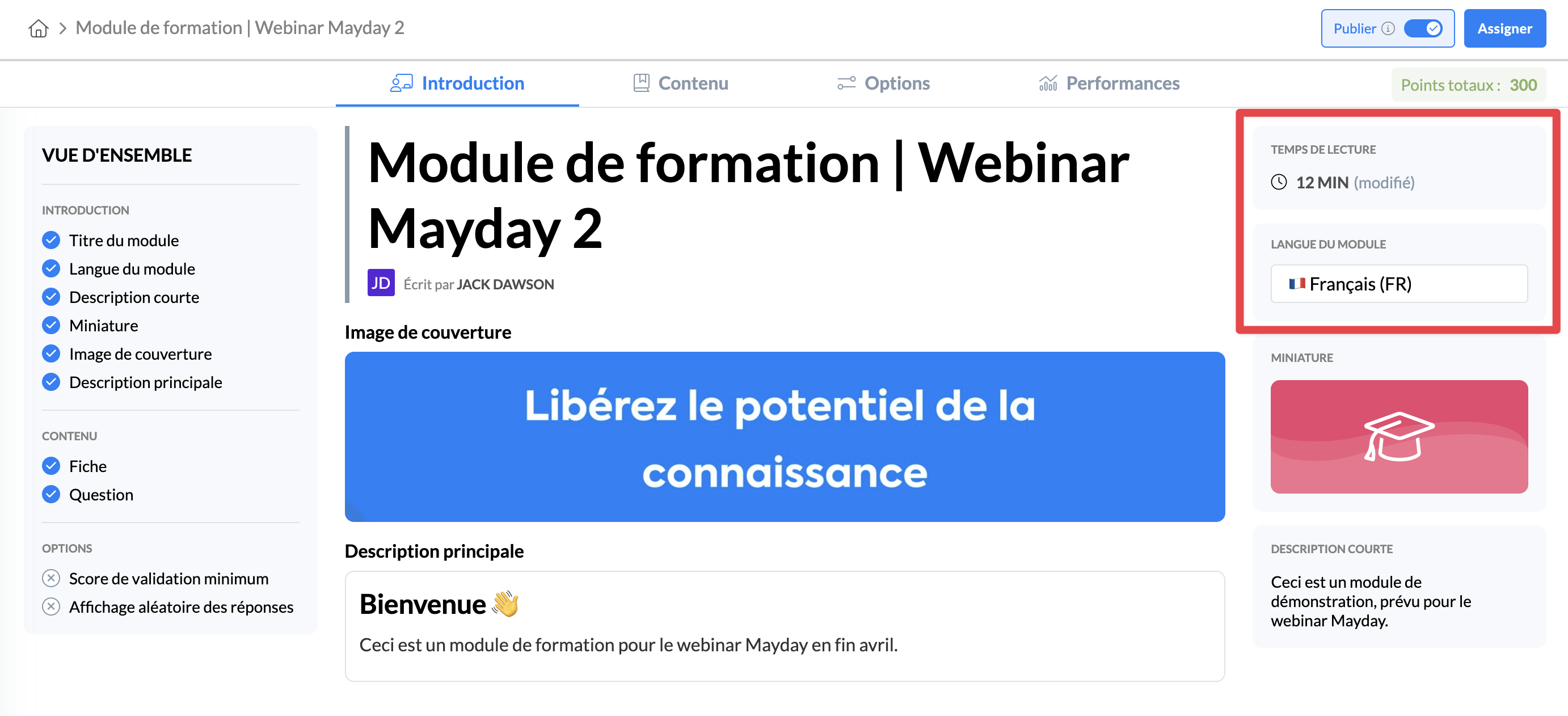
The "Introduction" tab contains very few options, but still contains three that may be relevant:
The reading time of the module: by default, this duration is calculated automatically, but you can edit it manually.
The language of the module: defined at creation, this language is important to indicate the language of the training to your advisors.
Labels: assign labels to your training modules to categorize them and easily find them.
2⃣ Options for each step of the module
At each step of the module, configure the reading time of a card, double the points to be earned, define a timer, and make the order of answers random.
For a sheet, there is only one preference, namely the reading time.
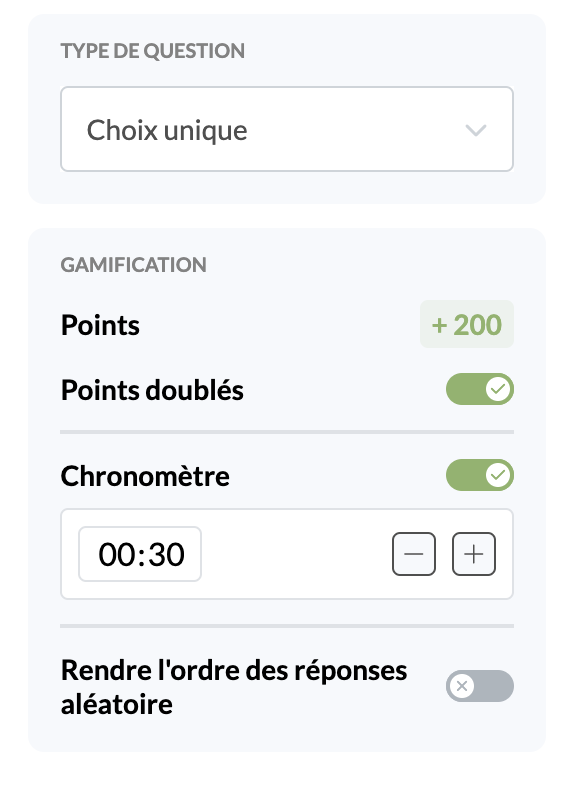
However, for a question step, there are several options:
Double the points: if activated, the question will earn the learner 2x more points.
Define a timer: if activated, the question will be limited by a timer, whose duration can be defined manually.
Make the order of answers random: if activated, the answers to the question will be displayed in a random order for advisors.
3⃣ General options for the module
Finally, at the general level of the module, define options that will apply to the module in its entirety.
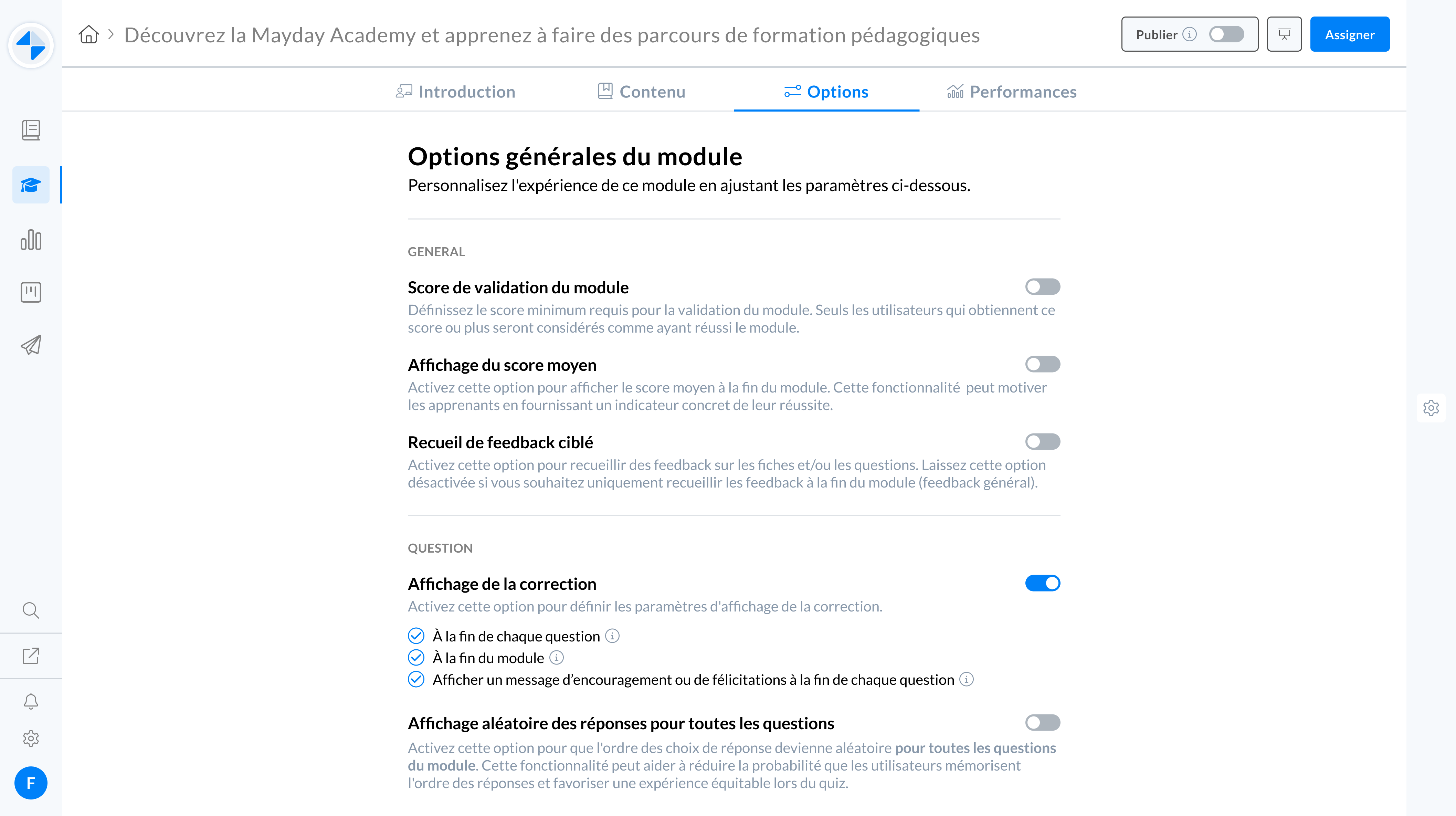
In the Options tab are all the general options of a module, namely:
Module validation score: Define the minimum score required for module validation. Only users who achieve this score or higher will be considered as having passed the module.
Display of the average score: Activate this option to display the average score at the end of the module. This feature can motivate learners by providing a concrete indicator of their success.
Targeted feedback collection: Activate this option to collect feedback on cards and/or questions. Leave this option disabled if you only want to collect feedback at the end of the module (general feedback)
For each card
For each question
Display of the correction: Activate this option to select when the correction will be displayed
At the end of each question
At the end of the module
Display a message of encouragement or congratulations at the end of each question
Random display of answers for all questions: Activate this option so that the order of answer choices is random for all questions in the module.
Restrict access to the module: Choose to restrict access to the training module in the administration center and define the users for whom this module will be visible.