📕 Introduction
Discover in this content how to create and import a module in SCORM format
Go to your Mayday Academy interface to create your first SCORM format module!
The SCORM format is a universal format for training modules (from version 1.0 to version 2004).
It is a format used by many individuals and companies
The Mayday Academy supports the SCORM format
It is therefore possible, when creating a module, to upload a .zip file containing a SCORM file
This module will then be imported on Mayday and can be configured just like a Mayday module:
Introduction
Options
The content of the SCORM module can only be viewed on Mayday; it cannot be created or modified. It must be created on a SCORM editor.
It will be indicated as a SCORM module to the learners
✍ How to create a SCORM module?
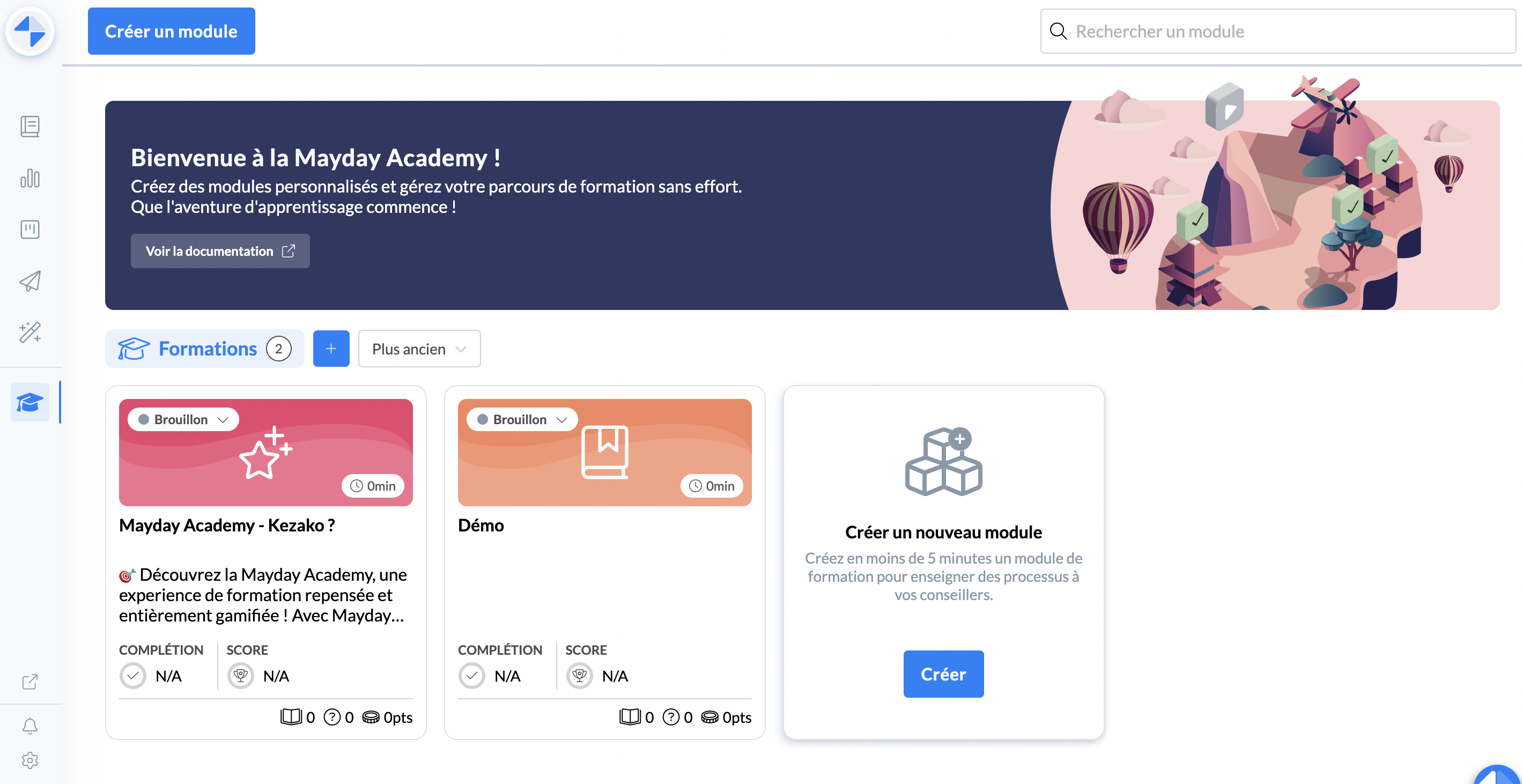
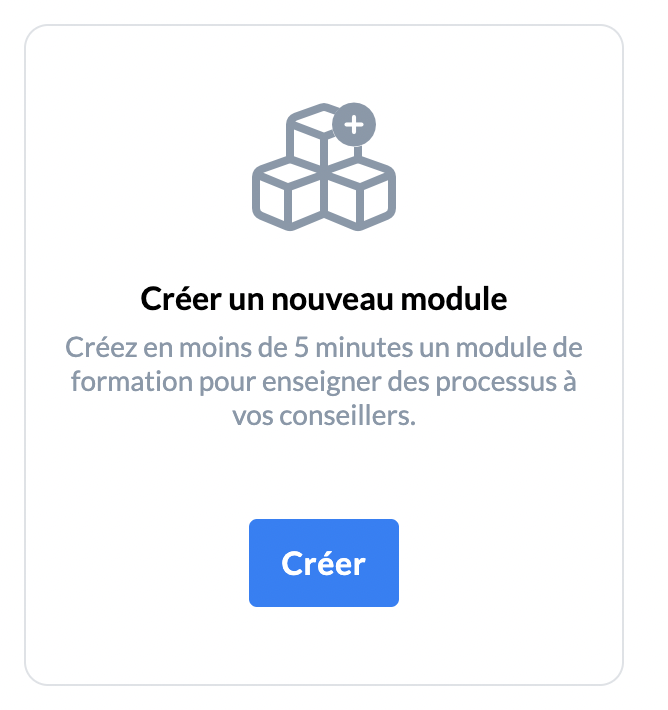
On the homepage, click on the button "Create a new module"
📸 Screenshot
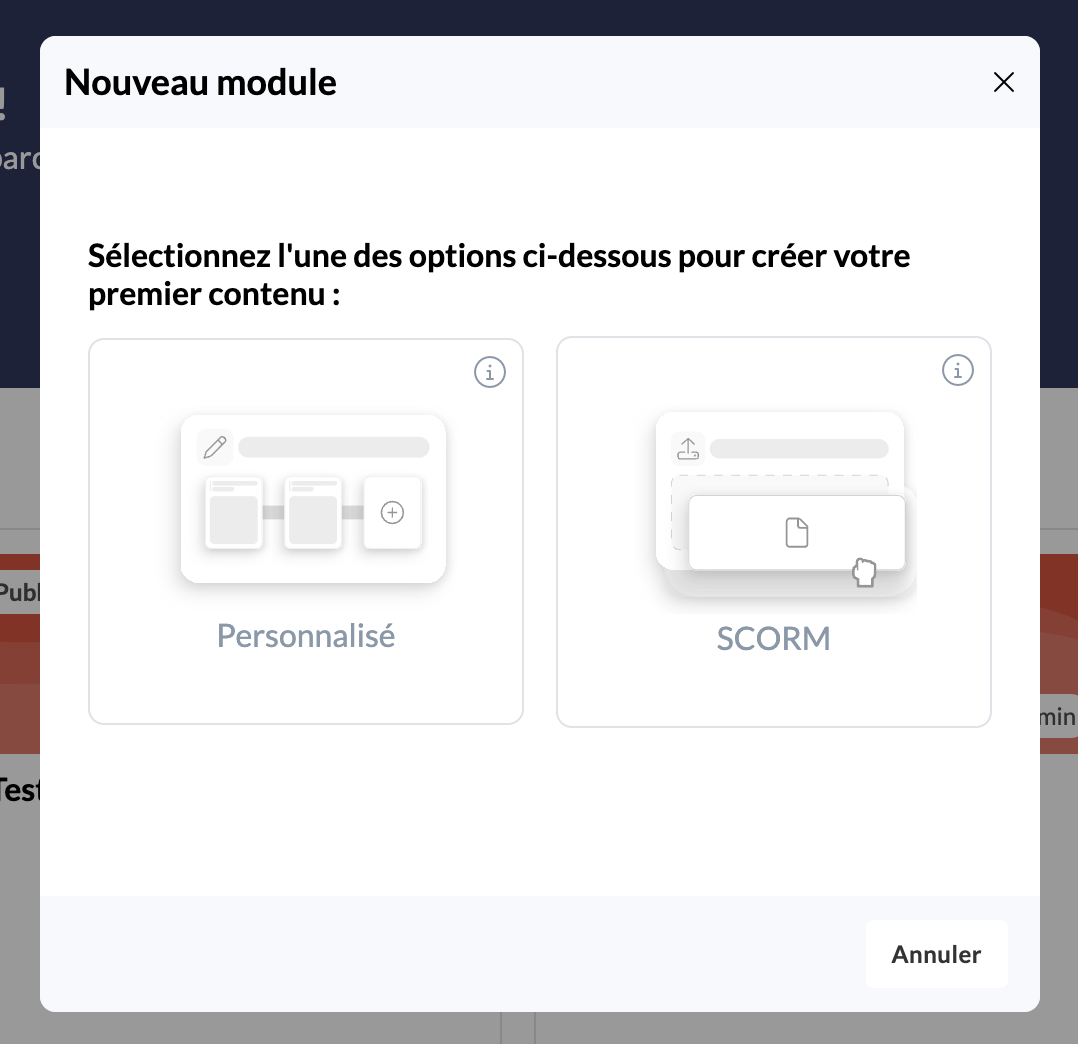
A modal appears, you will need to choose the "SCORM" option
📸 Screenshot
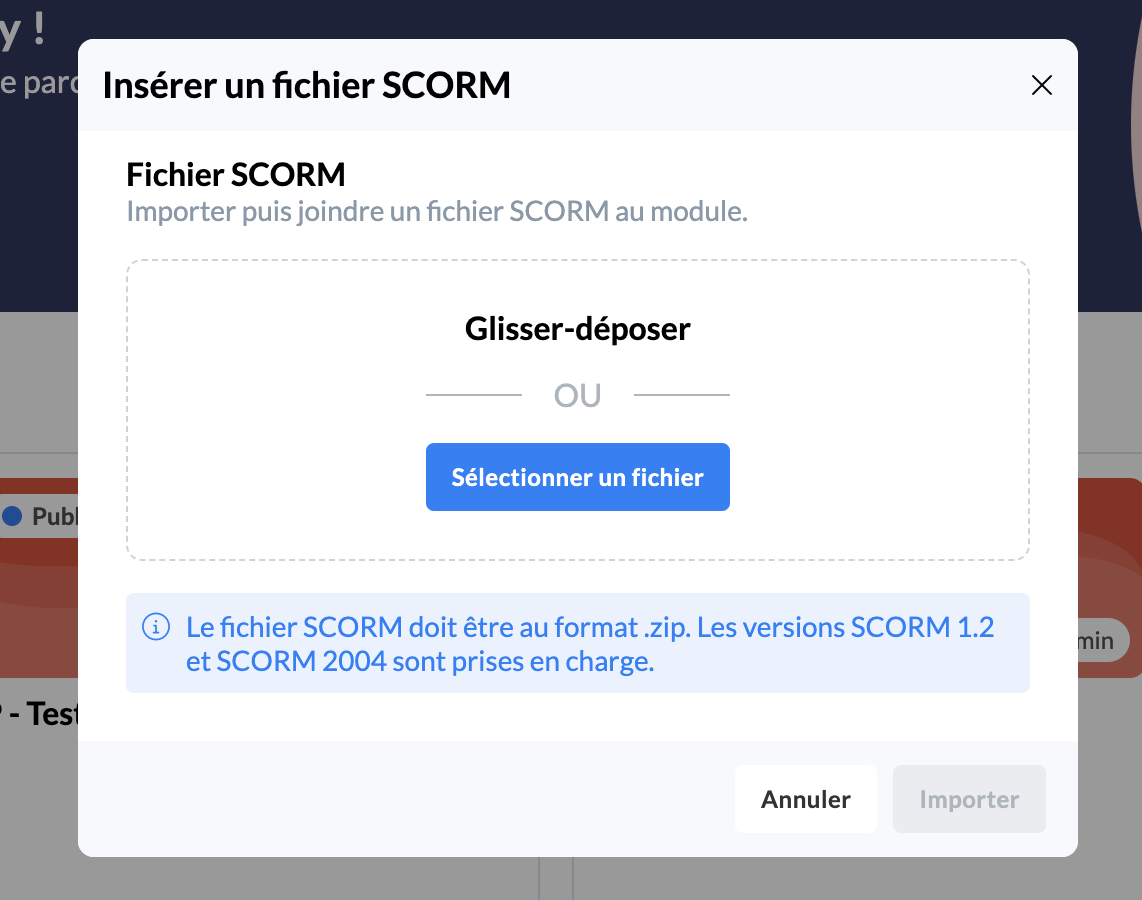
On the next page, select your SCORM file or drag and drop the file into the designated area.
- Supported SCORM files are in .zip format
- SCORM 1.2 and SCORM 2004 versions are accepted
📸 Screenshot
Once the file is submitted, click "import"
📸 Screenshot
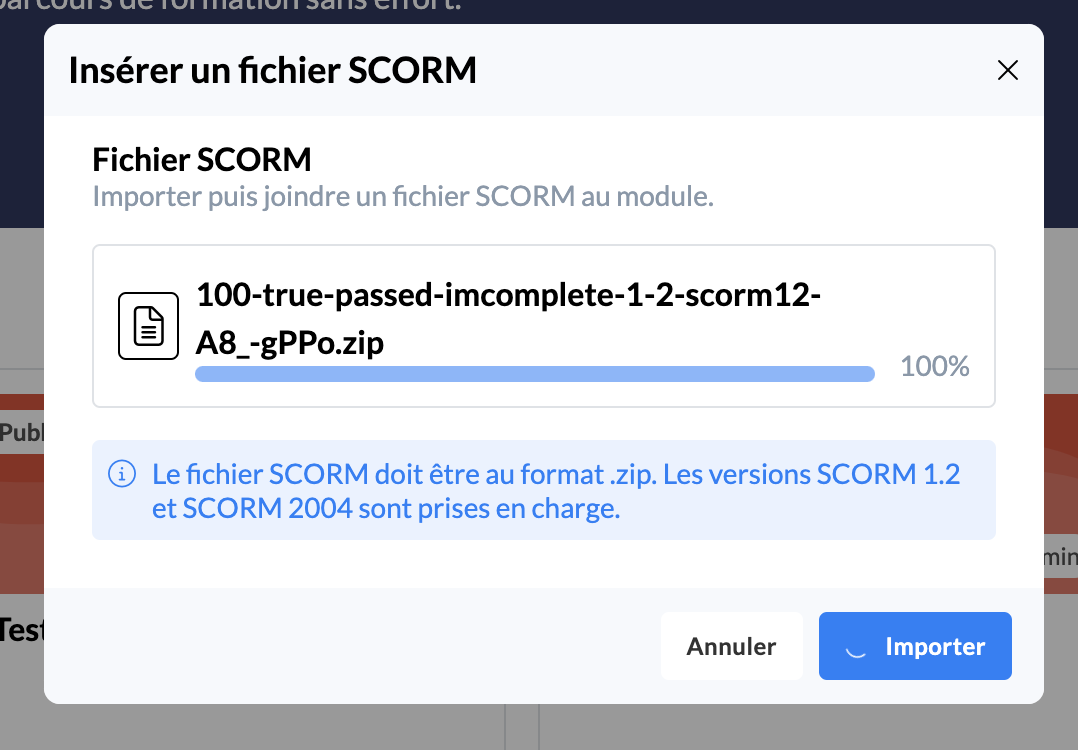
Your SCORM module is now created!
The key information: title, description, language, icon, and presentation image of the module are created automatically with the SCORM file information.
✍ How to configure a SCORM module?
1. The content of your SCORM module is accessible in the "SCORM Player" tab and you can view it.
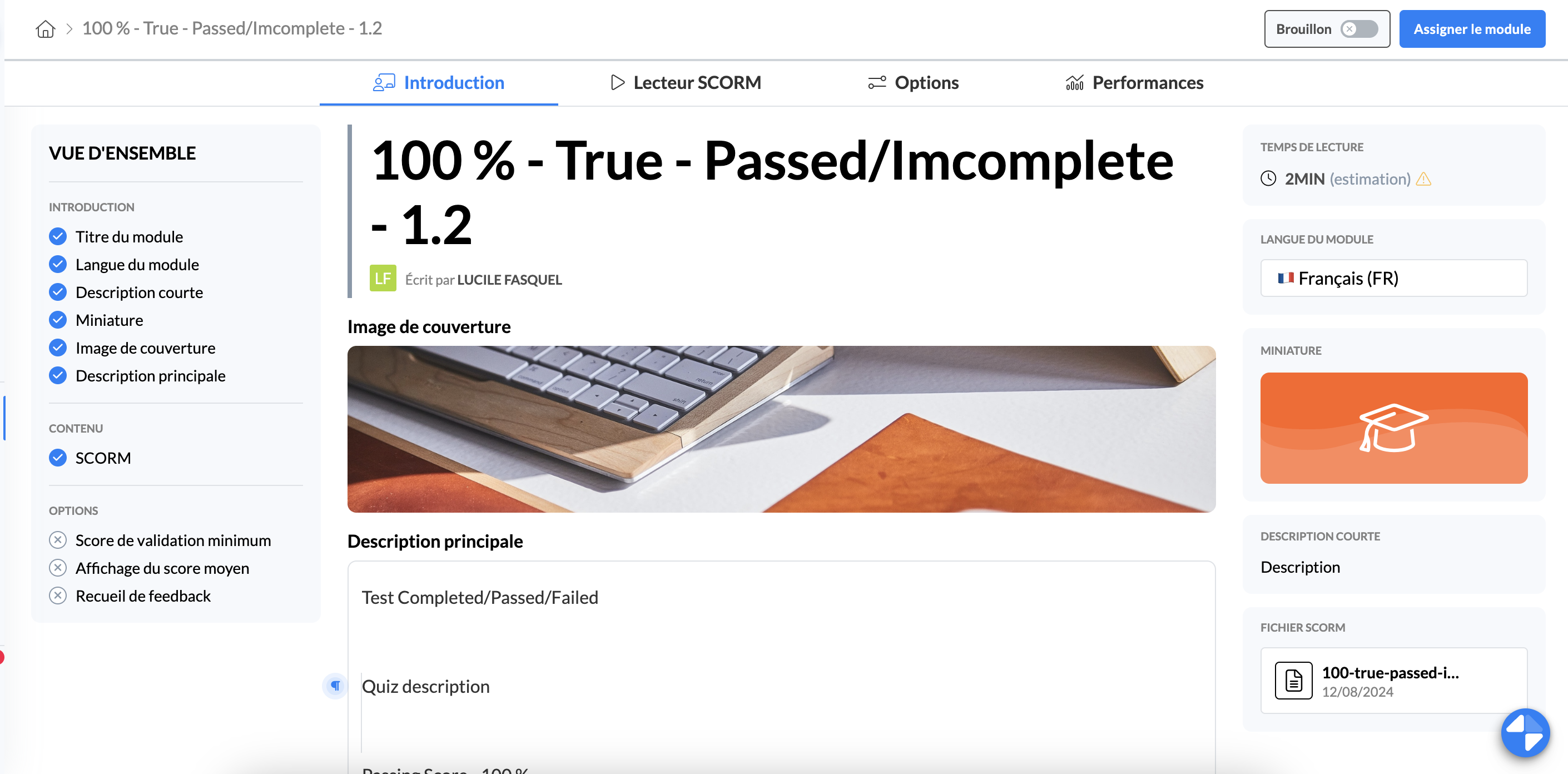
In the "Introduction" tab of your SCORM module, if desired, you can:
modify the information automatically imported
add those that are missing
Be sure to adjust the estimated reading time
Within the Options tab of the SCORM module, set:
The training labels associated with the module
Whether or not the average score is displayed on the learner's end page
The feedback collection
📸 Screenshot
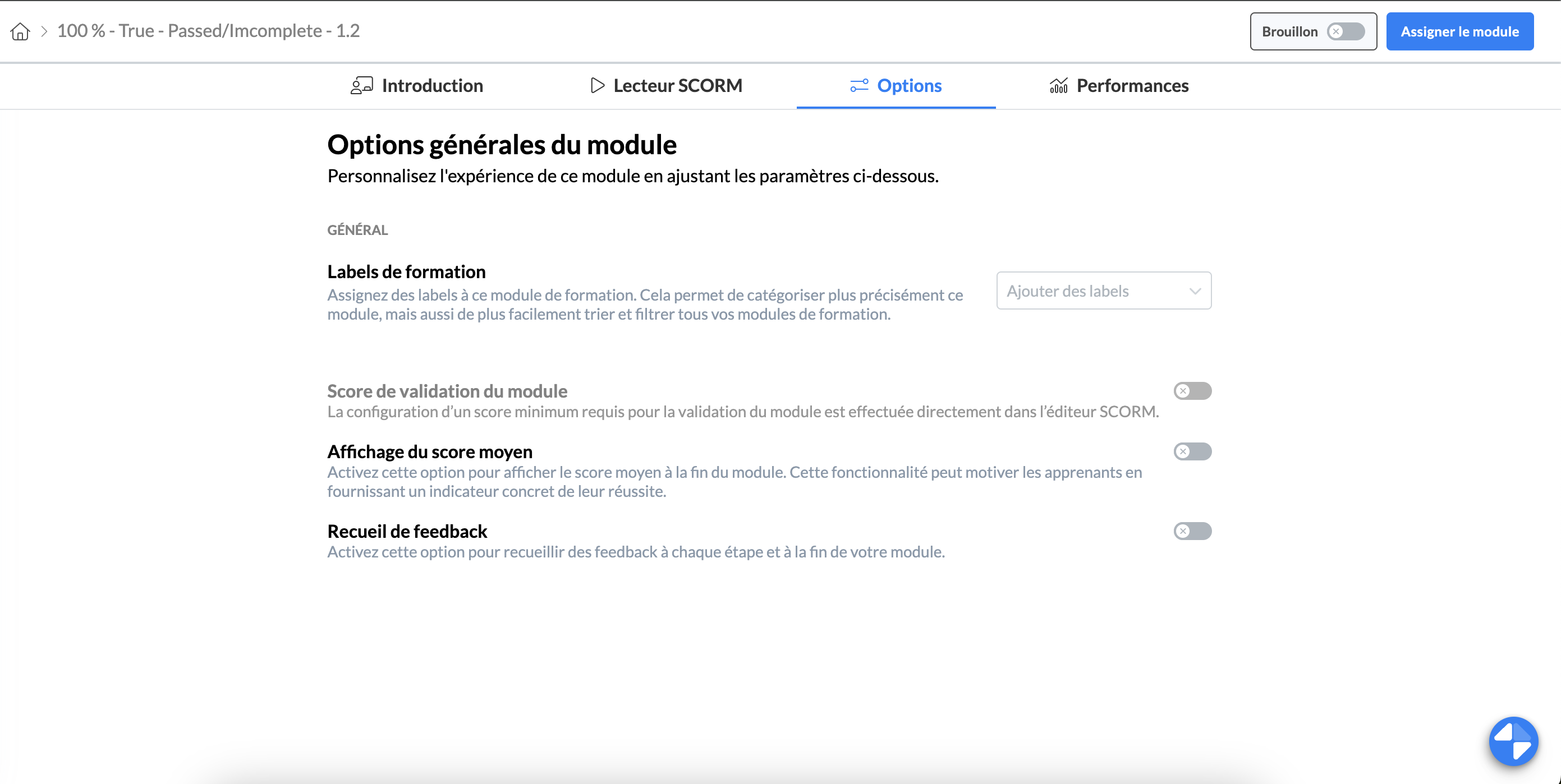
For SCORM modules, the validation score can only be set from the SCORM editor in the settings.
Assign your SCORM module as a custom module
Publish your SCORM module as a custom module
✍ How to modify the SCORM module file?
To modify the file imported into your SCORM module:
Click in the "SCORM File" box on the bottom right in the "Introduction" section
Delete the initial SCORM file
Import the new SCORM file
Click "save and publish" at the top so that the modification is accessible to learners
📸 Screenshot
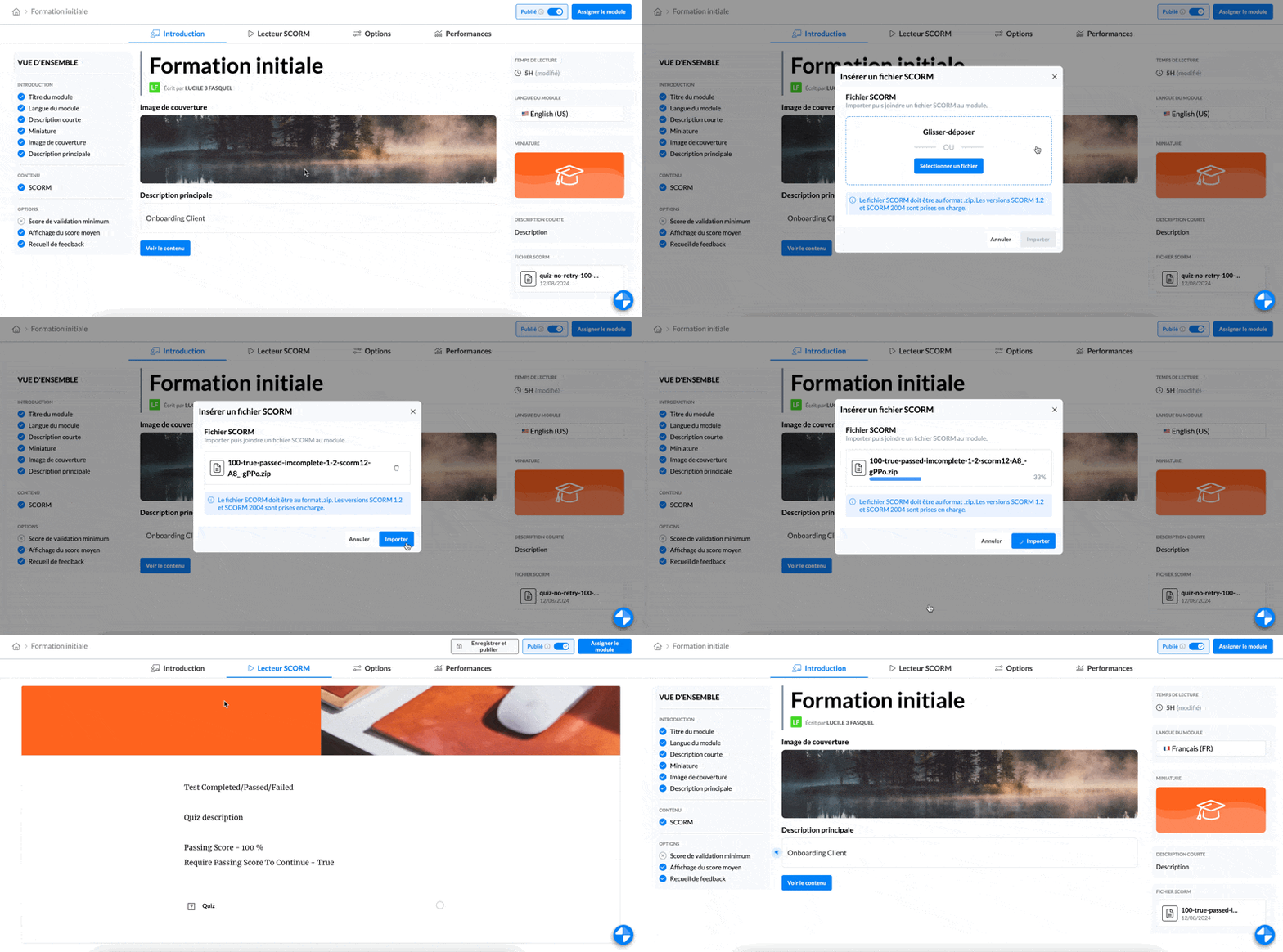
When a new SCORM file is uploaded in place of an old one, the information defined in the "Introduction" tab and the options configured for the old module are not modified.
✍ How to track the performance of a SCORM module?
As with custom modules, the performance of SCORM modules will be available in the "Performance" tab of the module and you can download them.
📸 Screenshot
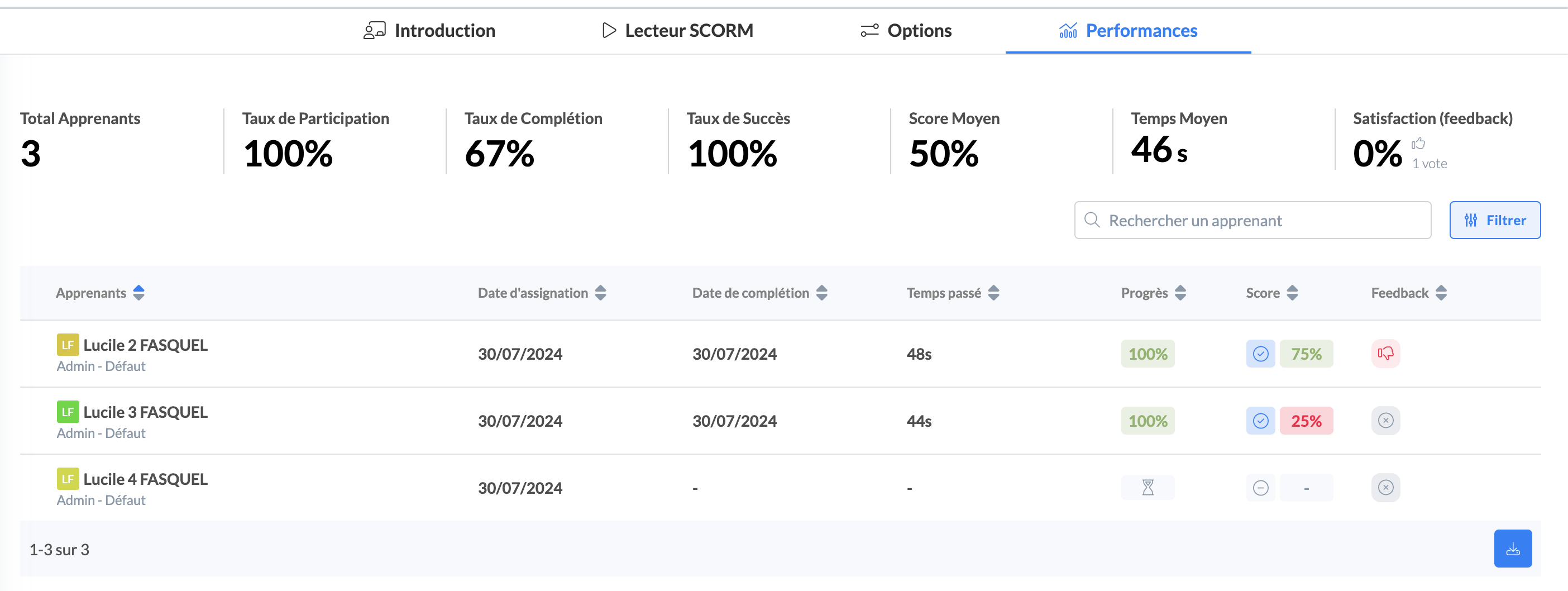
Unlike custom modules, the performance of the SCORM module does not go at the step level of the module but at the level of the entire SCORM module
Unlike custom modules, precise progress data for learners on a SCORM module are not accessible:
You can view an hourglass indicating it has started then the final score once completed but will not be able to view the ongoing progress score
The results obtained by your advisors and the analytics depend on the configuration done on the SCORM editor:
Via the tracking option:
based on Completion
based on Quiz Result
Via the success option:
passed / failed
completed / failed
completed / incomplete
passed / incomplete
Via the validation score option:
enabled or not
% defined if enabled
These options also define the module result page obtained by your counselors and whether or not their module is validated.