📕 Presentation
Discover in this content how to create a card in a module, in order to provide content to your learners.
Once your module is created and configured (see article ), you can start structuring the content of your module.
The first content of a module will certainly be a course card, whether to introduce the subject, or to start providing learning content on a sub-part of the subject.
The course card allows you to:
Create content and format it with many editing features available in Mayday
Add links to content (articles or guides) from your knowledge base, and encapsulate them so that learners can read them without leaving the course card
Insert any type of format (images, videos, pdf/ppt/word/excel documents, ...)
🆕 Create a card
Once your module is created, you will find different tabs concerning your module:
Introduction: which allows you to put the first description elements concerning your module (see content )
Content: which allows you to create and sequence the different contents that make up your module
Options: which allows you to configure the module options (see content )
Performance: which allows you to track statistics at the module level (see content )
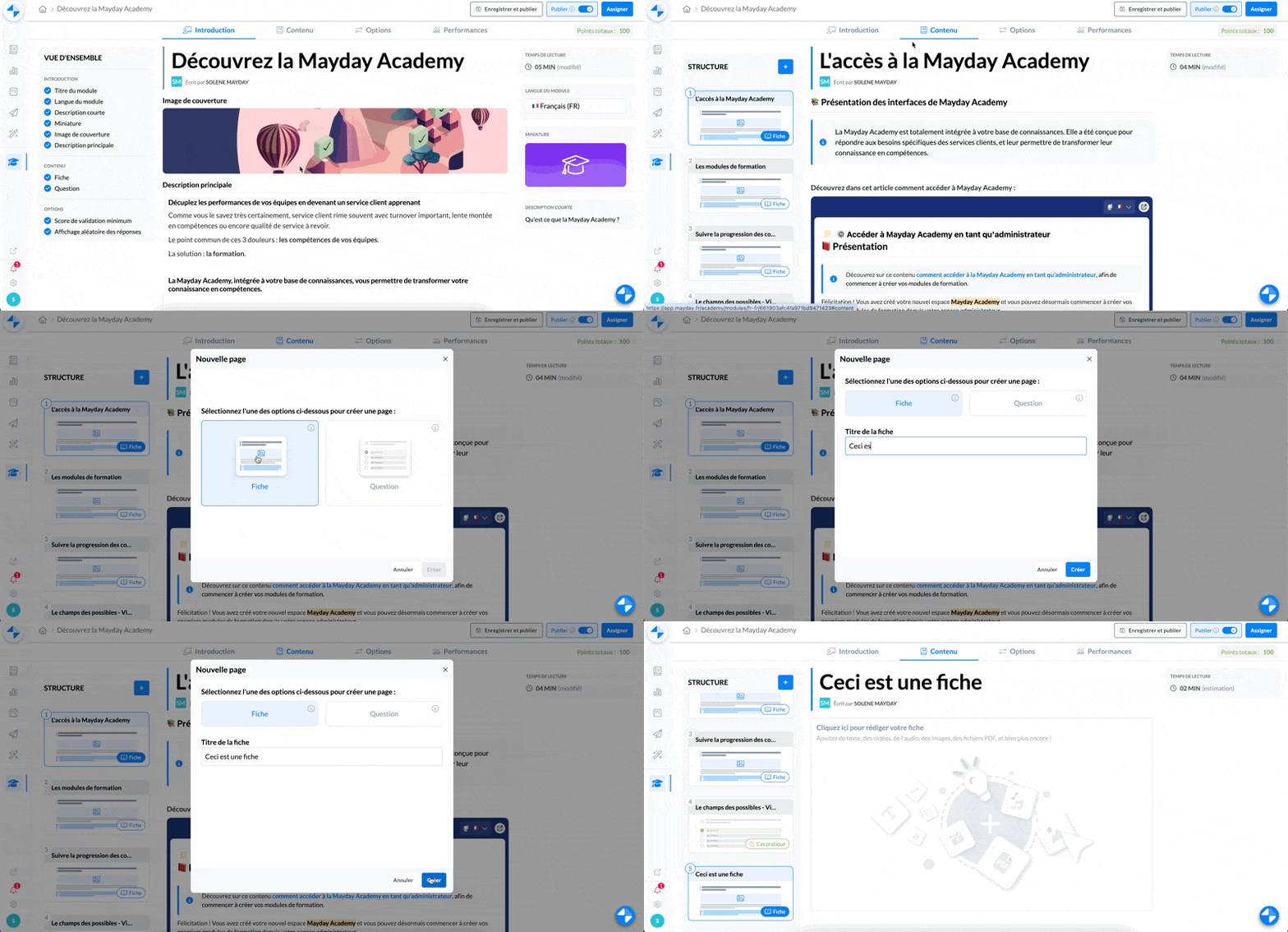
To create a card:
Go to the "content" tab
Click on the "+" in the drop-down menu of your different contents associated with the module on the left.
Type the title of the card (which will also appear on the advisor interface when reading the card)
Click on "create"
Your card is created! The content of your card that you can then edit is located in the center of your screen.
✍ Write a card
Editing features:
Content editing in Mayday is done via several editing features available using the "/" on your keyboard.
Discover all the editing features in this article:
Links to content from your knowledge base
If you already have a knowledge base, you have the possibility to put links to your existing content. This allows you to capitalize on existing content, and allows you to simplify the administration of your training content with a single source of truth.
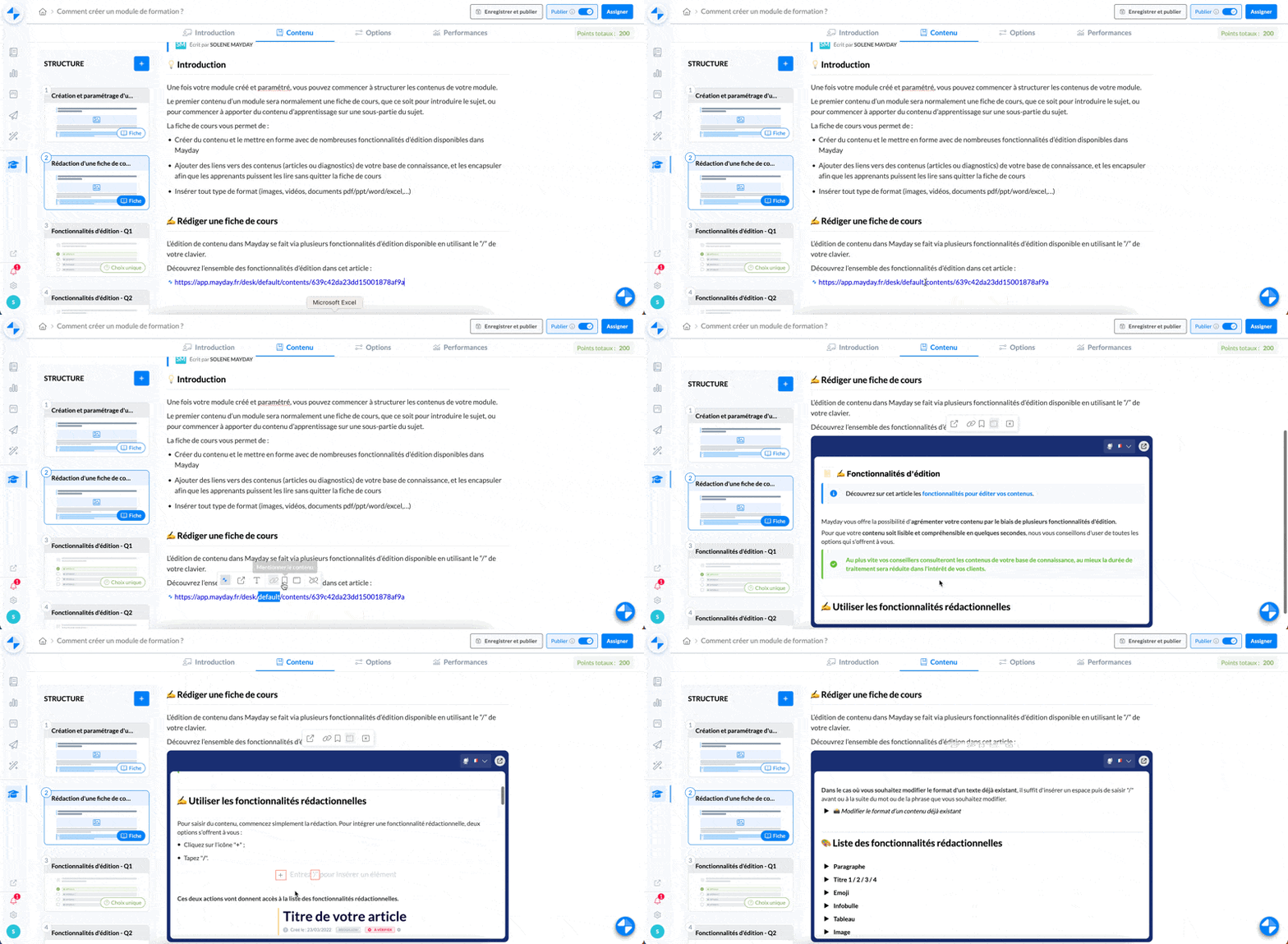
To add a link to an article or guide from your knowledge base:
Copy the URL link of the content concerned or use the "@" by selecting the right content
To facilitate reading, click on the added link, and click on "display in encapsulated form".
Thus, the content will be directly displayed in the card: the learner will therefore be able to read it without leaving his page. Moreover, if the content is modified in the knowledge base, the synchronization will be done in real time and the training cards will always be up to date.
When your module is published (see content ), as soon as you make changes to your content, don't forget to save and publish your changes so that they are taken into account and visible to advisors.