Once a new language has been added to your account, learn how to create multiple language versions of your existing content
⚒ Add a content version
From your admin interface, you can access versions of your content in the selected language.
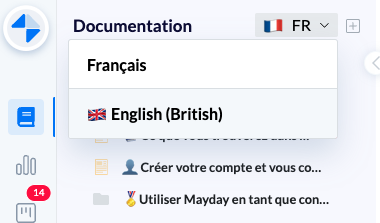
Content without a newly created language version is marked with the icon ⚠ next to its title
For the relevant content, click "create the En version"

This will automatically create the new version in the selected language, using the existing content in the original language.
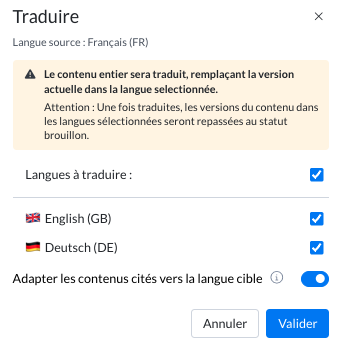
✨ You can use the auto-translation feature of Mayday AI to automatically translate your content.
Your content now has 2 language versions.
Content versions are independent: if a change is made to one version, it must also be made to the second version of the content.
However, with version synchronization, it is possible to sync changes across the different versions of the content:

You can also set instructions for different language versions of your knowledge base. To learn more, you can check out this content: