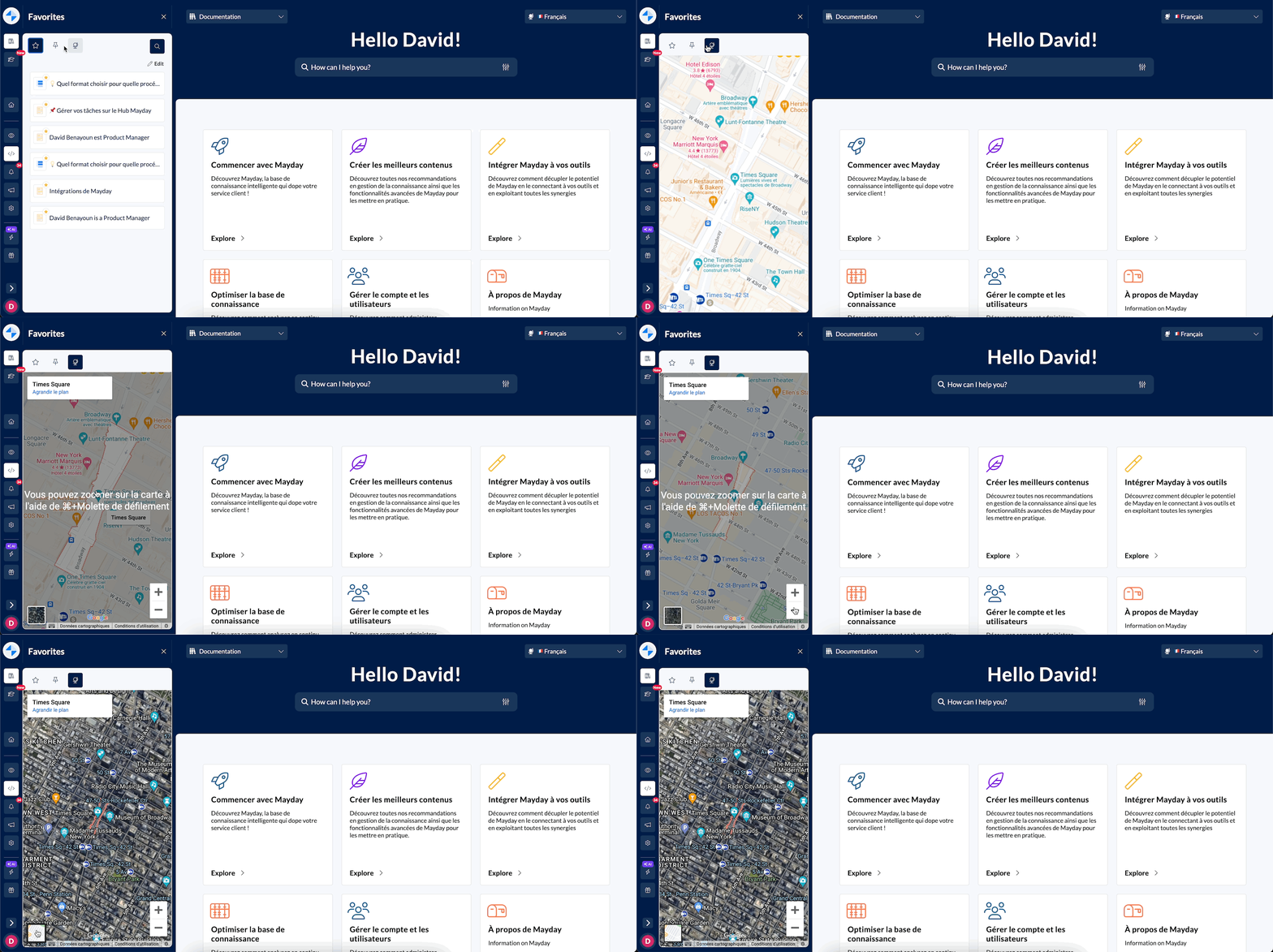
Discover on this content how to configure a custom plugin in your Mayday account.
🎯 Use cases
You can now integrate external content into your Mayday Desk interface using Iframes.
This feature allows you to present directly within your knowledge base:
important information
external tools
plugins
external services
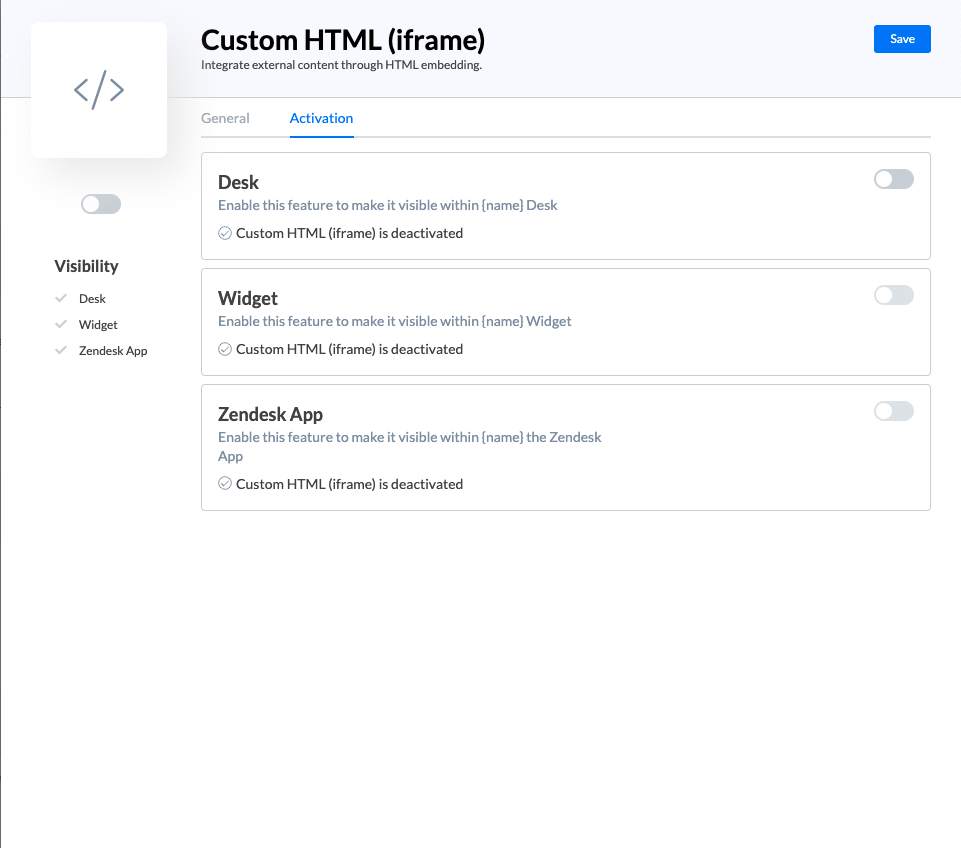
The Custom HTML plugin in only available on Mayday Desk for now.
⚒ Create a custom plugin
Feature activation:
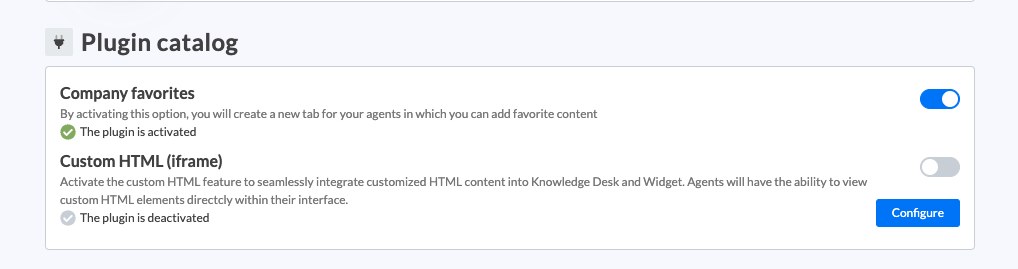
Navigate to the "Settings" of your Mayday account.
Inside the “Plugin Catalog” section, look for the "Custom HTML (iframe)" plugin and click on “configure”.
📸 View the creation of a custom plugin in the settings
Input Fields:
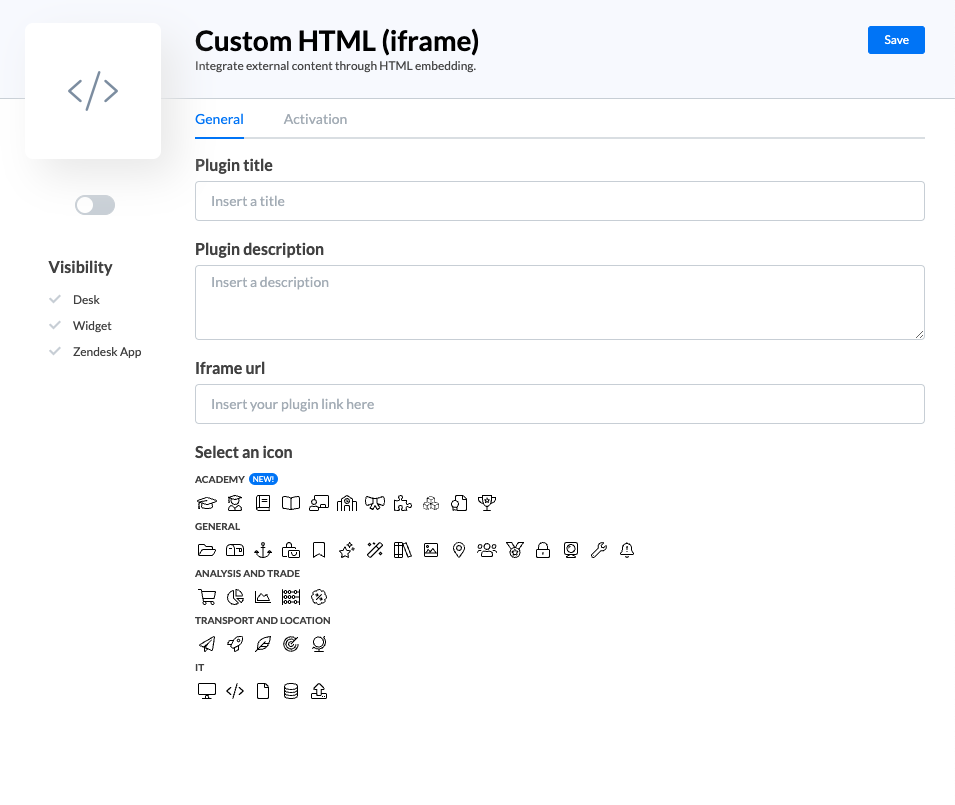
In the configuration slider, you will find the following input fields:
Title: Provide a title for the plugin tab in Mayday Desk.
Description: Briefly describe what the content is about.
Icon: Choose an icon for the plugin tab in Mayday Desk.
URL: Enter the URL that is specifically designed for embedding in iframes.
📸 View the configuration of a custom plugin
URL requirements:
Ensure that the URL you provide is intended for iframe embedding. This means it should be a direct link to the content you wish to embed and not a full HTML page or an iframe tag.
Examples of suitable iframe URLs:
Google Maps:
https://www.google.com/maps/embed?...YouTube Video:
https://www.youtube.com/embed/VIDEO_ID
Note that if you have an iframe tag that looks like the following: <iframe src="https://app.mayday.fr/desk/embed/default/contents/id"></iframe> you should only pass the link inside the “src” attribute.
Only URLs explicitly intended to be integrated into iframes will work in Mayday Desk.
Ensure that you have permission to embed the content from the respective service.
Configuration registration:
Once you have filled in all the required information, save your configuration settings.
Your embedded content will now be visible within your Mayday Desk interface.