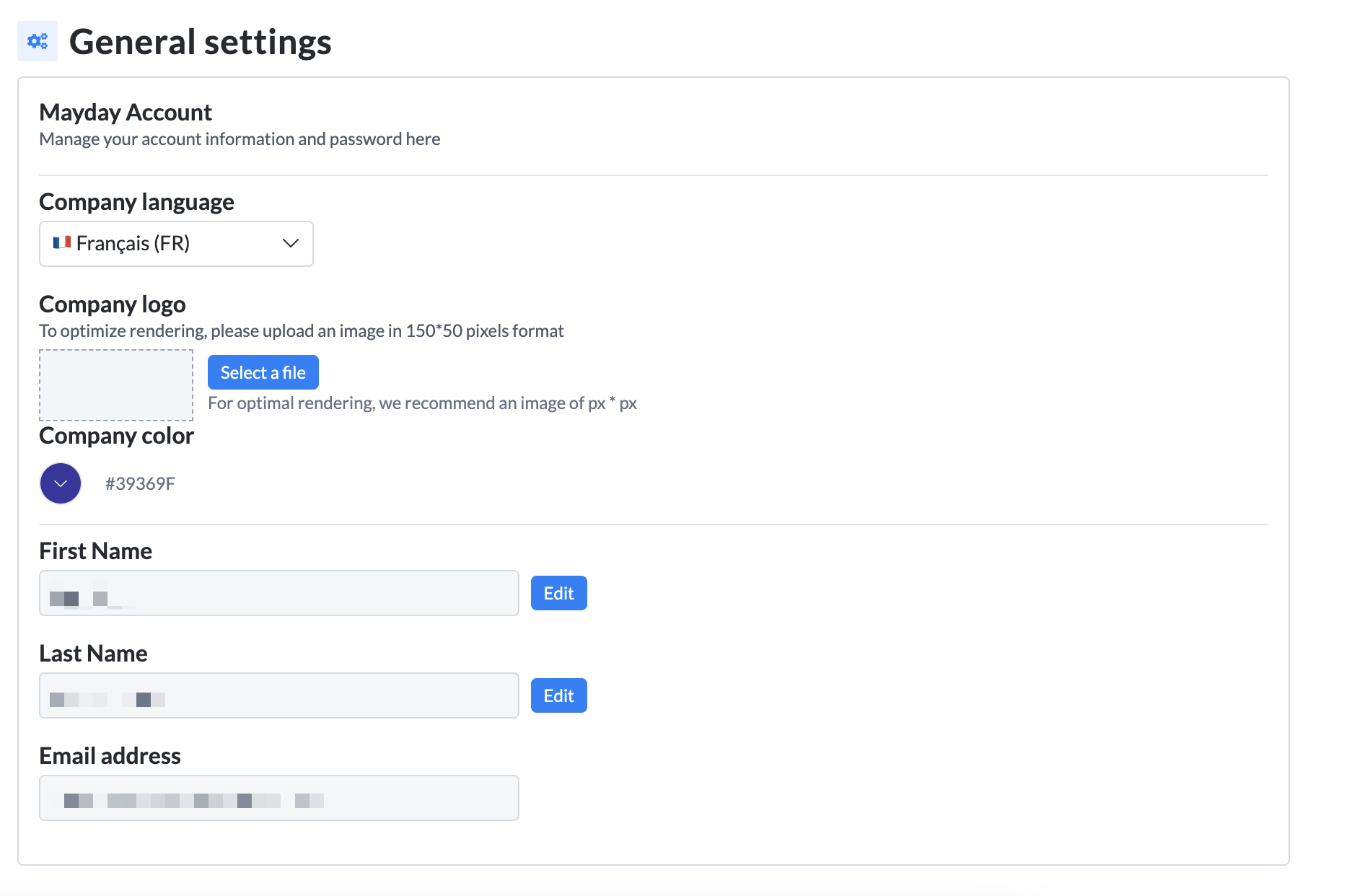
Discover on this content the parameters of your Mayday account.
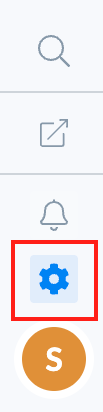
In your general menu, click on "Settings" at the bottom of the page to find all the parameters of your Mayday account.
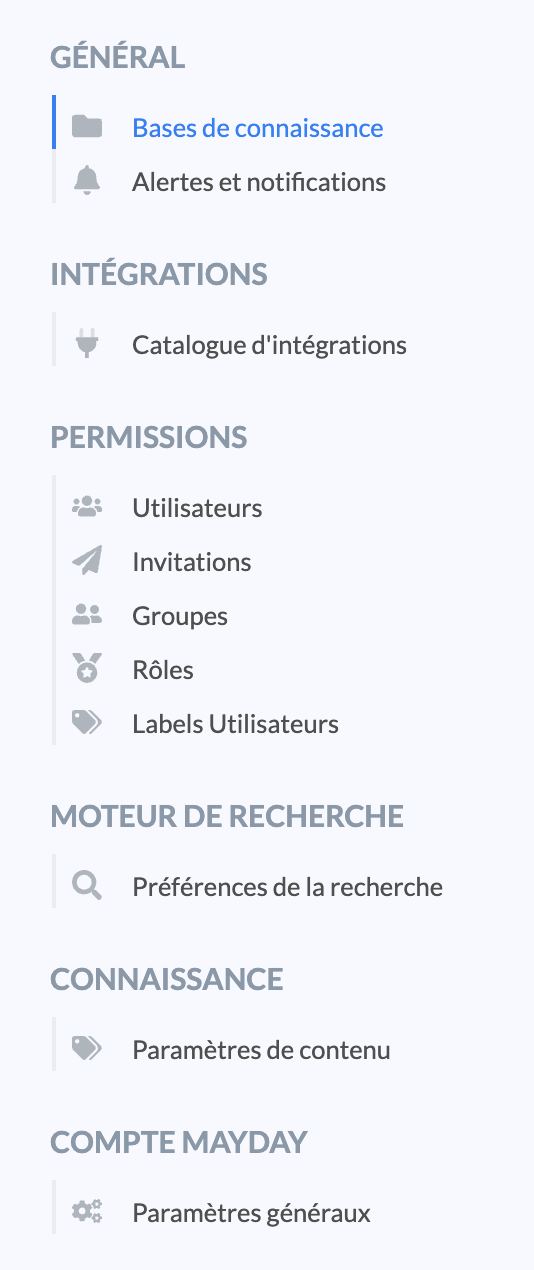
You will then have access to a menu allowing you to:
manage your knowledge base;
manage users;
configure your account.
📸 View access to settings
📸 View the settings menu
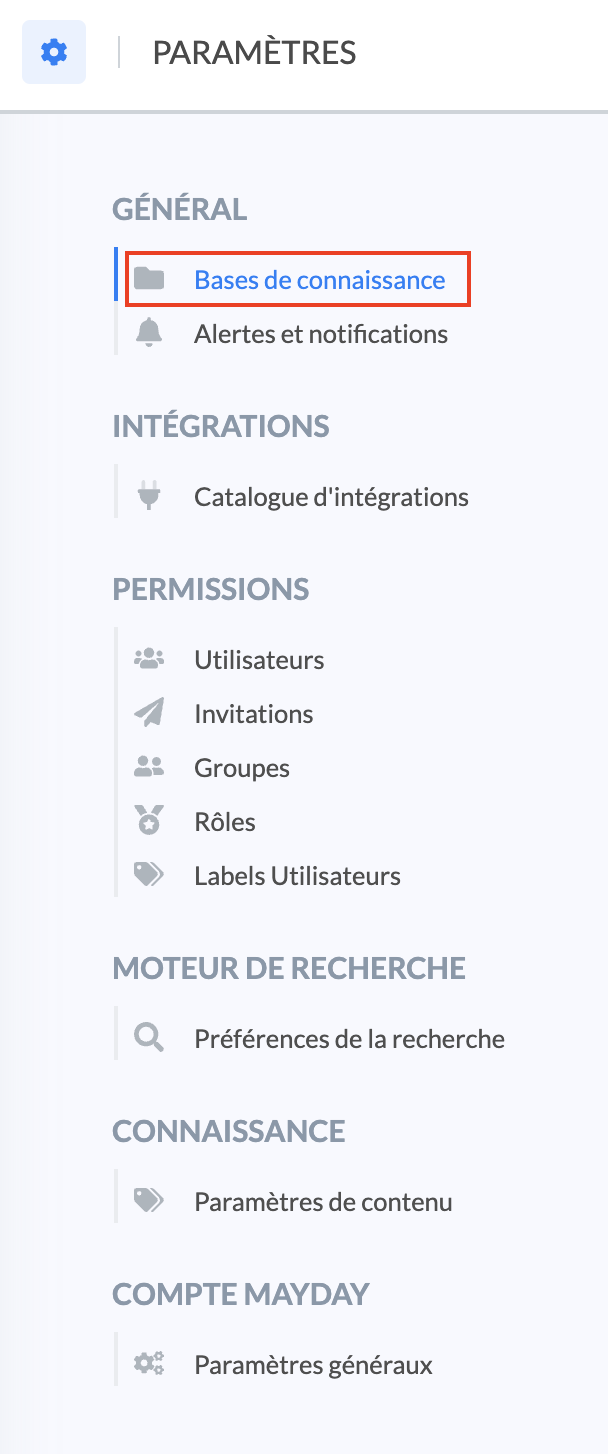
📐 “General” Section
The general settings allow you to:
Create and manage multiple knowledge bases (private and/or public);
👉 See the article for more information.
Set your notification and alert preferences on the obsolescence of your content.
👉 See the article for more information.
📸 View access to the “General” section
🔀 “Integrations” Section
This section gives you access to the catalog of integrations, allowing you to connect Mayday to your ticketing tool, but also to customize advisor interfaces (Mayday Widget and Mayday Desk).
👉 See the diagnostic for more information.
📸 View access to the “Integrations” section
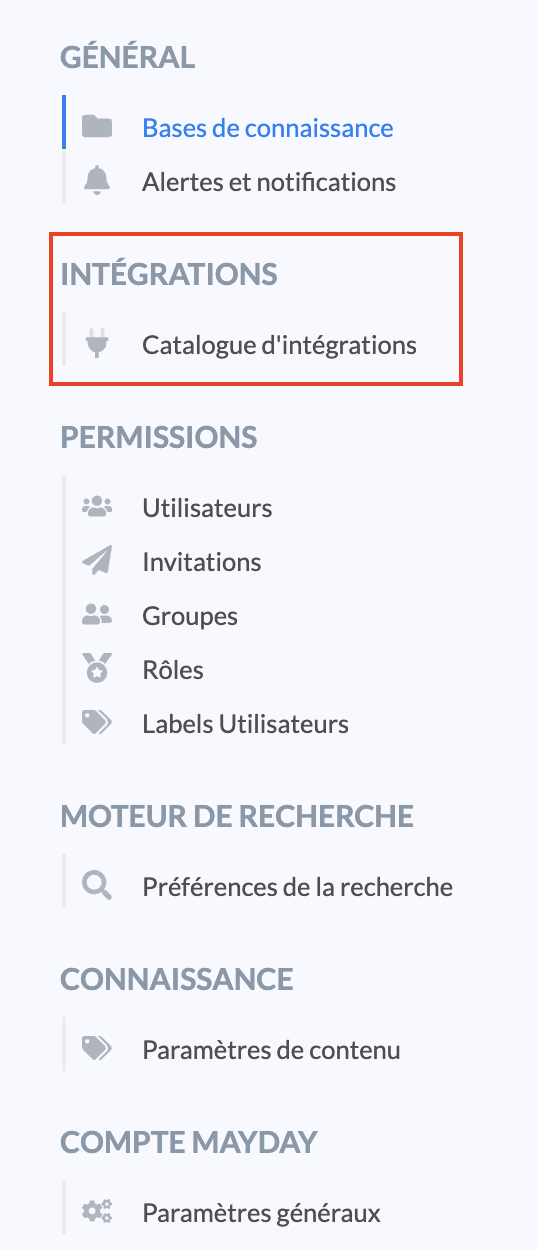
🔌 “Plugins” Section
This section gives you access to the plugin catalog and the possibility to configure them.
This option allows you to pin important content in your advisors' favorites tab, to give them one-click access to this content.
To take advantage of this feature, just activate the button.
You can then go to the content settings of your choice to pin it on the advisor side!
📸 View access to the “Plugins” section
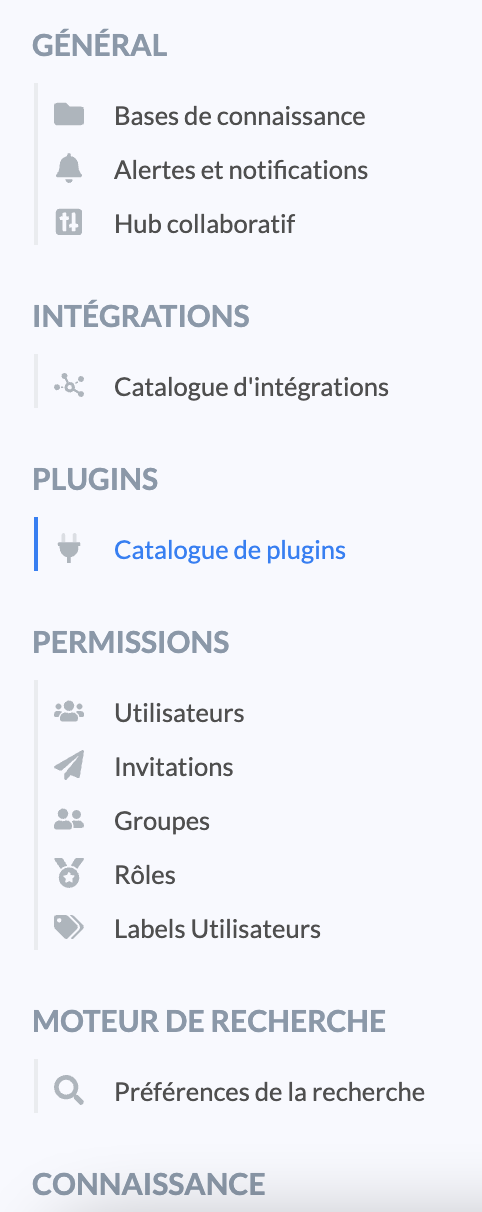
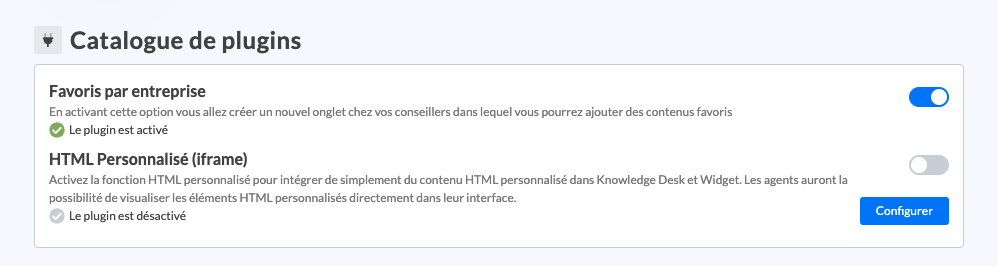
You can also add a new custom plugin on Mayday Desk, to help your users in their daily tasks.
Simply activate the "Custom HTML (iframe)" in the plugin catalog, and configure it.
📸 View the creation of a custom plugin in the settings
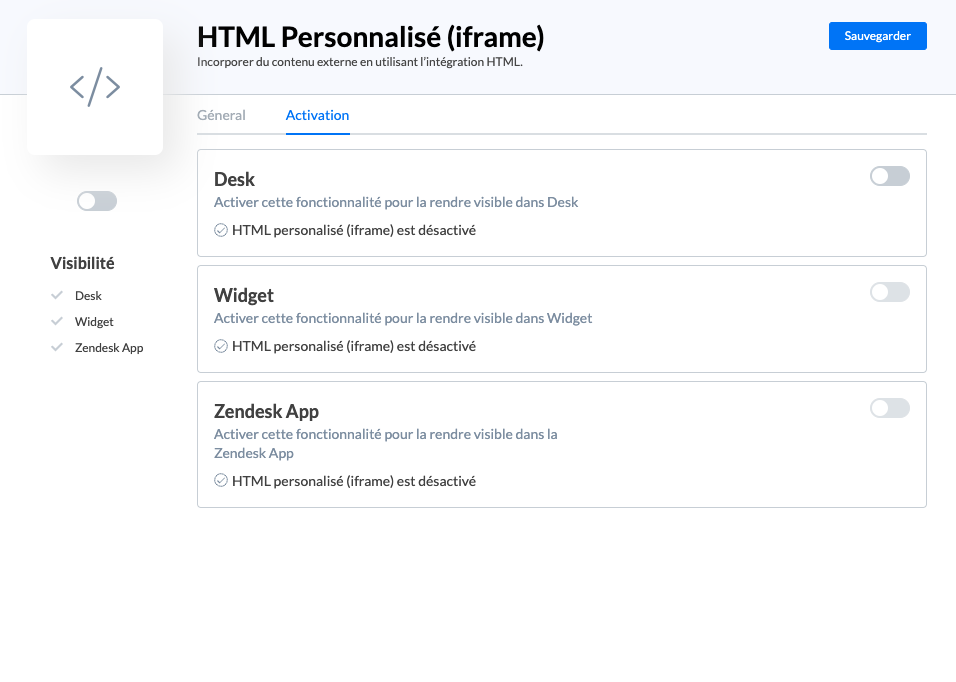
Once activated and configured, your users will see your new custom plugin appear in Mayday Desk!
📸 Example of a custom plugin
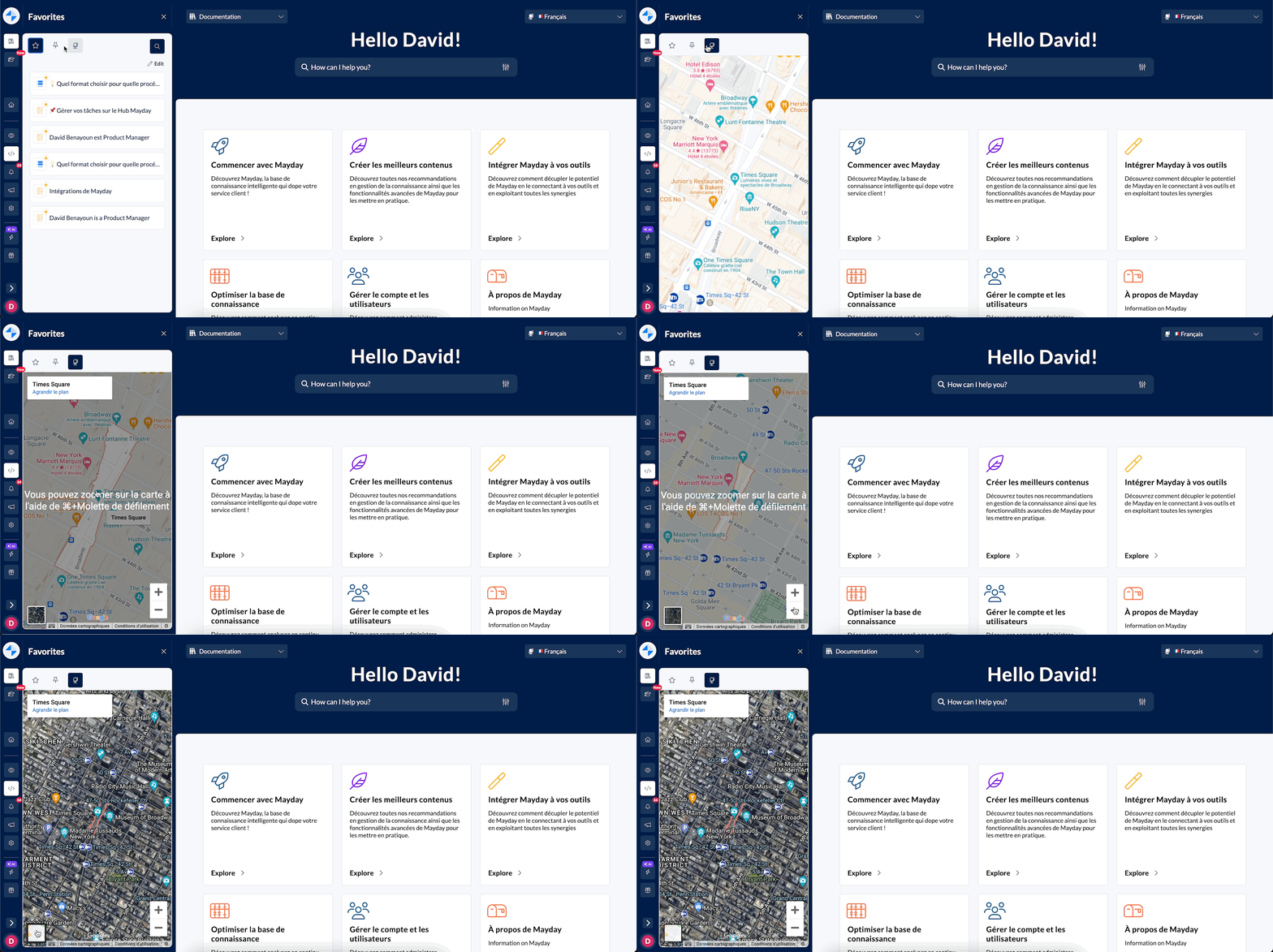
To learn more about creating a custom plugin, you can see the article
🚦 “Permissions” Section
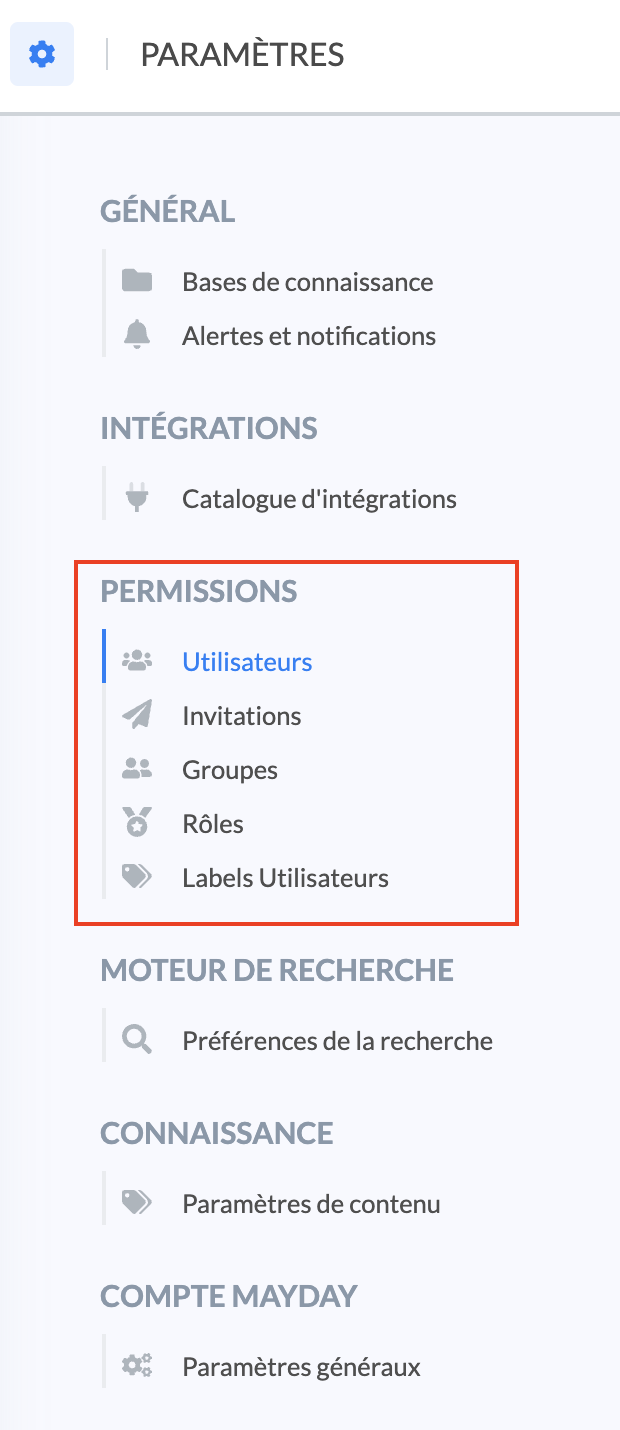
This section allows you to manage users and their permissions, through the following attributes:
inviting new users;
groups and the scope of access to knowledge bases and content;
roles and the scope of access to functionalities;
user labels.
👉 See the following articles for more information:
📸 View access to the “Permissions” section
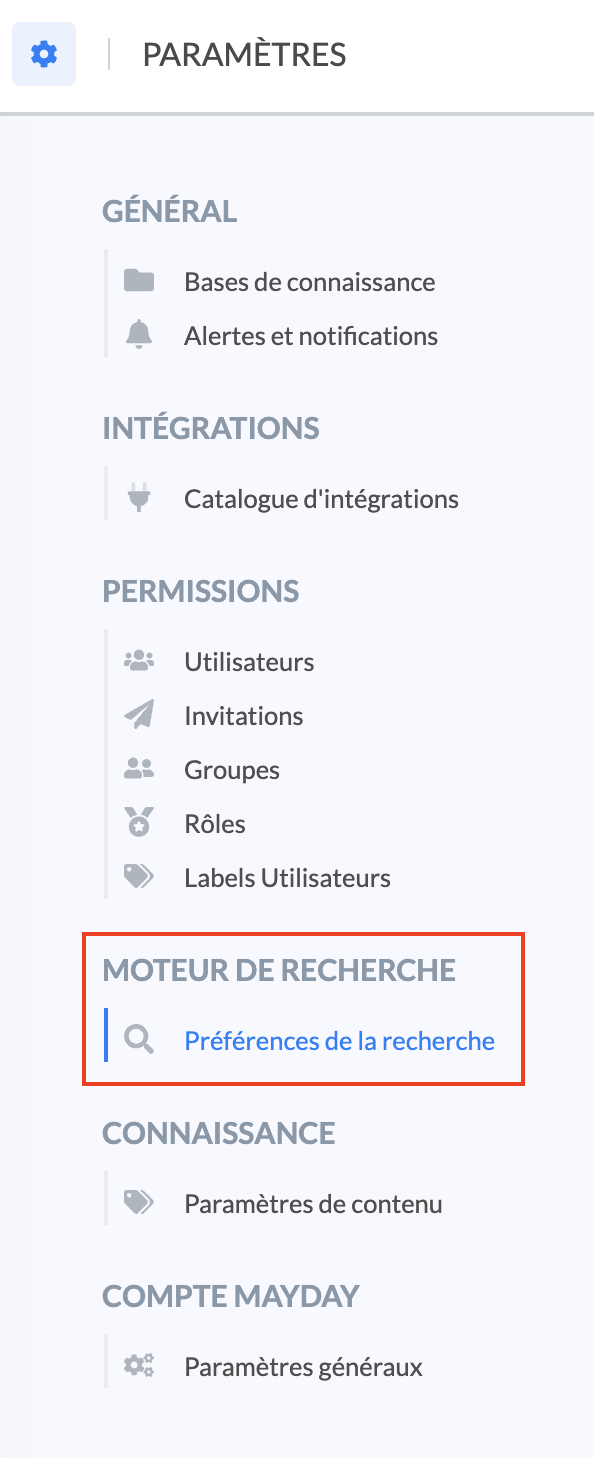
🔍 “Search Engine” Section
This section allows you to:
configure synonyms for your search engine, in order to optimize the matching of terms in your content and those typed by your advisors in their search bar!
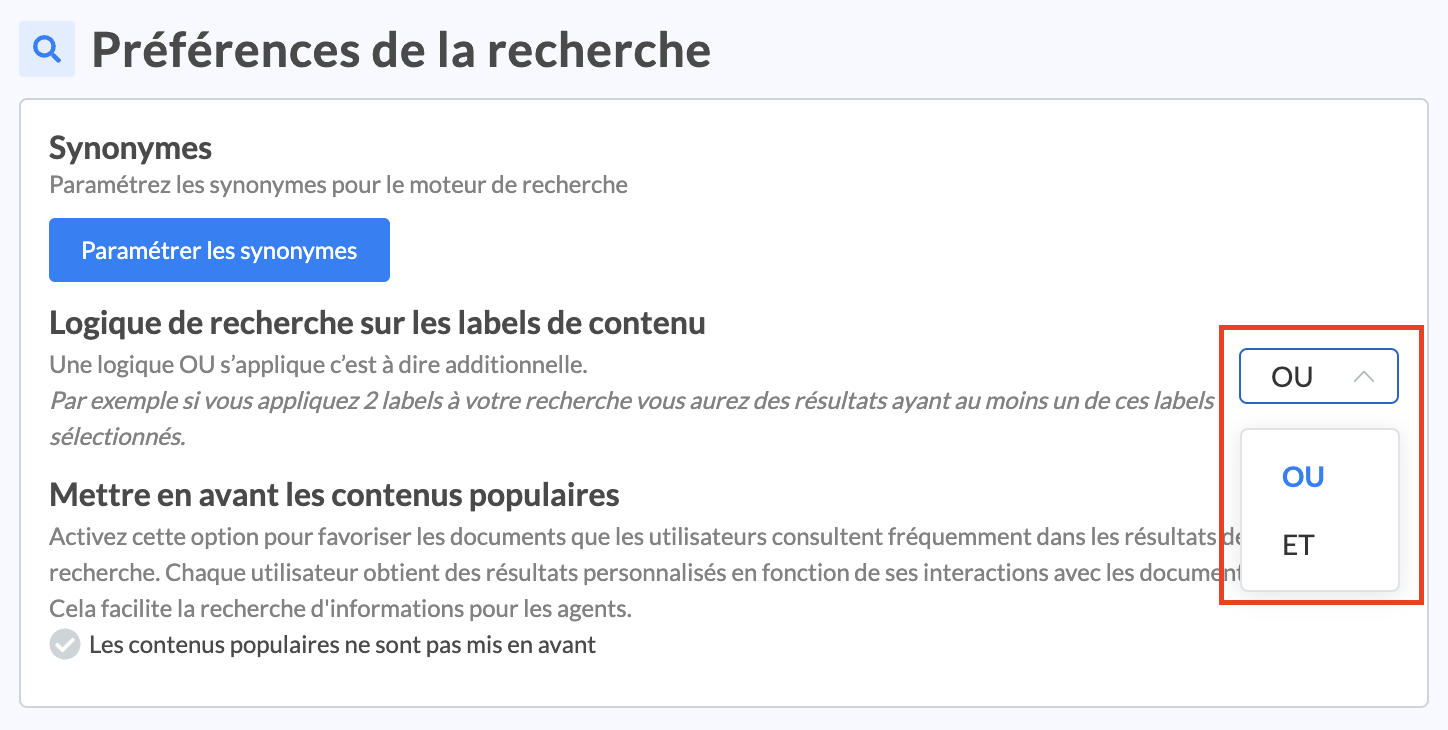
choose a search logic on the content labels between an “OR” or “AND” format when your advisors choose multiple content labels, by clicking on the dropdown menu. By default, the search logic on content labels is “OR”.
“OR” logic: if a user chooses two or more labels, the displayed content will have at least one of the selected labels;
“AND” logic: if a user chooses two or more labels, the displayed content will have all the selected labels.
📸 View how to modify the search logic of your labels
to highlight popular content, so that each user gets personalized results based on their interactions with the content (the content they view the most appearing first).
See the following articles for more information:
📸 View access to the “Search Engine” section
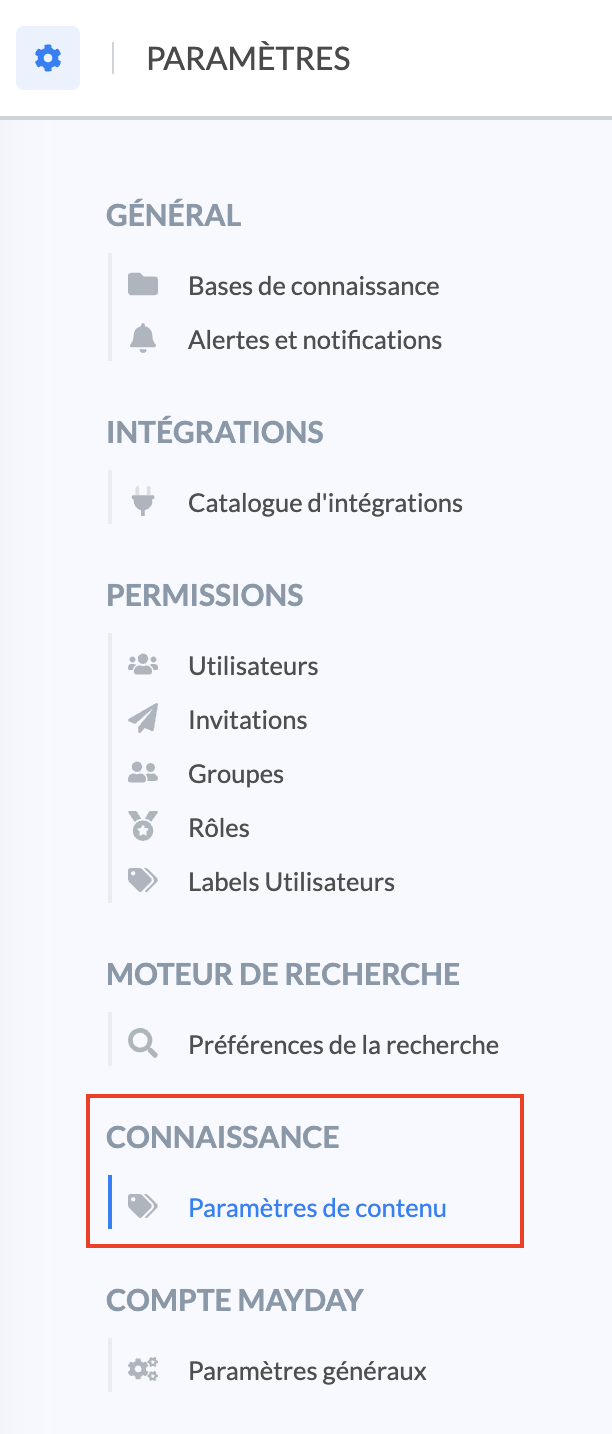
📚 “Knowledge” Section
This section allows you to configure content labels, to allow advisors to filter the search engine and narrow down the number of results offered.
See the article for more information.
📸 View access to the “Knowledge” section
👤 “Mayday Account” Section
This section allows you to set the preferences and information of your Mayday account:
Company interface language;
This will be the default language for all your users on Mayday.
If a user changes their language in their preferences, their choice will take priority. Otherwise, the language set here will be applied.
For more information on how an agent can change their language, please read this article:
New users will receive their invitation email and see the interface in this language by default.
Emails will be sent in the user’s selected language if they have changed it. Otherwise, they will be sent in the company’s default language.
The available languages are French 🇫🇷 and English 🇺🇲🇬🇧.
Company logo;
Interface color;
Your username;
Your email address;
Your function;
Your password.