📕 Presentation
The multiple choice question allows learners to choose several correct answers from the options.
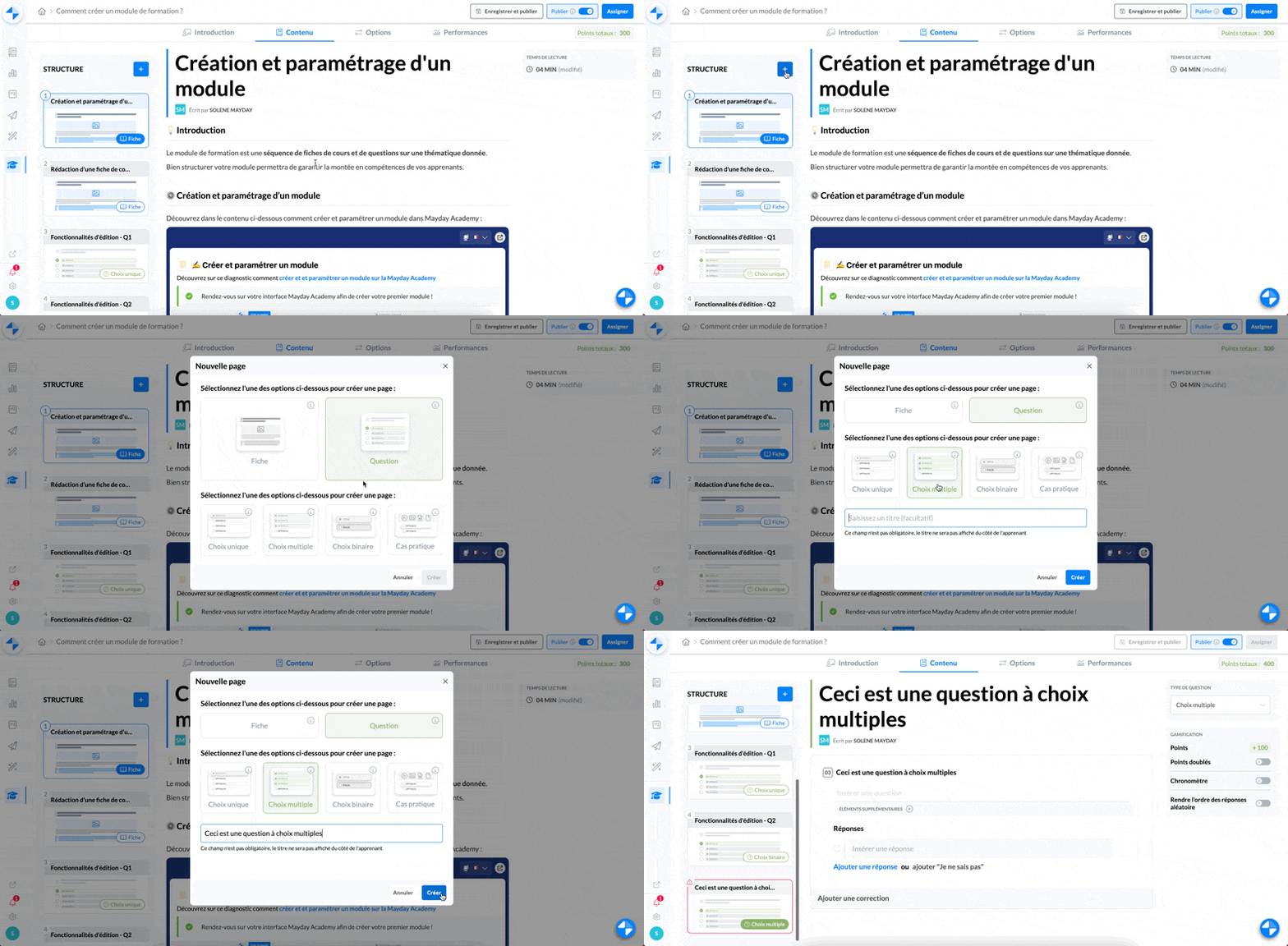
⚙ How to create a multiple choice question
Select the multiple choice question
Type the title of your question
Click on "Create"
Your multiple choice question is created.
📸 View the creation of a multiple choice question
✍ How to write a multiple choice question
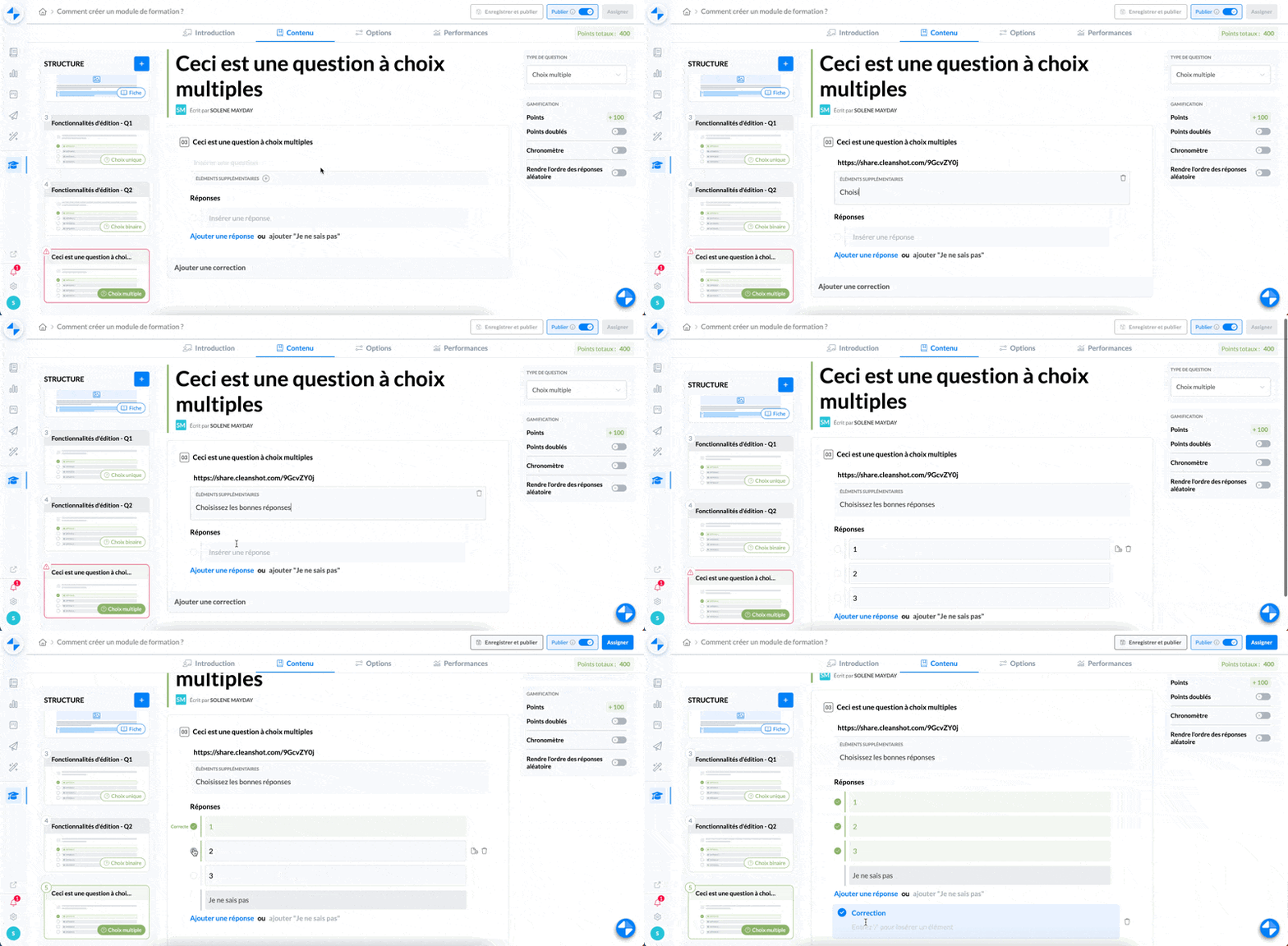
Once your question is created and inserted into your module, you need to write its content:
Type the desired question
If necessary, you can add additional information
Add the answer options (you can also add an "I don't know" option)
Select the correct answers
Add a correction if necessary, which will be displayed after the learner validates their choice
📸 View the writing of a multiple choice question
⚙ Set the options
You have the possibility to set the options of a multiple choice question, in the right-hand panel of your question.
📸 View the options of a multiple choice question
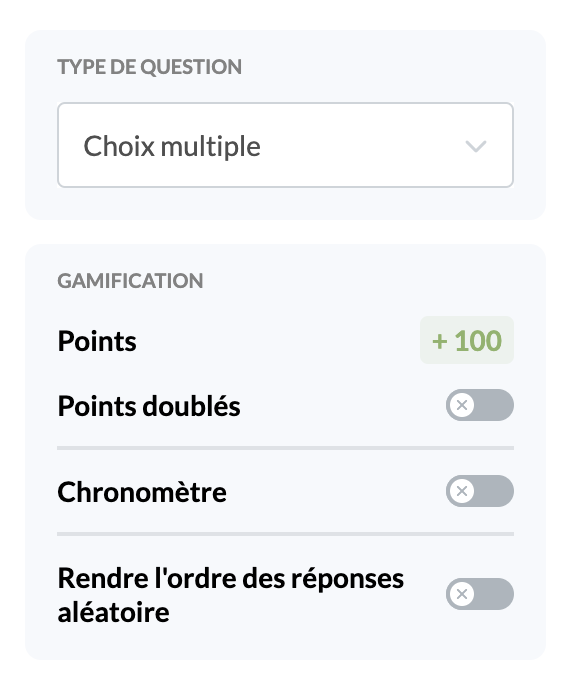
You have the possibility to:
Convert the question to a single choice question
Double the points earned for a correct answer to the question
Set a timer that will start when learners open the question
Make the order of the proposed answers random