📕 Presentation
The practical case allows learners to choose one or more correct answer(s) among several proposals, based on a case that you present (from an image, a video, or any other type of format).
⚙ How to create a practical case
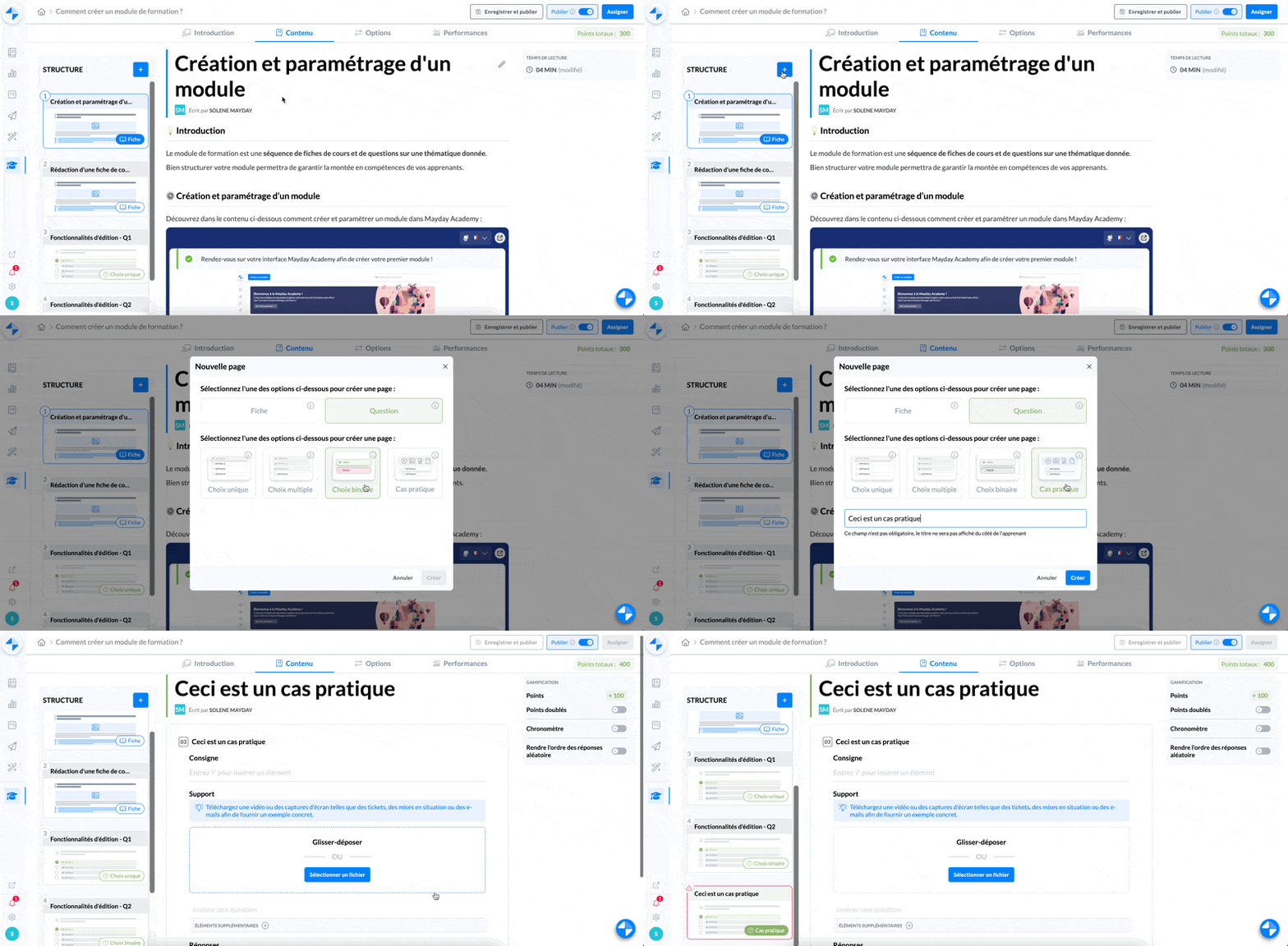
Select the "practical case" question type
Type the title of your practical case
Click on "Create"
Your practical case is created.
📸 View the creation of a practical case
✍ How to write a practical case
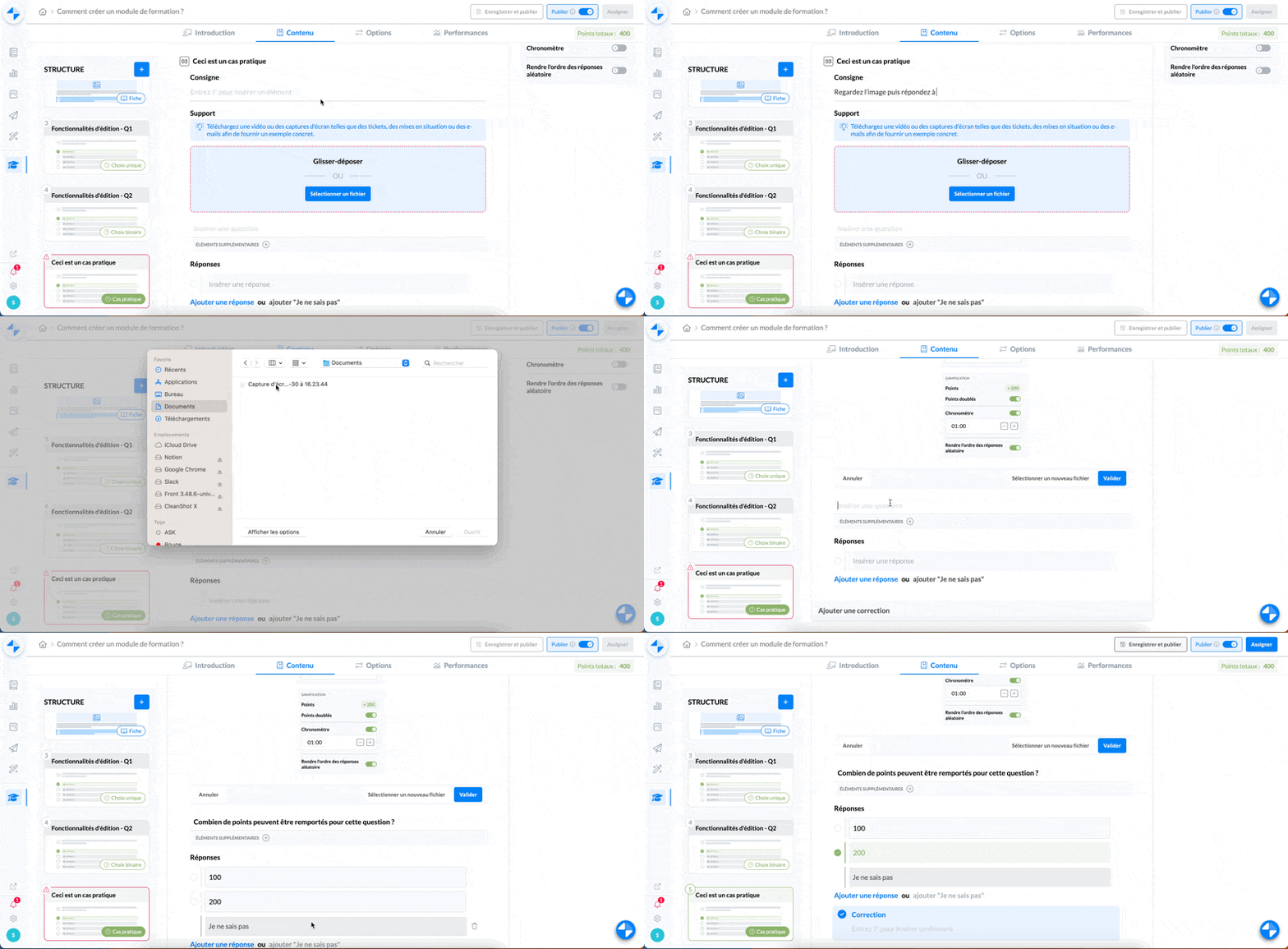
Once your practical case is created and inserted into your module, you need to write its content:
Type the instructions
Insert the support for your practical case (video, image, screenshot of ticket or email, ...)
Type the question associated with the support
Add additional elements to the question if necessary
Add the answer proposals (you can also add a "I don't know" proposal)
Select the correct answer(s)
Add a correction if necessary, which will be displayed after the learner's validated choice
📸 View the writing of a practical case
⚙ Set the options
You have the possibility to set the options of a practical case, in the right-hand box of your question.
📸 View the options of a practical case
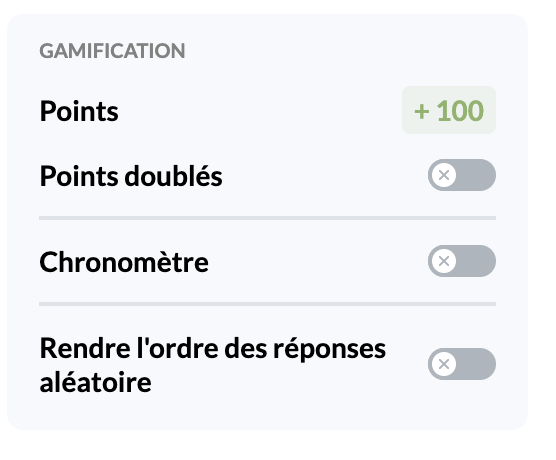
You have the possibility to:
Double the points earned for a correct answer to the question
Set a timer that will start when learners open the question
Make the order of proposed answers random