This article focuses on the specifics related to the connection of an existing public AI agent to a public knowledge base.
To discover all the steps to create public AI agents on Mayday, we recommend you to consult this article before proceeding:
Connect your personalized public AI agent to a knowledge base
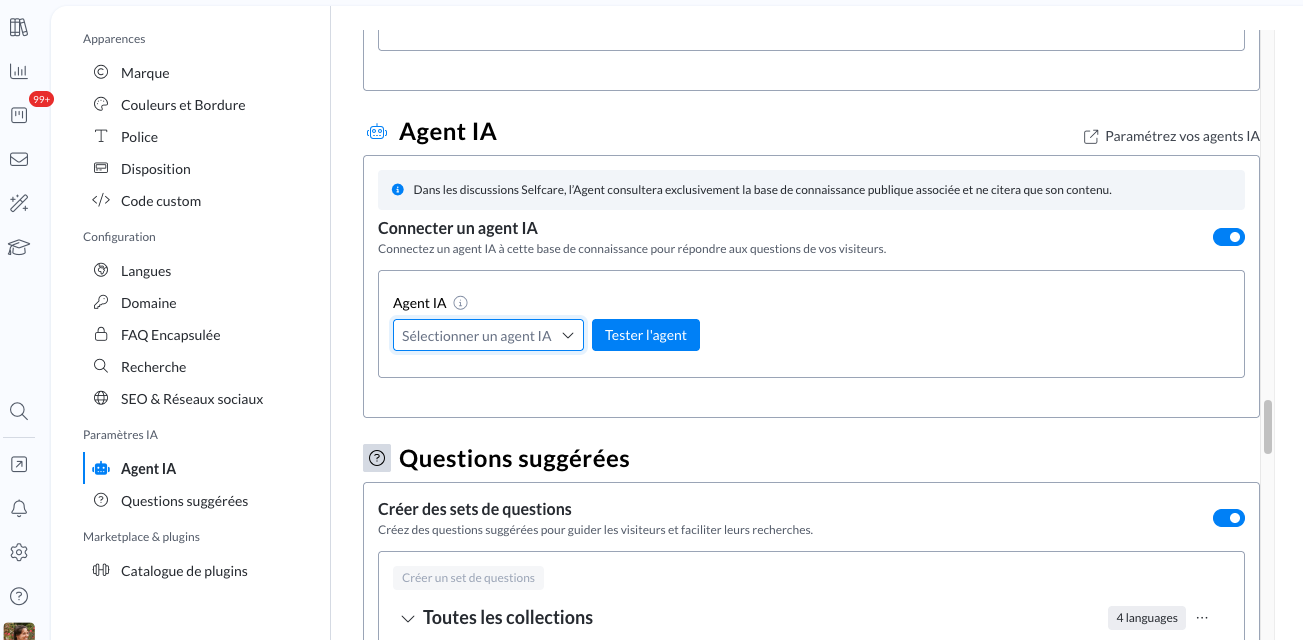
Go to Administrator Settings → Public knowledge base → Configure → AI Agents
Select your public AI agent
Define on which interface you want to see it activated
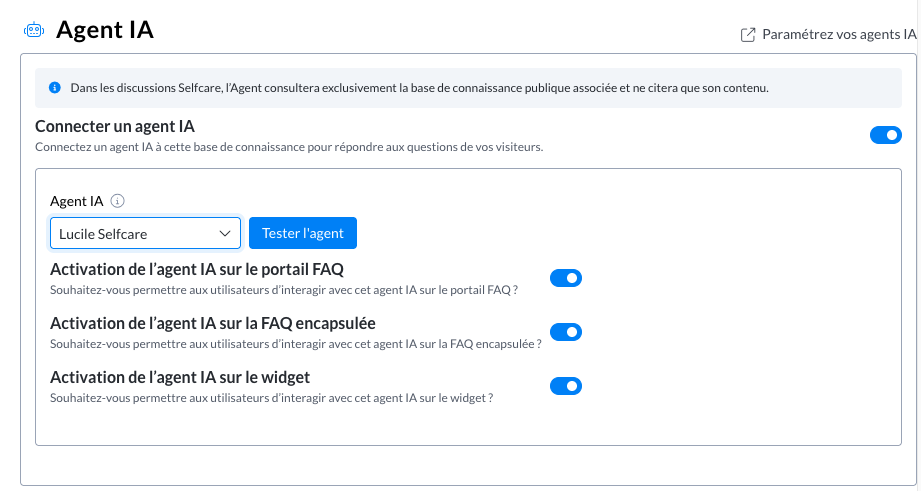
✅ Activation and Visibility
For a user to see an AI agent, it must:
Be globally activated (administrator settings for AI agents)
Be connected to your public knowledge base
The user has access to at least one interface where the agent is activated
Don't forget: New agents are deactivated by default!
🧪 How to test your AI agent?
Recommended method:
Activate your public AI agent to your public knowledge base in administrator settings > AI agents
Ensure it has access to the sources of the specific public knowledge base.
Go to your public knowledge base in administrator settings > knowledge base > configure > AI Agents
Choose your customized agent
Click on the “Test” button, your FAQ will open in test mode
The test mode is only available in full-page Selfcare, in real conditions.
The behavior of AI agents remains strictly identical on a widget or an embedded Selfcare.Ask your questions
Test thoroughly before deployment
Publish your Selfcare when you're ready!
💡 Do you want to set up suggested questions to initiate a conversation with your public AI agent on your FAQ or Selfcare widget?
Check out this dedicated article:
🧠 Want to go further?
Contact your CSM Mayday to subscribe to the Mayday AI offer and unlock the full potential of customized AI agents!