This article focuses on the specifics related to the creation of personalized public AI agents.
For an overview of all the steps involved in creating AI agents on Mayday, we recommend checking out this article before continuing:
Important: Public agents accessible on your FAQ or Selfcare widget require a subscription to the Mayday AI Selfcare product. If you wish to obtain one, please contact your Mayday representative.
1⃣ Step 1: Create your personalized public AI agent
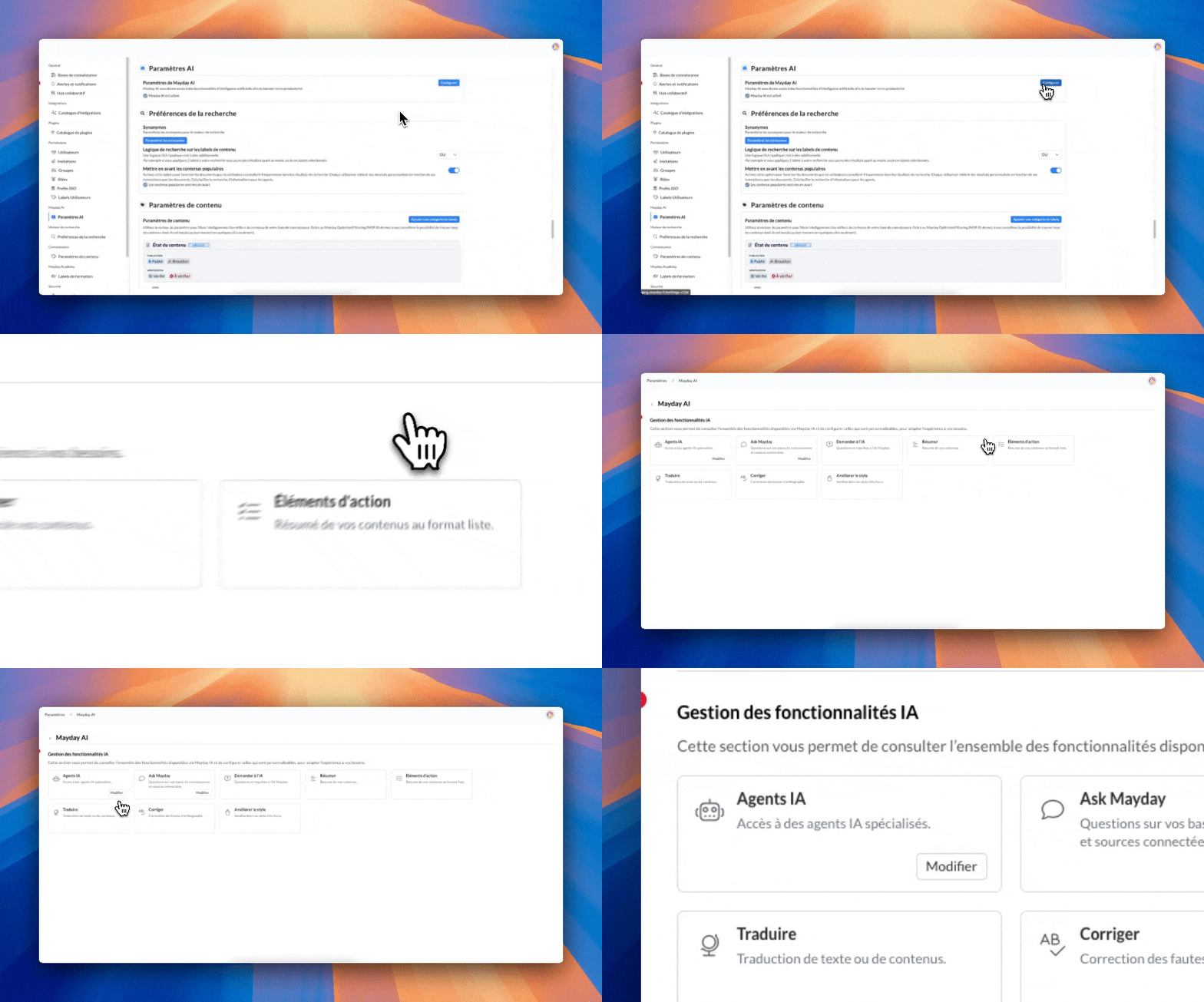
Go to Administrator Preferences → Mayday AI → Configure → Configure agents
When configuring data sources, select one or more external knowledge bases
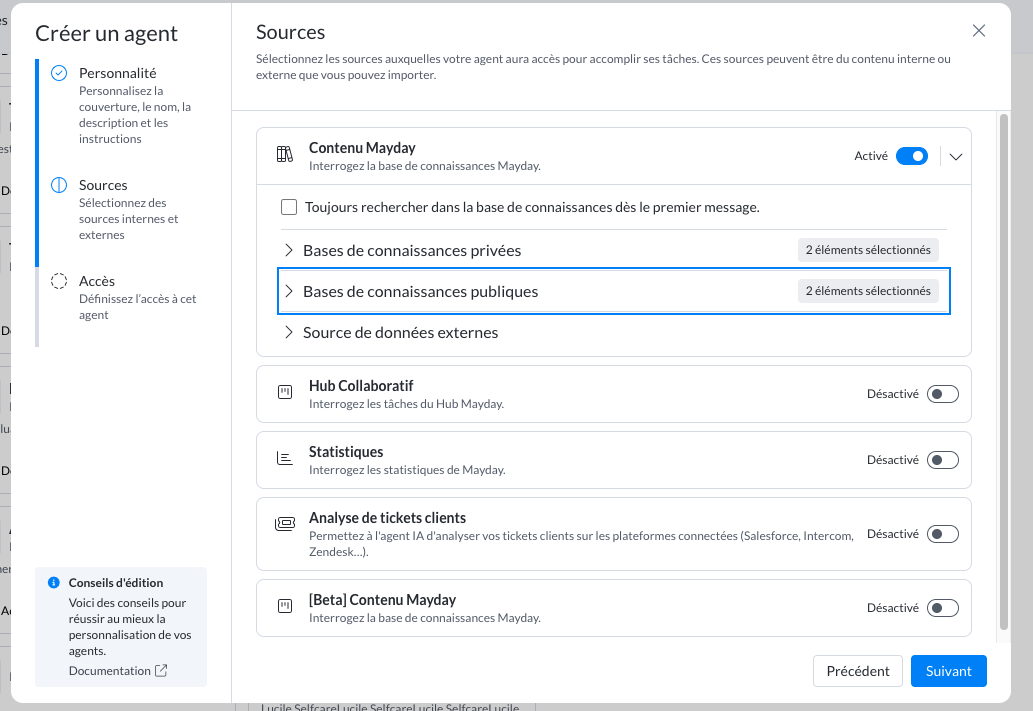
You can associate multiple public knowledge bases with the same agent. This allows you to reuse the same public agent configuration on different Selfcare devices without duplicating it.
Rest assured: during conversations on your Selfcare, the agent will rely only on the relevant public knowledge base and will only cite the associated content.
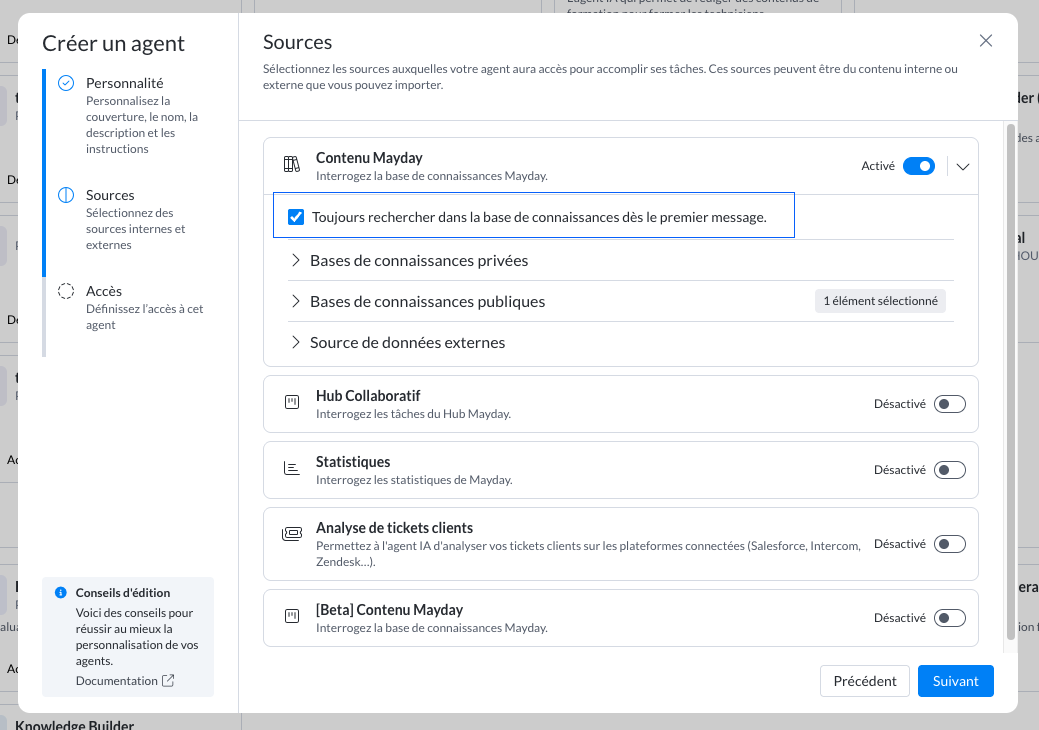
Check the option "always search the knowledge base from the first message" to ensure the agent systematically consults your content to respond to the user's initial request.
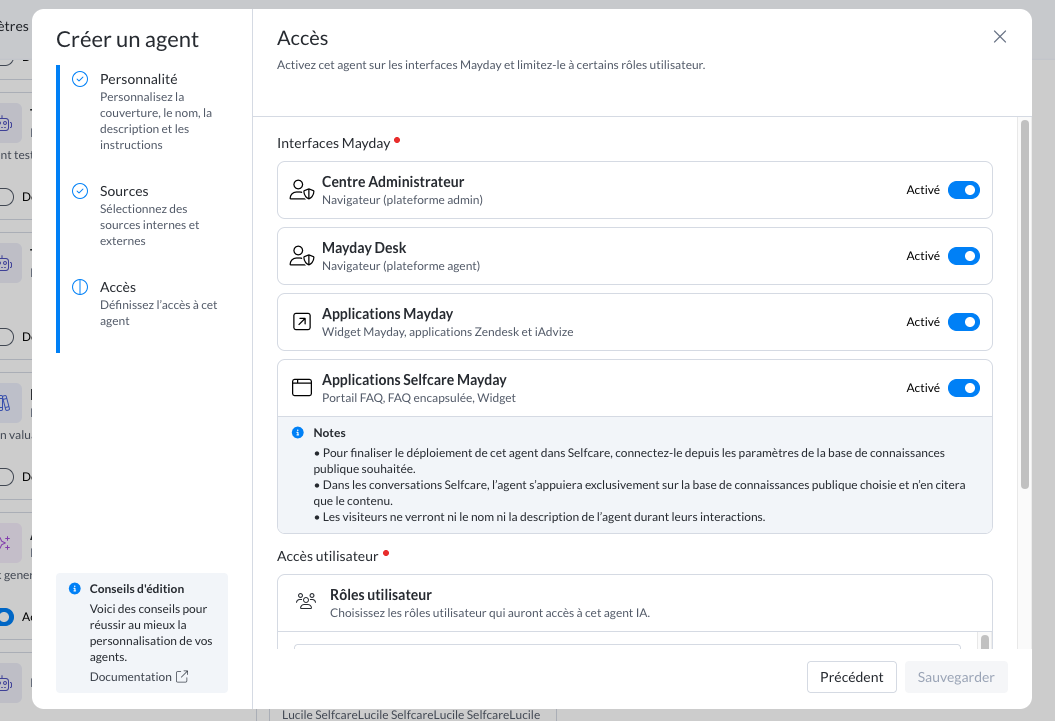
When defining access to this AI agent, make sure to activate the "Selfcare" interface:
2⃣ Step 2: Connect your personalized public AI agent to your knowledge base
For this step, we invite you to check out the following article:
3⃣ Step 3 (optional): Configure your suggested questions by language
To explore this further, refer to the following article:
🧠 Want to dive deeper?
Contact your Mayday CSM to subscribe to the Mayday AI offer and unlock the full potential of personalized AI agents!