👋 Introduction
Discover the source filter in the Genius interface! This feature allows agents to precisely target the content that the AI agent will use to generate its responses. More precision, less noise, more relevant answers!
🔍 Presentation of the feature
The source filter is a tool available in all Genius interfaces for agents (Mayday Desk, Widget, Zendesk application, and iAdvize). It allows to limit the search scope of the AI agent to specific sources rather than letting the AI browse through all the knowledge bases.
🤔 Why is it useful?
The more restricted the scope of source content is, the better chance the AI has to find the right content and generate the appropriate response.
Most of the time, agents are familiar with the structure of their knowledge base and have an idea of where the sought information is located.
🎯 The goal is simple: when an agent knows approximately where a piece of knowledge is located, they can use this filter to guide the AI to the correct answer! 🧭
🚀 How to access this feature?
The feature can be accessed from three different places:
Directly in the Genius 💬: there is a selector directly in the Genius interface that allows you to choose the sources, based on your current navigation.
📸 Screenshot
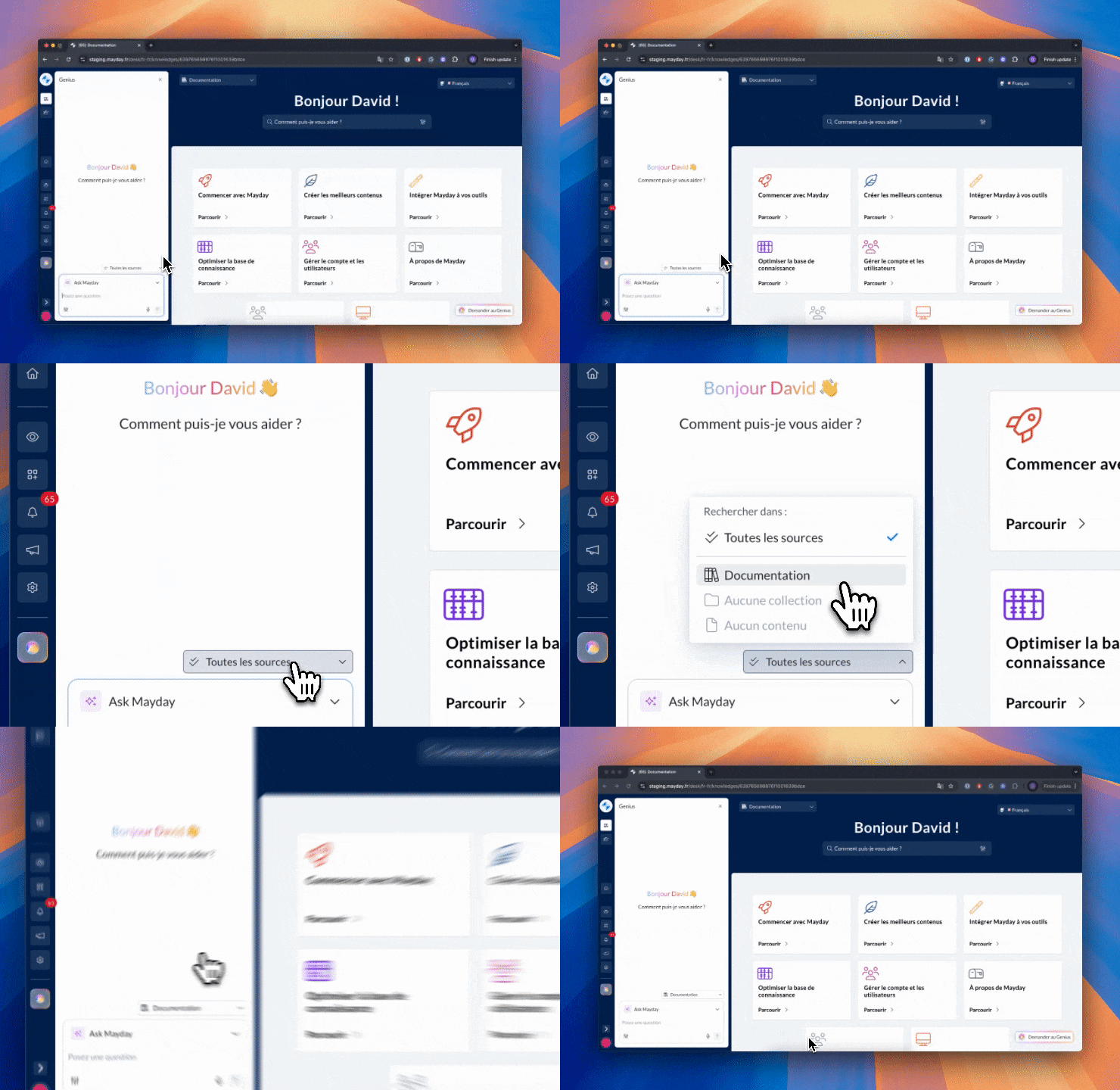
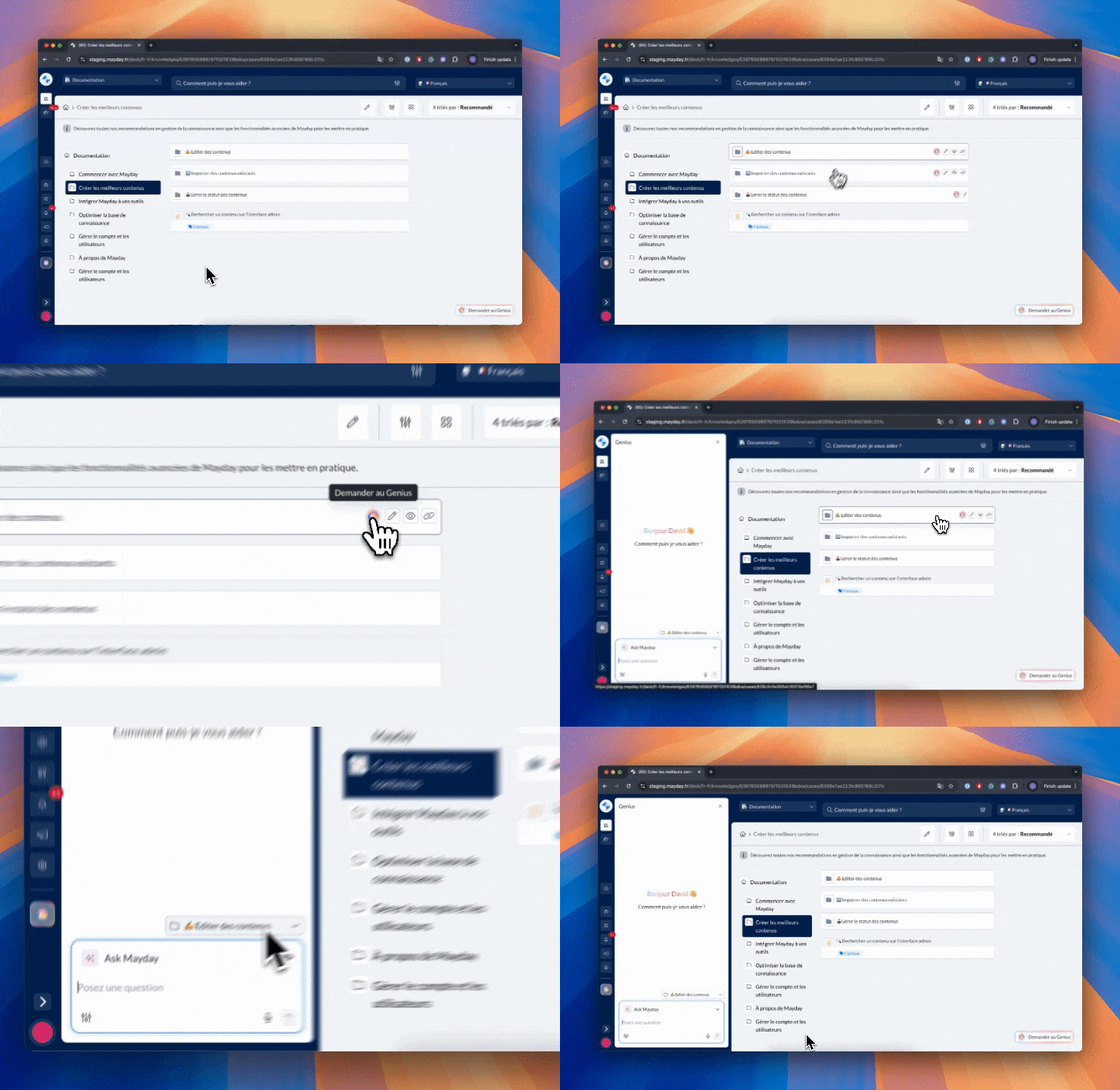
From the navigation 🧭: you will find a "Genius" button everywhere in the navigation (parent collections on the homepage, navigation within collections, navigation on contents, etc.). Clicking on it will open the Genius on the current agent with the filter already applied according to your position.
📸 Screenshot
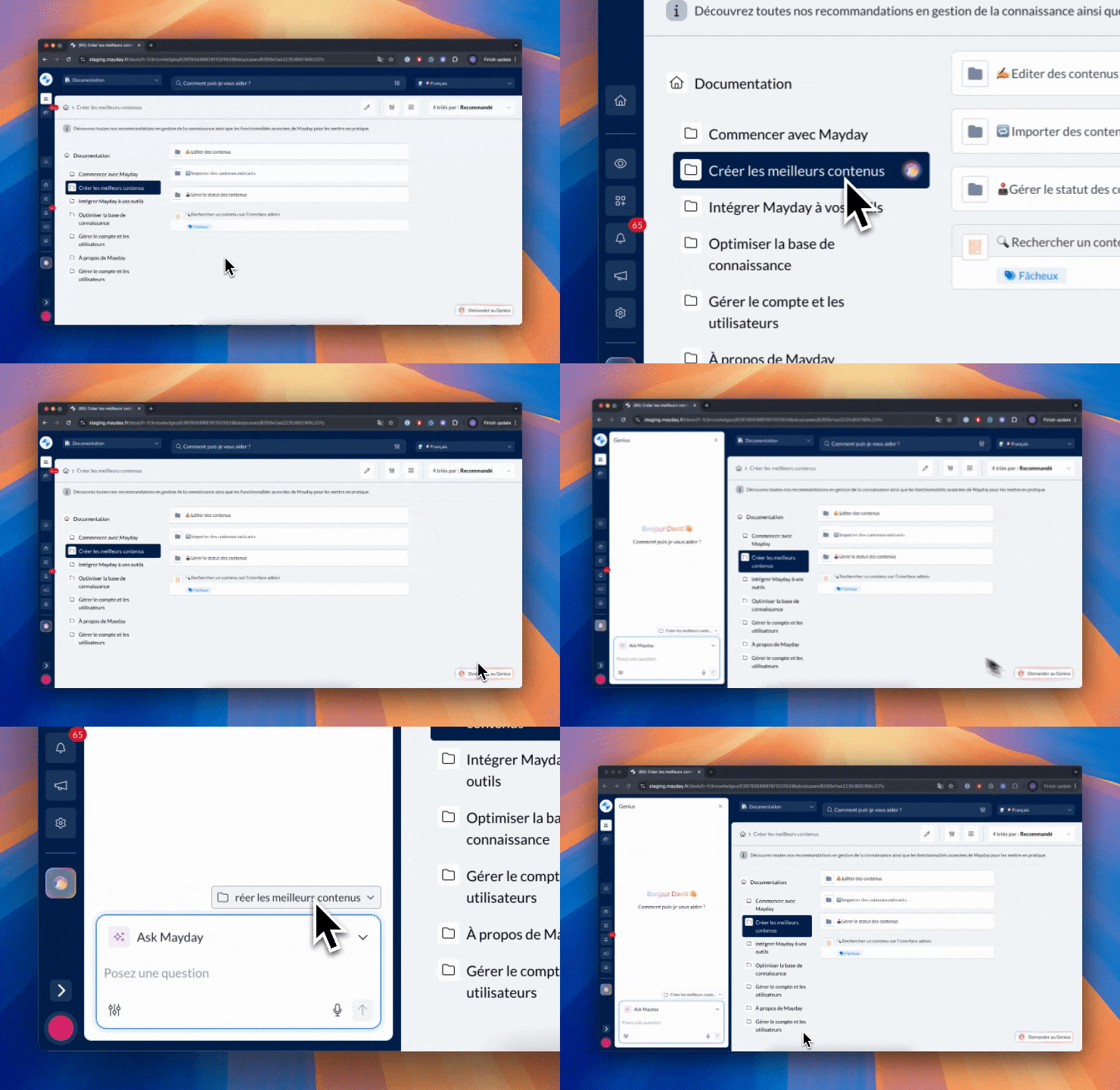
From the "Ask Genius" button 🔘: the button at the bottom right of the screen allows you to open the Genius on the current agent with the filter corresponding to the place where you clicked.
📸 Screenshot
🤔 How does it work?
The filter intelligently adapts to your navigation:
By default: "All sources" → the AI agent searches in all content accessible to the user, in the current navigation language.
Filtering by knowledge base: if you are on a specific knowledge base, you can choose to limit the search to this base only.
Filtering by collection: if you are navigating in a collection, you can restrict the search to the contents of this collection only.
Filtering by content: if you are consulting specific content, you can select it to ask all your questions about this document (particularly useful for long content).
📍 Where and for whom?
Availability: On all agent interfaces (Desk, Widget, Zendesk and iAdvize applications).
⚠ Important information to remember:
The sources are always limited to the user's current navigation language.
The filters are not dynamic: if you filter on a knowledge base A and then navigate to a base B, the filter will remain on knowledge base A (remember to change it!).
The same logic applies to collections and contents.
This filter is not available for AI agents in the following cases:
The agent does not have the "Knowledge Bases" source in its setup: therefore, it does not have access to Mayday content.
The agent has the Knowledge Bases source, but its access is limited to certain bases; you are currently consulting a knowledge base to which it does not have access.
The filter is not maintained between tabs: each navigation tab has its own independent filter.