Introduction 👋
Welcome everyone 👋
We hope you had a great summer and wish you a happy back-to-school season ☀ !
To start September on the right foot, we are pleased to announce many new features on 📚 Mayday Knowledge and on the 🎓 Mayday Academy.
Here's a preview of what's new on 📚 Mayday Knowledge:
Automatic content translation in all available languages on multilingual knowledge bases
Ability to restrict access to certain views of the Hub Mayday according to user roles
New experience in sending notifications to agents
And many more optimizations!
As for the🎓 Mayday Academy:
Display of training labels on the agent’s side
Notification of badges won by learners
New notifications for mentions on a training (module, course) or assignment to a course
And many more optimizations!
Let's discover all these new features without further ado 👇
What's new on Mayday Knowledge 📚
🌍 Automatically translate your Mayday content
✨ NEW FEATURE | With Mayday AI, translating content into multiple languages is now possible in just one click.
A few weeks ago, we introduced the concept of multilingual knowledge bases. However, we are aware that translating all of your content into multiple languages can be extremely time-consuming.
With Mayday AI, translating content into multiple languages is now possible in just one click!
1⃣ Use case 1: Adding languages to written content
✍ You have just written content and want to translate it into other languages.
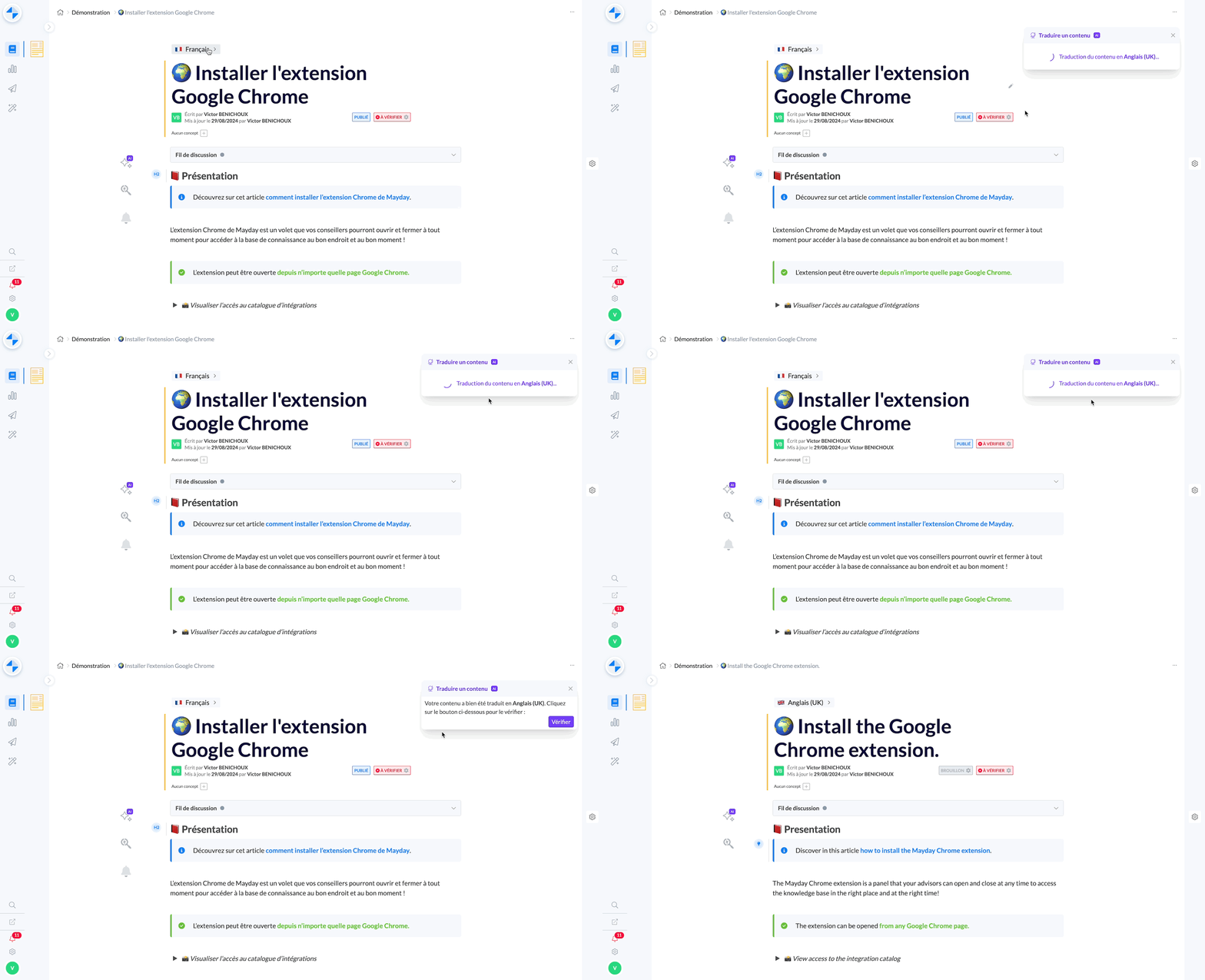
🤔 How to do it?
Click on the language dropdown menu to create one or more new versions in the desired languages.
Activate the automatic translation button.
Validate the translation.
Once the translation is complete, click the button to review the content in the selected languages.
ℹ You can launch automatic translation in multiple languages simultaneously.
✅ That's it! Your content is now translated into all selected languages.
ℹ Important information:
You can launch automatic translation in multiple languages at the same time.
Translated content will be created as drafts by default.
Reviewing translations to ensure they meet your expectations is recommended, as the translation process is entirely automated.
2⃣ Use case 2: Synchronizing all languages after a modification
✍ You have modified content in one language and want to apply these changes to all other available languages.
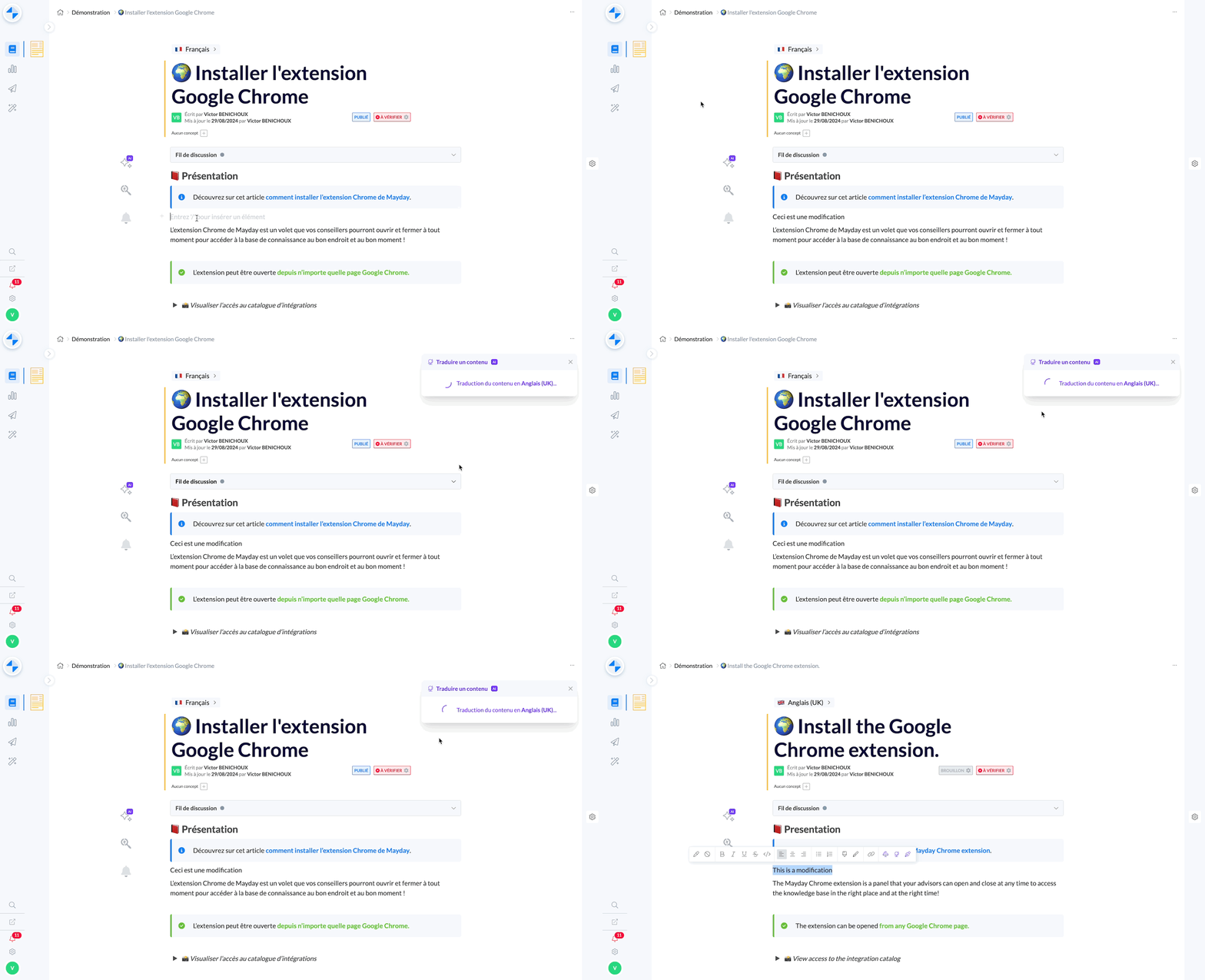
🤔 How to do it?
Modify your content in the language of your choice.
Once the modification is detected, you will receive a proposal to automatically translate these changes.
Click on this option.
Select the languages
ℹ Important information:
Whatever element is modified in the content, the automatic translation will update the entire text in all selected languages.
Translated content will be, by default, put back in draft, allowing you to review the translation in peace.
It is recommended to check the translations to ensure they meet your expectations, as the process is entirely automated.
🌍 Available languages for translation:
French 🇫🇷
English 🇺🇸 🇬🇧
German 🇩🇪
Spanish 🇪🇸
Italian 🇮🇹
Portuguese 🇵🇹
Dutch 🇳🇱
Polish 🇵🇱
⛔ Limit access to Hub views with new permissions
✨ NEW FEATURE | Within a role, define a perimeter of Hub views to which its members will have access
As part of our Mayday Hub redesign project, we have identified a major issue: restricting access to certain Hub tasks for certain users. To meet this need, we introduced the "Views" feature of the Hub three weeks ago.
We are therefore pleased to announce that it is now possible to control user access to these views based on their roles. In addition, Hub-related permissions are now more granular at the Mayday role level.
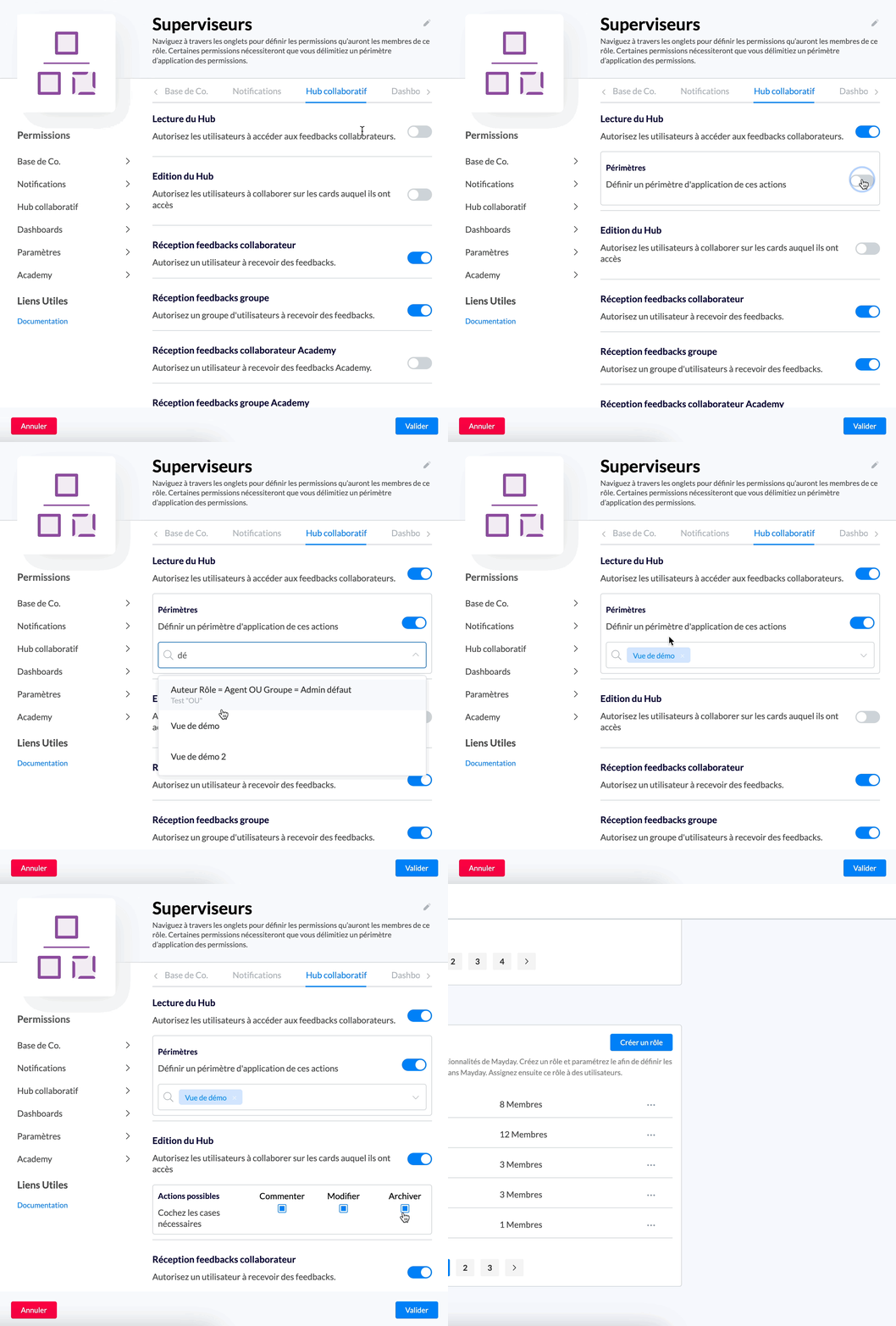
Activation of the Hub reading perimeter and selection of one or more views
🪄 Use cases
⛔ You want to restrict access of certain users to specific Hub views
⚙ You want to precisely define user permissions in Mayday roles: access to the Hub (reading the Hub), task modification (commenting, modifying, archiving), and receiving feedback.
🤔 How to use them?
The product documentation is available here:
In a Mayday role, go to the "Collaborative Hub" tab.
Reading the Hub: If you want users in this role to access the Hub, activate this option.
To restrict user access to certain Hub views, activate the perimeter and select the views they will have access to.
Users in this role will only be able to see these views.
If the permission is activated but the perimeter is deactivated, users will have access to all Hub views.
Editing the Hub: If you want users in this role to be able to modify tasks in the Hub, activate this option.
You can then specify what users will be allowed to do: comment on a task, modify its attributes, or archive it.
By default, these three actions are allowed when Hub editing is activated.
🛎 Benefit from a new notification-sending experience
✨ NEW FEATURE | Send your agent notifications with a brand-new experience
Agent notifications are getting a makeover!
We are redesigning agent notifications to improve your experience of creating, managing and analyzing notifications.
From now on, discover a brand new way to send an agent notification 👀
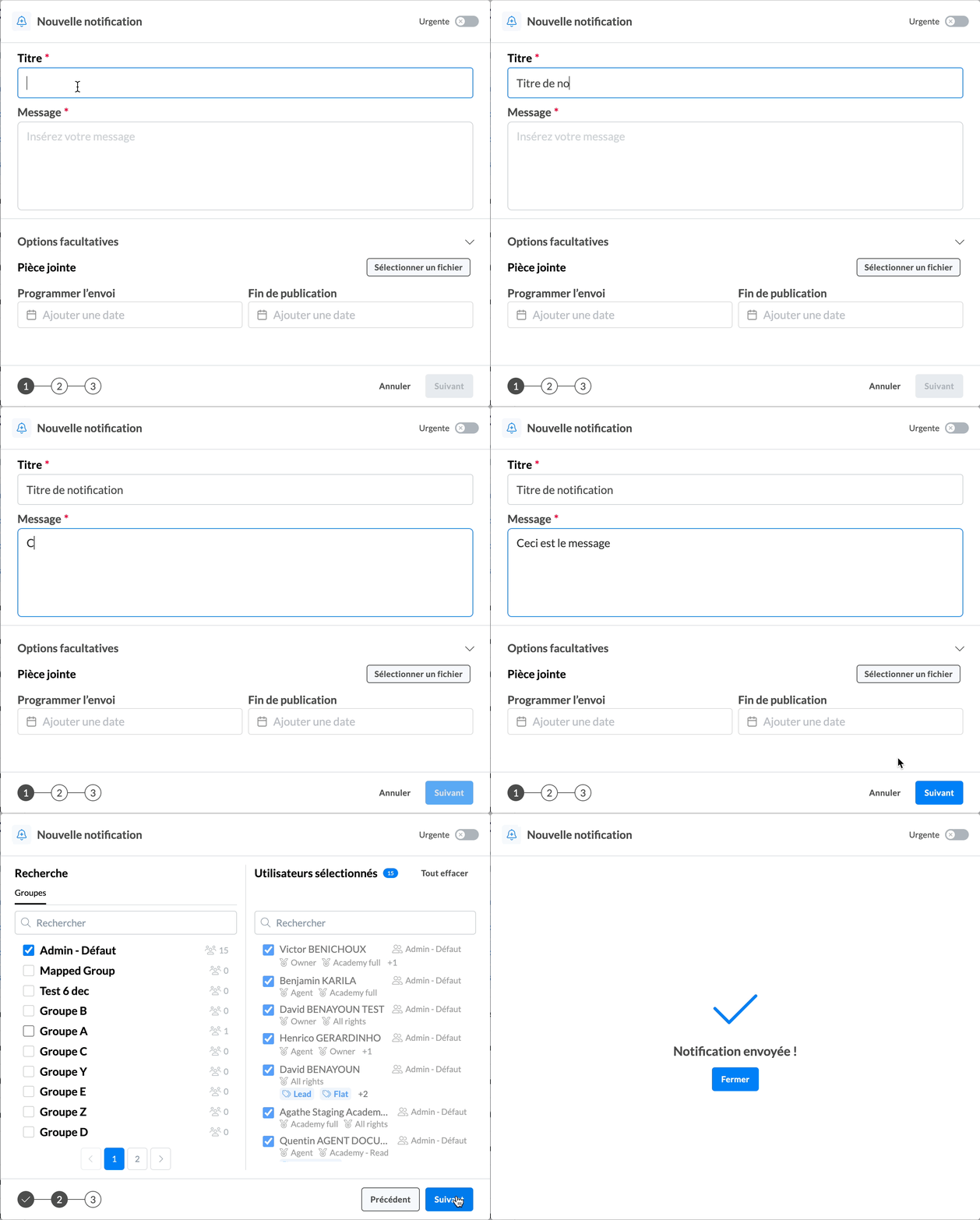
Notification sending is now done in three steps and provides more clarity
🪄 Use cases
🛎 You want to write an agent notification
🕰 You want to schedule the sending and end date of your notification
👥 You want to select the notification recipients precisely
✅ You want to review your notification before sending it
⏭ What's next?
A complete redesign of the notification list will soon be available.
You will soon be able to send your agent notifications not only to groups, but also directly to roles, labels, or specific users.
🚀 Optimizations & Improvements
Mayday Hub Views | User Selection
Three weeks ago, we introduced the ability to create Hub Mayday views using filters, including on-task authors and responsible parties.
Until now, you could filter this information by group, role, or user label.
👤 Now, it is possible to select specific users directly to configure these filters and create a custom Hub Mayday view.
Mayday Archives | Filter by Root Collection
To help you quickly find the archived content you are looking for, you can now filter the list of archived content by root collection using filters.
🪲 Bug Fixes
👉 We fixed the following bugs:
"Show Task" button: this button appeared in error in notifications related to agent feedback, when it is reserved for administrators.
"To be verified" button on content: on some content, the button allowing to verify the content was no longer displayed and was not clickable.
Redirections on public FAQs: some redirects within the content of a public FAQ were no longer working.
Display of first and last names with accents: a display error caused accents to be replaced by capital letters in first and last names, altering their correct presentation.
Loading sent feedback: when an agent tried to load feedback already sent from the history, it did not appear if the feedback recipient was a deleted user.
Task creation for obsolete content: when content had an obsolescence policy with a fixed verification date (and not a frequency), the obsolescence task was not created correctly in the Mayday Hub.
Use of Shift + Enter: in the Mayday editor, the Shift + Enter command no longer allowed new lines to be inserted in a paragraph, as expected.
What's new on the Mayday Academy 🎓
✨ NEW FEATURE | Your agents can now see the module labels on their Academy home page.
👁🗨️ Your learners can view the labels you have associated with the training module on the module cards.
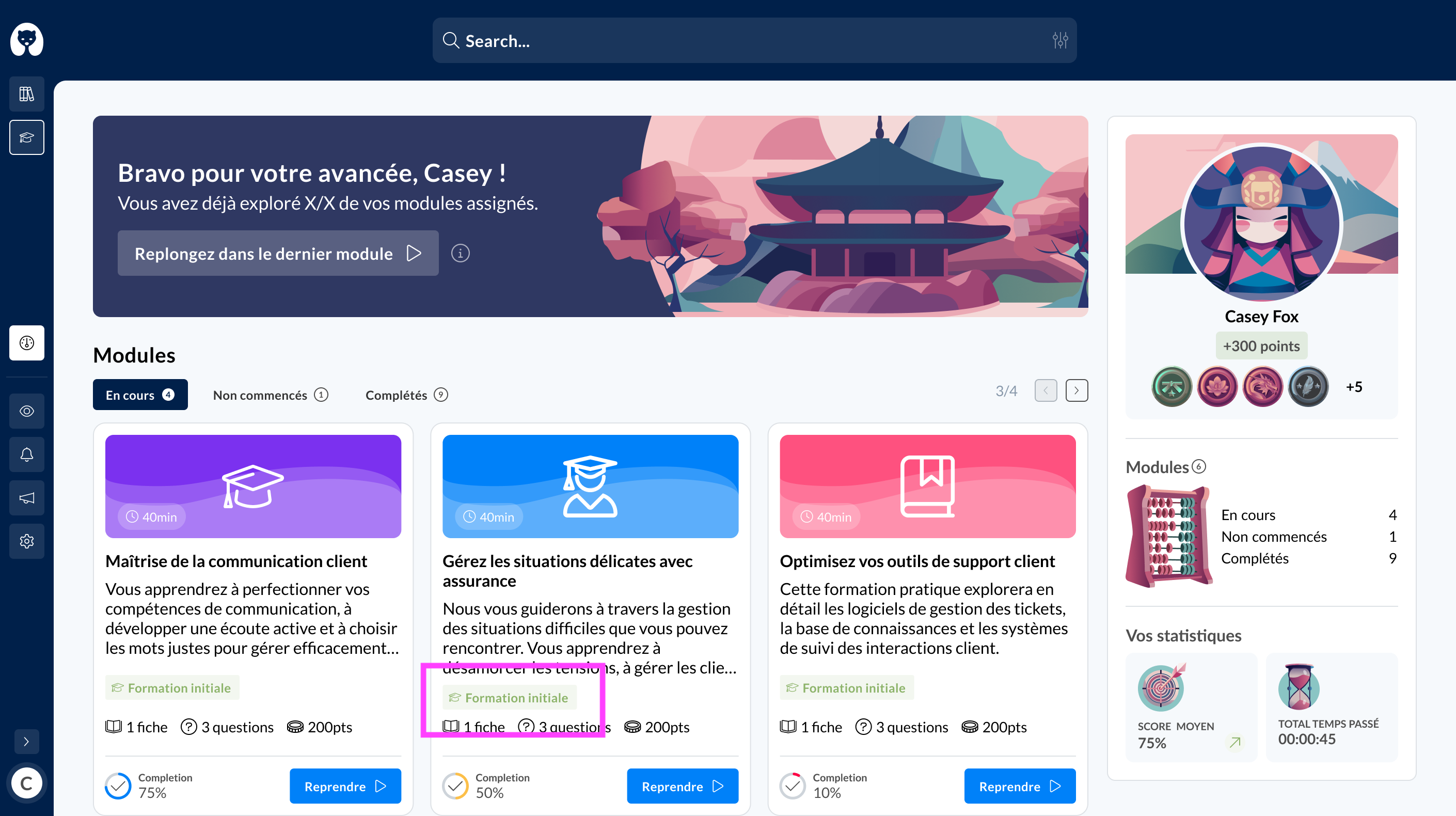
Mayday Academy Home Page - Module Labels
✨ NEW| Be reassured about your modification, publication, and assignment actions for courses and modules
We inform you on the admin interface of the consequences of your modification, publication, or assignment actions for courses or modules when necessary.
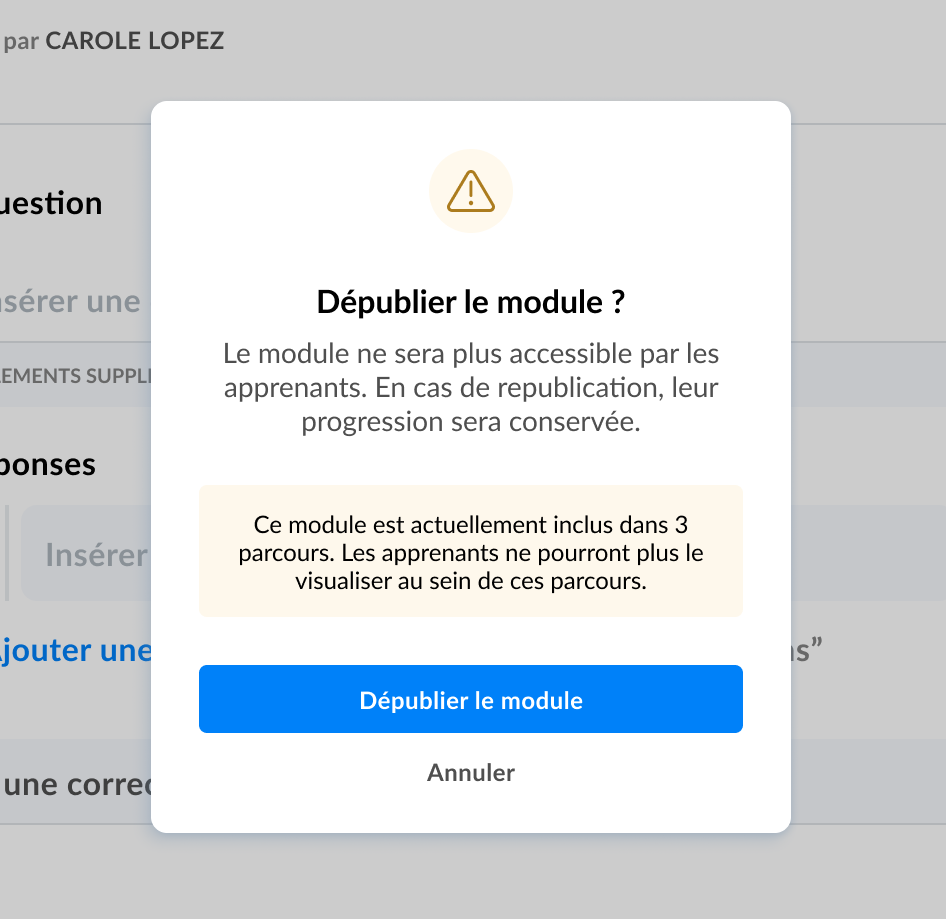
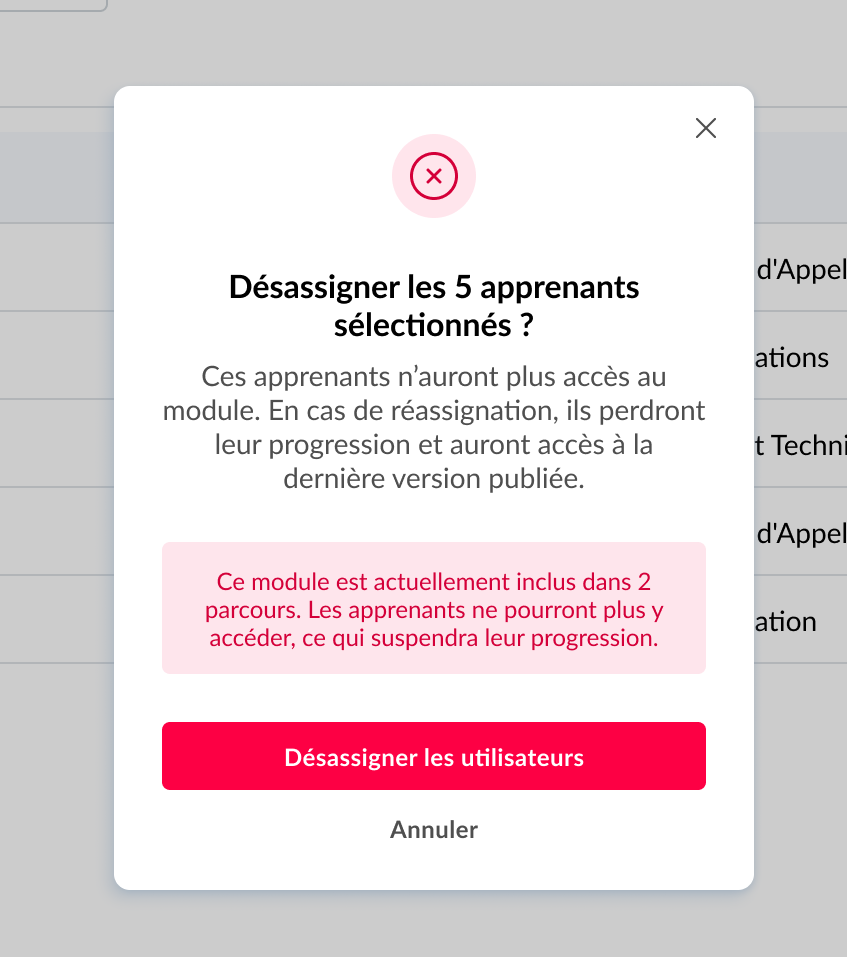
Admin interface - Unpublishing and unassigning a module
We inform you of the publication and assignment status of modules within your courses.
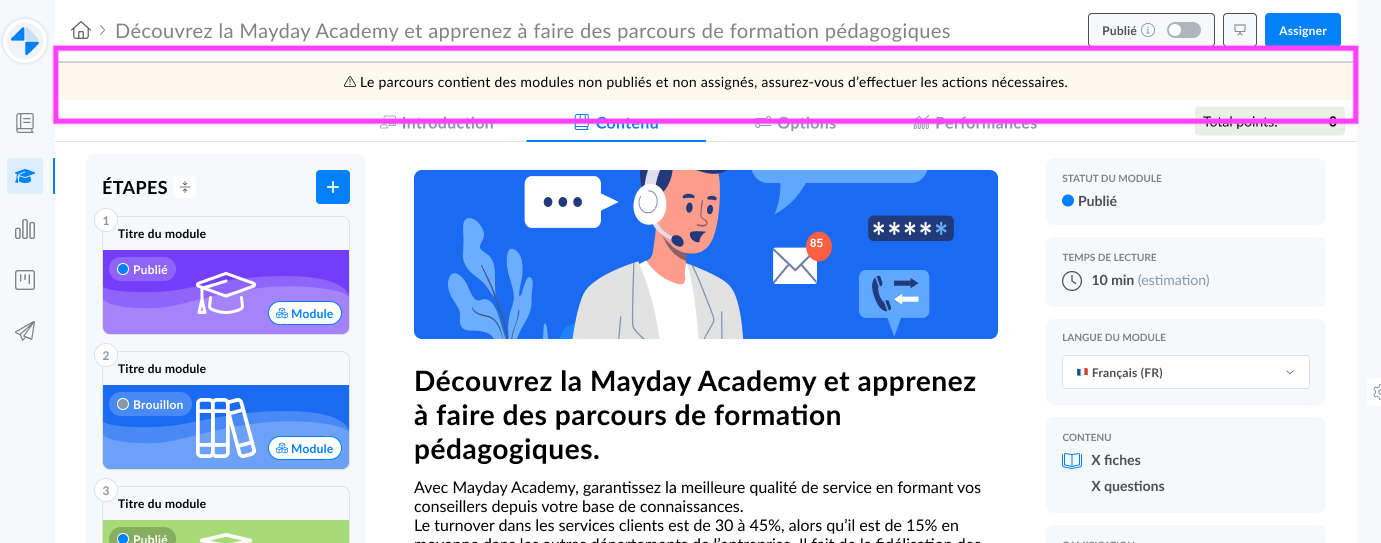
Admin interface - Creating a course - content tab
🎊 New features on gamification via earned badges
✨ NEW| Your agents are now informed when they earn a new badge and can view a summary by level.
🕹 The Mayday Academy encourages your agents to exceed themselves and encourages them to stay motivated in their training!
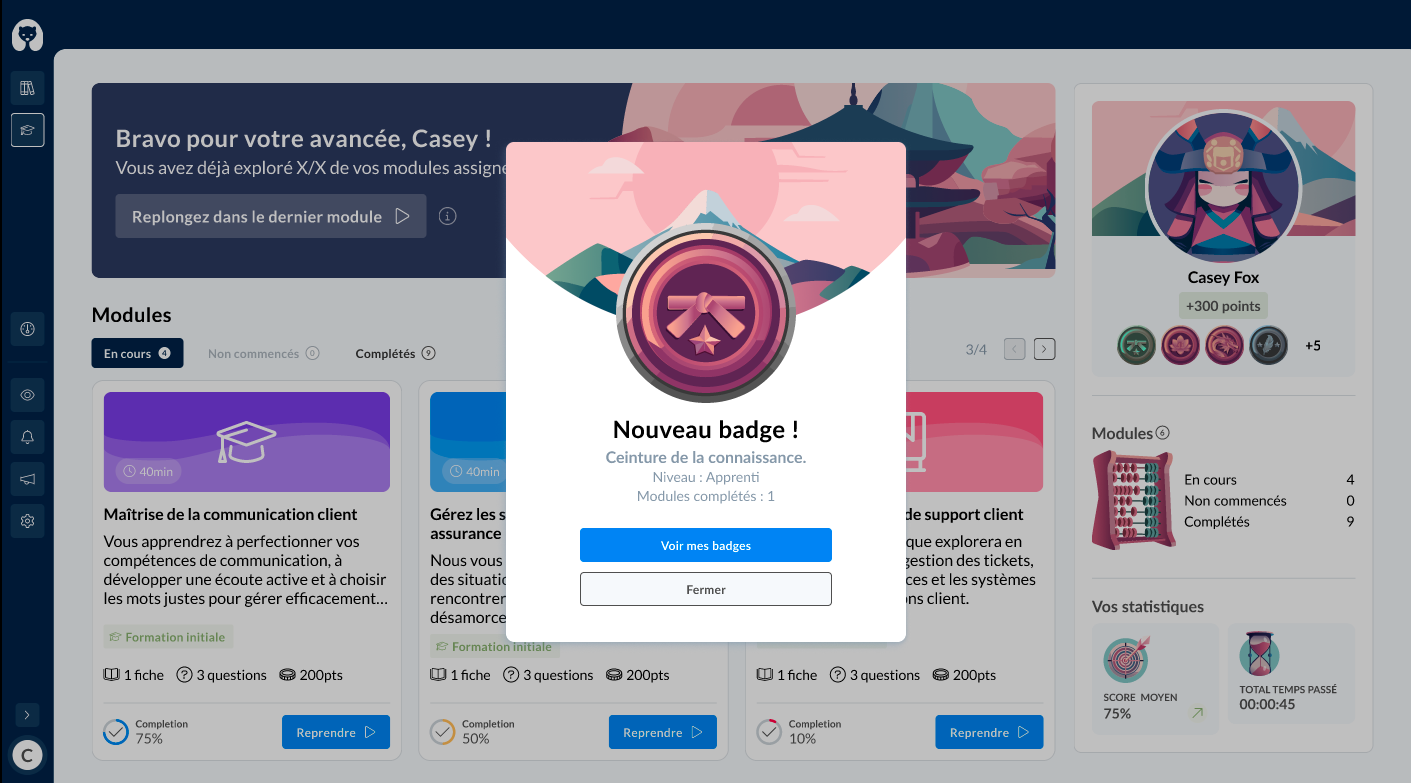
Mayday Academy Home Page - New badge earned
Your agents can now also see on the badge detail page a summary of the number of badges they have per level: Apprentice, Sensei, Samurai, Master, Supreme Master.
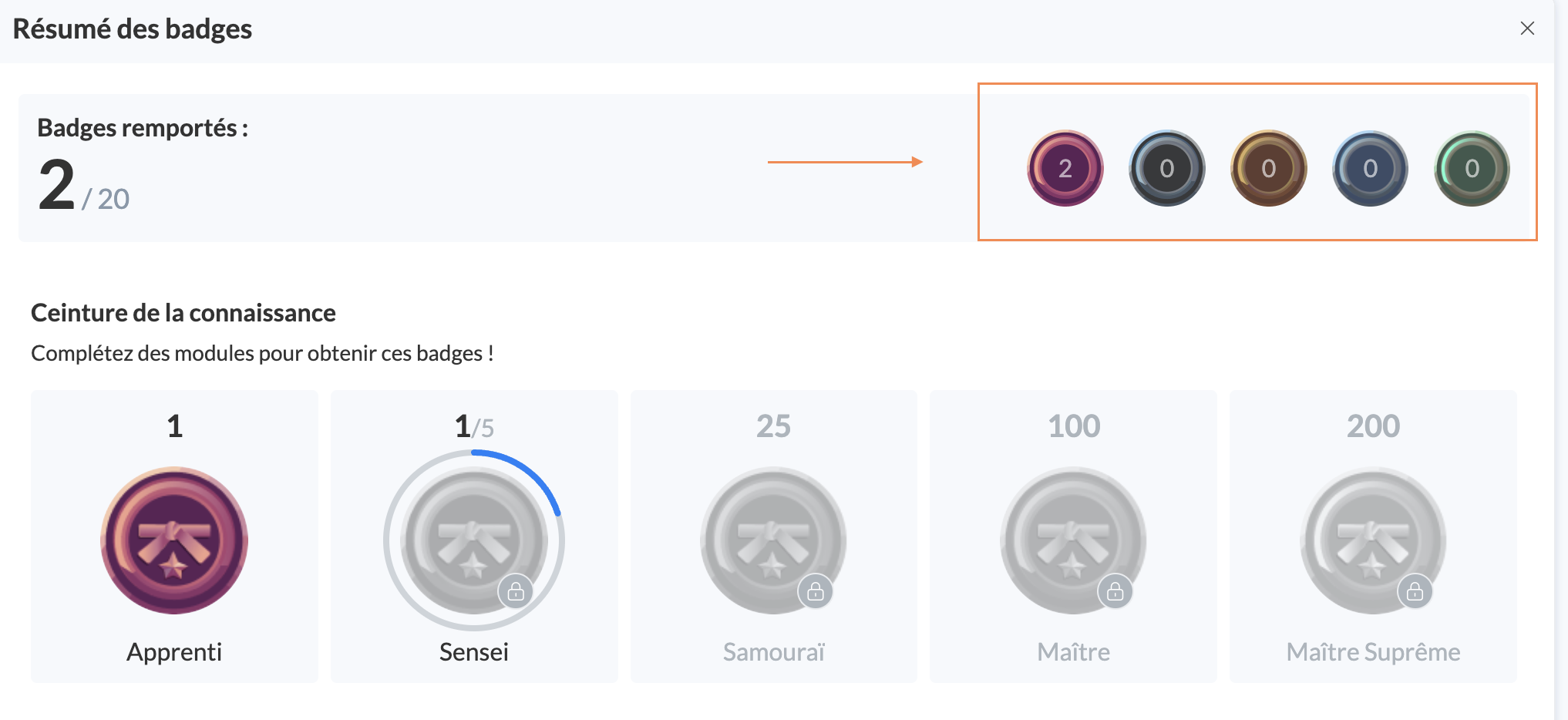
Mayday Academy Badges Page - Summary by level
🔗 Link to Mayday documentation for more information:
📩 Configure and receive key notifications on the Mayday Academy
✨ NEW NOTIFICATION| Receive a notification when you are mentioned or assigned to a training (module or course)
🪄 New notifications available:
Notification when assigned to a course
Notification when mentioned in a training (module or course)
🤔 How to configure them?
In the "Alerts and notifications" section of Mayday settings
In the "Academy" section
Enable or disable the notification and the communication channel you want.
✅ Everything is ready! The people concerned will receive the notifications in the notification section of the admin or learner.
✨ NEW | The top part of your admin home page is accessible even after scrolling down the page.
Access the search bar and filter options at any time to save time!
🚀 Optimizations & Improvements
Training modules and courses | Number of points earned
We have updated the number of points earned per answer to a question on a module from 100 to 10. This update is retroactive. If your agents had already earned points, this number will be reduced by ten.
SCORM modules | Points earned
From now on, learners will earn 10 points for each correct answer to a question in a SCORM module, as is already the case for Mayday modules.
🪲 Bug fixes
👉 We have fixed the following bugs:
Module label selection: it was impossible to scroll in the module label selection dropdown.
Question timer: we have fixed a random bug related to timed questions. The timer now runs correctly and the indicative bar is reliable.
Display of long answers: when you write long answers in your Mayday quizzes, the text range expands and now allows you to see the entirety of your answer.