Introduction 👋
Welcome everyone 👋
We hope you are doing well and wish you a great month of October 🎃! We are delighted to present some exciting features on our various Mayday products. Some of these new features were much anticipated, and we can't wait to unveil them to you today!
Without further ado, here is a sneak peek at the new features on 📚 Mayday Knowledge:
Customization of Ask Mayday 🤖 : create assistants that reflect your style and needs.
Introduction of priority levels and deadlines for tasks in the Hub, allowing for more efficient management.
Optimization of notifications for agents: you can now resend a notification, check the read rate for urgent notifications, and use the search bar to easily find a notification.
New endpoints on the Mayday API to enhance your integrations.
Keyword highlighting for search is now available on other agent platforms, such as Desk, Widget, and iAdvize.
As for the 🎓 Mayday Academy:
Archives of your training: find your archived training modules and paths, and restore or delete them as needed.
Search bar for agents: on the learner interface, your agents can now find a module or path using a search engine.
Let's discover all these new features without further delay.
Mayday Knowledge News 📚
⚙ Mayday Admin
⏰ Assign a deadline and a priority to your Hub tasks!
✨ NEW FEATURE | It is now possible to set a priority and a deadline for a task in the Hub!
We have taken your feedback into account. To help you better manage your tasks, you can now assign a priority level and set a deadline for each task. These new features will allow you to more easily prioritize your actions and meet your deadlines more effectively.
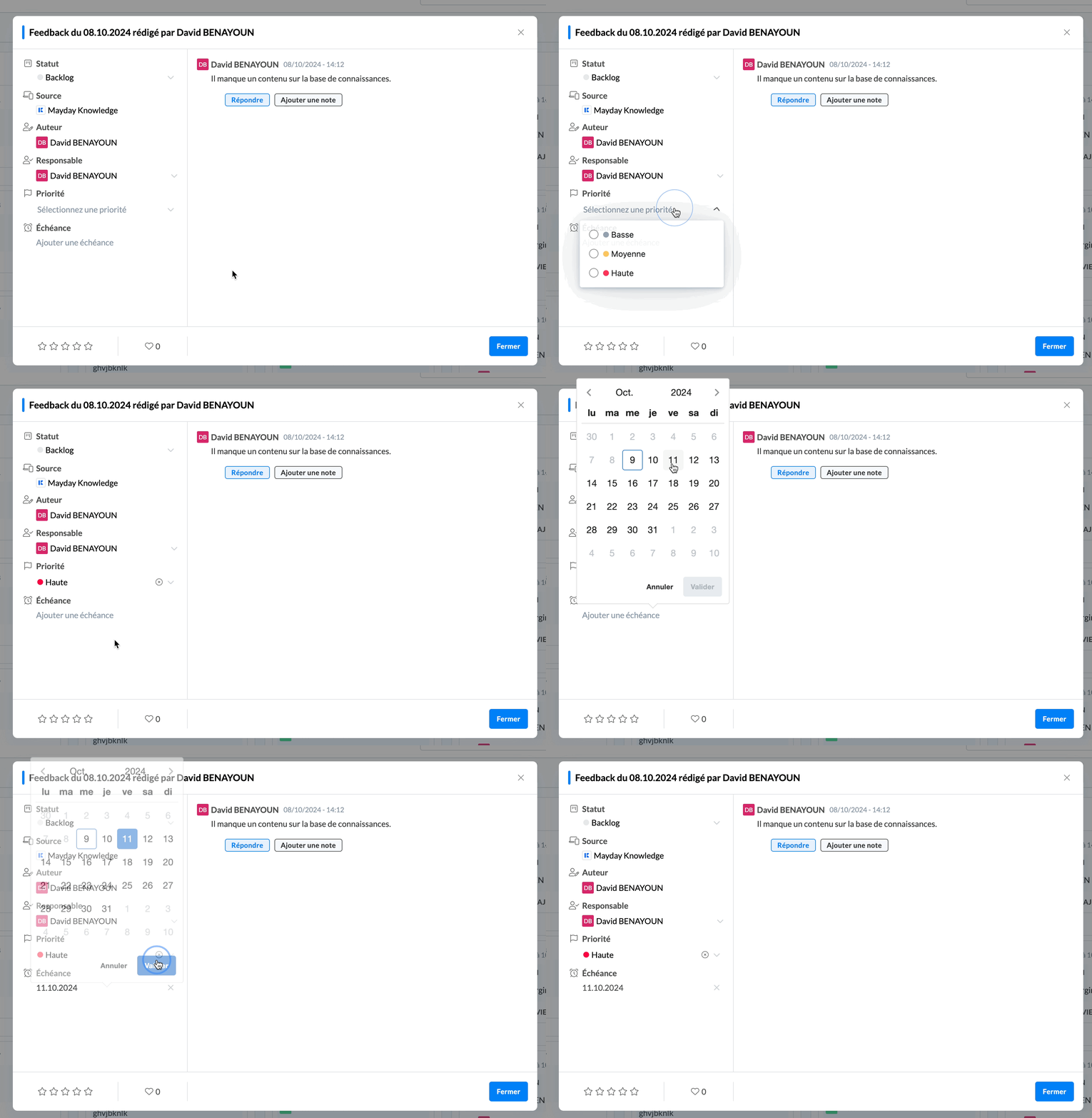
Assigning a priority and a deadline to a Hub task
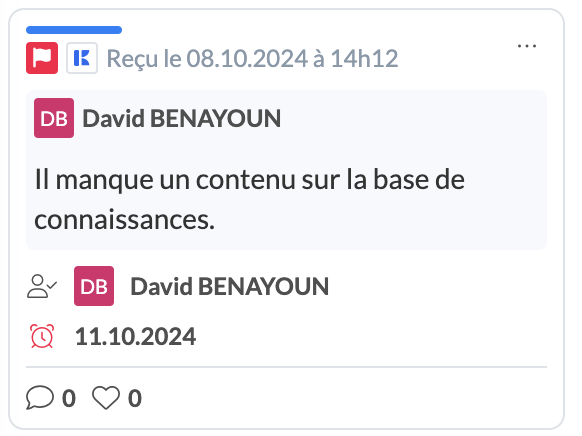
Displaying the priority and deadline on the task preview
🤔 How to use the feature?
Go to the Mayday Hub section and open a task.
In the task attributes, you can :
Choose a priority level from three options: Low, Medium, and High.
Select a deadline
Note: It is not possible to choose a past date.
The priority and deadline will be visible in the preview of each task directly in the Hub.
You will then be able to :
Sort your tasks according to their priority level or their deadline.
Filter your tasks based on these same criteria.
⚠ By default, a new task in the Hub will have neither priority nor deadline.
🤖 Customize your Ask Mayday assistants
✨ NEW FEATURE | Customize your Ask Mayday assistants by giving them specific instructions tailored to your different audiences!
Since the introduction of Ask Mayday, we have found that it can sometimes be too generic or ill-suited to specific audiences.
Now, you have the ability to customize your Ask Mayday assistants to precisely define how the Ask should formulate its responses based on the audience asking the question.
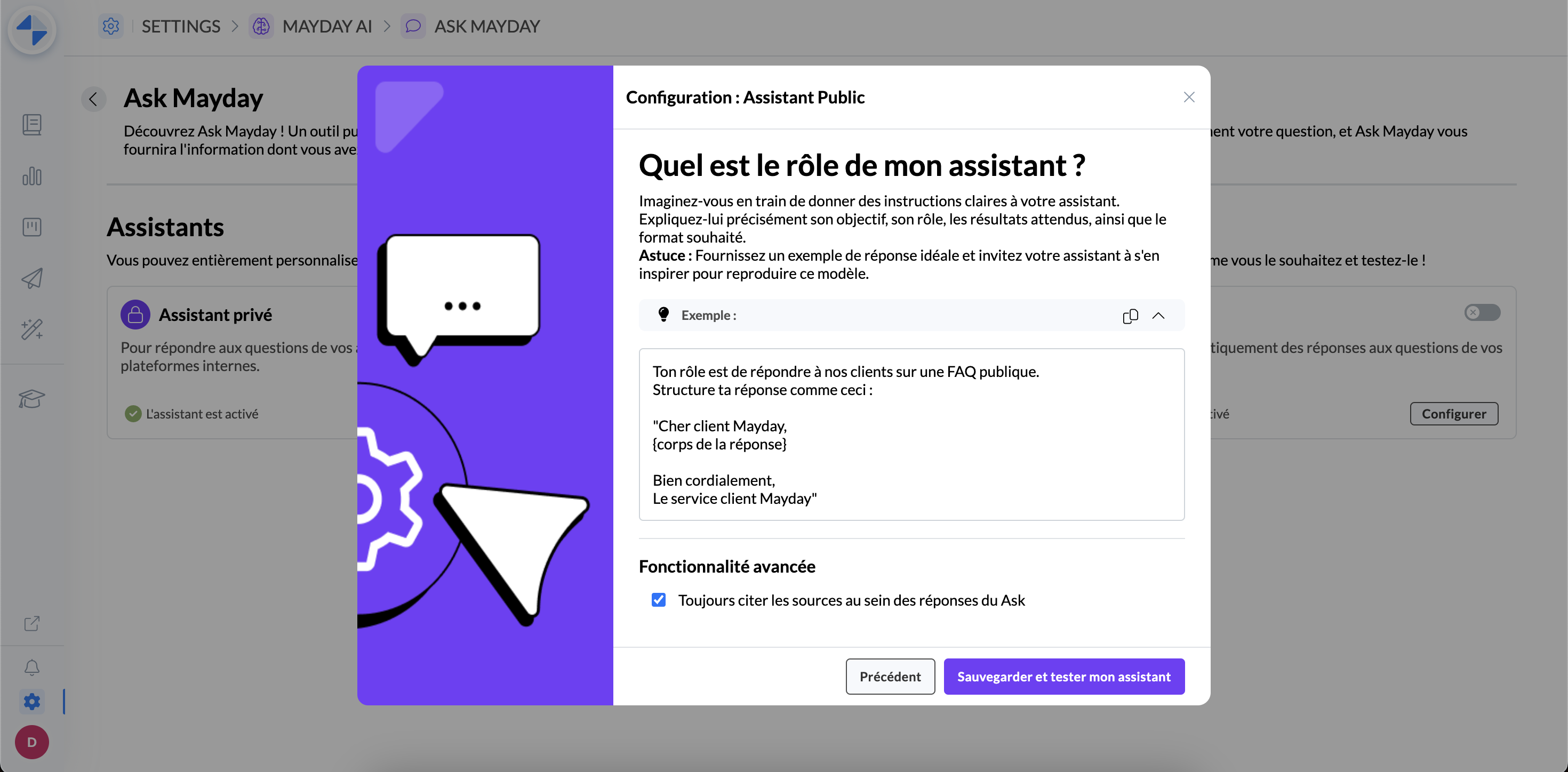
Define instructions for your Ask assistant and test it before activating it in production
🎯 Why customize your Ask assistants?
👥 You have multiple types of users and want to ensure that the Ask's responses are tailored to each audience.
🎨 You want Ask Mayday to formulate its responses in line with your company's image and instructions.
✅ You want Ask Mayday to respond to your clients similarly to that of an agent.
🤔 How to use the feature?
Note: This feature is available only to customers who have access to Mayday AI. If this is not the case and you wish to obtain it, please discuss this with your Mayday contact.
By default, three Ask assistants are available :
Private Assistant: This Ask assistant answers your agents' questions on all internal platforms, such as Mayday Desk, Mayday Widget, the Zendesk application, etc.
Public Assistant: This Ask assistant answers your customers' questions on all your public FAQs, especially your Mayday Selfcares.
Co-pilot Assistant: This Ask assistant generates response suggestions for your agents when dealing with customer tickets via the Mayday Widget. Based on the customer request contained in the ticket, the co-pilot proposes a response that the agent can choose to use.
These three assistants are customizable, but it is not possible to add others at the moment.
☑ To personalize an assistant:
Access the Mayday administration center preferences.
Go to the “Mayday AI” section.
Click on “Configure”.
Explore the available AI features.
In the “Ask Mayday” section, click on “Configure” again.
By default, no assistant is enabled. This means that the Ask functionality is active, but no customization is applied.
Click on “Configure” for the assistant you want to personalize.
Write your instructions.
Validate, then test your personalized Ask.
Once satisfied, save the assistant.
If you wish, you can enable it.
After a few seconds, your customization will be taken into account.
📈 Follow the read rate of your urgent notifications!
✨ NEW FEATURE | The concept of read rate, already available for normal notifications, is now extended to urgent notifications!
Now, agents and administrators can indicate that they have read an urgent notification, just like for normal notifications. This makes it easier for you to track who has taken note of urgent notifications.
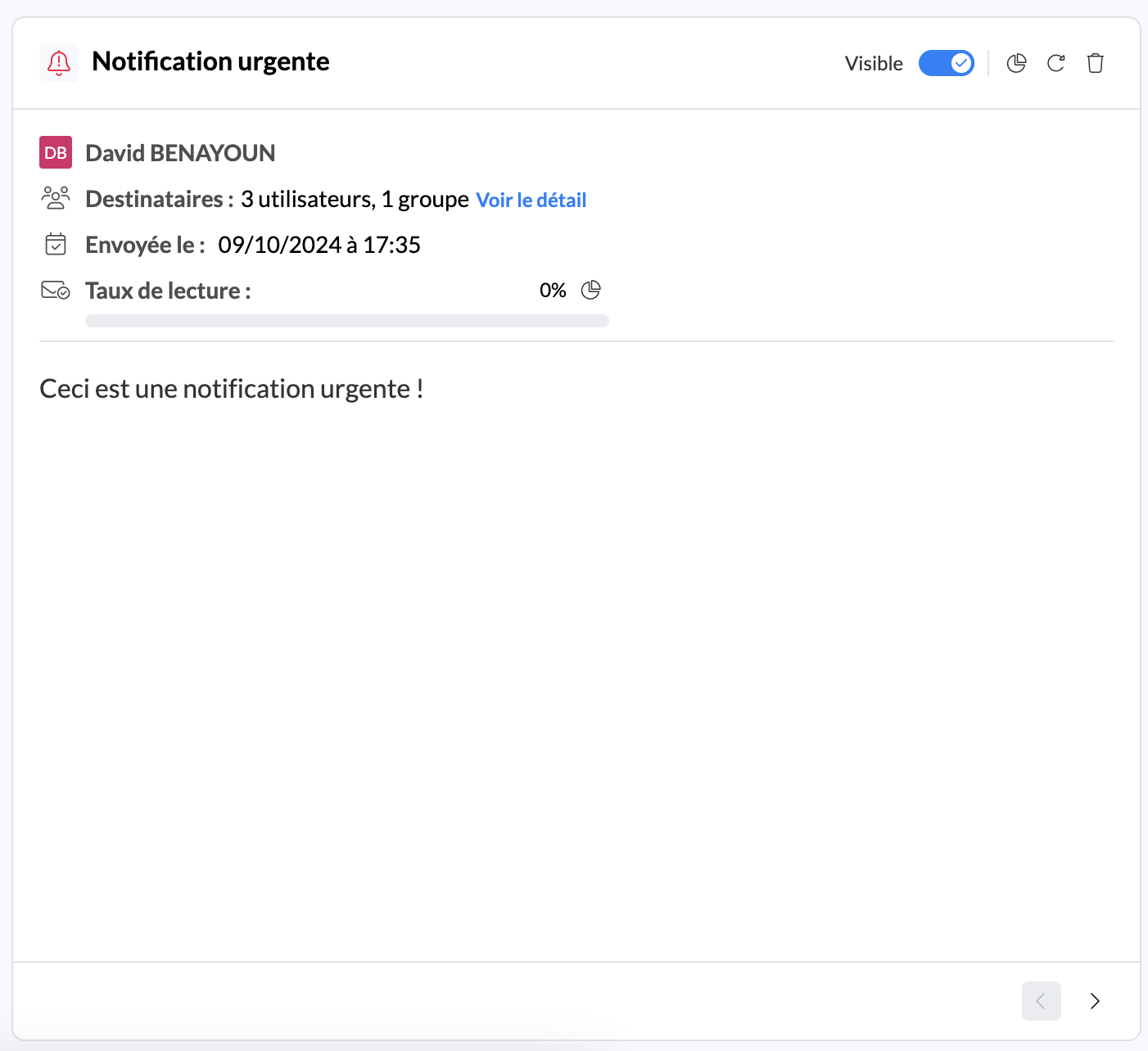
The concept of read rate is now displayed on an urgent notification.
🤔 How to use the feature?
Upon receiving an urgent notification, it is possible to mark it as read.
On the administrator side, it is then possible to:
Consult the read rate of urgent notifications.
See who has read or has not read an urgent notification from the notification center.
⚠ Note: All old urgent notifications are now considered 100% read.
📤 Resend your notifications for more visibility!
✨ NEW FEATURE | It is now possible to resend a notification to ensure that it is read by all recipients!
You have expressed this need, and we have listened. It is now possible to resend an already sent notification so that all users who have not yet read it receive it again. This ensures that the information does not go unnoticed and optimizes the read rates of your notifications.
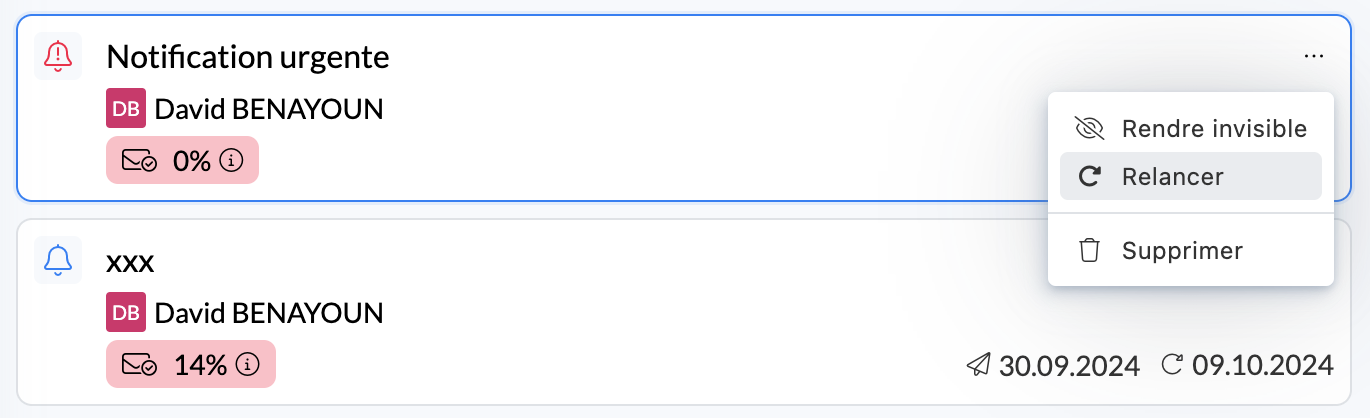
It is now possible to resend an already-sent notification.
🎯 Why resend a notification?
Resending a notification allows you to ensure that all recipients have read a sent notification and thus, optimize your notification read rates.
🤔 How to use the feature?
From the administrator notification center, you can resend an unread notification.
When you resend a notification:
Everyone who has not yet read it will receive a new toast.
The notification will be placed at the top of their list again.
In addition, administrators will be able to see:
The number of resends made.
The date of the last resend.
🔎 Find your notifications in the blink of an eye!
✨ NEW FEATURE | A search bar is now available in the administrator notification center!
We have made managing notifications easier by adding a search bar, which allows you to quickly find a sent notification. No need to scroll through your notifications anymore, you can now search for them in seconds.
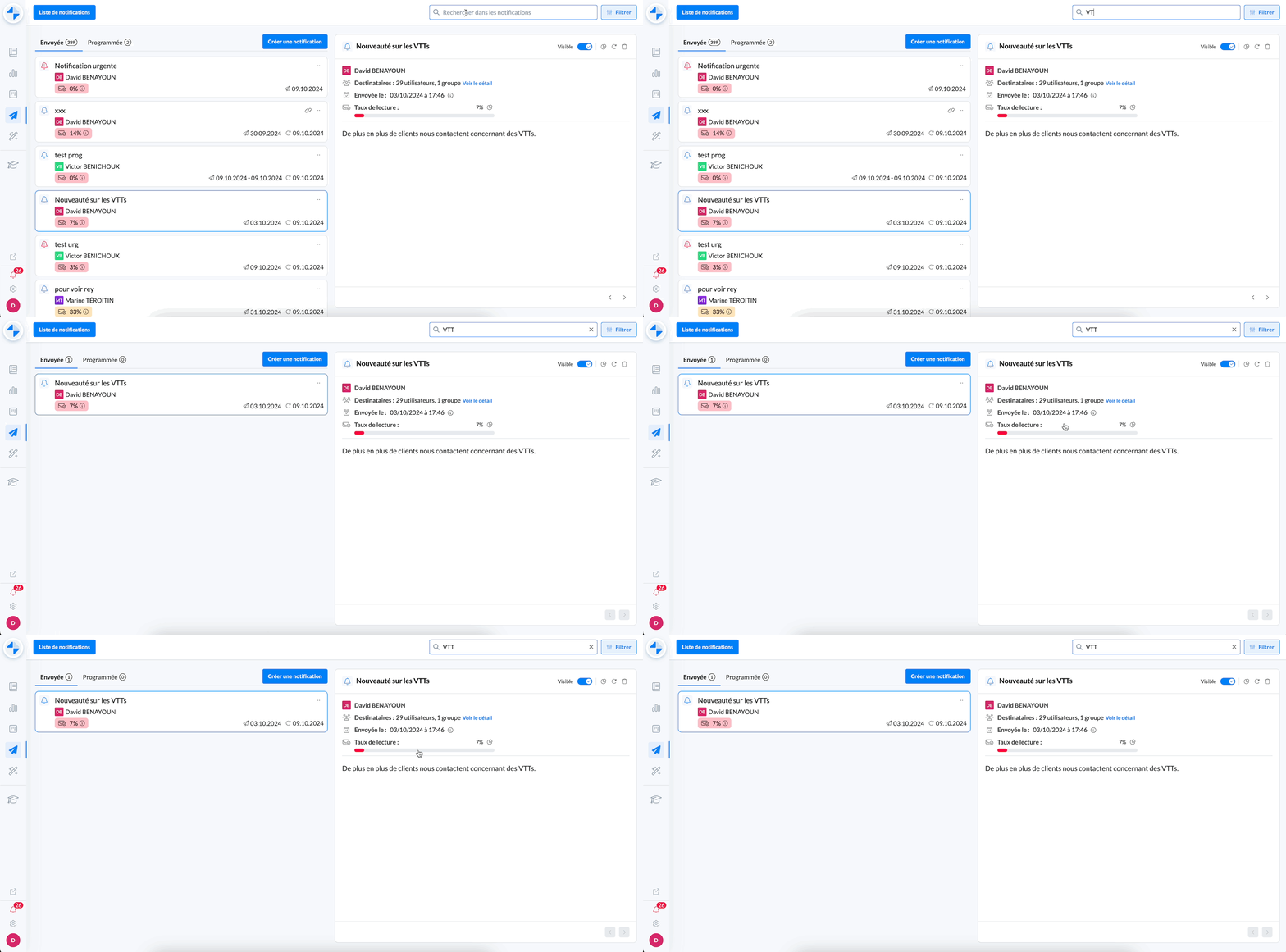
Search for a notification in the notification center.
🎯 Why search for a notification?
Searching for a notification allows you to save time and quickly find the notification you want to view.
🤔 How to use the feature?
From the admin notification center, you will find the search bar at the top of the screen.
Simply type a keyword or part of the title or content of the notification, and the search bar will automatically filter the results in:
The sent notifications tab.
The scheduled notifications tab.
🚀 Optimizations & Improvements
Mayday API | CREATE and UPDATE User
For more information, please contact us to obtain access to our complete technical documentation on the Mayday API.
Three weeks ago, we announced new endpoints on the Mayday API, allowing you to manage your users from the API.
Now, it is possible to create or update a Mayday user from the API.
As a result, two new endpoints are now available:
POST/ Users: to invite a user to join Mayday, defining their group, role(s), and label(s) in particular.PATCH/ Users / User ID: to update a Mayday user.It is possible to update: the username, first name, last name, group, role(s), and label(s) of the user.
🪲 Bug Fixes
👉 We have fixed the following bugs:
Hub: Several bugs have been fixed, such as the display of long names, the return to the top of the list after closing tasks, and issues with task-related content.
Task List in Editor: Inserting task lists in the Mayday editor sometimes caused the browser to crash for some users.
User Deletion: It was sometimes impossible to delete a user from the platform.
Dashboard Statistics: The statistics on feedback were sometimes inconsistent between the global figures and the sum of the detailed statistics.
Automatic Content Translation: Automatic translation failed in some cases for very long content, in drop-down menus, or guides.
👥 Mayday Agent
🔍 Highlight Your Searches!
✨ NEW FEATURE | We have expanded the keyword highlighting features for search when opening content from the search bar!
A few months ago, we introduced keyword highlighting in Mayday Desk, allowing for better identification of relevant information in the content. We are excited to announce that this feature is now also available on Widget, Zendesk, and iAdvize.
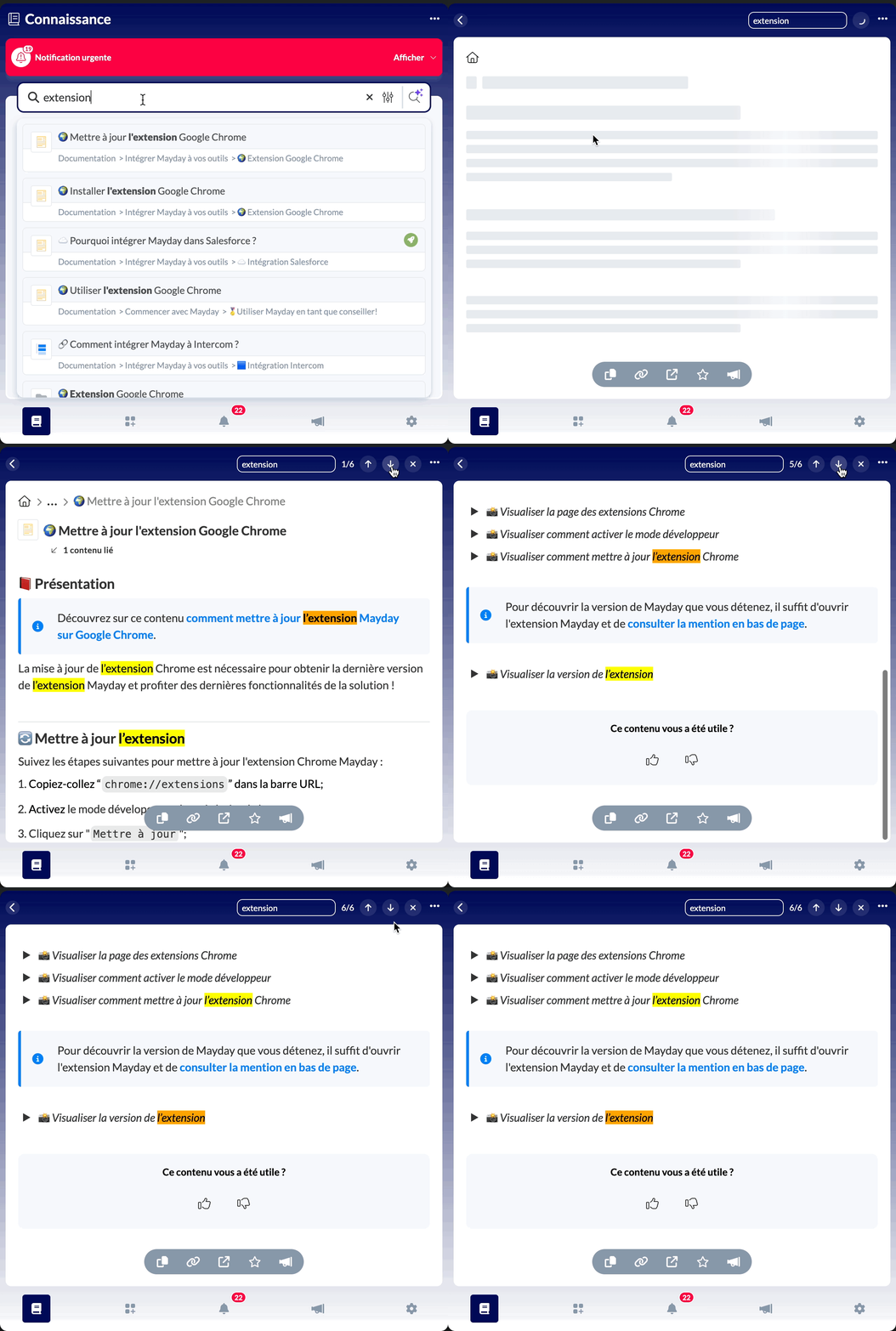
The keyword in your search is highlighted when opening the content.
🎯 Why Use Keyword Highlighting?
This feature allows you to save time and quickly access essential information by highlighting the keywords in your search.
🤔 How to activate this feature?
To enable keyword highlighting, simply activate this option in the platform preferences.
Look for the option titled "Highlight search keywords" and activate it.
🚀 Optimizations & Improvements
Copying the URL of public content

When browsing content in a public knowledge base within our internal platforms (Mayday Desk, Widget, etc.), a new button now allows you to instantly copy the public link of the content.
Example: as a consultant, if you want to share the link to public content with a client? Simply click on this button to copy the content link to the relevant Selfcare.
🪲 Fixes
👉 We have fixed the following bugs for consultants:
Redirection to blocks: Links to blocks were redirecting to the beginning of the content rather than to the targeted block.
Erroneous table of contents: When viewing content on Mayday Desk, the table of contents of an open content in the side panel was displayed in the main view, creating confusion.
Mayday Academy Updates 🎓
⚙ Mayday Admin
📃 Find your archived training content
✨ NEW FEATURE | Find your archived modules and training courses and restore or delete them as needed
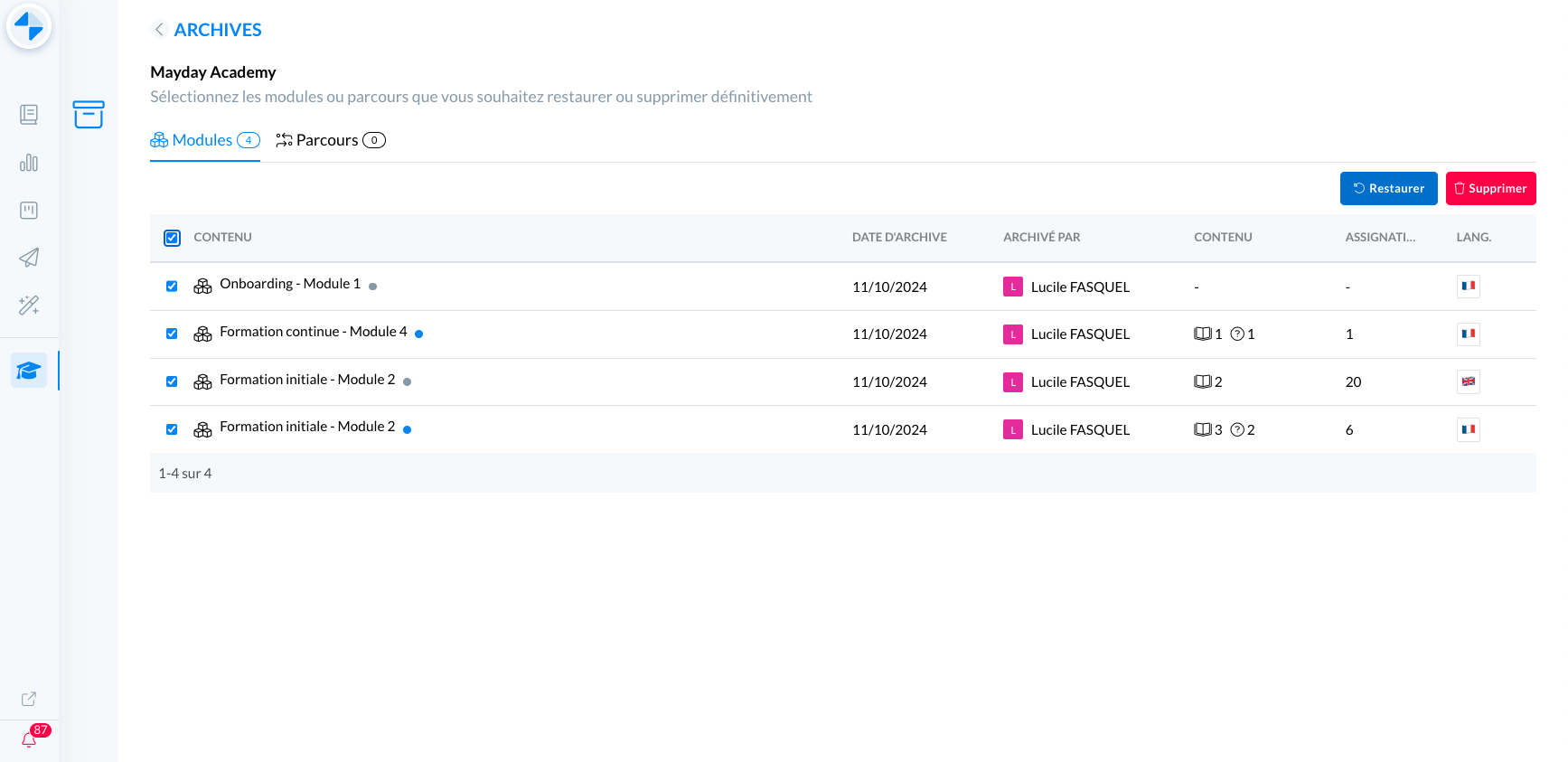
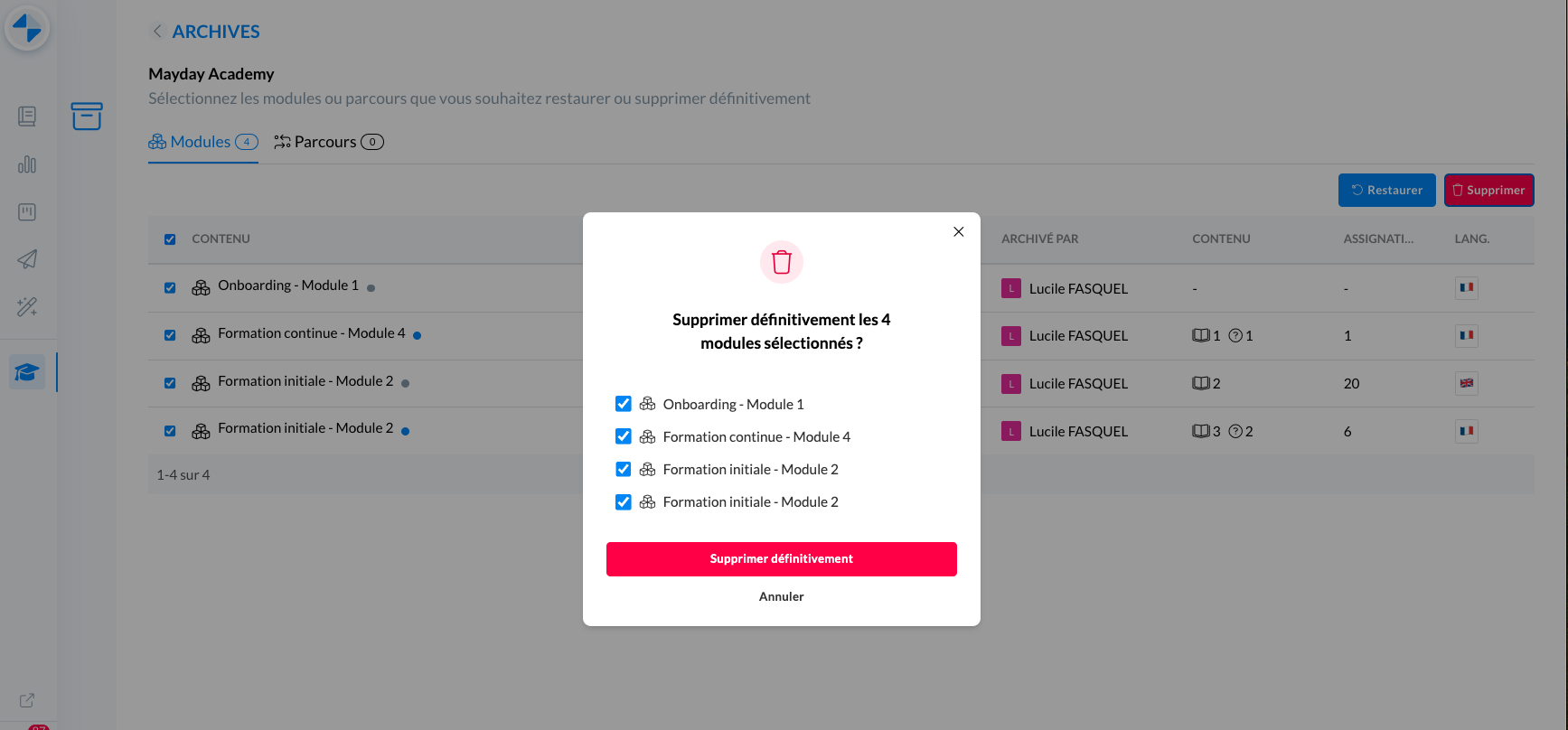
Archive admin interface - Mayday Academy
🤔 How to use the feature?
View archives: on the admin interface of the Mayday Academy, click on the new "Archives" button at the top right of the page, next to the "Filter" button
📸 Screenshot
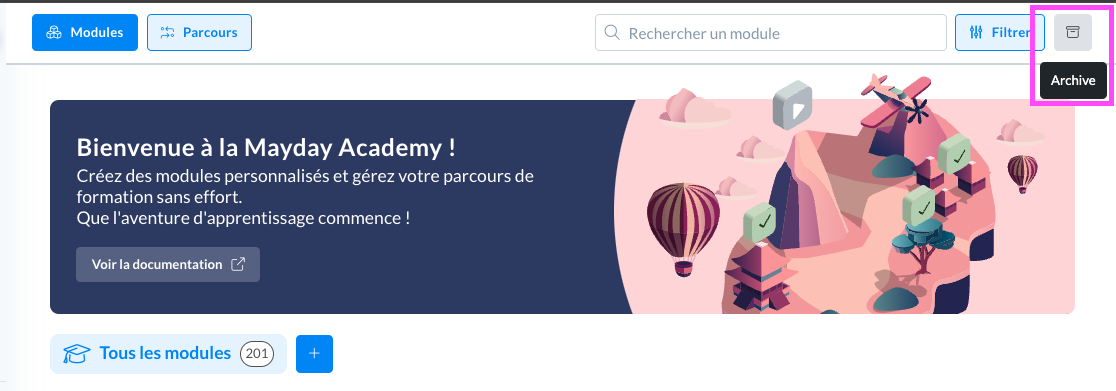
Select the tab you want: modules or courses to view your archived training content
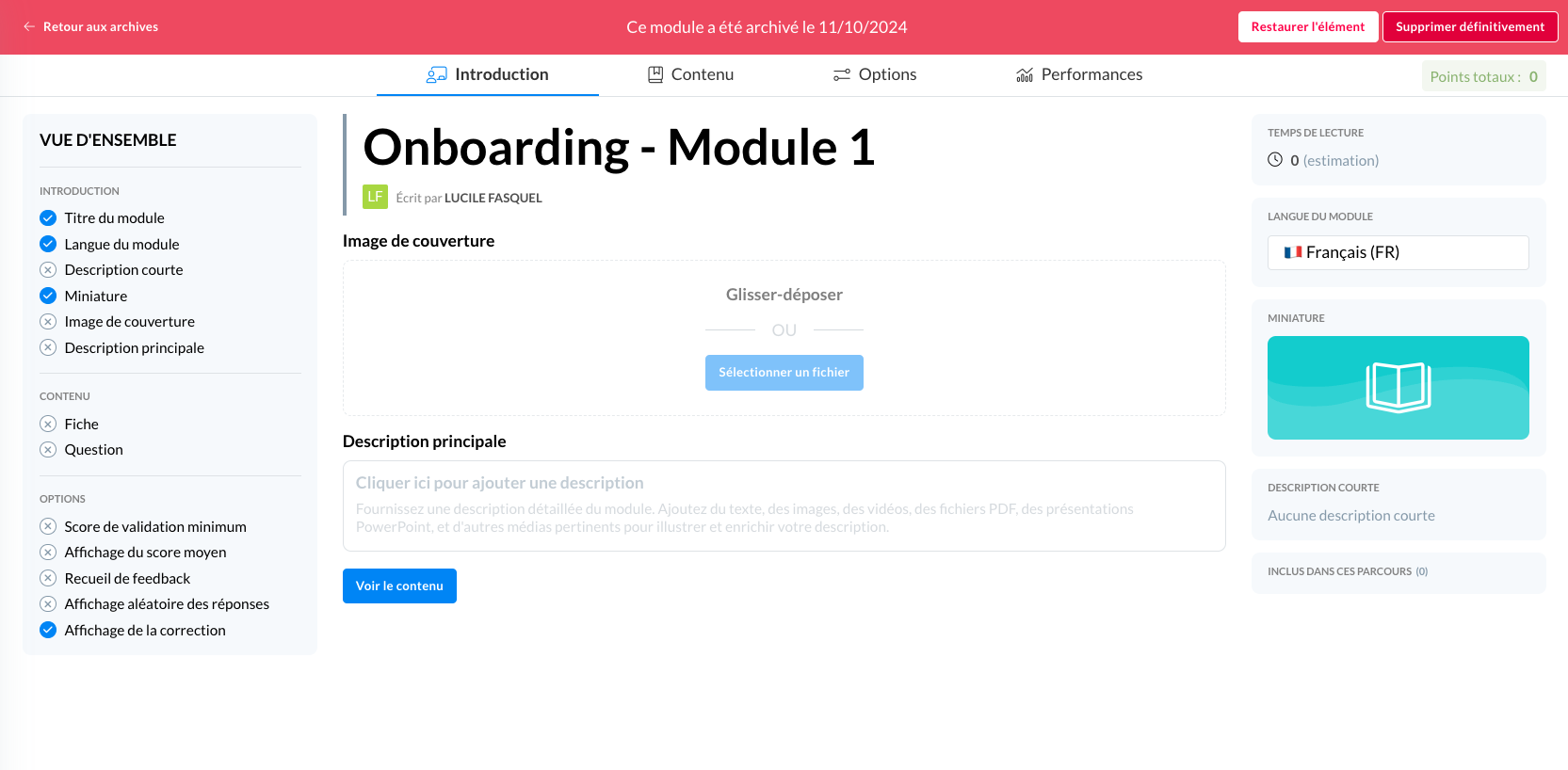
Review the content of the archived version: click on the content in question from the archive table. You can navigate through different tabs to review the content of the archived training.
📸 Screenshot
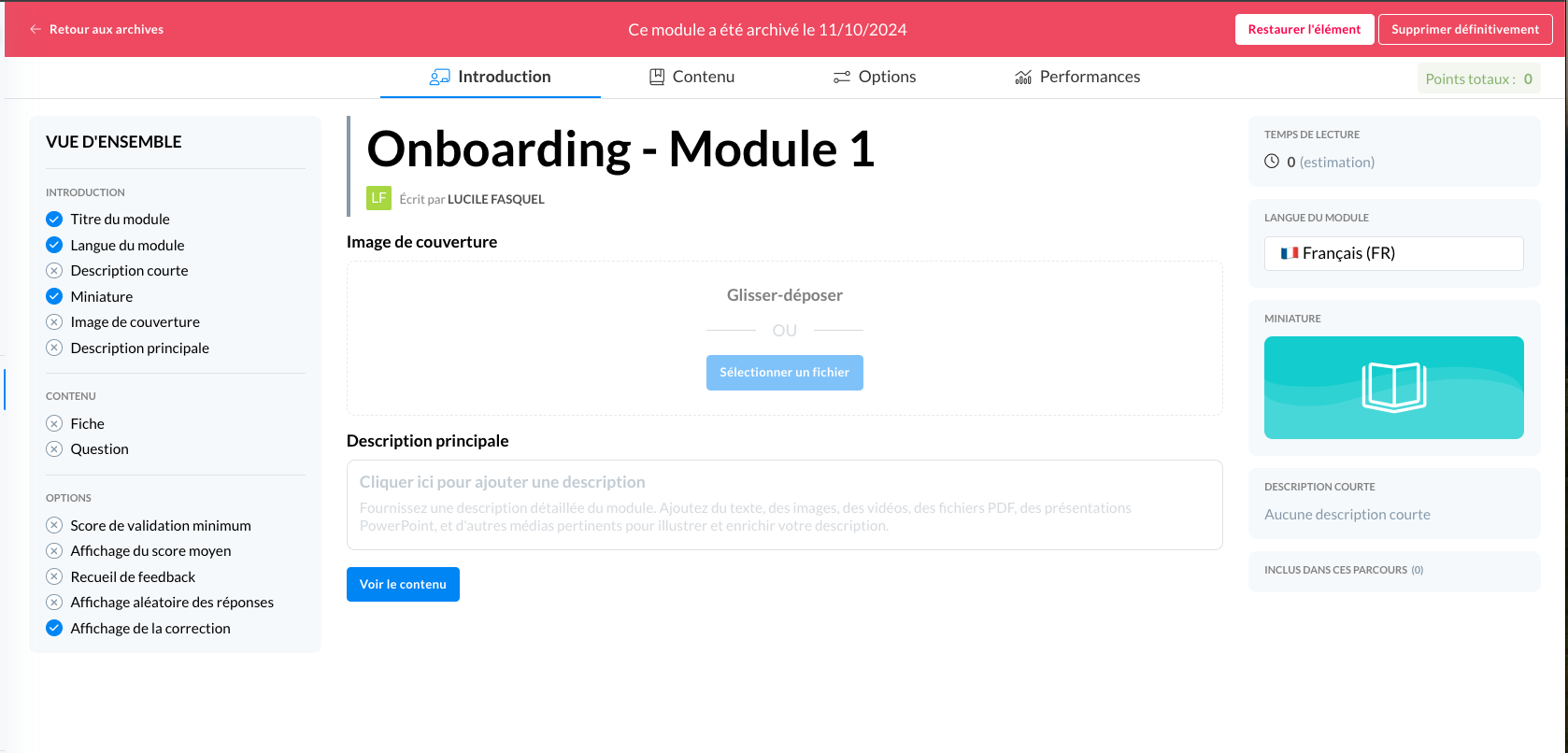
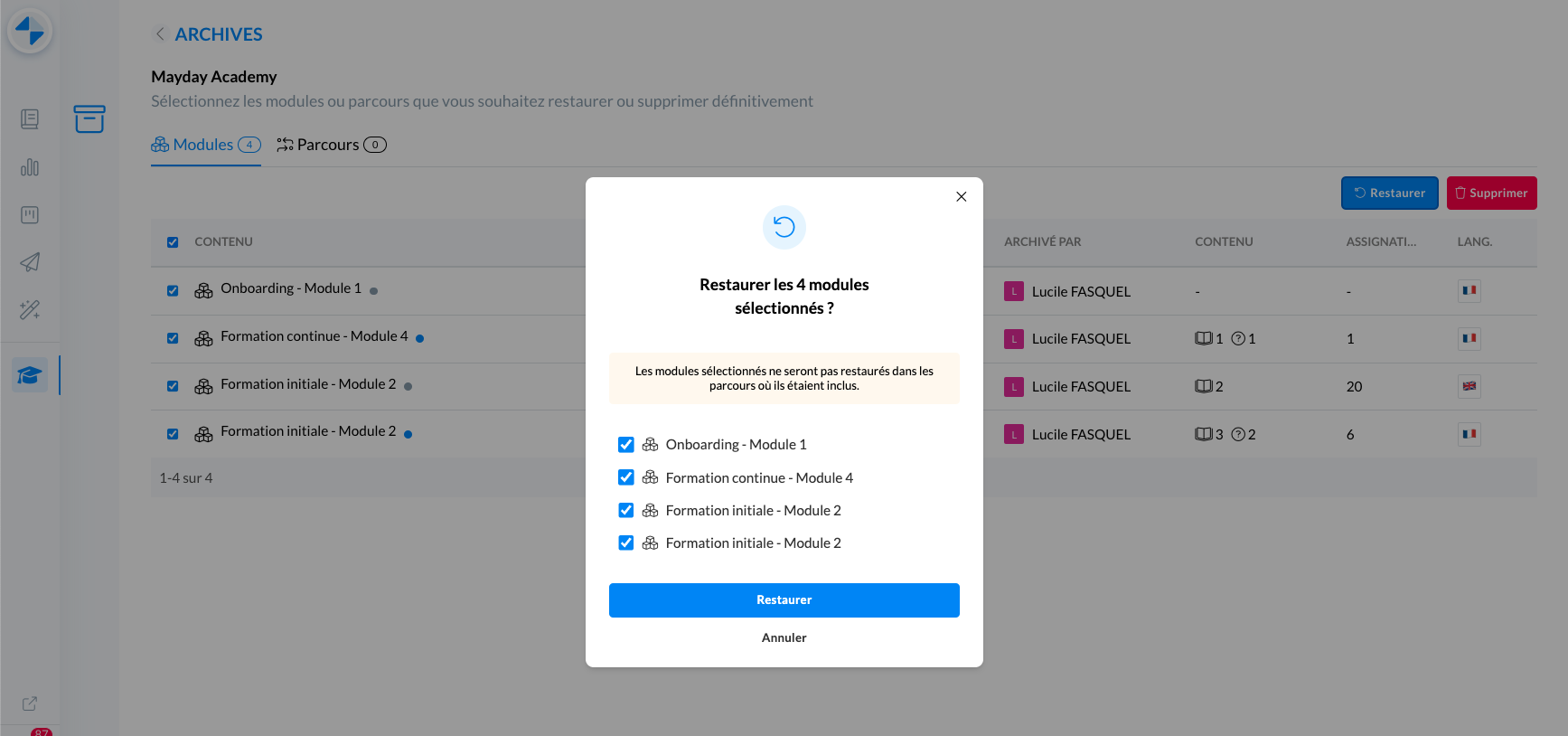
Restore an archive: 2 options:
select the content you want to restore via the checkboxes and click on the blue "Restore" button above the table
📸 Screenshot
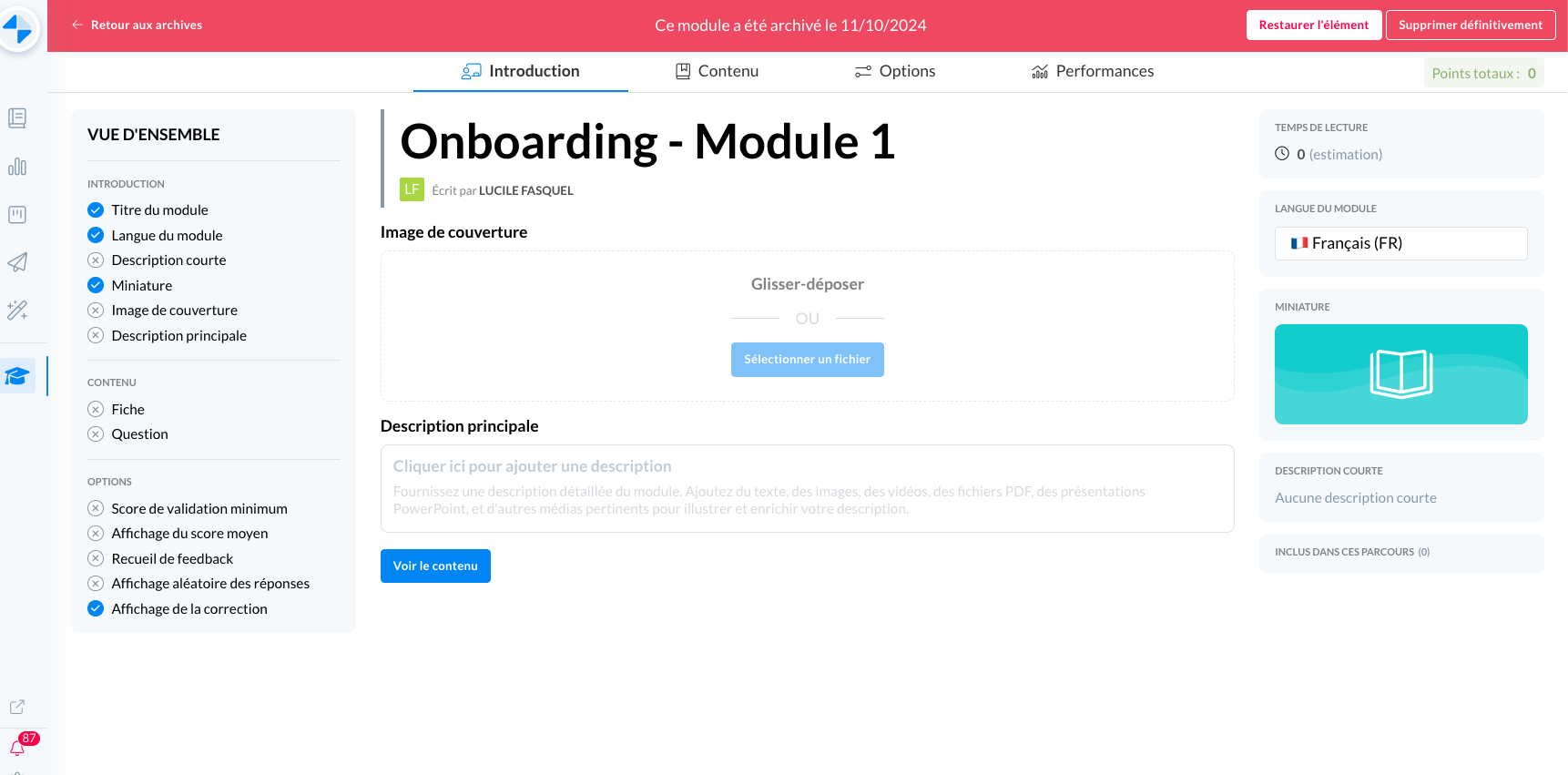
click on the content you want to restore and then on the white "Restore" button in the banner at the top
📸 Screenshot
Permanently delete an archive: 2 options:
select the content you want to delete via the checkboxes and click on Delete
📸 Screenshot
click on the content you want to restore and then on the "Delete" button in the banner at the top
📸 Screenshot
🪲 Fixes
👉 We have fixed the following bugs:
The score on a user scale module is incorrect
The drop-down / ordered / unordered lists in tooltips do not appear on Desk
👤 Mayday Agent
📃 Search for training via the search bar
✨ NEW FEATURE | Your agents can search for training on their Academy
A search bar on the learner interface is now available for your agents.
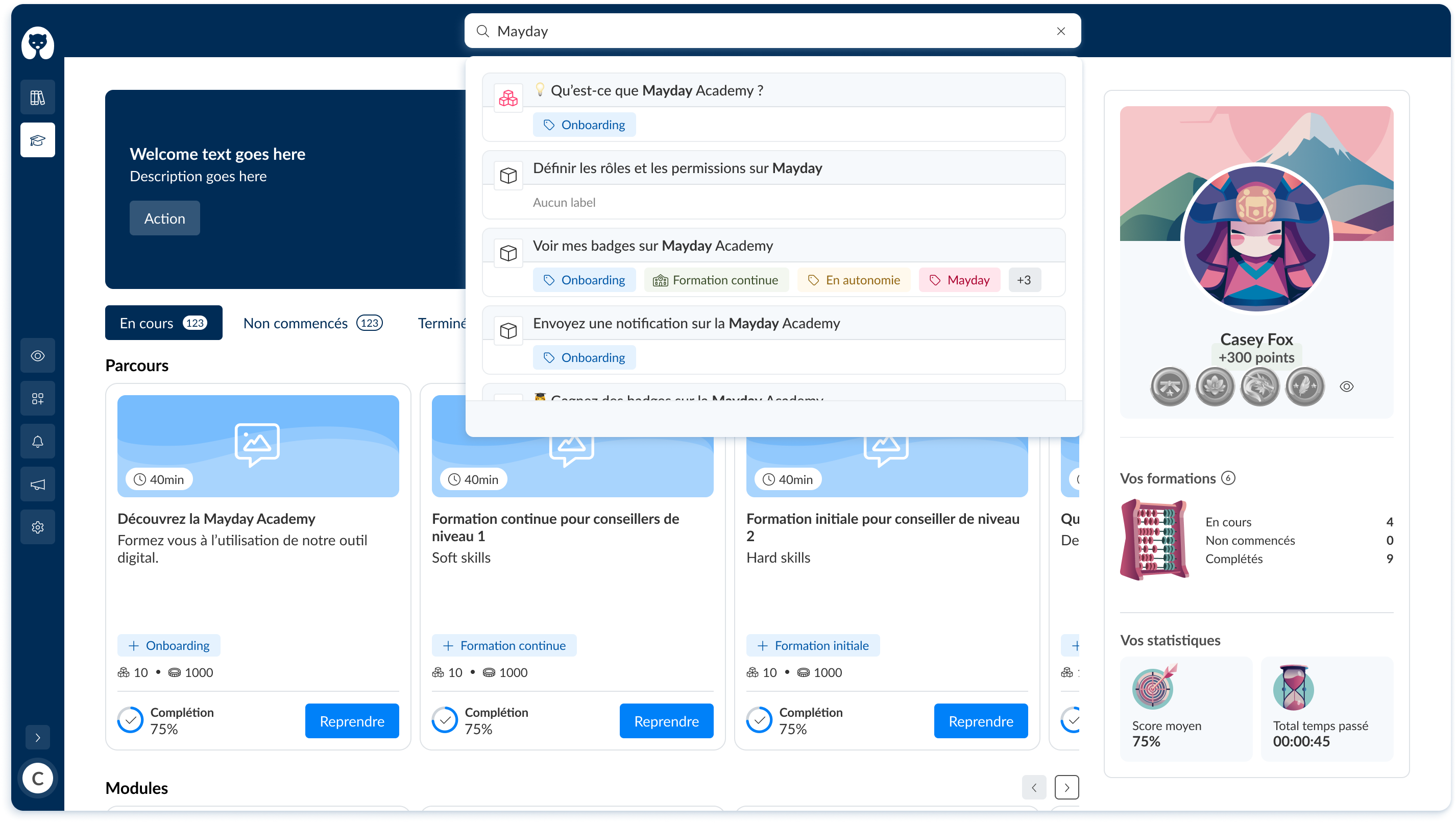
Learner interface Mayday Academy - Search bar
🤔 How to use the feature?
Click on the search bar at the top of the learner interface
Search for the course or module you want
Click on the search result to open the module or course
You can copy the URL from the search result by clicking on the 🔗 icon
You can open a preview in the sidebar by clicking on the 👁 icon on the search result
You can see the status of the training on the search result by hovering over the ▶ icon. Clicking on this icon will redirect you to the module or course.
Only modules and training courses that are published and assigned to your agents will appear in the search engine.
🪲 Fixes
👉 We have fixed the following bugs:
Some modules do not appear on the home page
The numbers indicating the number of modules and their status on the Academy are sometimes inconsistent
Selfcare Updates 🌐
👉 Embedded Selfcare
🚀 Optimizations & Improvements
Navigation with arrows
It is now possible to navigate within Selfcare using the site's back arrows. The navigation history is now kept in memory.
🪲 Fixes
👉 We have fixed the following bugs:
Auto-scrolling returns to the top of the page: when navigating on the FAQ, the display is now done at the correct location on the page.