Introduction 👋
Welcome everyone 👋
We hope you are doing well and wish you an excellent month of December in advance! 🎄 As the holidays approach, we are excited to share with you the new features of our Mayday products.
Some of them were particularly anticipated 👀, and we can't wait to unveil them to you right now!
Without further ado, here's a preview of the new features on 📚 Mayday Knowledge:
Discover the new Administrator Home Page, designed to offer you simplified access to your content, application shortcuts, and a preview of the trendiest content.
Edit your published content with peace of mind thanks to temporary versions. This feature allows you to work on your updates without the advisors seeing the changes before they are published.
As for 🎓 Mayday Academy:
Discover the new display of the administrator interface: all your training content visible at a glance. Save time and improve efficiency with the optimized navigation of your interface!
The search bar and the filter button is now available in your course tab!
Visualize the modules contained in your courses via the new detailed view of the courses list. Gain a higher-level understanding of the construction of your training and administer them more efficiently!
Let's discover all these new features without further delay 👇
Mayday Knowledge News 📚
⚙ Mayday Admin
🏠 Discover the Mayday home page
✨ NEW FEATURE | Mayday administrators can now enjoy a personalized home page offering convenient shortcuts, the latest Mayday announcements, and more!
Administrators on Mayday have multiple missions: content creation, updates, feedback management, sending notifications, etc. Your new Mayday home page makes all of these tasks easier!
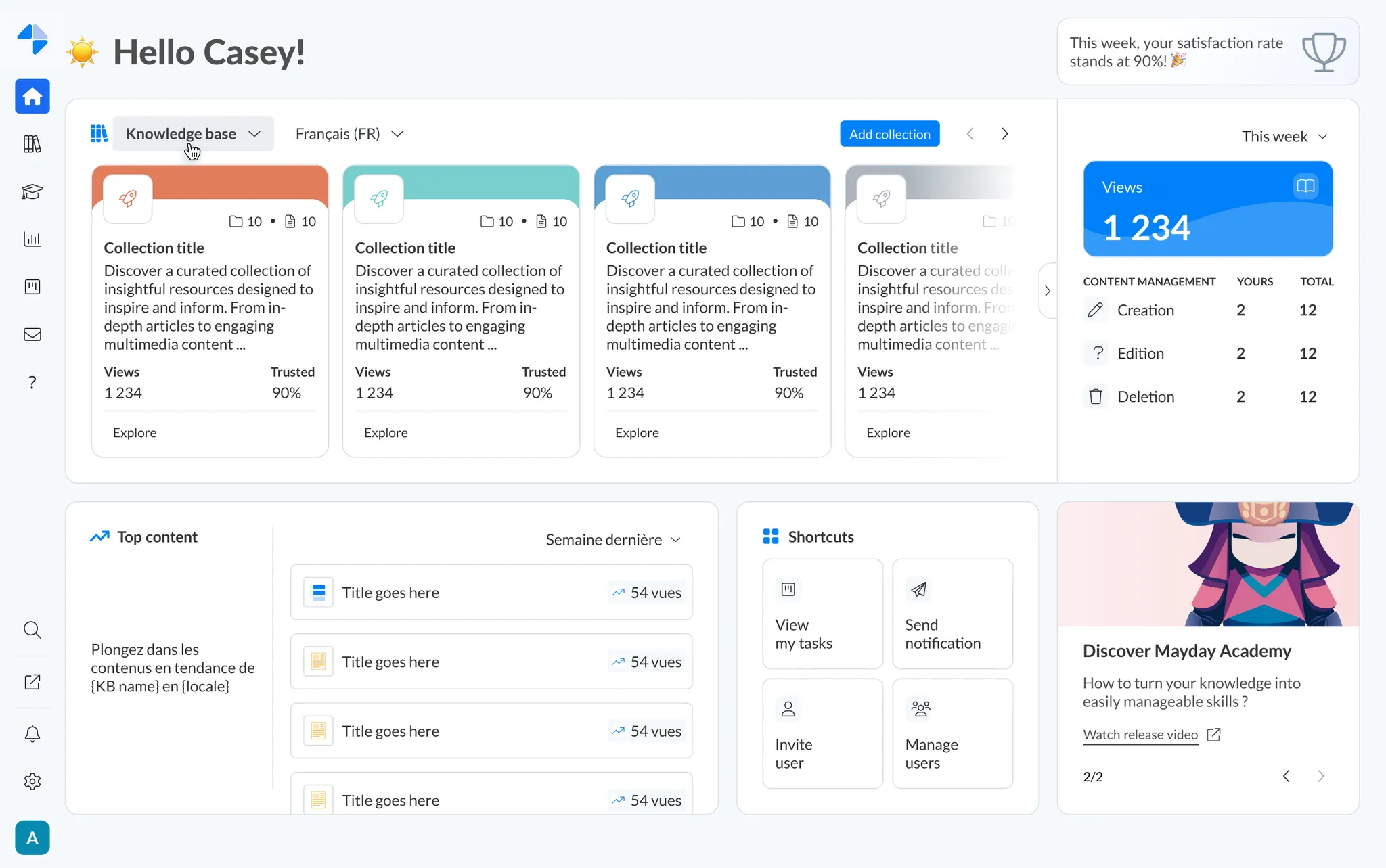
Your new Mayday home page
🎯 Why this Mayday home page?
📚 To have a quick overview and direct access to your Mayday collections,
📣 To stay constantly informed of the latest news and announcements from Mayday,
⚡ To take advantage of shortcuts to facilitate your actions on Mayday,
📈 To discover the most popular content on Mayday and understand the preferences of your advisors.
🤔 How to use the feature?
To access the Mayday Home Page, you must have editing rights on the knowledge base.
Go to the
As you may have noticed, the administrator search engine did not cover certain sections, such as the Hub, advisor notifications, or archives.
👉 Now, this search engine is accessible throughout the administration center.
🪲 Fixes
👉 We have fixed the following bugs:
Advisor Notifications: Notifications intended for advisors were not being sent correctly when recipients were selected via a user label.
User List: Users imported into Mayday remained visible in the list even after their deletion.
Automatic Content Translation: Dropdown lists were not always translated when using the AI translation feature.
AI Content Summary: The automatic generation of a short summary sometimes included language mentions, such as "French:" at the beginning of the text. Furthermore, the summary could be generated in English even if the content was in another language.
Suggested Responses in Content Templates: Modifying suggested responses in content templates did not always work correctly.
👥 Mayday Agent
🪲 Fixes
👉 We have fixed the following bugs for advisors:
Urgent Notification Banner: For some clients, the display of the urgent notification banner caused slowdowns on the platform.
Mayday Academy Updates 🎓
⚙ Mayday Admin
🪄 New View of Your Training Content on Your Admin Interface!
✨ NEW FEATURE | Save time and increase efficiency with the optimization of your interface navigation!
Discover the new display of the admin interface, from which your training content is now all visible at a glance
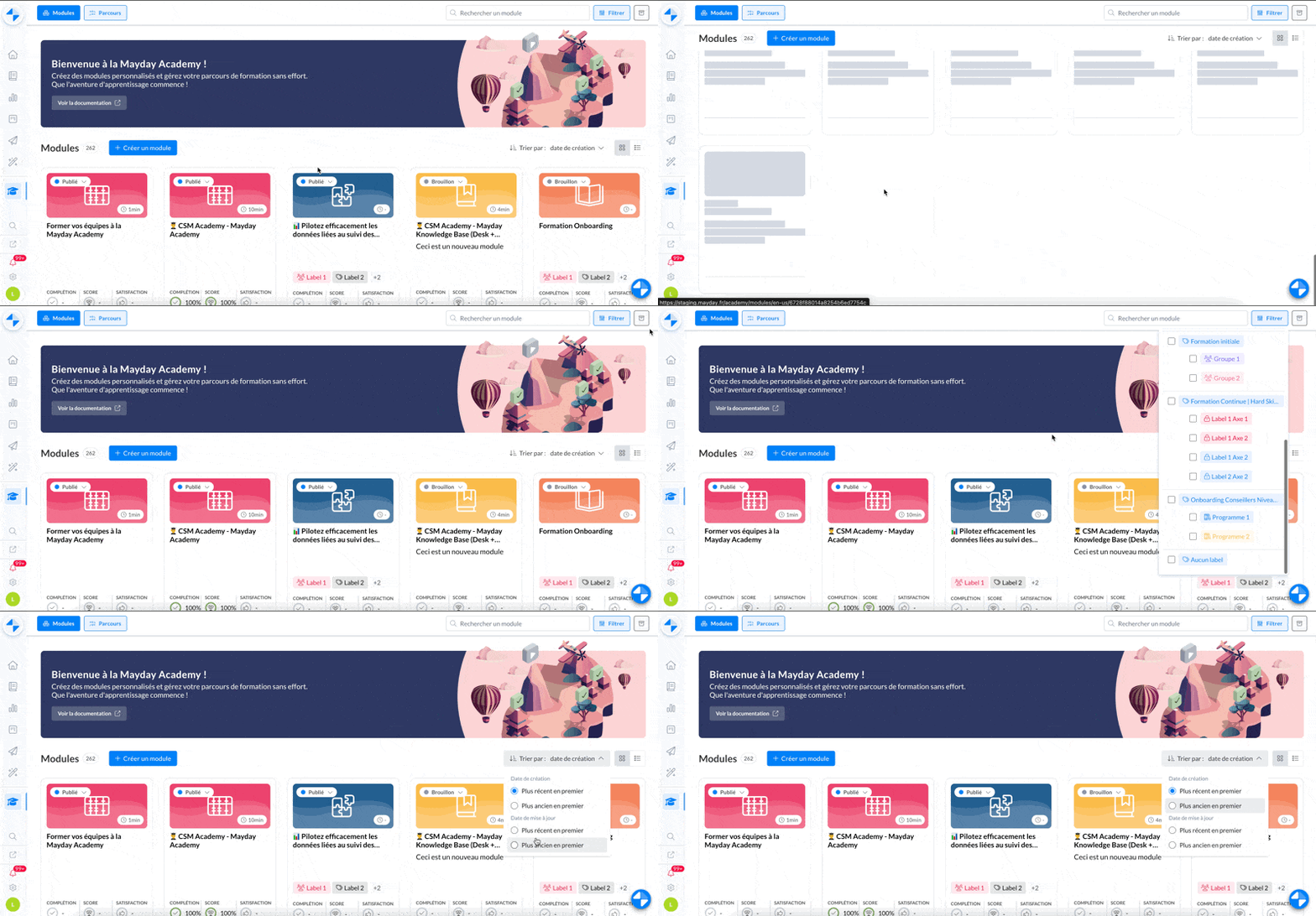
Mayday Academy Admin Interface - Detailed List View of Paths
🤔 What are the changes?
All your training content is now displayed without categorization in label categories.
You can browse all available trainings at a glance
Use the filters at the top right of the screen to refine the display of trainings via:
label categories (for modules only)
labels (for modules only)
status: draft or published
More trainings are displayed on the same line
You can sort the display of your trainings by:
creation date
from oldest to newest
from newest to oldest
update date
from oldest to newest
from newest to oldest
🔍 Search and Filter your Paths on Your Admin Interface
✨ NEW FEATURE
The search bar and filter button is now available in the paths tab!
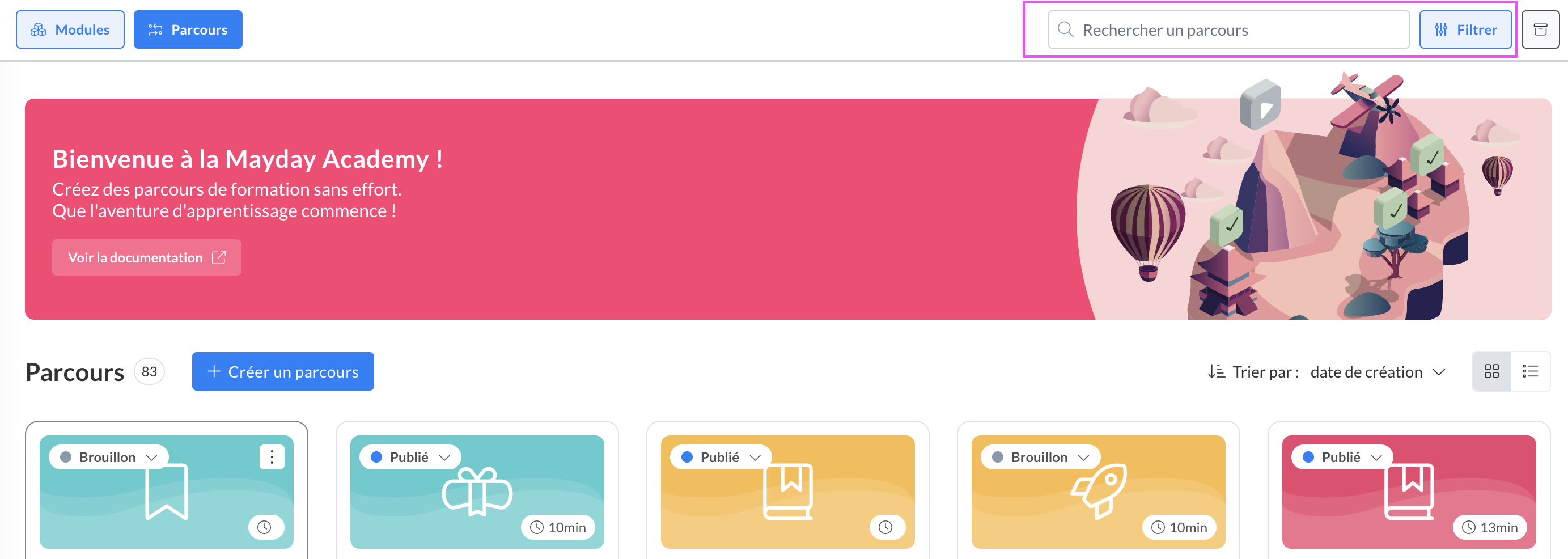
Mayday Academy Admin Interface - Paths Tab
You can filter your courses by status: draft or published
📃 Display of modules within courses in the new "list view"
✨ NEW FEATURE | View, publish, and access all modules included in the courses from the list view of courses
This feature optimizes the new list view that we have designed for displaying your modules and courses, and allows you to have a better overview of your training administration.
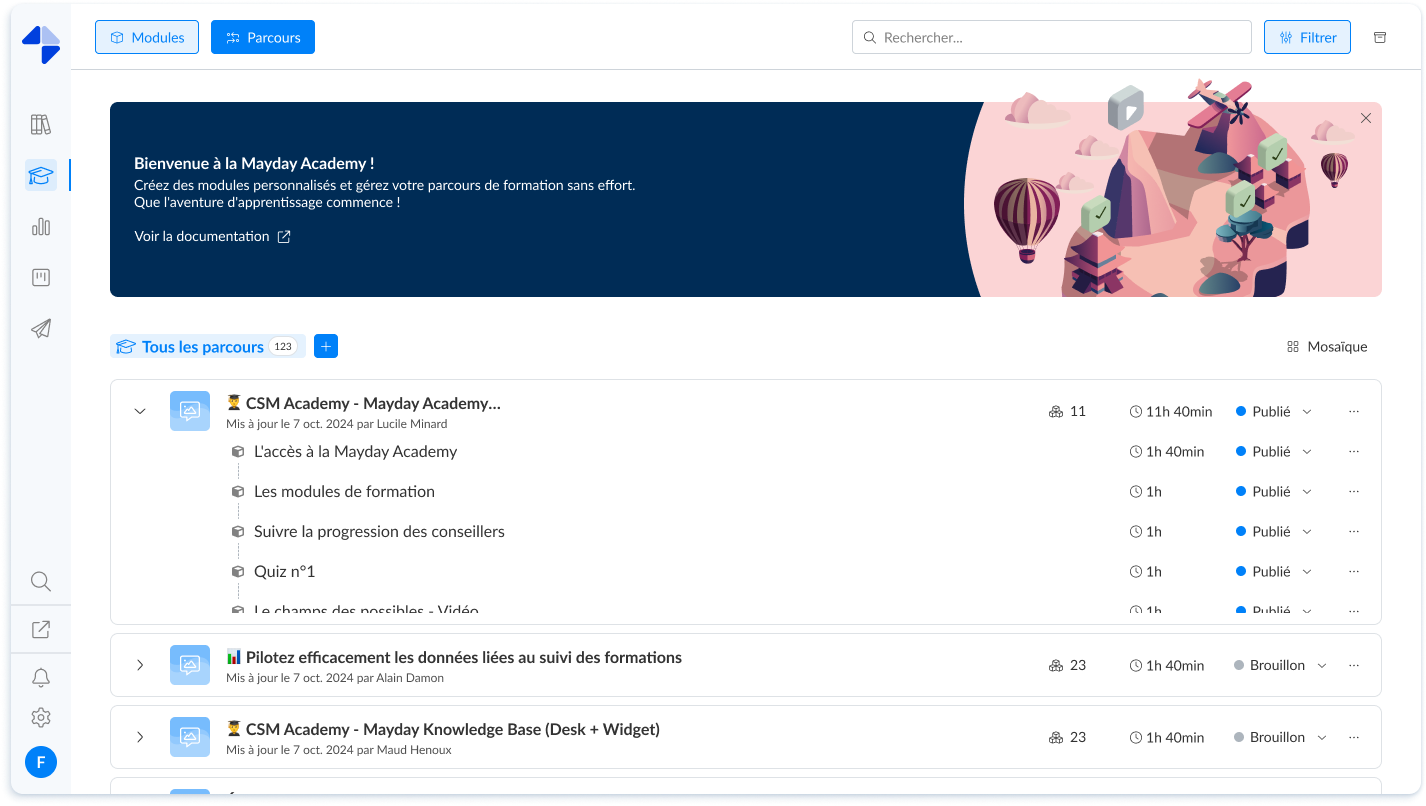
Mayday Academy administrator interface - Detailed list view of courses
🤔 How to use the feature?
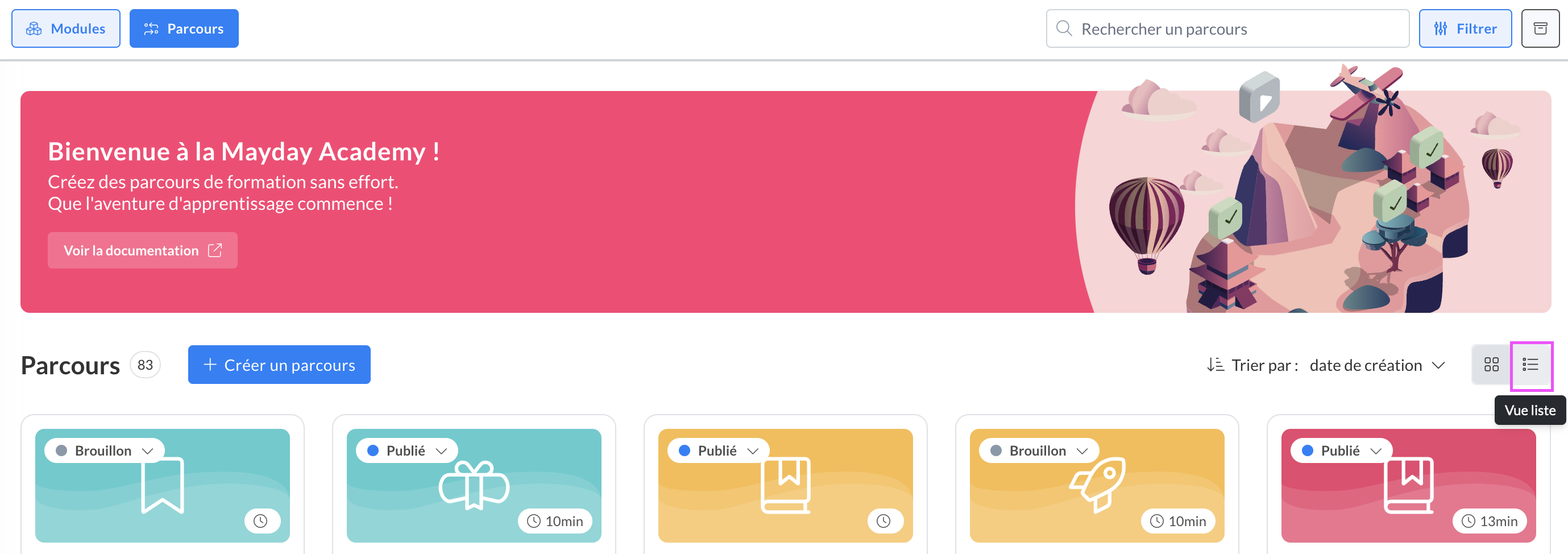
On the "Courses" tab, click on the "list view" button to change the display
📸 Screenshot:
On a course chevron to display the details of the modules it contains
📸 Screenshot:
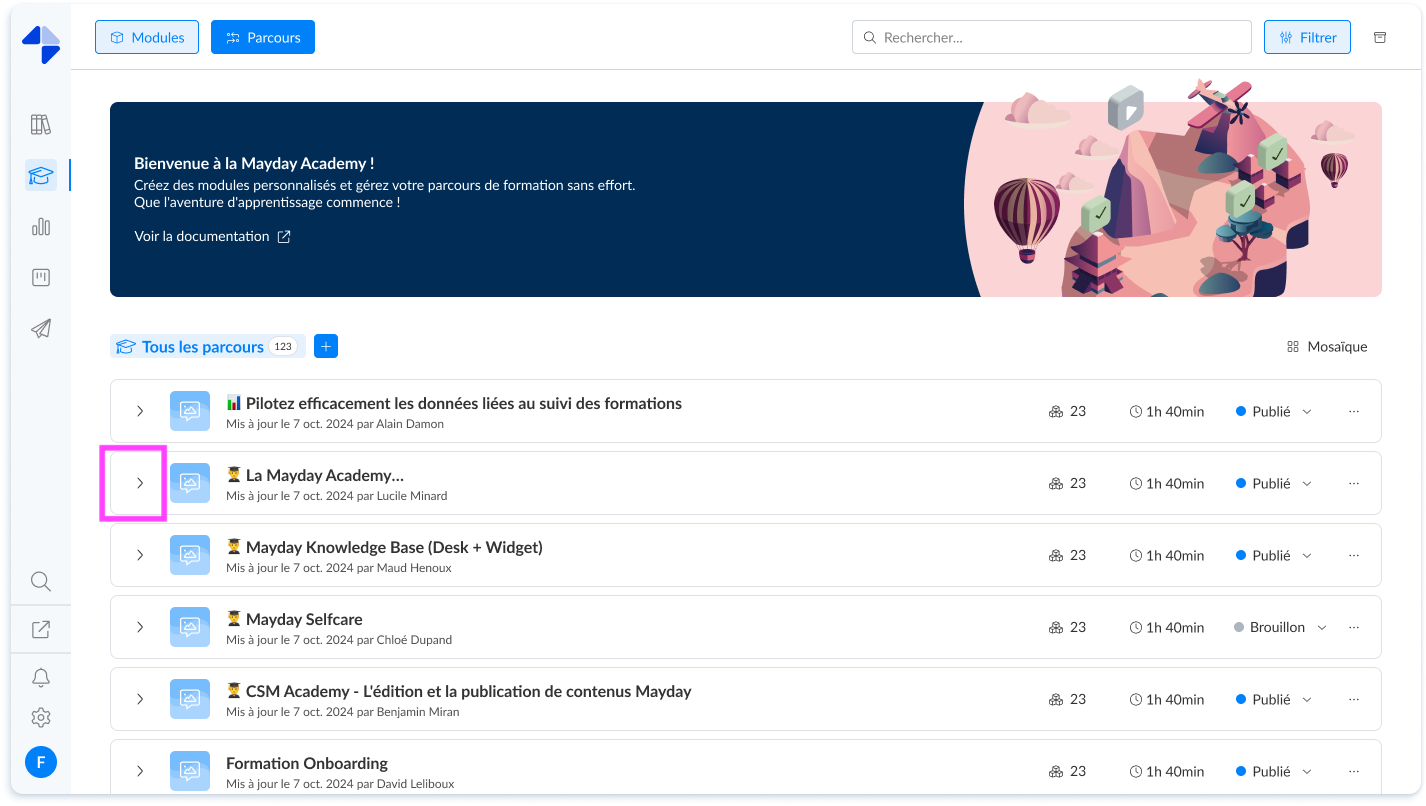
You can directly from this view:
Open and access the course as well as the different modules it contains by clicking on their title
Publish or switch to draft the course as well as the different modules it contains
🪲 Bug Fixes
👉 We have fixed the following bugs:
The content enclosed in a correction is displayed again without having to click on it
👤 Mayday Agent
🎯 Specific view to display all results of a search
✨ NEW FEATURE | Display and filter all your search results
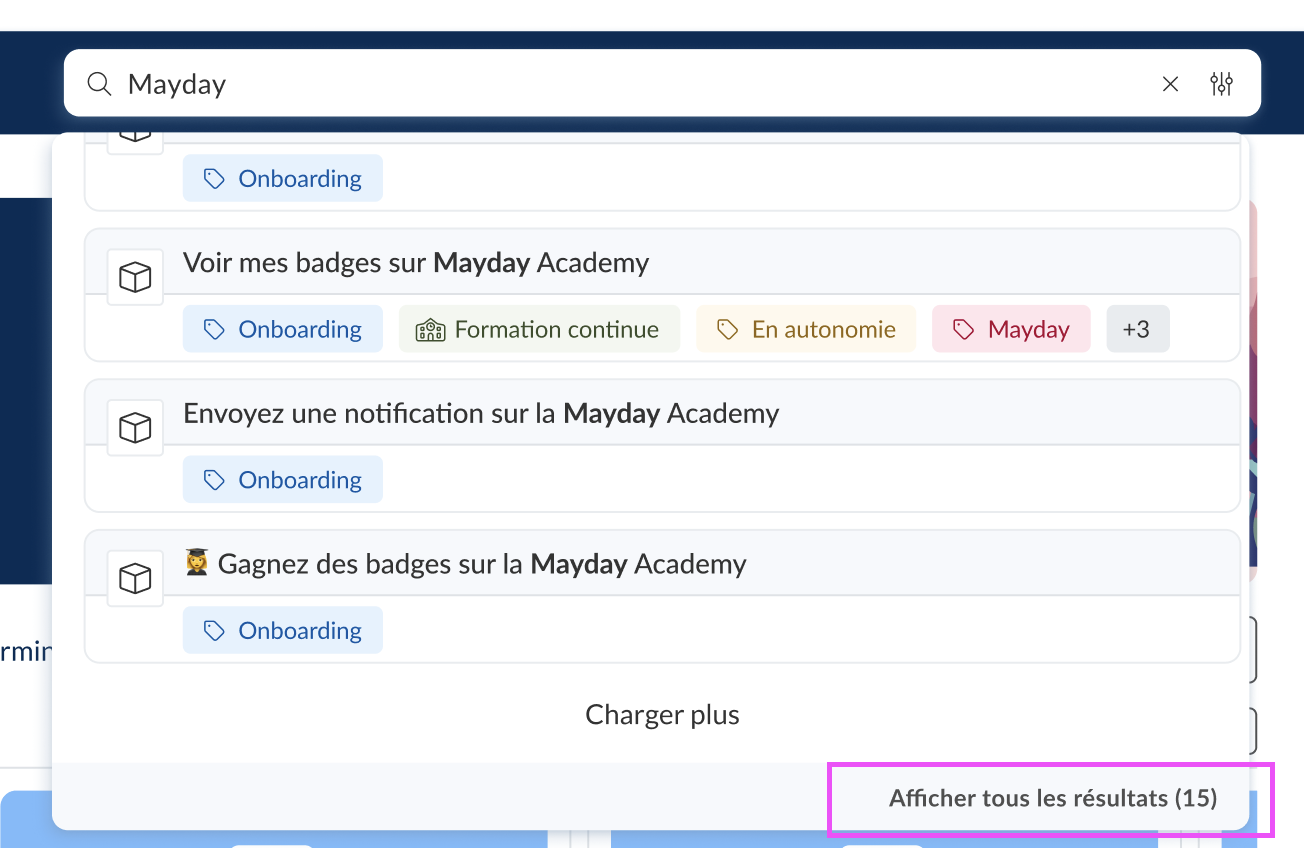
From the search bar of the Academy, your advisors can now display all the results of their training search and filter them on a dedicated view.
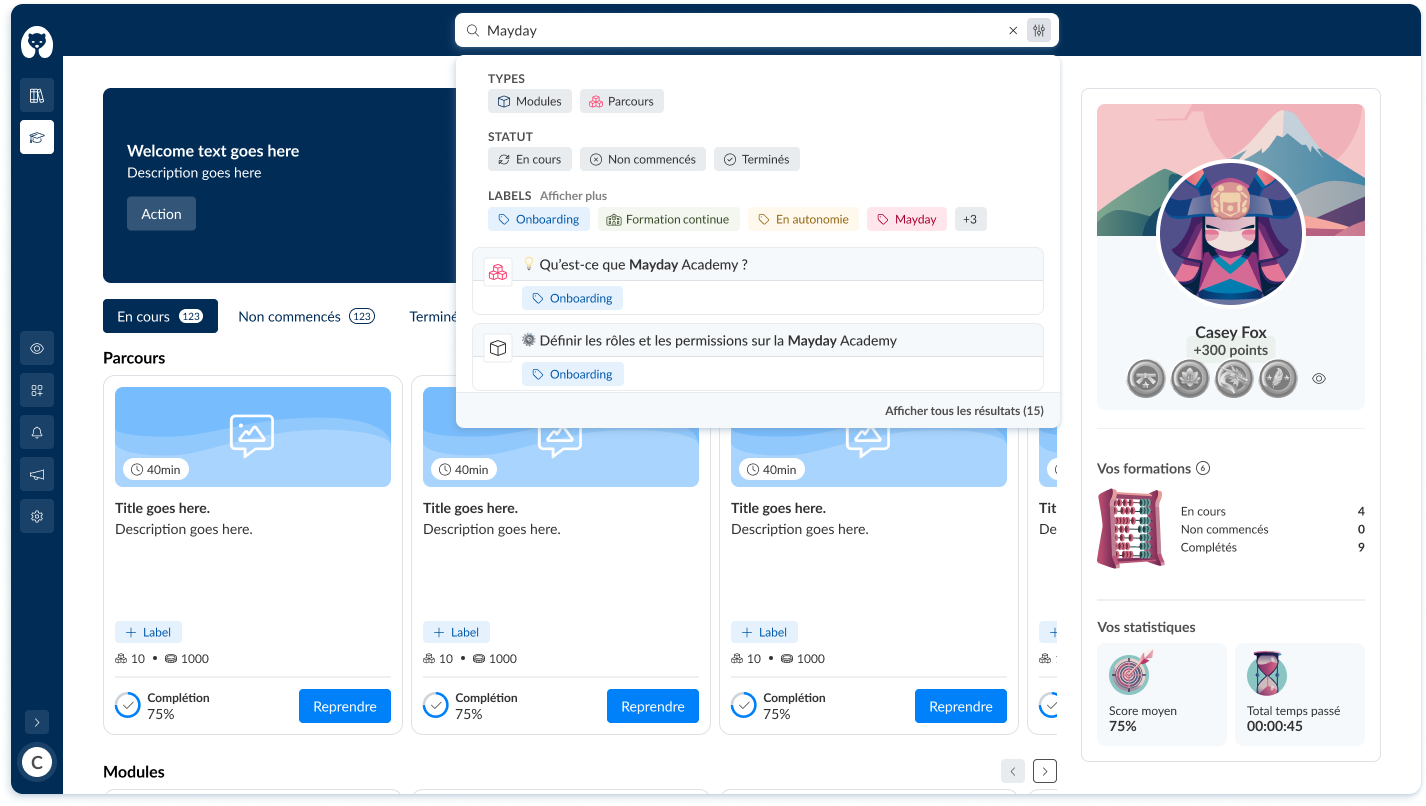
Mayday Academy learner interface - Search bar - Filters and "Show all results" option
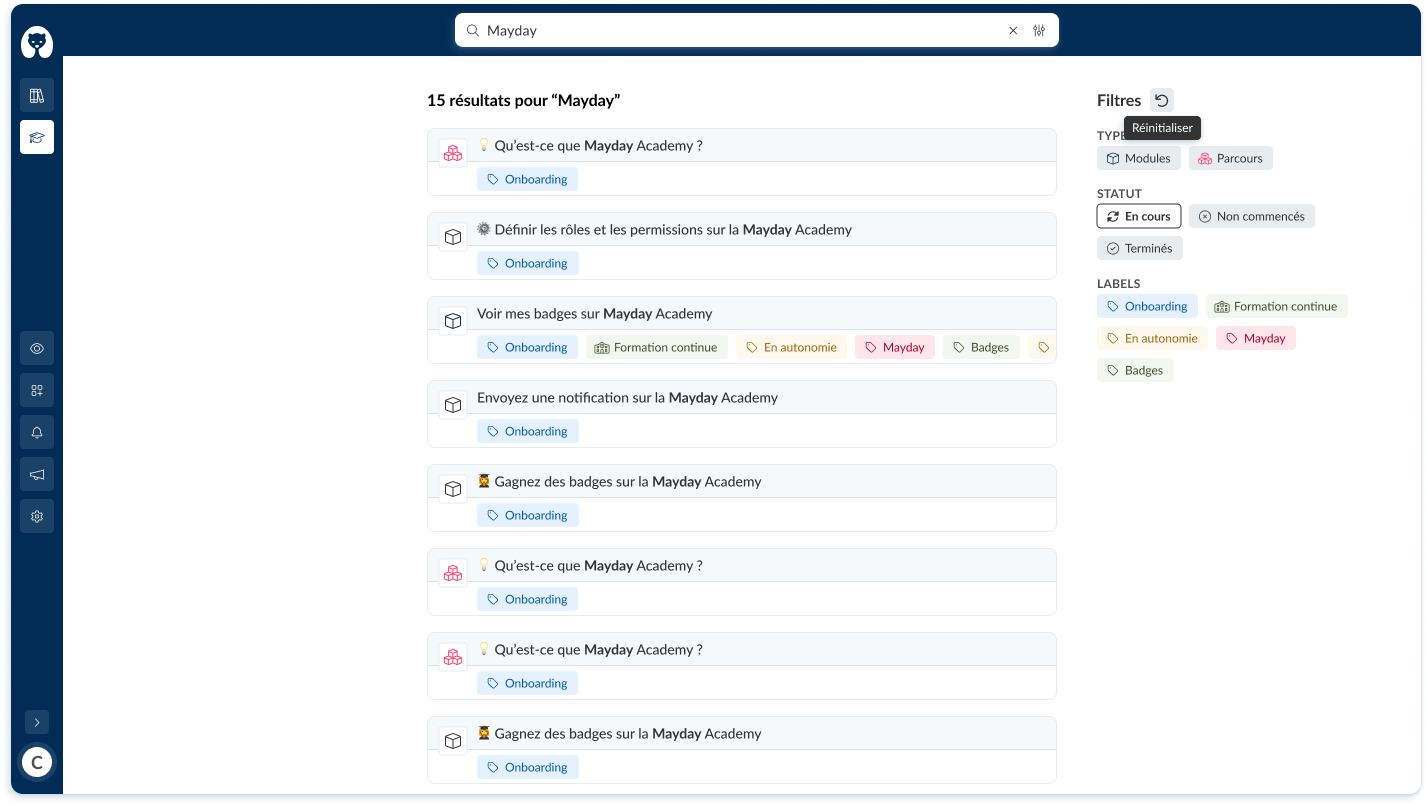
Mayday Academy learner interface - Search bar - After clicking on "Show all results"
The filter feature allows you to filter the courses by:
Type (Modules or Courses)
Status (In progress, Not started, or Completed)
Labels
🤔 How to use the feature?
Search for a training on the Academy search bar by typing the title of the training or by clicking on the "Filters" icon next to the cross in the search bar
📸 Screenshot:

To see all the results, click on "Show all results"
📸 Screenshot:
To use the filters:
click on "Modules" or "Courses" to filter by type
click on "In progress", "Not started", or "Completed" to filter by status
click on the labels you are interested in to filter by labels
📸 Screenshot: