👋 Introduction
After a dynamic end to Q1, we’re thrilled to introduce an update that will take your Mayday experience to the next level.
💡 What’s in store? Highly anticipated features and, most importantly, AI that continuously evolves to better serve your needs.
🎯 Our mission: To save you time on daily tasks while providing a more personalized experience—because every user deserves a solution that truly fits them!
Here’s what’s coming your way:
✨ The Mayday Genius – Your all-in-one AI Agent Hub, designed to streamline your workflow and support you every step of the way.
📂 SharePoint Integration – Seamlessly connect and access your SharePoint files directly within Mayday, ensuring smoother and more centralized resource management.
We can't wait for you to explore these new features and see how they enhance your daily workflow.
Let’s dive in! 👇
🤩 Global News
At the end of the first quarter of 2025, we are delighted to unveil a major innovation for Mayday: Mayday Genius. 🚀
Important: If you’d like access to Mayday Genius, feel free to reach out to your Mayday contact – they’ll be happy to help you!
 Presentation of the Mayday Genius
✨ NEW FEATURE | Mayday Genius becomes your Hub of specialized AI agents!
With Mayday Genius, enjoy specialized AI agents to assist you with specific tasks. Ask your questions in natural language, draft a notification, or analyze data in depth—your Genius is here to simplify your life! 🚀
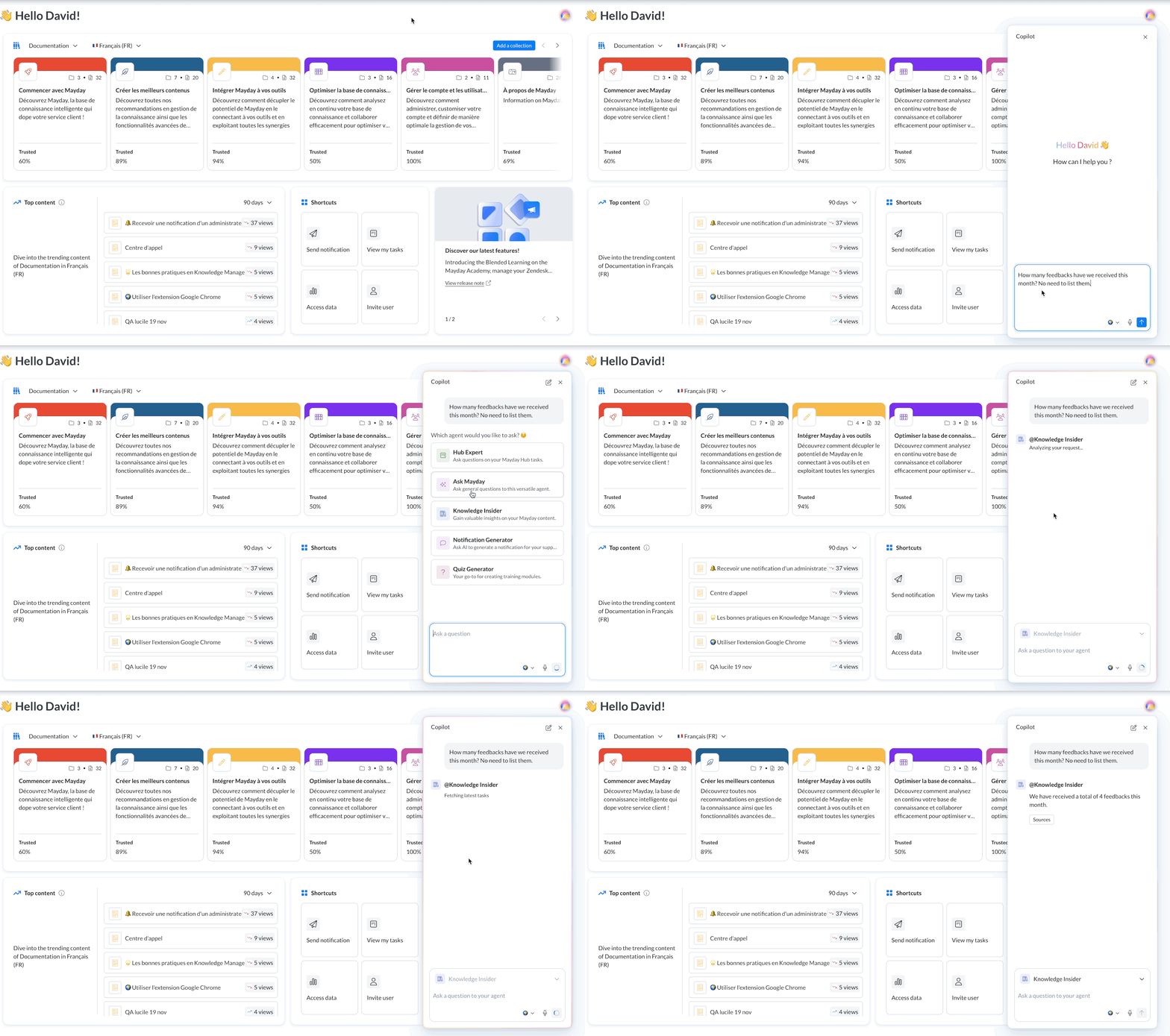
Open your Genius and use AI agents in natural language!
Mayday Genius is currently only available in the administration center, but it will soon be available for agents!
👋 Presentation of the Genius
🤔 What is Mayday Genius?
Mayday Genius is your Hub of AI agents, always by your side to help you with all your tasks on Mayday. Accessible everywhere, this intelligent panel allows you to save time by responding to all your requests.
Its secret? Specialized agents, experts in their respective fields. Just choose the right agent and ask your question. Simple, fast, and effective!
🎯 Why adopt Mayday Genius?
🤖 An intelligent copilot – A single interface to interact with multiple specialized AI agents.
⚡ An invaluable time saver – Ask your questions, generate a notification, summarize feedback, and much more, in the blink of an eye.
➕ Constantly evolving AI agents – New agents regularly enrich your experience to better assist you.
✍ Tailored customization – Coming soon: create your own AI agents or adapt existing ones to your needs.
💡 Use cases of the Genius
The Mayday Genius adapts to many uses thanks to its specialized AI agents. And soon, you will even be able to customize them according to your needs!
🔹 Agents available now:
🧐 Ask Mayday – Ask your questions in natural language about the contents of your Mayday knowledge bases and your connected sources (like SharePoint, for example).
—
📊 Knowledge Insider – Get insights on your Mayday contents: number of consultations, summary of received feedback, or even tips to optimize their writing.
💡 Good to know: If you ask a question while on a specific content, Genius will automatically understand that your request is about that content.
—
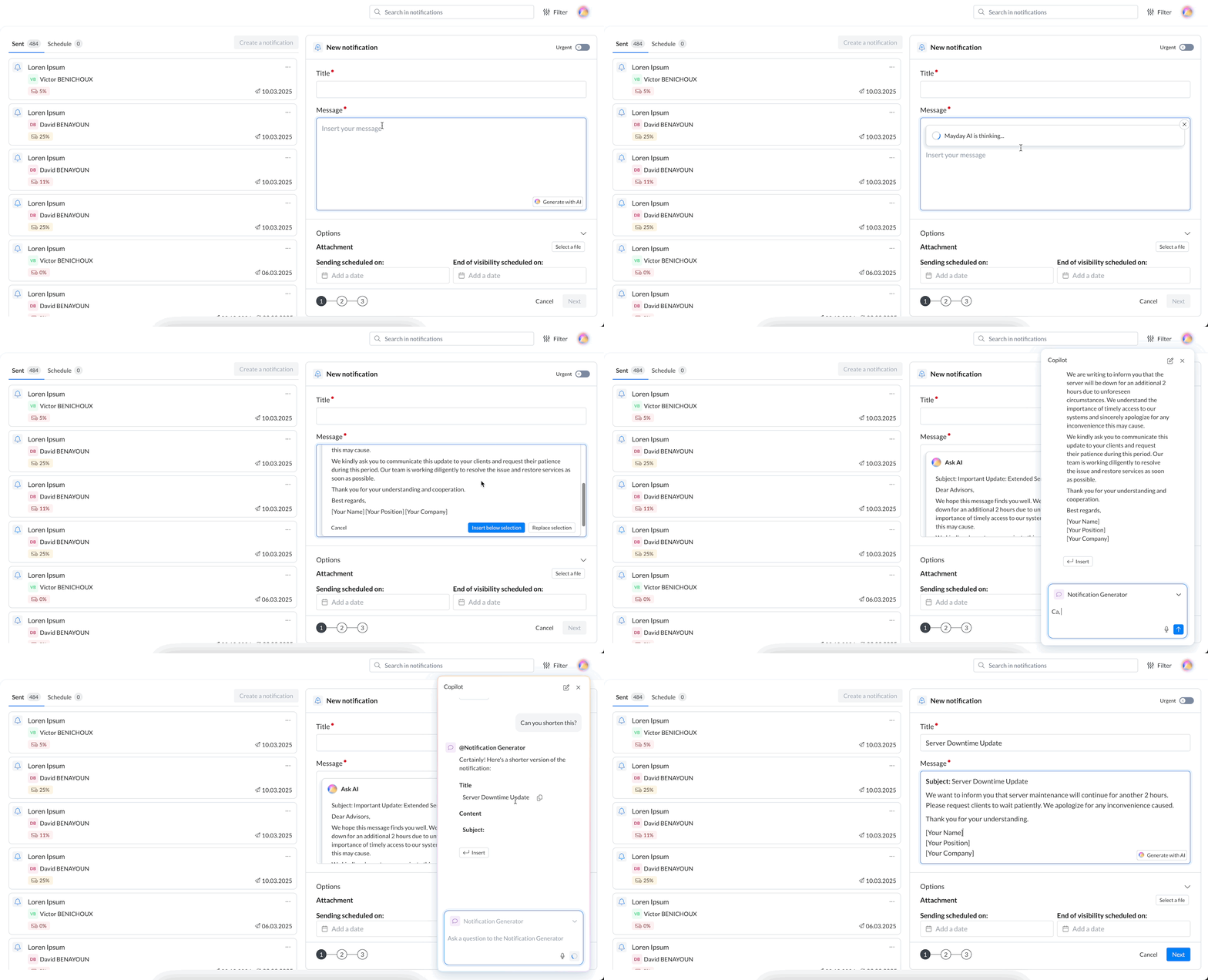
🔔 Notification Generator – Generate a notification in seconds with the help of Genius.
💡 Good to know: You can first use the "Ask AI" feature, and then switch to Genius to refine your request. Soon, this option will be available for other AI agents!
—
❓ Quiz Generator – Create questions for an Academy module from Mayday contents or external files.
💡 Good to know: When you generate a quiz while on an Academy Module, you can insert the questions directly from Genius.
💪 Using the Genius
🤔 How to use Mayday Genius?
1⃣ Open Genius – Click on the icon at the top right of all pages of the administration center.
2⃣ Ask your question – Express yourself in natural language and select the AI agent best suited to your need.
3⃣ Get an instant answer ✅ – Enjoy a clear and actionable response, with call-to-actions accessible directly from Genius.
4⃣ Consult the sources – If needed, access the references used by the AI agent for more transparency.
💡 Some tips for using Mayday Genius well
🎯 A unique conversation – Your exchange with Genius remains active on all pages of the administration center. If you change sections, you will find the same ongoing conversation.
💡 Good to know: It is not possible to conduct multiple distinct discussions simultaneously with Genius.
🔑 Access based on your role – Your permissions define the AI agents you have access to:
🚫 No access to the Mayday Academy? You will not see the Quiz Generator.
🚫 No access to notification writing? The Notification Generator will not be available to you.
✅ This logic applies to all agents.
⏭ And after?
🔜 New agents approaching – Your Genius will be enriched with even more specialized AI agents.
⚙ Advanced customization – Soon, you will be able to create and configure your own AI agents according to your needs.
🔒 Advanced access restrictions – You will soon be able to precisely define which AI agents are accessible based on each user's role.
👥 Access for agents – Eventually, Mayday Genius will also assist agents in their daily lives.
📚 Mayday Knowledge News
👀 Global News
 SharePoint integration is now available!
✨ NEW FEATURE | Connect SharePoint to Mayday and access your documents directly from the platform!
Now, you can integrate your SharePoints into Mayday to offer your users quick and centralized access to their documents, exactly where they need them. 🚀
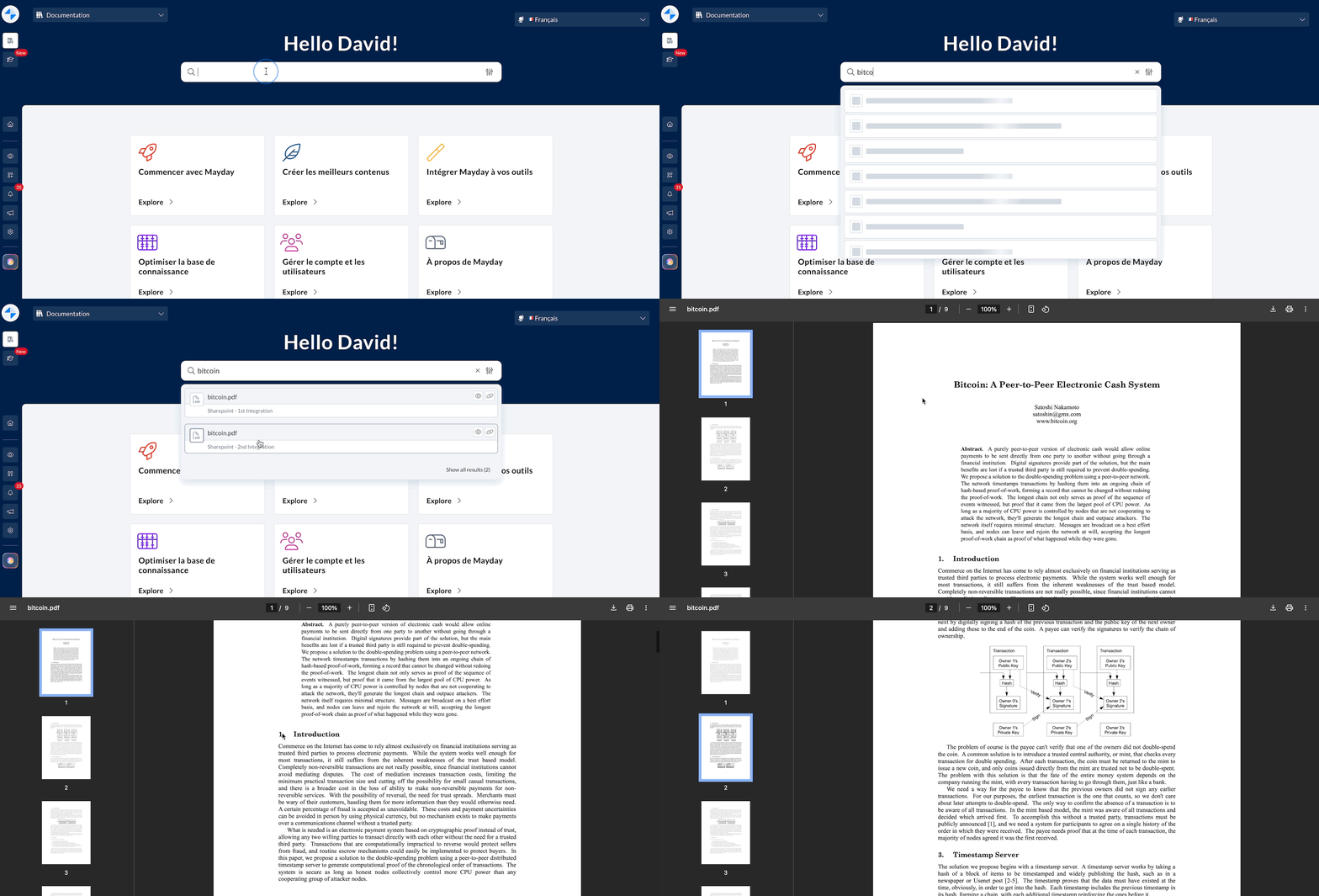
Find Sharepoint documents in the Mayday search engine!
🎯 Why Sharepoint integration?
In 2025, Mayday is committed to centralizing all your knowledge to make it accessible to your agents, your AI systems, and wherever you need it.
But we know that your information is not always stored in Mayday. After many discussions, one observation became clear: SharePoint is one of the main places where your documents are kept.
👉 That's why we decided to integrate SharePoint into Mayday! You can now access all your documents directly from Mayday, without having to juggle between multiple applications. More fluidity, more efficiency! 🚀
🤔 How to connect Sharepoint?
1⃣ Obtain your Sharepoint credentials: To define authentication, you will need a Client ID, Client Secret, and Tenant ID.
—
2⃣ Go to the administrator preferences: Go to administrator preferences → Integration catalog → Sharepoint.
—
3⃣ Create a new authentication: Choose a name, a description, and enter your credentials obtained earlier, then save.
—
4⃣ Create a data source: Choose a name, a description, an authentication (among those created, see above), a Sharepoint site ID to define which Sharepoint site this source will have access to. If you wish, you can also limit access to this data source to Mayday groups, which you can select here. Then save.
💡 Good to know: For the Site ID, it is possible to copy-paste the Sharepoint site URL and we will deduce the ID.
—
5⃣ All good ✅ : Users among the groups you have given access to this data source will be able to find Sharepoint documents from this site through the search engine, Ask Mayday, or even the content editor and the "Ask AI" feature.
💡 Good to know: The connection takes about 5 minutes to be effective. Before that, Sharepoint documents will not yet be accessible.
You can track the status of the data source directly from this page. Once "active", the data source is accessible.
⚠ Warning:
Any synchronization takes about 5 minutes. This applies to:
✔ To see files added to Sharepoint.
❌ To no longer see files deleted from Sharepoint.
🚀 To see files after activating a data source.
🛑 To no longer see files after deleting a data source.
If an authentication is deleted, all data sources using this authentication will be automatically deactivated.
📁 Where to find these Sharepoint contents?
Attention: Only users who have access to a Sharepoint data source via their group will be able to find Sharepoint files within Mayday.
Files from SharePoint sites defined in your data sources will be accessible:
🔎 In the search engine – Available for administrators and agents.
Coming soon:
💬 As sources for Ask Mayday – Ask your questions and let AI exploit these contents.
📝 In the Mayday content editor – Easily integrate your SharePoint documents into your contents.
🤖 Via "Ask AI" – Ask questions based on Sharepoint files, such as to write an article on a SharePoint PDF.
👉 Clicking on a SharePoint file will open it directly in a new tab.
⏭ And after?
The integration of SharePoint is a key step in our mission to centralize all your knowledge within Mayday.
🔜 And this is just the beginning! Soon, new external sources will enrich your ecosystem for even more fluid and efficient centralization. 🚀
⚙ News for Mayday Administrators
🚀 Optimizations & Improvements
🎨 Saving Custom Colors
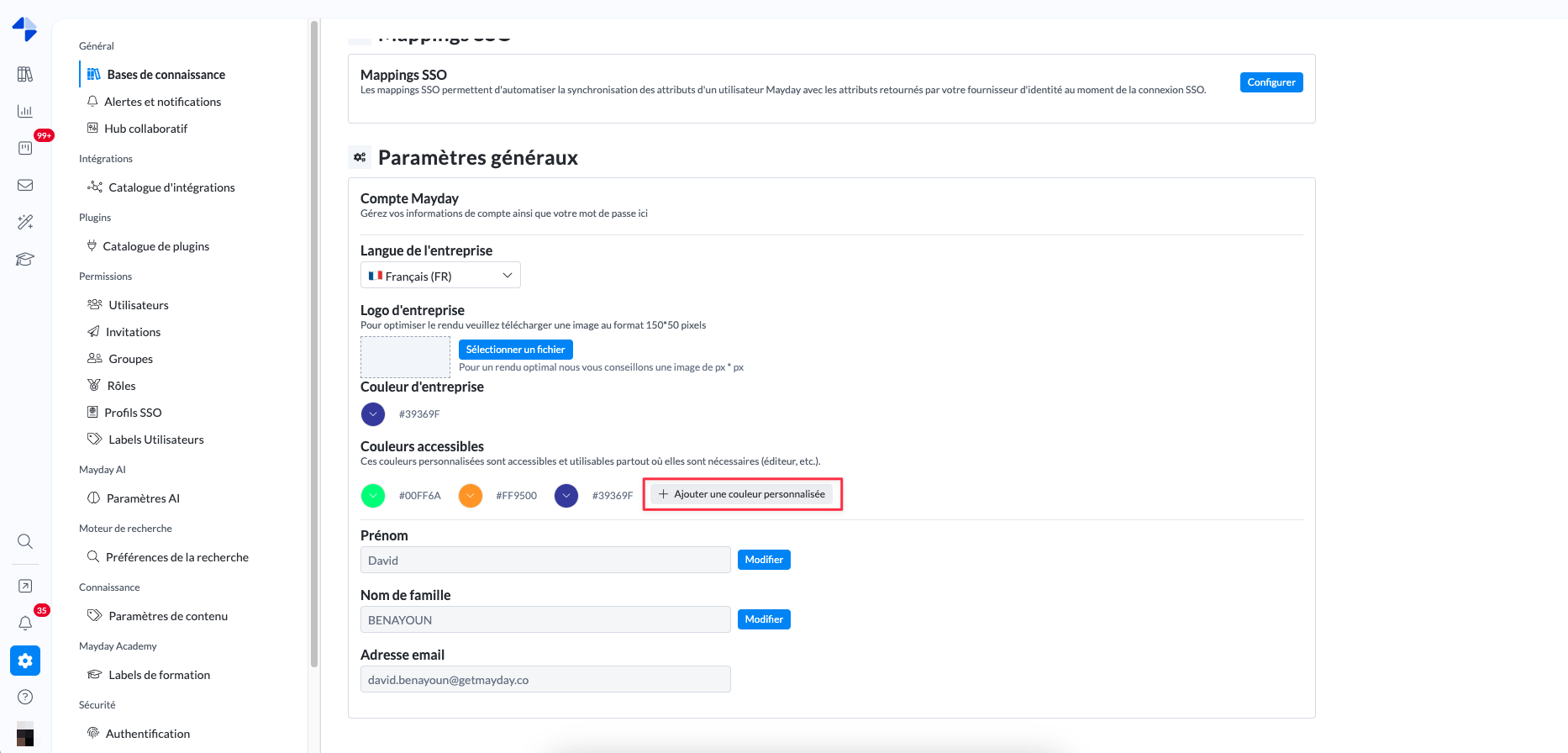
You asked for it, we did it! It is now possible to save custom colors for your company.
📌 Where to manage them?
✔ From the preferences of the administration center – Under company color.
✔ In the Mayday editor – When selecting a text color.
⚠ Rights management
Only editors with access to the administration center preferences can add or delete custom colors.
🎨 Simplified access
All saved colors will be accessible to all your editors, to harmonize your content with your company's colors!
➡ Redirection Steps within Pending Versions
A few months ago, we allowed you to edit your published content with peace of mind thanks to pending versions. Today, we go even further!
🔗 It is now possible to add redirection steps directly in a pending version of guides.
✅ What you can do:
Create a redirection to an article, a guide, or a published step.
Create an internal redirection to another step in the pending version, even if it does not yet exist in the published version.
🛠 How does it work?
When the pending version is published, all the steps of this guide will be put online together, ensuring a smooth continuity in the redirection!
👥 Creation/Modification of a Mayday group
Now, when you create or edit a Mayday group, its name is displayed at the top of the modal.
✅ A clear visual marker to always know which group you are modifying or creating!
🪲 Fixes
👉 We have fixed the following bugs:
Pending versions: Deleting a pending version after duplicating content could impact the original content. This issue is now resolved.
Management of pending versions: The consideration of pending versions in content cloning was poorly managed. This is no longer the case.
Content translations: Some elements, like dropdown lists, were not always automatically translated. This issue has been fixed.
🗣 What's new for agents
🚀 Optimizations & Improvements
✏ Customization of suggested answers in Mayday
We know that sometimes the suggested answer to Mayday content cannot be sent as is and requires customization.
Now, when an answer is suggested in Mayday content, you can modify and copy it directly to send to a client.
Warning: These modifications are not saved in the original response, which remains common to all. If you refresh the page, the modifications will no longer be visible.
👌 Copy the breadcrumb in a Mayday guide
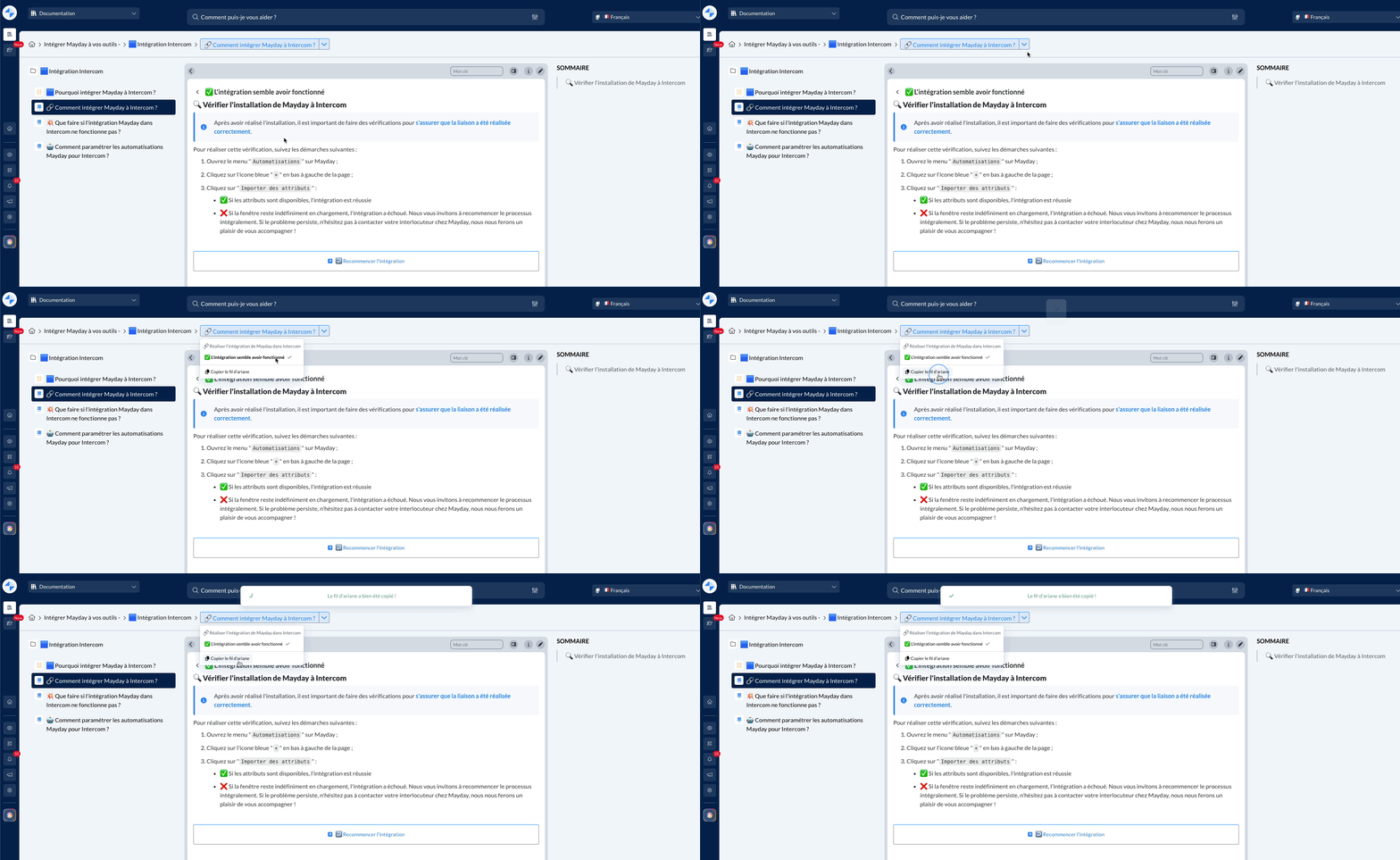
We know it can be useful to be able to obtain or share the breadcrumb in a Mayday guide, which can sometimes be complex.
Now, you can copy the breadcrumb trail of a guide, including all the steps followed from the root stage.
This feature is available on:
Mayday Desk
Mayday Widget
The Zendesk application
This will allow you to easily share the complete path with your colleagues or clients! ✨
🪲 Fixes
👉 We have fixed the following bugs:
Feedback on Mayday Widget: Feedback being drafted was lost if you changed sections before sending it. This issue is fixed.
Plugins: Some plugins, like the one for the latest published content, were no longer displaying correctly. This is now restored.
Search engine: Some content no longer appeared in search results. This issue has been resolved.
🎓What's new in the Mayday Academy
⚙ Mayday Admin
✨ Create quizzes in 1 click with our new Genius
Generate one or more quizzes in seconds to integrate directly into your modules thanks to our Genius integrated into the Academy!
Save time and increase efficiency by asking Mayday AI to design your quiz slides from your lesson sheets, existing quizzes, and Mayday Knowledge content 🤩
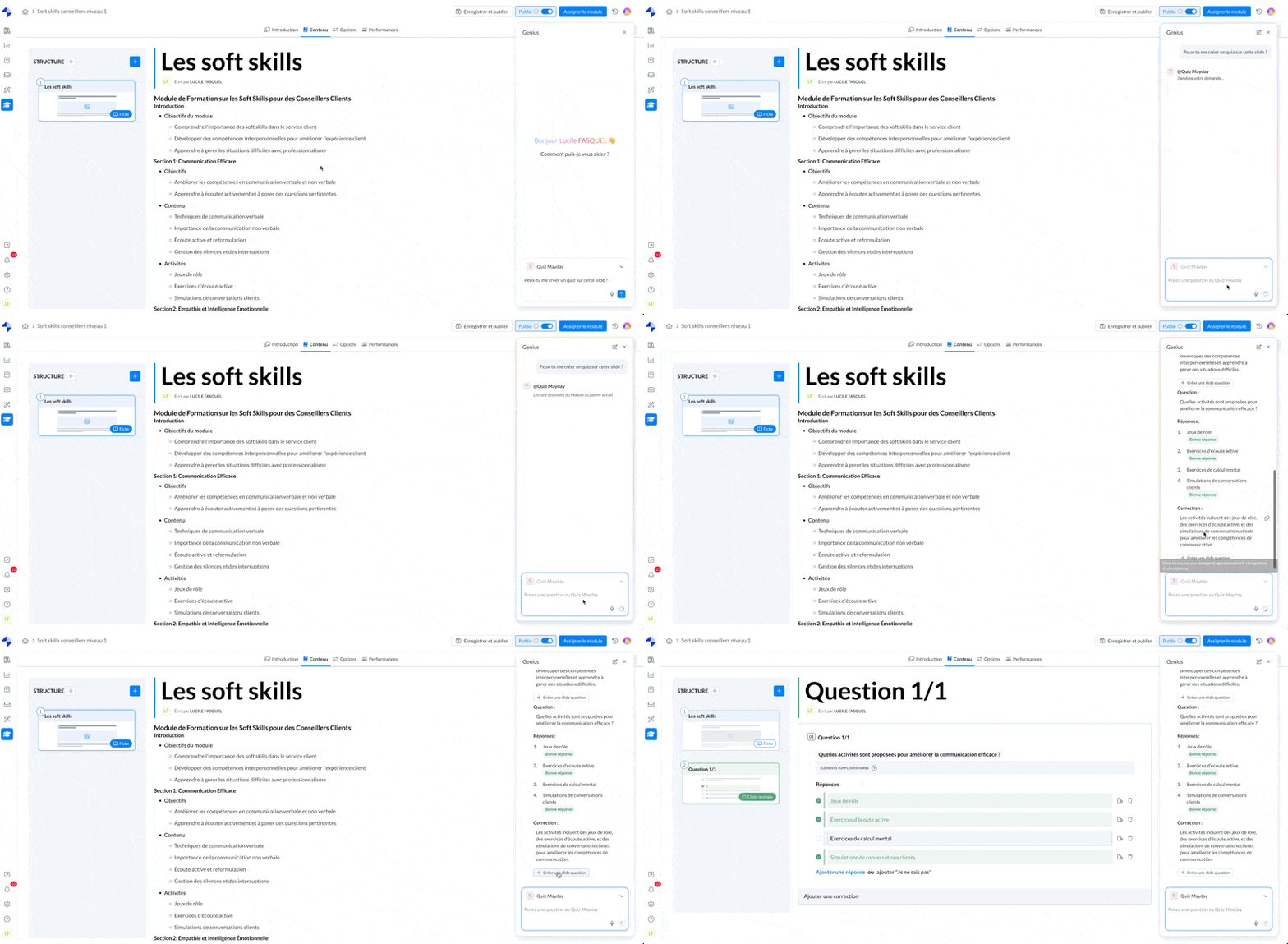
Module the Mayday Academy - Genius AI for quiz generation
🤔 How to use this feature?
1⃣ Open the Genius by clicking on the sphere at the top right of the interface
2⃣ Within the Genius, select the agent of Mayday Quiz Generation
3⃣ Ask the agent to generate one or more quizzes based on:
Mayday content (by typing @ the content in question)
A step (sheet or question) from one of your modules (by typing @ the slide in question or identifying it in natural language)
A prompt with only elements in natural language
4⃣ If you are not fully satisfied with the result: converse with the AI agent once the quiz is generated to refine the result, ask it to specify certain elements, propose a different quiz format, complicate the question, add a more detailed correction, etc.
5⃣ Once satisfied, integrate the quiz or quizzes in one click by selecting "Create a question slide" in the Genius.
A question slide will be automatically added to your module with all elements pre-filled.
To integrate the quiz generated by the Genius, you must be in a module of the Mayday Academy.
Note: you can also, if you wish, copy-paste the elements of the response in the Genius
🪲 Fixes
👉 We have fixed the following bugs:
Time spent on modules - the accounting of time spent on modules has been optimized.
🌐 What's new in Mayday Selfcare
🪲 Fixes
👉 We have fixed the following bugs:
Mayday Documentation - The anchors in the table of contents are now working correctly.
Collection icons - All icons in Selfcare are now updating correctly.