👋 Introduction
Q2 starts strong at Mayday 💥
We bring you along with a release that sets the foundation for our ambition this quarter: more AI, more clarity, more centralization.
🎯 The goal remains the same: to save you time and an even smoother experience.
On the agenda 👇
🤖 The Mayday Genius replaces the Widget Copilot and generates responses to customer tickets in seconds, directly in your tools.
📂 SharePoint and ZIP files are now integrable and usable everywhere on Mayday.
🔍 The new Guide view makes guides more readable for all your agents.
✨ Blended learning: specify the educational format of your modules for better planning
💬 Selfcare FAQ—“Ask AI”: Our feature has been revamped to offer a smoother and more modern experience.
👀 Selfcare - Seamlessly encapsulate content on your public content in the FAQ
And many other new features!
Let’s dive right in together! 👇
🤩 Global News
📁 Find your external files within Mayday!
✨ NEW FEATURE | Access your files from all your connected sources, everywhere in Mayday
As announced during our last sprint, one of our key objectives is to allow you to centralize all your knowledge in Mayday. It's now done: you can connect your SharePoint spaces or even import ZIP files, to easily find and exploit these contents in all Mayday interfaces.
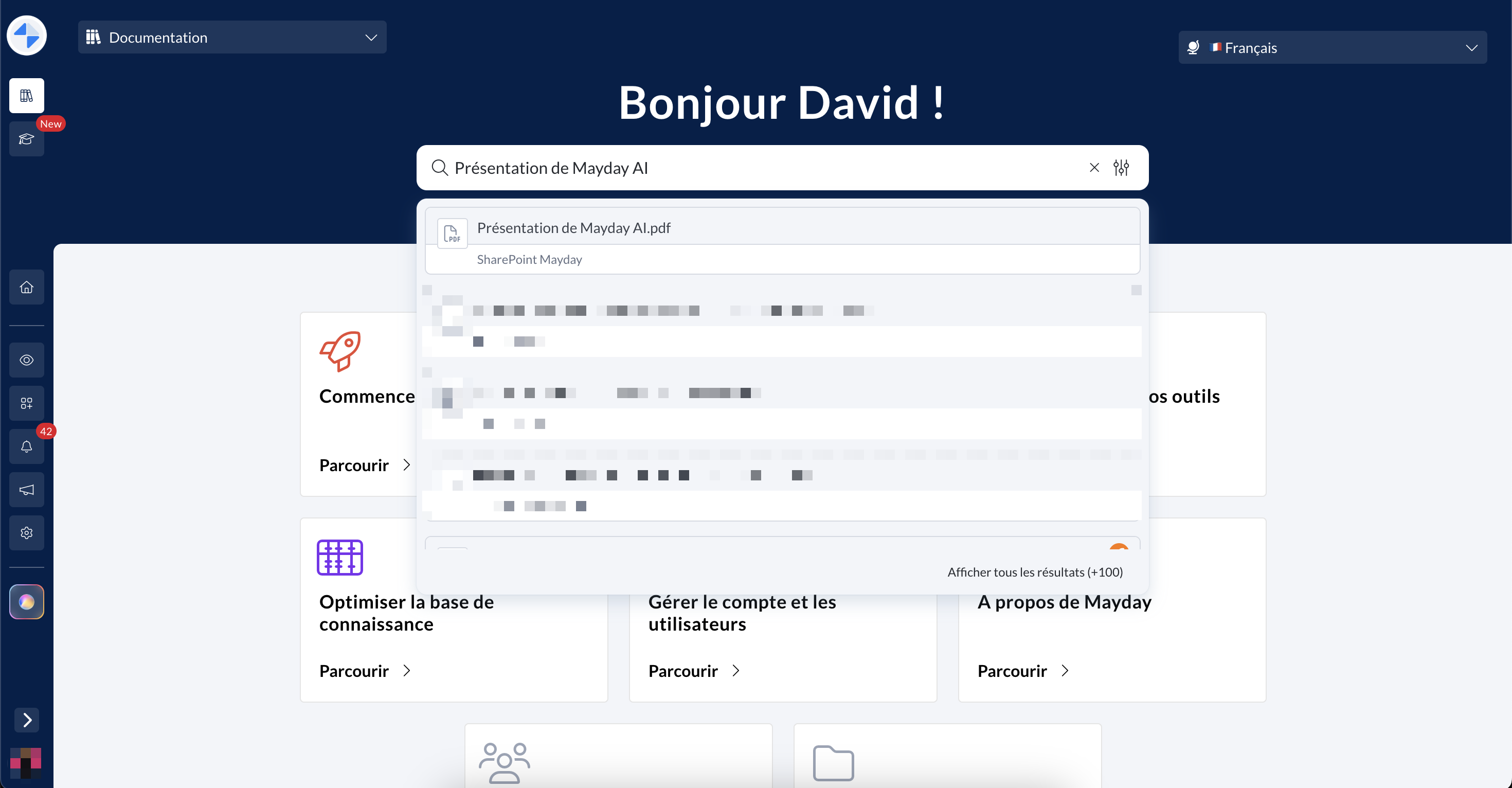
📂 All your files, accessible in one place.
🎯 Why use your external files?
By connecting your files to Mayday, you not only benefit from the richness of the platform's articles, guides, and native content. You also benefit from all the knowledge that still lives outside of Mayday.
👉 Mayday thus becomes your single source of truth, centralizing all essential information to assist your teams.
Result: no need to multiply searches, your agents find everything they need... directly on Mayday.
🔙 What was already possible before:
For three weeks, it has been possible to connect your SharePoint to Mayday, to access your SharePoint files directly within Mayday. For more information:
🎉 What's new!
🔗 Today, you can connect ZIP files
In case your files are not hosted on SharePoint, but rather stored locally (on your computer, servers, or other storage solutions), or if you cannot connect to SharePoint directly, a simple and effective alternative is now available.
👉 You just need to centralize the desired contents, compress them in ZIP format, and then create a new data source in the dedicated space.
🛠 Steps to follow:
1⃣ Go to the Data Sources section (in the same place as for the SharePoint connection)
2⃣ Click on Create a new data source
3⃣ Select the type “File Repository”
4⃣ Define the user groups that will have access to the files
5⃣ Drop your files in ZIP format (required format)
6⃣ Wait a few moments while the repository is processed
7⃣ Validate the creation of the source
⏱ In just a few minutes (usually between 5 and 10 minutes), your files will be indexed and available everywhere on Mayday (see below).
🤔 What's possible?
Once your external sources (SharePoint, ZIP…) are connected and accessible according to your group, you can:
🔍 Search and consult your files via the search engine (Admin, Desk, etc.)
📝 Mention these files in all Mayday editors: content, notifications, Hub tasks…
🤖 Use “Ask the AI” by directly referring to a file to ask questions or generate content
🤖 Mention a file within the Mayday Genius to ask a question related to this file
Usage examples:
“Write an article from this file: {mention file}”
“Summarize this file for me: {mention file}”
“Compare this file with this Mayday content: {mention file} – are there any missing elements?”
“Here are some files, suggest content ideas to create on Mayday”
“What Mayday content already exists on the topics covered in these files?”
🧠 You can also ask questions to the Ask or the Mayday Genius: external files will be used as a source and mentioned in the generated responses.
⏭ What next?
New data sources will soon be integrable into Mayday to further enrich your centralized knowledge base.
📚 Mayday Knowledge News
⚙ News for Mayday Administrators
🚀 Optimizations & Improvements
👍 Give your feedback on Mayday Genius responses
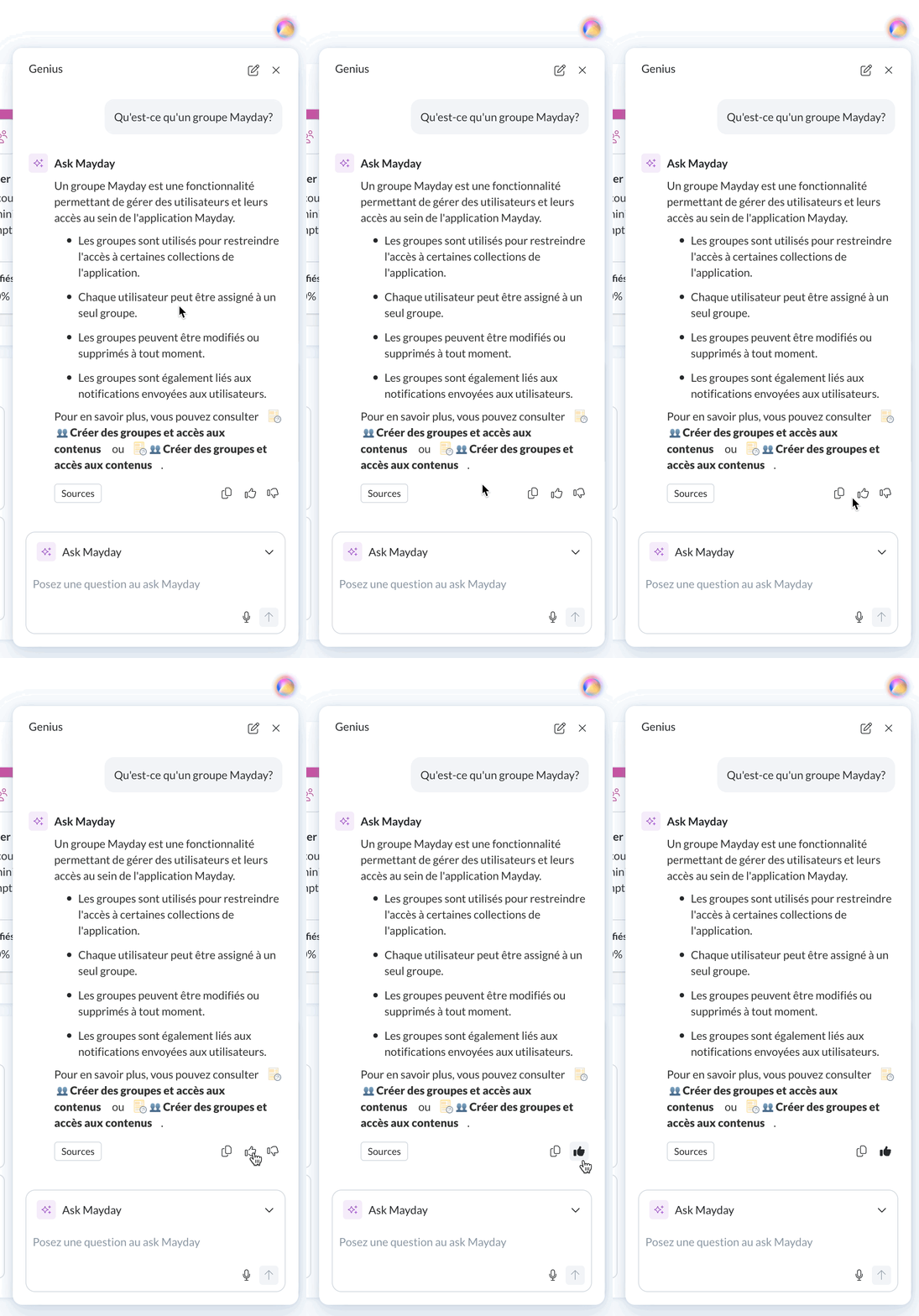
Three weeks ago, we introduced a major evolution of your experience on Mayday: the arrival of the Mayday Genius, your hub of AI agents.
🎯 Our ambition? Continue to advance these agents to offer you even more relevant and useful responses.
For this, a simple but powerful novelty:
👉 You can now evaluate each response with a click, using the 👍 or 👎 buttons.
Your feedback will help us identify what works well, what can be improved, and continuously refine the Genius experience.
📊 Optimization of the Mayday Dashboard
We know that the Mayday Dashboard can sometimes be slow to load when you have a large volume of data.
💡 Good news! We have optimized loading times for a smoother experience, and our efforts continue in the coming weeks.
🎯 Our goal? To offer you faster and more intuitive tracking of your Mayday metrics! ✅
🪲 Fixes
👉 We have fixed the following bugs:
Loading notifications: In the notification center, when the screen was zoomed out, notifications no longer loaded correctly when scrolling.
🗣 News for agents
 Mayday Genius replaces the Mayday Widget Copilot
🔔 Reminder: To access Mayday Genius, contact your Mayday representative — we will be happy to assist you in setting it up!
✨ NEW FEATURE | No longer write your responses to customer tickets… Mayday Genius does it for you!
Until now, the Mayday Copilot assisted you via the Mayday Widget, responding to your customer tickets and offering relevant content. Today, welcome Mayday Genius: even more relevant responses, in a smooth conversational format.
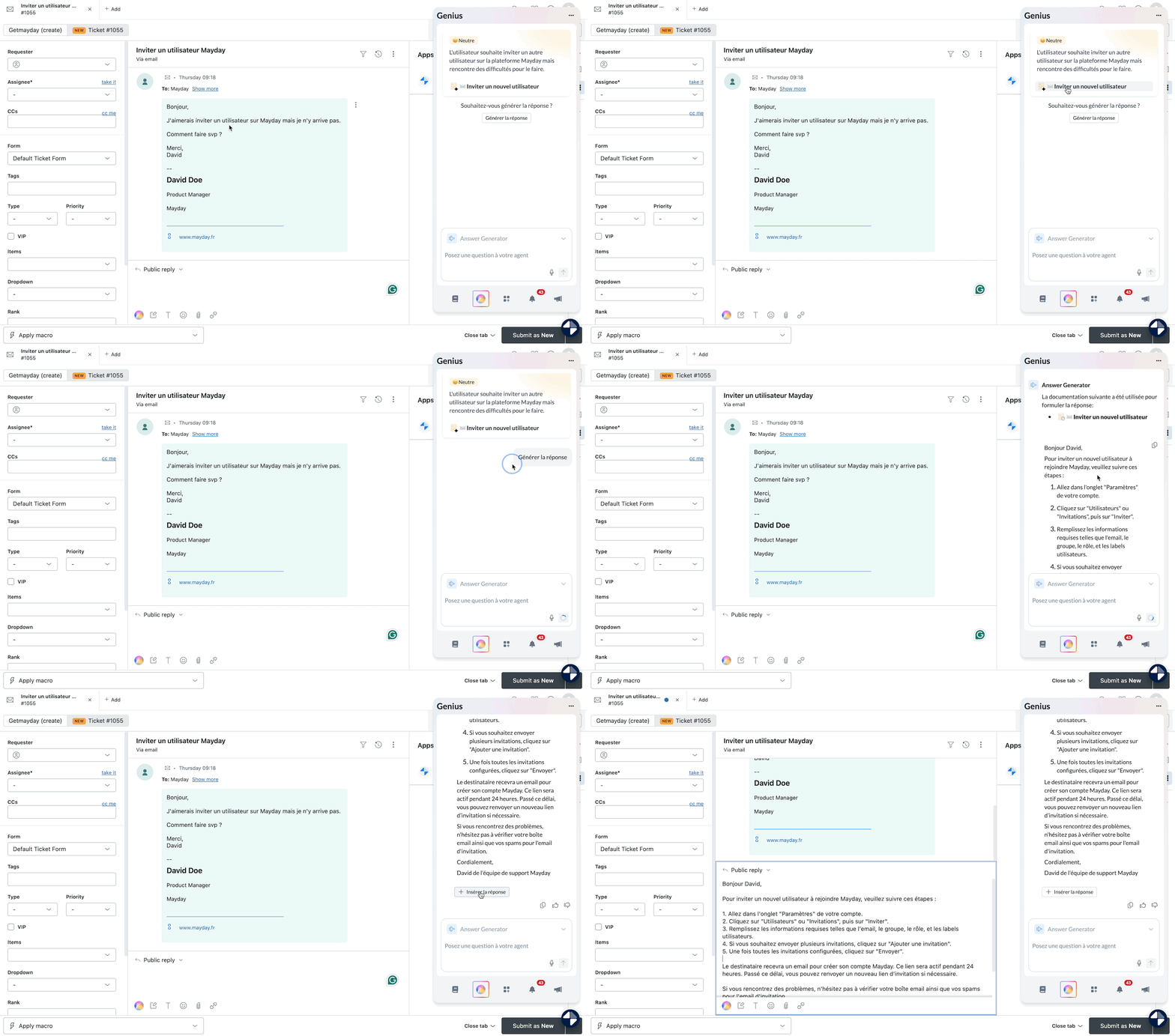
Flow 1⃣ : Open the Mayday Widget and get a ready-to-use response to your customer tickets!
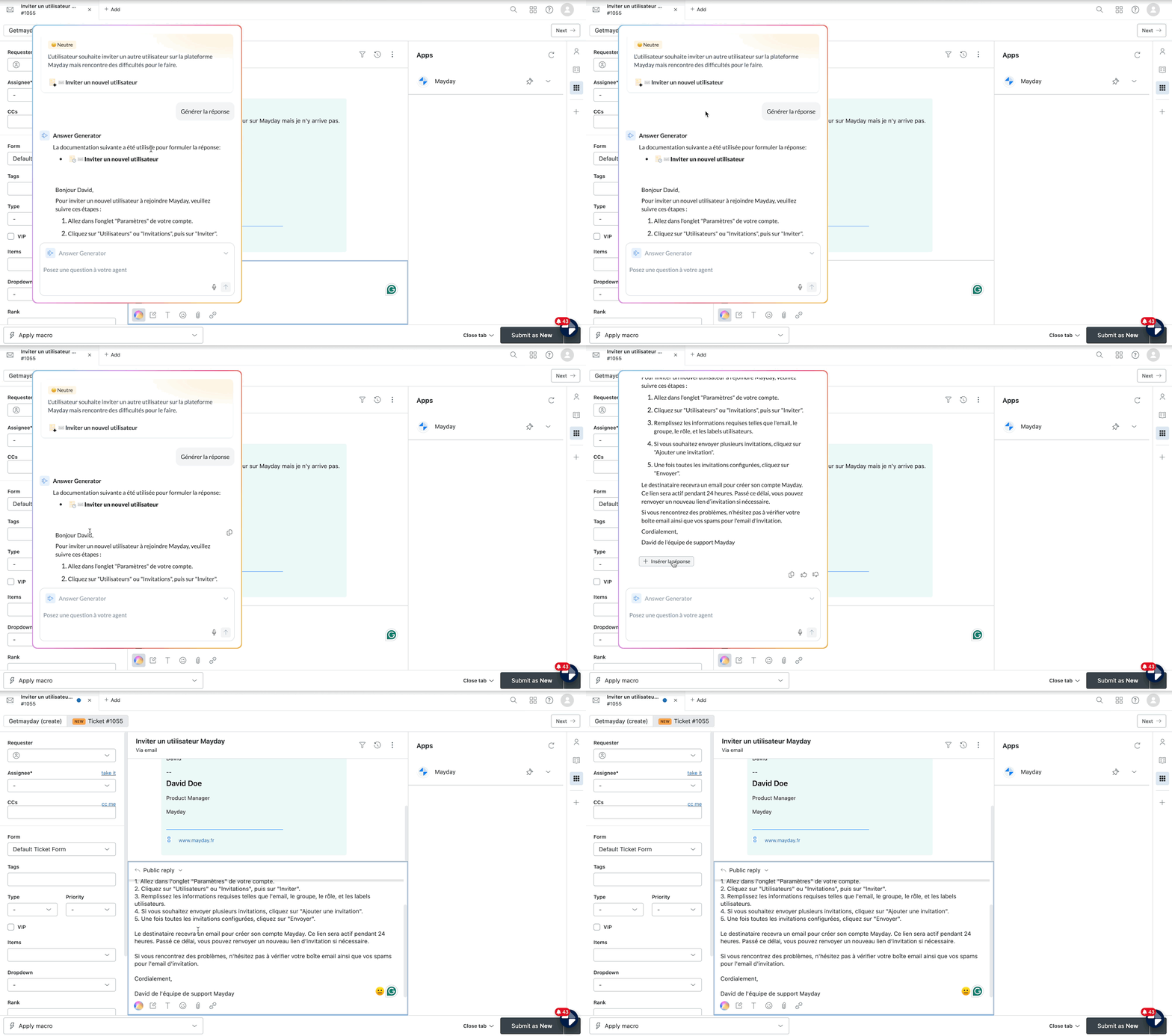
Flow 2⃣ : Access the Mayday Genius directly from the response area and insert a relevant response in seconds!
👋 Introduction to the Genius
To learn more about Mayday Genius, you will find all the information here:
🎯 Why Mayday Genius in the Widget?
At Mayday, our mission is simple: give you the right information, in the right place, at the right time.
The right time? While processing a customer ticket.
The right place? Directly in the tool you use daily.
The right information? A clear, complete, written response… ready to be sent.
🚀 What does Mayday Genius allow?
Thanks to the intelligence of Mayday Genius, you can:
Detect and understand the request on the current ticket
Analyze this request
Summarize the customer case and identify the mood of the customer
Automatically recommend relevant content, or those manually defined by your administrators
Generate a complete response, based on Mayday content and connected data sources
Interact with the AI agent, refine the response until it perfectly suits you
🧠 Mayday Genius currently works on:
Intercom (via the Mayday Widget)
Zendesk (via the Mayday application and very soon the Zendesk application)
Salesforce (via the Mayday Widget)
iAdvize (very soon via the iAdvize application)
These features require prior configuration of your Intercom, Zendesk, Salesforce, etc. accounts in the administration center, via the integration catalog.
💪 Use Mayday Genius in the Mayday Widget
🤔 How to use Mayday Genius on Mayday Widget?
1⃣ Check that the platform of your choice (Intercom, Salesforce, Zendesk, iAdvize) is well configured in Mayday on the administrator side.
2⃣ Update the Chrome extension or dedicated application, depending on the platform used (Salesforce, Intercom, Zendesk, iAdvize).
3⃣ Open a customer ticket from your usual tool (Widget or dedicated application).
Then, two options are available to you:
Option 1⃣: Access the ticket analysis and generate a response directly from the response field, by clicking on the Genius icon.
No need to open the Mayday Widget, but a connection is required.
📸 Screenshot
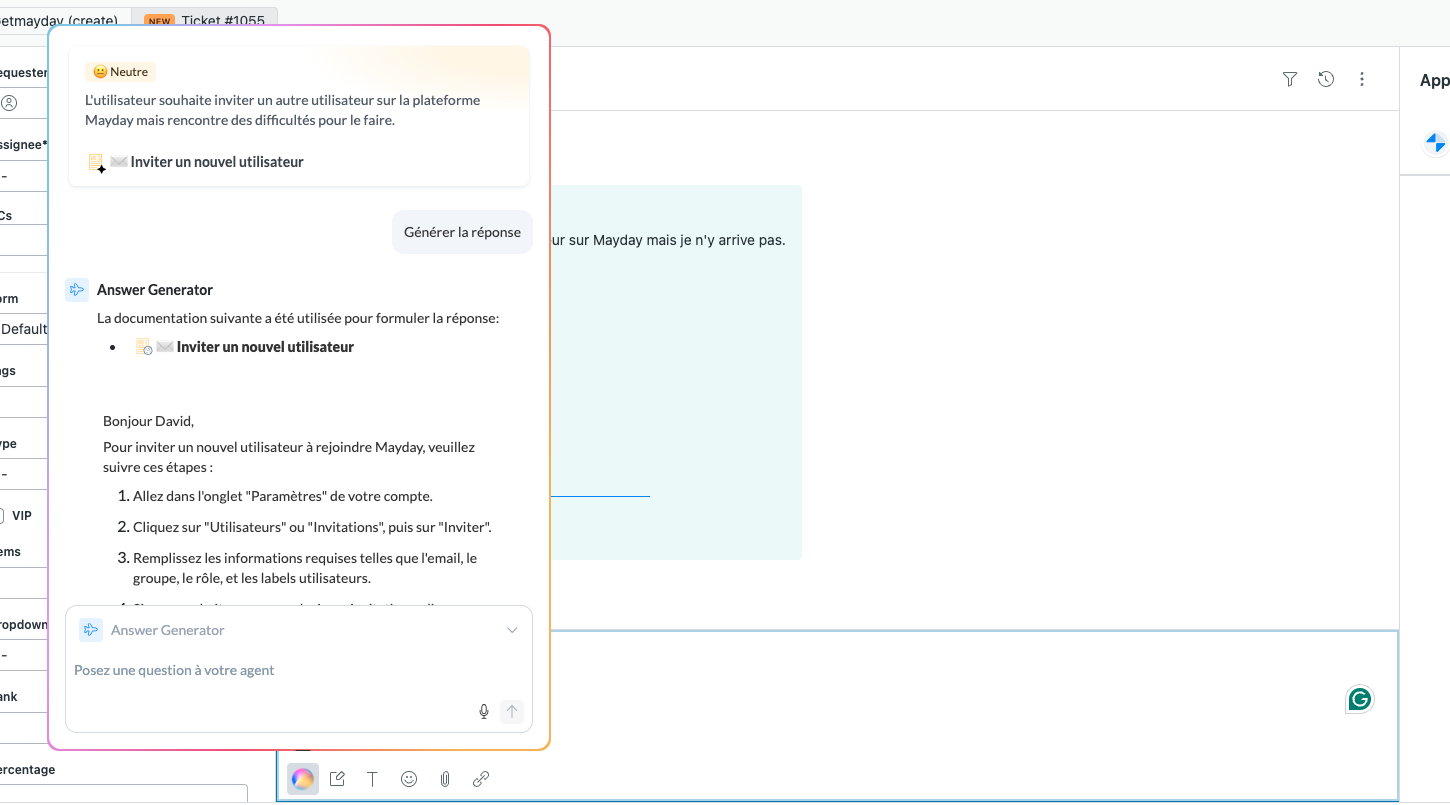
Option 2⃣: Access the ticket analysis and trigger a response from the Genius tab in the Mayday Widget.
This option is only available if your company benefits from AI content recommendations.
📸 Screenshot
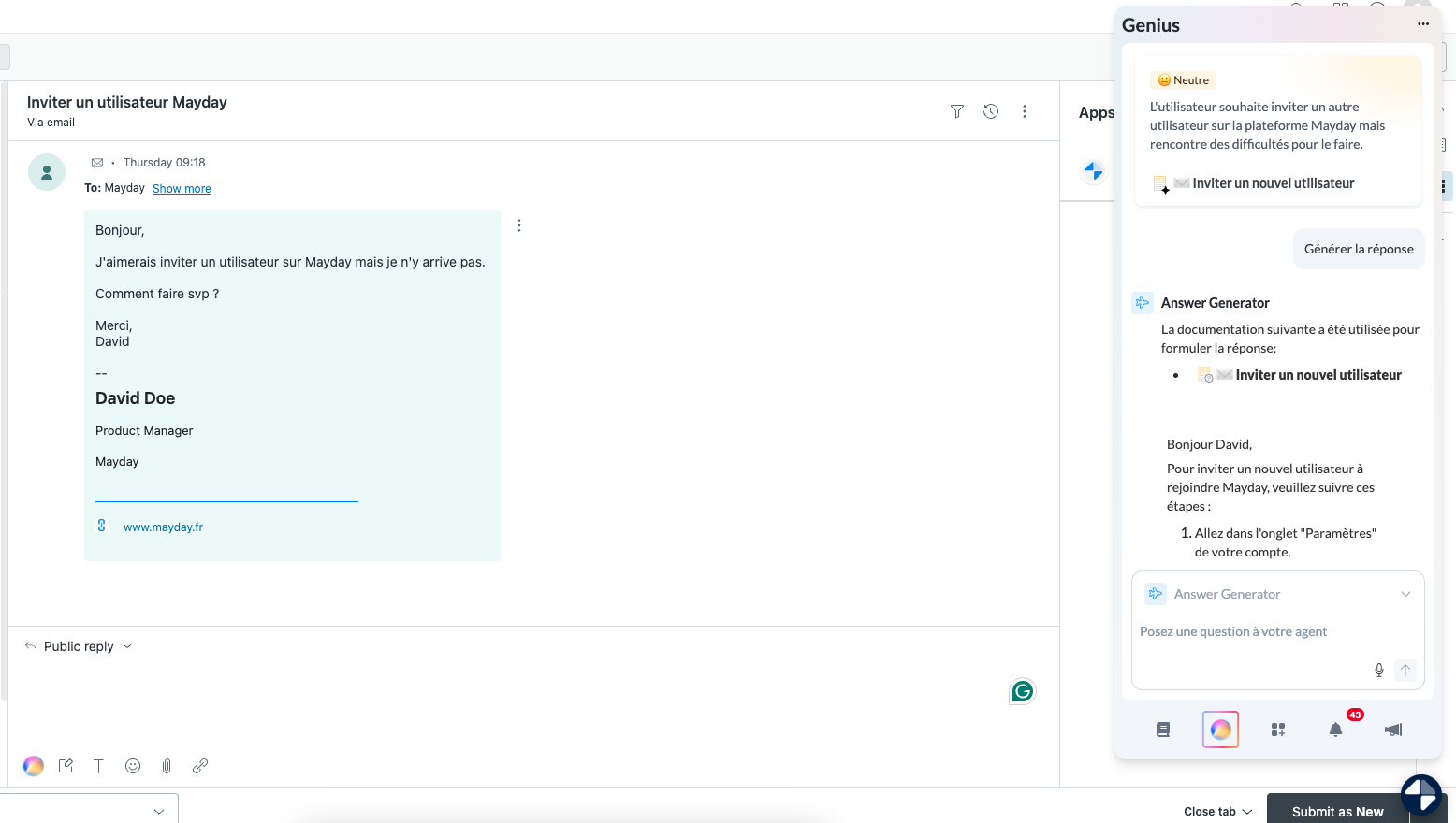
Finally, the operation is the same:
5⃣ Consult the results: ticket summary, detected mood, content recommendations — automatic or defined by your teams.
Good to know: Automatically raised recommendations can be distinguished by a ✨ icon
6⃣ Click the generation button to launch the creation of a response by the AI agent.
7⃣ Receive a written response based on your Mayday content and connected sources.
8⃣ Copy the response as is, insert it directly into the response field, or continue the conversation with the AI agent to adjust it to your liking.
👀 A new flowchart view for your guides!
✨ NEW FEATURE | Visualize the structure of your guides more clearly than ever
We know that some guides can become complex, making their reading and understanding difficult. You asked us for better readability, and it's done: the flowchart view has been completely redesigned to offer you a smoother and more intuitive experience.
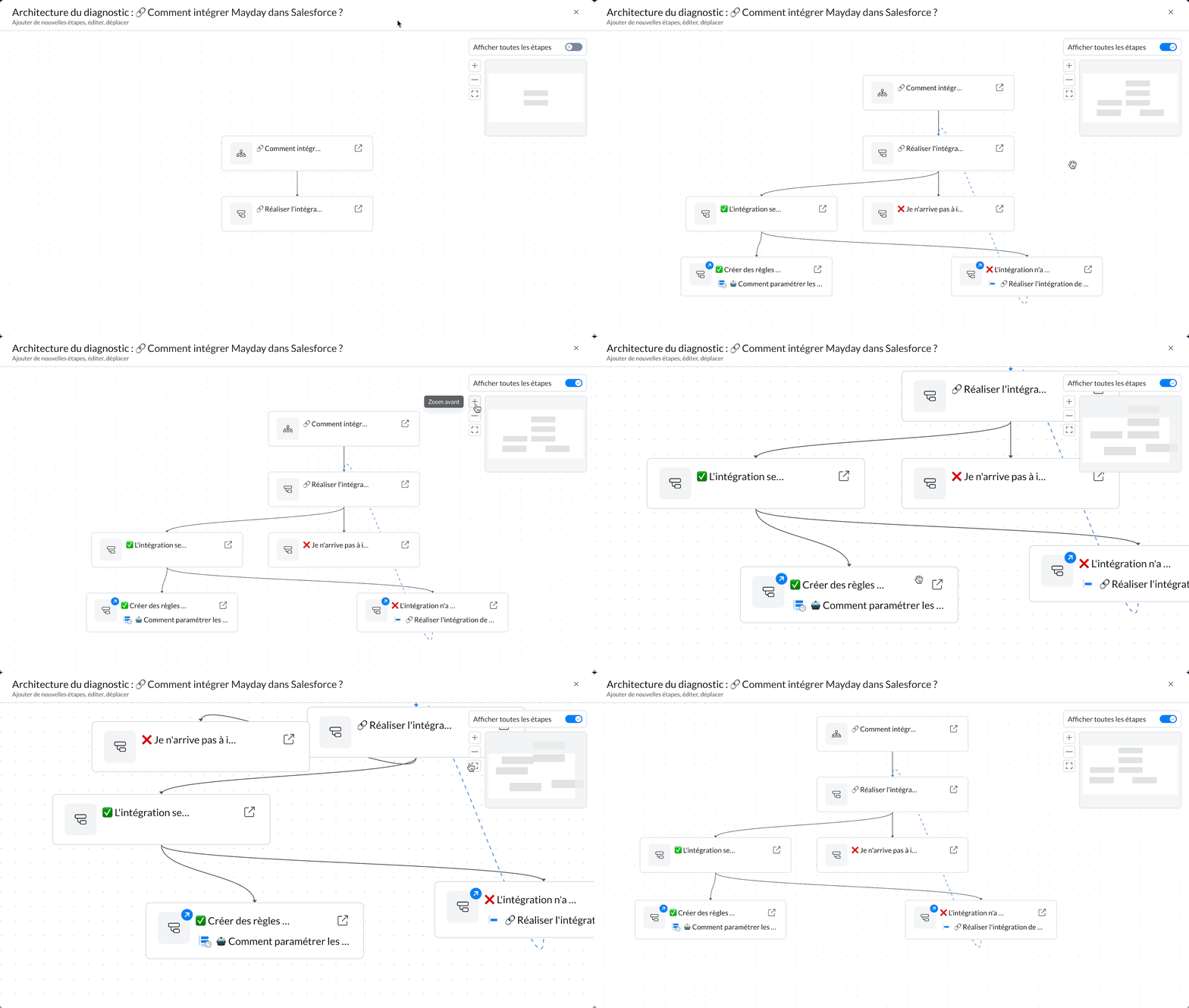
Visualize the structure of a guide optimally
🎯 Why this new flowchart view?
The old version lacked clarity and did not allow a good grasp of the structure of a guide. This new view has been designed to:
✅ Make the structure easily readable at first glance
🖱 Unroll all steps with one click
🧩 Visually reorganize the steps according to your needs
🎯 Refocus the display to keep a clear overview
🔍 Open each step directly from the flowchart view
🧭 Identify the type of step: normal, key, or redirection
🔵 Internal redirections are now materialized by a blue dotted line connecting the concerned steps.
⏭ What next?
🛠 On the administrator side, this new interface will soon be available to edit the structure of guides directly from the flowchart: adding, moving, or deleting steps will never have been so simple.
🪲 Fixes
👉 We have fixed the following bugs:
Copy-pasting a response generated by the AI: The “Copy” button in the AI copilot of the Mayday Widget no longer worked, preventing the copying of generated responses.
Loss of a generated response: When a response was generated by the AI, it disappeared if the Widget was closed and then reopened.
Opening the Mayday Widget: A blank white menu appeared when clicking on the Mayday Widget icon in the navigation bar, preventing its opening.
Line breaks when displaying content: Opening dropdown menus in certain content triggered a disruptive line break animation.
Formatting of suggested responses: Text styles (bold, italic, etc.) in generated responses were lost following the last production release.
Triggering keyboard shortcuts: On platforms like Salesforce, certain letters typed in the Widget mistakenly triggered keyboard shortcuts on the page.
🎓Mayday Academy Updates
⚙ Mayday Admin & DESK
✨ Blended learning: specify the educational format of your modules for better planning
Gain clarity and optimize your planning time by indicating the desired format for each module — e-learning or workshop — and design pathways that intelligently combine both approaches.
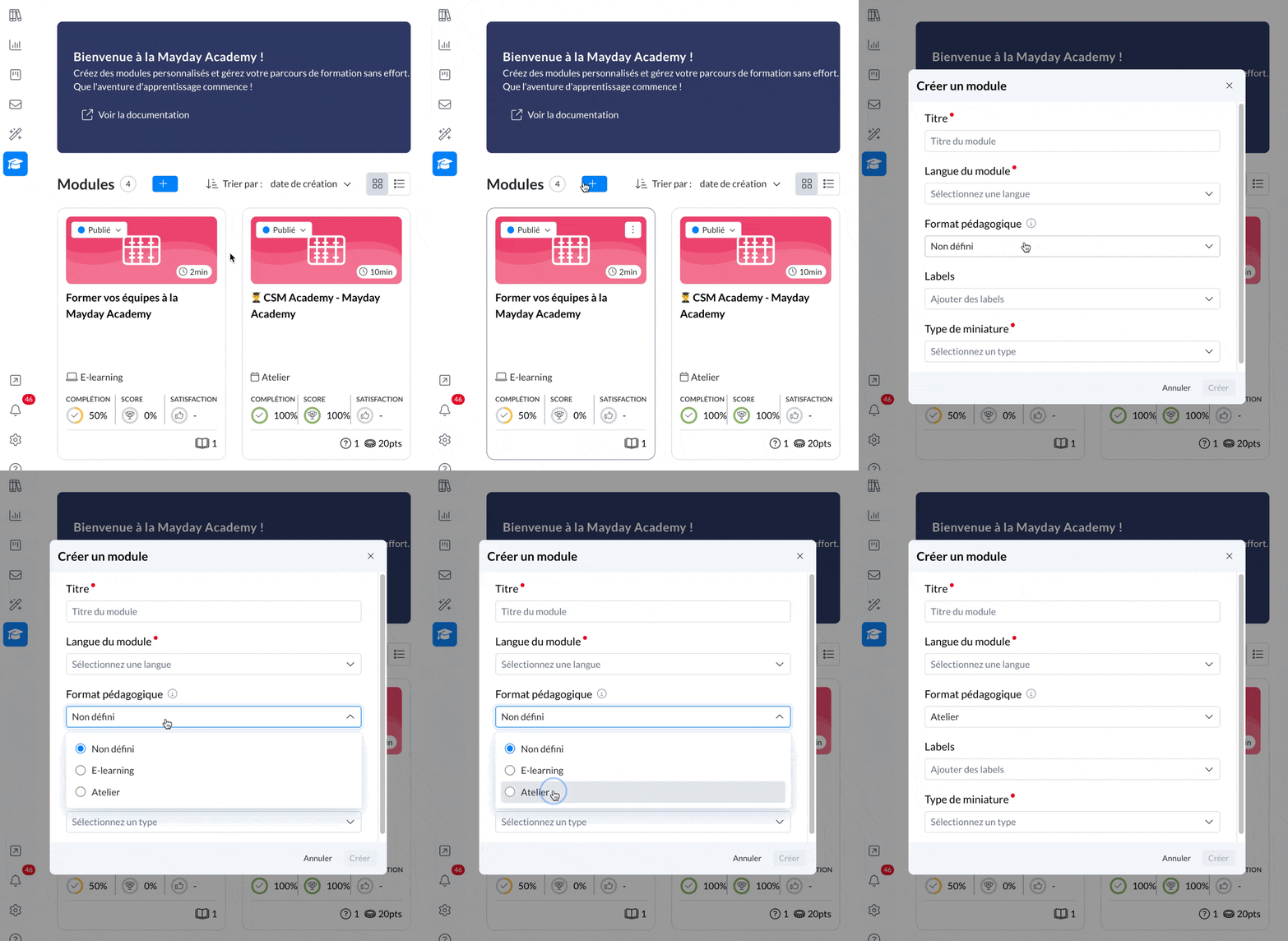
Mayday Academy - Creating a training module
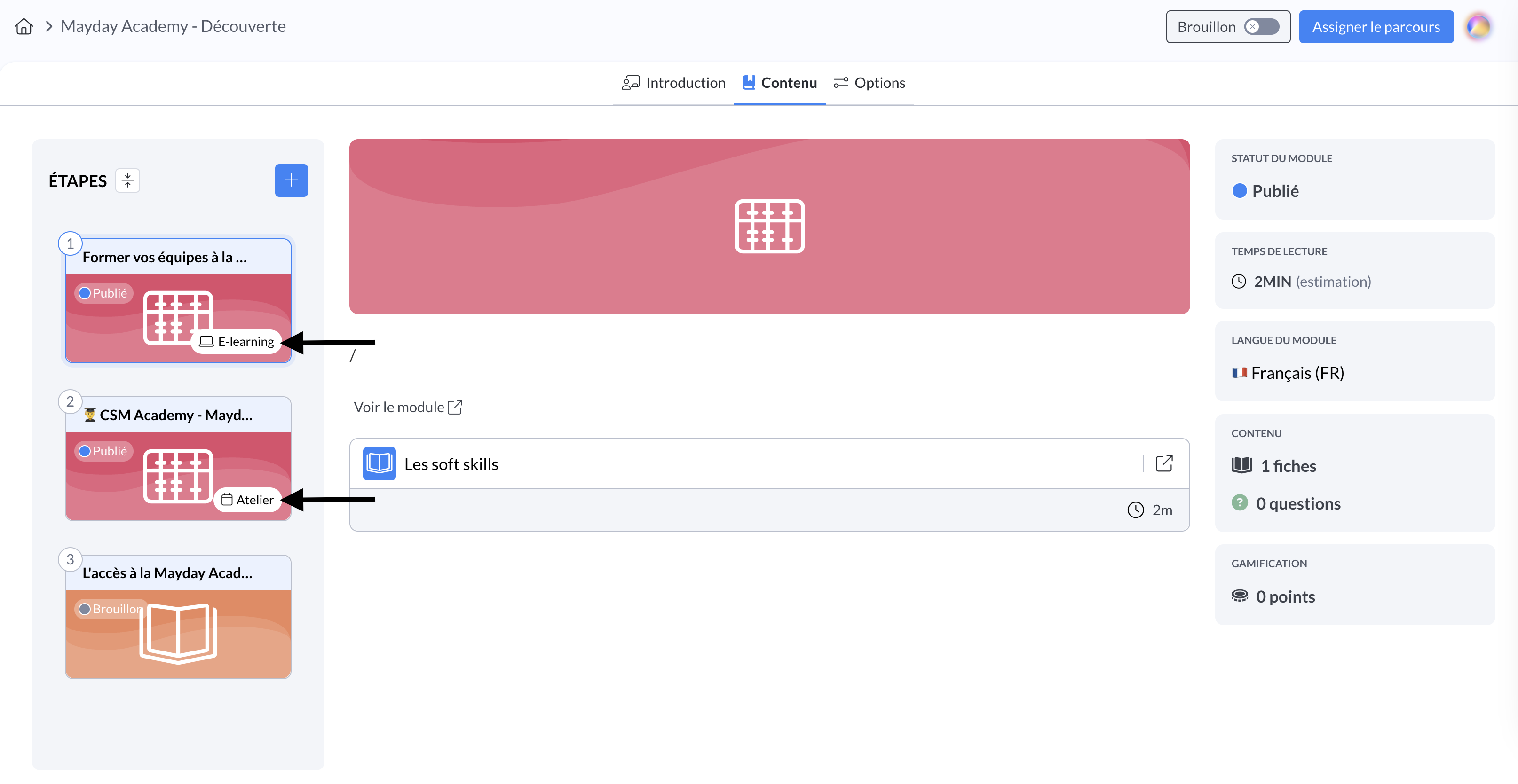
Mayday Academy - Administrator - Pathways
🤔 How does it work?
1⃣ Go to your administrator interface in the Mayday Academy
2⃣ When creating a module, select the desired educational format using a new dedicated field
3⃣ To modify an existing module, go to the “Options” tab to adjust or define the educational format
📸 Screenshots
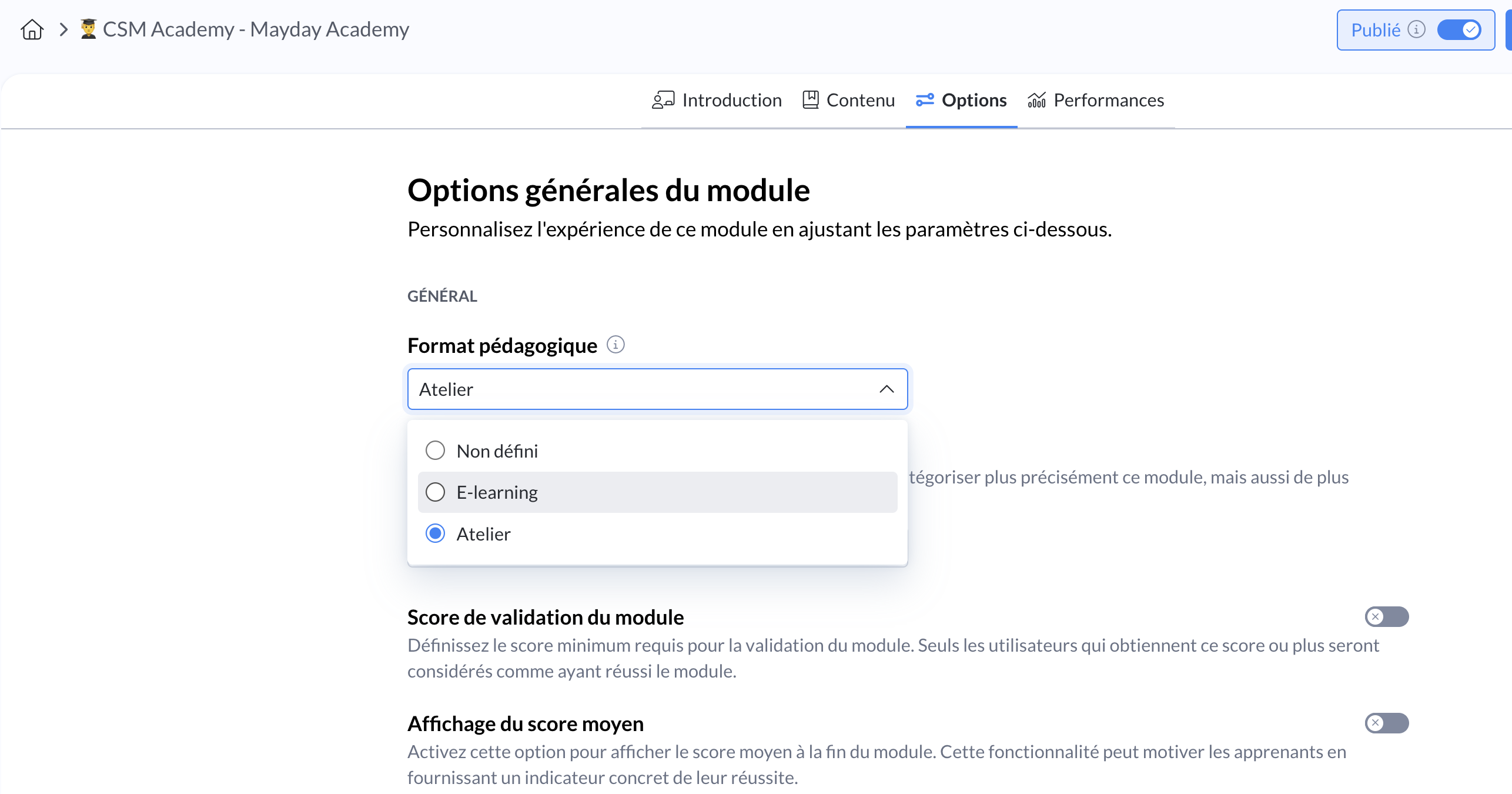
💡 This information is optional and for informational purposes: it helps you better structure your mixed training pathways and share how each module should ideally be delivered, whether for you or your teams.
📍 Where to find the educational format of a module?
In your pathways, on the left side of the interface, each module with a defined format displays this information
From the home page of your Academy, directly on the cards of the concerned modules (if an educational format has been specified)
📸 Screenshots
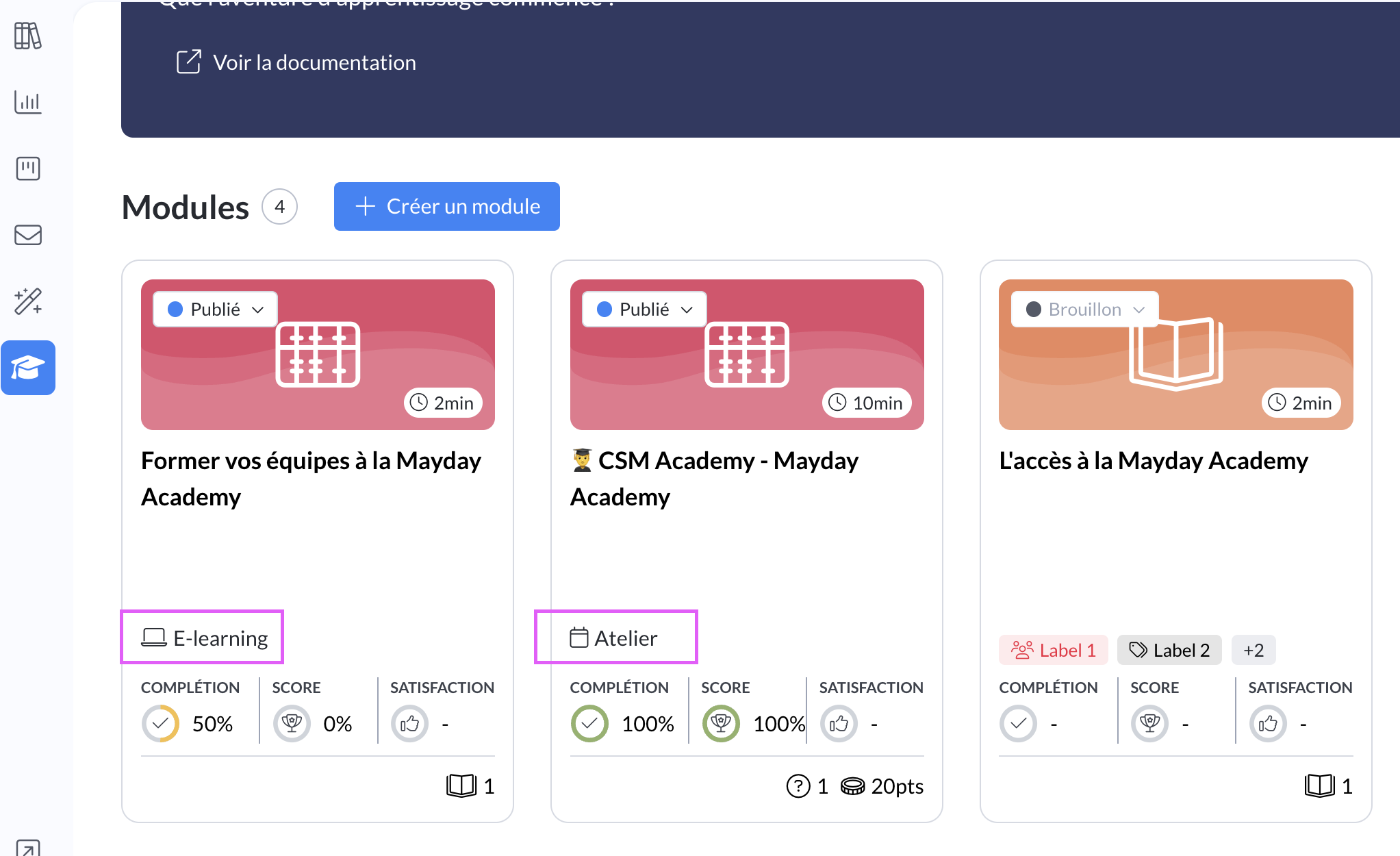
Mayday Academy - Administrator home page - Modules
Mayday Academy - Administrator - Pathways
👀 What learners see
In their pathways, learners have a visual indicator explaining why a module is temporarily blocked.
When the module is in workshop format, AND your learners are assigned to this workshop, they are informed that it will be held on a specific date during a scheduled session.
This allows them to better understand the course flow and anticipate the key moments of their training.
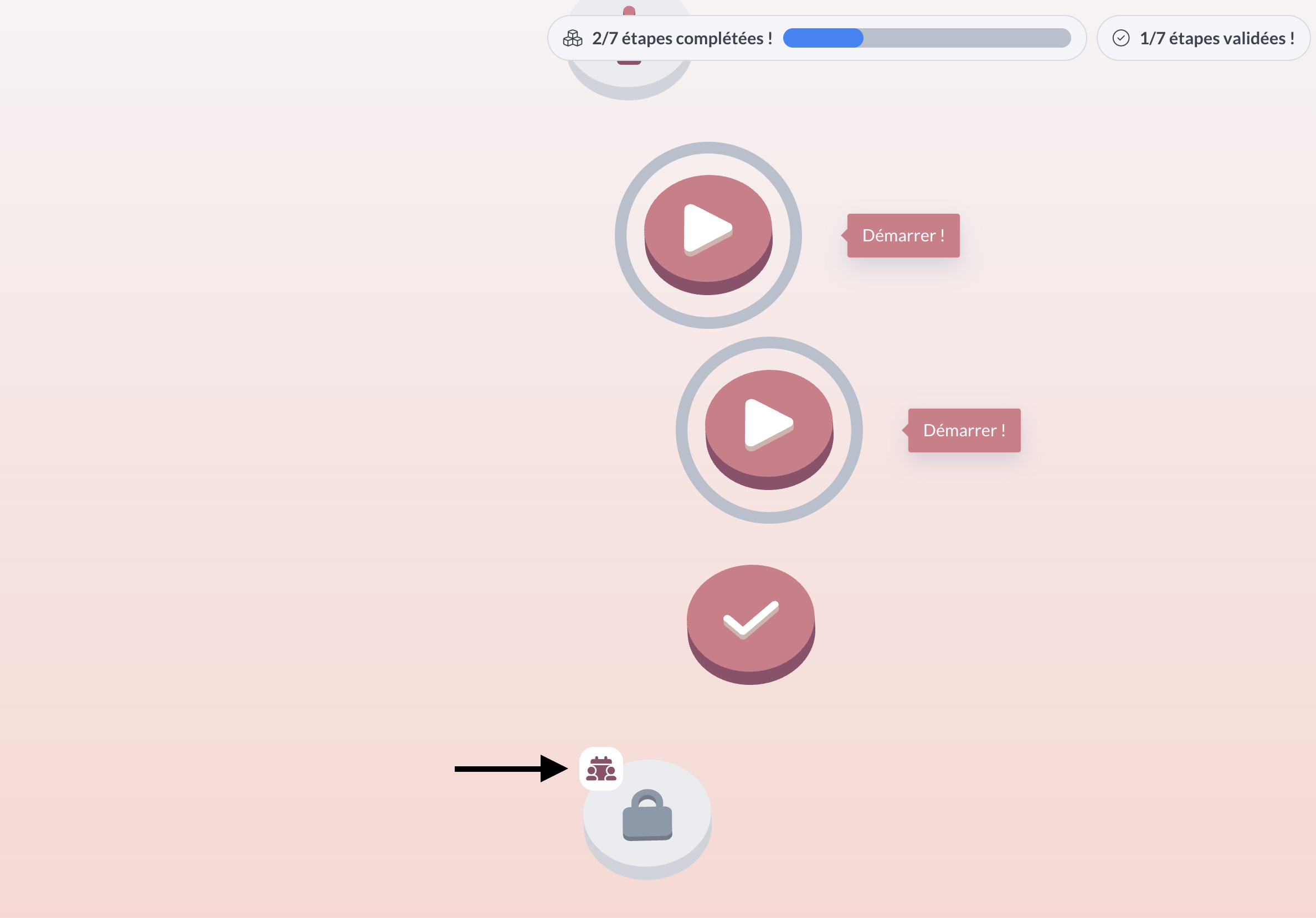
Mayday Academy - Learner pathway - DESK
🪲 Fixes
👉 We have fixed the following bugs:
No automatic loading of modules upon login: modules now appear for your learners without needing to refresh their page upon login
🌐 Mayday Selfcare Updates
💬 🧠 Mayday Selfcare Widget – Conversational feature is here!
Have a question about using our product? Need to understand a new feature or unlock a configuration on your account?
The Mayday Selfcare Widget evolves and now offers you two ways to find your answers:
✅ Browse the documentation to explore our resources
💬 Chat directly with our AI, ASK Mayday, in the “Discussion” tab of the widget
Ask all your questions, whether they concern a new product, a specific feature, or a blockage: our ASK Mayday responds instantly.
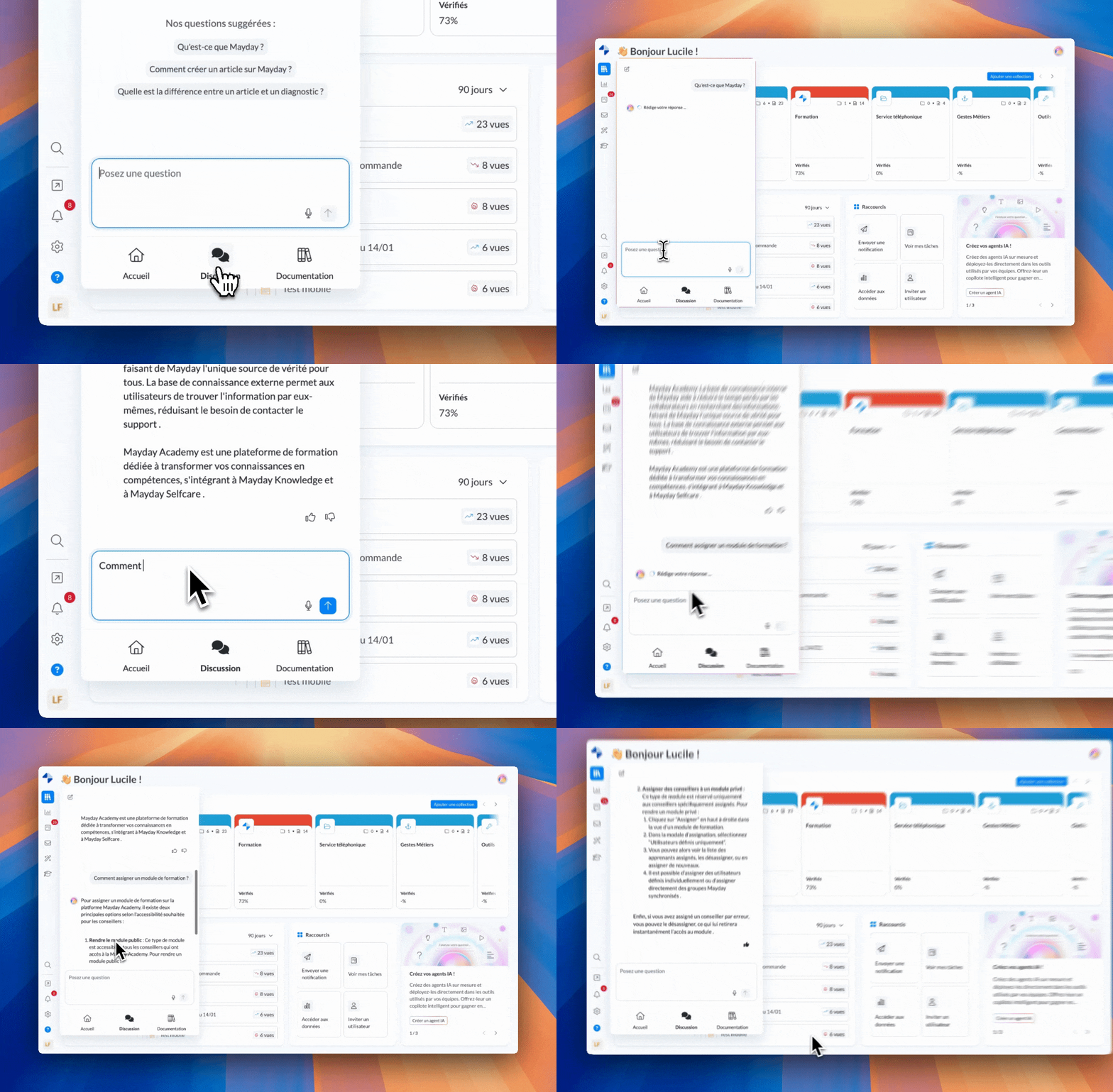
Mayday administrator - Selfcare Widget
💬 FAQ - the “Ask the AI” feature gets a makeover!
Discover now the new design behind our “Ask the AI” feature on our Mayday documentation.
Just like our Selfcare widget, now enjoy a boosted conversational feature to find your answers in seconds ⏱ in our documentation, thanks to AI! 🚀
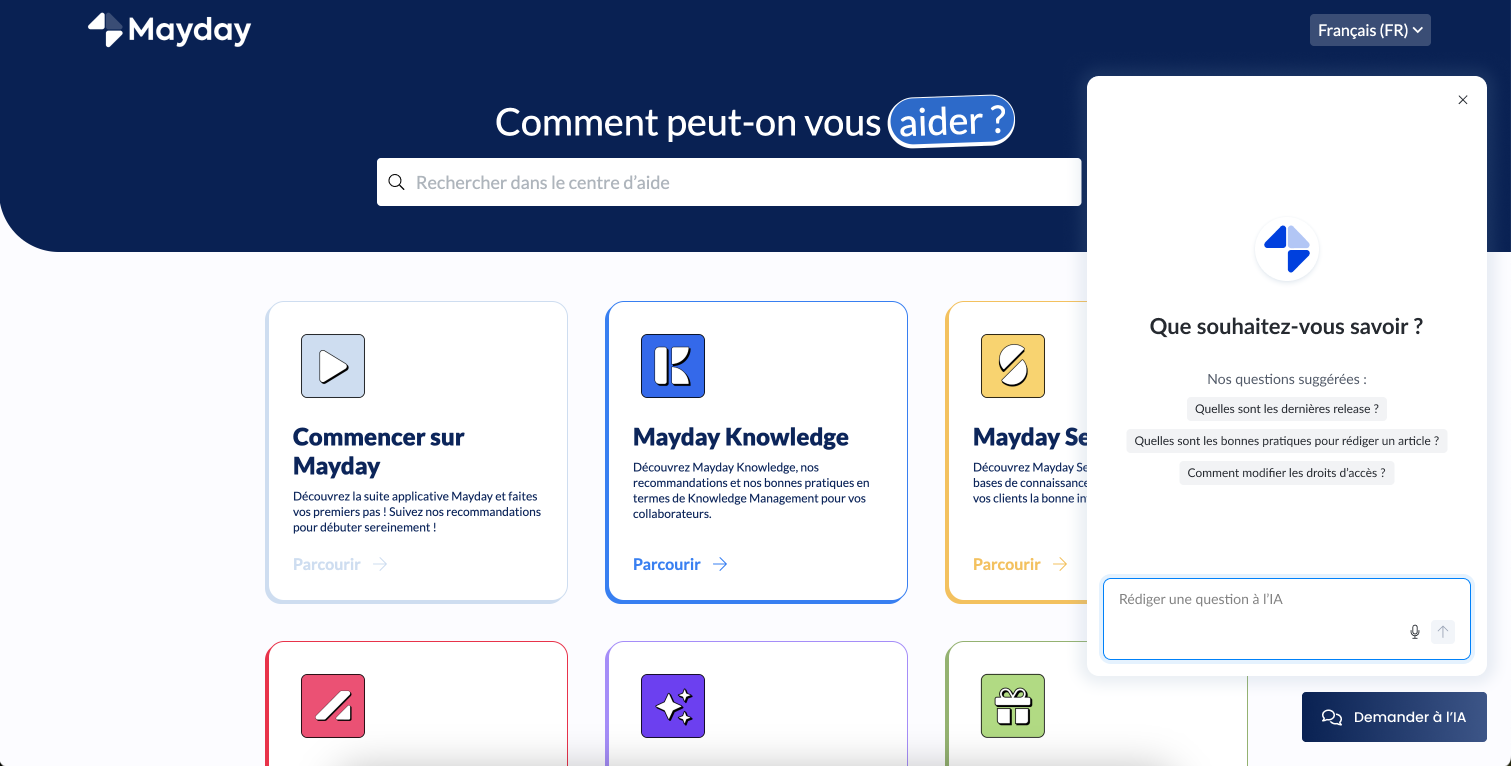
Mayday Selfcare - “Ask the AI”
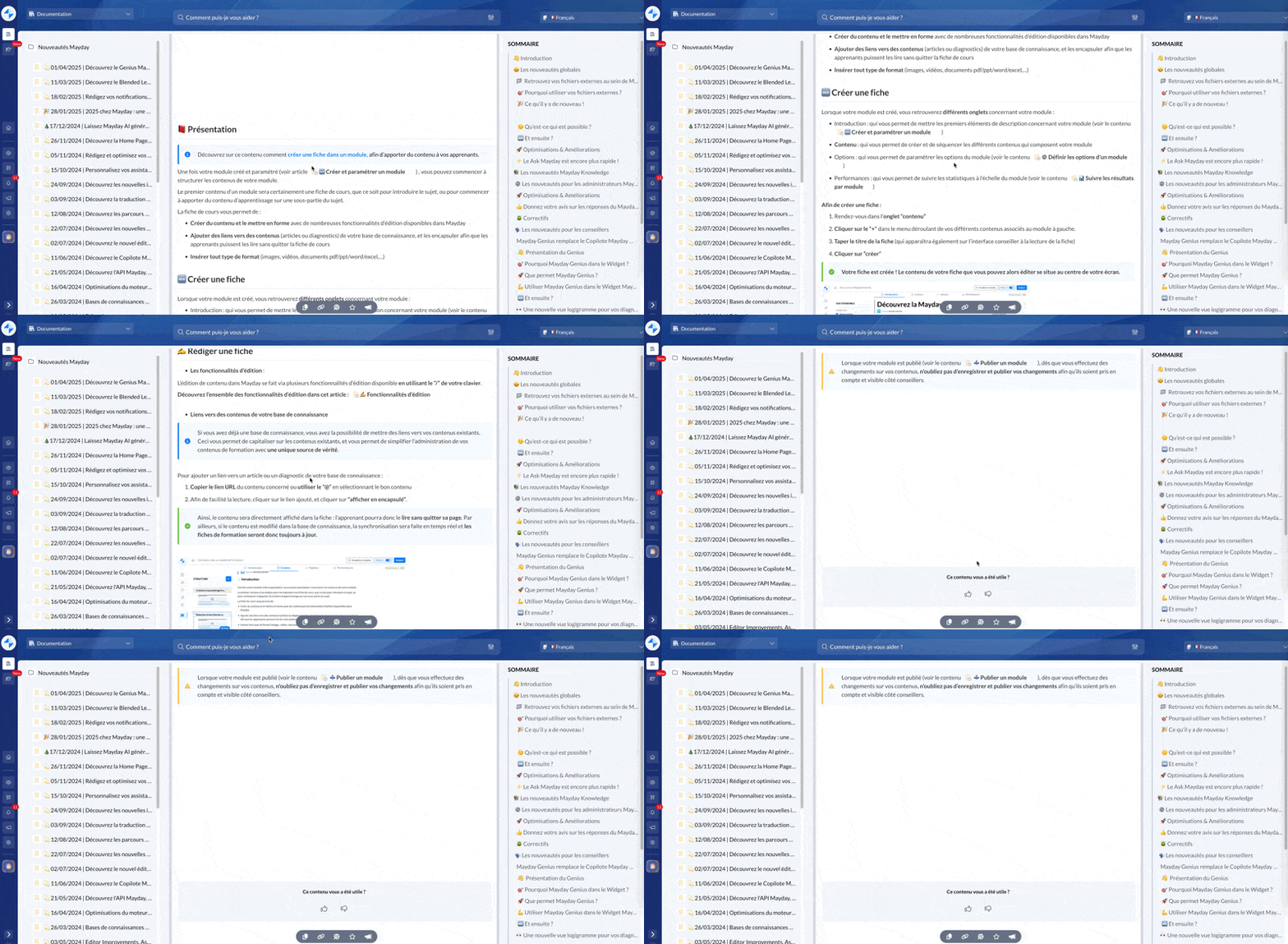
👀 Transparently encapsulate content on your public content in the FAQ
Easily encapsulate articles or guides from your knowledge base directly into your public FAQ pages. The rendering is completely transparent for your visitors, as for your private content and on the Academy.
🤔 How does it work?
Access your Mayday administrator interface
Open the public content to be modified
Mention an existing article or guide in your knowledge base
Click on this content, then on “Display as block” in the banner

Mayday administrator - “Display as block” feature
You can choose to display or hide the encapsulated content to optimize reading on the administrator side. Regardless of your choice, your visitors will always have access to the information in its entirety on the FAQ.
🪲 Fixes
👉 We have fixed the following bugs:
Table of contents anchor not working: You can now use the table of contents of your public content to navigate your documents